

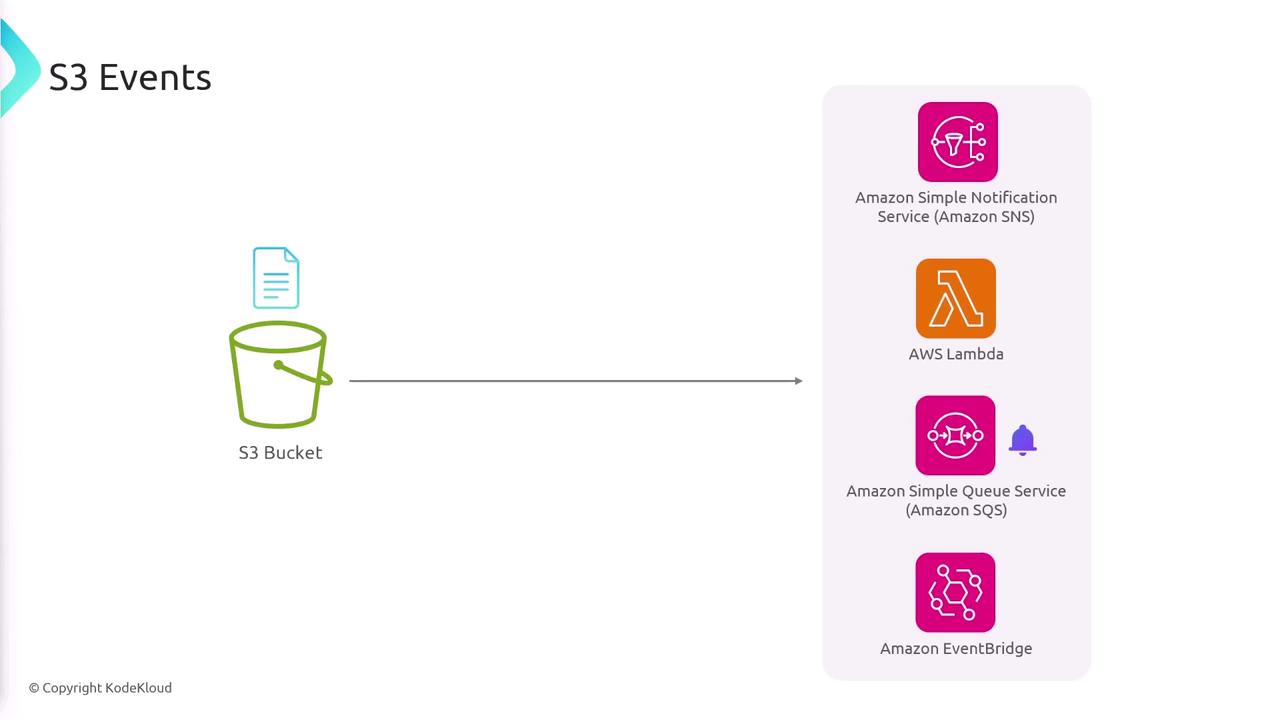
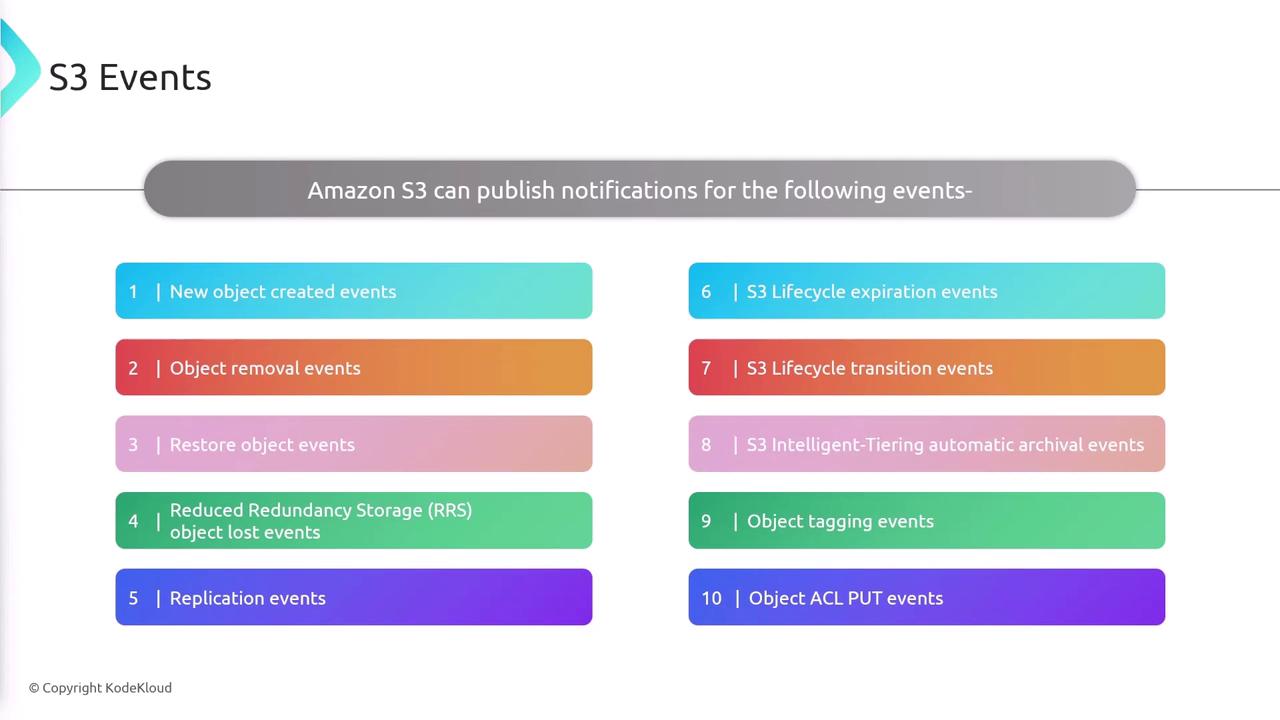
S3 events offer significant flexibility. You can configure automated triggers for a variety of actions, including:
- Object creation (covering POST, COPY, and multi-part upload events)
- Object deletion
- Object restoration
- Object transitions (such as those triggered by lifecycle policies or changes in storage classes)
Configuring S3 Events with a Lambda Function
In this demo, you’ll set up S3 event notifications to trigger a simple Lambda function when an object is uploaded to an S3 bucket.Step-by-Step Setup:
-
Create an S3 Bucket:
- Create your S3 bucket and navigate to its Properties section.
- Scroll down to the Event Notifications area.
- You have two notification options: use built-in event notifications or Amazon EventBridge. In this demo, choose to create an event notification.
-
Create Event Notification:
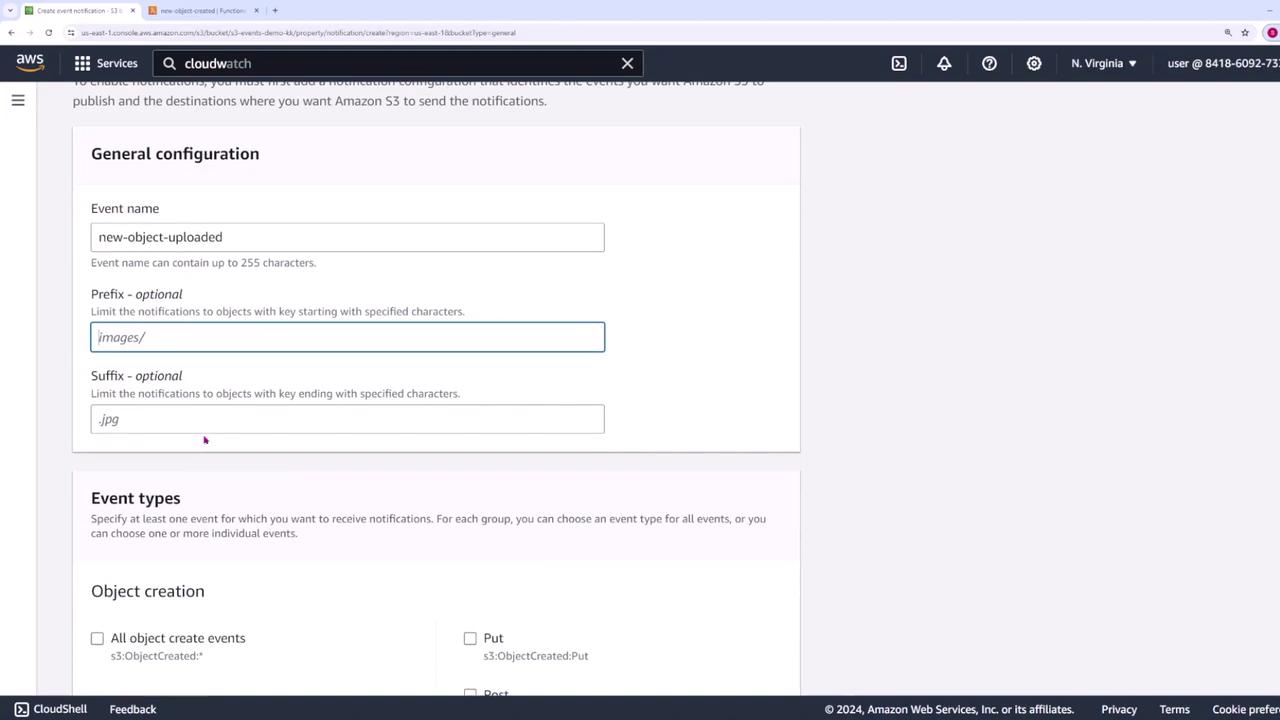
- Click on Create event notifications.
- Provide a name for the event (e.g., “new object uploaded”).
- By default, the event applies to the entire bucket. Optionally, specify a prefix (to target specific directories) or suffix (to filter by file type, such as
.JPEGor.PNG).
-
Select Event Type:
- Choose the type of operation to trigger the event (e.g., object creation events). For this demo, select an event that applies to any object creation.
-
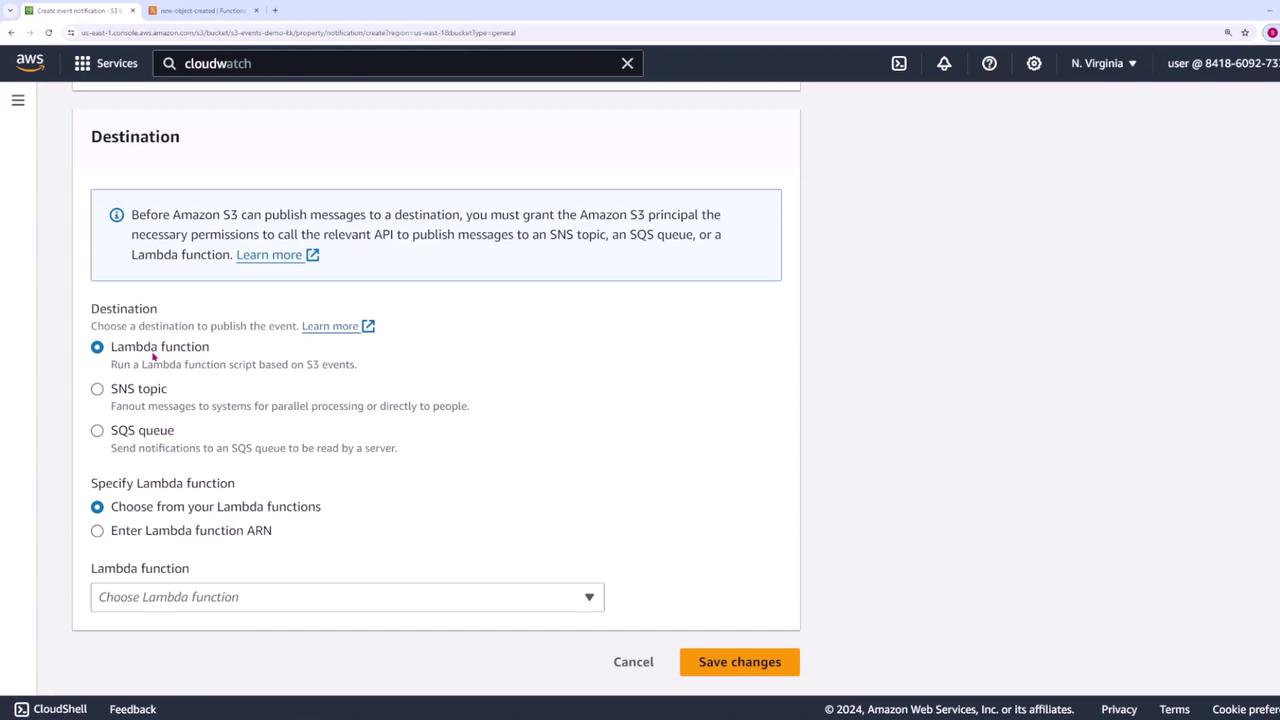
Choose the Destination:
- Select the destination for the event. Options include:
- Triggering a Lambda function
- Sending a message to an SNS topic
- Pushing a message to an SQS queue For this example, select Lambda function.
- Select the destination for the event. Options include:
Lambda Function Setup
Even if you’re new to Lambda, don’t worry. Lambda functions are simply pieces of code that execute in response to events. In this demo, you’ll use a Lambda function with the simple code snippet below to log details of the S3 event:- Select this function in the Lambda configuration.
- Set the event type to “new objects created” (or an appropriate equivalent).
- Click Save changes. S3 will update the Lambda function’s permissions to allow it to be triggered by S3 events.
Testing Your Configuration
Verify that your configuration is working by following these steps:-
Upload an Object:
- In the S3 console, navigate to the Objects section.
- Upload a file (for example, an image of dogs) to your bucket.
-
Monitor the Event:
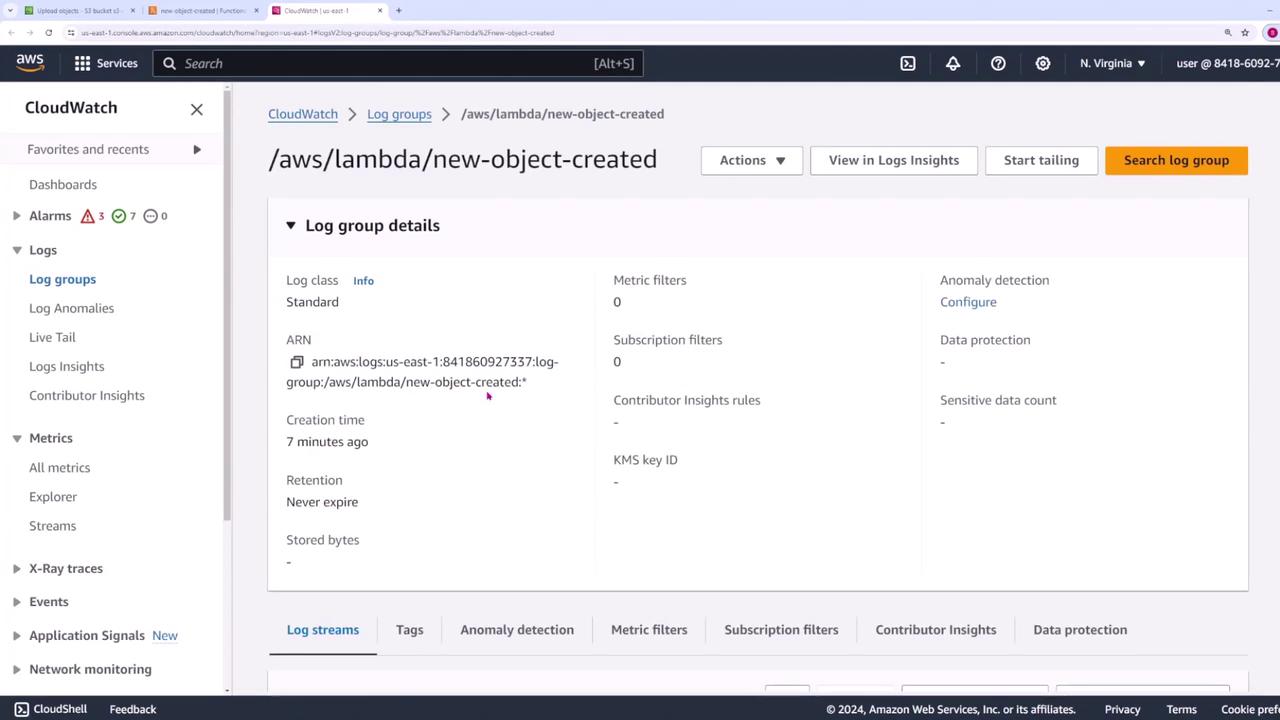
- After the upload, switch to the Monitoring tab and access CloudWatch logs.
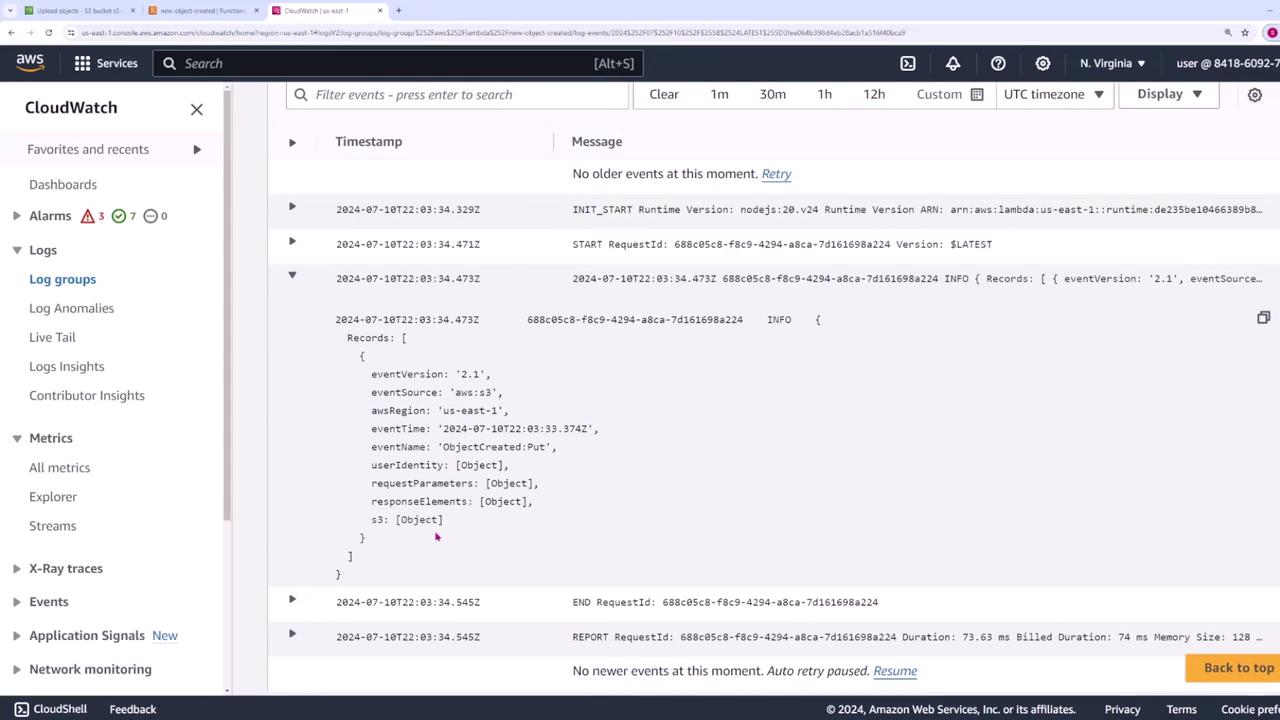
- Open the latest log stream to review the output.
- Look for logged event details that include the event name, the S3 operation (such as a PUT event), and metadata related to the uploaded object.
This demonstration illustrates how S3 events can seamlessly integrate with AWS Lambda to automate workflows based on bucket activities. With proper configuration, you can streamline processes such as file processing, data validation, and more, leveraging the power of AWS cloud services.