This article provides a comprehensive guide on creating, testing, and managing AWS Lambda functions for serverless computing.
In this lesson, we walk through a complete demonstration of working with AWS Lambda. You will learn how to create a Lambda function from scratch, test it, review its configuration and permissions, and finally clean up by deleting the function. This guide is ideal for developers looking to get started with serverless computing on AWS.
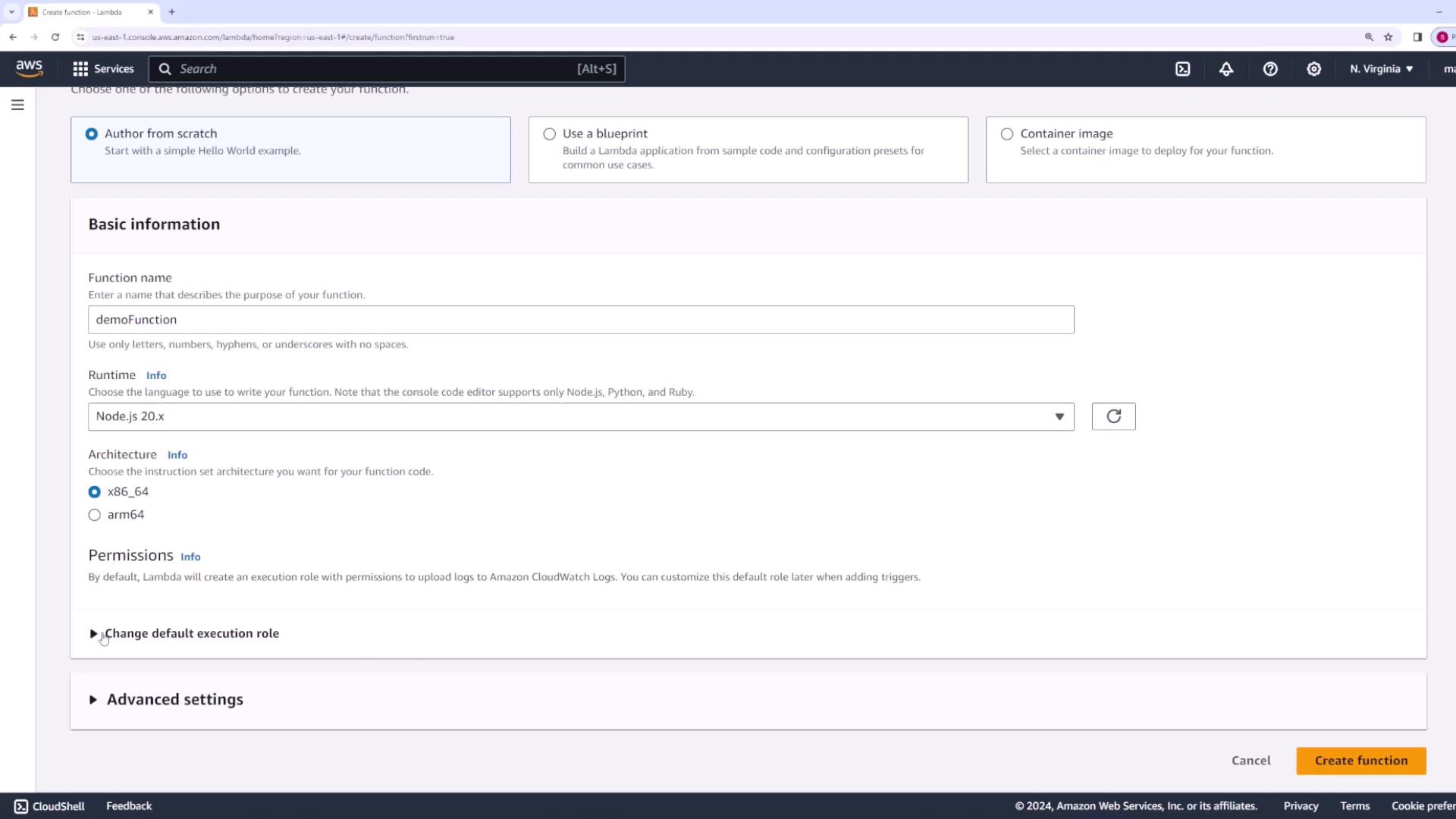
Begin by logging into the AWS Management Console and searching for “Lambda.” Click on the Create Function button to start. AWS Lambda provides several options for authoring your function:
Author from scratch – Create a simple “hello world” example.
Use a blueprint – Leverage sample code and pre-configurations.
Use a container image – Deploy your containerized application as a Lambda function.
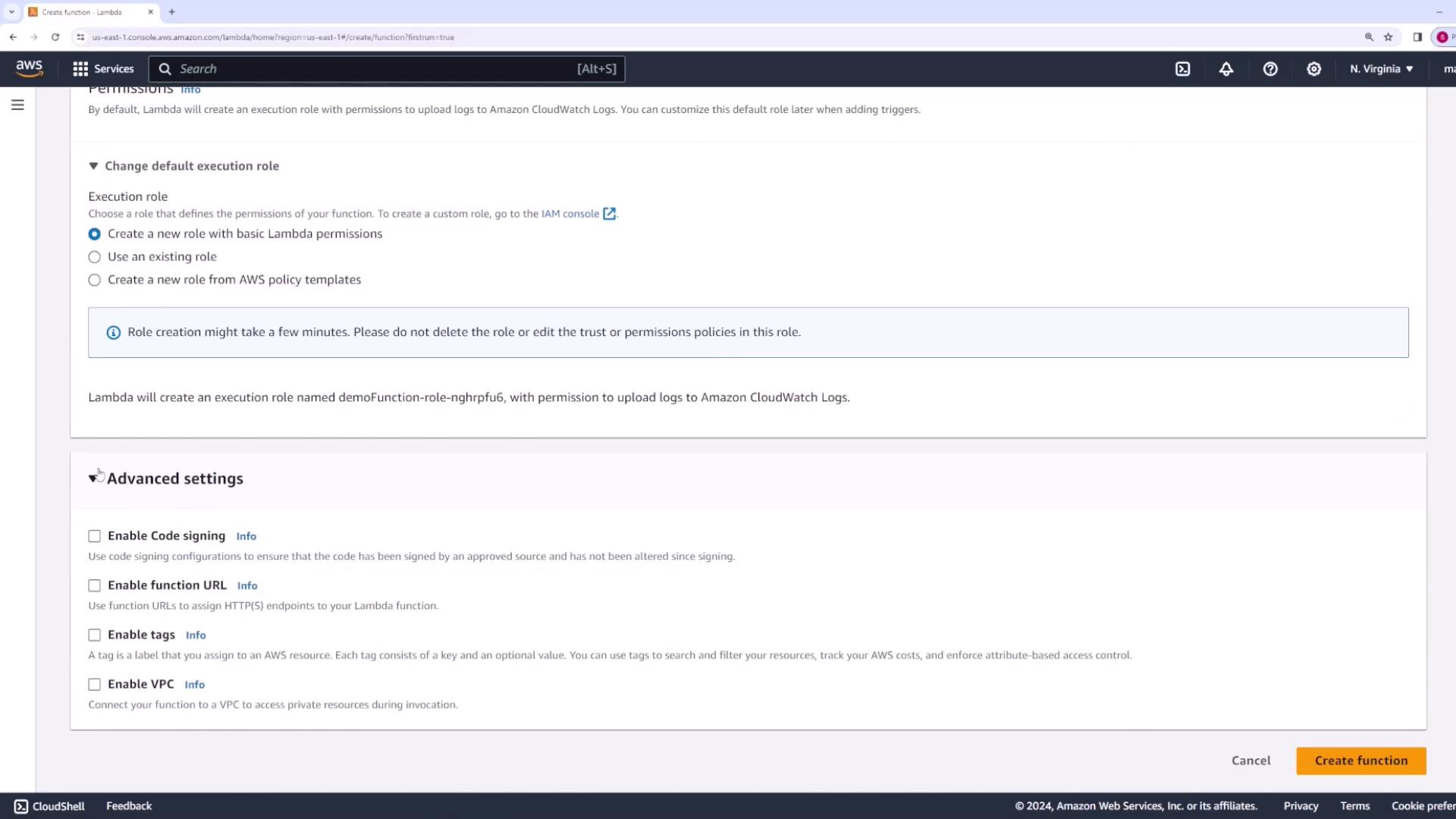
For this demonstration, we will author the function from scratch. Enter a name for your function (for example, “demoFunction”) and choose a runtime. AWS supports recent versions of various languages such as Python 3.12, Ruby 3.3, and Node.js 20.x. You may also select your preferred code architecture (the default is x86_64).Once you provide the function details, AWS will prompt you to create an execution role to grant the necessary permissions. You can use an existing role or create a new one. In this demo, we create a new role specifically for our Lambda function.
Review any advanced settings if required, then click Create function.
Once the function is created, you will be presented with an overview screen displaying its configuration and triggers (for example, API Gateway or load balancer events). In the code editor section, you will typically find a default file (such as index.js for Node.js projects).Below is an example of a simple handler function:
This handler logs the incoming event and sends back a string response. The event parameter contains details about the invoking trigger, which can include payloads, query parameters, or path parameters.
When invoking your Lambda function from various sources, always inspect the event object to understand the source and details of the invocation.
AWS Lambda allows you to easily test your function directly from the console without setting up the actual trigger. To test your function:
Click the Test button.
Create a new test event by assigning a name (e.g., “API Gateway Test”) and select an event template. AWS provides pre-defined templates that mimic events from various sources like API Gateway, SNS, or SQS.
For instance, an API Gateway event template might look like this:
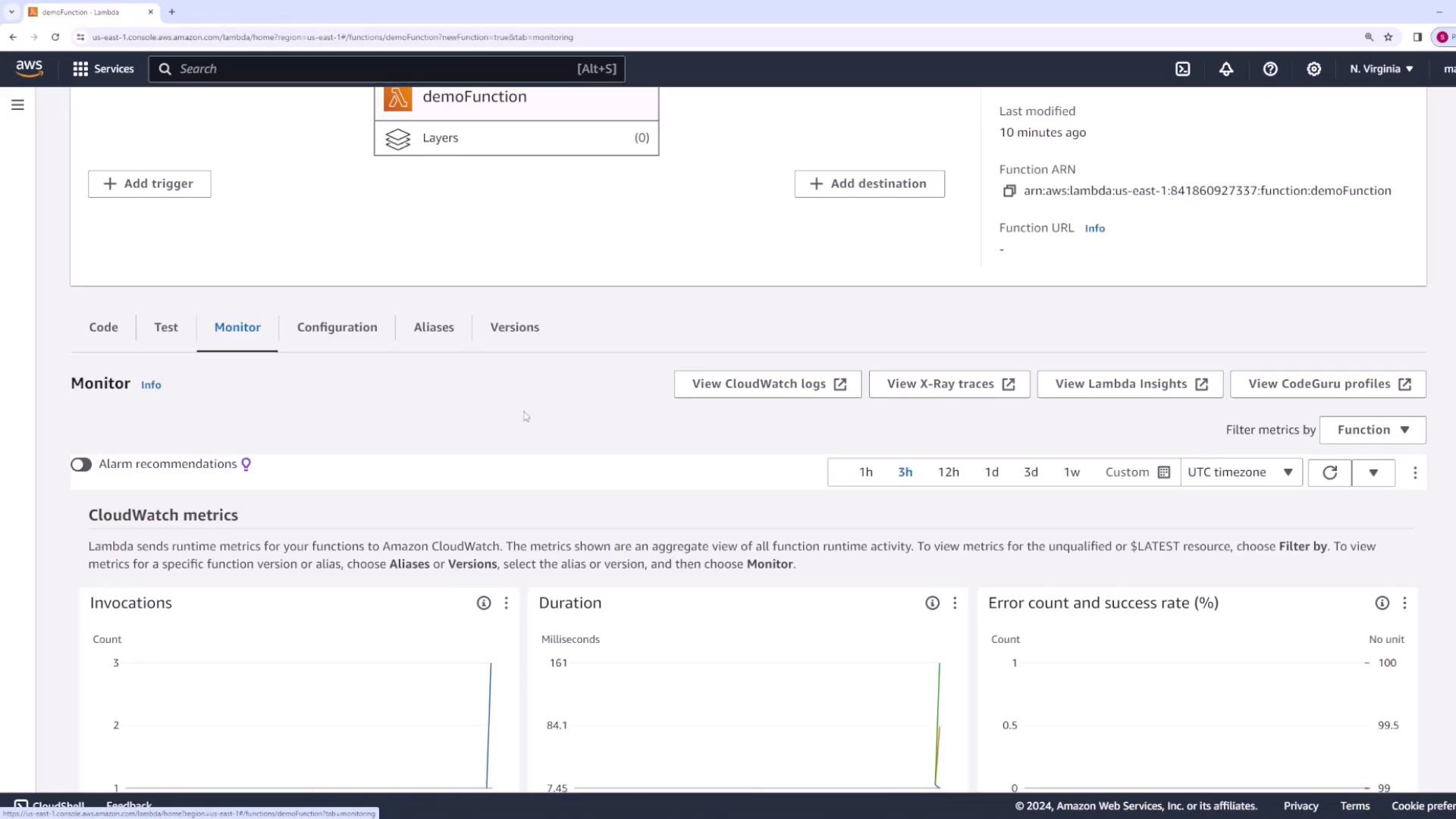
AWS Lambda automatically collects CloudWatch metrics such as invocation counts, execution duration, and error rates. To access the logs:
Click View CloudWatch logs from the Lambda console.
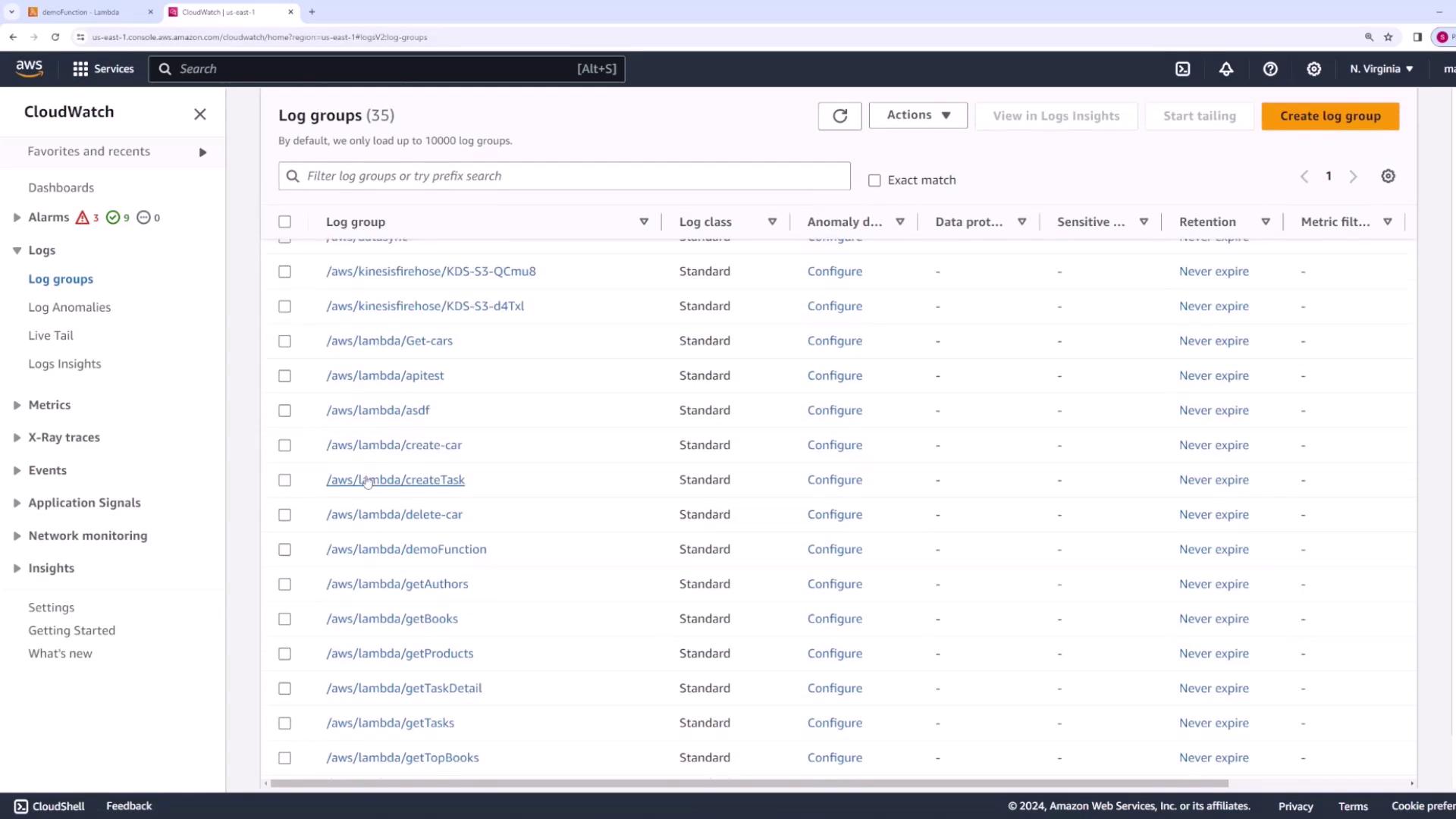
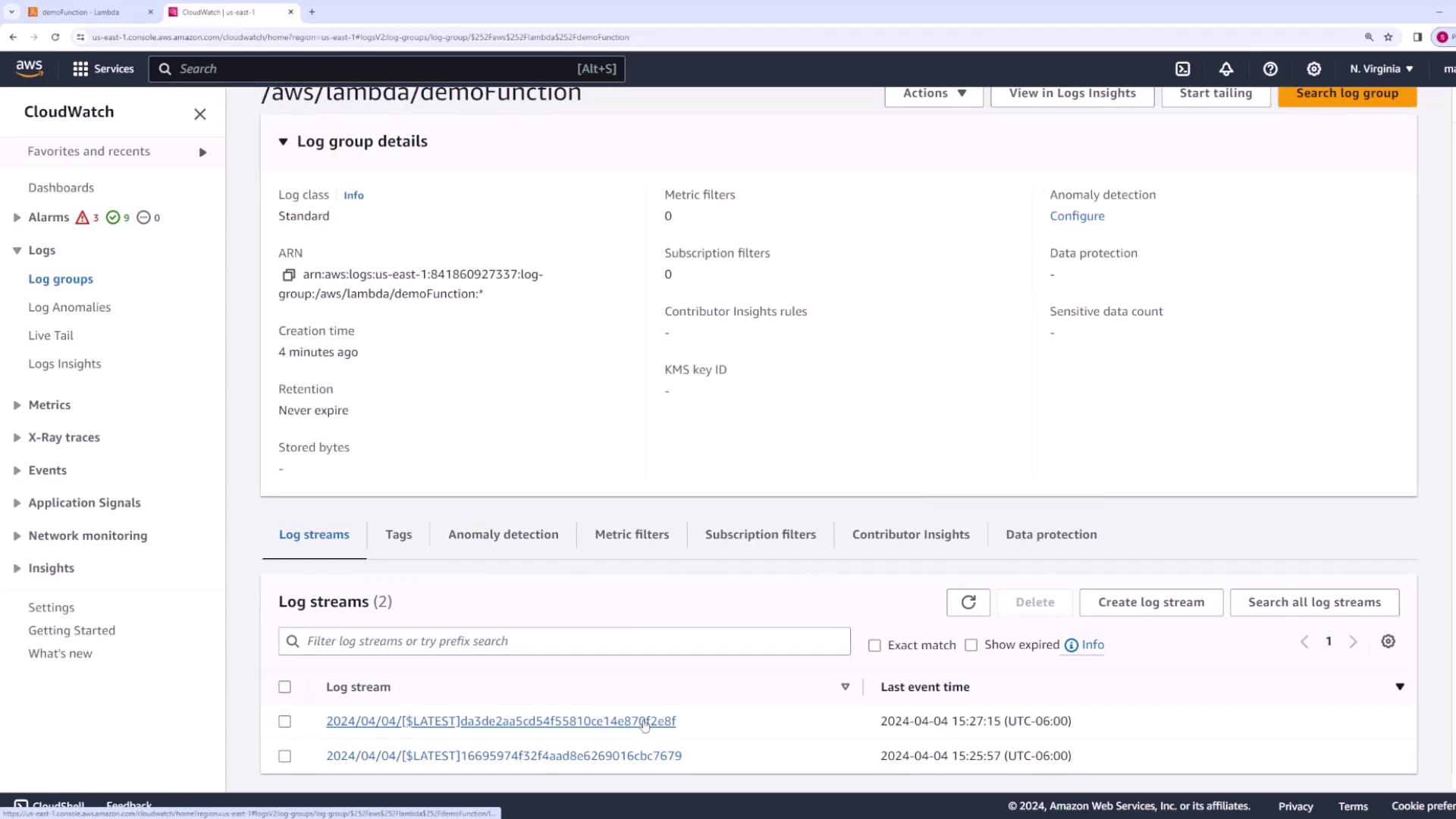
This action will redirect you to the corresponding log group in CloudWatch, where you can explore individual log streams.
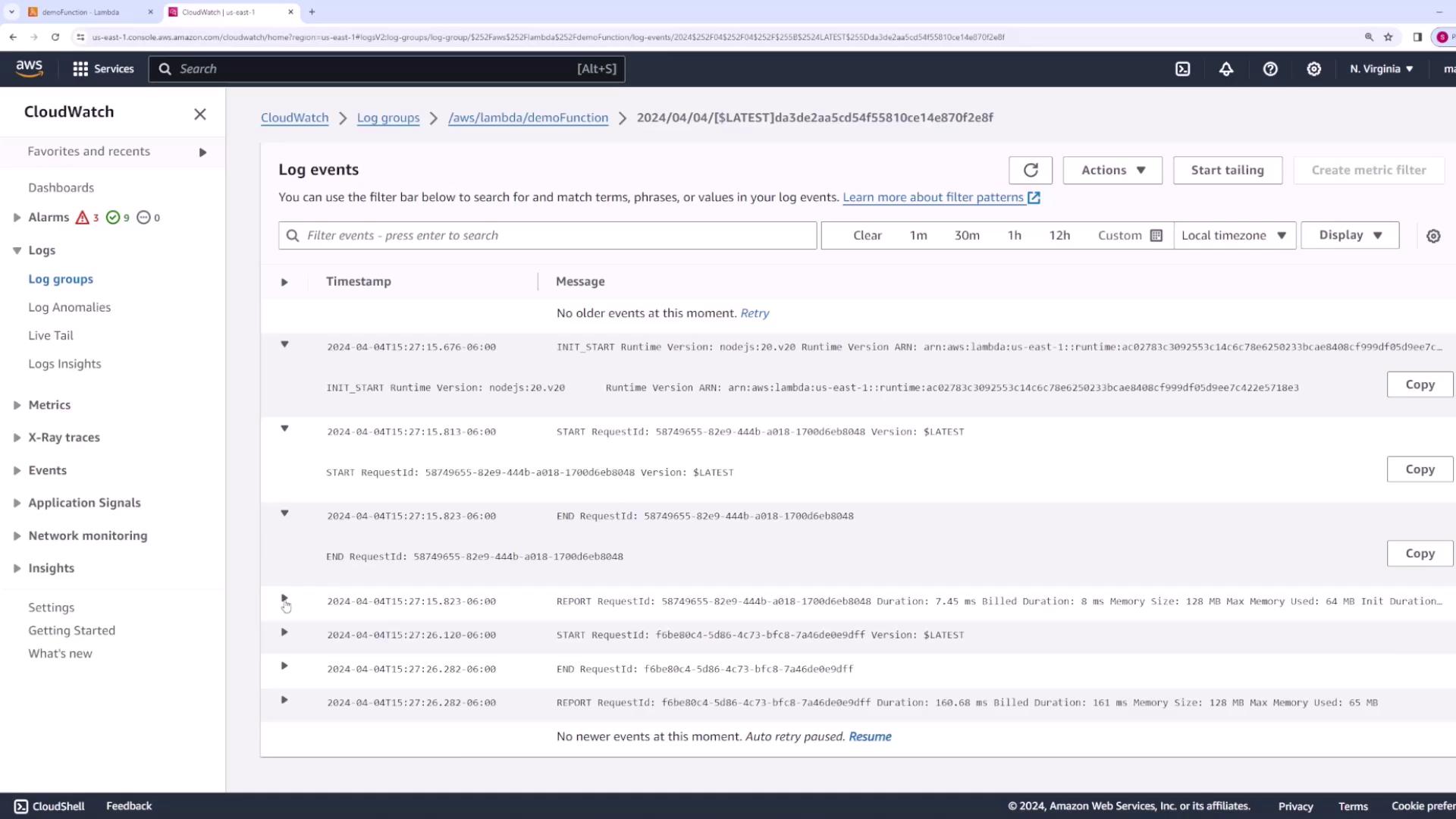
Logs include vital details such as request ID, duration, billed duration, memory usage, and any custom messages logged through console.log. For instance, after adding a log statement:
Copy
Ask AI
console.log("Hey this is my application log message");
You might see output similar to:
Copy
Ask AI
START RequestId: 431b959c-4e5d-4ae0-9c50-37b38ada3a87 Version: $LATEST2024-04-01T21:31:15.771Z 431b959c-4e5d-4ae0-9c50-37b38ada3a87 INFO Hey this is my application log messageEND RequestId: 431b959c-4e5d-4ae0-9c50-37b38ada3a87REPORT RequestId: 431b959c-4e5d-4ae0-9c50-37b38ada3a87 Duration: 23.77 ms Billed Duration: 24 ms Memory Size: 128 MB Max Memory Used: 66 MB Init Duration: 190.14 ms
To review detailed logs, select the latest log stream within CloudWatch:
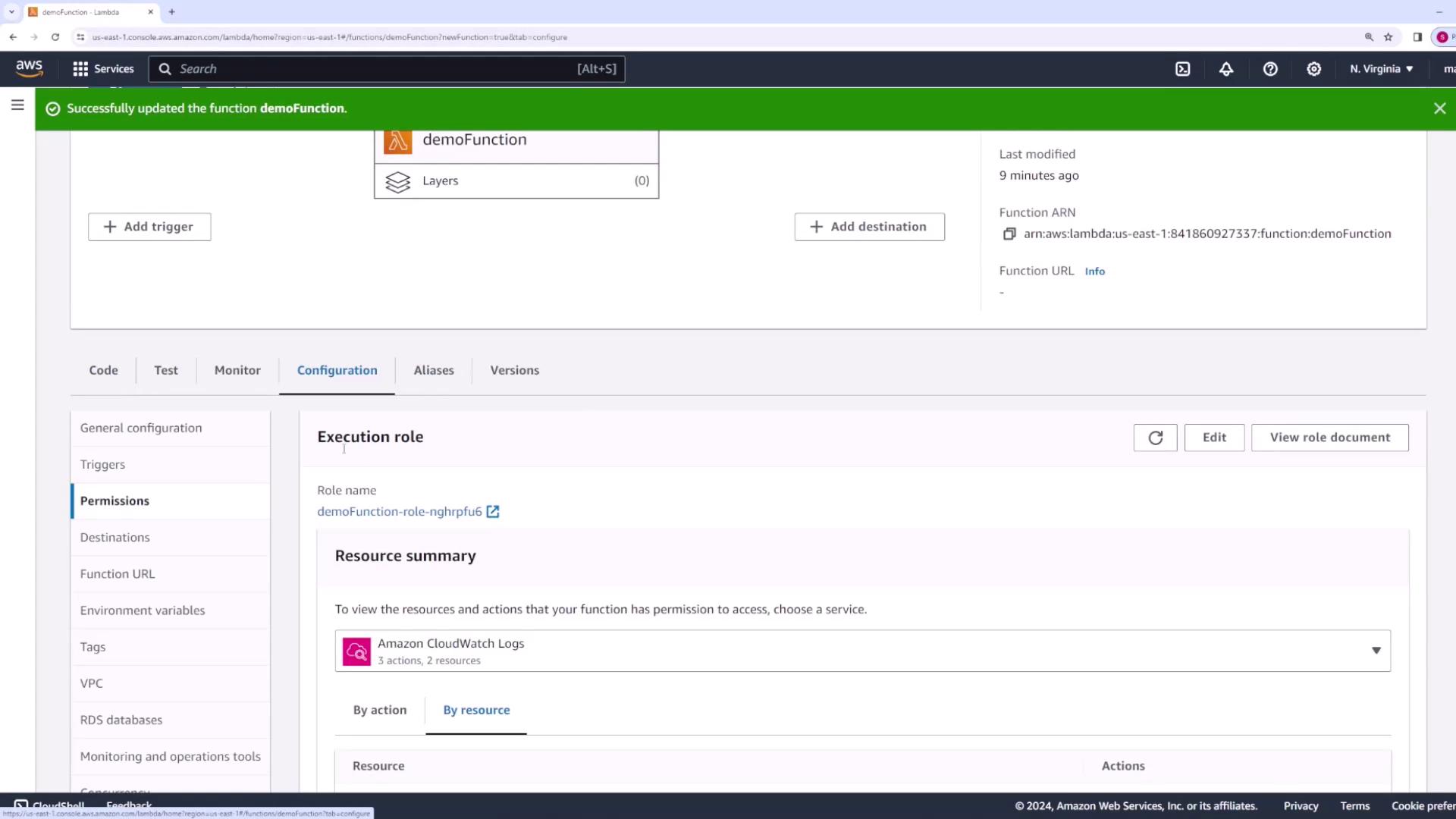
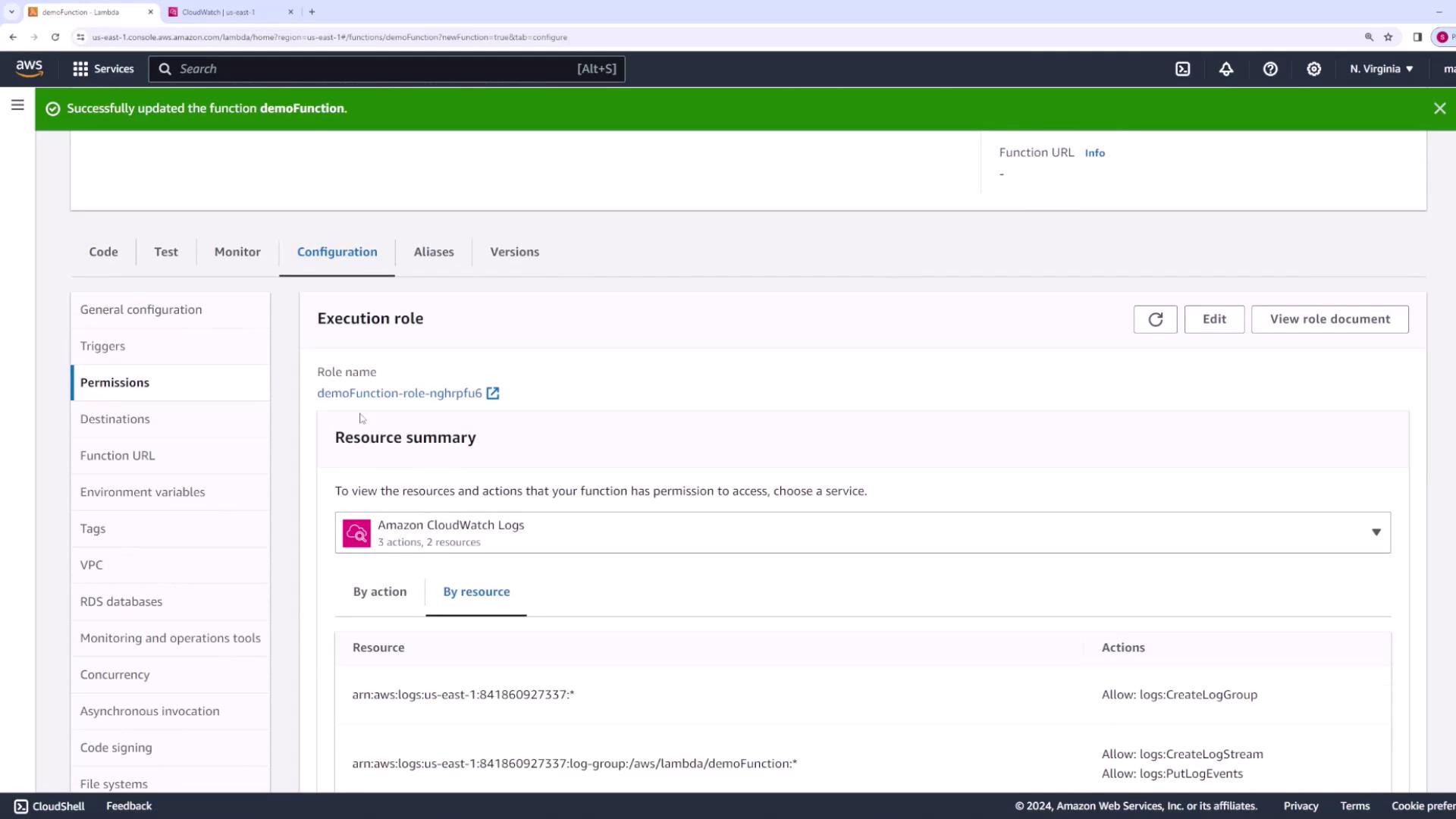
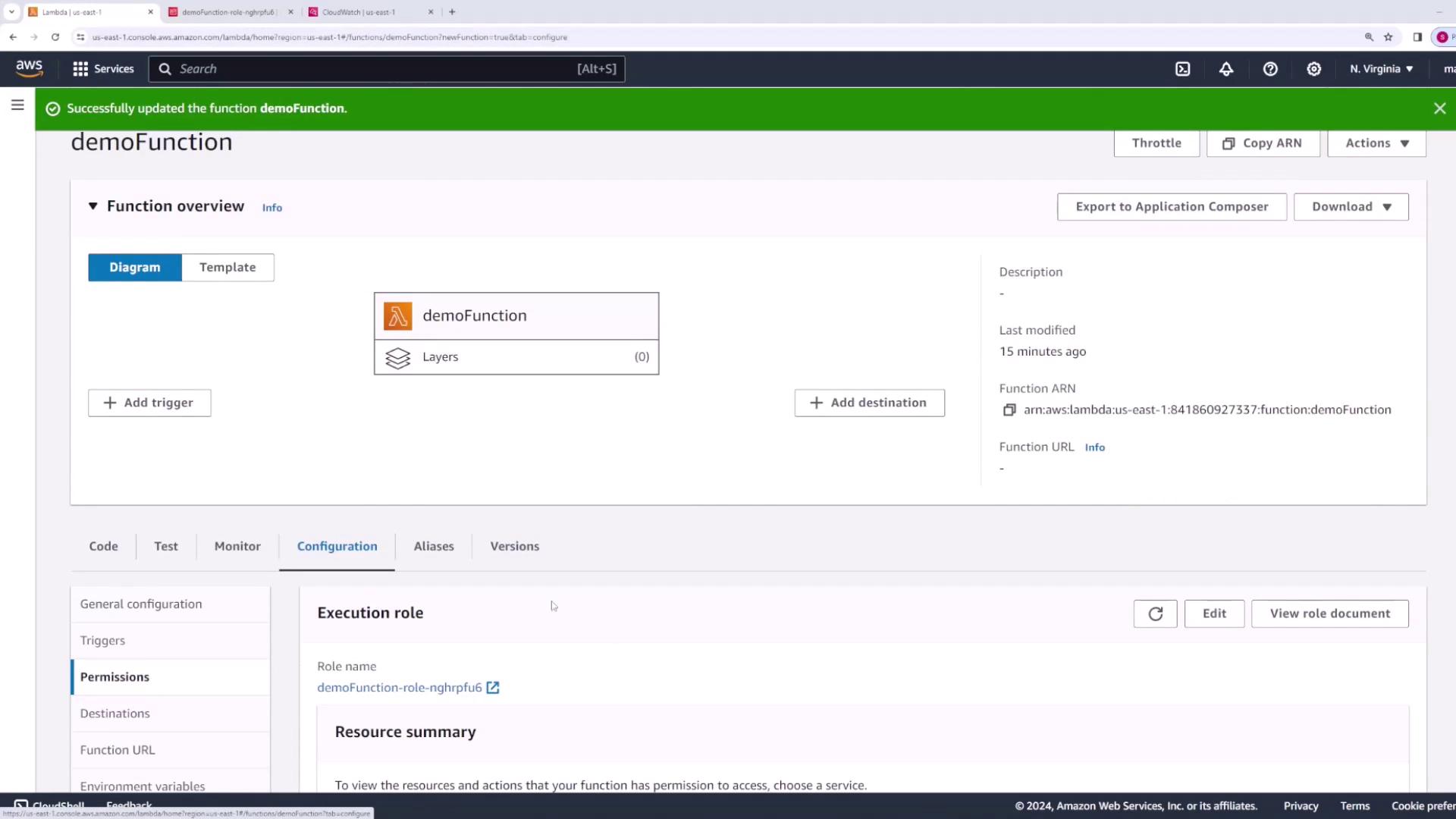
Within the Configuration tab, examine the IAM role associated with your Lambda function. By default, AWS creates an IAM role with permissions to write logs to CloudWatch. An example of such a policy is:
If your function requires access to other AWS services such as S3, update the IAM role with the necessary permissions. Below is a summary example of assigned permissions:
After testing or if you need to free up resources, deleting your Lambda function is straightforward. From the Lambda console:
Click on Actions.
Select Delete function.
Confirm the deletion when prompted.
AWS will remove the function along with its associated configurations.
This demonstration has provided you with the fundamentals of creating, testing, monitoring, and managing an AWS Lambda function. With these skills, you can further explore advanced integrations and configurations to scale your serverless applications.For additional resources and detailed guides on AWS Lambda, consider visiting the AWS Lambda Documentation.