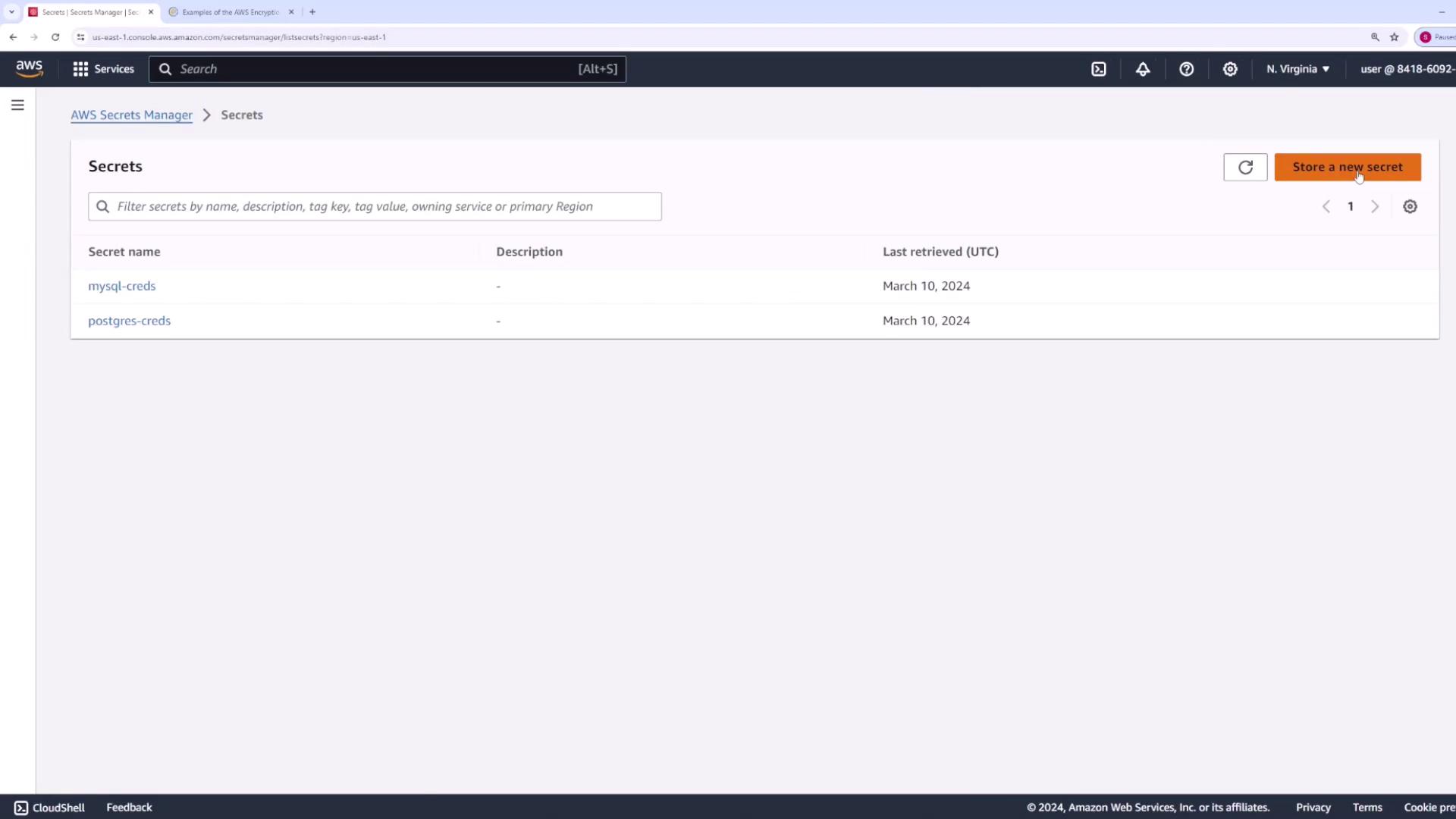
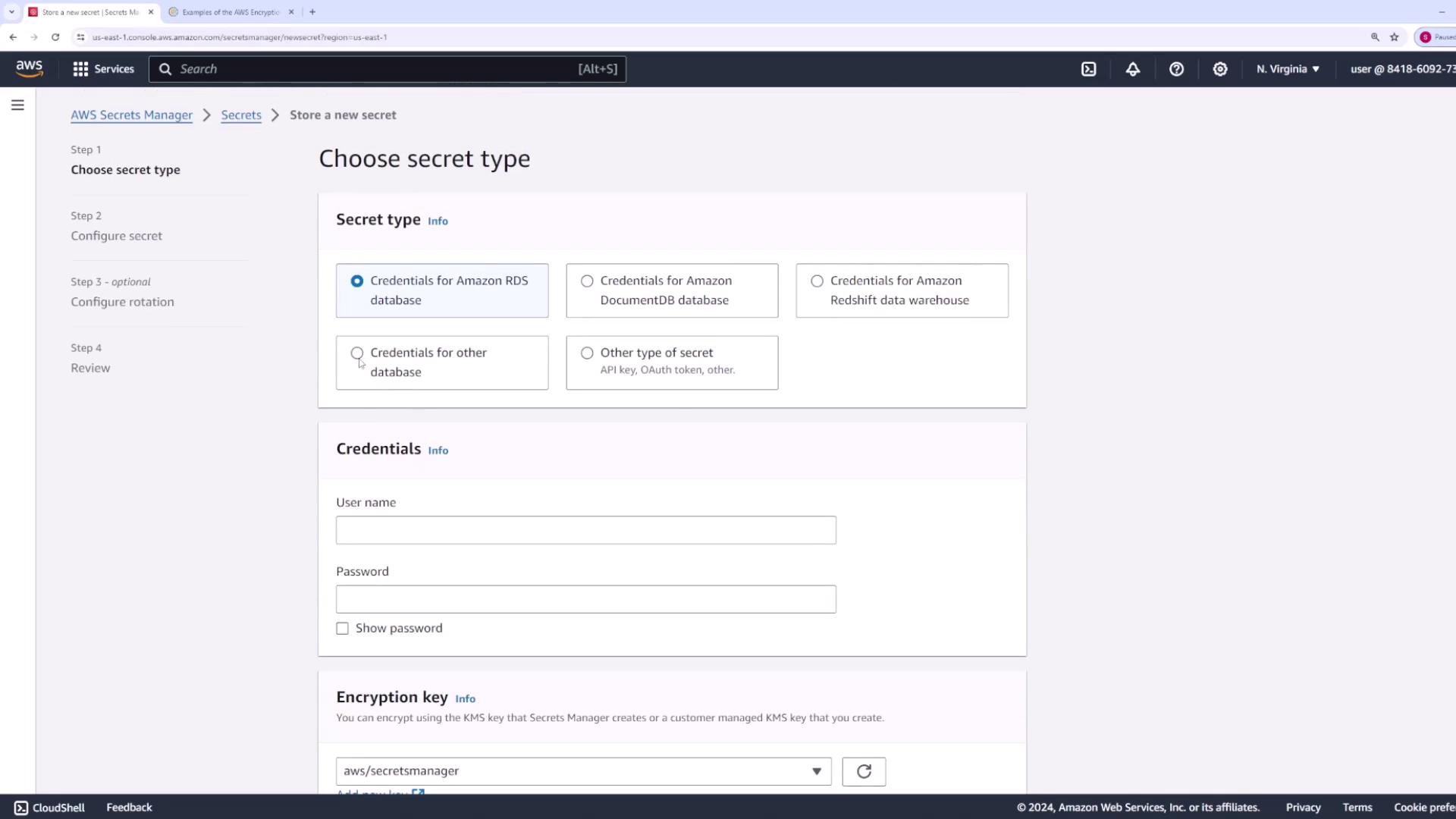
On the “Store New Secret” page, you can choose from several secret types. AWS Secrets Manager supports secrets tailored for various AWS services such as Amazon RDS, DocumentDB, and Redshift. You also have the option to store generic secrets for any application.
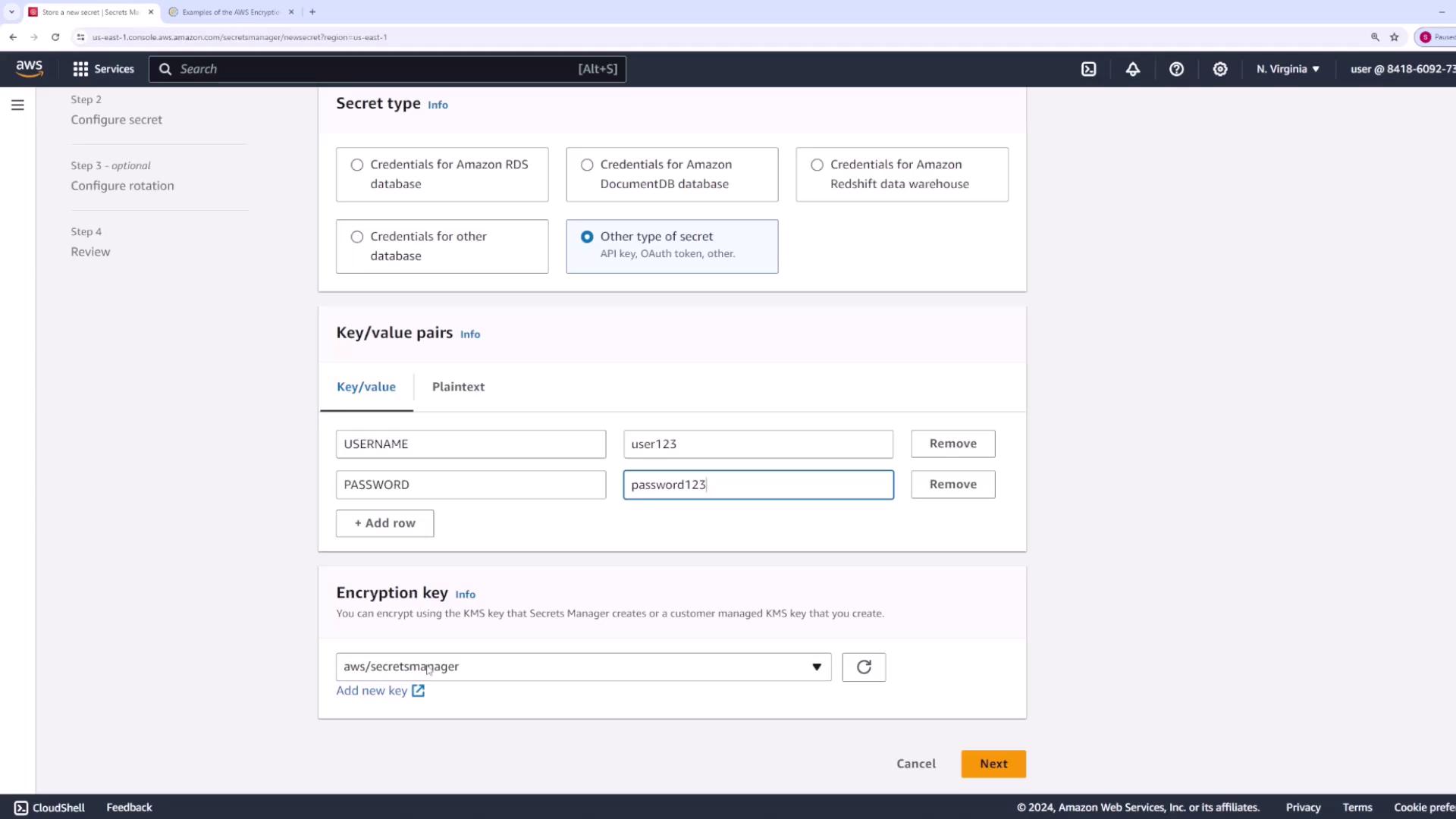
For this demo, we will create a generic secret that contains key-value pairs for a database username and password. You can include multiple key-value pairs within a single secret. For example:
Username: user123
Password: password123
Next, select your encryption key. AWS Secrets Manager utilizes KMS for encryption - you can opt for the AWS managed key or a customer-managed key. In this demo, we are using the AWS managed key “aws/secretsmanager”. Click Next to continue.
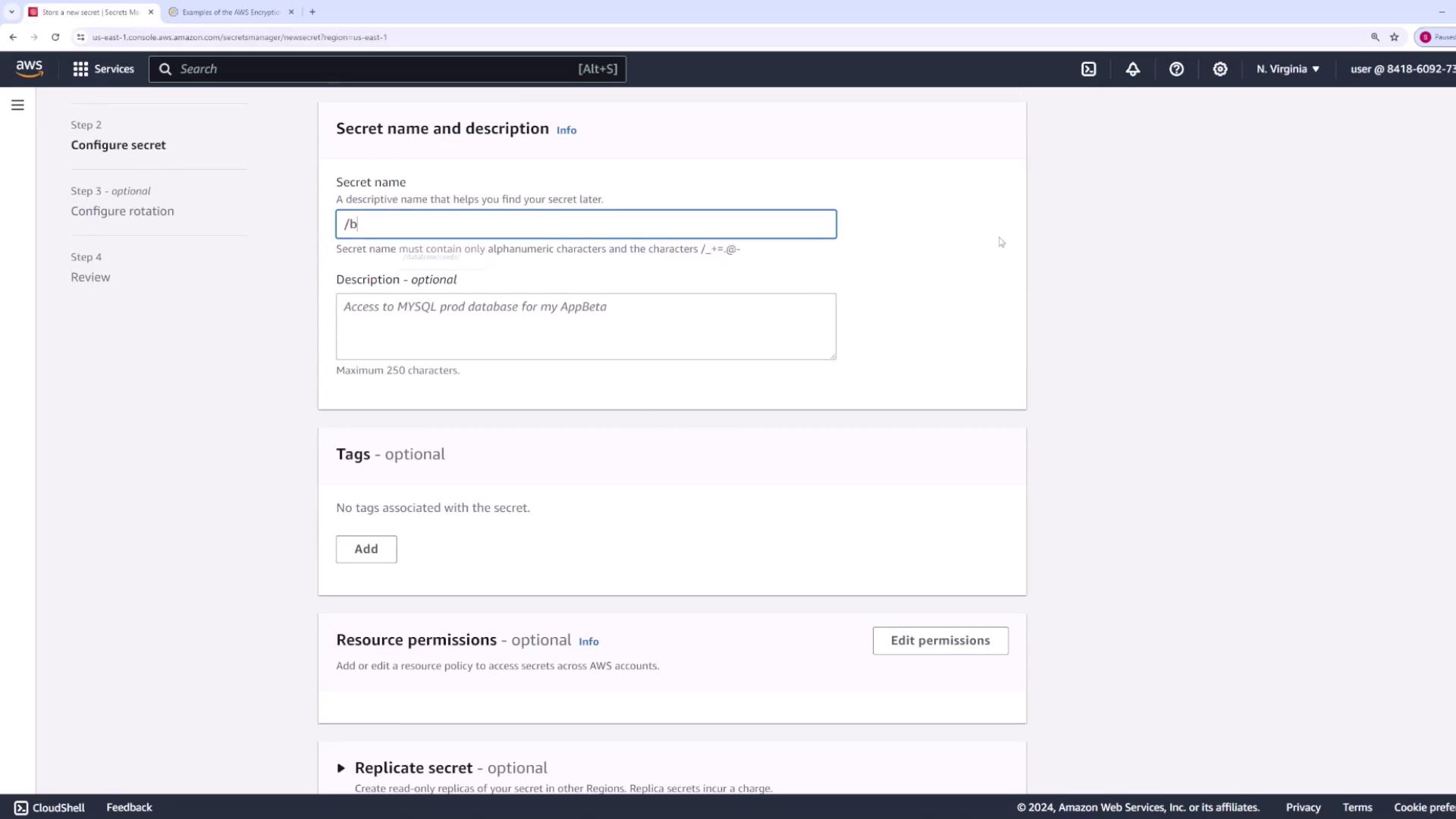
On the following screen, assign a name to your secret. For this demo, the secret name is set to “/backend/db-creds”. You may also add a description, set resource permissions, and even enable secret replication across regions. For simplicity, we will skip the replication setup. Click Next to proceed.
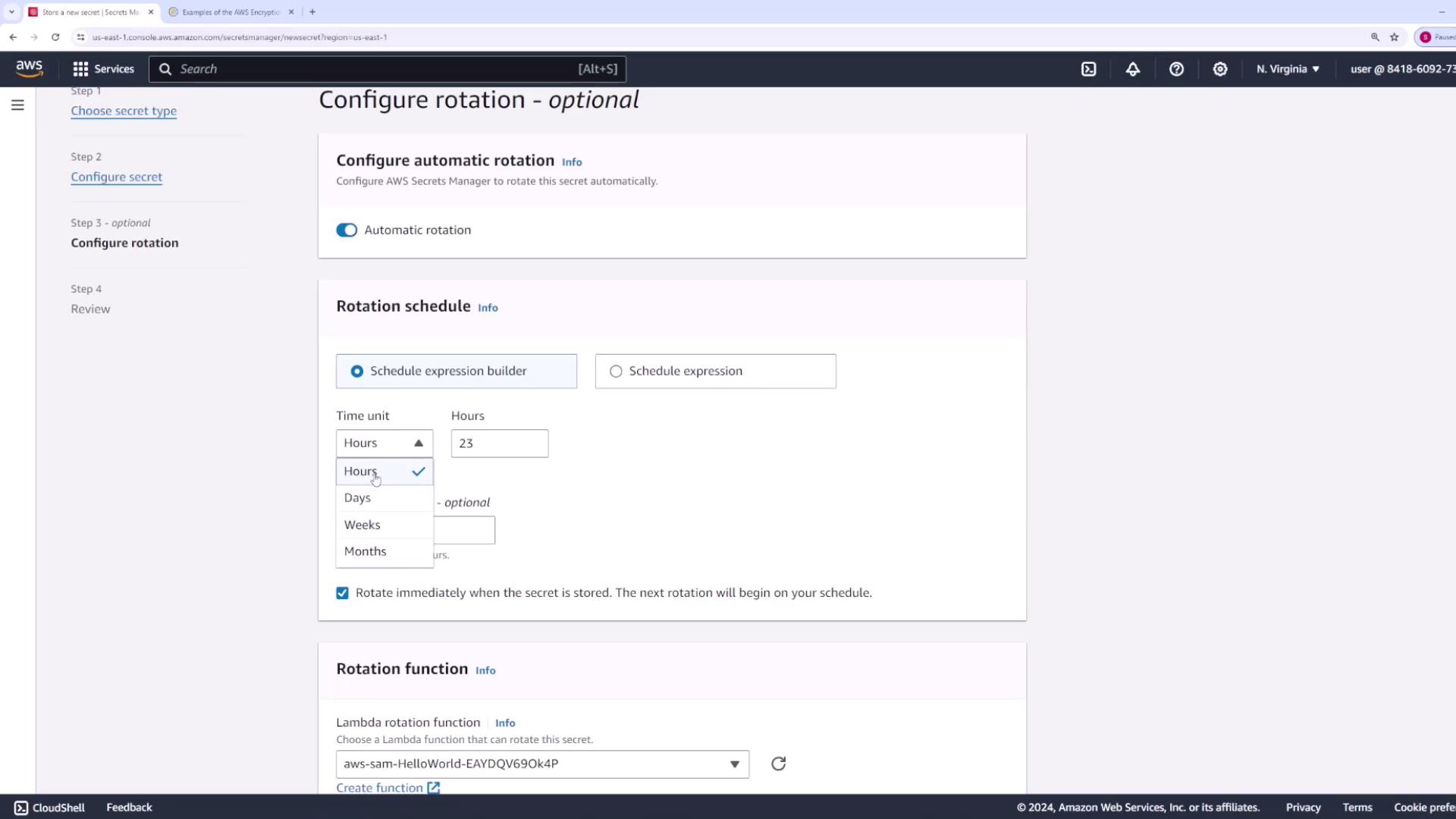
AWS Secrets Manager offers automatic rotation for secrets. You can set a rotation schedule by specifying intervals in hours, days, weeks, or months, and even rotate the secret immediately after creation by providing a Lambda function that handles the update. In this demo, automatic rotation will remain disabled.
After reviewing all configurations, the AWS Management Console displays sample code for retrieving the secret from your application. Below are examples in both Java and Node.js.
The following Node.js code snippet demonstrates how to create a Secrets Manager client to retrieve your secret:
Copy
Ask AI
// Use this code snippet in your application.// For additional configuration details, visit the [AWS SDK for JavaScript documentation](https://docs.aws.amazon.com/sdk-for-javascript/v3/developer-guide/getting-started.html)import { SecretsManagerClient, GetSecretValueCommand } from "@aws-sdk/client-secrets-manager";const secret_name = "/backend/db-creds";const client = new SecretsManagerClient({ region: "us-east-1"});
The complete Node.js example to retrieve the secret is provided below:
Copy
Ask AI
import { SecretsManagerClient, GetSecretValueCommand } from "@aws-sdk/client-secrets-manager";const secret_name = "/backend/db-creds";const client = new SecretsManagerClient({ region: "us-east-1",});let response;try { response = await client.send( new GetSecretValueCommand({ SecretId: secret_name, VersionStage: "AWSCURRENT", // VersionStage defaults to AWSCURRENT if unspecified }) );} catch (error) { console.log(error); throw error;}const secret = response.SecretString;console.log(secret);
When you run this code (for example, using the command node index.js), it retrieves the username and password stored in your secret.
This guide has walked you through the process of creating, configuring, and retrieving secrets using AWS Secrets Manager. By following these steps, you can securely manage sensitive credentials and other secret data in your applications.For further reading, explore these resources: