

AWS Certificate Manager is region-specific. For example, if your load balancer is deployed in the Northern Virginia region, you must generate the certificate in that same region.
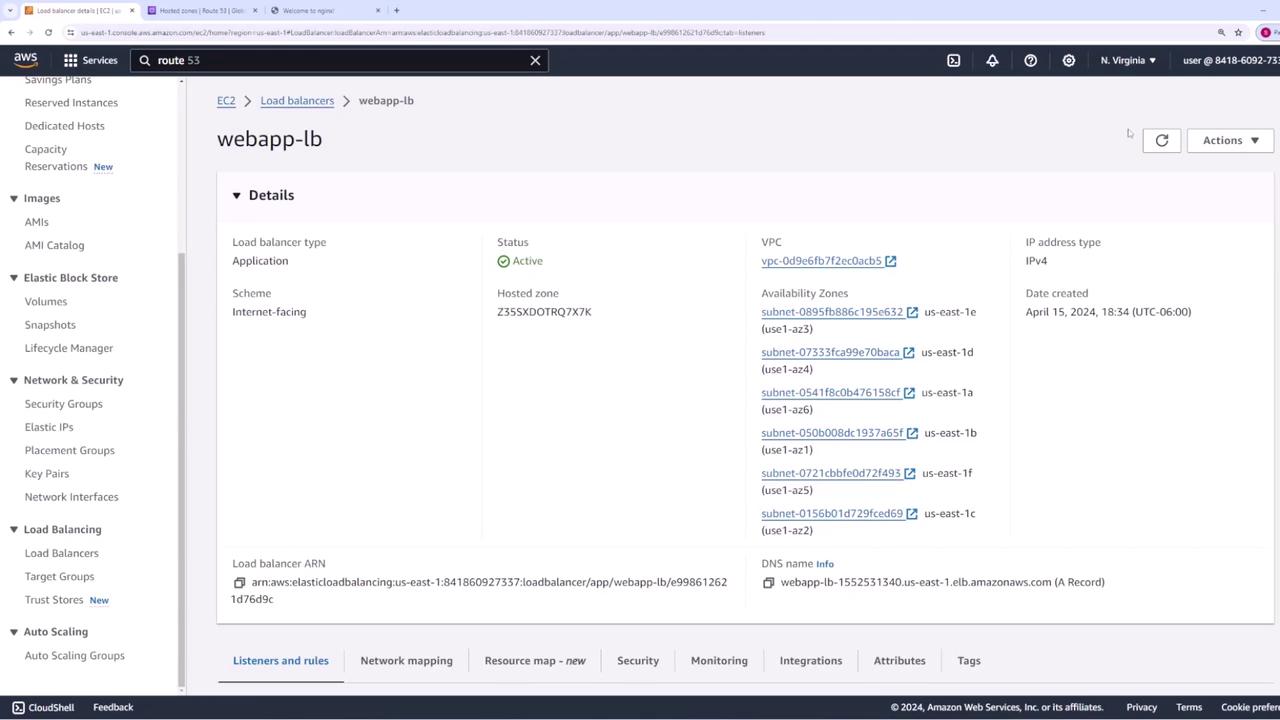
Requesting a Public Certificate
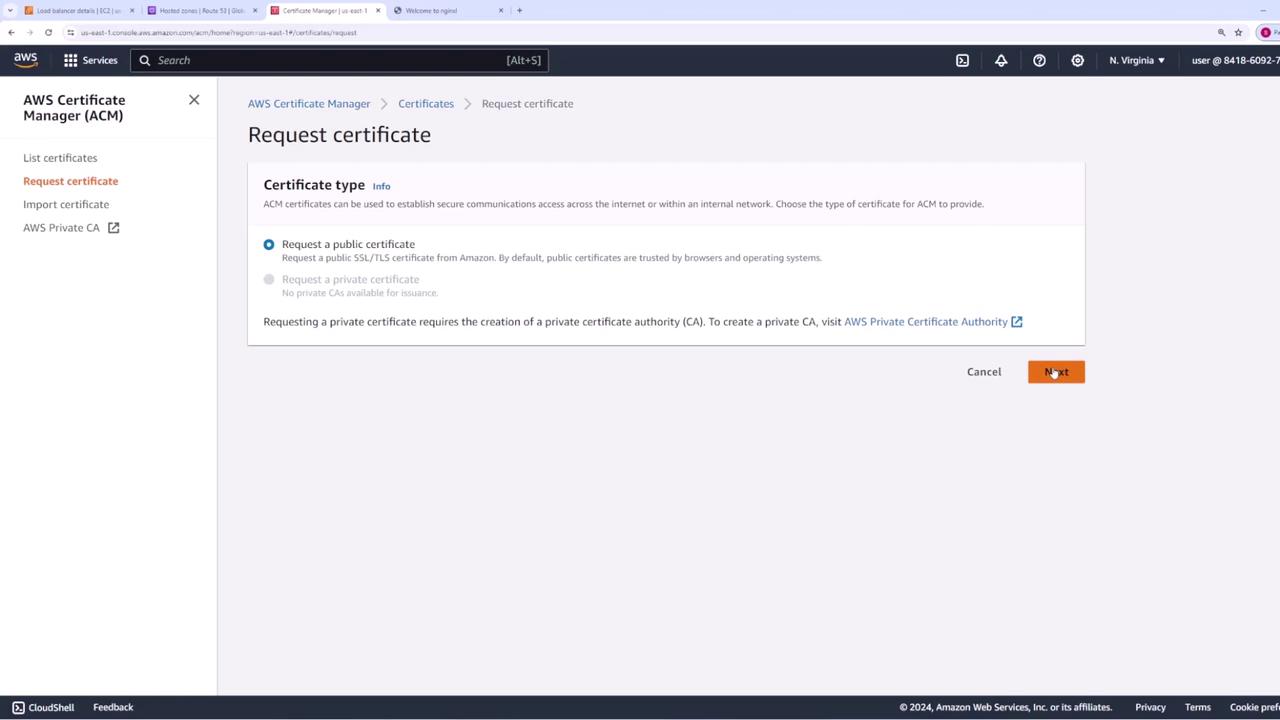
Follow these steps to request a public SSL certificate using ACM:- Open ACM in the AWS Management Console and select Request a certificate.
- Choose Request a public certificate to obtain a certificate accessible on the internet.
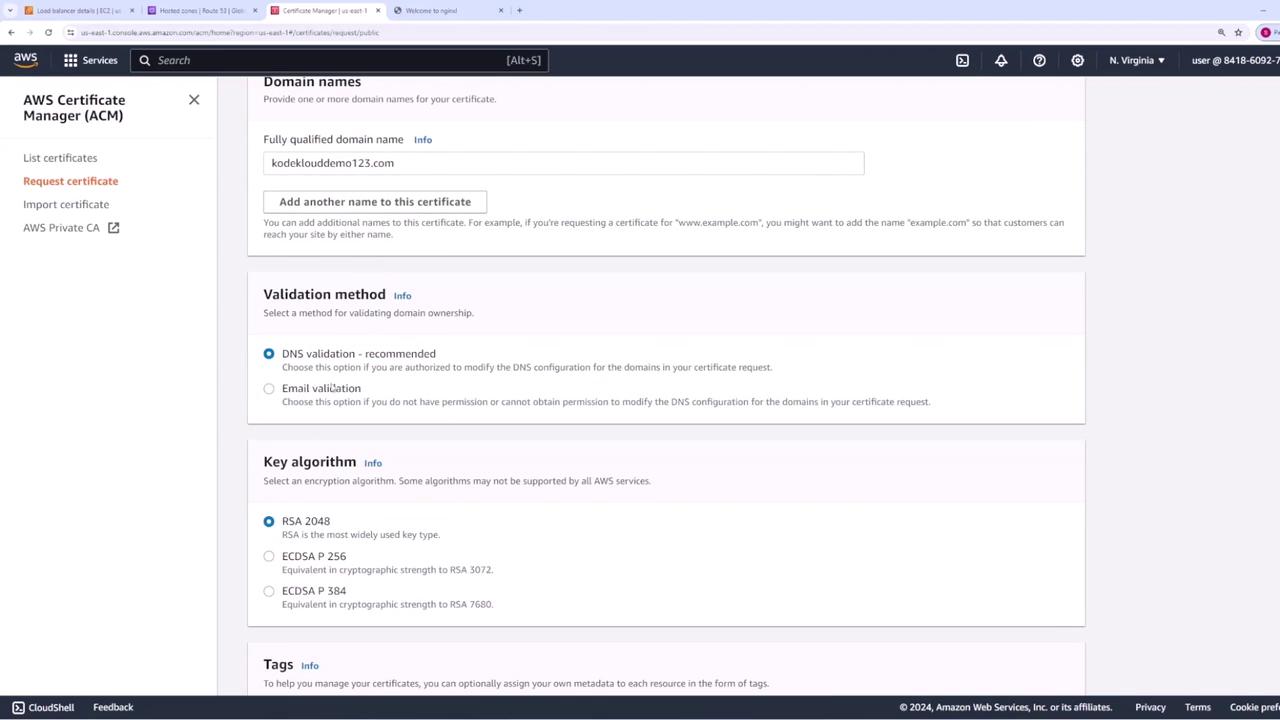
- Click Next and add the domain names to be covered (for example, “kodeklouddemo123.com”). You may also add additional names such as “www.kodeklouddemo123.com” if required.
- Select the validation method. You have two options:
- Email validation: An email is sent to the domain owner.
- DNS validation: You create a DNS record in Route 53. For simplicity with AWS integration, we use DNS validation. Choose the key algorithm of your preference and then click Request.
Validating Domain Ownership
To validate your domain ownership:- Create a CNAME record in Route 53. You can manually add the record with the provided values or use the integration button (available with DNS validation) to automatically create it.
- Refresh the ACM console. Once the certificate status changes from “Pending validation” to “Issued,” your certificate is ready for use.
Configuring the Load Balancer for HTTPS
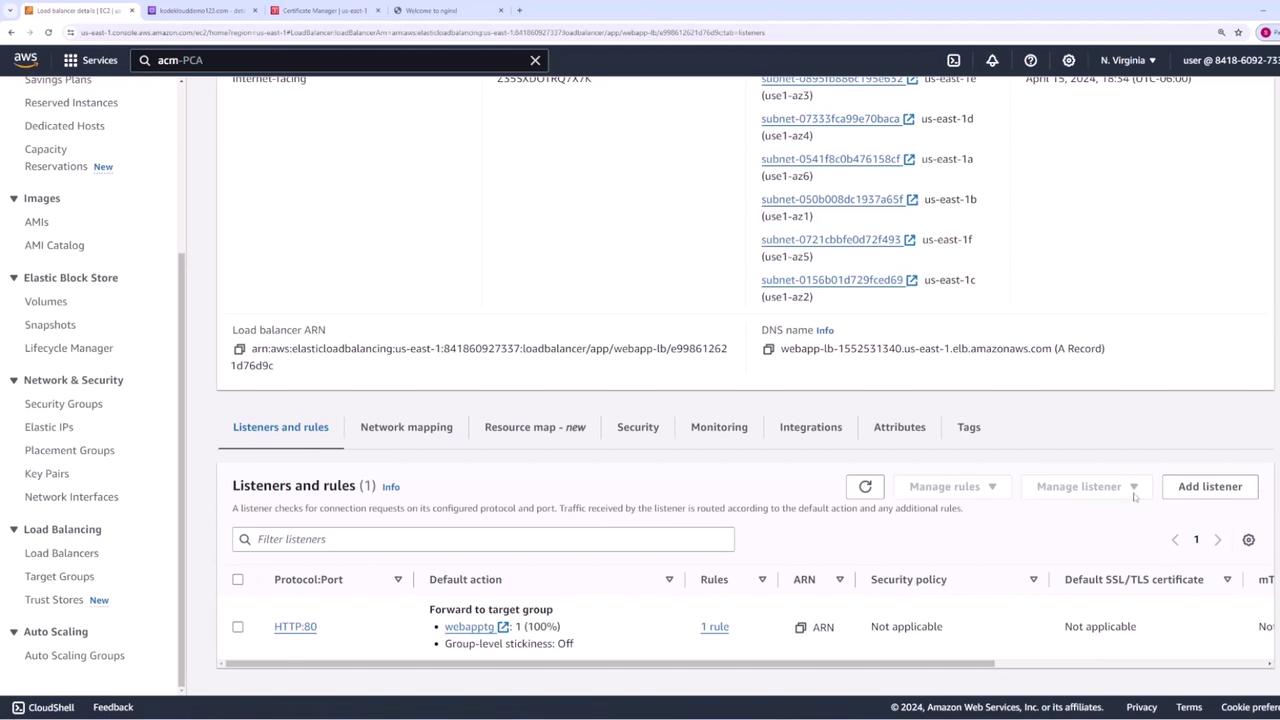
Next, assign the new SSL certificate to your load balancer by following these steps:- Open the Load Balancer details in the AWS Management Console.
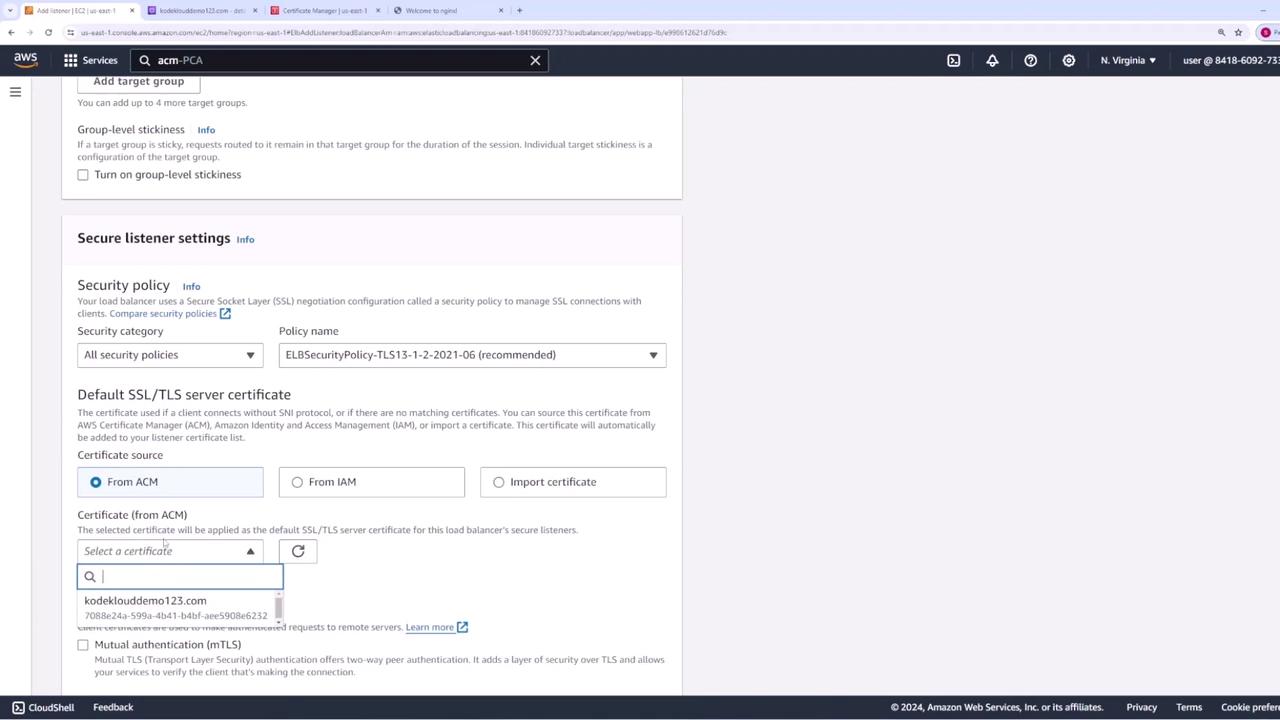
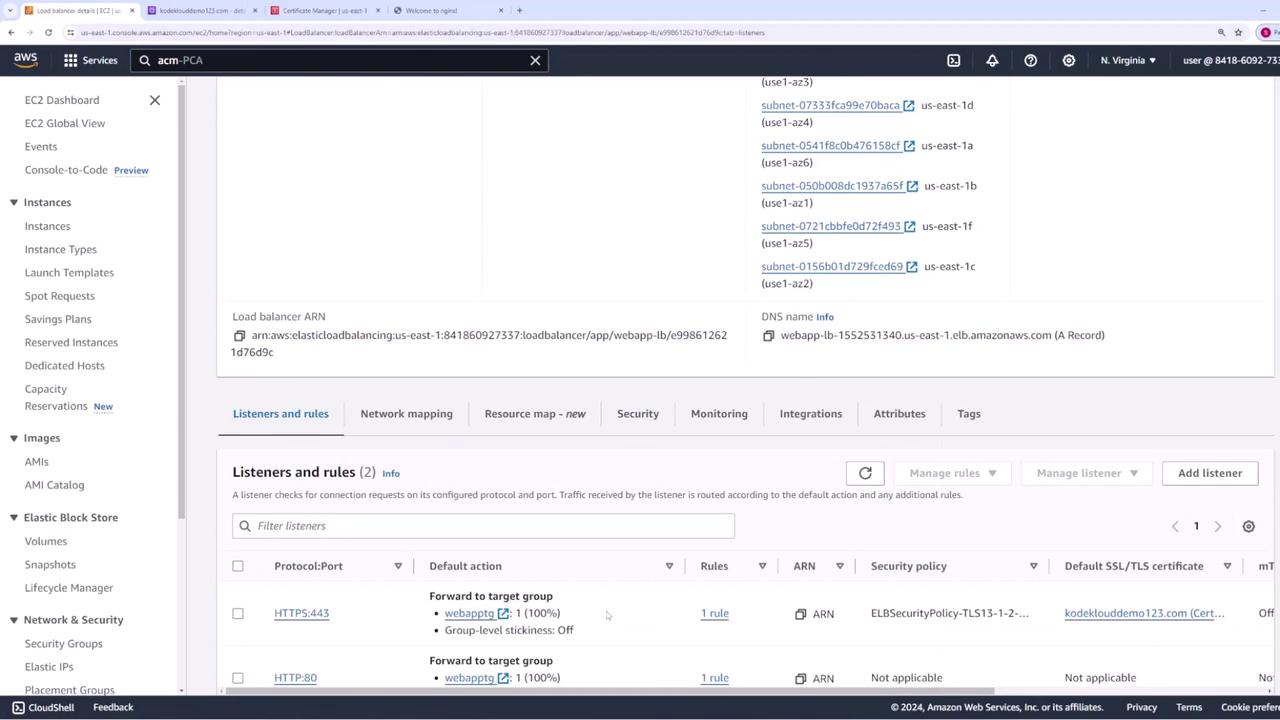
- Your load balancer currently has an HTTP listener on port 80. Add a new listener for HTTPS on port 443.
- In the HTTPS listener configuration, forward the traffic to the same target group as the HTTP listener.
- Under secure listener settings, choose ACM as the source for the SSL certificate, then select the certificate you created.
- Save the configuration.
Updating DNS Records in Route 53
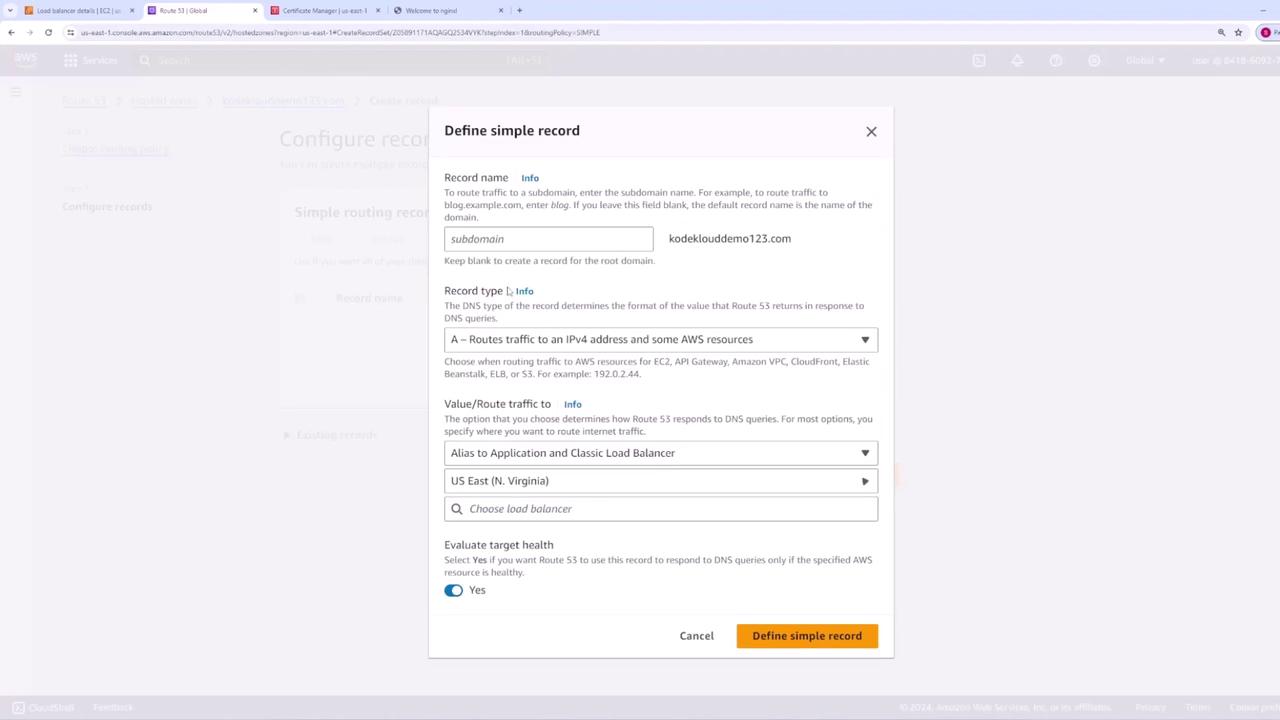
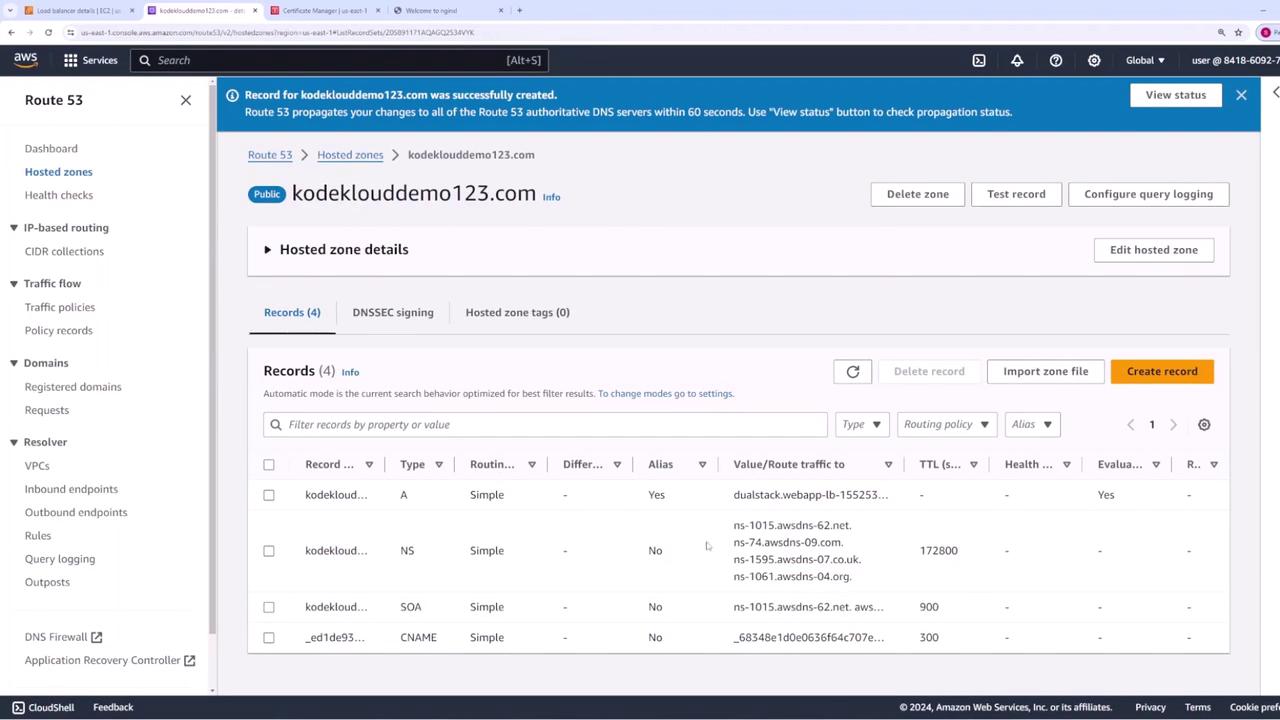
To route traffic for “KodeKloudDemo123.com” to your load balancer:- Create a new A record using simple routing in Route 53.
- Set the record name to your root domain and select Application Load Balancer as the endpoint.
- Choose the appropriate AWS region and select your load balancer.
- Save the record.
Testing and Verifying the Certificate
To confirm your SSL certificate is active:- Open your browser and navigate to https://kodeklouddemo123.com.
- Verify that the web application loads securely over HTTPS.
- Click the padlock icon in the browser address bar to inspect the certificate details, ensuring the common name matches your domain and checking the validity dates and encryption settings.
Using ACM with CloudFront
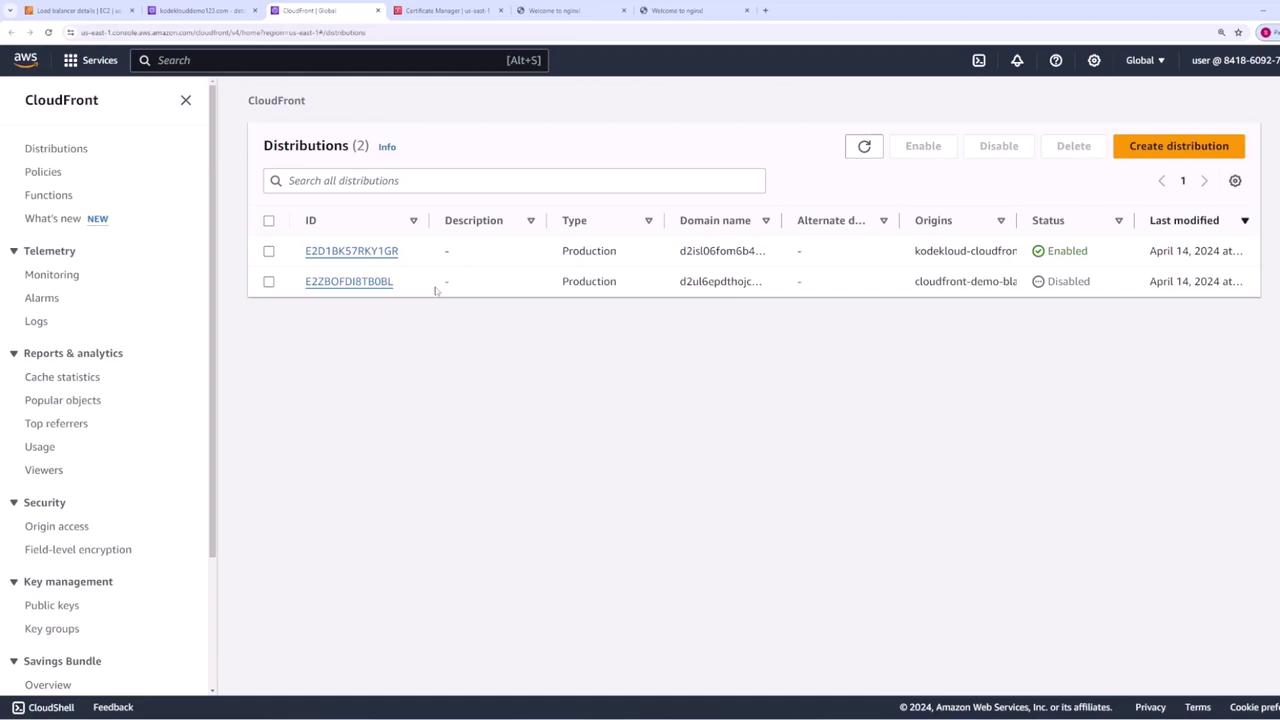
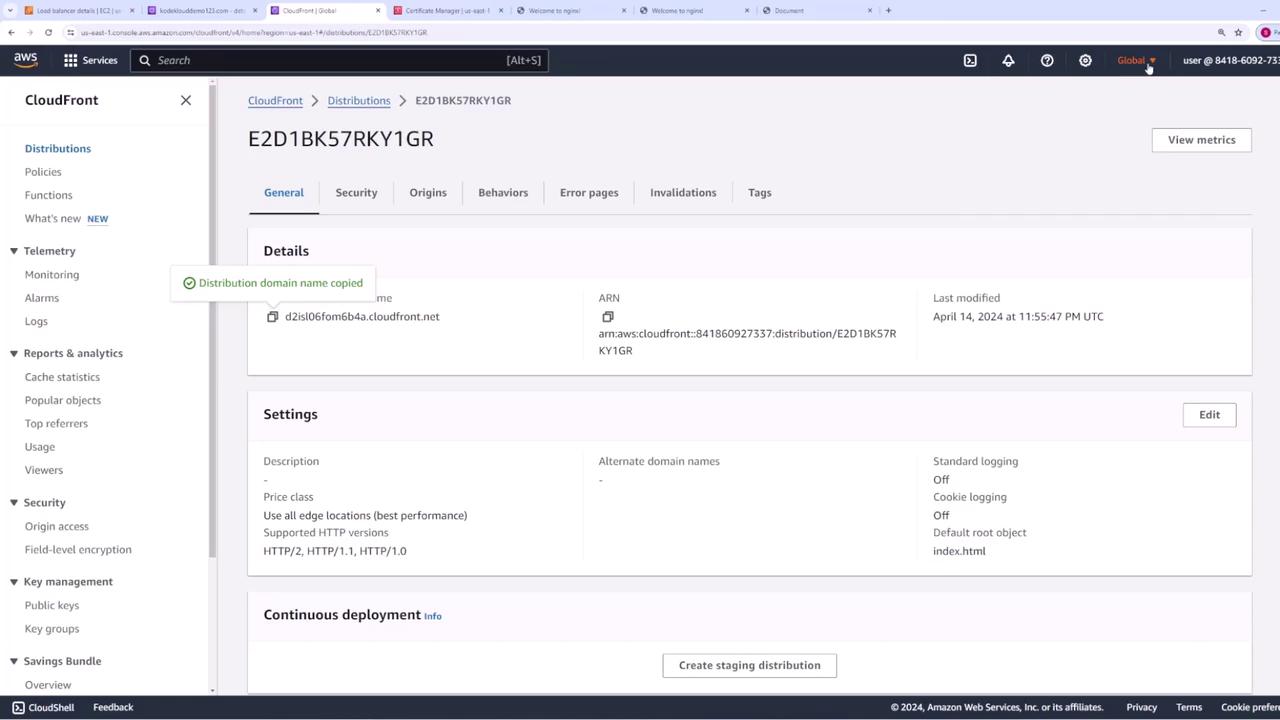
You can also assign your ACM SSL certificate to a CloudFront distribution. In this scenario, you initially access your web application using the CloudFront-provided domain name. To enhance your setup with your custom domain “KodeKloudDemo123.com” secured by an ACM certificate, follow these steps.Remember that CloudFront requires the SSL certificate to be created in the US East (N. Virginia) region. If your certificate was created in another region, you must issue a new one in US East 1.
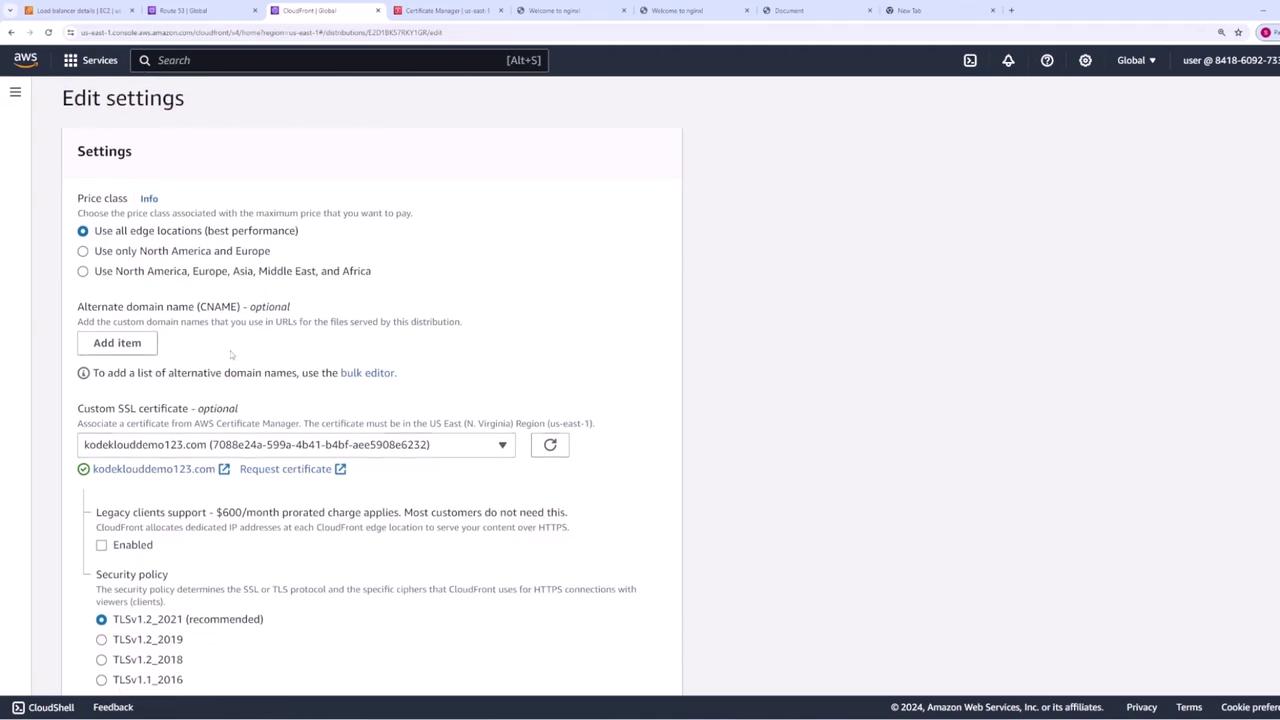
- Open your CloudFront distribution settings and click General then Edit.
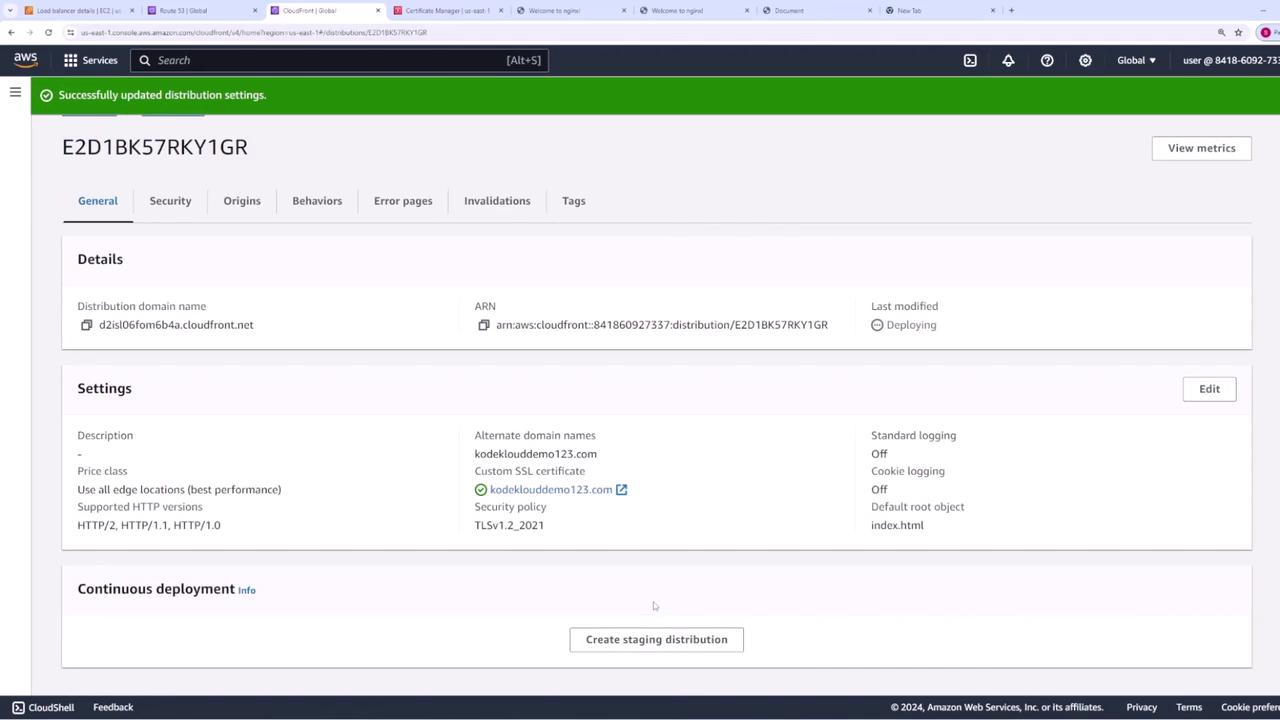
- Under Custom SSL Certificate, CloudFront will display certificates available from US East (N. Virginia). Select the desired certificate.
- (Optionally) Choose the appropriate TLS versions—the default settings are typically sufficient—and then save your changes.
Updating Route 53 for CloudFront
- Delete the previous A record pointing to your load balancer.
- Create a new A record with simple routing for “KodeKloudDemo123.com”.
- Under Alias to CloudFront distribution, search for and select your CloudFront distribution.
Final Verification
To complete your configuration:- Open your browser and navigate to https://kodekloudDemo123.com.
- Verify that the CloudFront-hosted web application loads securely using the ACM SSL certificate.
- Inspect the certificate by clicking the padlock icon in your browser to ensure all details are correct.