Learn to work with EC2 instance store volumes and understand their limitations regarding data persistence during instance movements.
In this lesson, you’ll learn how to work with EC2 instance store volumes while understanding their key limitation: data stored on an instance store is lost if the EC2 instance moves from one physical host to another. This makes instance store volumes ideal only for temporary or scratch data. Remember, a stop/start event (in contrast to a reboot) triggers a host-change, wiping out any stored data.
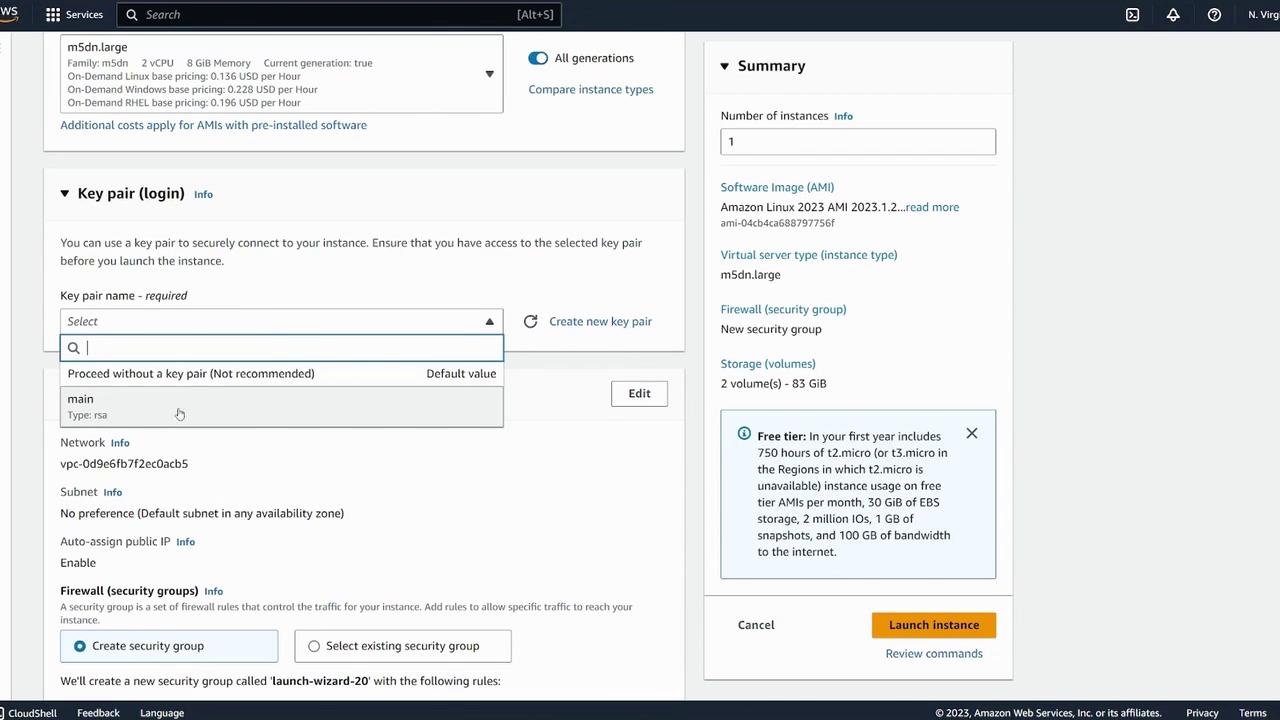
Begin by navigating to the EC2 console and launching a new instance. For this demonstration, we use the Amazon Linux 64-bit AMI and name the instance “instance store demo.” Note that not all EC2 instance types support instance stores; for example, free-tier instances such as t2.micro do not include this feature. When selecting an instance type, ensure it provides an instance store, and be aware that charges may apply for prolonged running sessions.When reviewing the instance configuration, you will see details such as:
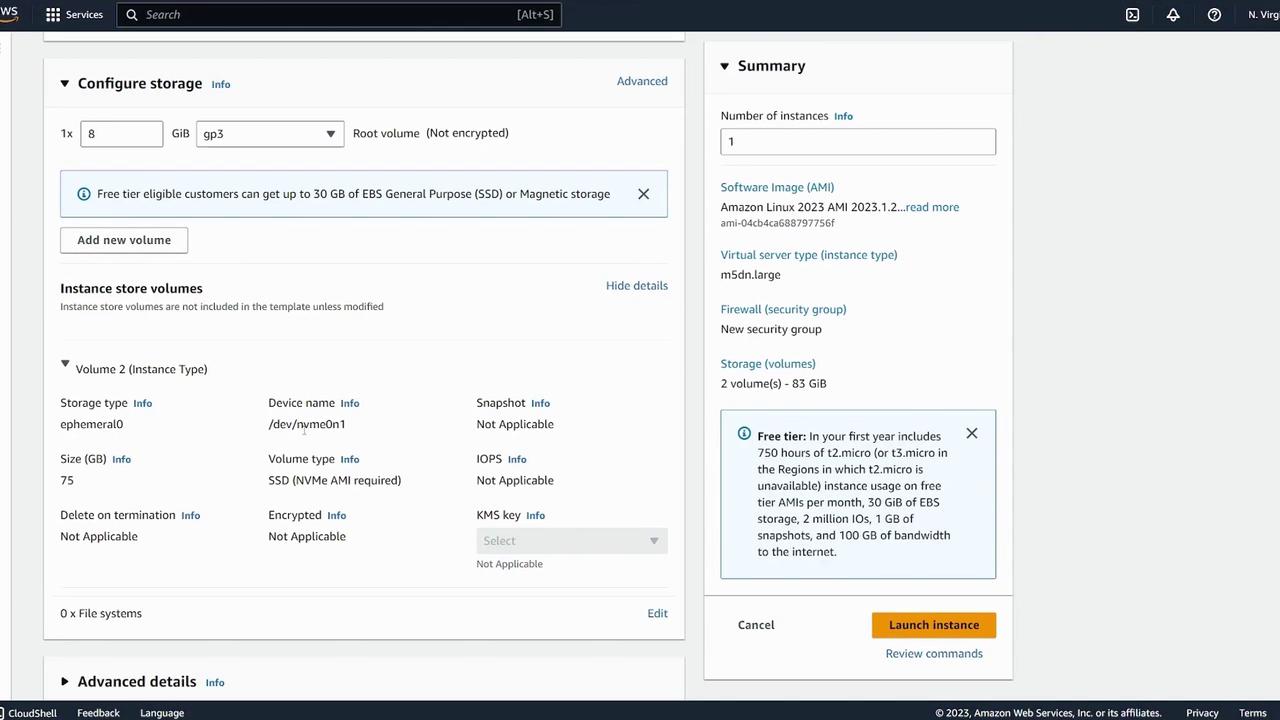
An 8 GiB root volume.
An additional instance store volume (e.g., 75 GiB) attached with a device name like /dev/nvme0n1.
Proceed with the launch. In the storage configuration details, both the root volume and the instance store volume will be clearly indicated.
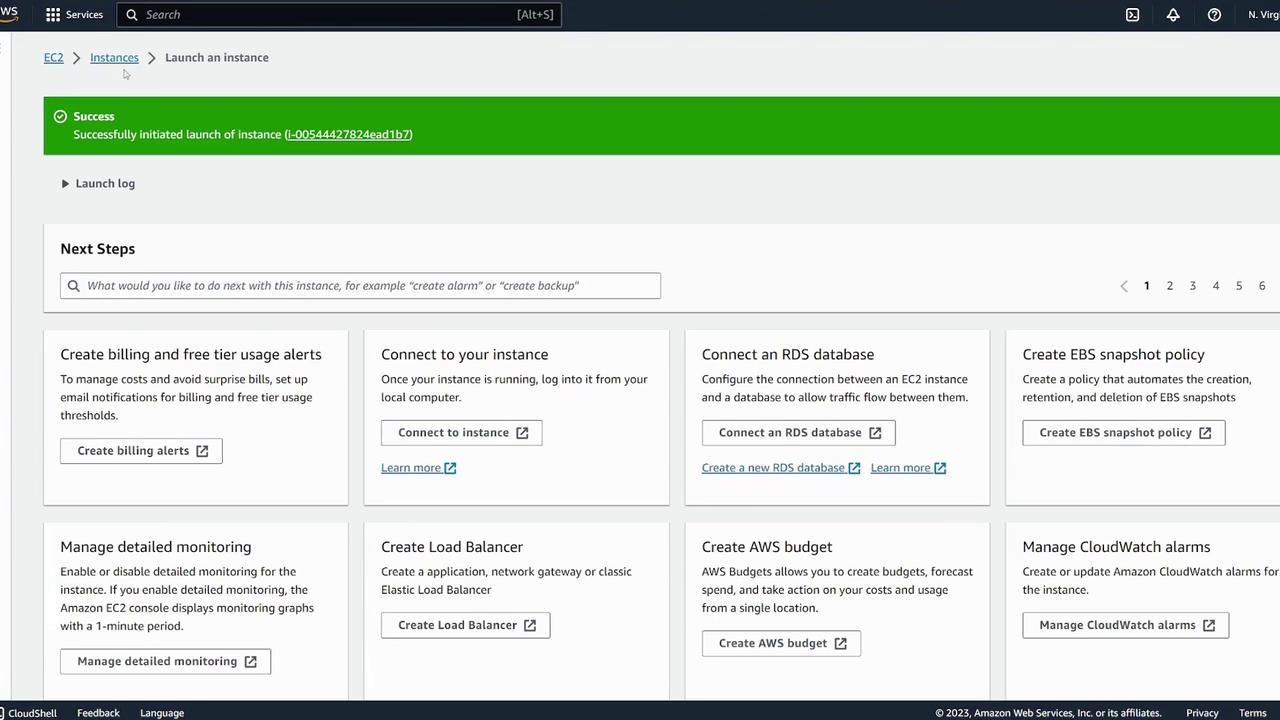
Ensure that the auto-assign public IP option is enabled to allow future connectivity. After launching, navigate to the Instances tab.
Change into the mount directory and create a simple file to verify the volume is writable:
Copy
Ask AI
[ec2-user@ip-172-31-43-128 ~]$ cd /instance-demo/[ec2-user@ip-172-31-43-128 instance-demo]$ sudo vi test[ec2-user@ip-172-31-43-128 instance-demo]$ lstest
The presence of the test file confirms that your instance store is mounted and operational.
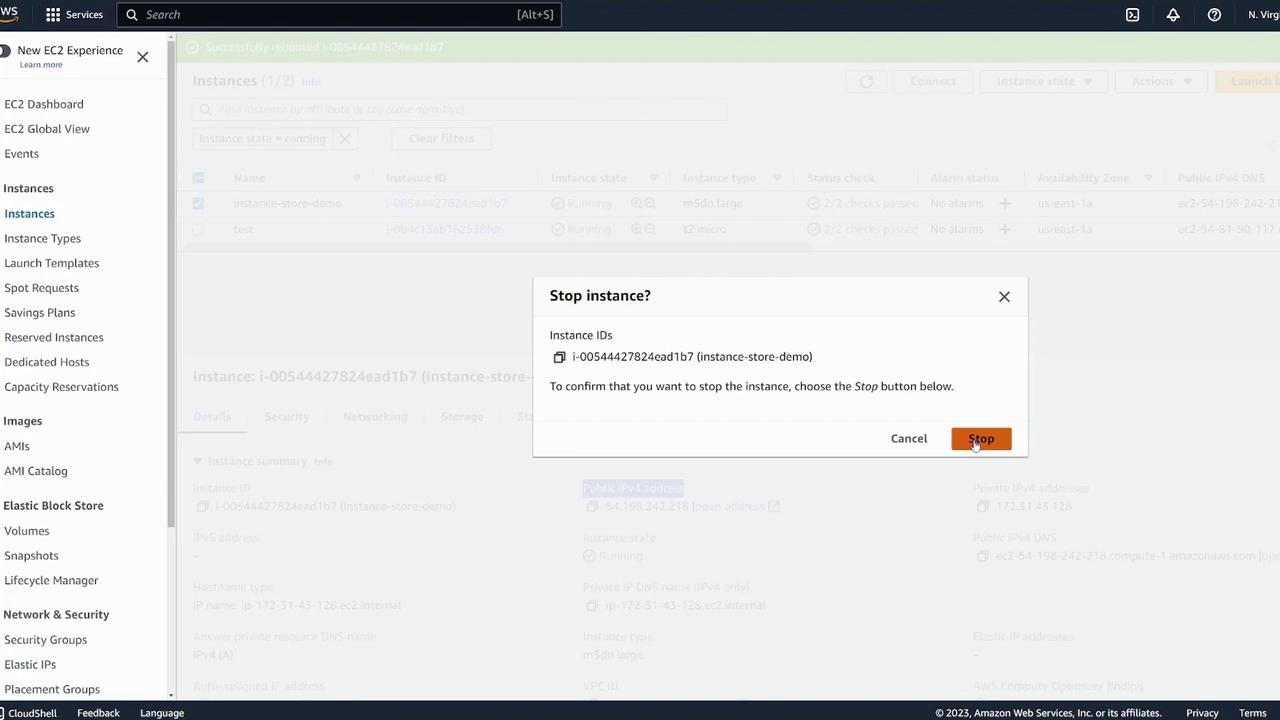
Remember that a reboot keeps the EC2 instance on the same physical host, preserving the instance store. However, a stop/start operation changes the host, causing the loss of any data on the instance store.
To demonstrate that a simple reboot does not affect the instance store:
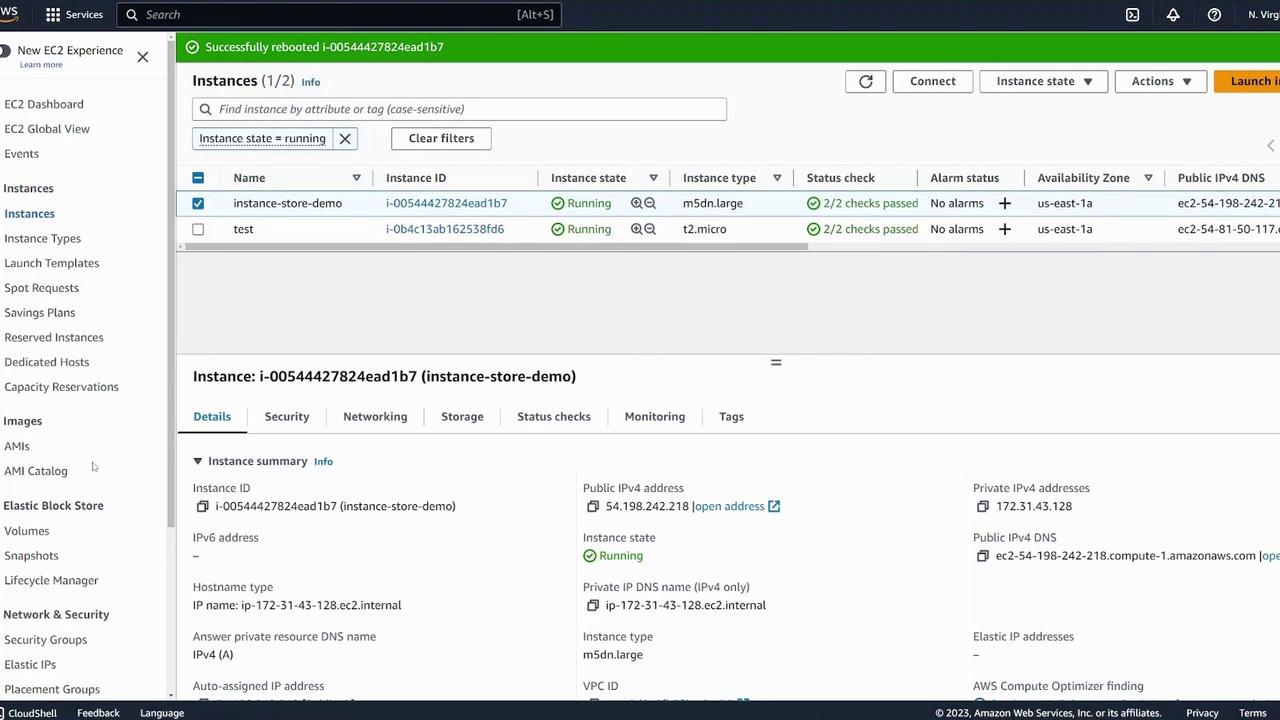
Reboot the instance from the EC2 console.
Confirm that the public IP remains the same.
SSH back into the instance.
Use lsblk and df -k to verify that the instance store volume is still present and mounted.
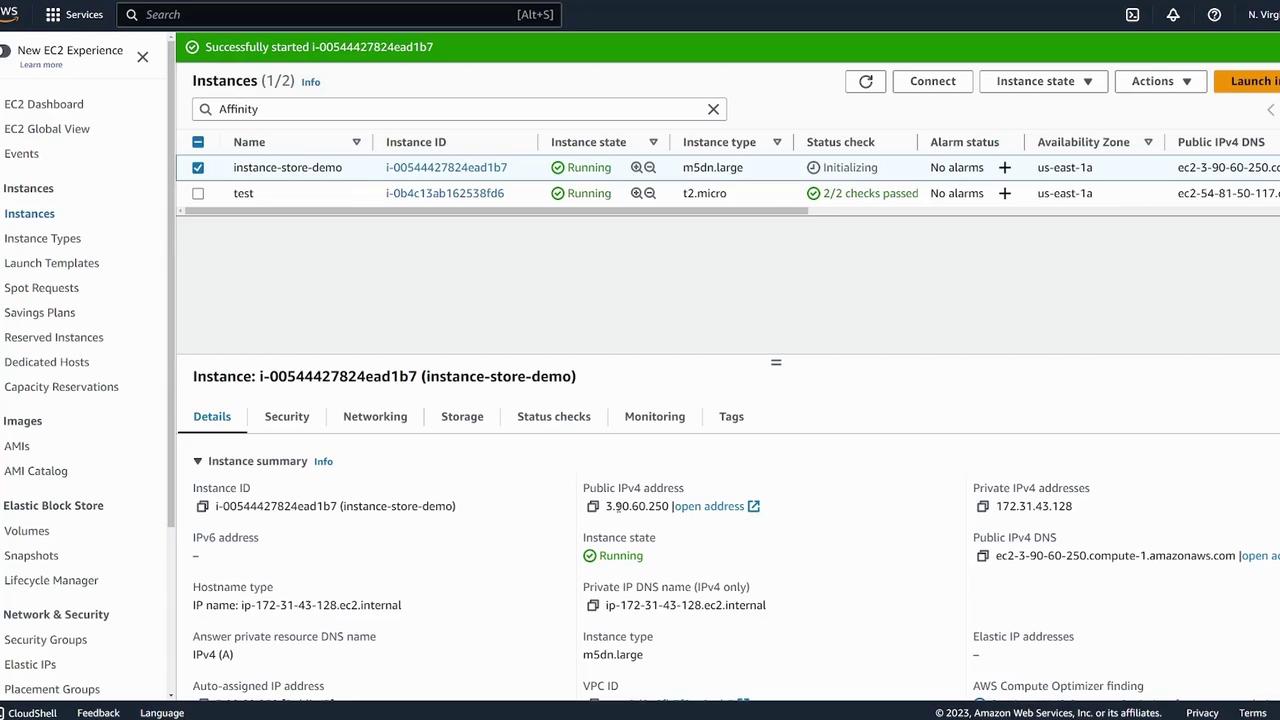
In contrast, stopping and then starting the instance moves it to a different physical host. In this demonstration, after performing a stop/start, notice that:
The public IP has changed.
The instance store volume is freshly attached with no pre-existing data.
Upon restarting the instance, confirm the new details in the management console:
SSH into the instance using the new IP address and check the block devices:
The output will display “data,” confirming that there is no pre-existing filesystem or data from the previous session. To use the instance store volume again, remount it:
Copy
Ask AI
[ec2-user@ip-172-31-43-128 ~]$ sudo mount /dev/nvme1n1 /instance-demo/[ec2-user@ip-172-31-43-128 ~]$ cd /instance-demo/[ec2-user@ip-172-31-43-128 instance-demo]$ lstest
Note that the file test may be missing if the volume was remounted after a stop/start (i.e., when the instance moved). This confirms that instance store data does not persist across host changes.
Data on an instance store is temporary and will be lost if the instance is moved via a stop/start operation.
Reboots vs. Stop/Start
Reboots preserve the host (and thus the instance store), while stop/start moves the instance, causing data loss.
Use Cases
Instance store volumes are best suited for temporary or scratch data. For persistent data, use EBS volumes or similar.
This concludes our lesson on using EC2 instance store volumes. Always remember the nuances between temporary and persistent storage when planning your deployments.Happy learning!