

Getting Started
Begin by searching for SQS in the AWS Console. Once located, create a new queue and choose between a Standard queue and a FIFO queue. For this demo, we will use a Standard queue. Name your queue “newUser”. This queue simulates an application process where each new user registration triggers the sending of a message. The message, containing user details, can then be processed by other parts of your application.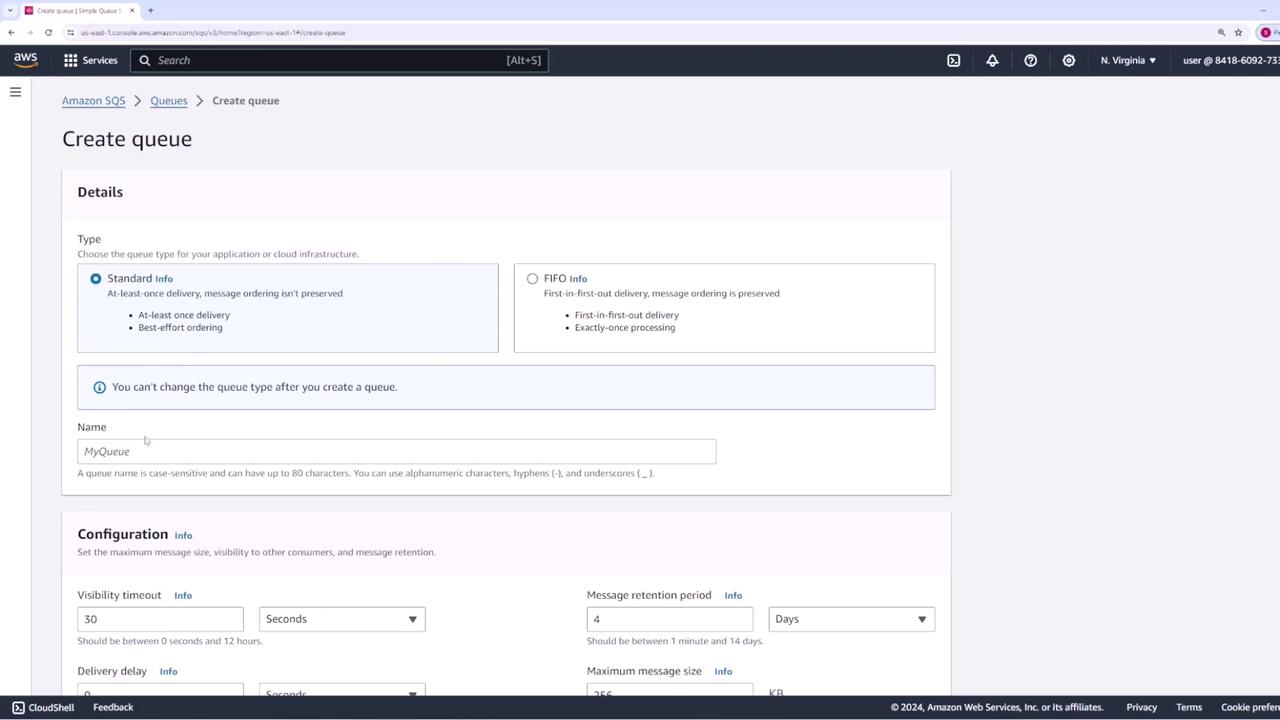
Queue Configuration Options
Below the queue name, several configuration settings are available:- Visibility Timeout: The period during which a message remains invisible to other consumers.
- Message Retention Period: The duration, from one minute to 14 days, that a message is retained in the queue.
- Maximum Message Size: Currently set at 256 kilobytes.
For this demonstration, all settings remain at their default values before creating the queue.
Interacting with Your Queue
After successfully creating your queue, there are multiple methods to interact with it. While most applications use the AWS SDK to publish and retrieve messages programmatically, the AWS Console also provides options for manual testing. The console allows you to simulate both message production and consumption.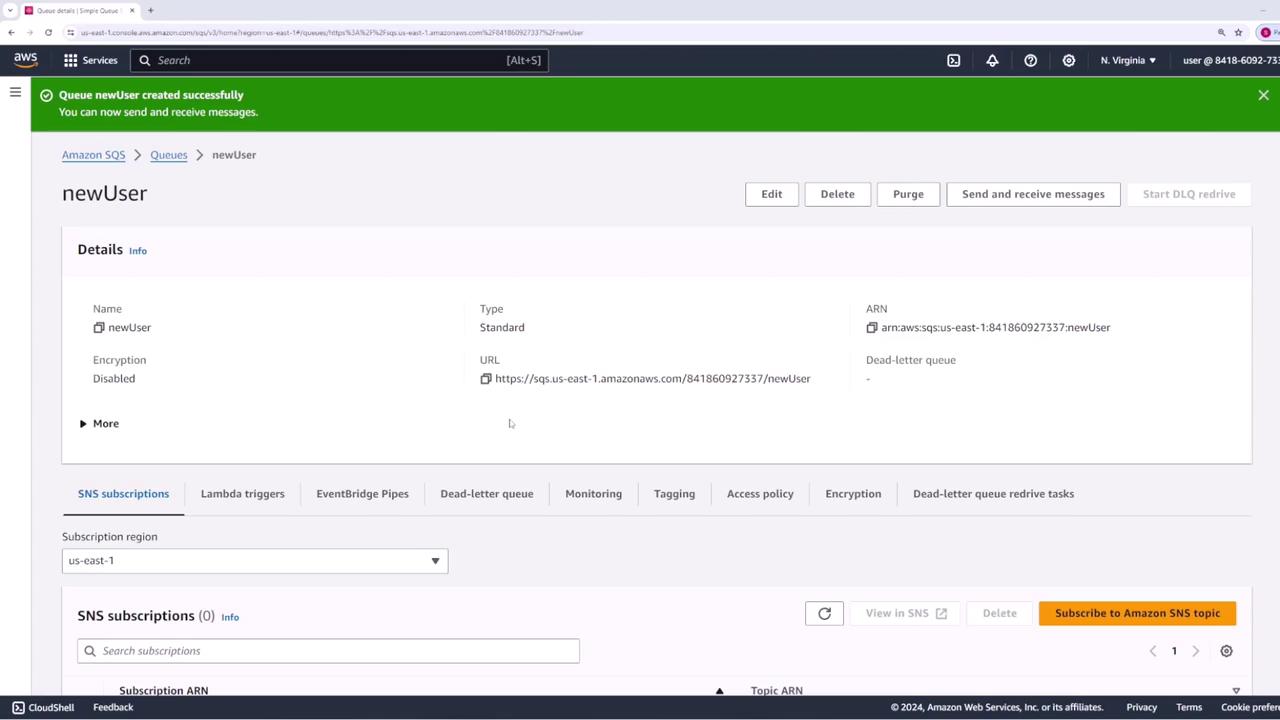
Sending a Message
To test the queue functionality, start by sending a message. For example, if the “newUser” queue is meant to capture registration details, you might send the following JSON message with an email address: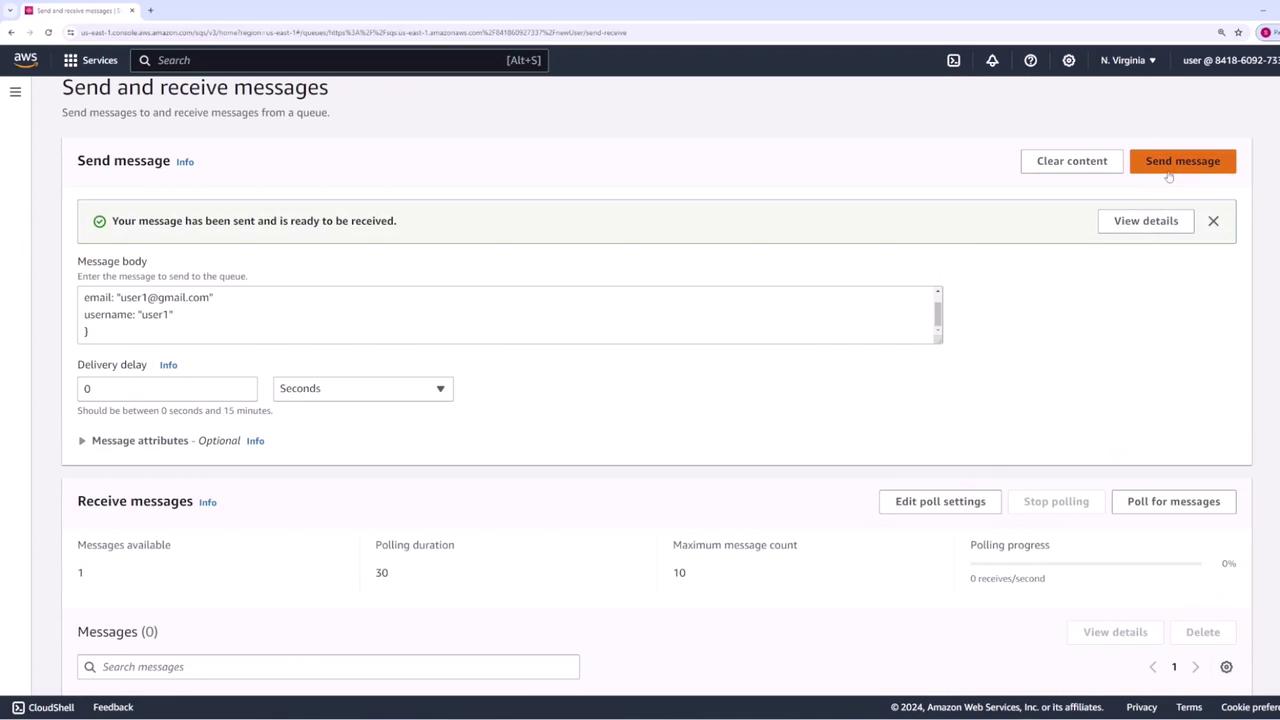
Retrieving and Processing Messages
To retrieve messages, click the “Pull for messages” button in the consumer view of the AWS Console. The detailed view of a selected message includes:- Message ID
- Message body (the data transmitted)
- Attributes such as visibility timeout and timestamps
- MD5 checksum of the message body
- Sender account ID
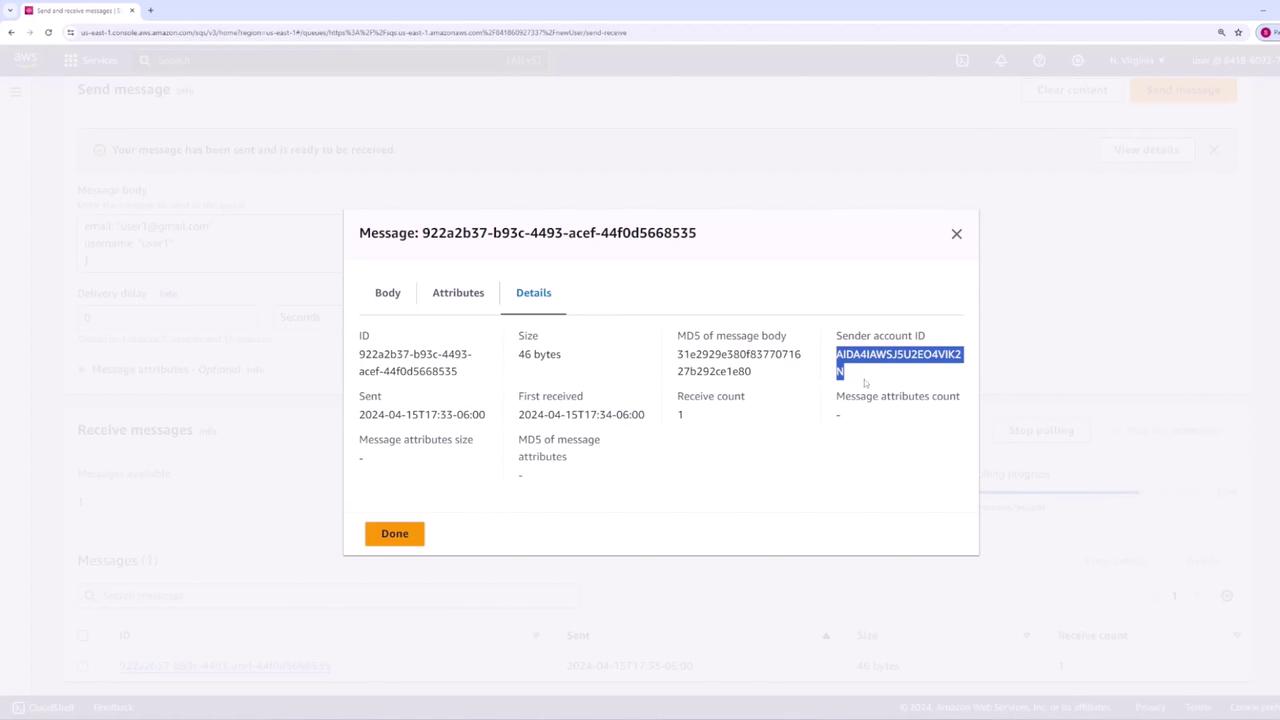
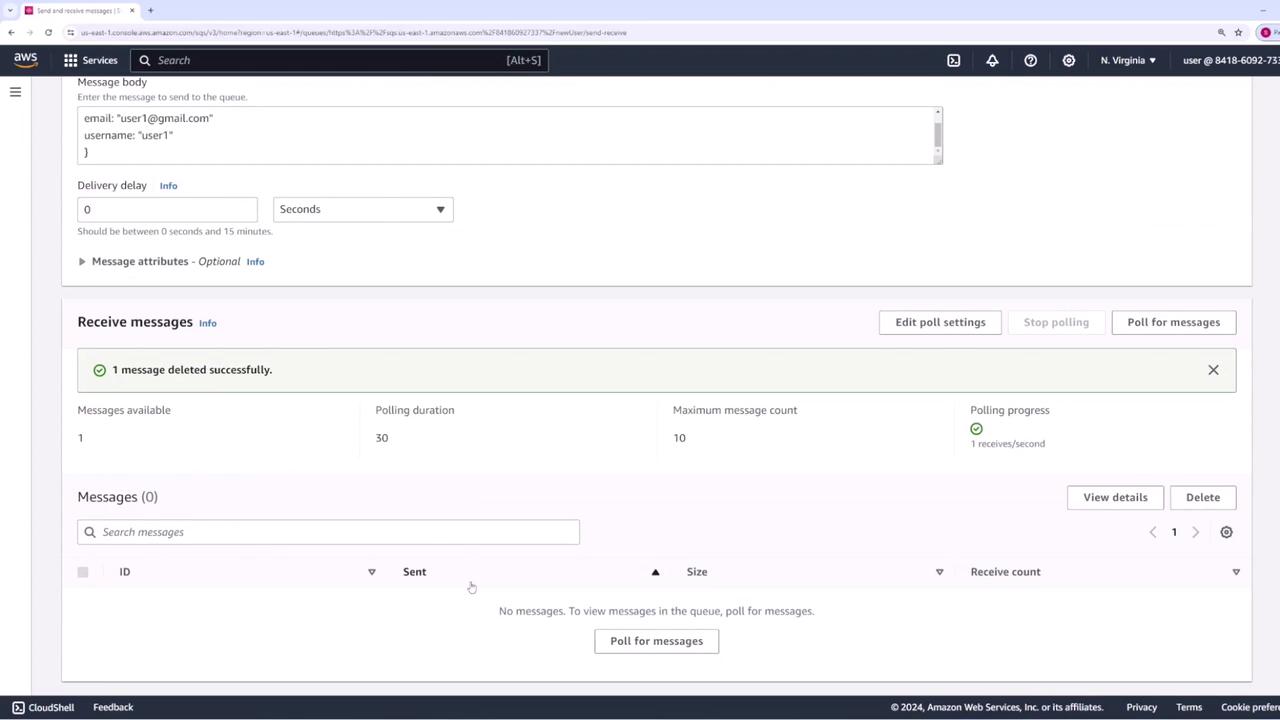
Remember to delete processed messages to avoid duplicate processing and to maintain the efficiency of your queue.