

Creating the Task Manager API
To begin, create a REST API that will simulate a task management application:- Click Create API and select REST API.
- Name your API (e.g., “Task Manager”).
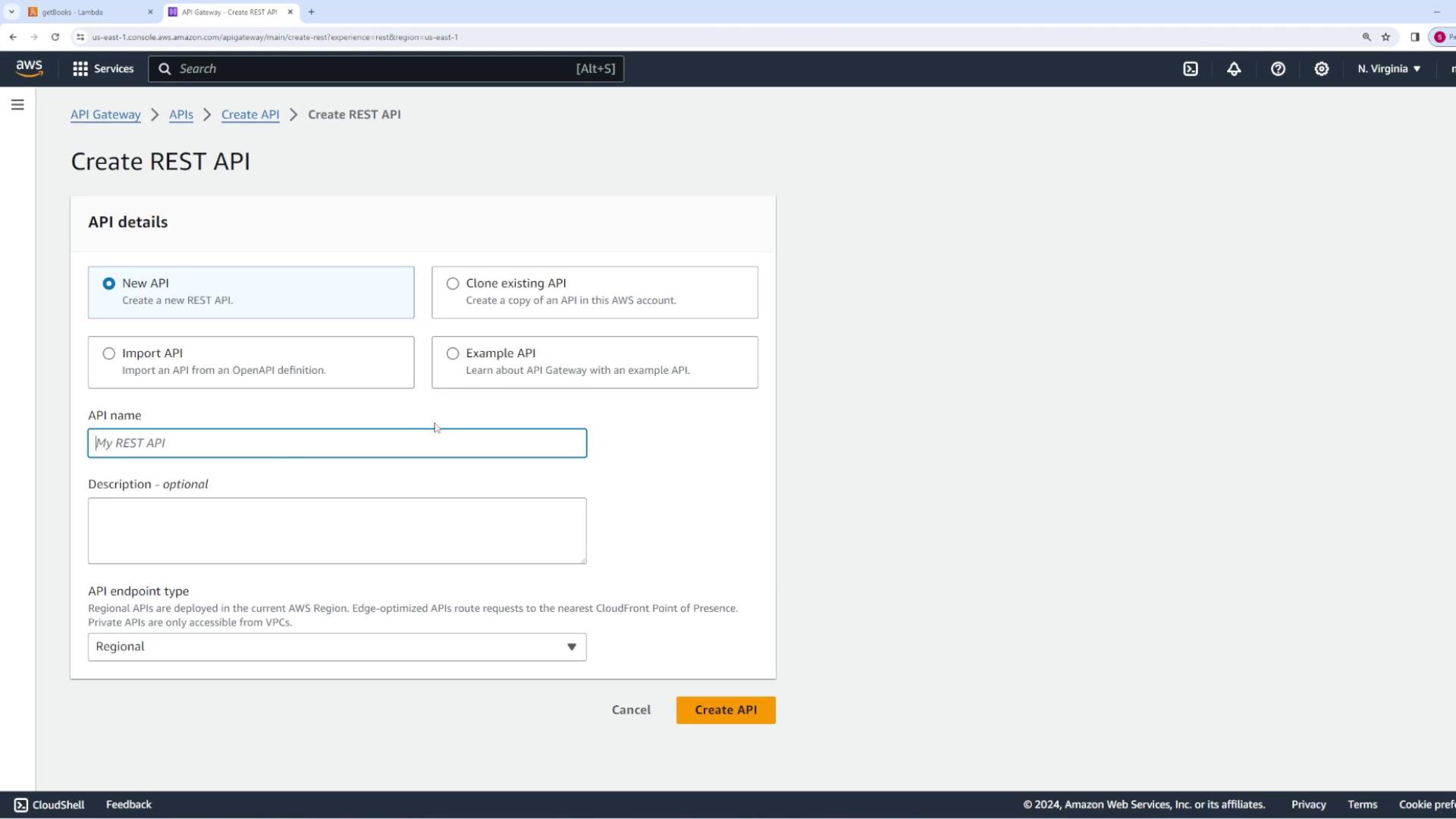
Creating the “Tasks” Resource and GET Method
Next, create a resource named/tasks:
- In the API Gateway console, create the new resource
tasks.
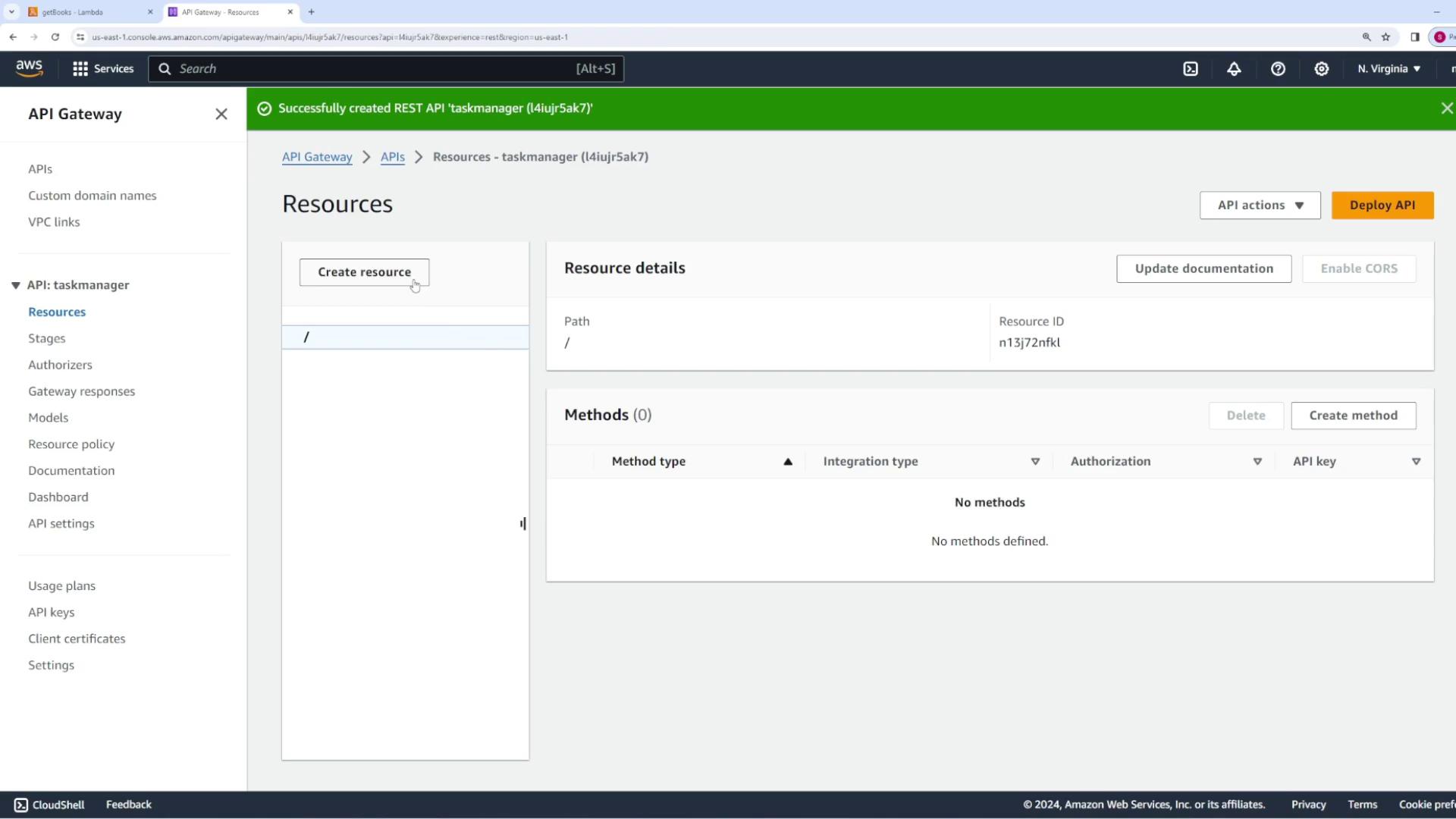
/tasks resource to retrieve a list of tasks:
-
Select the
GETmethod and choose the Lambda function integration. -
Create a Lambda function named
getTaskswith the following starter code: -
Deploy the API (e.g., to a stage named
dev).
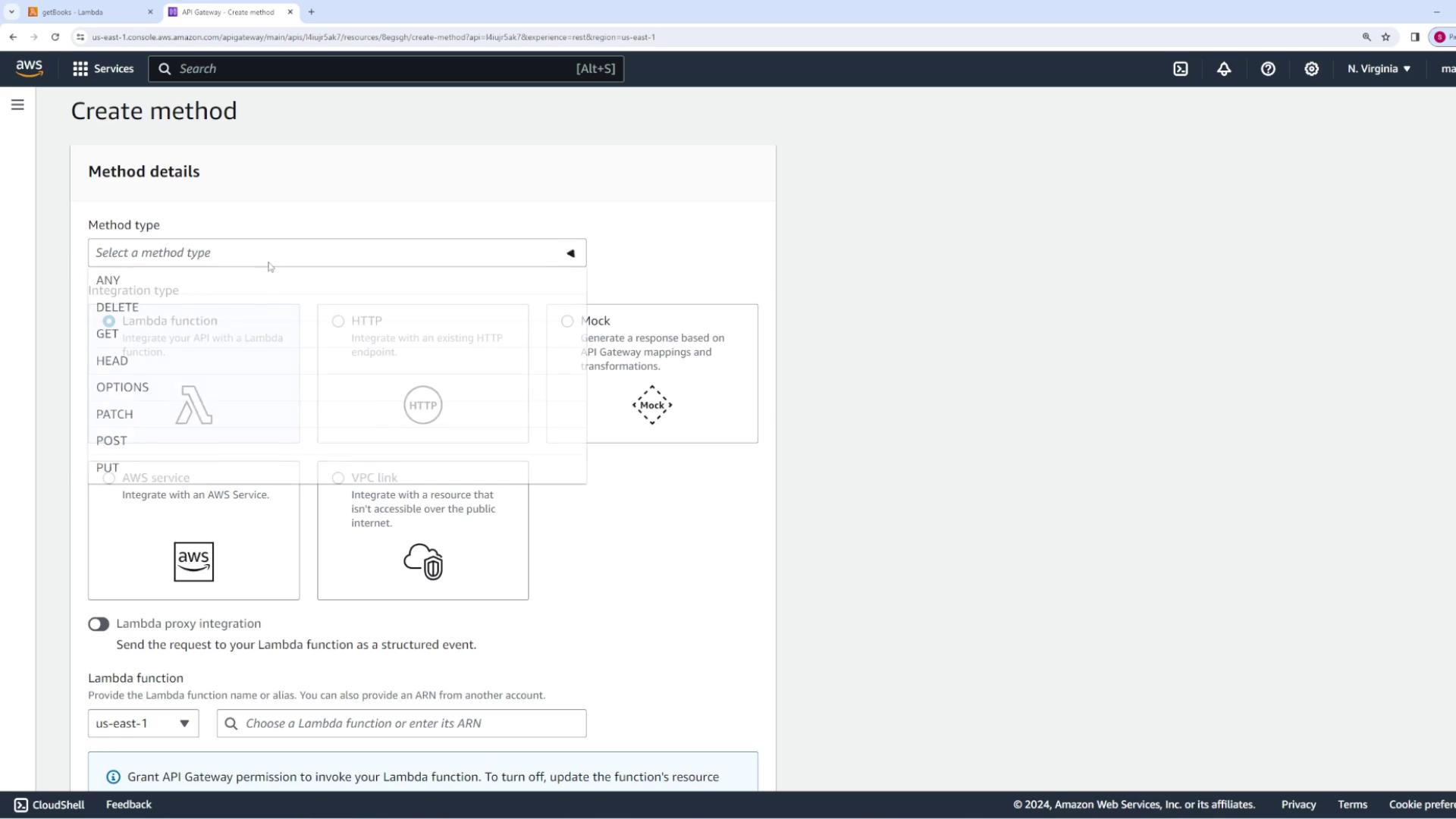
Adding a Path Parameter for Task Details
To retrieve detailed information about a specific task, modify your API by adding a dynamic path parameter. The URL will follow the pattern/tasks/{id}, where {id} is the task identifier.
-
Under the
/tasksresource, add a child resource using a dynamic path variable (e.g.,{id}). -
Create a GET method for this resource and integrate it with a new Lambda function called
getTaskDetail. -
Use the following starter code for the Lambda function:
/tasks/50). You should receive a response similar to:
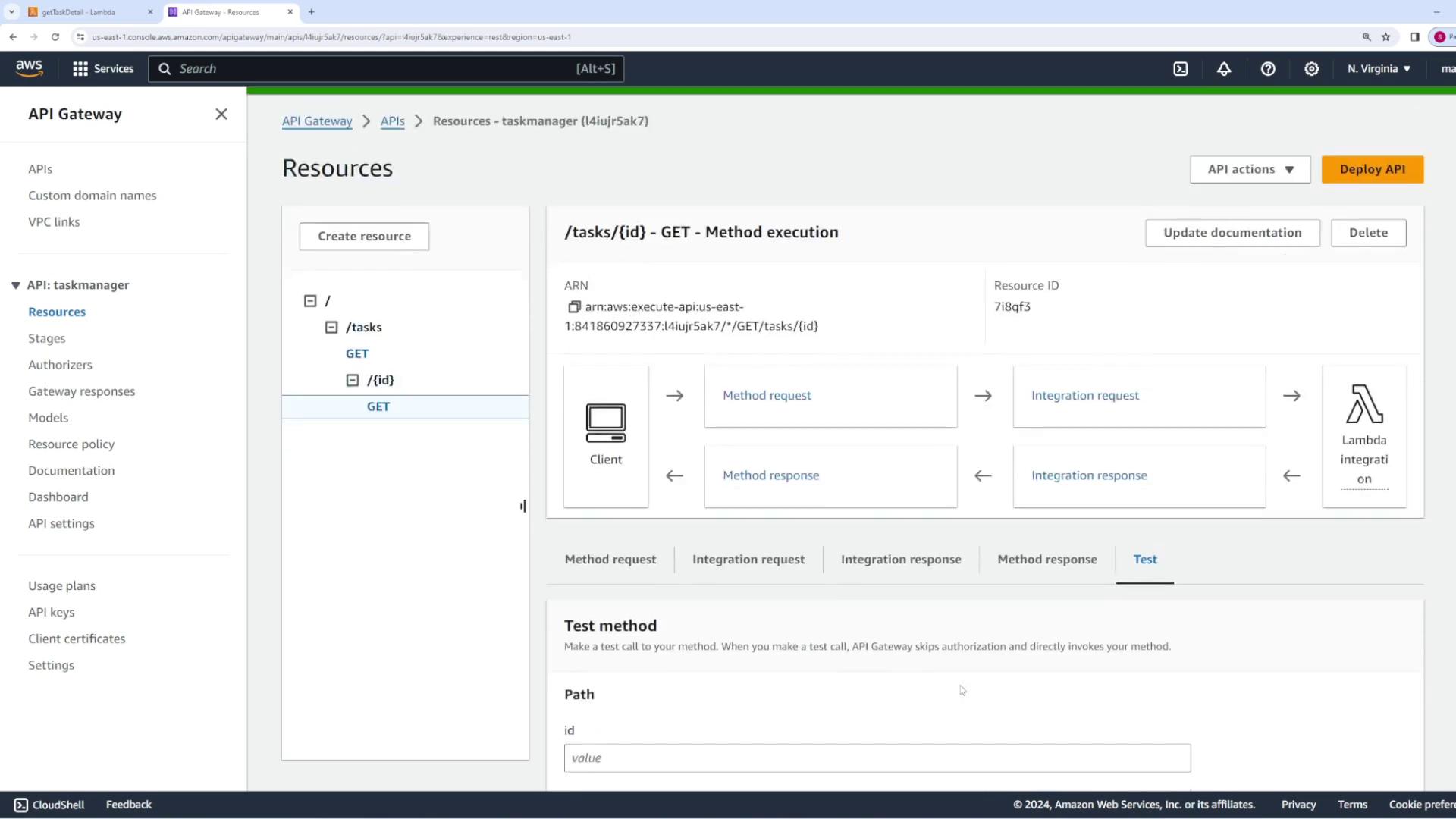
Enabling Lambda Proxy Integration for Passing Request Data
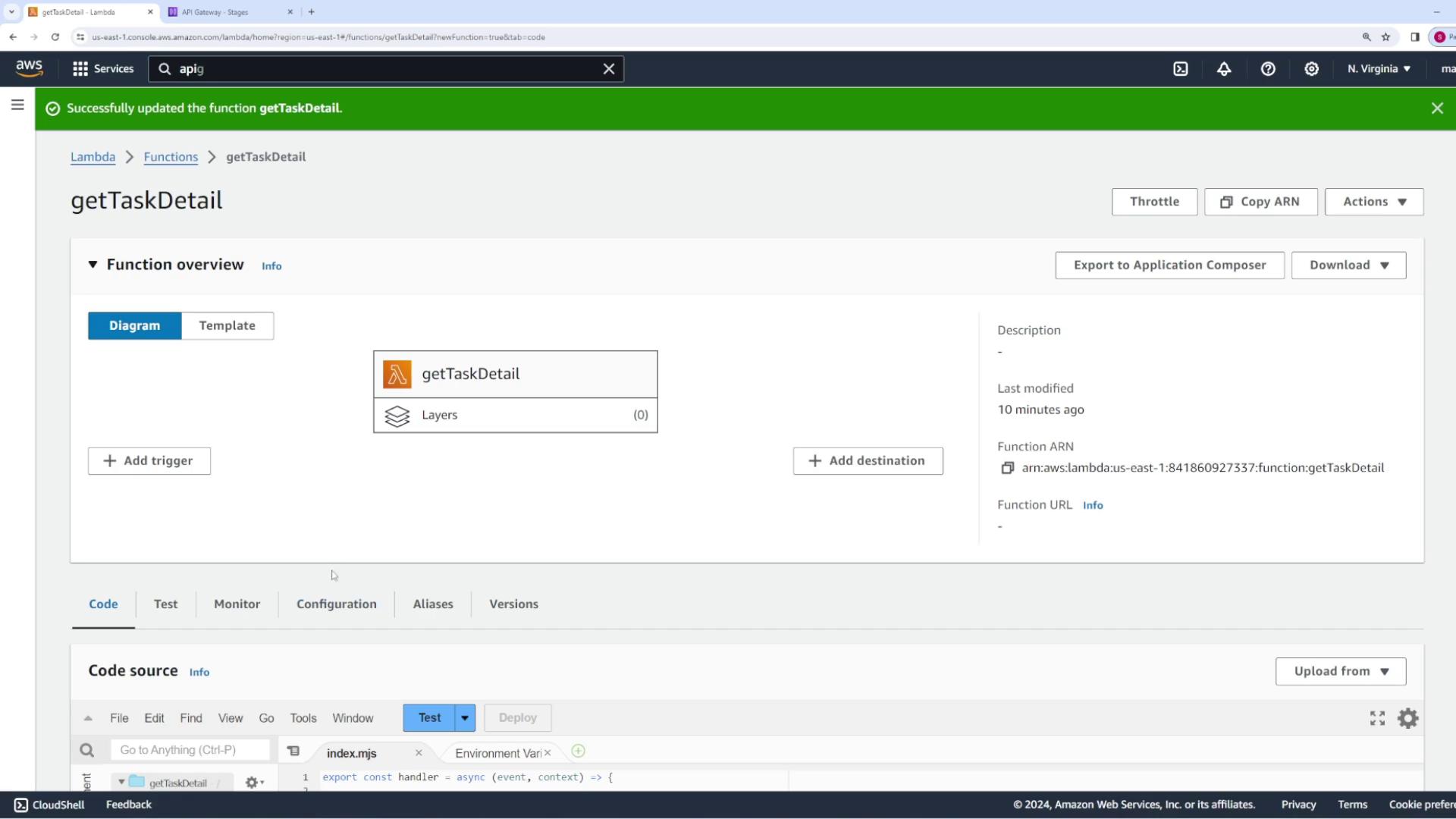
By default, the Lambda function does not receive the path parameter value. To forward the entire request as a structured event that includes path parameters, headers, query parameters, and more, enable Lambda proxy integration:- In the method’s Integration Request, set the integration type to Lambda Proxy Integration.
- Save and deploy the changes.
statusCode and body (in JSON string format). For example:
Using Mapping Templates to Access Path Parameters
If you prefer not to use full proxy integration, mapping templates allow you to extract only the parameters you need.-
In API Gateway, navigate to the Integration Request of the GET method for
/tasks/{id}. -
Under Mapping Templates, add a new template for the content type
application/json. -
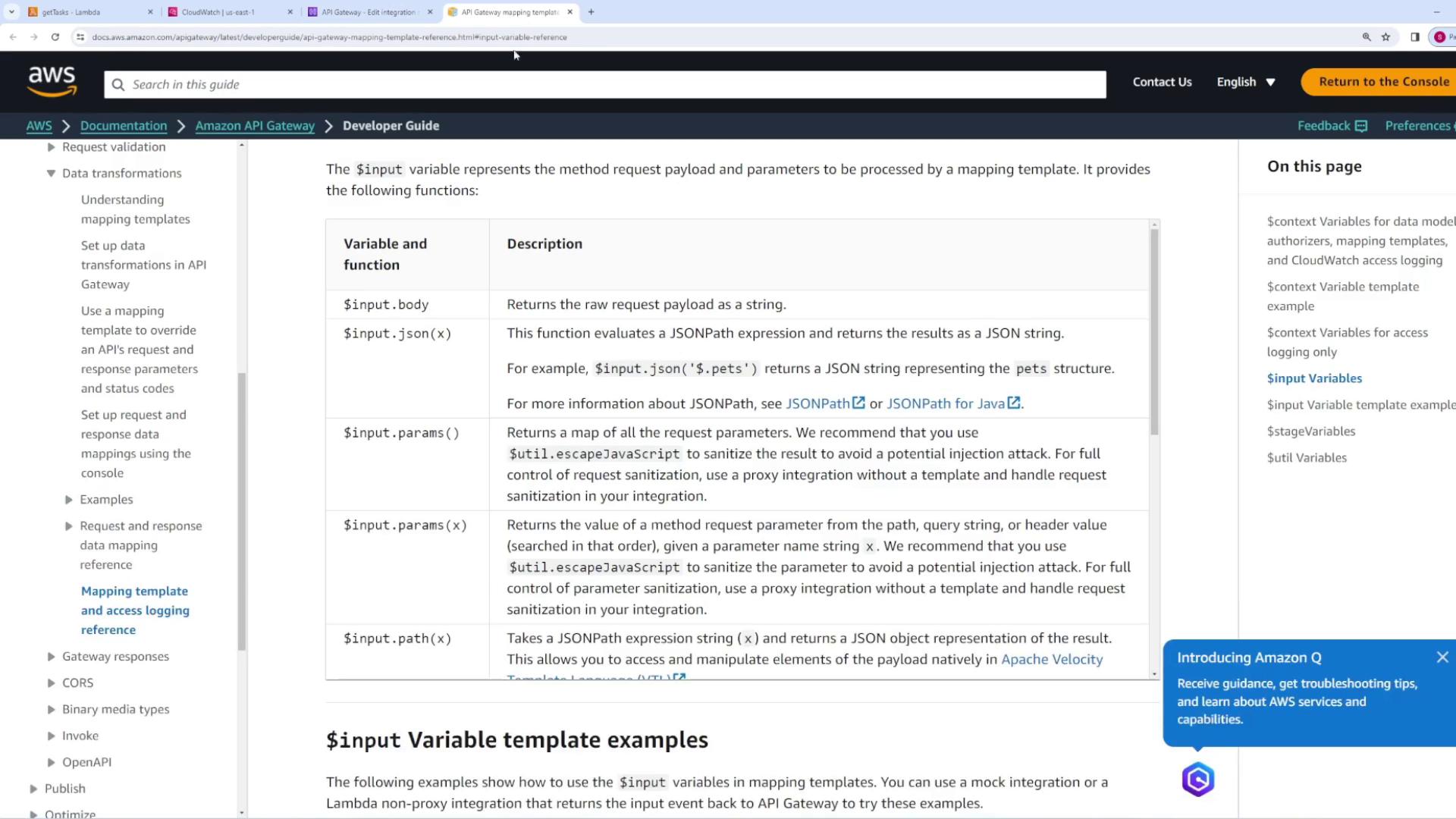
In the template editor, add the following mapping to forward all input parameters:
myparam containing the parameter details.
To isolate the task ID, adjust the template as follows:
/tasks/28 or /tasks/31) to verify that the dynamic path parameter is correctly passed. A representative response should look like:
Creating a New Task with POST
Now, implement the POST method to create a new task:- Under the
/tasksresource, add a POST method. - Select AWS Lambda integration and create a new Lambda function called
createTask.
createTask Lambda function might be:
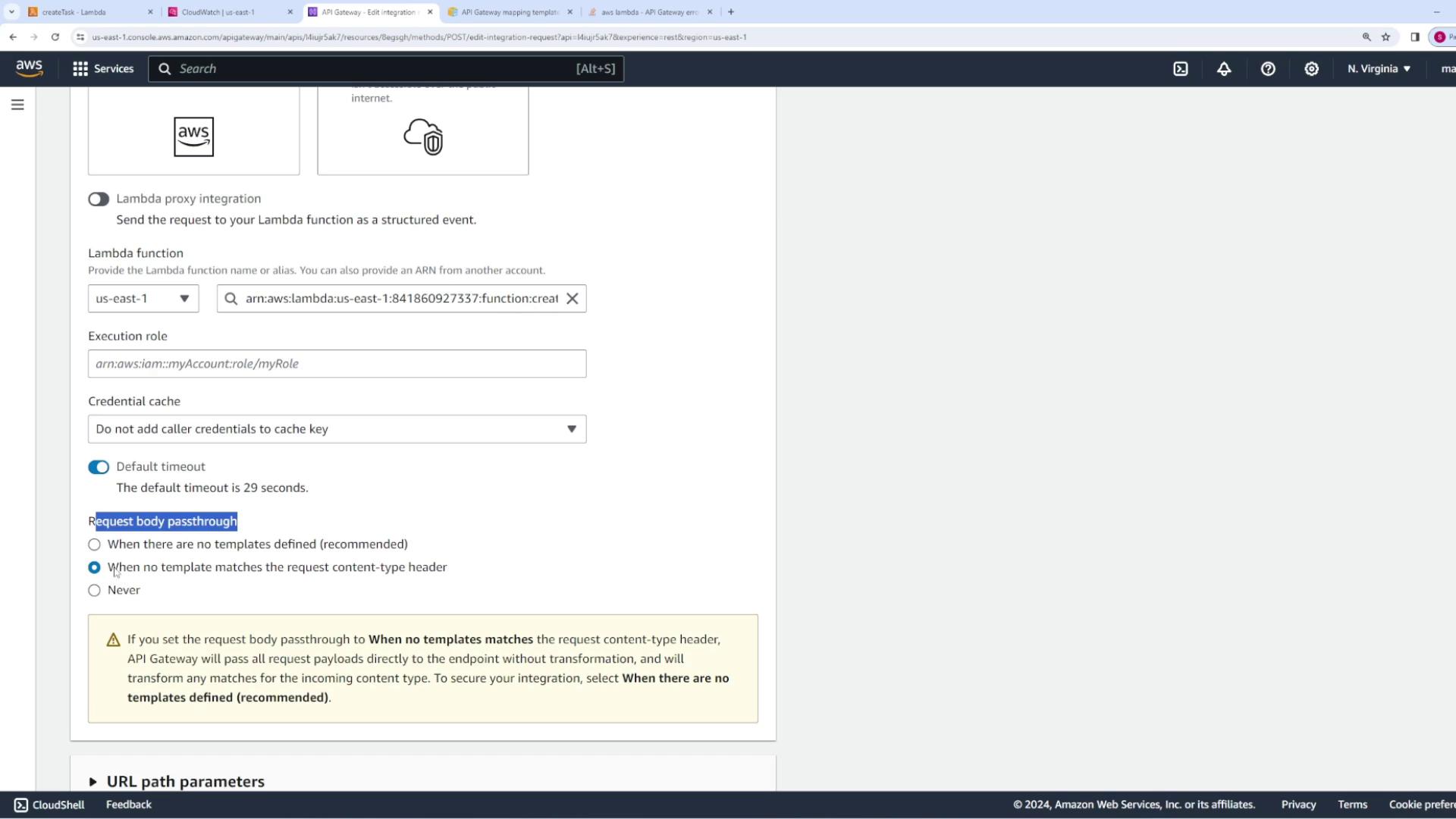
Note on Request Body Passthrough
!!! note “Note” By default, if no mapping template matches the request content type (usuallyapplication/json), API Gateway automatically passes the HTTP request body to your Lambda function. To disable this behavior, change the Request Body Passthrough setting to “Never” and create your own mapping template. For example, to explicitly pass the entire JSON body, use:
Working with Query Parameters
Lastly, let’s demonstrate handling query string parameters. For the GET tasks endpoint, you might support features such as filtering or sorting via query parameters. For instance, a client might request/tasks?sort=asc&status=completed to get a sorted, filtered list of tasks.
By default, the GET method may not forward these parameters unless a mapping template is defined. To capture query parameters, update the Integration Request mapping template as follows:
sort and status. An example response might be:
Summary
In this guide, we covered:- How to create a REST API for a Task Manager application using AWS API Gateway.
- Setting up GET methods for both static resources and dynamic path parameters.
- Enabling Lambda Proxy Integration and adjusting your Lambda function response format.
- Using mapping templates to extract path parameters, request bodies, and query parameters.
- Implementing a POST method to create new tasks and forward HTTP request data to your Lambda function.