This article provides a guide to using AWS SAM CLI for building, deploying, and testing a serverless application with Lambda functions and DynamoDB integration.
In this article, we walk you through an advanced example of using the AWS SAM CLI to build, deploy, and test a serverless application. We will guide you from initializing a new SAM project to deploying a fully functional API integrated with DynamoDB, using multiple Lambda functions.
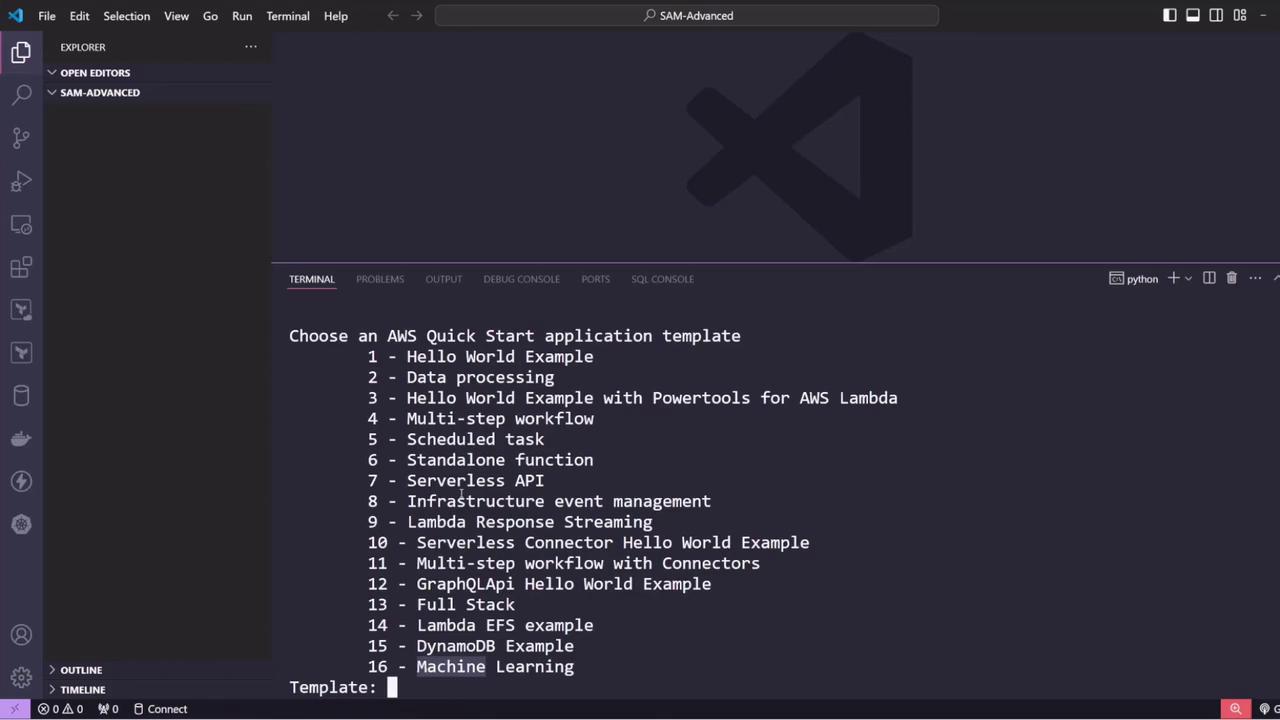
During initialization, the CLI prompts a series of questions to configure your project. AWS offers several Quick Start templates, such as the simple Hello World example, data processing workflows, serverless APIs, DynamoDB integrations, and machine learning samples. For this demo, choose the simple “Hello World” template.
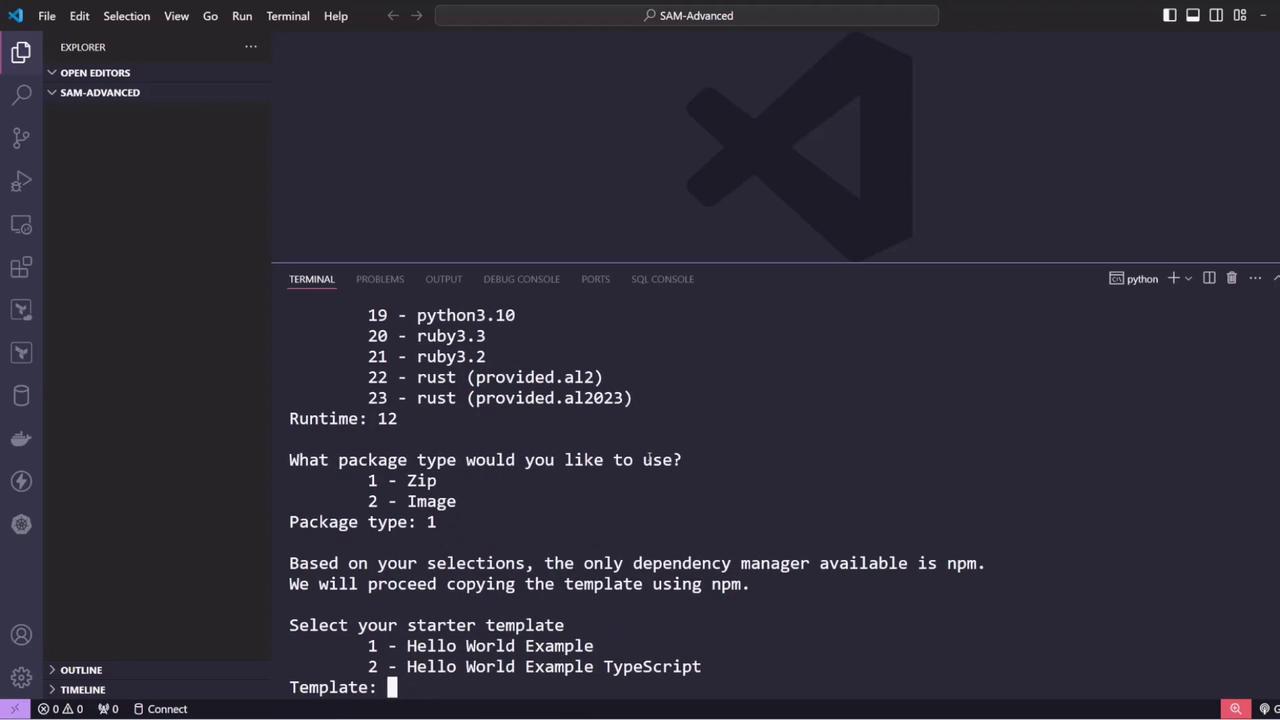
Next, select your desired runtime. Even though Python is typically the default, this example uses Node.js (e.g., Node.js 20). Choose the zip package type and plain JavaScript.
The CLI then asks if you want to enable additional features such as X-Ray tracing or CloudWatch monitoring. For simplicity, answer “no” for these options and provide a project name, for example, “SAM API.”After confirmation, SAM creates the project folder structure along with essential files. You might see an output similar to:
Copy
Ask AI
Commands you can use next===========================[*] Create pipeline: cd sam-api && sam pipeline init --bootstrap[*] Validate SAM template: cd sam-api && sam validate[*] Test Function in the Cloud: cd sam-api && sam sync --stack-name {stack-name} --watch
The generated project includes a template.yaml file that defines your SAM configuration. Key sections include a project description, global function settings (like the default function timeout), and resource definitions. Below is an excerpt of the template showcasing the Hello World function:
Copy
Ask AI
Description: > Sample SAM Template for sam-apiGlobals: Function: Timeout: 3Resources: HelloWorldFunction: Type: AWS::Serverless::Function # More info: https://github.com/awslabs/serverless-application-model/blob/master/versions/2016-10-31.md#awsserverlessfunction Properties: ...
The API event for the Hello World function is defined as shown below:
Copy
Ask AI
Resources: HelloWorldFunction: Properties: Events: Api: Type: Api # More info: https://github.com/awslabs/serverless-application-model/blob/master/versions/2016-10-31.md#api Properties: Path: /hello Method: getOutputs: # ServerlessRestApi is an implicit API created out of the Events key under Serverless::Function
Other files generated include a README, a .gitignore, sample tests, and directories for Lambda function code and test events. For instance, here is a Node.js Lambda function snippet:
Evolving the Example: Building an API for an E-Commerce Application
In this section, we extend the project to create an API for an e-commerce (or inventory) application. The API will allow users to add new products and retrieve a list of existing products from a DynamoDB table.Start by cleaning up any unnecessary files (like tests, .npmignore, and package.json) and reorganize your project structure so that all Lambda functions reside within a dedicated source folder.Next, add several Lambda functions to the project:
Create Products – Adds a new product to the DynamoDB table.
Get All Products – Retrieves the complete list of products.
Get Product by ID – Retrieves a specific product by its name (used as the primary key).
Below is the Lambda function code snippet for creating products:
Copy
Ask AI
import { DynamoDBClient } from "@aws-sdk/client-dynamodb";import { DynamoDBDocumentClient, PutCommand } from "@aws-sdk/lib-dynamodb";const client = new DynamoDBClient({});const ddbDocClient = DynamoDBDocumentClient.from(client);// Get the DynamoDB table name from environment variablesconst tableName = process.env.TABLE;/** * A simple example includes an HTTP POST method to add one item to a DynamoDB table. */export const createProductsHandler = async (event) => { if (event.httpMethod !== "POST") { throw new Error(`postMethod only accepts POST method, you tried: ${event.httpMethod}`); } // Add logic to put the item into DynamoDB using ddbDocClient and PutCommand};
The corresponding SAM resource definition in template.yaml is provided below:
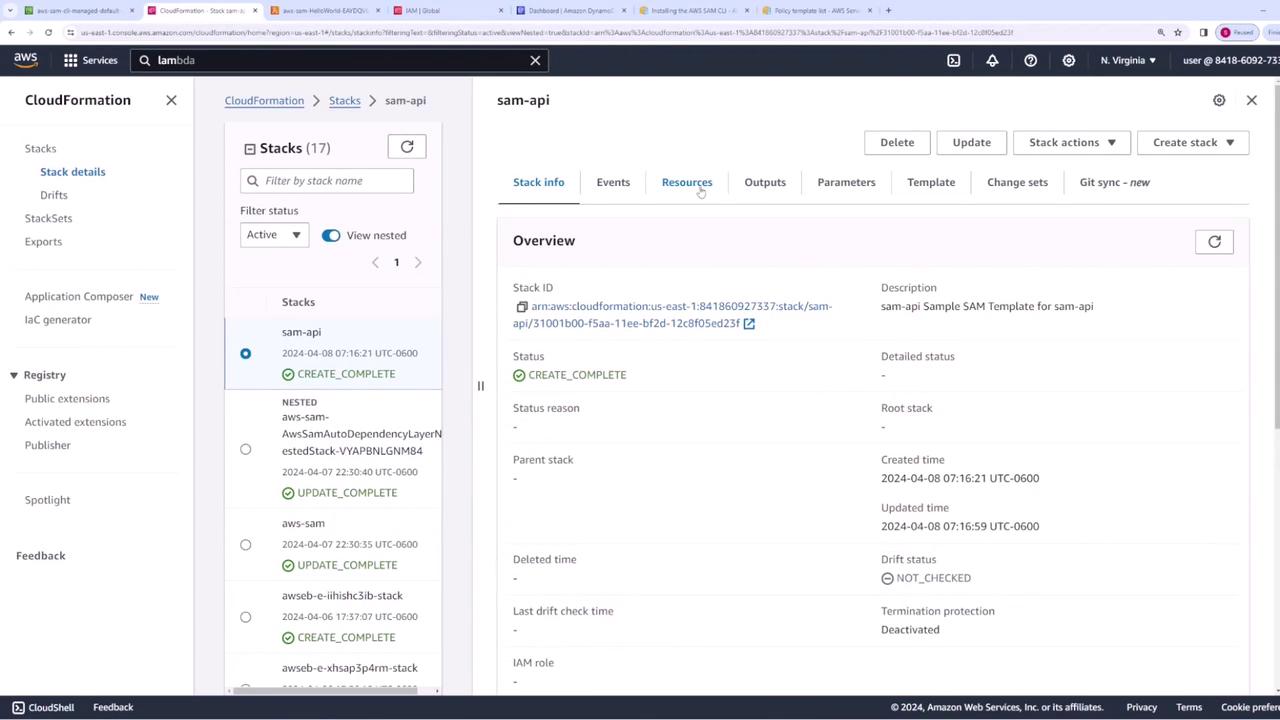
Follow the interactive prompts to configure deployment parameters such as stack name, region, and IAM role confirmations. After deployment, CloudFormation creates the DynamoDB table, API Gateway, Lambda functions, and assigns the required permissions.
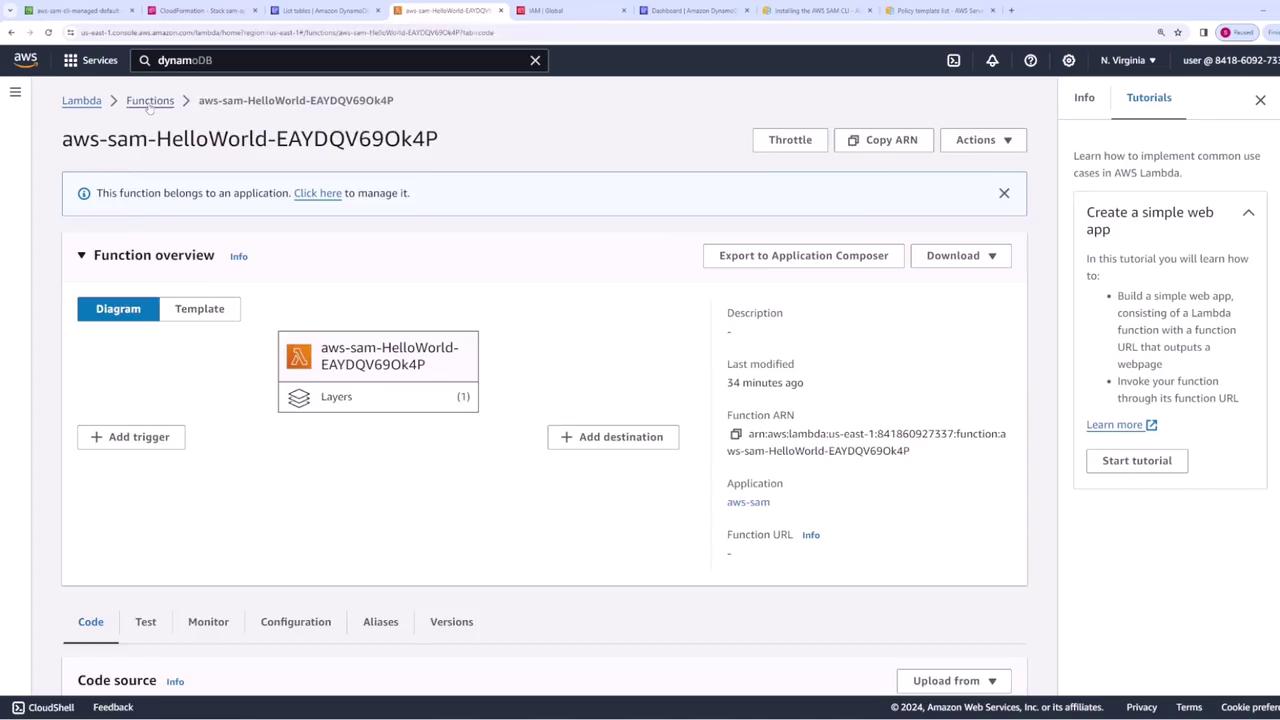
Verify the deployed resources in your AWS Console:
DynamoDB: Check the products table.
Lambda: Confirm the createProduct Lambda function.
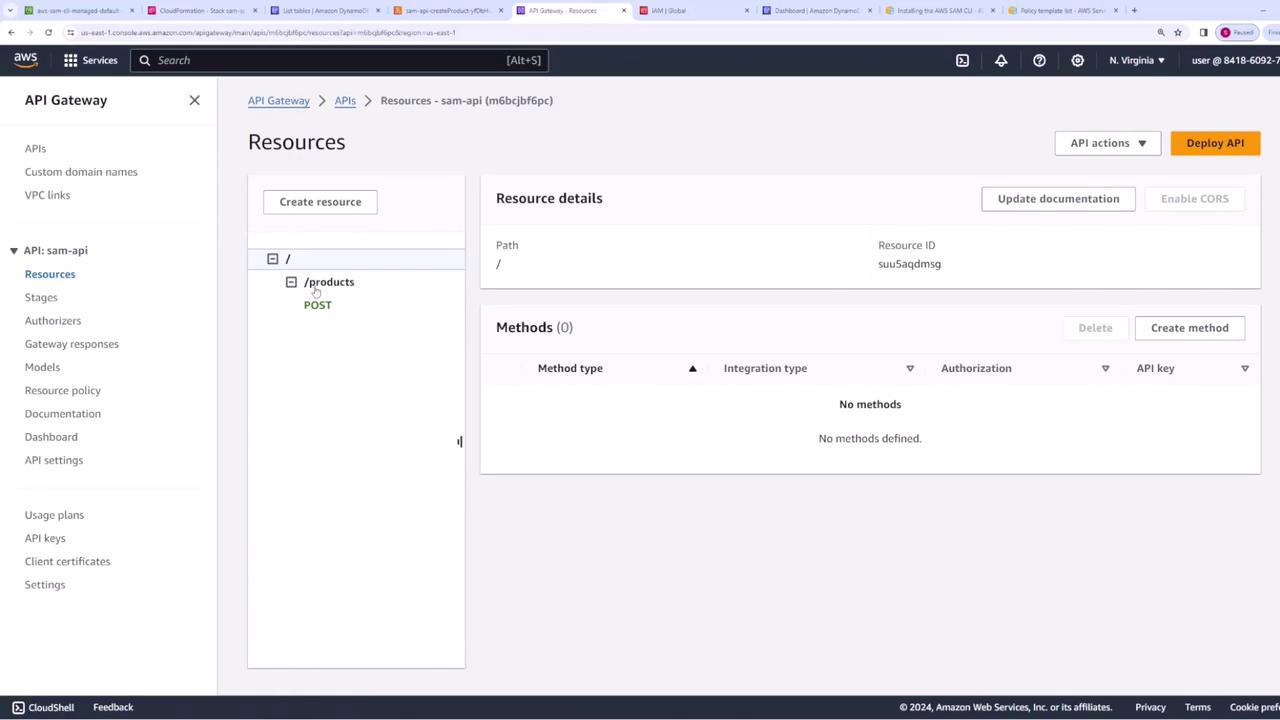
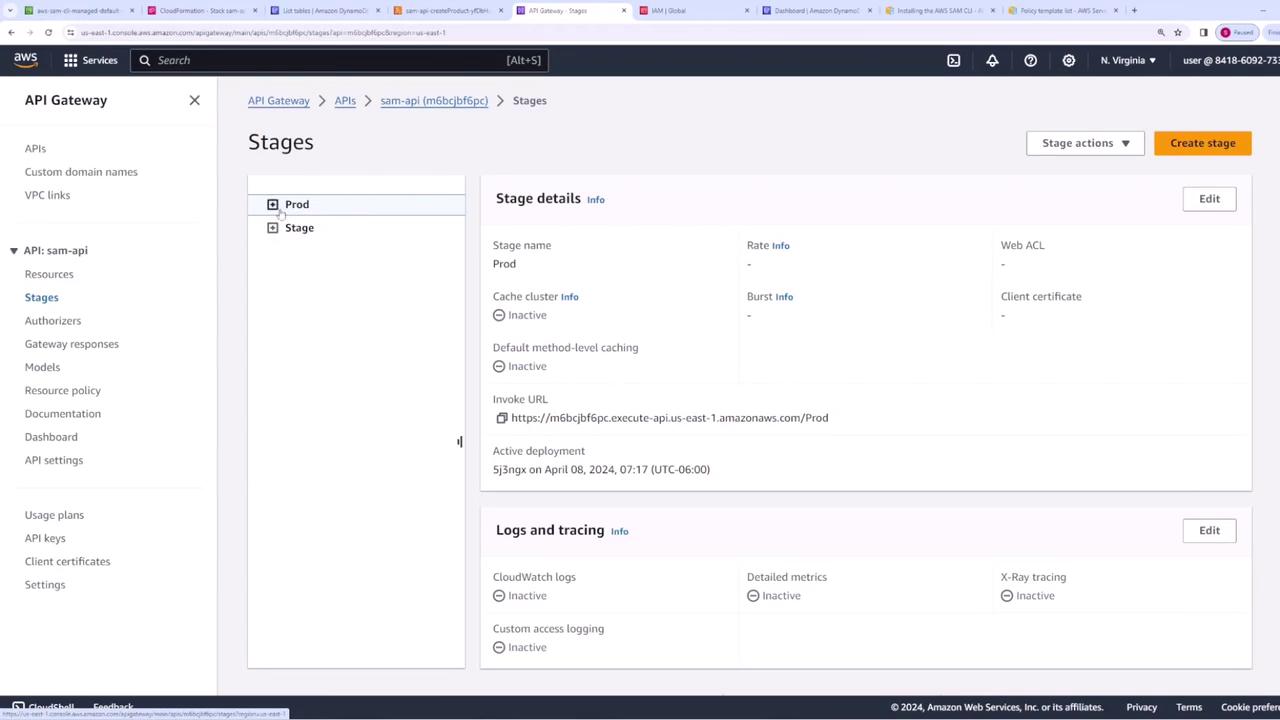
API Gateway: Ensure that the API properly triggers your Lambda functions.
Use tools like Postman or curl to test your API endpoints. For instance, to create a new product, send a POST request with a JSON payload containing the required “name” field along with additional properties such as price.Example POST payload for creating a phone:
Copy
Ask AI
{ "name": "phone", "price": 200}
After adding multiple products (e.g., phone, TV, book), inspect the DynamoDB table to verify the entries.For the Get All Products endpoint, configure a Lambda function in your template as follows:
To simplify testing and troubleshooting, add an Outputs section to your template.yaml to display useful details such as the Lambda ARN and the API URL:
Copy
Ask AI
Outputs: createProductsFunction: Description: "ARN of create products function" Value: !GetAtt createProduct.Arn APIUrl: Description: "URL of the API" Value: !Sub "https://${ServerlessRestApi}.execute-api.${AWS::Region}.amazonaws.com/Prod"
After running sam deploy, you will see output similar to:
Copy
Ask AI
Outputs-------------------------------------------------Key Description ValuecreateProductsFunction ARN of create products function arn:aws:lambda:us-east-1:841860927337:function:sam-api-createProductAPIUrl URL of the API https://<api-id>.execute-api.us-east-1.amazonaws.com/Prod
Once testing is complete and you no longer need the deployed resources, clean up by deleting the CloudFormation stack:
Copy
Ask AI
sam delete
This command removes the stack along with all associated resources.This concludes our SAM advanced demo. In this article, we covered how to initialize a SAM project using a Quick Start template, build and configure multiple Lambda functions integrated with DynamoDB and API Gateway, and output essential deployment information for testing. Happy coding!