This guide walks through setting up DynamoDB Streams with a Lambda function using the Products table as an example.
This guide provides a step-by-step walkthrough to set up DynamoDB Streams for a table using the Products table as an example. Follow along to configure the stream, integrate it with a Lambda function, and validate stream events via CloudWatch Logs.
Step 1: Enable DynamoDB Streams on the Products Table
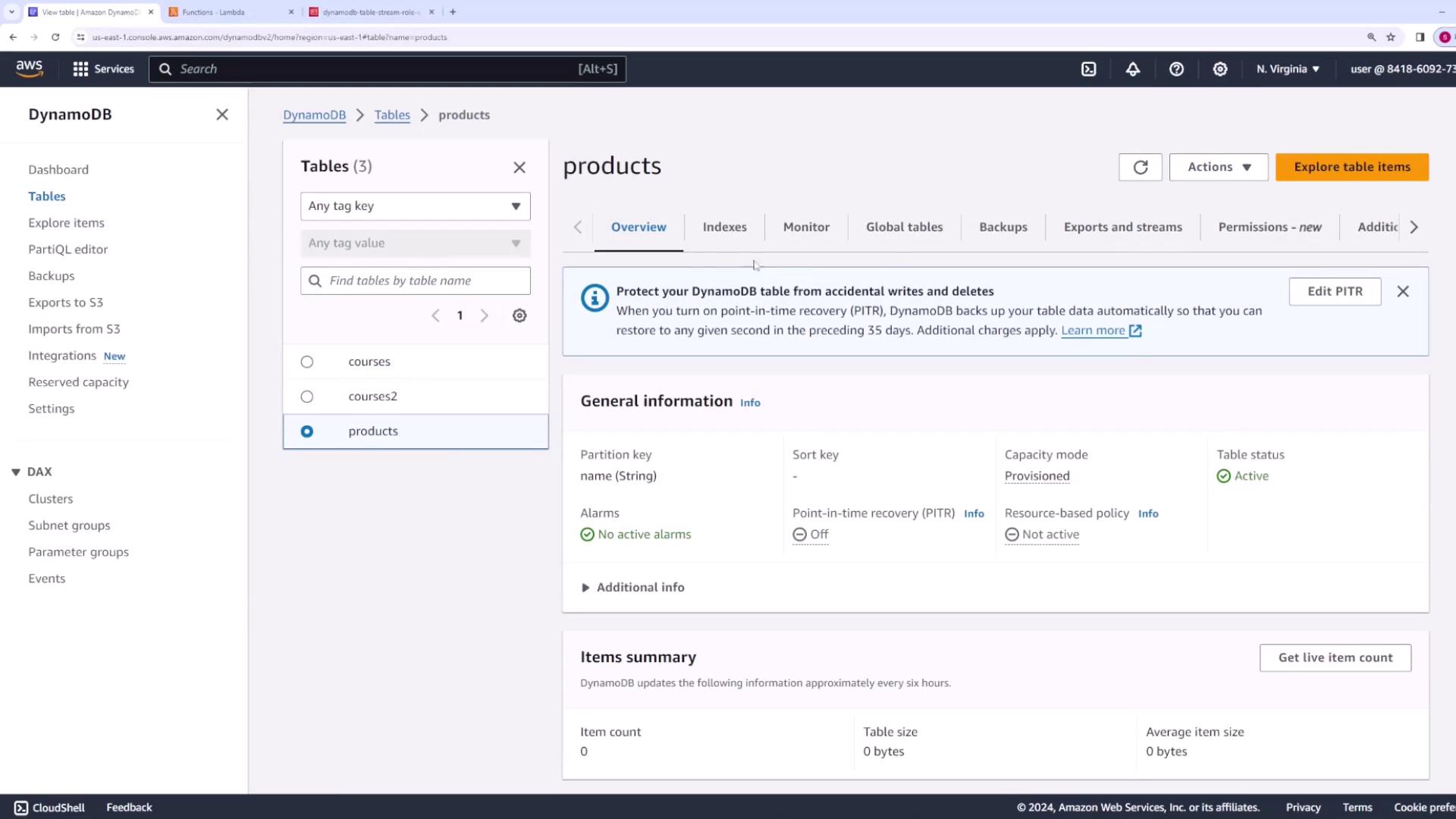
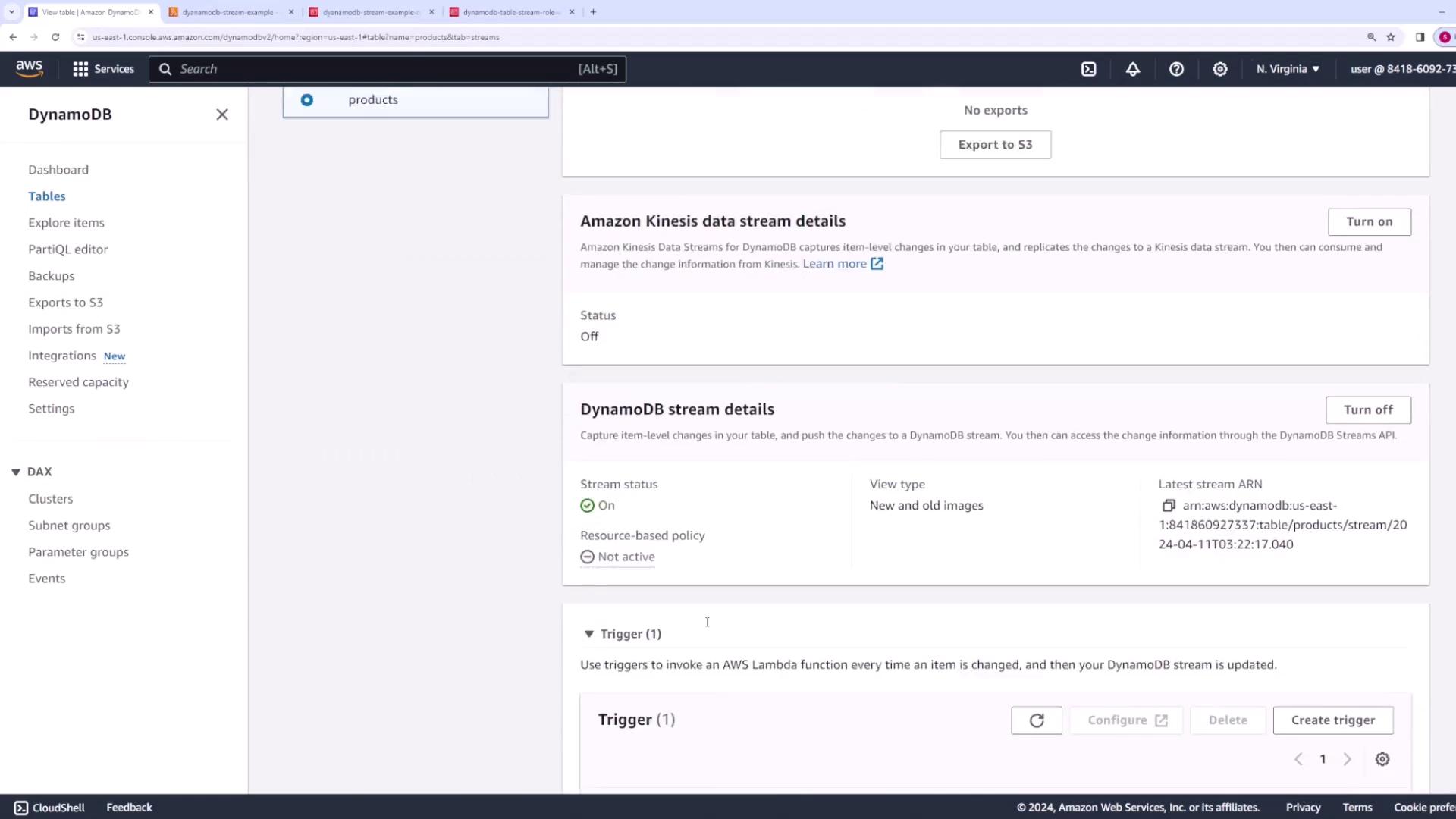
First, open the Products table in your AWS DynamoDB console. Navigate to the Exports and Streams section and scroll down to review the DynamoDB Streams details.
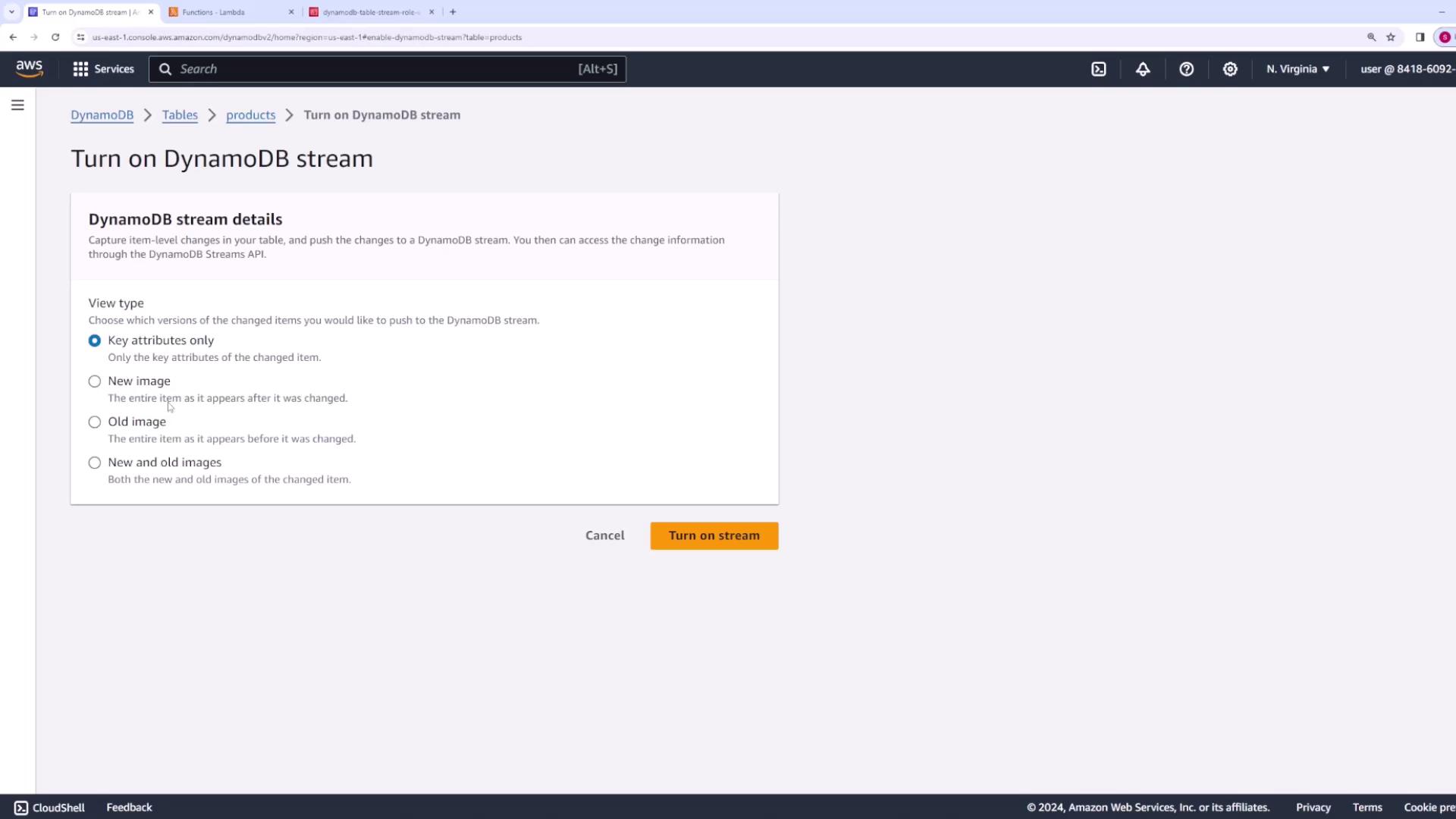
Here, you’ll notice that DynamoDB Streams is set to Off. Click Turn On and select the desired streaming option:
Key Attributes Only - Streams only the key attributes of the modified item.
New Image - Streams the entire item as it exists after the change.
New and Old Images - Captures both the previous and new images of the item.
For the richest dataset, choose New and Old Images and enable the stream.
Since there is no trigger configured yet, create one by associating a Lambda function to process the stream events.
If you haven’t already created a Lambda function, follow these steps:
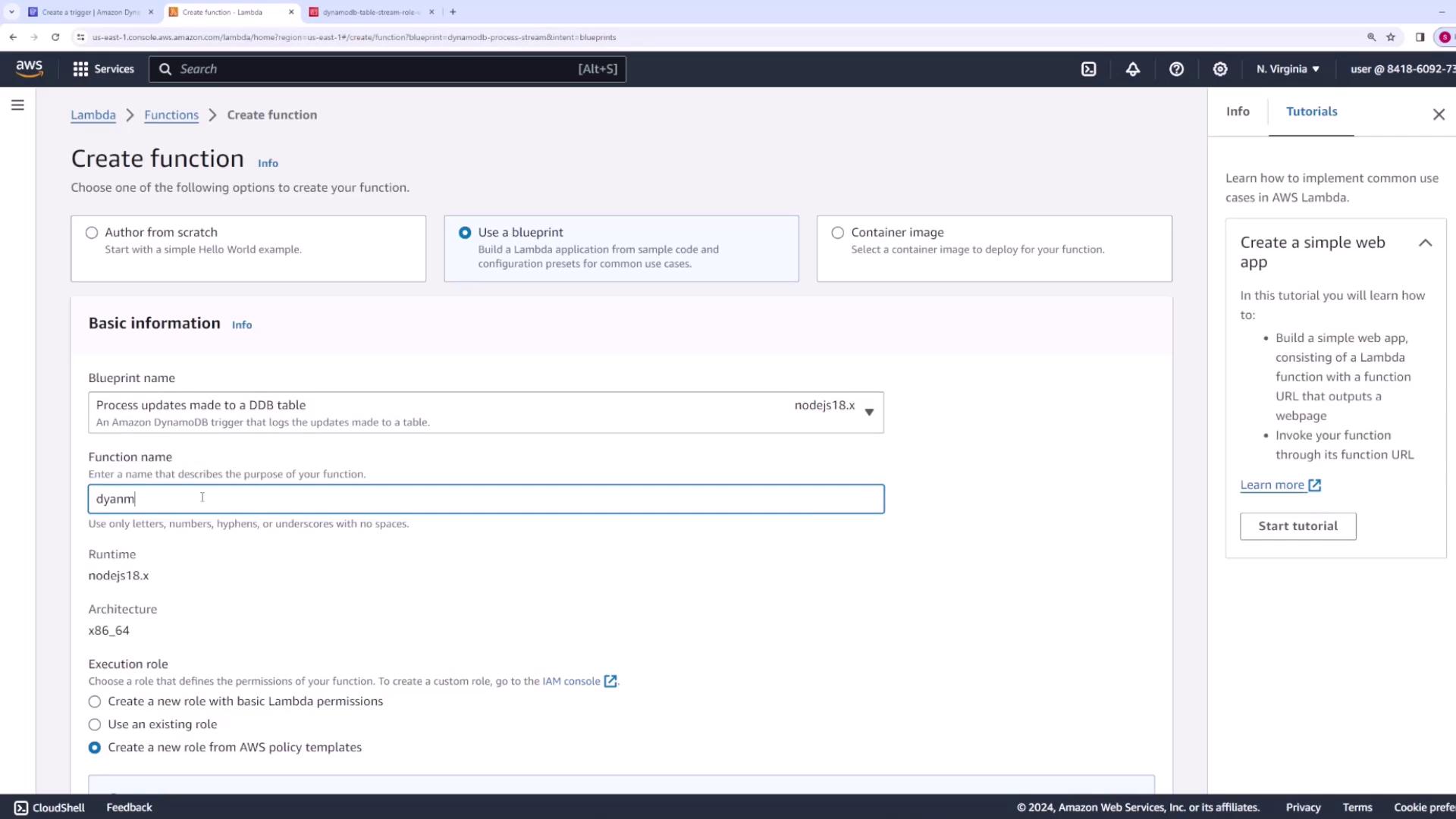
In the AWS Lambda console, choose to create a new function.
Use the provided DynamoDB Streams template. When prompted, select the blueprint named “process updates made to a DynamoDB table” and choose the Node.js version.
Name your function (e.g., “DynamoDBStreamExample”) and create a new role with basic Lambda permissions. Note that you may need to add additional permissions later.
The template provides sample Node.js code which iterates over the records from DynamoDB and logs the event details. Below is the sample code used to process the stream events:
Copy
Ask AI
console.log('Loading function');export const handler = async (event) => { for (const record of event.Records) { console.log(record.eventID); console.log(record.eventName); console.log('DynamoDB Record: %j', record.dynamodb); } return `Successfully processed ${event.Records.length} records.`;};
Step 3: Link the DynamoDB Table to the Lambda Function
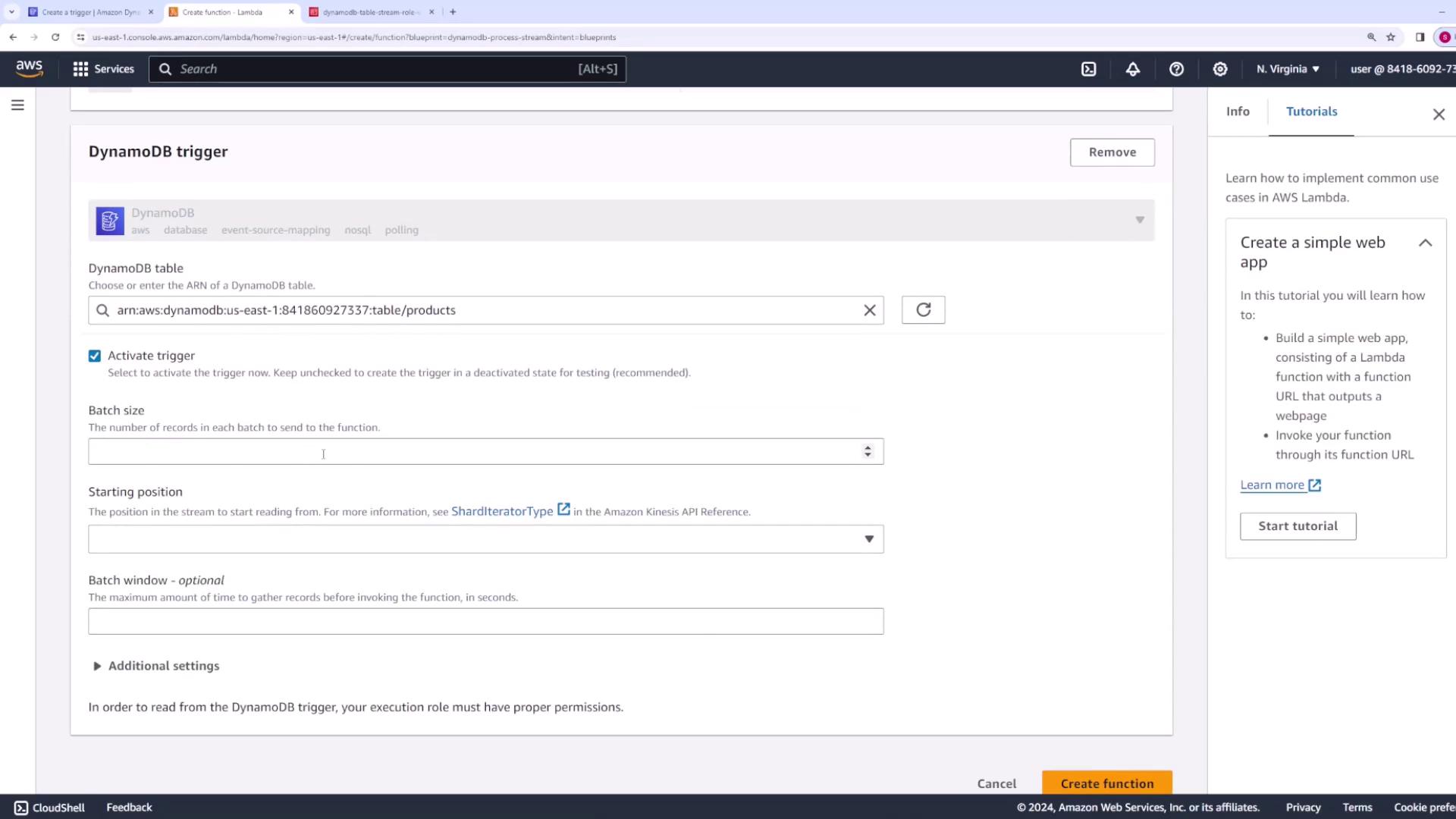
Configure the trigger by specifying that the Products table should stream data to the new Lambda function. You can adjust the batch size (e.g., 10 records per invocation) and choose “LATEST” for the starting position. Once configured, create the trigger.
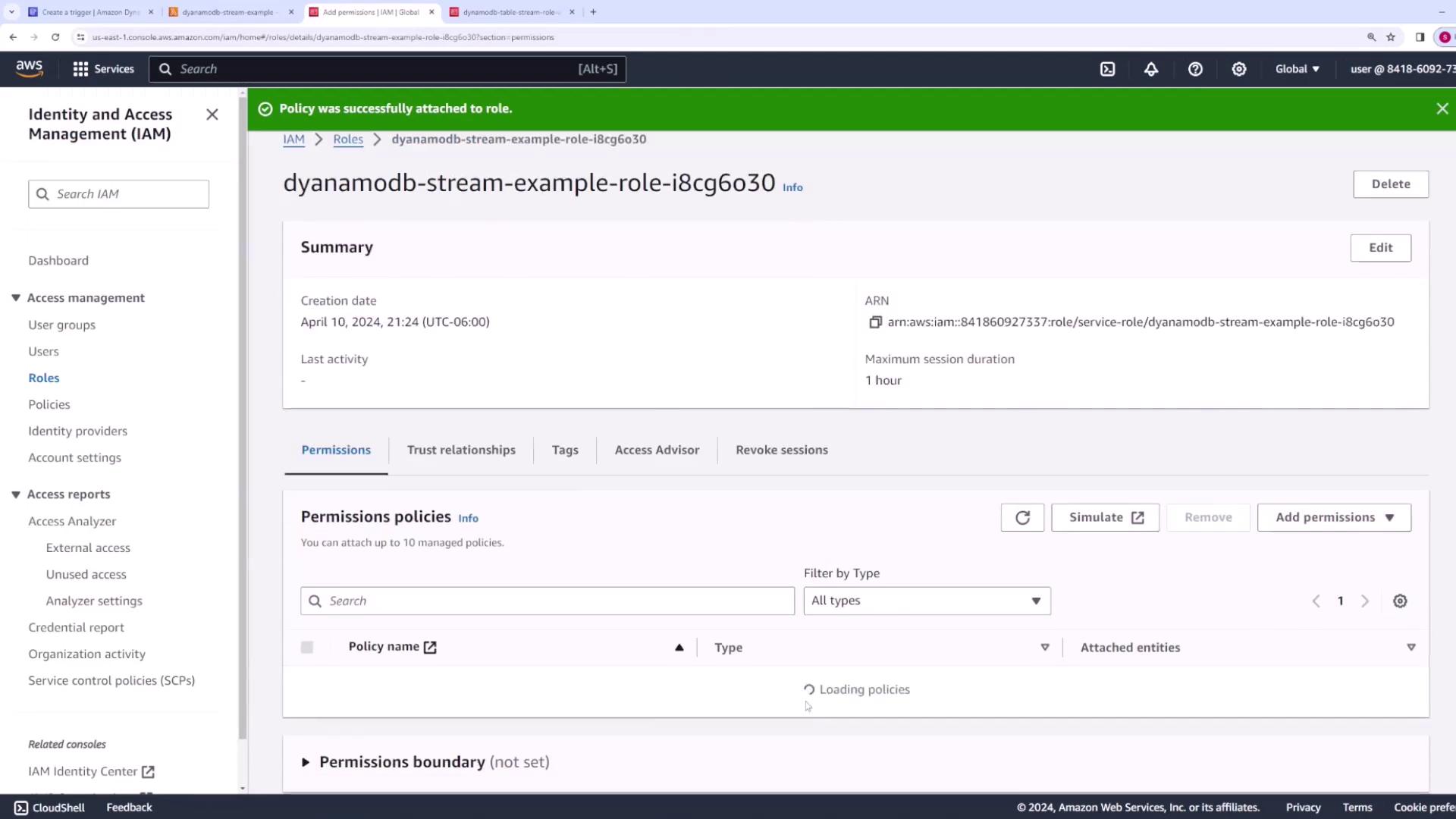
After creating the Lambda function, you might see an error indicating that the function lacks permissions to access DynamoDB Streams. To resolve this:
Navigate to the Lambda function’s Configuration -> Permissions tab.
Click the role associated with the Lambda function.
Attach the policy AWS Lambda DynamoDB Execution Role to grant the necessary permissions.
After updating the IAM policies, refresh the Lambda console and the DynamoDB Streams configuration. You should now see that the Lambda function is properly attached as a trigger.
To confirm that your setup is working, perform some of the following operations on your DynamoDB table:
Create an Item: Add a new product (e.g., a computer) with attributes like price ($2000) and category (electronics).
Modify an Item: Update an existing item (for example, change the price of a shampoo item from 10to5).
Delete an Item: Remove an item (such as a TV).
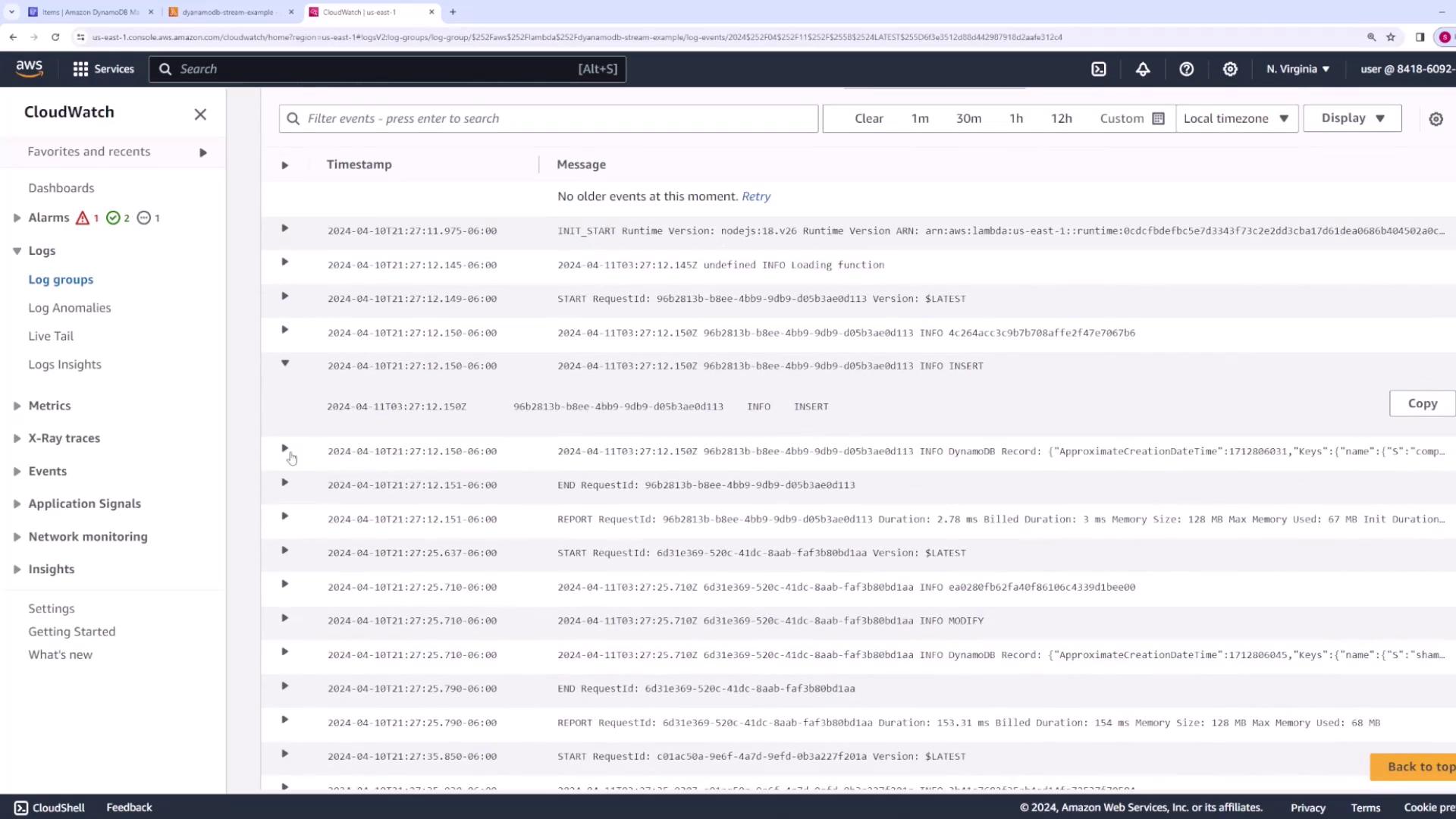
These table operations will trigger the stream events, which the Lambda function processes. Then, check CloudWatch logs to verify that the events are captured correctly.
This confirms that a new product item with a price of 2000 and category electronics has been successfully created.A log entry for a modification event will capture both the old and new values. For example, when modifying the “shampoo” item:
You have now set up and integrated DynamoDB Streams with a Lambda trigger, enabling real-time processing of changes to your DynamoDB table. With the steps outlined above, you can confidently process stream events and monitor them via CloudWatch. Happy coding, and see you in the next article!For more details, check out the AWS Lambda Documentation and DynamoDB Streams Overview.