Table of Contents
- Pipeline Stages Overview
- Adding the Unit Testing Stage
- Debugging a Failed Test Stage
- Configuring Environment Variables
- Managing Jenkins Credentials
- Wrapping Tests with Credentials
- Publishing and Viewing Test Results
- Final Pipeline Snippet
- References
Pipeline Stages Overview
| Stage Name | Purpose | Example Command |
|---|---|---|
| Installing Dependencies | Install project dependencies with npm | sh 'npm install' |
| Dependency Scanning | Audit packages for vulnerabilities | npm audit / OWASP tools |
| Unit Testing | Run Mocha tests and generate JUnit XML report | sh 'npm test' |
Adding the Unit Testing Stage
Open yourJenkinsfile and insert a Unit Testing stage right after Dependency Scanning:
Debugging a Failed Test Stage
In our example, the Unit Testing stage fails because MongoDB credentials are missing: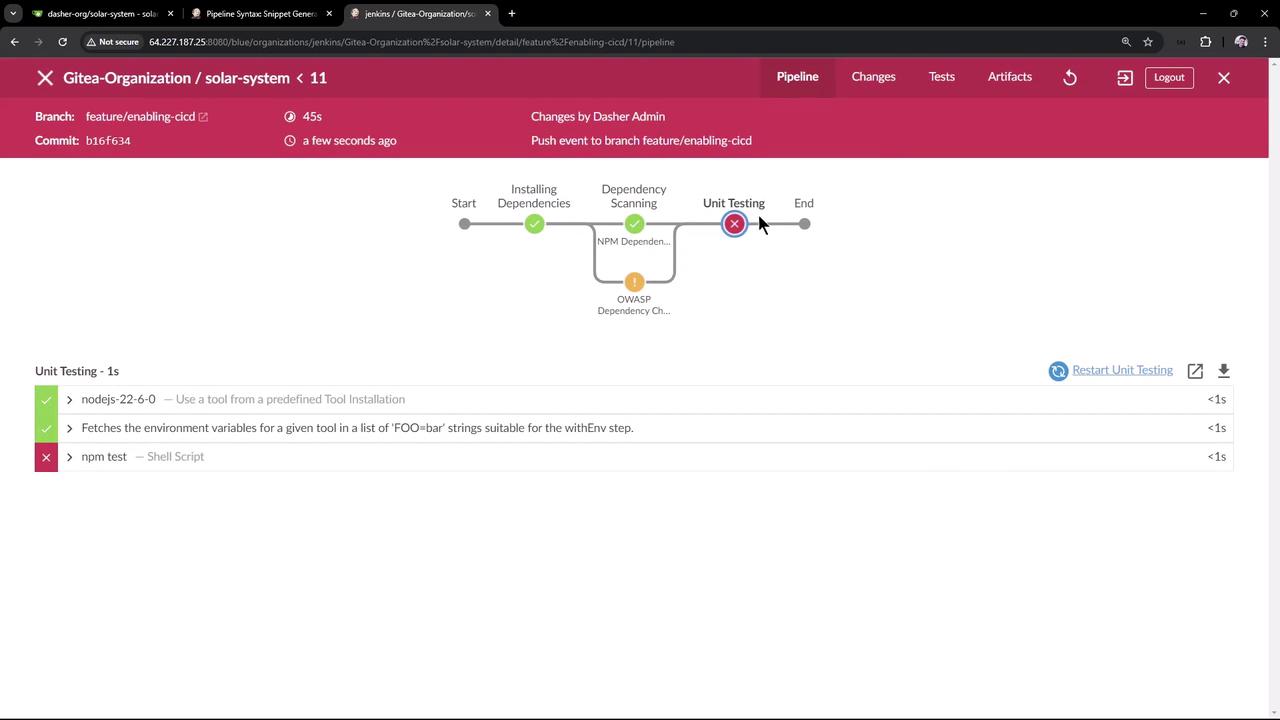
Error Output
app.js expects these environment variables:
MONGO_URI, MONGO_USERNAME, or MONGO_PASSWORD, the connection fails.
Configuring Environment Variables
You can defineMONGO_URI in your Jenkinsfile, but be aware of plaintext exposure.
Storing sensitive connection strings directly in the
Jenkinsfile exposes them in plaintext. Use Jenkins Credentials for usernames and passwords.Managing Jenkins Credentials
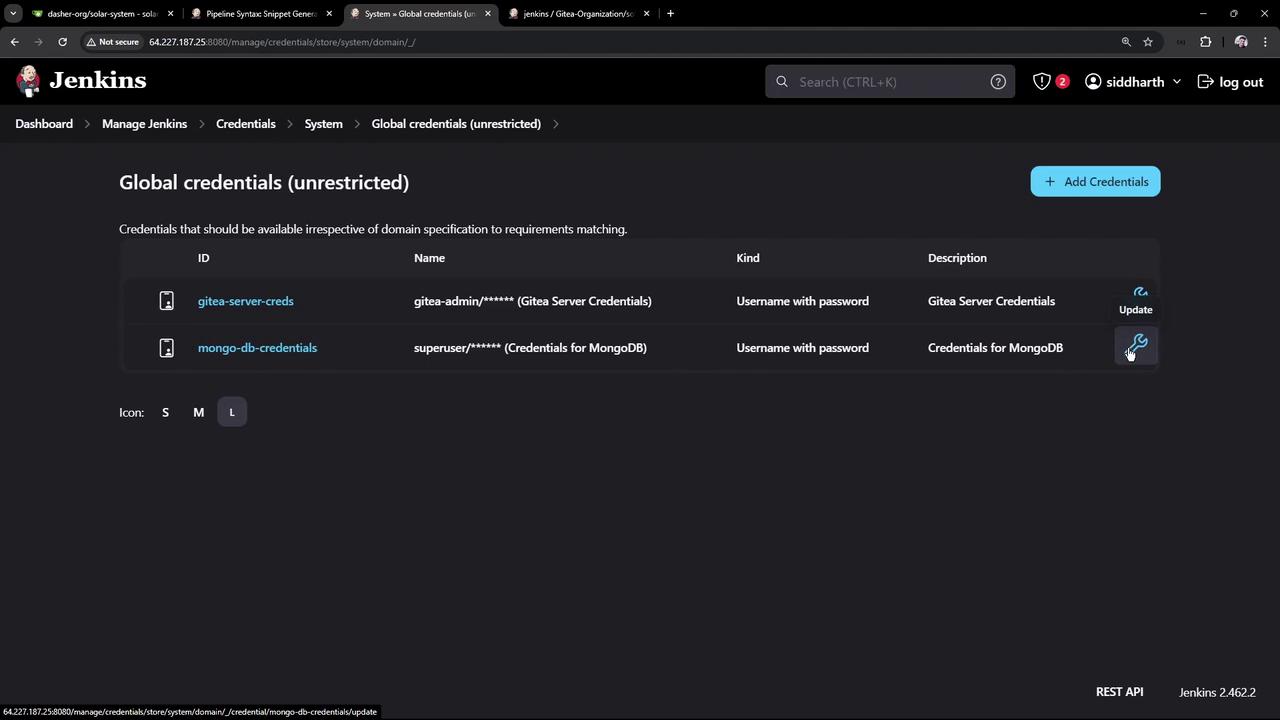
- Go to Manage Jenkins > Credentials > System > Global credentials (unrestricted).
- Click Add Credentials and choose Username with password.
- ID:
mongo-db-credentials - Username:
superuser - Password:
superpassword
- ID:
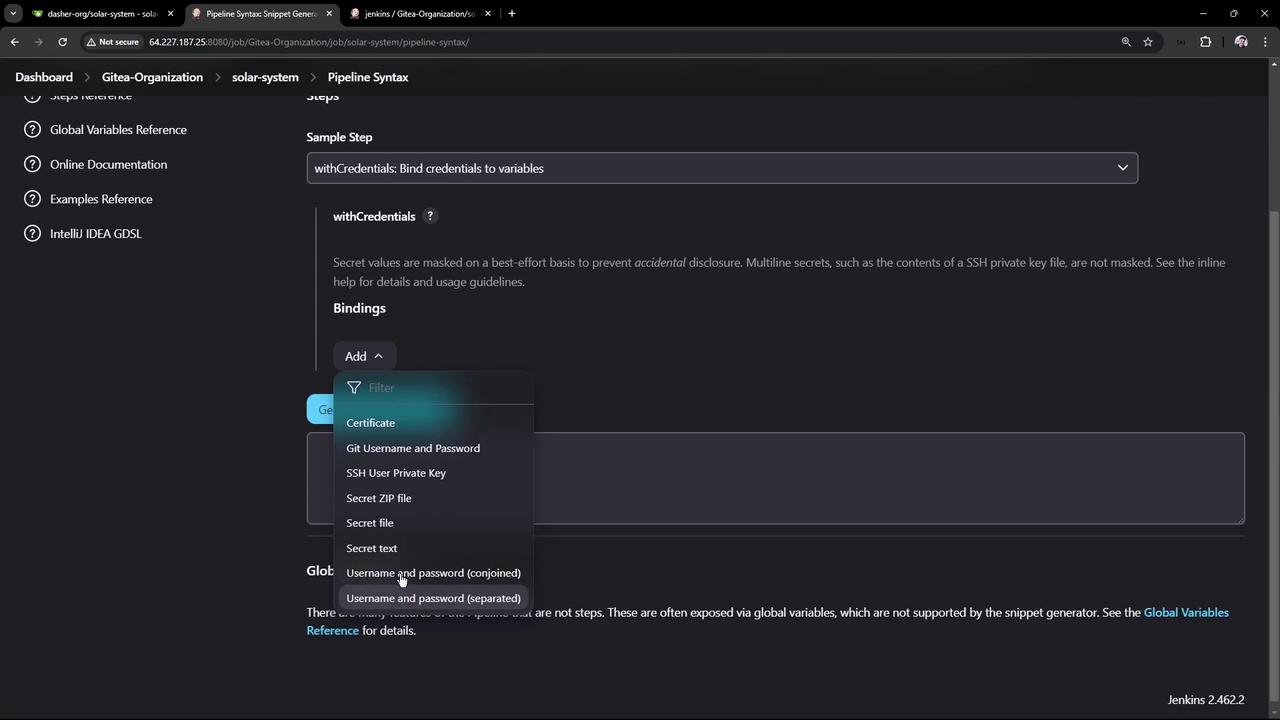
withCredentials bindings look:
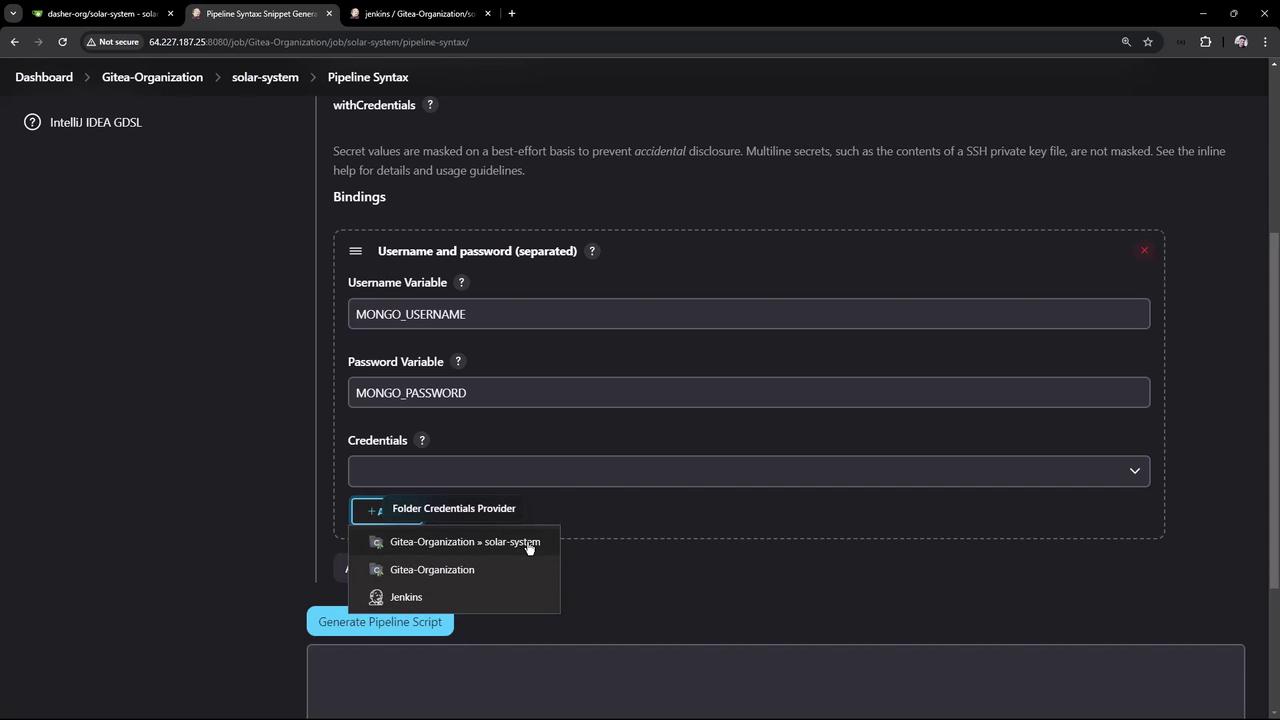
Wrapping Tests with Credentials
Update theUnit Testing stage to inject credentials at runtime and archive JUnit reports:
The
See Pipeline Syntax: junit for details.
junit step will fail the build if no XML files are found unless you set allowEmptyResults: true.See Pipeline Syntax: junit for details.
Publishing and Viewing Test Results
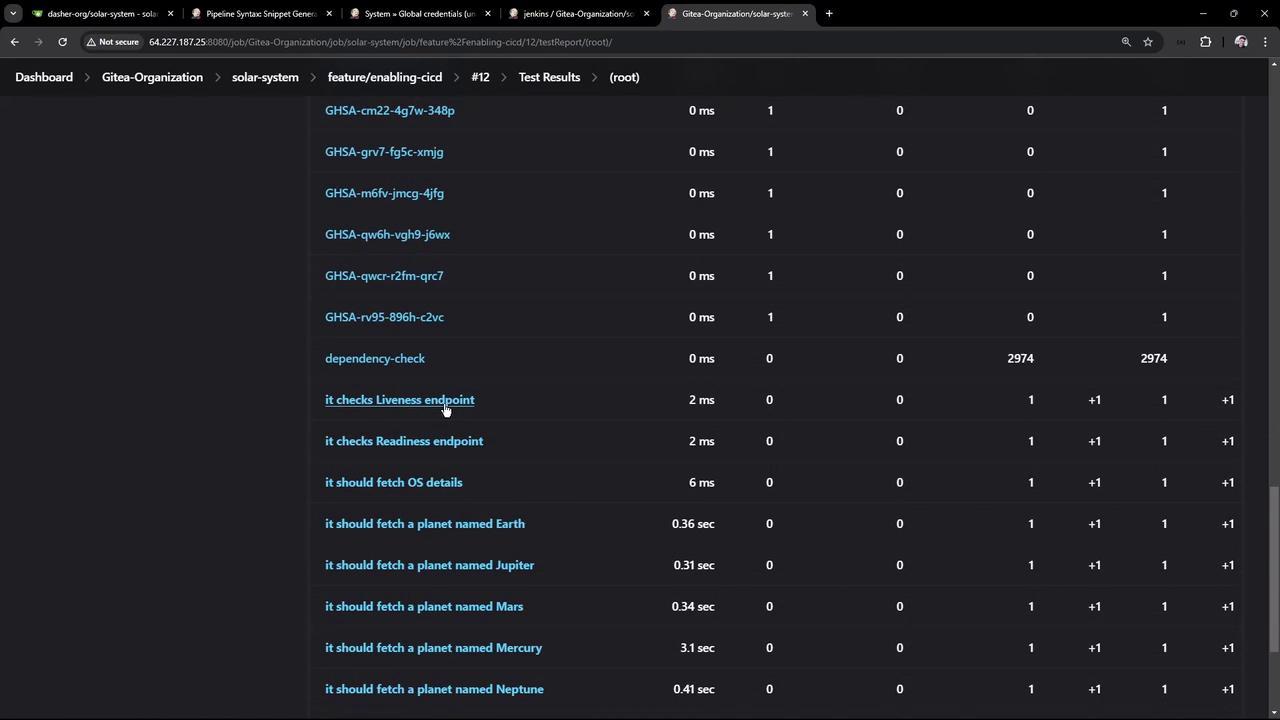
After a successful build:- Open the Workspace to verify
test-results.xmlexists. - Click Test Result in the sidebar for a summary of test cases.