In this guide, we’ll explore the differences between Declarative and Scripted Jenkins Pipelines using two sample Jenkinsfiles stored in a Git repository. You’ll learn how each pipeline type handles source control, error handling, and post-build actions.

Repository Overview

Our Gitea repository declarative-vs-scripted-pipeline holds two pipeline definitions:
  • Jenkinsfile.declarative – a Declarative Pipeline
  • Jenkinsfile.scripted – a Scripted Pipeline
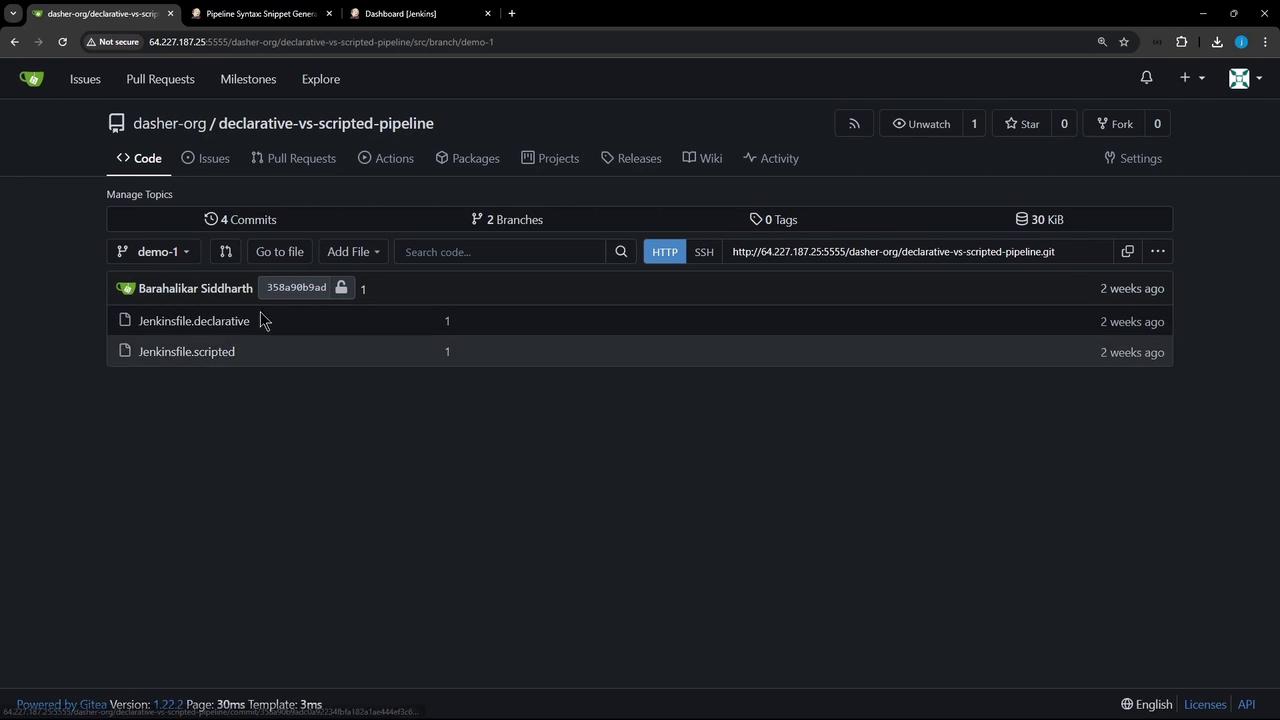
The image shows a Gitea repository interface for a project named "declarative-vs-scripted-pipeline" with two branches and files related to Jenkins pipelines.

Declarative Pipeline (Jenkinsfile.declarative)

A Declarative Pipeline uses a fixed, structured syntax that’s easy to read and maintain. Here’s a minimal example:
pipeline {
    agent any

    stages {
        stage('Echo Message') {
            steps {
                sh 'ls -ltr'
                sh 'echo "This is executed within a DECLARATIVE Pipeline"'
            }
        }
    }

    post {
        always {
            sh 'echo "This will always run"'
            sh 'rm -rf *'
        }
    }
}
Key features of Declarative Pipelines:
  • Built-in SCM Checkout via an automatic stage
  • Structured Syntax: pipeline, agent, stages, post
  • Stage Restarts: rerun from any completed stage

Scripted Pipeline (Jenkinsfile.scripted)

Scripted Pipelines require you to explicitly call checkout scm if you need source files. They do not include automatic SCM checkout.
A Scripted Pipeline offers full Groovy flexibility. Here’s a basic example without SCM checkout:
node {
    try {
        stage('Echo Message') {
            sh 'ls -ltr'
            sh 'echo This is executed within a SCRIPTED Pipeline'
        }
    } catch (err) {
        echo "Failed: ${err}"
    } finally {
        sh 'echo "This will always run."'
        // sh 'rm -rf *'
    }
}

1. Configuring a Declarative Pipeline Job

  1. In the Jenkins dashboard, click New Item, enter d-v-s-pipeline, select Pipeline, then OK.
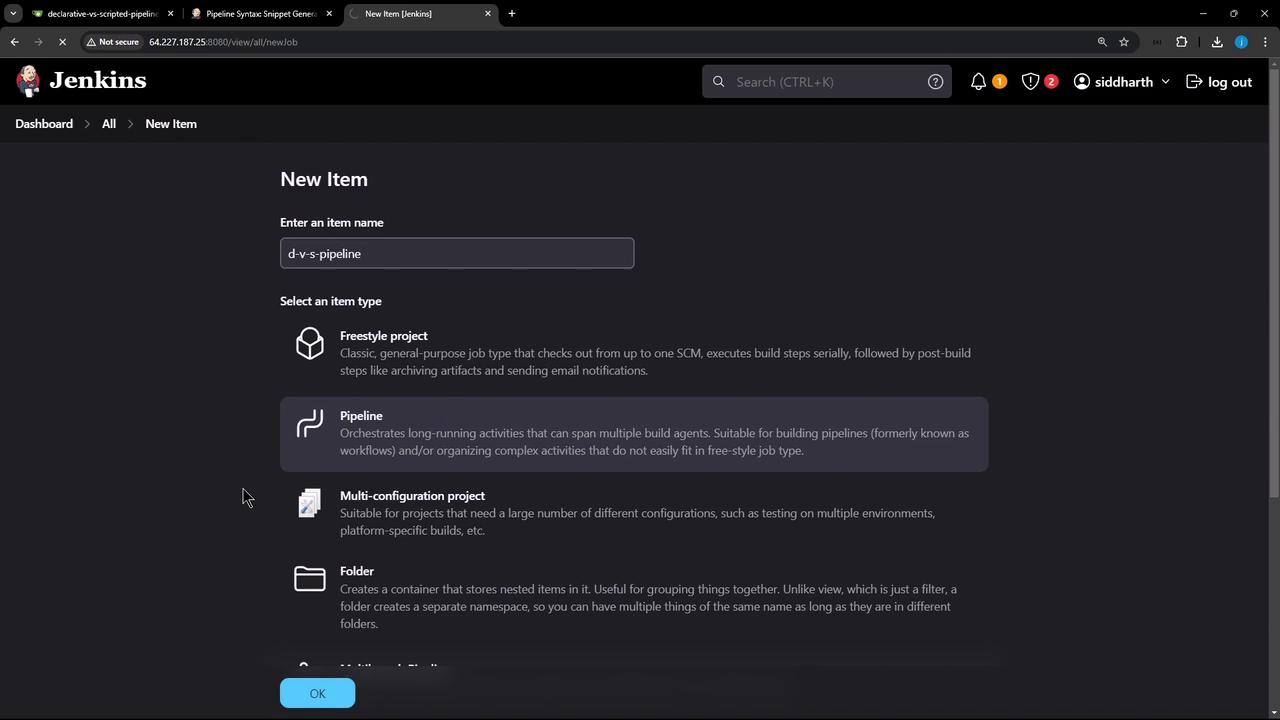
The image shows a Jenkins interface for creating a new item, with options to select different project types such as Freestyle project, Pipeline, Multi-configuration project, and Folder. The user has entered "d-v-s-pipeline" as the item name.
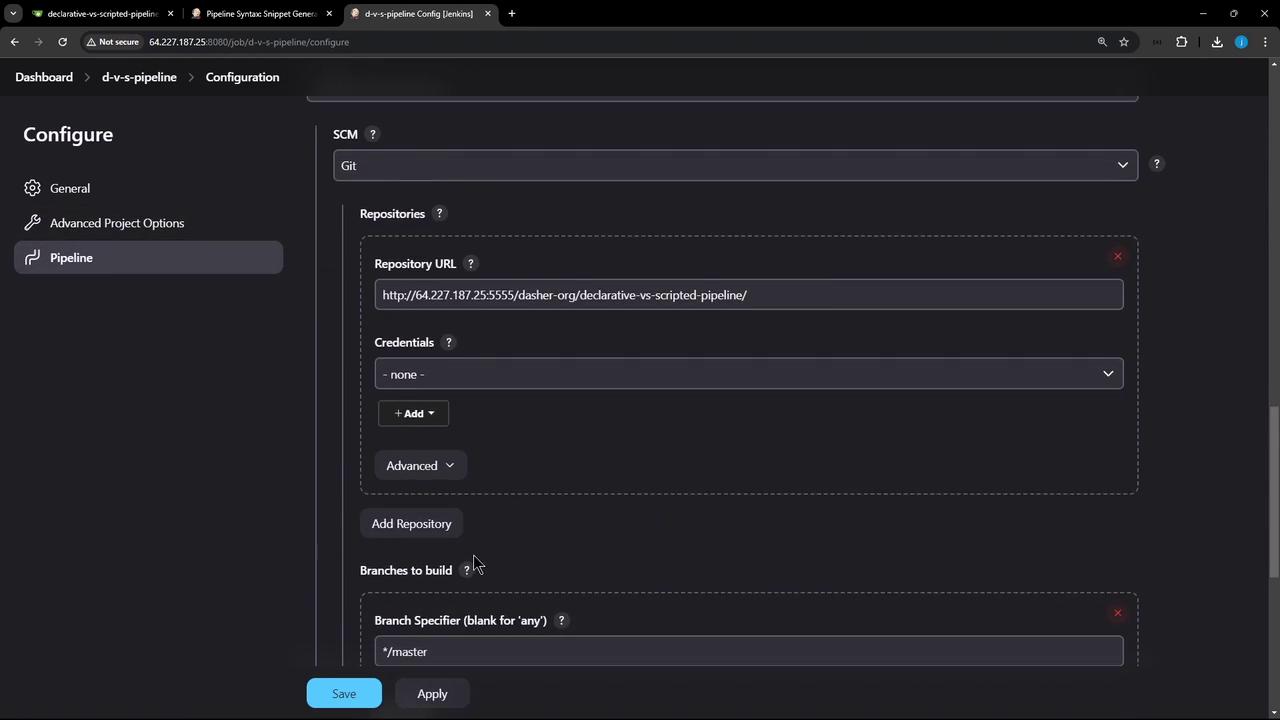
  1. Under Pipeline, choose Pipeline script from SCM, then set:
    • SCM: Git
    • Repository URL and Credentials
    • Branch: demo-1
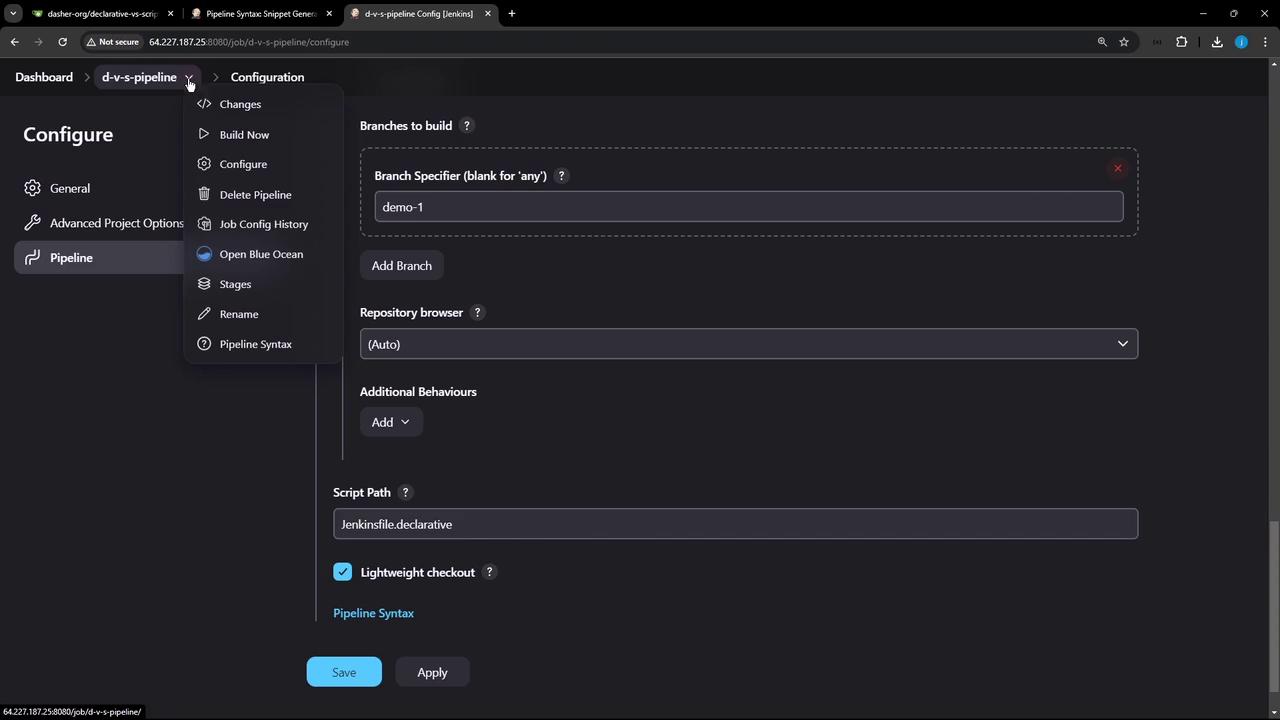
    • Script Path: Jenkinsfile.declarative
The image shows a Jenkins configuration screen for setting up a pipeline, with options for specifying the SCM, repository URL, credentials, and branch to build.
  1. Click Apply & Save, then Build Now. In Blue Ocean or the classic pipeline view, you’ll see:
    • (Declarative: Checkout SCM)
    • Echo Message
    • (Declarative: Post Actions)
The image shows a Jenkins configuration screen for a pipeline, with options to specify branches, repository browser, and script path. There are buttons for saving and applying changes.

Sample Declarative Pipeline Logs

Checking out Revision abcdef12345 (origin/demo-1)
[Pipeline] stage (Echo Message)
[Pipeline] sh
+ ls -ltr
Jenkinsfile.declarative  Jenkinsfile.scripted
[Pipeline] sh
+ echo This is executed within a DECLARATIVE Pipeline
This is executed within a DECLARATIVE Pipeline
[Pipeline] stage (Declarative: Post Actions)
[Pipeline] sh
+ echo This will always run
This will always run
[Pipeline] sh
+ rm -rf *

2. Running the Scripted Pipeline

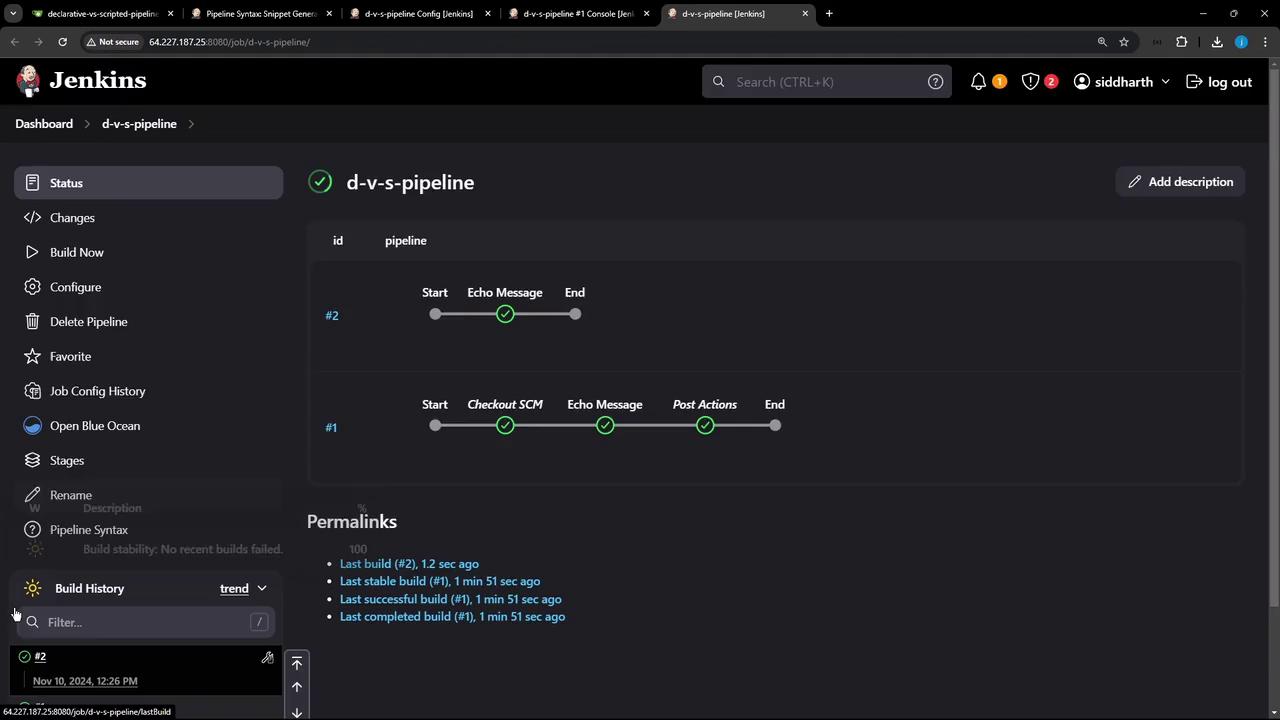
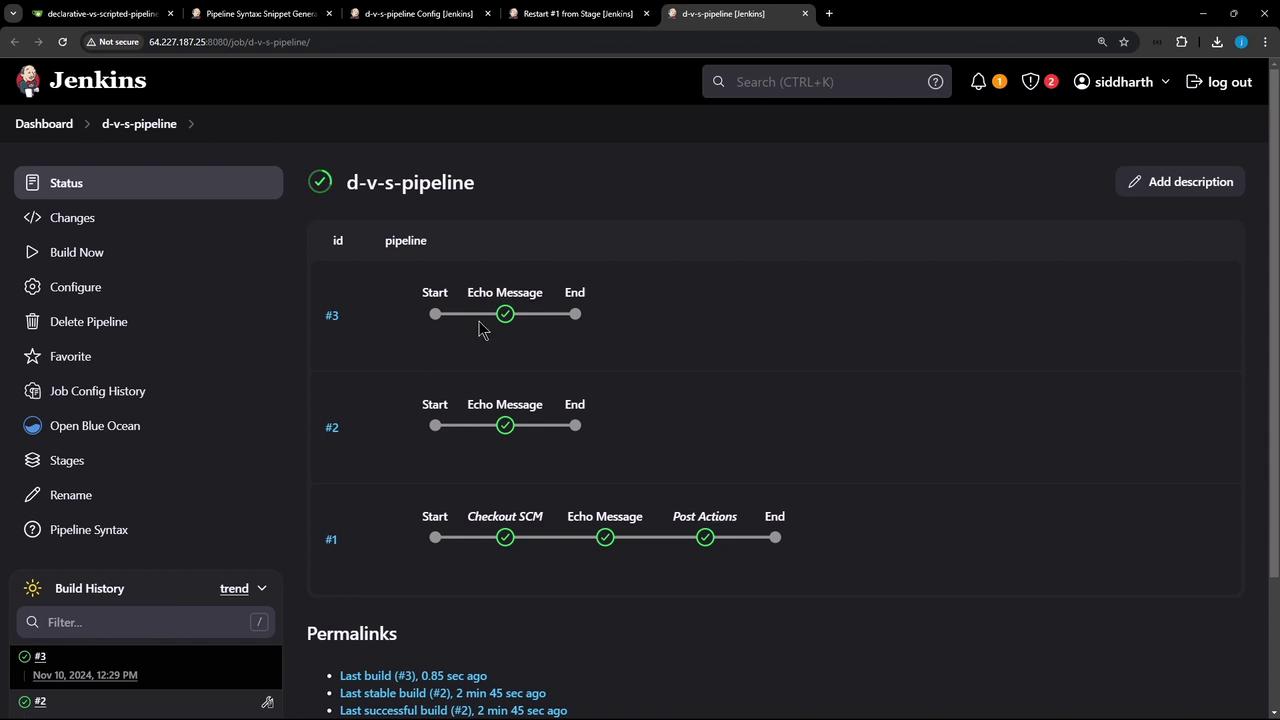
Edit the job’s Script Path to Jenkinsfile.scripted and start a new build. Since we haven’t added checkout scm, the build will:
  • Execute Echo Message without listing repository files
  • Run the finally block for cleanup
The image shows a Jenkins dashboard displaying the status of a pipeline named "d-v-s-pipeline," with stages like "Start," "Echo Message," and "End." It includes build history and permalinks for recent builds.

Sample Scripted Pipeline Logs (without checkout)

+ ls -ltr
(total 0)
+ echo This is executed within a SCRIPTED Pipeline
This is executed within a SCRIPTED Pipeline
+ echo This will always run
This will always run

3. Key Differences

Pipeline FeatureDeclarative PipelineScripted Pipeline
SCM CheckoutAutomatic Checkout SCM stageMust add checkout scm explicitly
SyntaxStructured DSL (pipeline, stages, post)Free-form Groovy (node, try-catch-finally)
Restart from StageSupportedNot supported
Post ActionsBuilt-in post block (always, success, etc.)Implement via finally block

4. Enabling SCM Checkout in Scripted Pipeline

To include source checkout, update Jenkinsfile.scripted:
node {
    try {
        stage('Echo Message') {
            checkout scm
            sh 'ls -ltr'
            sh 'echo This is executed within a SCRIPTED Pipeline'
        }
    } catch (err) {
        echo "Failed: ${err}"
    } finally {
        sh 'echo "This will always run."'
        // sh 'rm -rf *'
    }
}
Commit your changes and rebuild. Now the pipeline will fetch your repository before running the stage:
The image shows a Jenkins dashboard displaying the status of a pipeline named "d-v-s-pipeline," with stages like "Start," "Echo Message," and "End." The interface includes options for configuring and managing the pipeline, along with build history and permalinks.

Sample Scripted Pipeline Logs (with checkout)

> git rev-parse --resolve-git-dir /var/lib/jenkins/workspace/d-v-s-pipeline/.git # timeout=10
> git fetch remote.origin.url http://... # timeout=10
> git checkout -f abcdef12345 # timeout=10
+ ls -ltr
Jenkinsfile.declarative  Jenkinsfile.scripted
+ echo This is executed within a SCRIPTED Pipeline
This is executed within a SCRIPTED Pipeline
+ echo This will always run
This will always run

Conclusion

  • Declarative Pipelines: Use for built-in SCM checkout, stage-level restarts, and a clear, opinionated syntax.
  • Scripted Pipelines: Opt for full Groovy control, but remember to manage SCM checkout and error handling manually.
Thank you for following this comparison of Declarative vs. Scripted Jenkins Pipelines!