

| Trigger | Description |
|---|---|
| Failure | Sends emails whenever a build fails |
| Unstable | Notifies stakeholders when a build is unstable |
| Back to normal | Alerts the team when a previously failing build succeeds |
| Culprits | Emails users identified as responsible for build failures |
1. Enable Email Notification in a Job
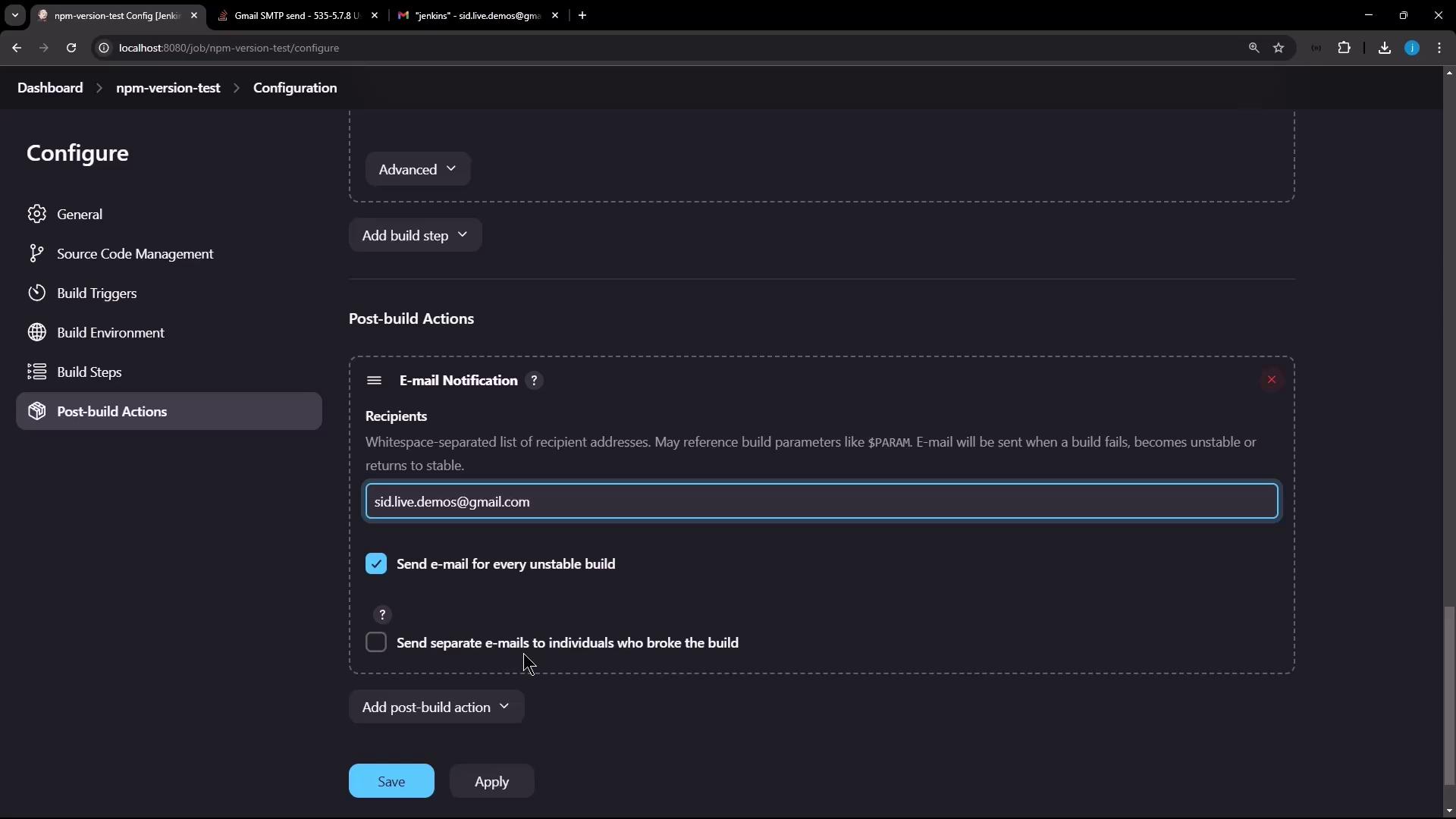
- In Jenkins, open the npm-version-test job and click Configure.
- Scroll to Post-build Actions and search for Email Notification.
- Select Email Notification and enter recipient addresses (e.g., your Gmail). Optionally, enable Send separate emails to culprits for direct notifications.
- Click Apply to save.
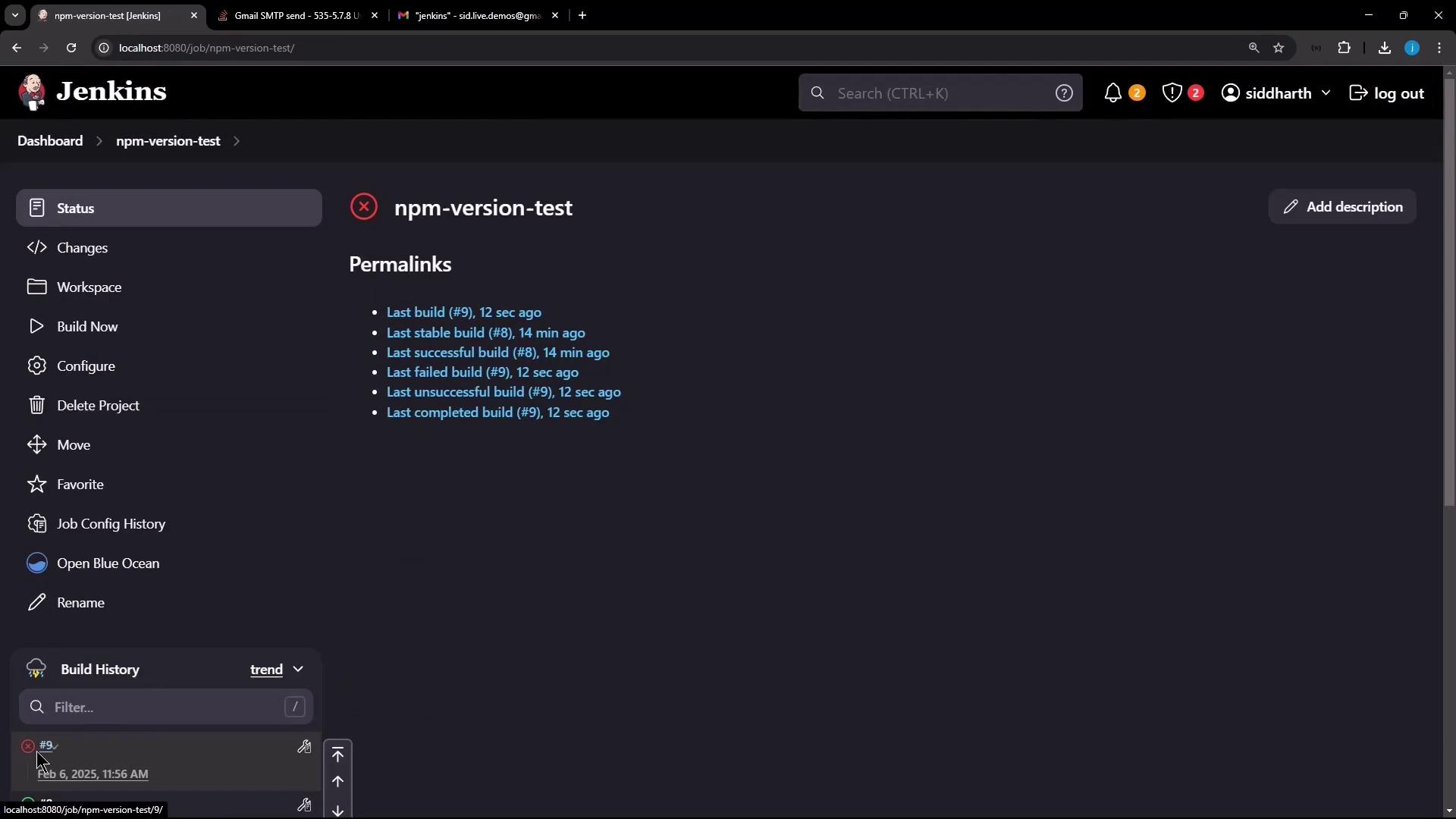
By default, Jenkins uses
localhost:25 for SMTP. Unless you run a local mail server, this will fail. Configure a valid SMTP host and port in the global settings to resolve this.2. Configure Global SMTP Settings
- Go to Manage Jenkins → Configure System.
-
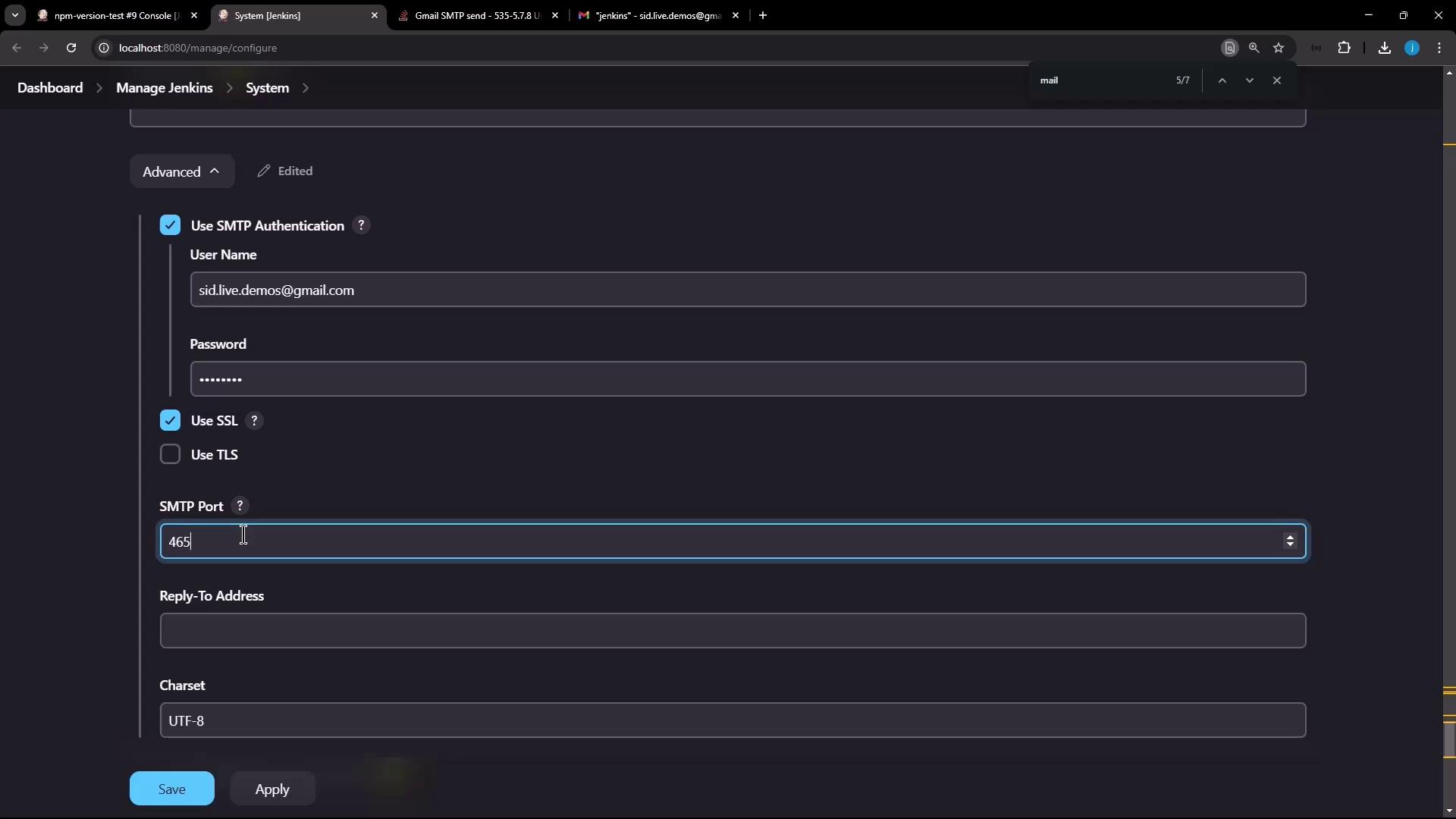
Scroll to Extended E-mail Notification (or Email Notification) and fill in:
Field Value SMTP server smtp.gmail.com Default user e-mail suffix (leave blank) Use SMTP Authentication ☑ Use SSL ☑ User Name [email protected] Password (Gmail app password) SMTP Port 465
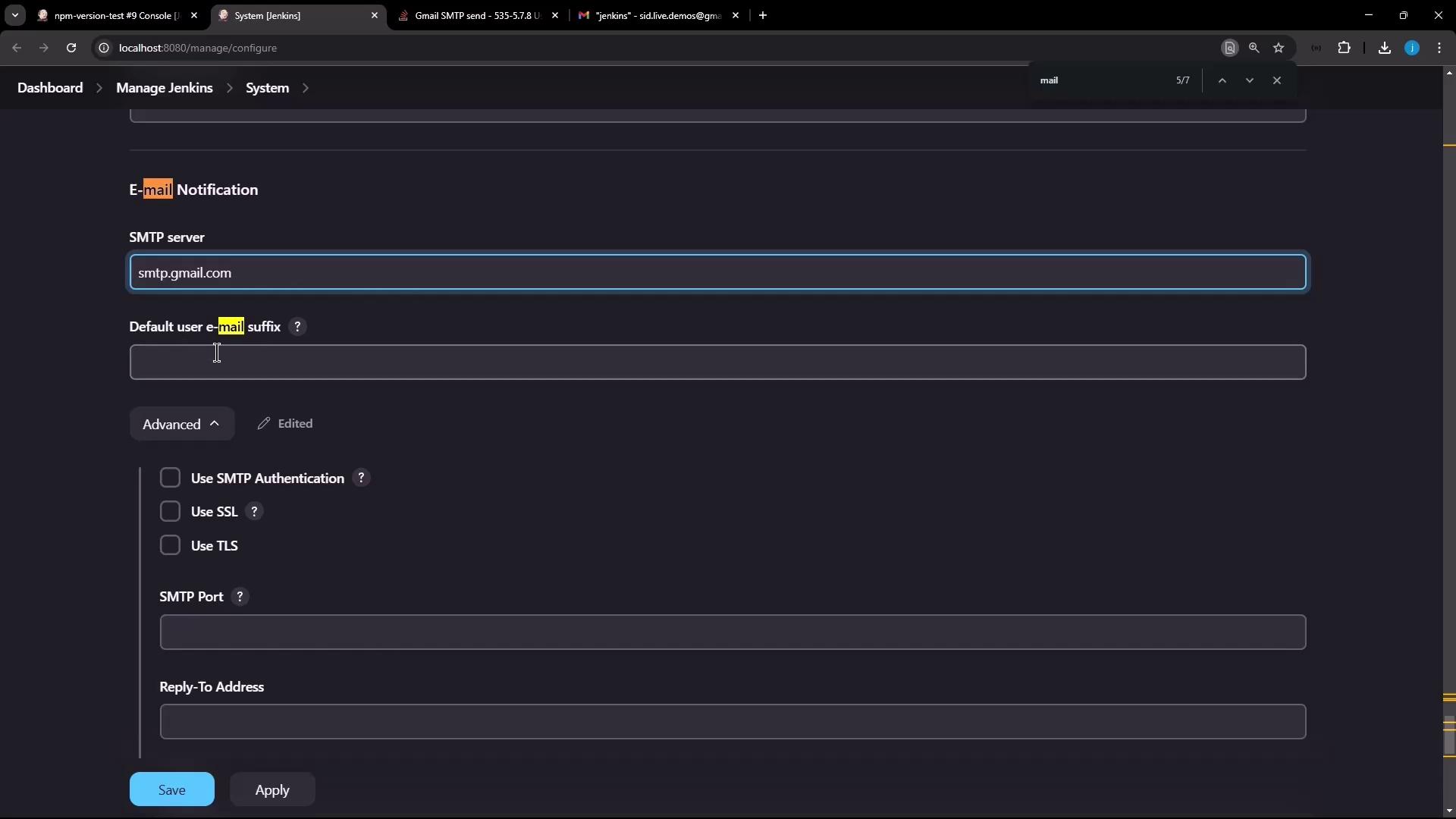
- Click Test Configuration:
Gmail no longer accepts regular account passwords for SMTP. You must generate an app-specific password if Two-Factor Authentication (2FA) is enabled.
3. Generate a Gmail App Password
- Sign in to your Google Account and navigate to Security.
- Ensure 2-Step Verification is enabled.
- Under App passwords, click Select app → Other (Custom name), name it (e.g., “Jenkins email service”), then Generate.
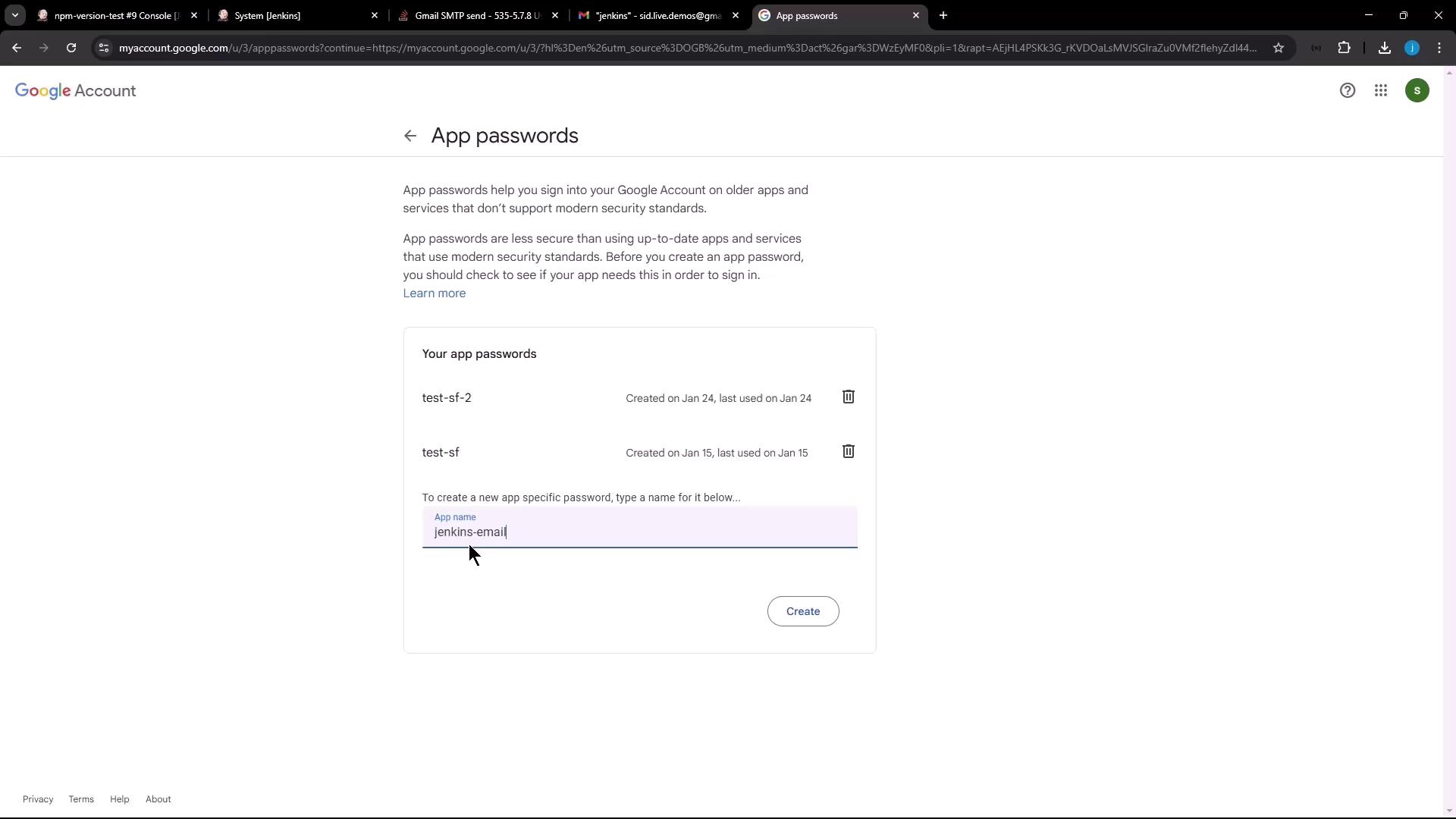
- Copy the 16-character app password.
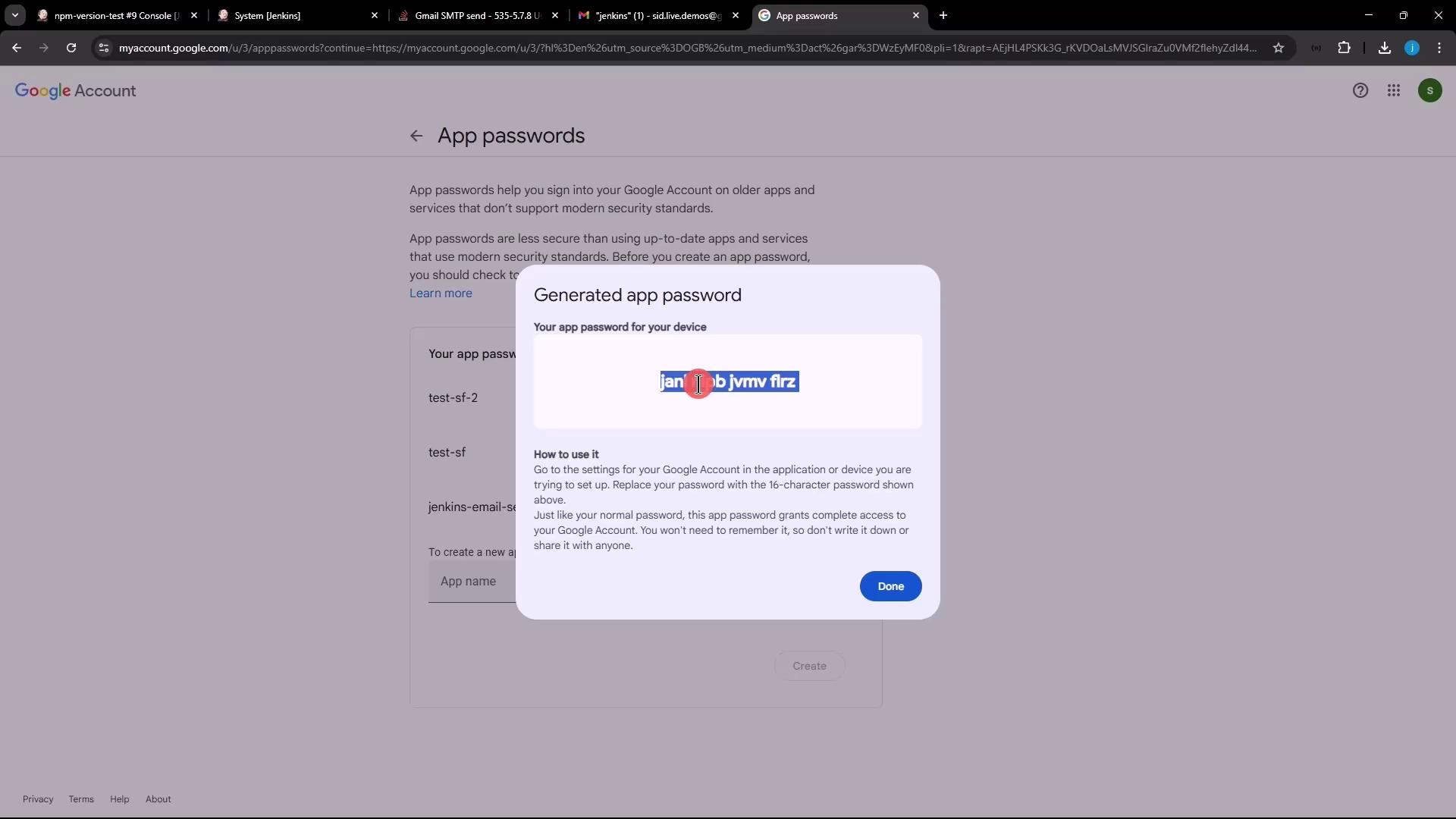
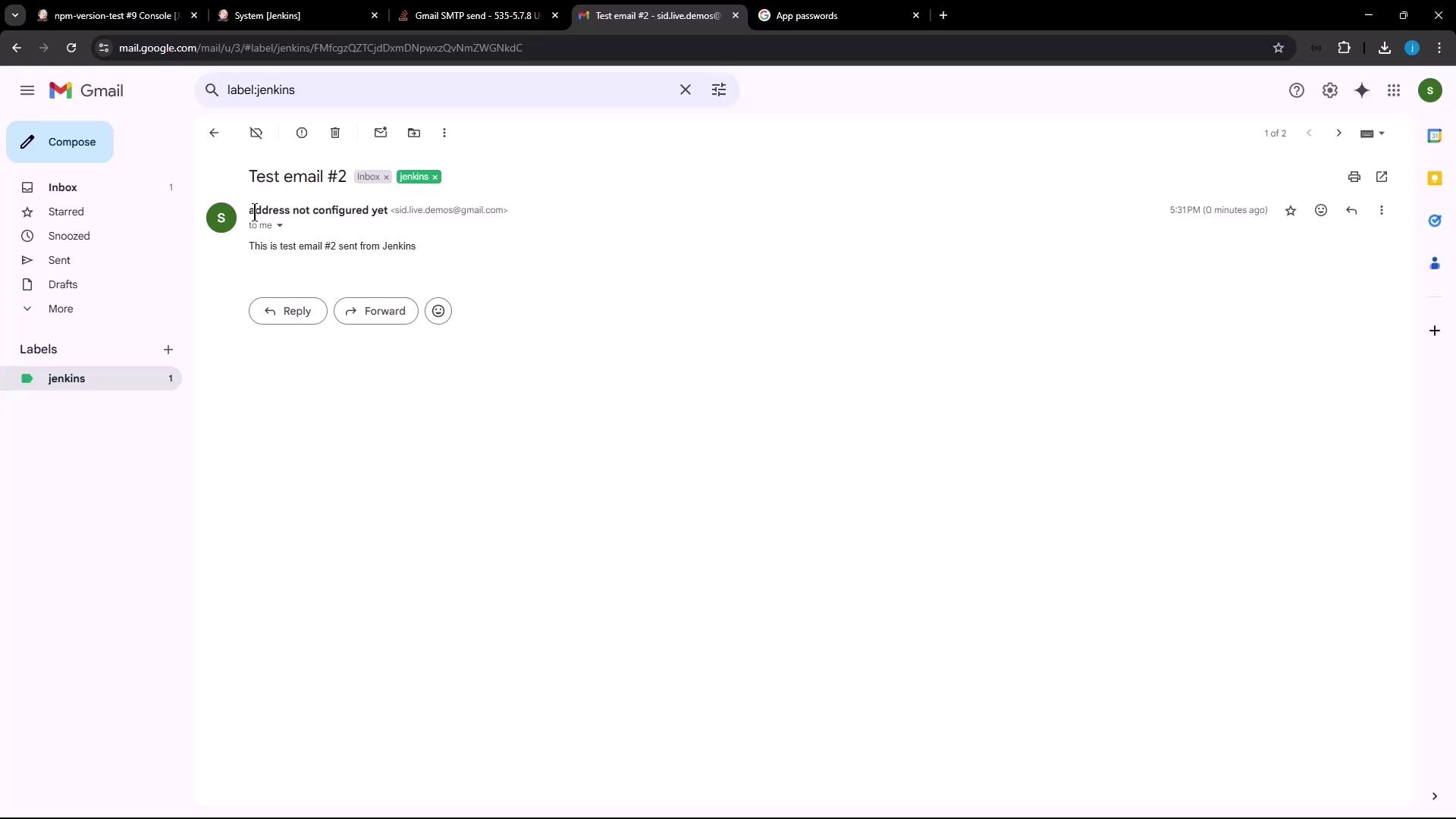
- Replace the SMTP Password in Jenkins with the new app password and click Test Configuration again. You should see a success:
4. Set System Admin Email Address
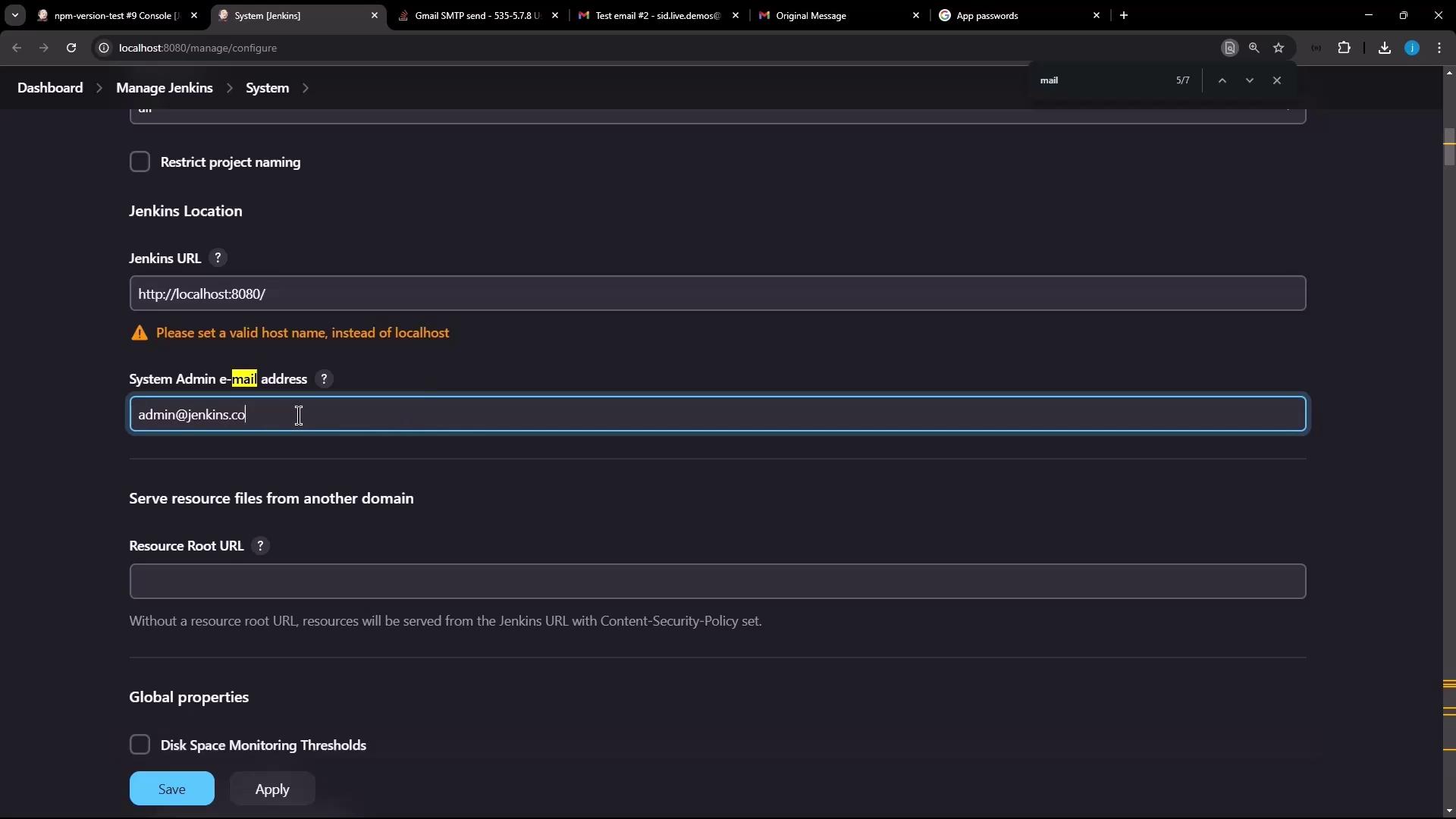
To customize the “From” address on outgoing alerts:- In Manage Jenkins → Configure System, set System Admin e-mail address (e.g.,
[email protected]). - Click Save and then Test Configuration once more.
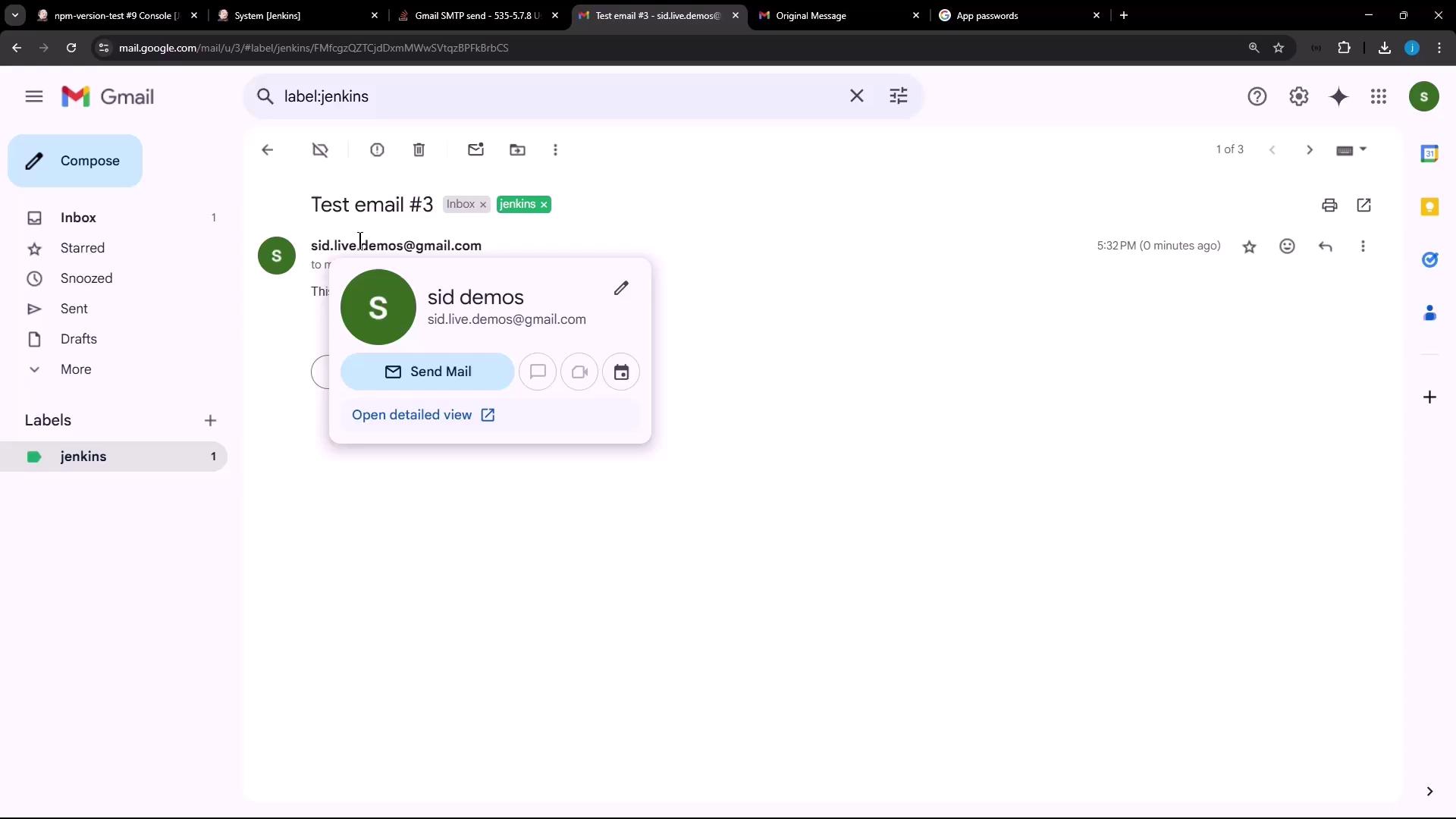
5. Verify Notifications on Job Builds
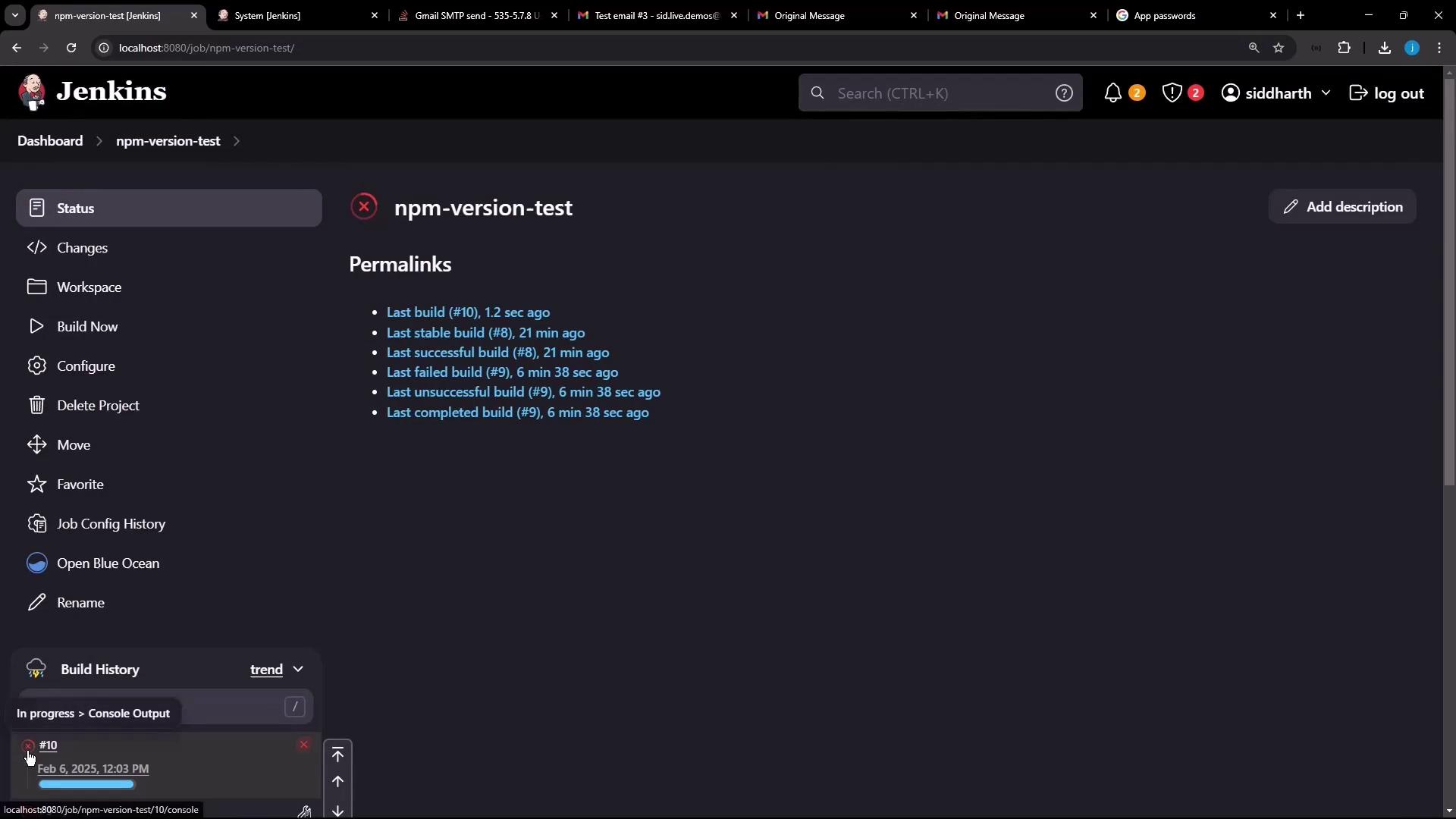
- Return to the npm-version-test job and rebuild with the same
exit 1script. - Build #10 will fail and trigger an email:
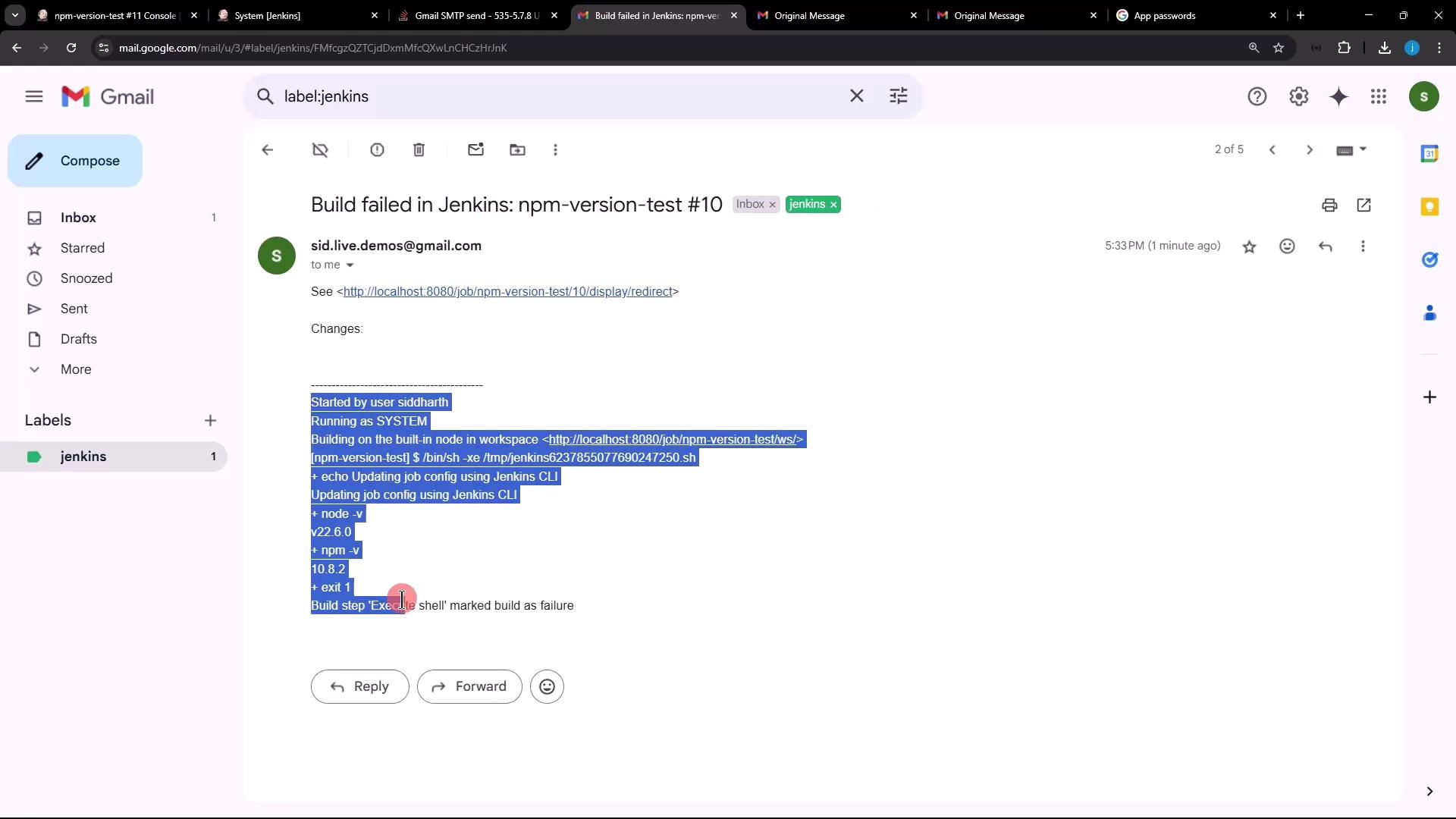
exit 1 from the build script and run again. Build #11 will succeed and send a “back to normal” message without console logs, confirming your notification pipeline is fully operational.