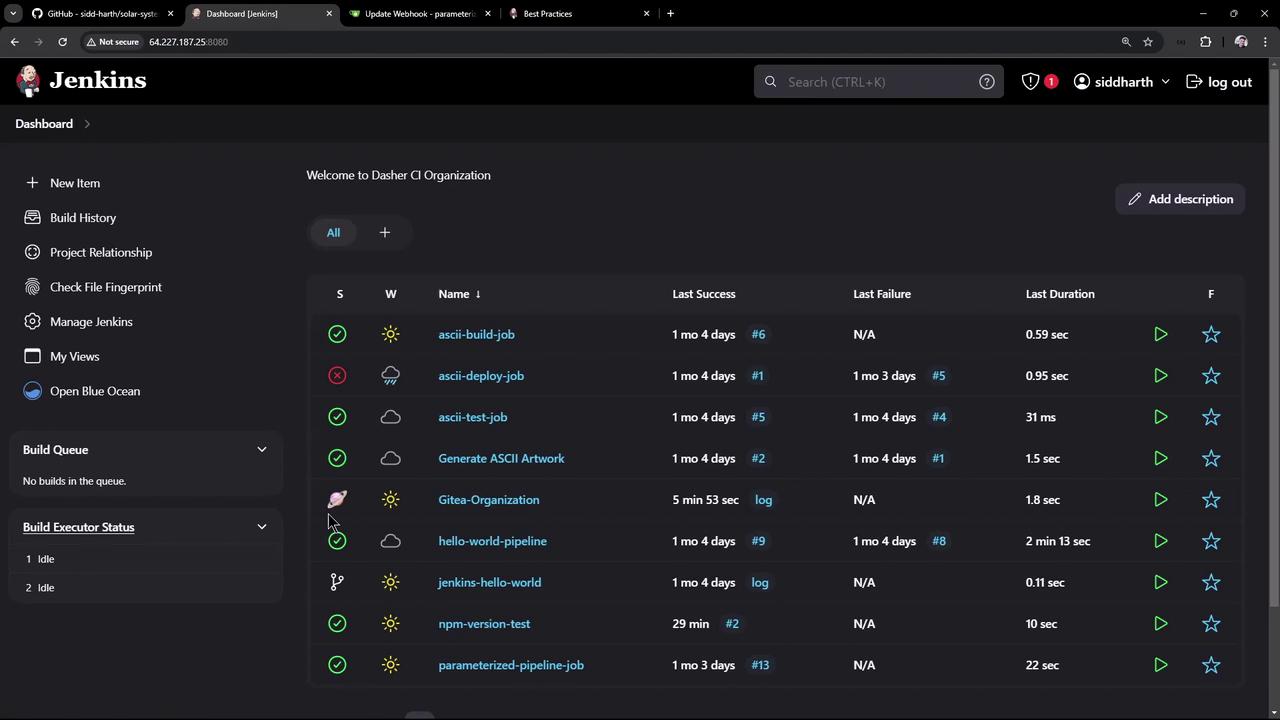
- Migrate a GitHub repository to Gitea
- Install and configure the Gitea plugin in Jenkins
- Create and configure an Organization Folder
- Observe automatic multibranch pipeline creation and webhook-triggered builds
1. Migrate the Solar System Repository to Gitea
First, copy the clone URL of the Solar System repository from GitHub: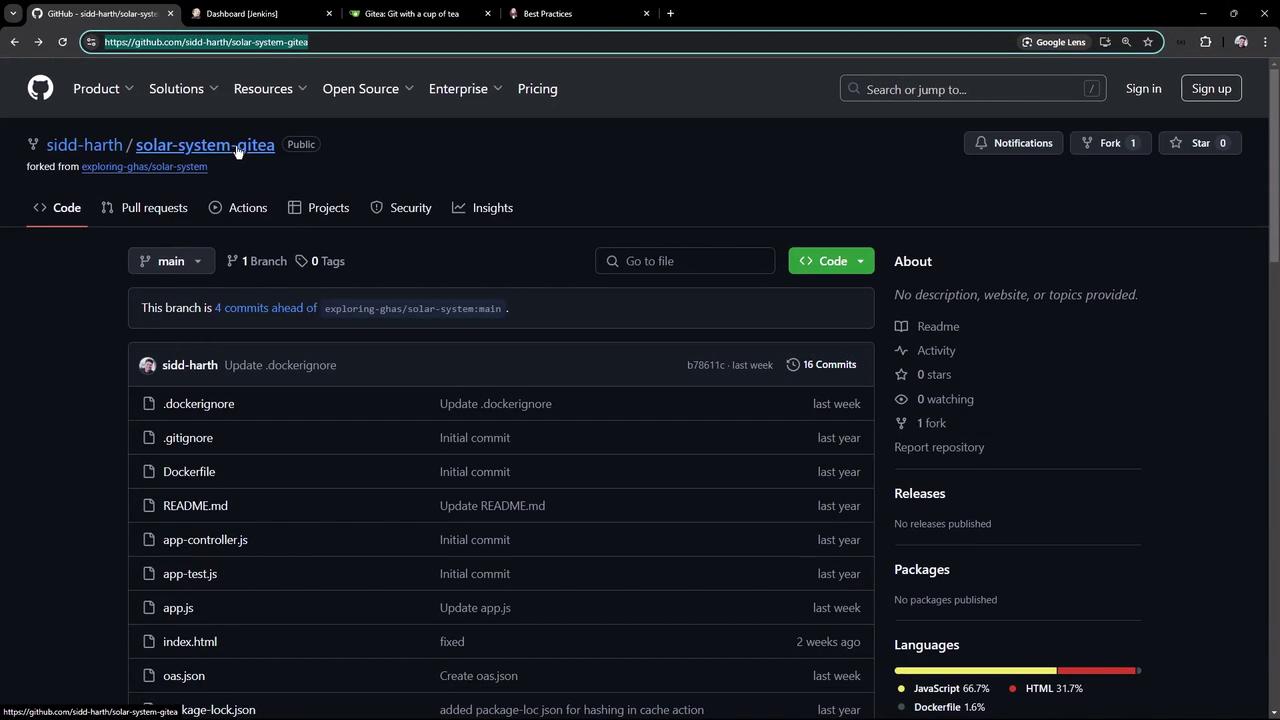
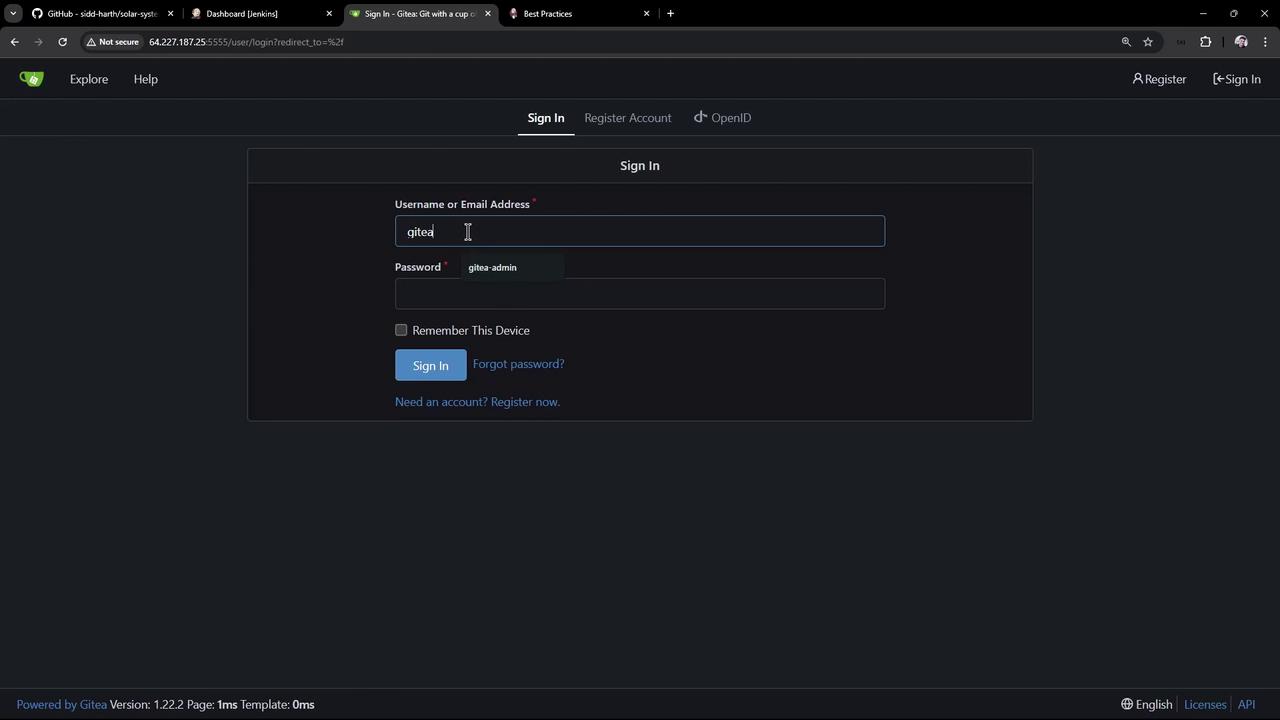
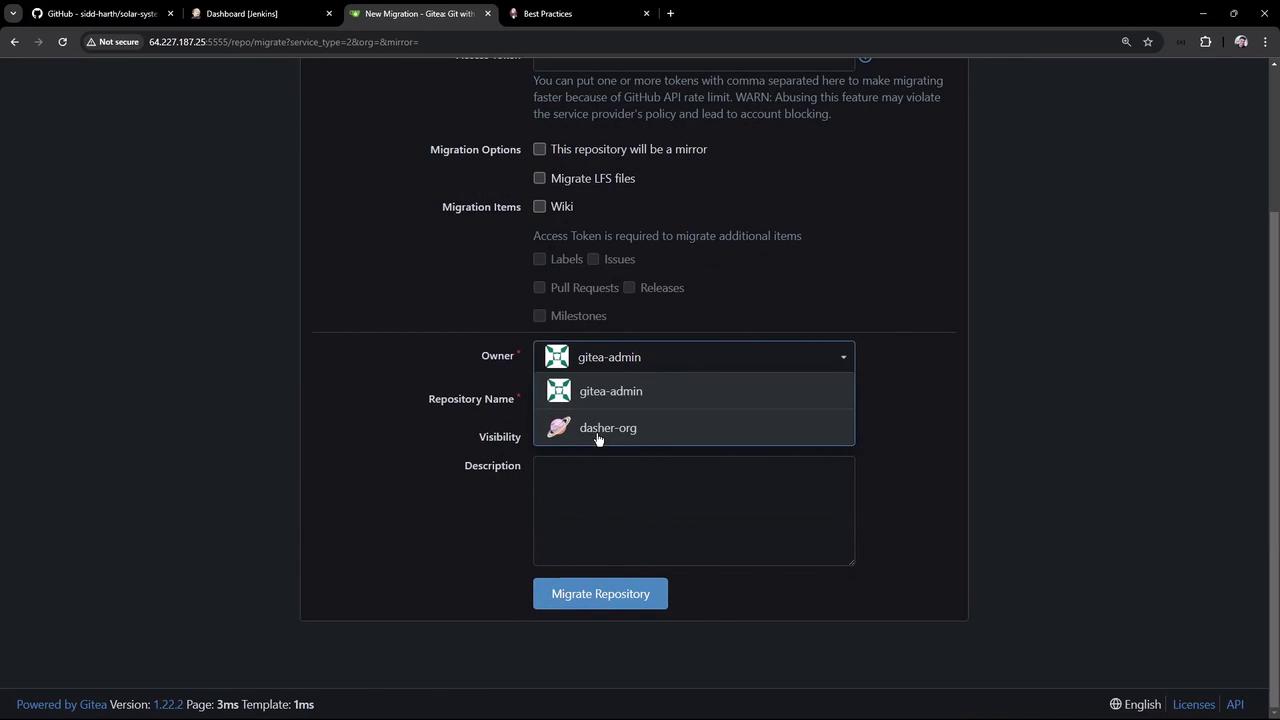
dasher-org) and click + → New Migration:
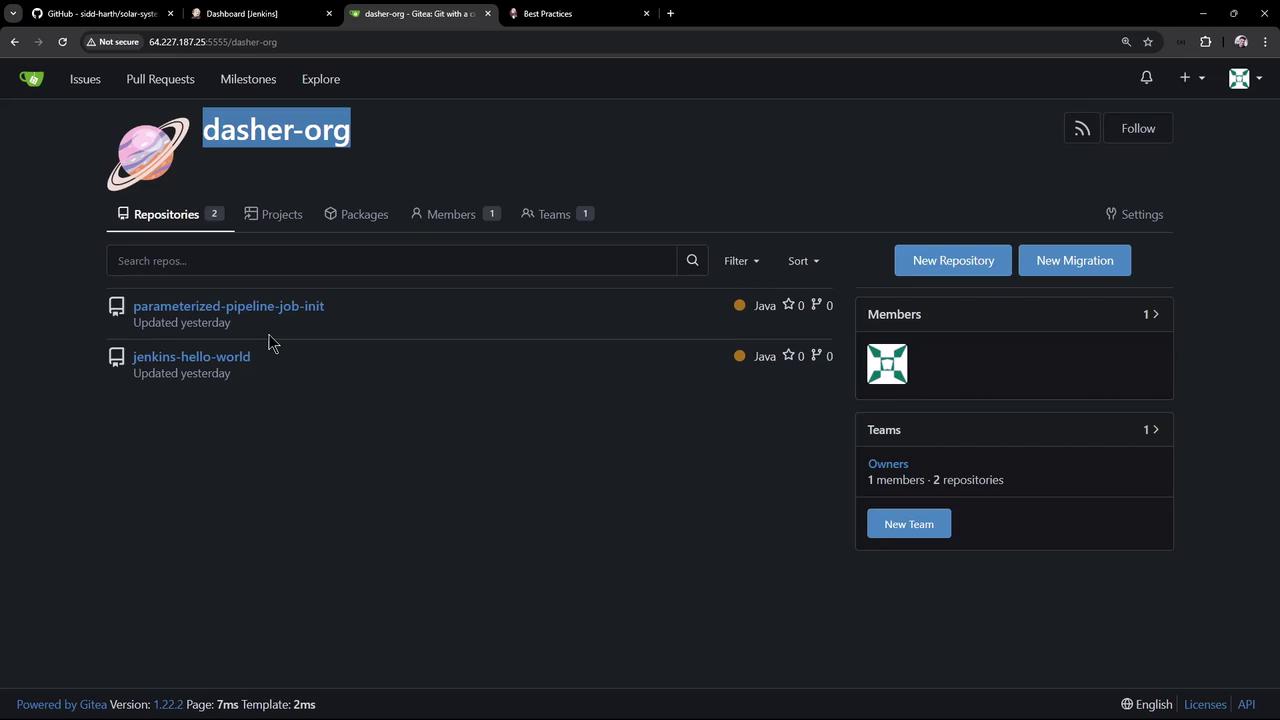
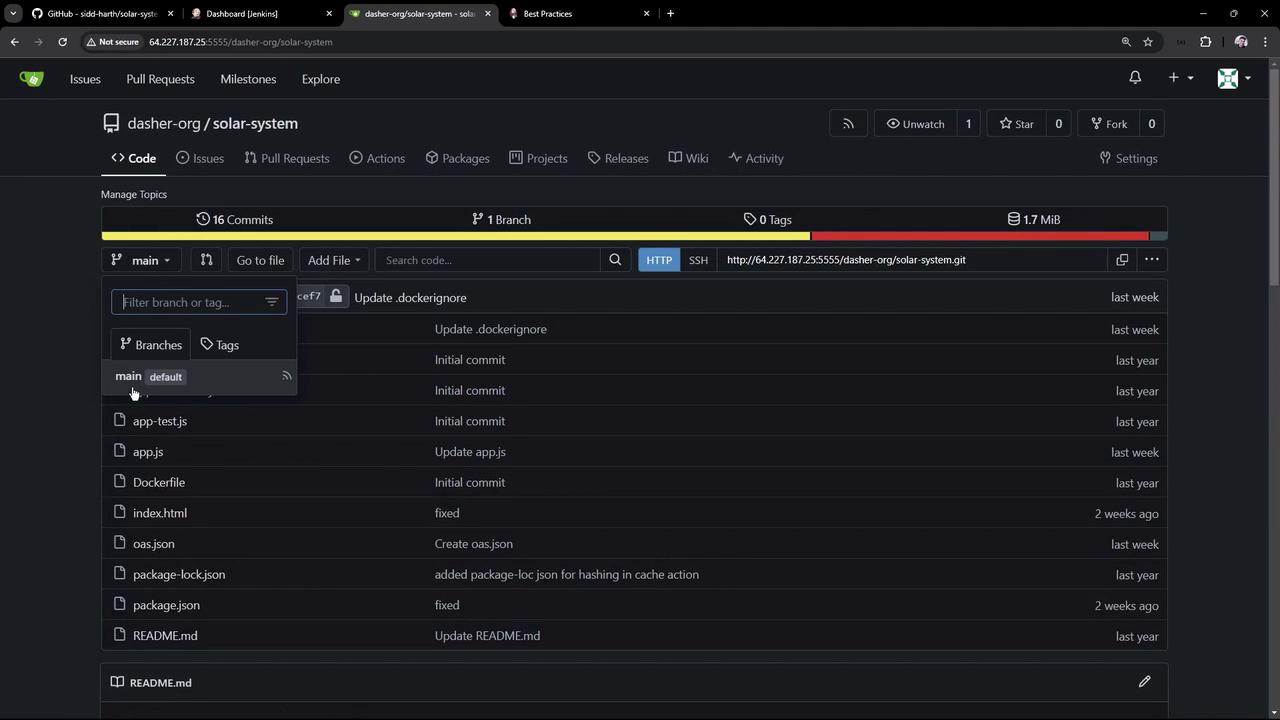
dasher-org, and name the repo solar-system:
2. Why Use an Organization Folder?
Manually creating a separate Pipeline job for each repository or branch can quickly become a maintenance headache. With the Organization Folder, Jenkins automatically scans your SCM, creates or removes jobs based on your configuration, and keeps everything in sync.| Aspect | Manual Pipelines | Organization Folder |
|---|---|---|
| Setup per repo | Manual each time | Single configuration |
| Branch management | Manual updates | Automatic discovery |
| Scalability | Limited by manual processes | Scales with your codebase |
Organization Folders streamline multibranch pipeline management and support GitHub, Bitbucket, Gitea, and more.

3. Create an Organization Folder in Jenkins
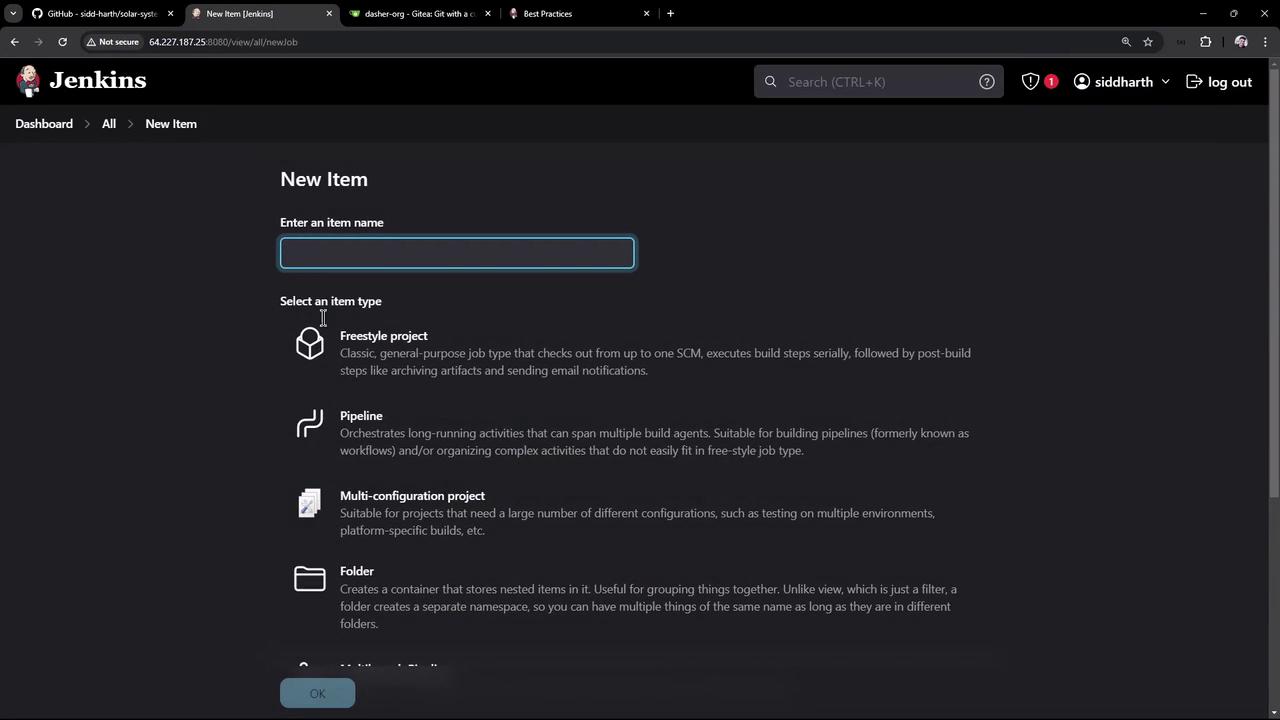
- From the Jenkins dashboard, click New Item.
- Enter GitHub Organization (or any descriptive name).
- Select Organization Folder and click OK:
4. Install and Configure the Gitea Plugin
Install the Plugin
- Navigate to Manage Jenkins → Manage Plugins.
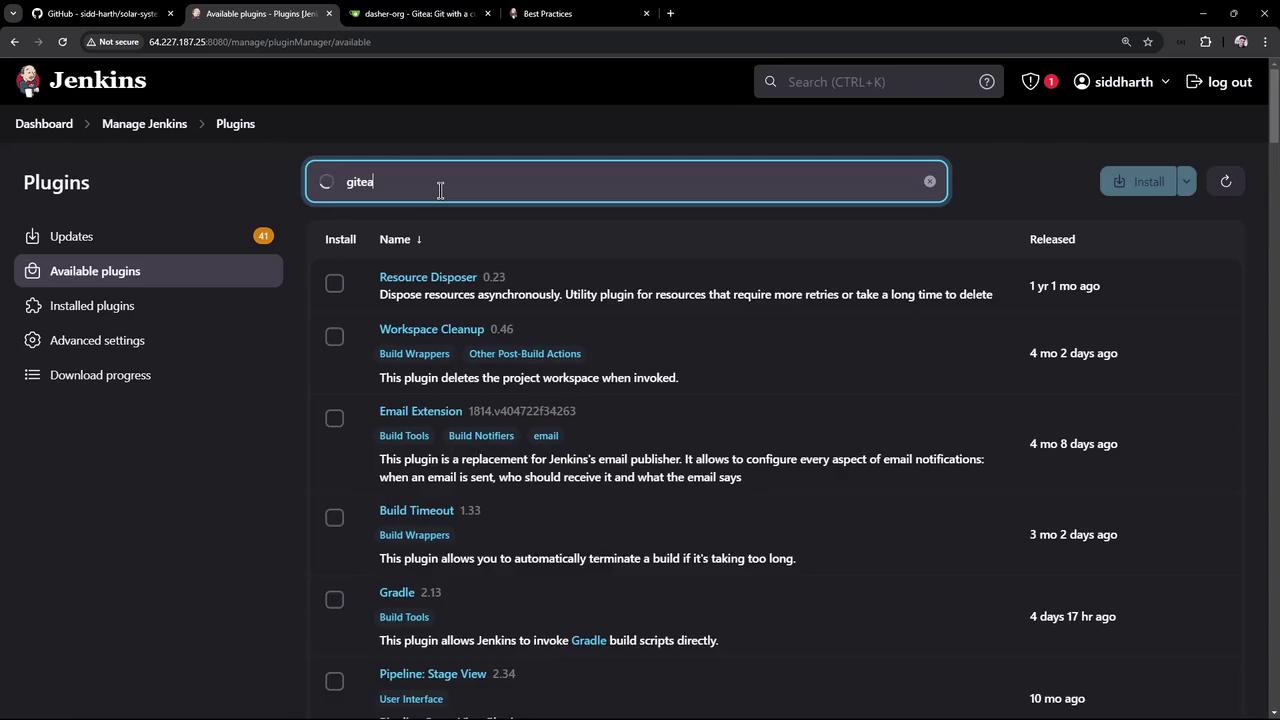
- In the Available tab, search for Gitea plugin.
- Select and install it, checking Restart Jenkins when installation is complete and no jobs are running:
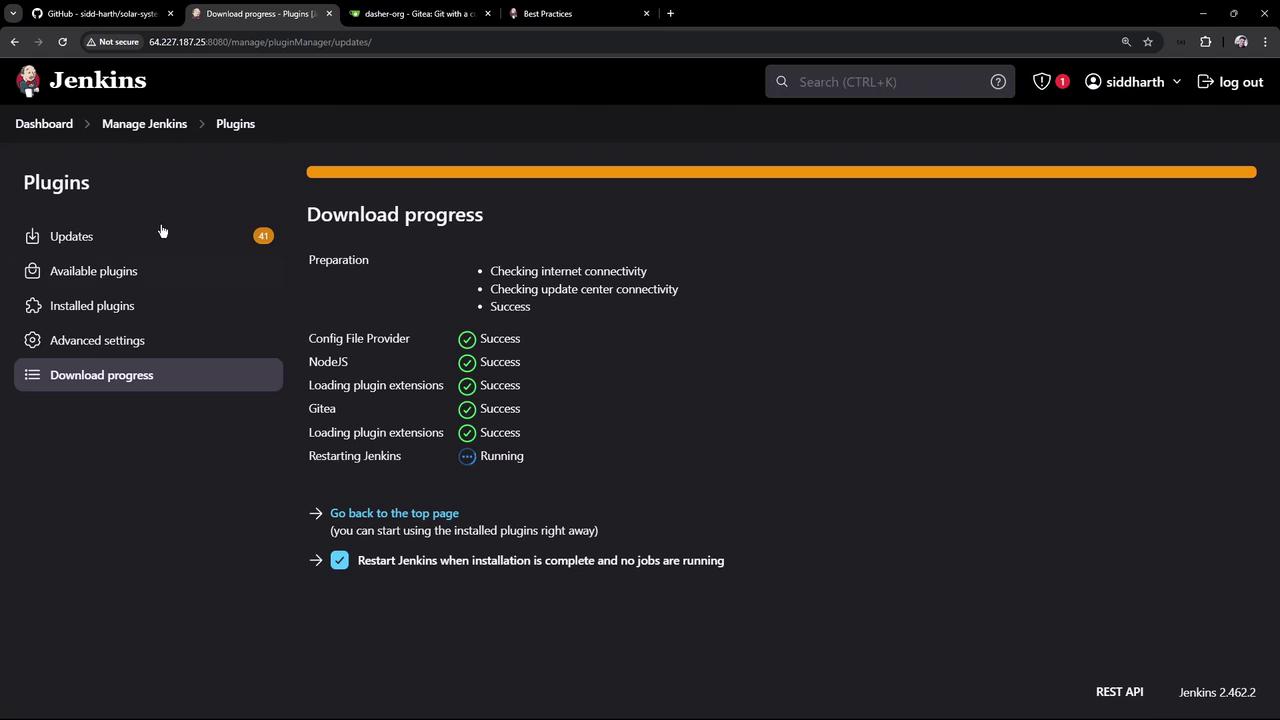
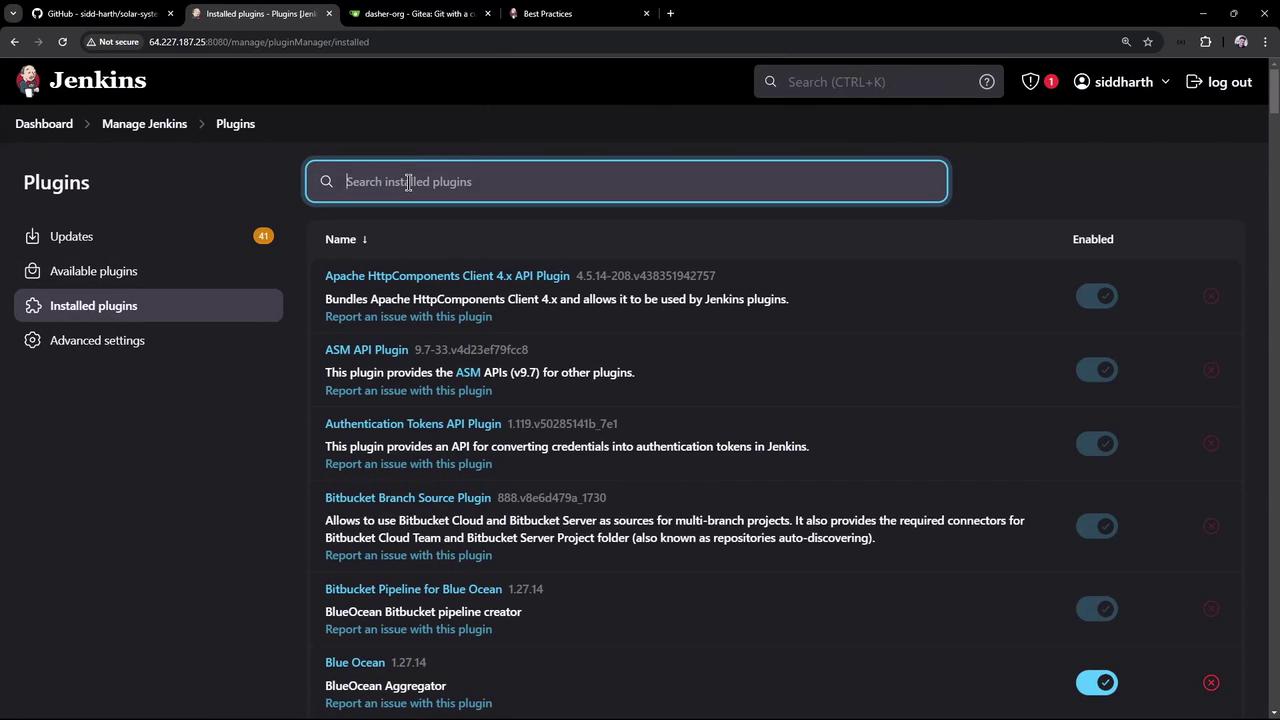
Configure Gitea Server
- Go to Manage Jenkins → Configure System.
- Scroll to Gitea Servers and click Add Gitea Server.
- Enter:
- Name: Gitea server
- API URL:
https://<your-gitea-url>/api/v1
- Check Manage hooks to enable automatic webhook creation.
- Next to Credentials, click Add, select Username with password, and enter your Gitea credentials (scope: Global):
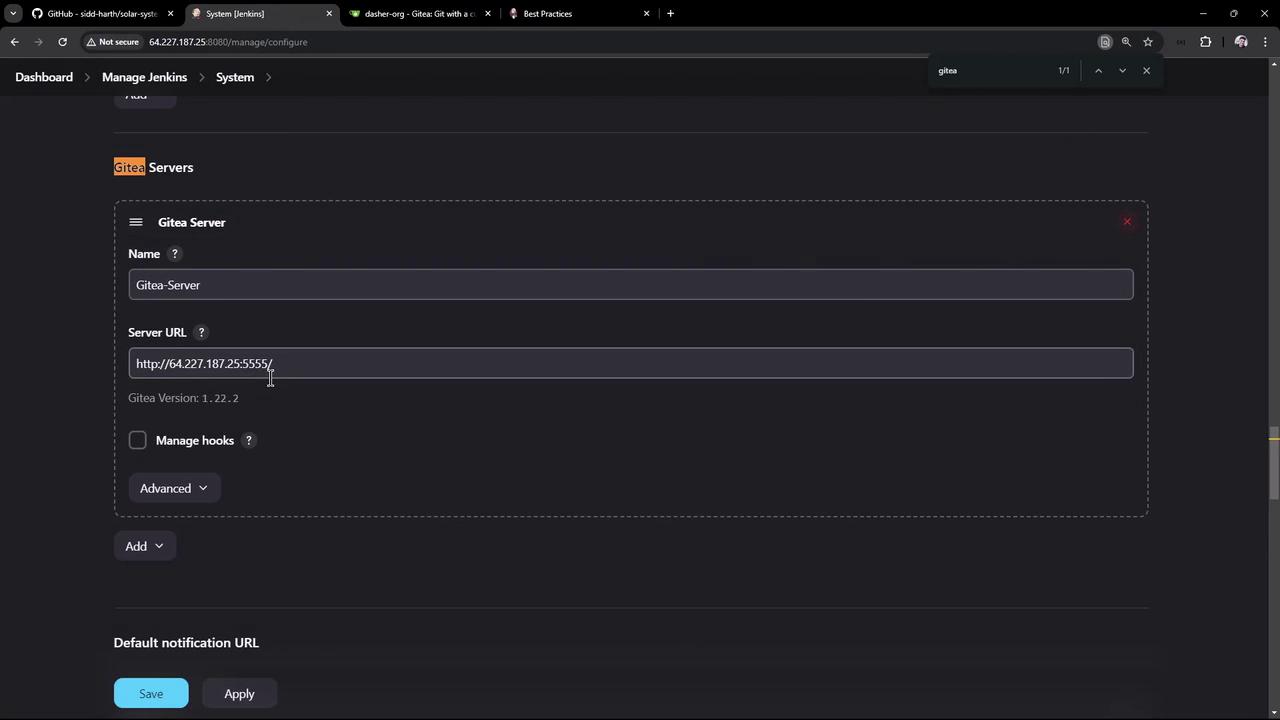
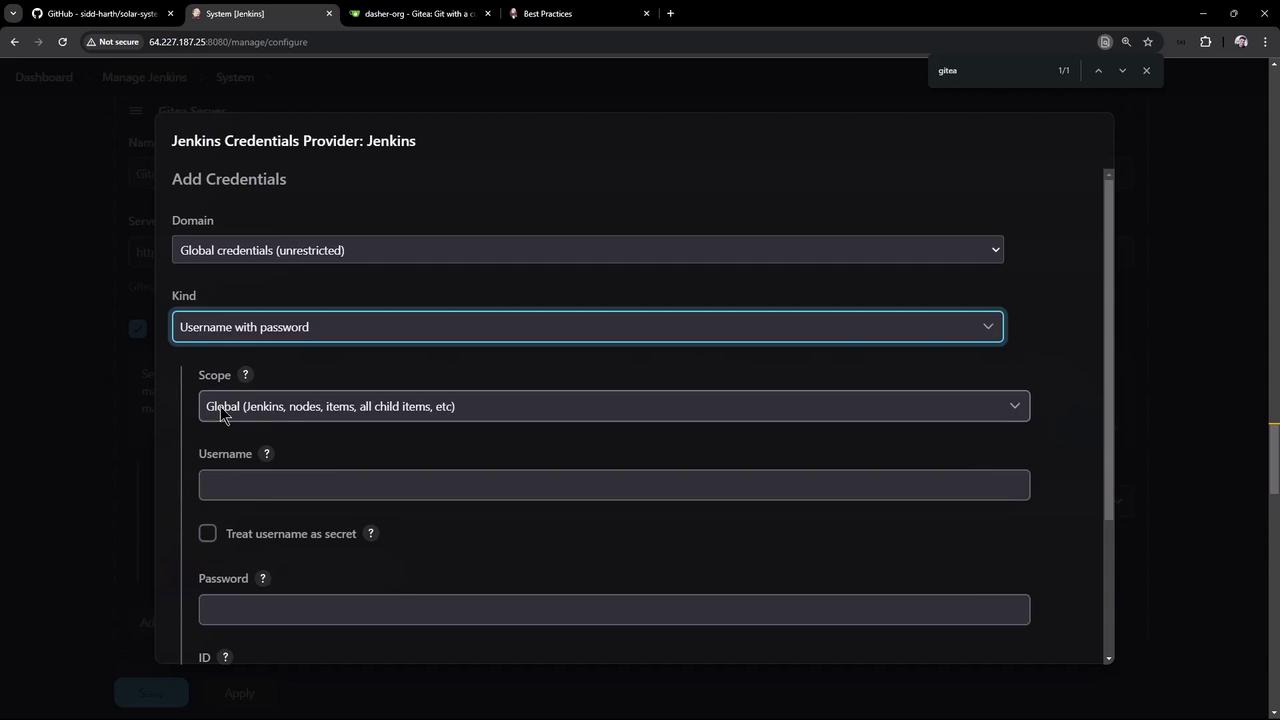
- Click Apply and Save:
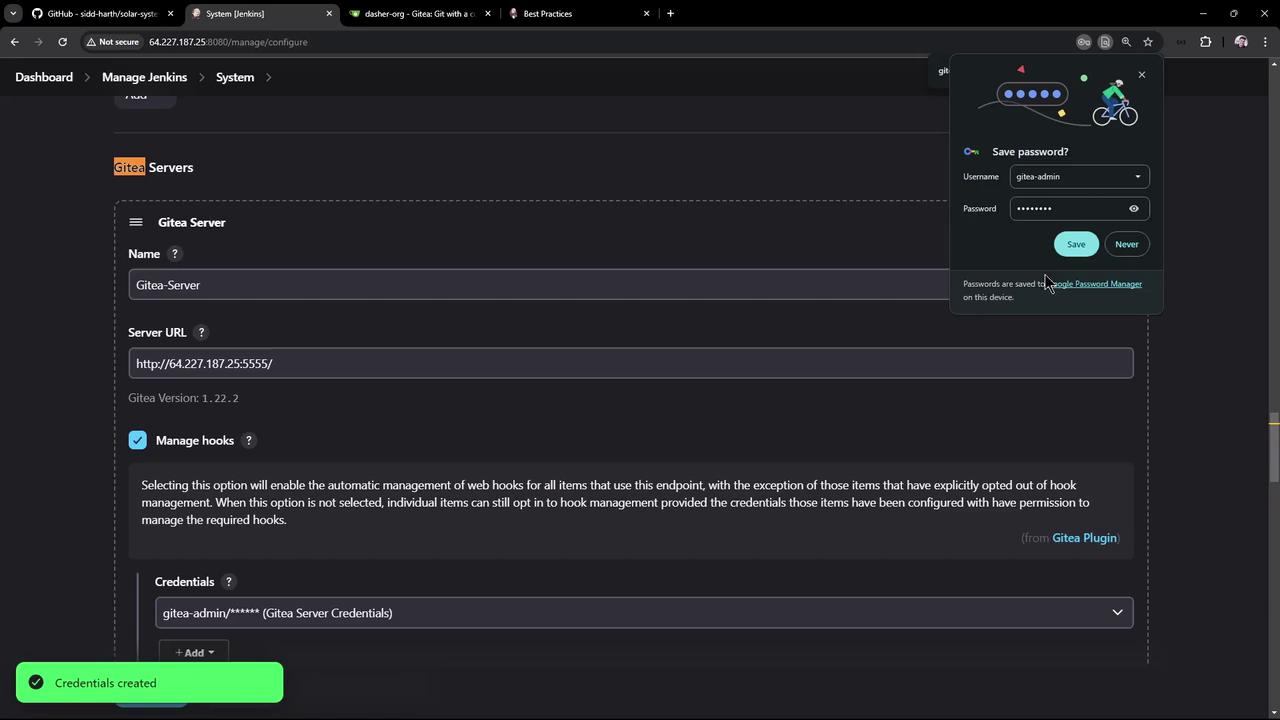
5. Configure the Organization Folder
- Open the GitHub Organization item and click Configure.
- Under Repository Sources, click Add Source → GitHub Organization.
- Select:
- GitHub Server: your configured server
- Credentials: the admin credential you added
- Owner:
dasher-org
- Leave discovery and project recognizer settings at default (looks for
Jenkinsfile):
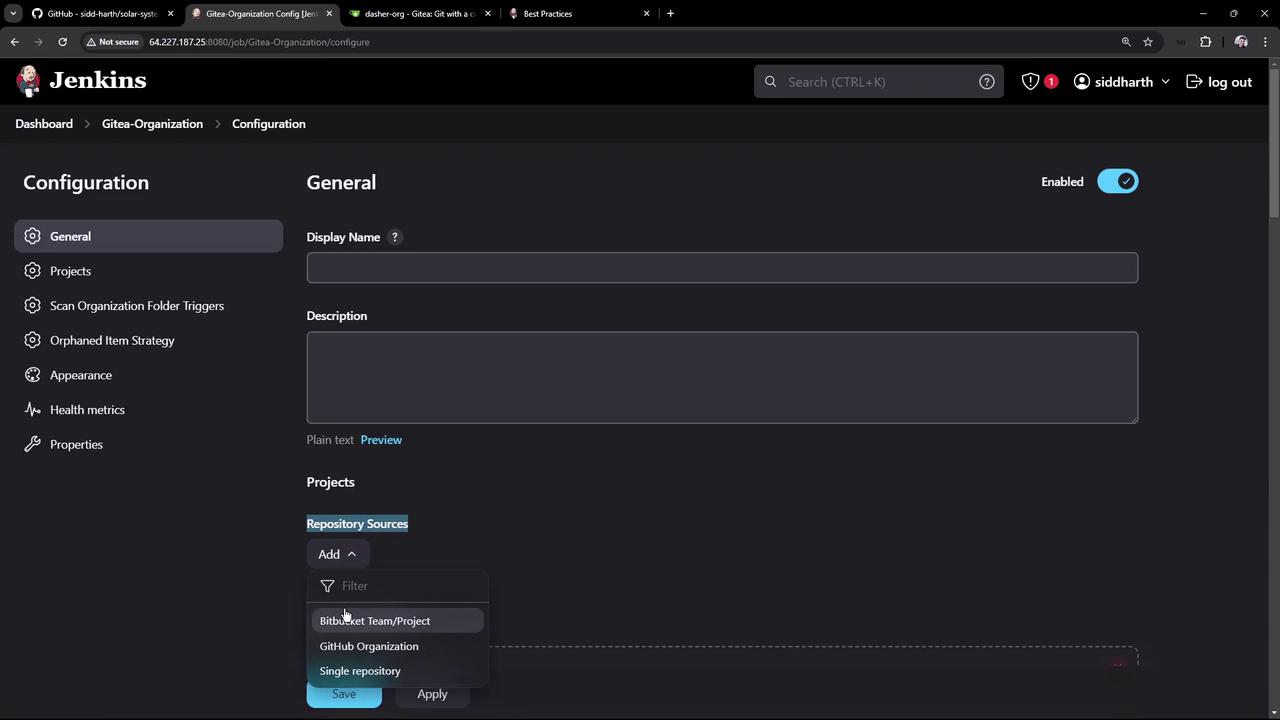
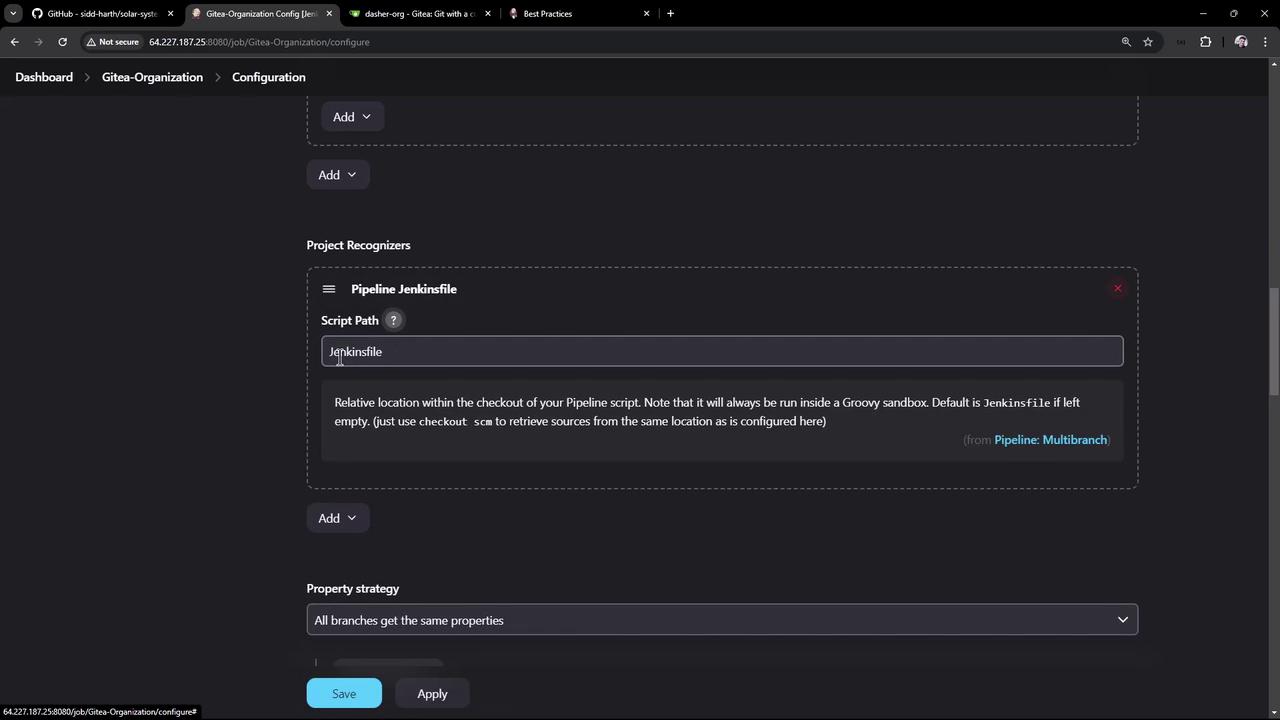
- Click Save. Jenkins begins scanning the organization immediately.
6. Organization Scan and Job Creation
During the scan, Jenkins inspects each repository and its branches for aJenkinsfile. Only those that match will have jobs created or updated.
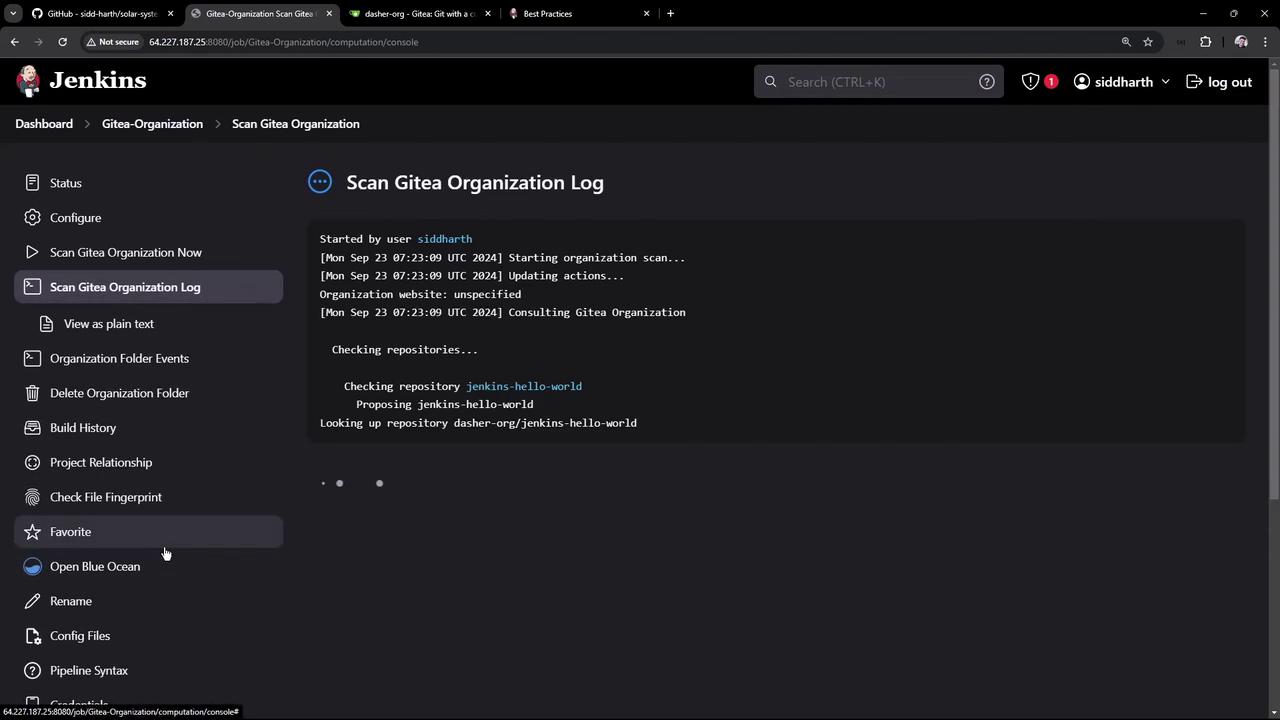
parameterized-pipeline-job-init→ multibranch pipeline createdsolar-system→ skipped (noJenkinsfile)
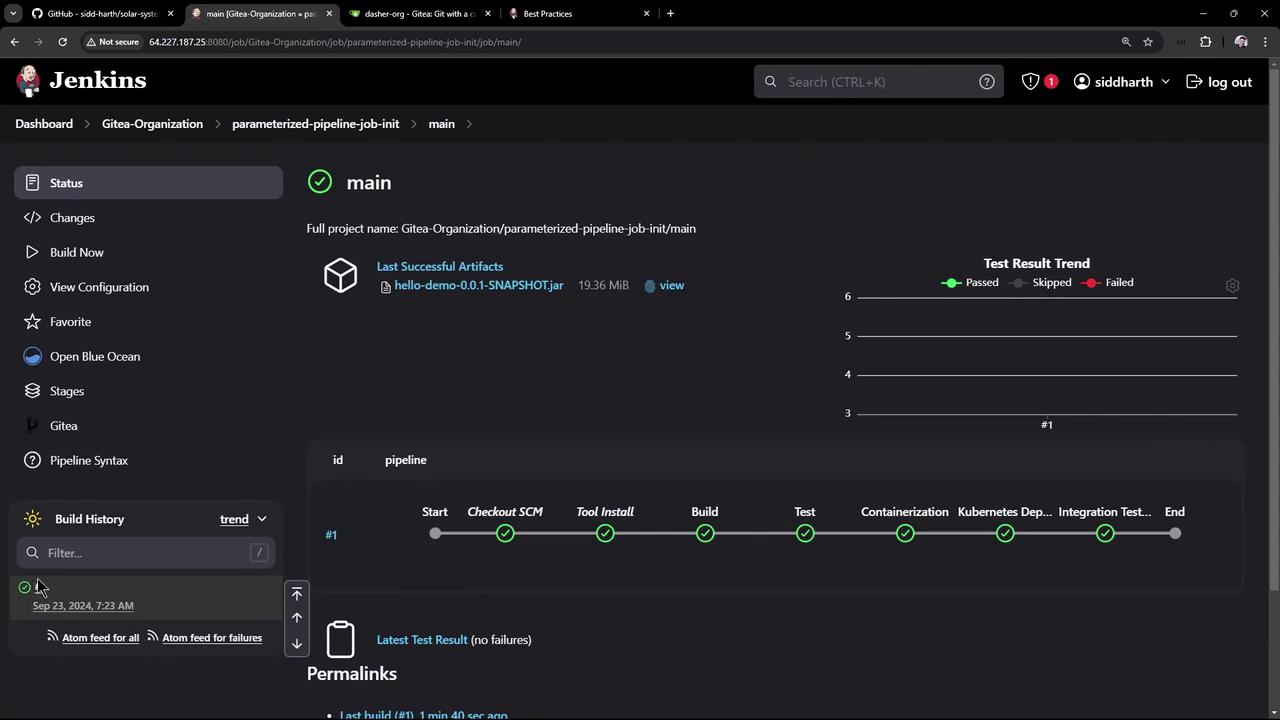
7. Inspecting Branch Pipelines
Click the parameterized-pipeline-job-init item to view branch-level pipelines: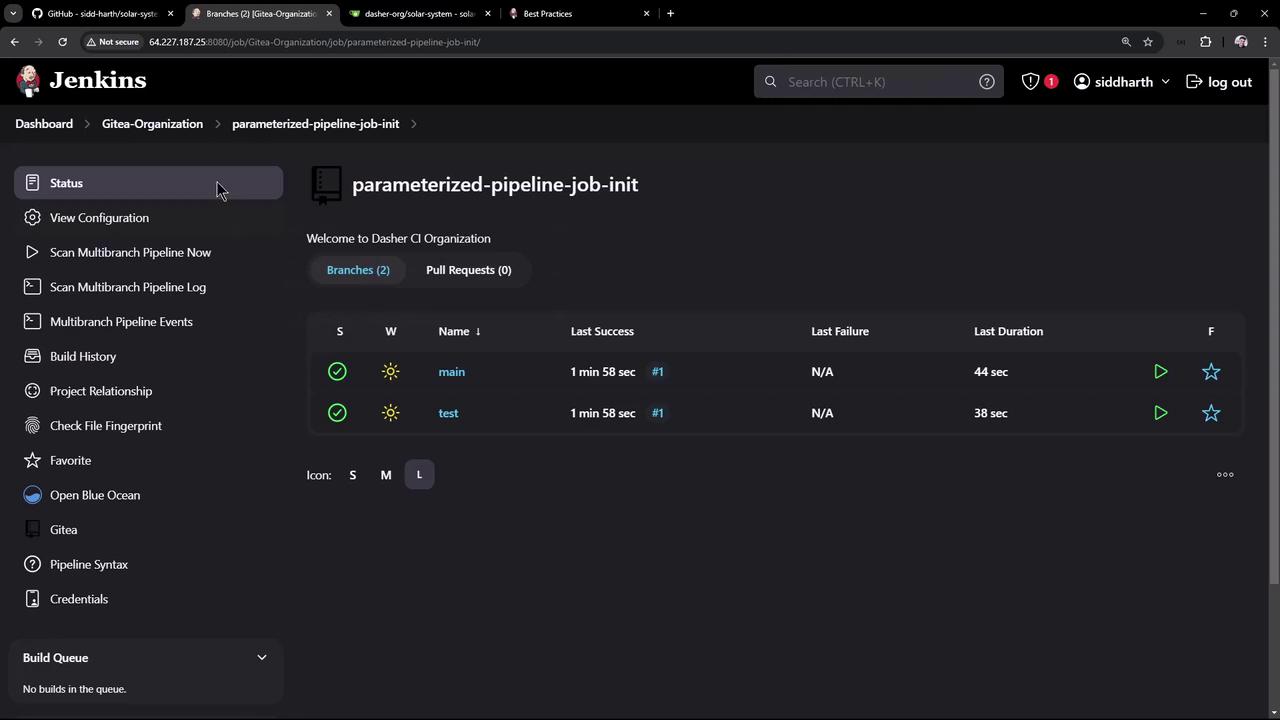
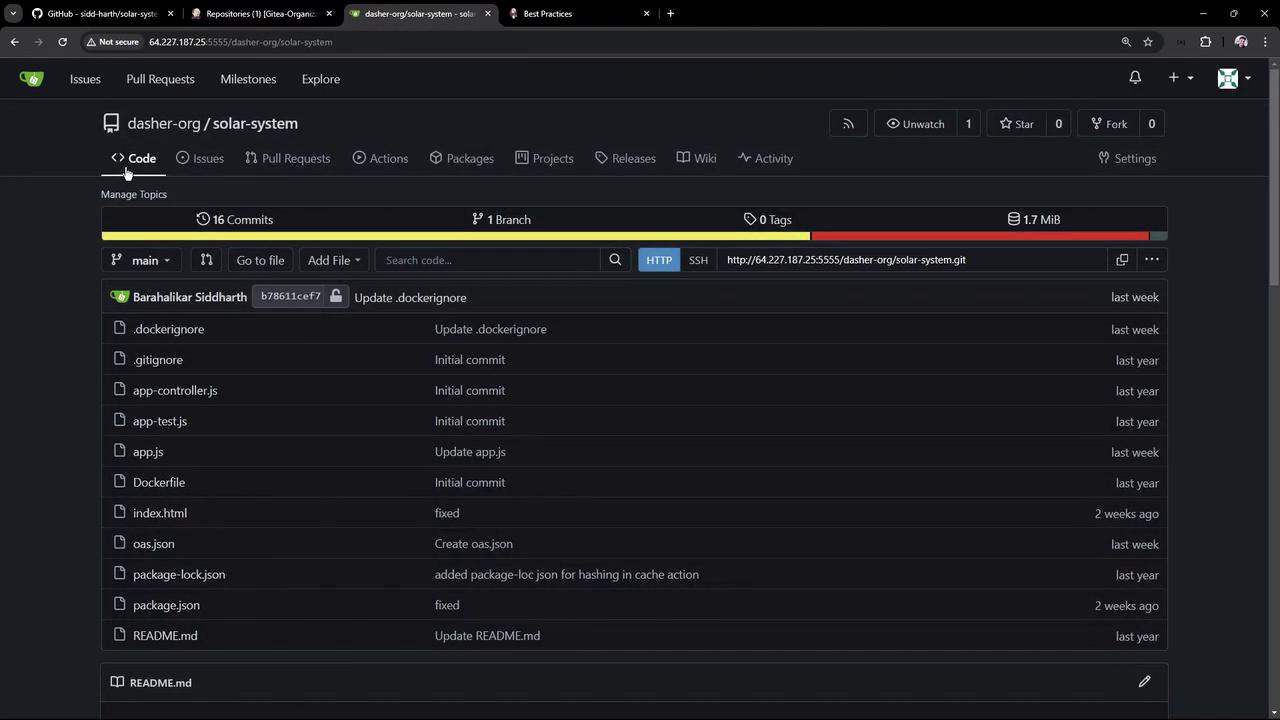
8. Webhook Configuration and Automatic Triggers
By enabling Manage hooks, Jenkins automatically adds webhooks to each repository. These webhooks trigger builds on push, branch/tag creation, and pull request events.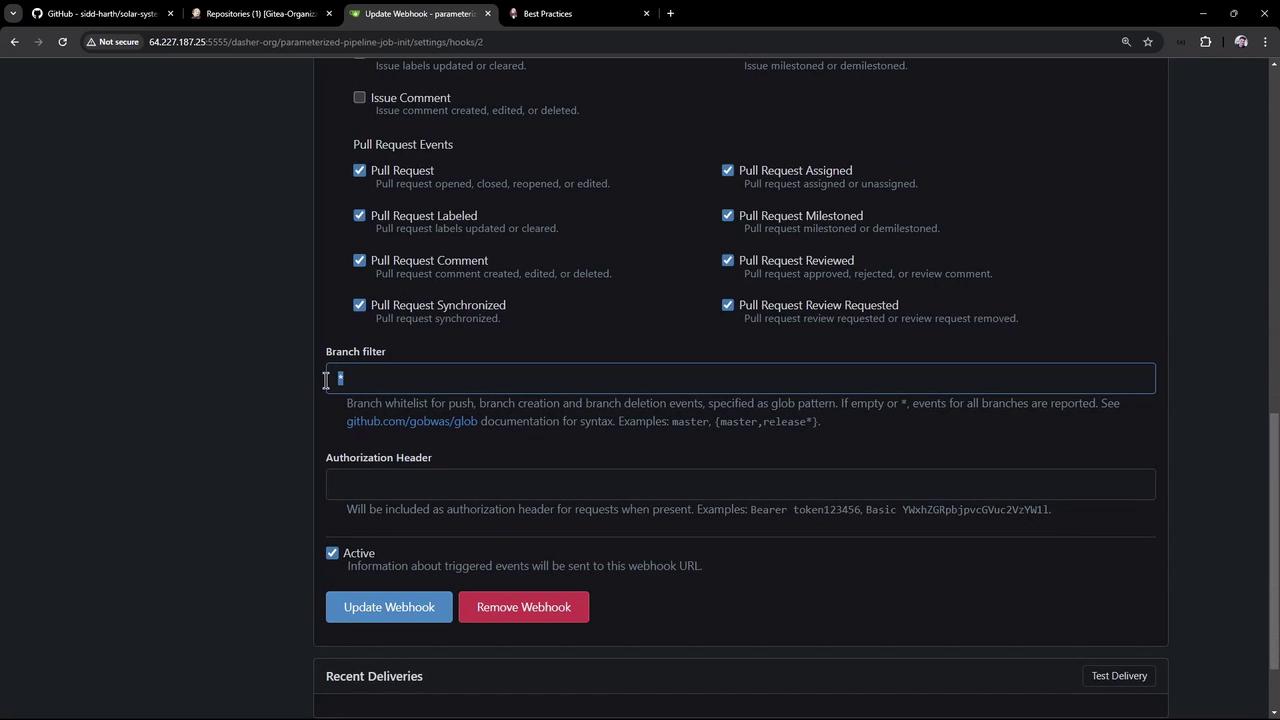
README in the main branch:
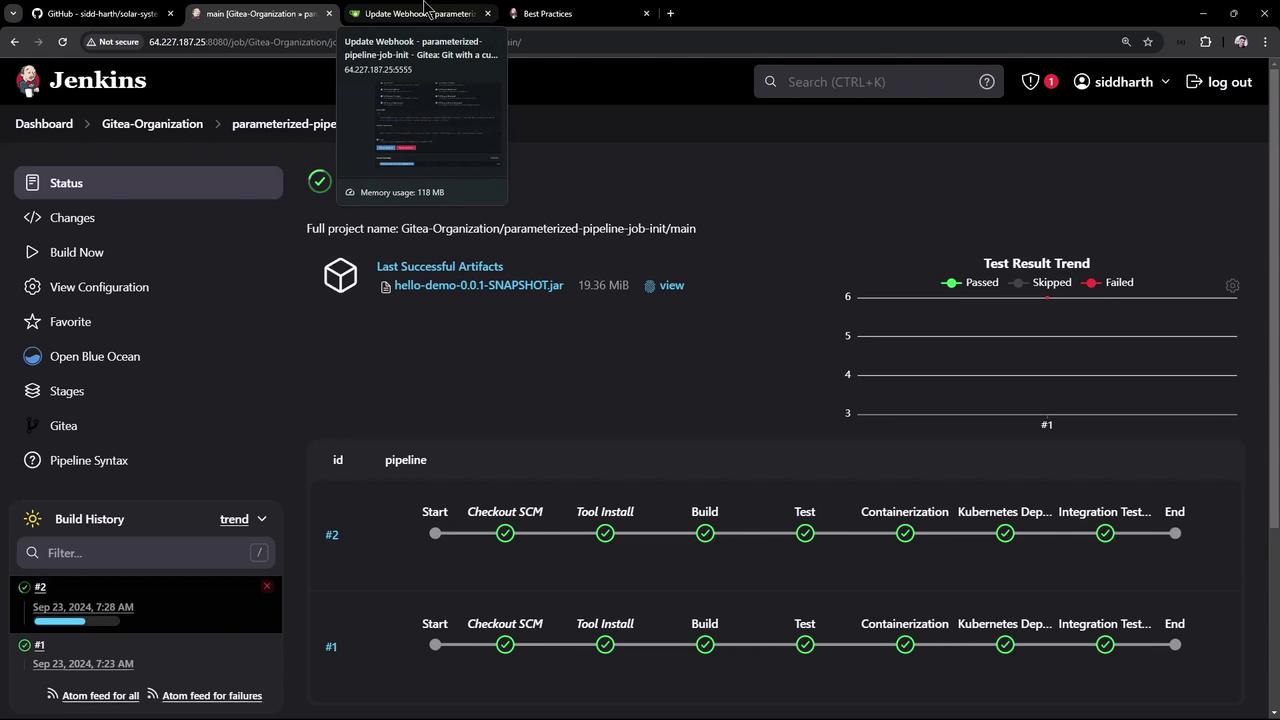
Ensure your Gitea API token has permissions to create webhooks and read repositories.
Conclusion
After adding aJenkinsfile to the solar-system repository, Jenkins picks it up in the next scan and automatically creates a pipeline: