Adding timestamps to your Jenkins console output helps you pinpoint exactly when each build step starts and ends. In this guide, you’ll learn how to:
  • View default console output
  • Enable timestamps for a single job
  • Configure global timestamp formats
  • Define custom date-time patterns

1. Default Jenkins Console Output

By default, Jenkins provides console logs without timestamps:
Started by user emma
Running as SYSTEM
Building in workspace /var/lib/jenkins/workspace/npm-version-test
[npm-version-test] $ /bin/sh -xe /tmp/jenkins378958400214127704.sh
+ node -v
v22.6.0
+ npm -v
10.8.2
[Gitea] do not publish assets due to source being no GiteaCMSource
Finished: SUCCESS
Without timestamps, it’s difficult to measure the duration of each step or correlate events across builds.

2. Enable Timestamps Per Job

  1. Navigate to your job (e.g., npm-version-test) and click Configure.
  2. Under Build Environment, check Add timestamps to the Console Output.
  3. Save and run the job.
Now you’ll see timestamps in the format HH:mm:ss:
00:28:38 Started by user siddharth
00:28:38 Running as SYSTEM
00:28:38 Building on the built-in node in workspace /var/lib/jenkins/workspace/npm-version-test
00:28:39 [npm-version-test] $ /bin/sh -xe /tmp/jenkins1225959520377962572.sh
00:28:39 + node -v
00:28:39 v12.6.0
00:28:39 + npm -v
00:28:39 6.8.2
00:28:39 [Gitea] do not publish assets due to source being no GiteaCMSSource
00:28:39 Finished: SUCCESS
If Add timestamps is not available, install or update the Timestamper Plugin via Manage Jenkins → Manage Plugins.

3. Configure Global Timestamp Format

To apply a custom format across all jobs:
  1. Go to Dashboard → Manage Jenkins → Configure System.
  2. Locate the Timestamper section.
  3. Edit System clock time format or Elapsed time format.
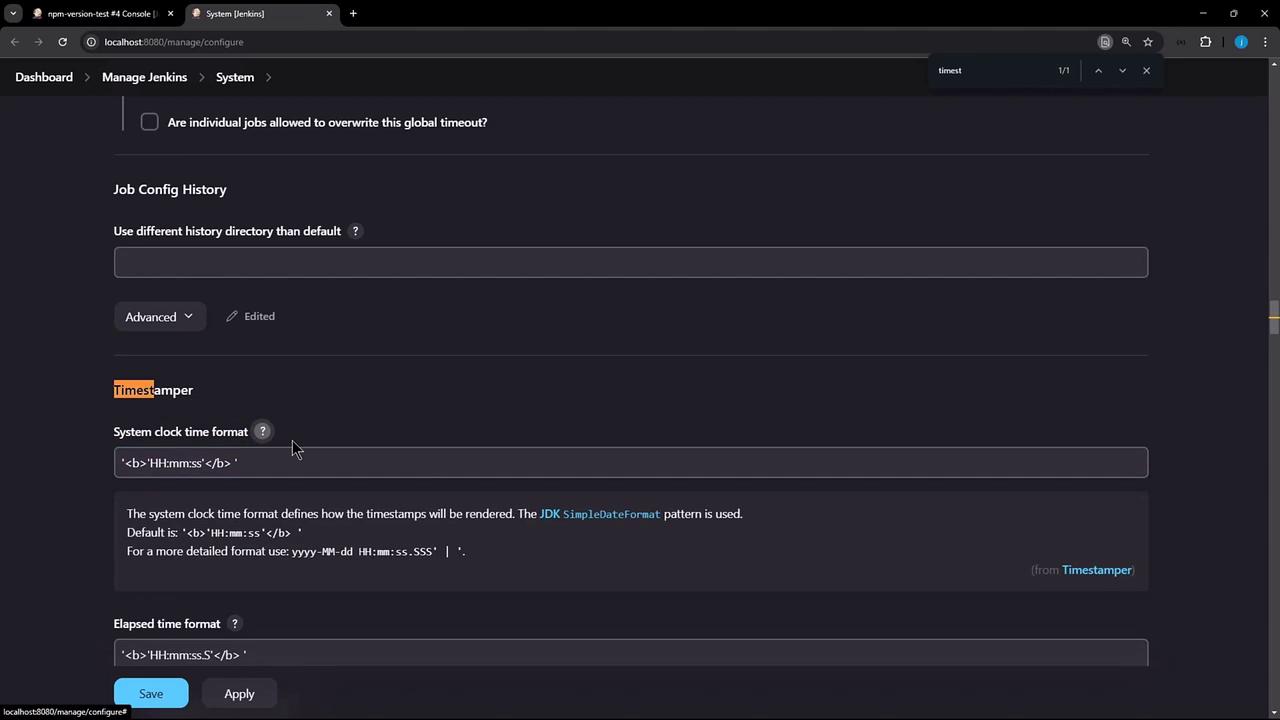
The image shows a Jenkins system configuration page with settings for job config history and timestamp formatting. It includes options for system clock time format and elapsed time format.
The default pattern is HH:mm:ss, but you can choose Detailed or enter your own using Java’s SimpleDateFormat.

4. Define a Custom Date-Time Pattern

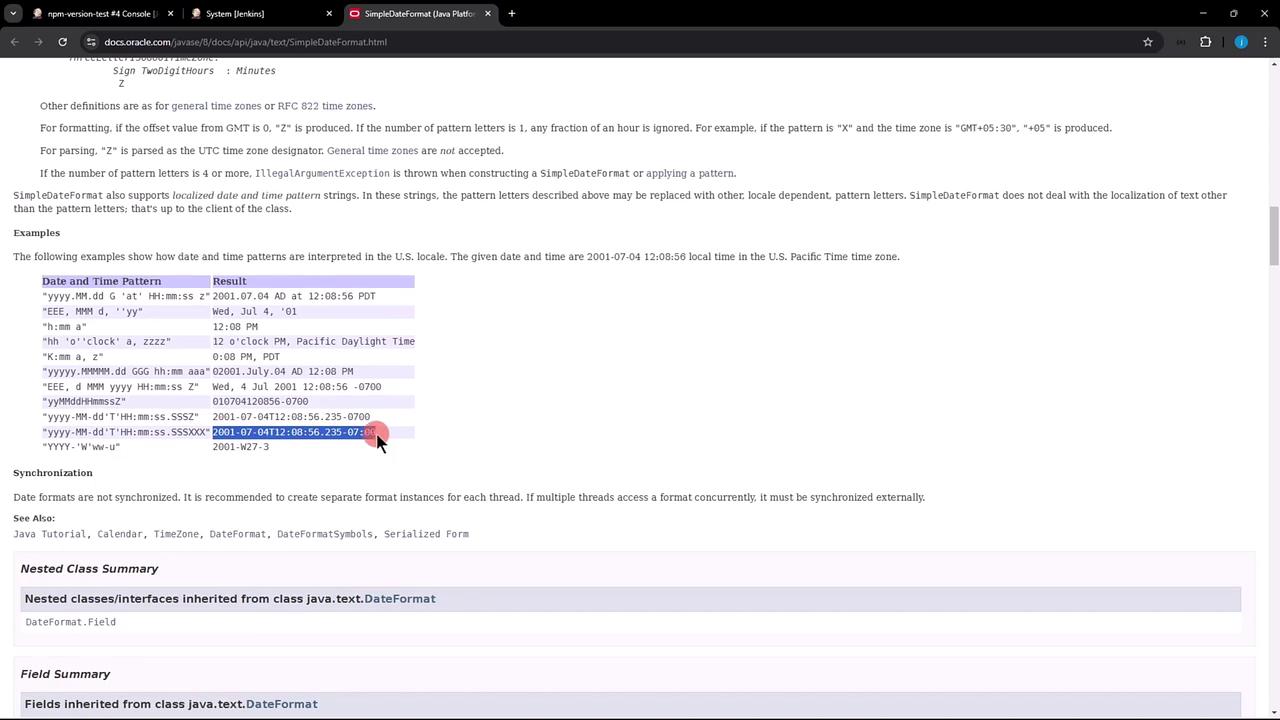
Jenkins uses Java’s SimpleDateFormat. Below is a quick reference:
PatternDescriptionExample
yyyyYear2025
MMMonth in year02
ddDay of month06
HHHour (00–23)00
mmMinute28
ssSecond38
SSSMillisecond991
XXXTime zone offset+05:30
The image shows a webpage from the Oracle Java documentation, specifically detailing the SimpleDateFormat class with examples of date and time patterns. A cursor is pointing at one of the examples in the list.

Example Pattern

To include date, time, milliseconds, and timezone:
yyyy-MM-dd'T'HH:mm:ss.SSSXXX

Apply Your Pattern

  1. Paste the pattern into System clock time format.
  2. Click Apply and Save.
  3. Rerun your job to see updated timestamps:
2025-02-06T00:28:38.991+05:30  Started by user siddharth
2025-02-06T00:28:38.992+05:30  Running as SYSTEM
2025-02-06T00:28:38.993+05:30  Building on the built-in node in workspace /var/lib/jenkins/workspace/npm-version-test
[npm-version-test] $ /bin/sh -xe /tmp/jenkins12295959205377962572.sh
+ node -v
v22.6.0
+ npm -v
10.8.2
[Gitea] do not publish assets due to source being no GiteaSCMSource
2025-02-06T00:28:39.254+05:30  Finished: SUCCESS
Feel free to adjust the pattern to fit your organization’s logging standards.