

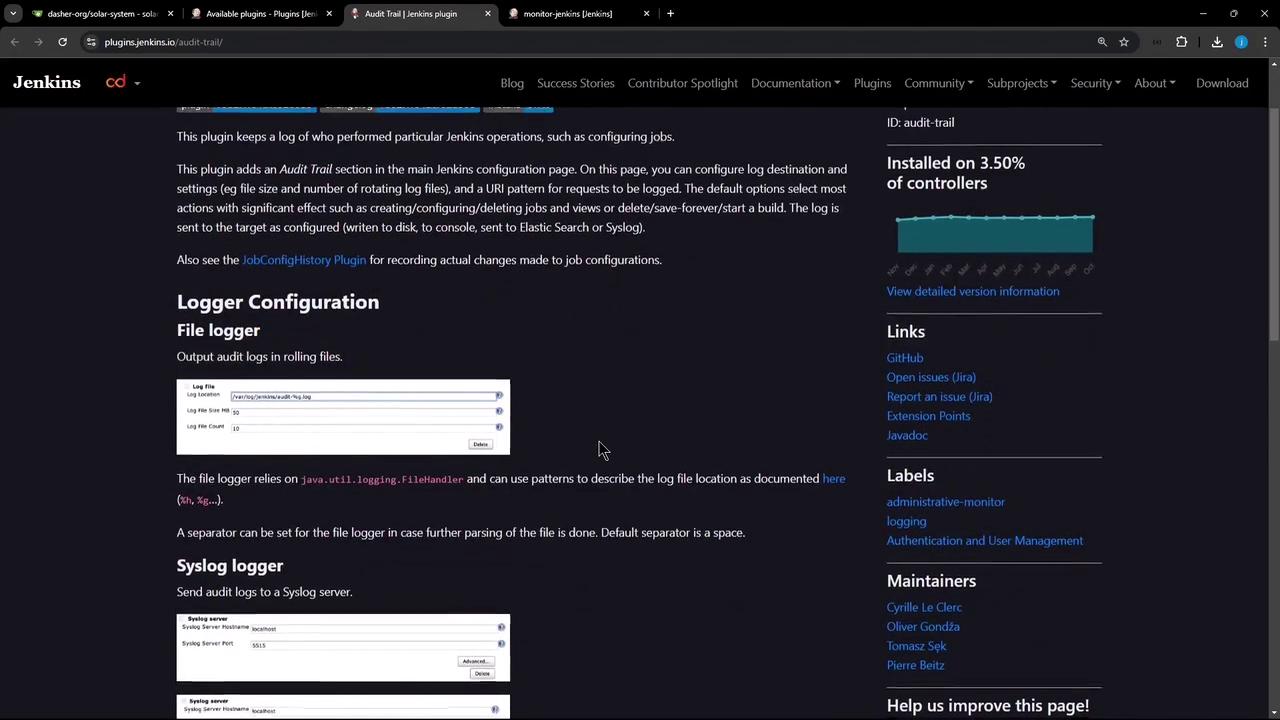
1. Install the Audit Trail Plugin
- From the Jenkins dashboard, go to Manage Jenkins → Manage Plugins.
- Select the Available tab and search for Audit Trail.
- Check the box next to Audit Trail and click Install without restart.
2. Configure the Audit Trail Plugin
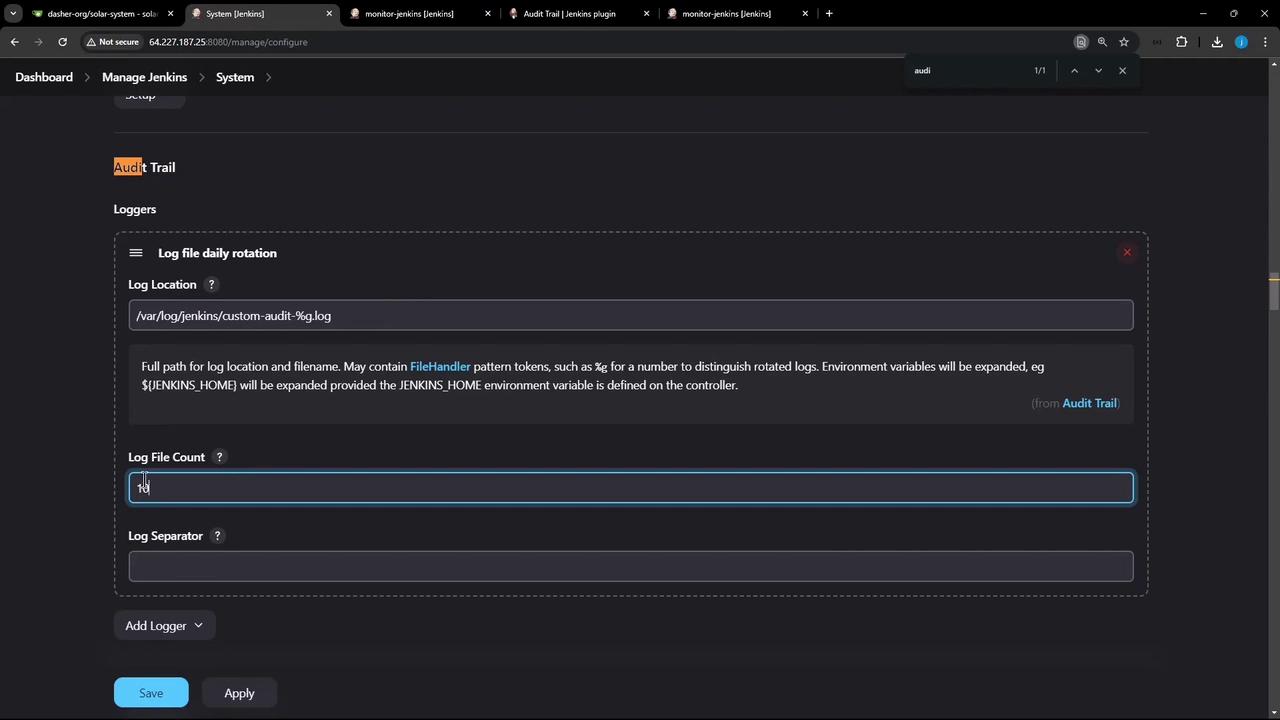
- Navigate to Manage Jenkins → Configure System.
- Scroll down to the Audit Trail section.
- Under Logger, choose Log file (daily rotation).
-
In Log file pattern, enter:
Use
%g to rotate logs daily and prevent oversized files.- Keep other settings at their defaults and click Save.
3. Test Your Audit Trail Setup
3.1 Make a Job Configuration Change
- From the dashboard, select an existing job (for example, monitor-jenkins).
- Click Configure, tweak a build step or description, then click Apply → Save.
- Trigger a new build and wait for it to finish.
3.2 Inspect the Audit Logs
Ensure the Jenkins service account has write permissions to
/var/log/jenkins.3.3 Customize URL Patterns
- Return to Manage Jenkins → Configure System.
-
In URL Patterns to Log, add:
- Click Save, perform another job action, then verify:
4. Additional Logging Options
Beyond file-based logs, Audit Trail supports:| Logger Type | Use Case | Configuration Location |
|---|---|---|
| Syslog | Forward audit events to syslog | Manage Jenkins → Configure System → Audit Trail |
| Console | View events directly in Jenkins log | Manage Jenkins → Configure System → Audit Trail |
| Elasticsearch | Index and search logs externally | Manage Jenkins → Configure System → Audit Trail |
