

Default Formatter Behavior
By default, Jenkins uses the Plain Text formatter. It escapes all HTML tags and displays exactly what you type.The Plain Text formatter is safe but does not render any HTML. Switch to Safe HTML if you need styled markup.
Editing the System Message
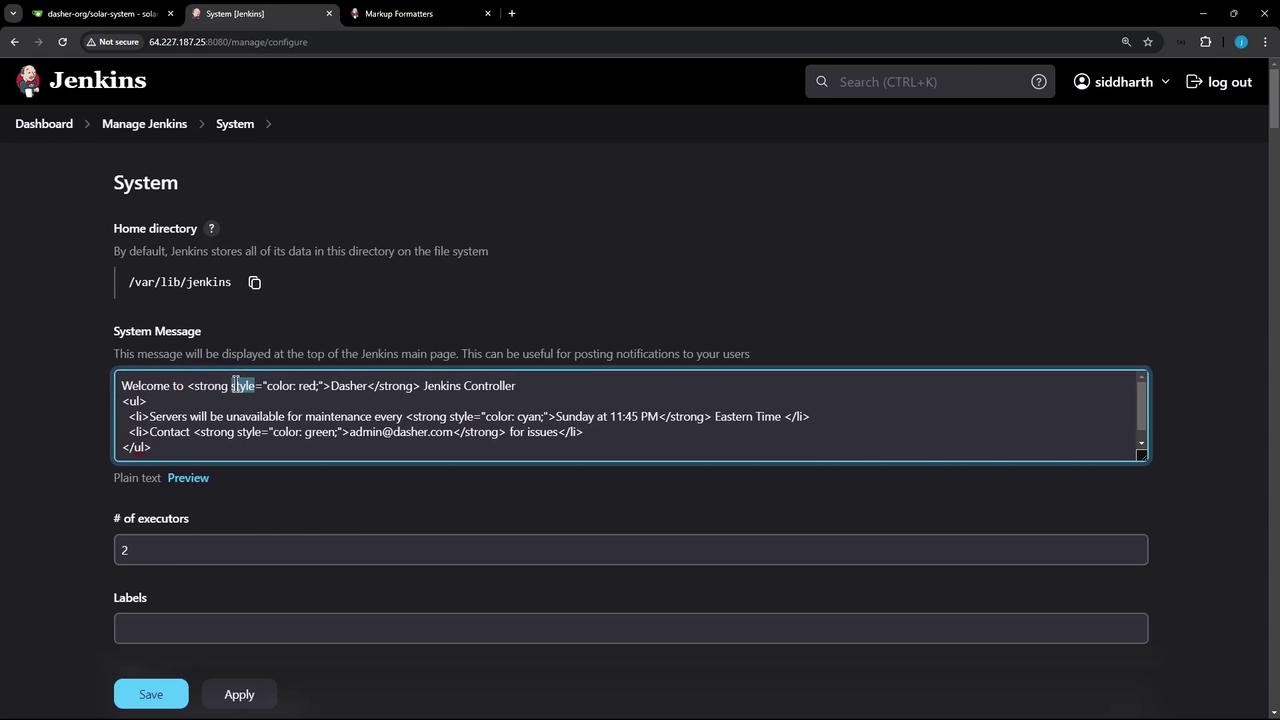
- In Jenkins, navigate to Manage Jenkins > Configure System.
- Scroll down to System Message and enter your HTML. For example:
Changing the Markup Formatter
- Go to Manage Jenkins > Configure Global Security.
- Locate the Markup Formatter section.
- Change Plain Text to Safe HTML.
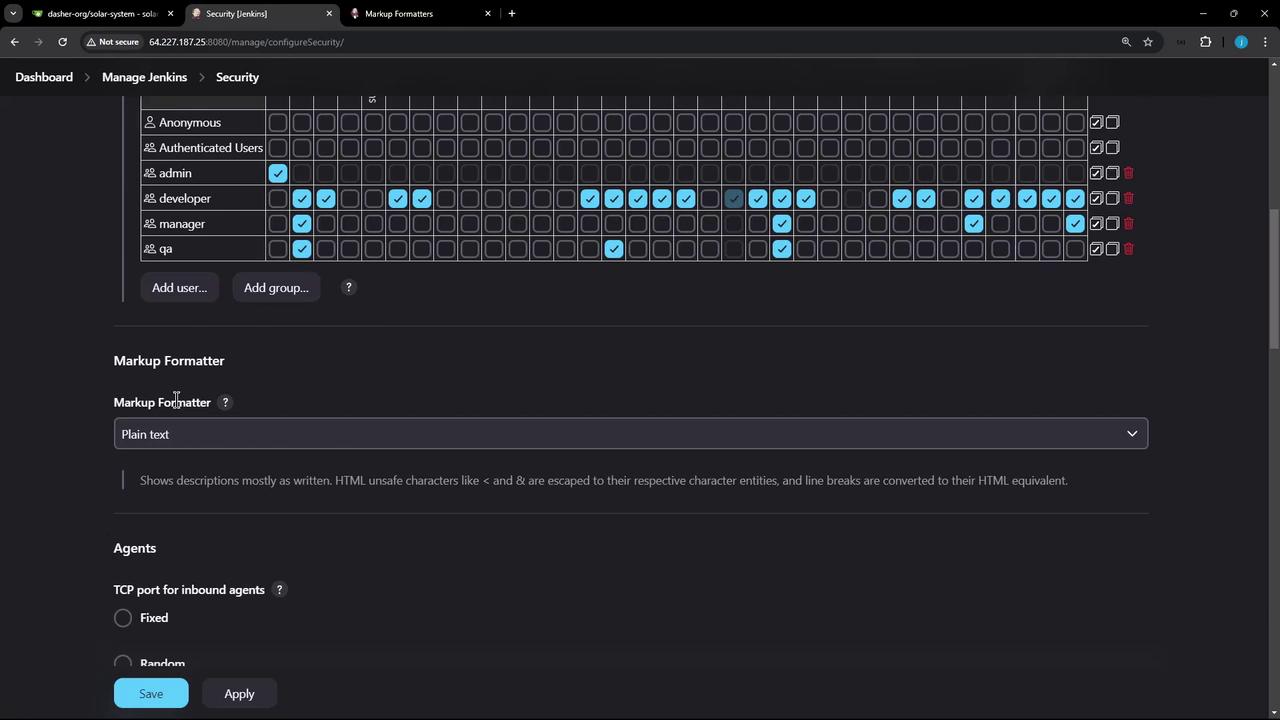
- Click Save to apply.
| Formatter | Description | Common Allowed Tags |
|---|---|---|
| Plain Text | Escapes all HTML; displays raw input. | — |
| Safe HTML | Sanitizes a predefined subset of tags to prevent XSS. | <strong>, <em>, <ul>, <ol>, <li> |
Safe HTML strips any disallowed tags or attributes. Avoid embedding
<script> or inline event handlers.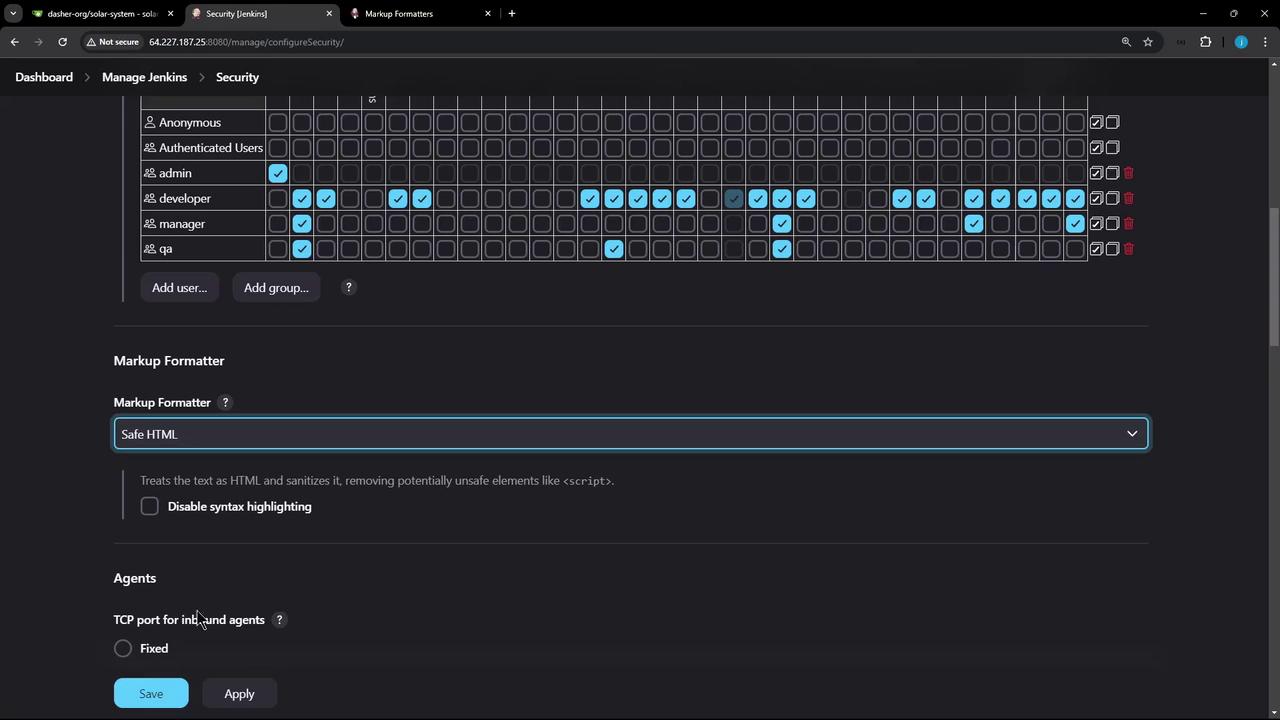
Viewing the Rendered Message
Return to the Jenkins Dashboard. Your system message now displays with bold text, colors, and lists as defined by your HTML. You can apply the same approach to:- Job descriptions
- Build overviews
- View headings