In this tutorial, we’ll automate updating the Docker image tag in Kubernetes manifests and commit changes back to a GitOps repository using a Jenkins pipeline, triggered by Git webhooks.

Prerequisites

ComponentDescriptionReference
GitOps Reposolar-system-gitops-argo-cd in Gitea under dasher-org
Argo CD Appsolar-system-argo-app tracking the kubernetes directoryArgo CD Application
Jenkins InstanceController with credentials to push to GiteaJenkins Credentials

1. Inspect the Manifest Repository

Open the Gitea repo solar-system-gitops-argo-cd and navigate to the kubernetes folder:
The image shows a Gitea interface for the "dasher-org" organization, displaying a list of repositories with options to create a new repository or migration. There are four repositories listed, with details about their last update and programming languages used.
Examine deployment.yml:
apiVersion: apps/v1
kind: Deployment
metadata:
  name: solar-system
  namespace: solar-system
spec:
  replicas: 2
  template:
    spec:
      containers:
      - name: solar-system
        image: siddharth67/solar-system:3e9063be059342b1916f020e034344fb267d1
        imagePullPolicy: Always
        ports:
        - containerPort: 3000

2. Check Argo CD Application Status

Argo CD will show the application as OutOfSync before resources are applied:
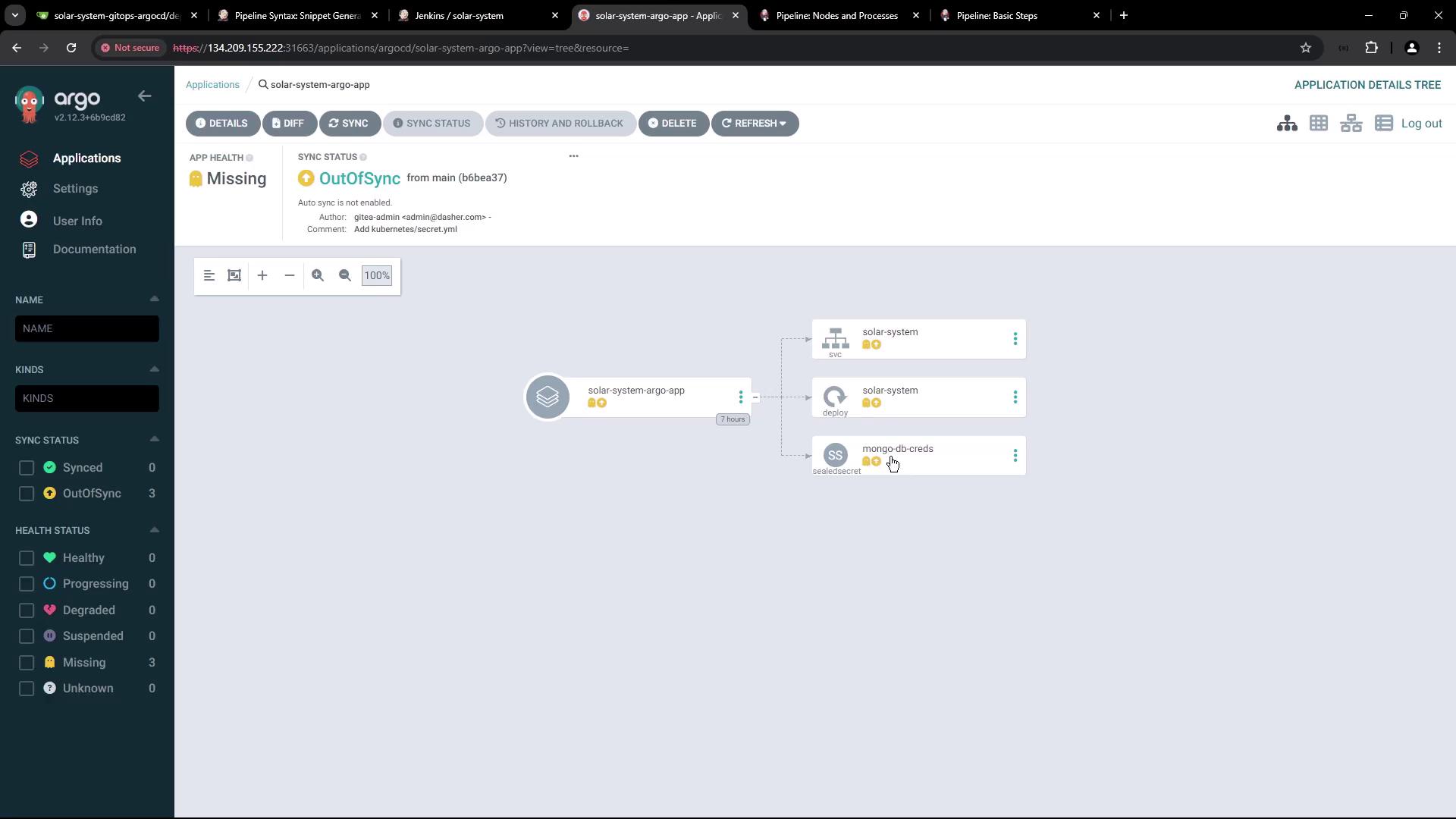
The image shows an Argo CD dashboard displaying the status of an application called "solar-system-argo-app," which is out of sync and missing. It includes a visual representation of the application's components, such as "solar-system" and "mongo-db-creds."
Verify no resources exist in the solar-system namespace:
kubectl get all -n solar-system

3. Jenkins Pipeline: Add “K8S Update Image Tag” Stage

Add a new declarative stage to your Jenkinsfile to:
  • Run only on pull request branches (PR*).
  • Clone the GitOps repo.
  • Update the Docker image tag in deployment.yml.
  • Commit & push to feature-$BUILD_ID.
Ensure the Jenkins agent has git and sed installed for cloning and file editing.
stage('K8S Update Image Tag') {
  when { branch 'PR*' }
  steps {
    script {
      if (fileExists('solar-system-gitops-argo-cd')) {
        sh 'rm -rf solar-system-gitops-argo-cd'
      }
    }
    sh 'git clone -b main http://64.227.187.25:5555/dasher-org/solar-system-gitops-argo-cd'
    dir('solar-system-gitops-argo-cd/kubernetes') {
      sh '''
        git checkout main
        git checkout -b feature-$BUILD_ID

        sed -i "s#image: .*#image: siddharth67/solar-system:$GIT_COMMIT#g" deployment.yml
        git config user.email "[email protected]"
        git config user.name "Jenkins"
        git remote set-url origin http://[email protected]:5555/dasher-org/solar-system-gitops-argo-cd
        git add deployment.yml
        git commit -m "Update Docker image to $GIT_COMMIT"
        git push -u origin feature-$BUILD_ID
      '''
    }
  }
  post {
    always {
      script {
        if (fileExists('solar-system-gitops-argo-cd')) {
          sh 'rm -rf solar-system-gitops-argo-cd'
        }
      }
    }
  }
}
The image shows a webpage from the Jenkins documentation, specifically detailing the "Pipeline: Basic Steps" with a focus on the "catchError" function. It includes a sidebar with a user handbook and a table of contents for various pipeline steps.

4. Configure Gitea API Token

4.1 Generate Token in Gitea

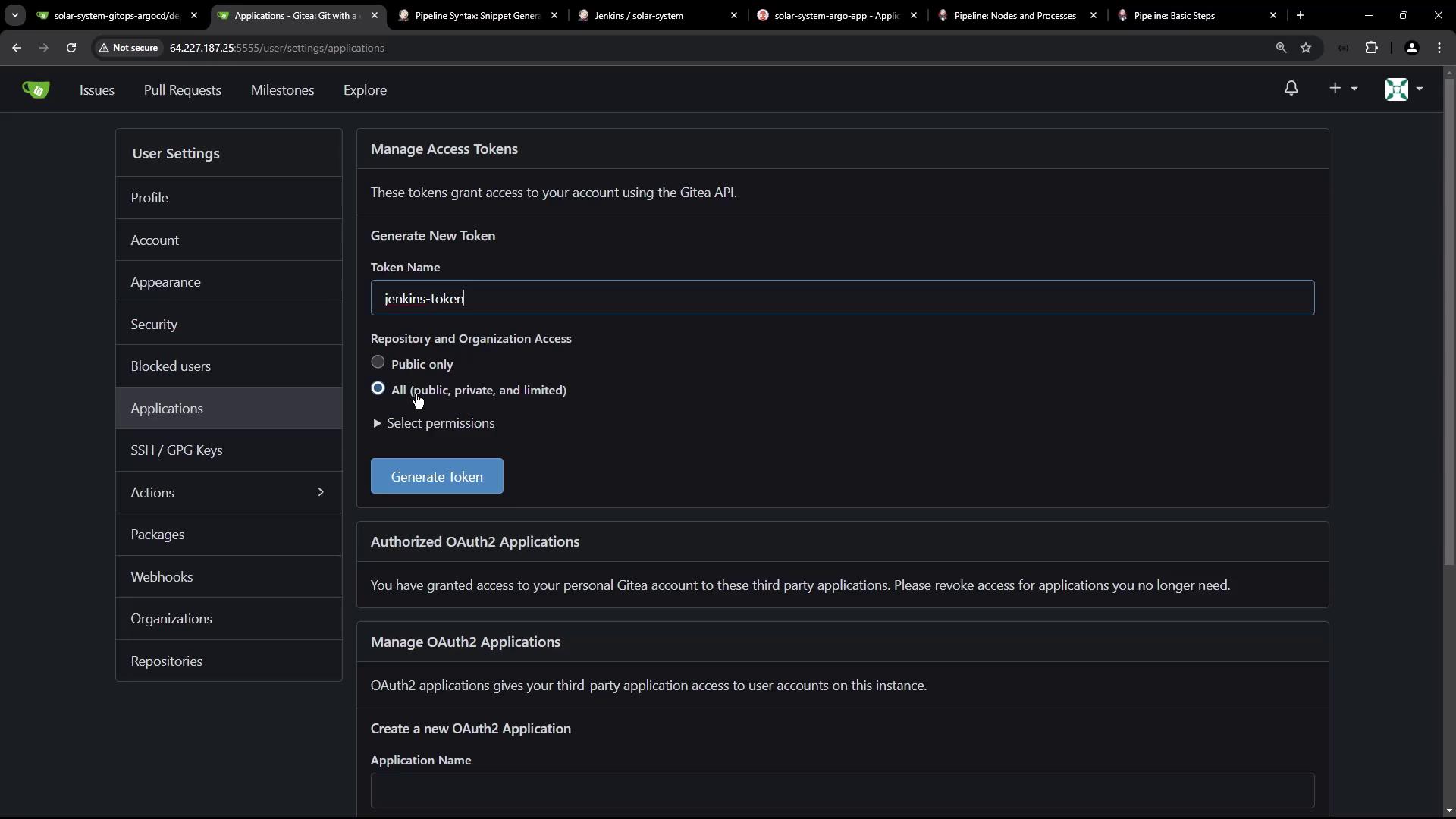
In Gitea user settings, create a new access token named jenkins-token with read/write scope:
The image shows a Gitea user settings page where a new access token named "jenkins-token" is being generated, with options for repository and organization access.

4.2 Add Token to Jenkins Credentials

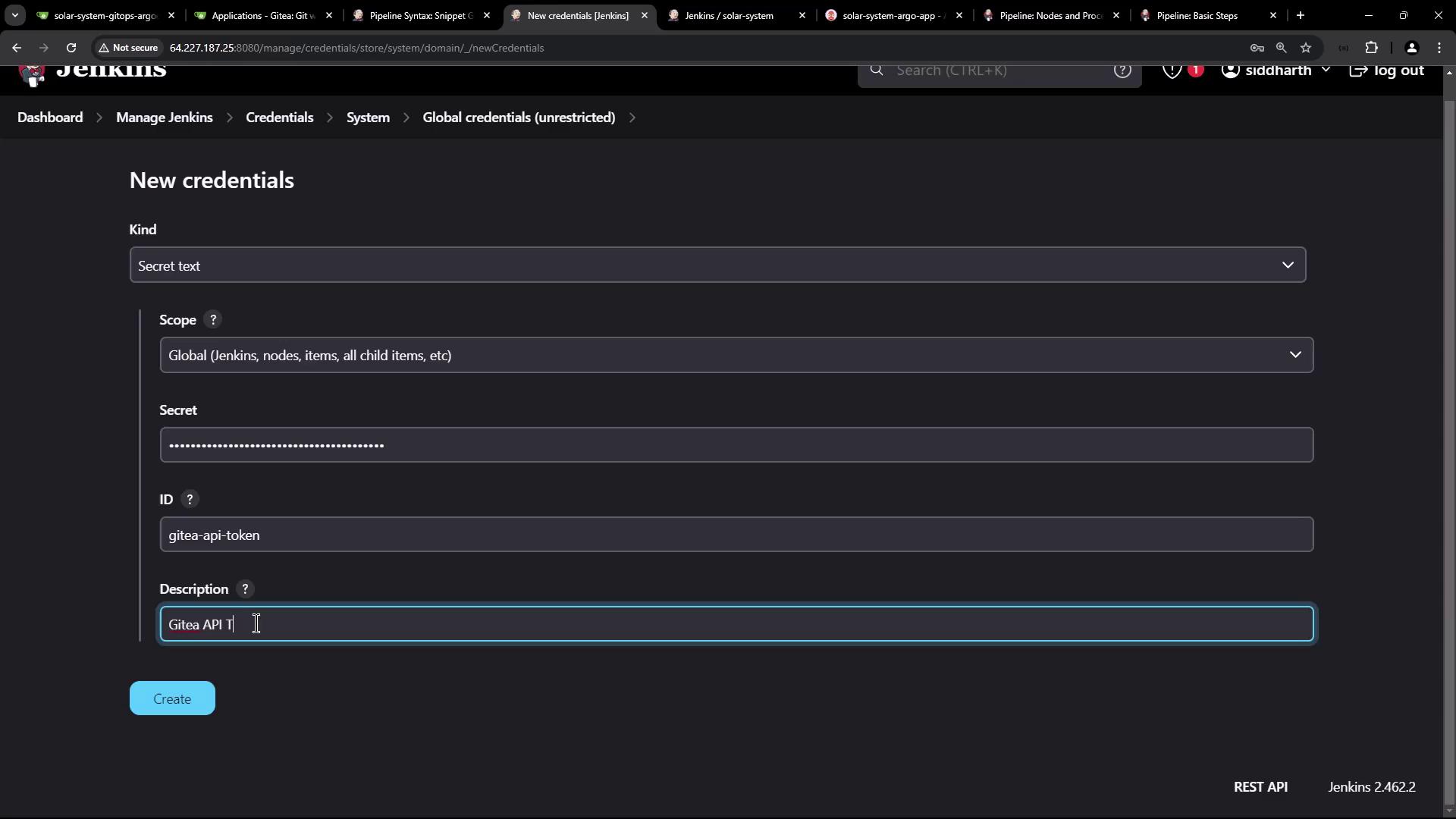
Go to Credentials > System > Global credentials in Jenkins and add a Secret text credential with ID gitea-api-token:
The image shows a Jenkins interface displaying a list of global credentials, including usernames, passwords, and tokens for various services like MongoDB, DockerHub, and AWS.
The image shows a Jenkins interface for adding new credentials, specifically a secret text with fields for kind, scope, secret, ID, and description. The description field mentions "Gitea API Token."
Reference it:
environment {
  GITEA_TOKEN = credentials('gitea-api-token')
}
Keep your API tokens secure. Do not hardcode secrets in your Jenkinsfile.

5. Webhook Trigger on Pull Requests

Configure a Gitea webhook to trigger Jenkins on pull request events:
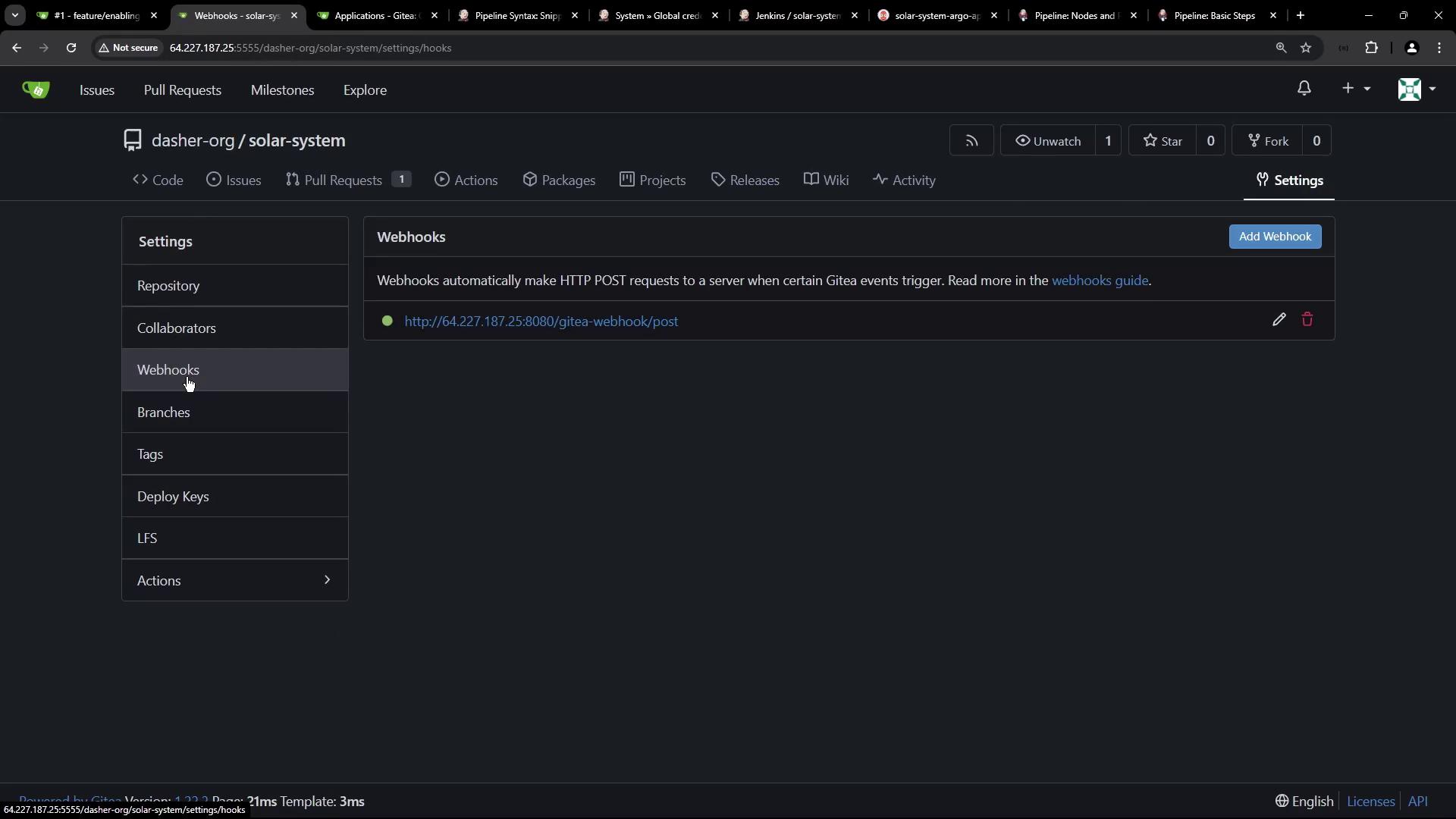
The image shows a web interface for managing webhooks in a repository on Gitea, with options to add or edit webhooks.
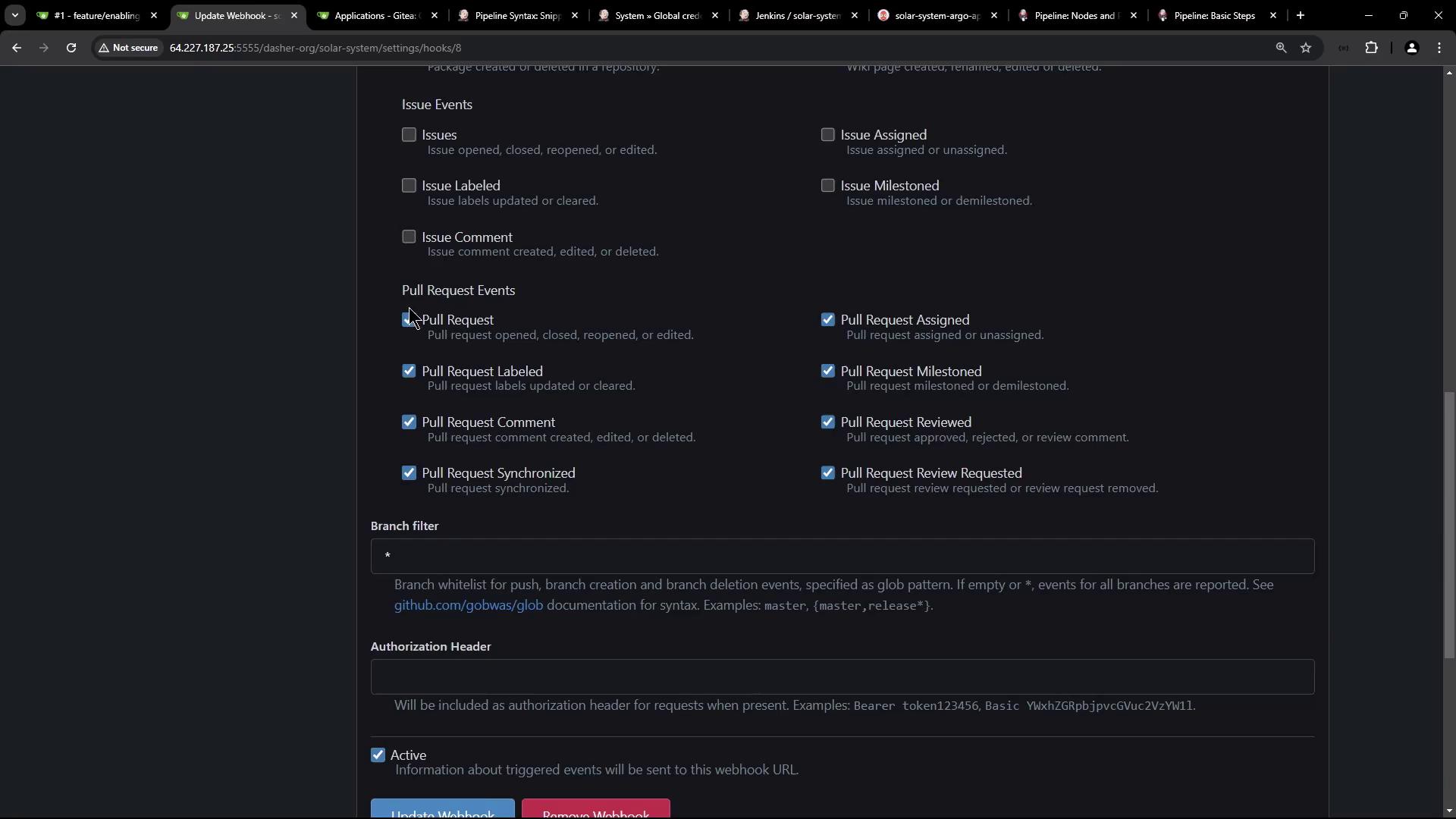
Enable Pull request events:
The image shows a settings page for configuring webhook events in a repository, with options for issue and pull request events, branch filters, and authorization headers.

5.1 Create a Pull Request

Open a new PR against main:
The image shows a Git repository interface for creating a new pull request, with a list of recent commits and their details.

5.2 Observe Jenkins Pipeline Runs

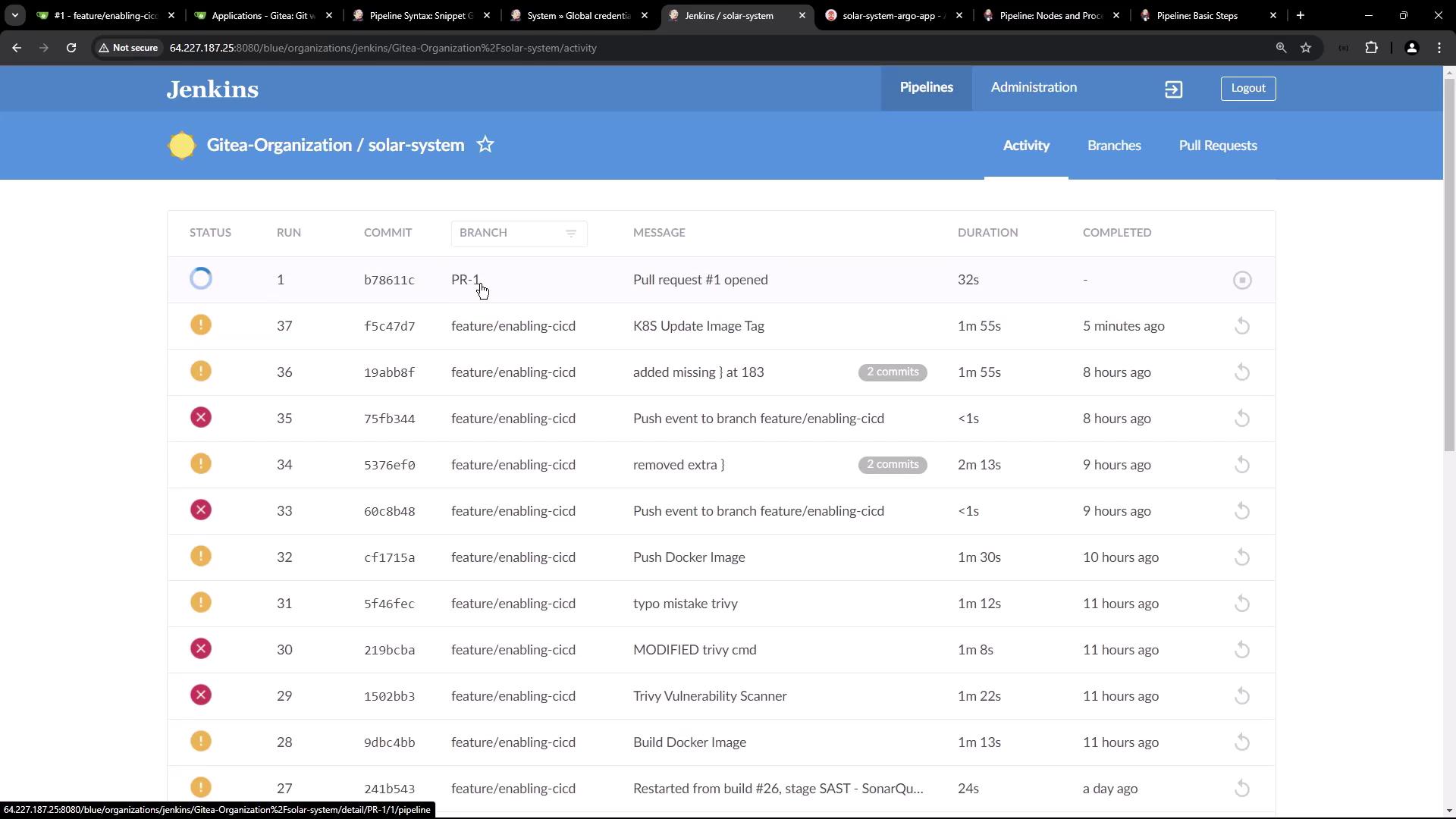
Jenkins will build the PR branch and run the image update:
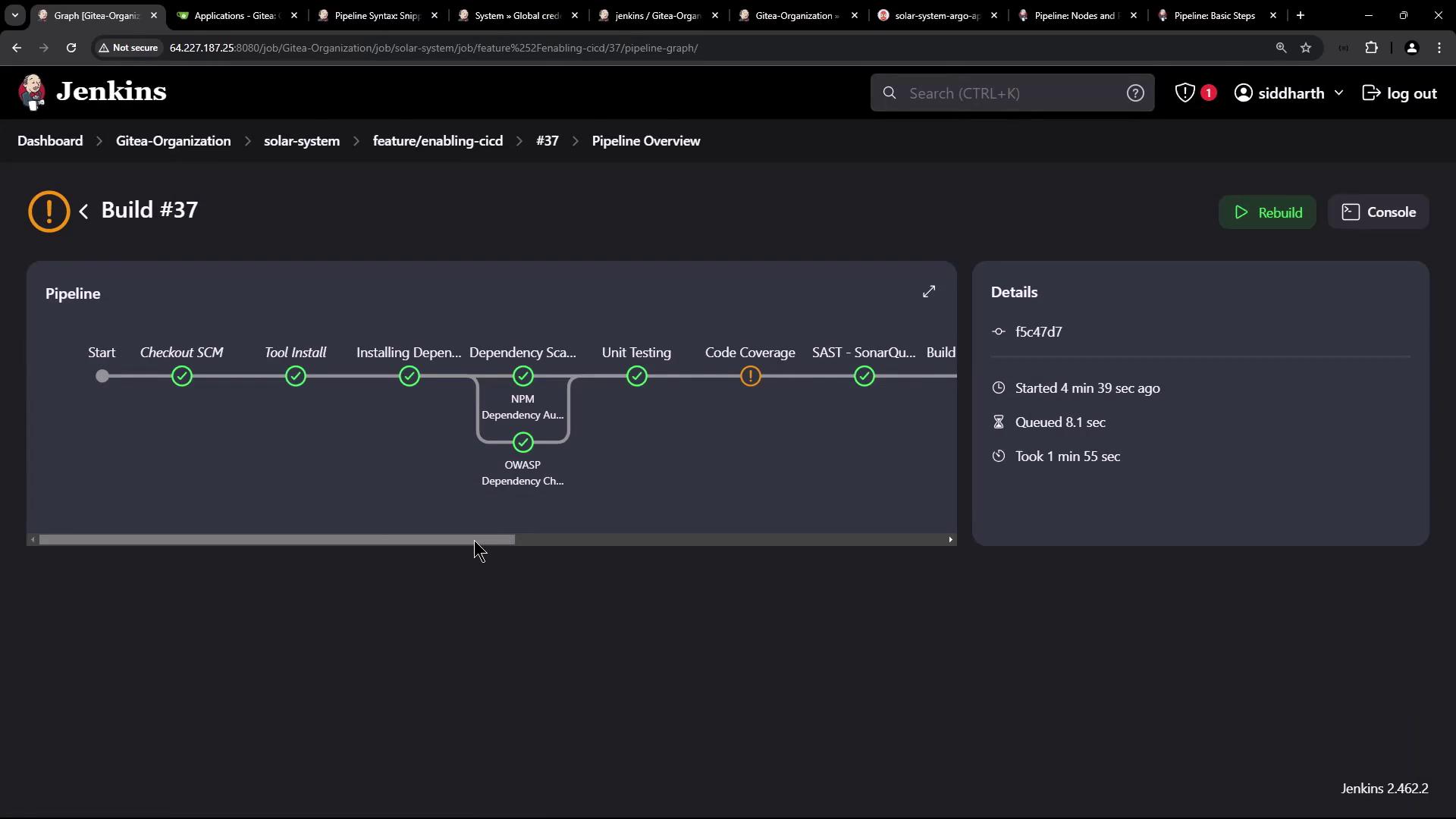
The image shows a Jenkins pipeline overview for Build #37, displaying various stages such as "Checkout SCM," "Tool Install," "Unit Testing," and "Code Coverage," with some stages marked as completed and one with a warning. Details about the build's start time, queue time, and duration are also provided.
View the pipeline activity dashboard:
The image shows a Jenkins dashboard displaying a list of pipeline activities for a project named "solar-system" under "Gitea-Organization," including details like status, commit ID, branch, message, duration, and completion time.

6. Confirm Image Tag Update

Check console logs:
git clone -b main http://64.227.187.25:5555/dasher-org/solar-system-gitops-argo-cd
git checkout -b feature-1
sed -i "... deployment.yml"
git commit -am "Update Docker image to f5c47d71240f57467b284288f1c452f81341b"
git push -u origin feature-1
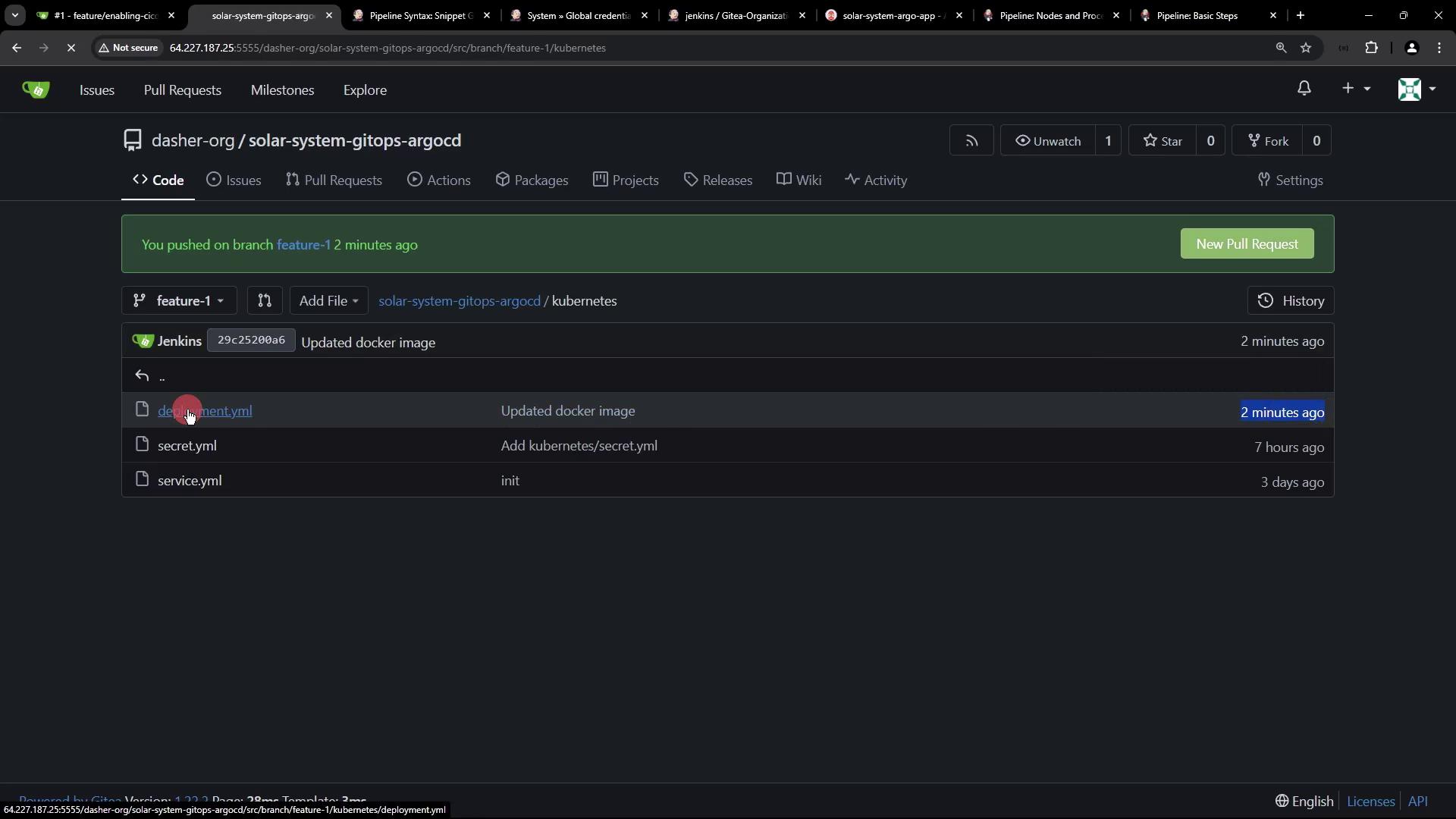
Inspect the feature-1 branch in Gitea:
The image shows a code repository interface with a branch named "feature-1" and files related to Kubernetes, including "deployment.yml," "secret.yml," and "service.yml." A recent update to the Docker image is noted.

7. Sync with Argo CD

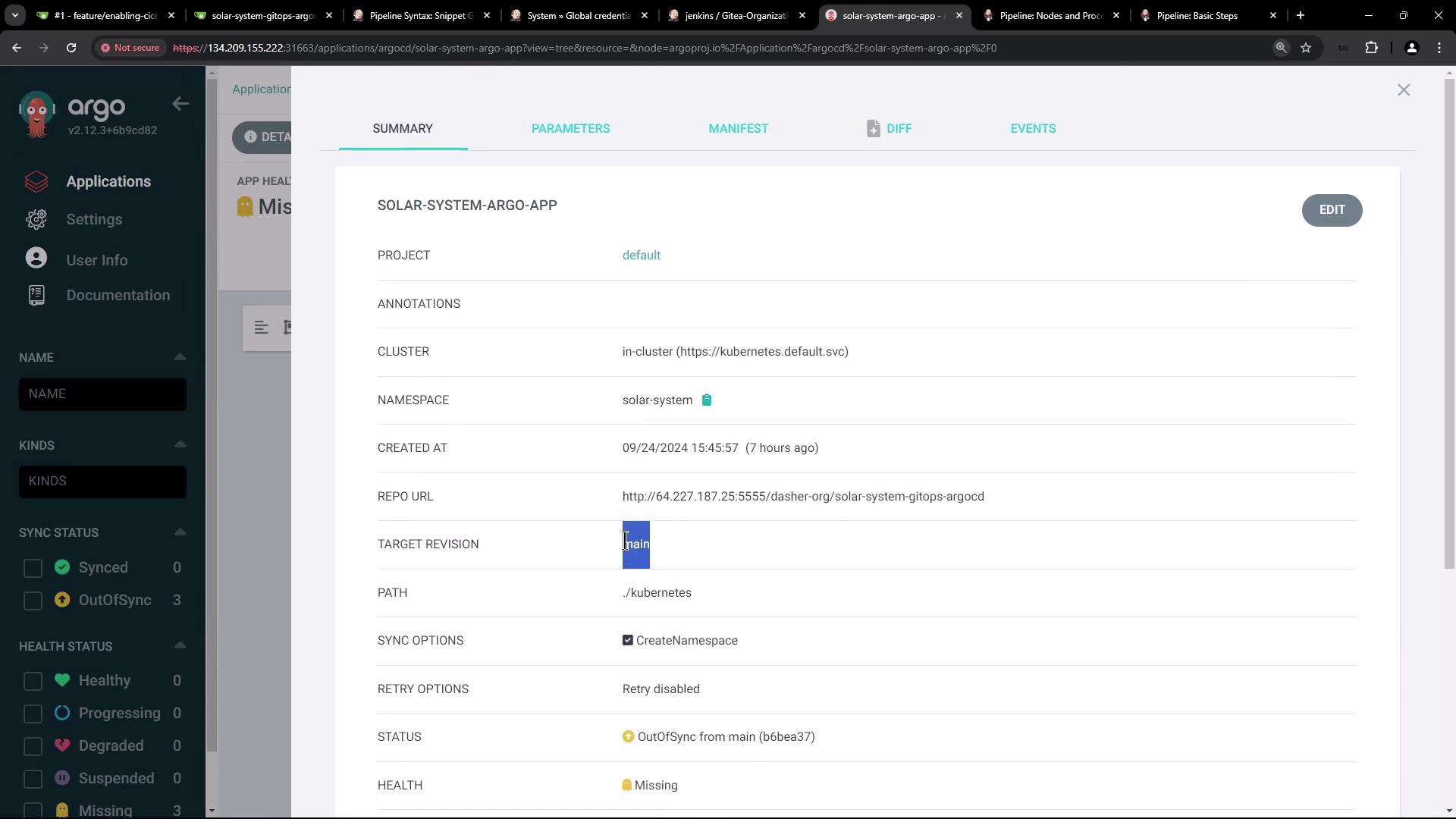
Since Argo CD tracks main, it remains OutOfSync until you merge feature-1:
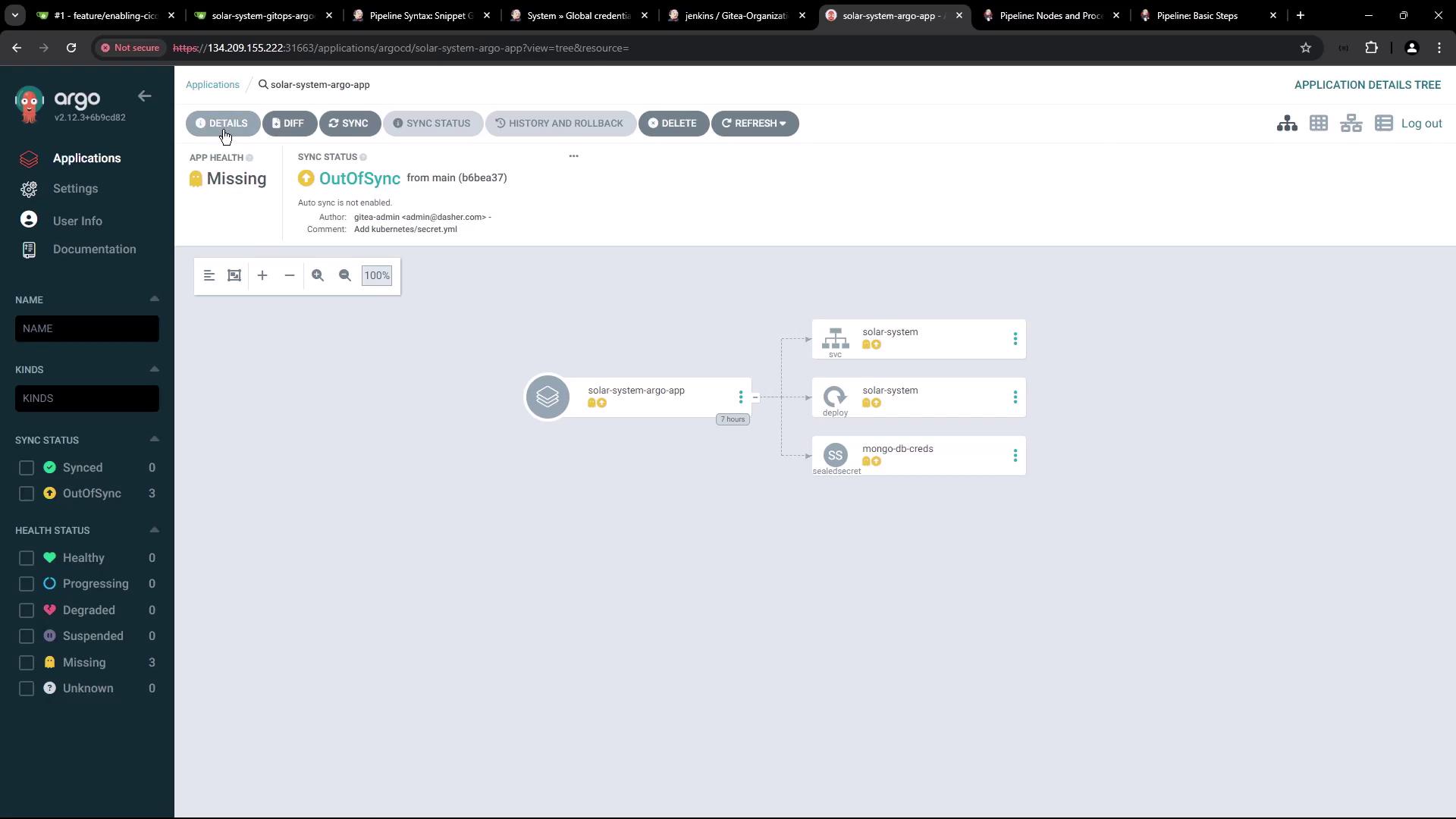
The image shows an Argo CD interface with an application named "solar-system-argo-app" that is out of sync and missing. It displays a visual representation of the application's components and their statuses.
The image shows a dashboard from Argo CD, displaying details of an application named "SOLAR-SYSTEM-ARGO-APP," including project, cluster, namespace, and repository information. The application status is "OutOfSync" and health status is "Missing."
Next, automate merging feature-1 into main so Argo CD can deploy the updated manifest. Thank you for following this GitOps workflow!