Overview
In this guide, you’ll:- Create a Jenkins Pipeline job
- Generate an
emailextsnippet with the Pipeline Syntax Generator - Configure default email variables
- Build a complete Declarative Pipeline with post-build email steps
- Send both plain-text and HTML-formatted notifications
Prerequisites
- Jenkins (2.x or later) with Pipeline and Email Extension Plugin installed
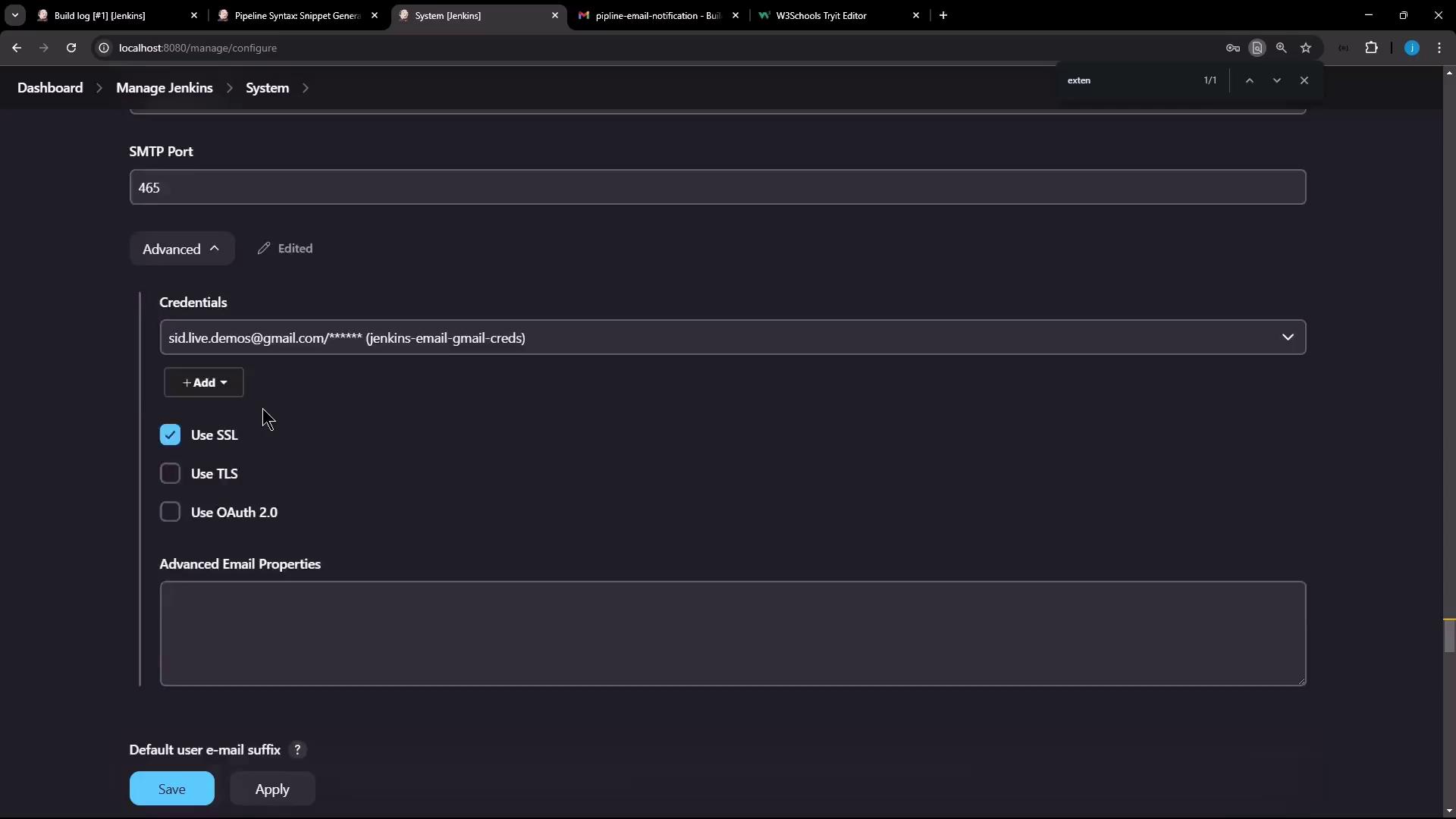
- SMTP server credentials configured under Manage Jenkins > Configure System
Ensure the Email Extension Plugin is installed and up to date. Without it, the
emailext step won’t be available in your pipeline.1. Create the Pipeline Job
- In Jenkins, click New Item.
- Enter a job name (e.g.,
pipeline-email-notification). - Select Pipeline and click OK.
- Scroll to the Pipeline section and choose Declarative Pipeline as the definition.
2. Generate the emailext Snippet
- Within the job configuration, click Pipeline Syntax (the Declarative Pipeline Generator).
- Choose Declarative: Pipeline Generator.
- In Steps, filter for
emailext.
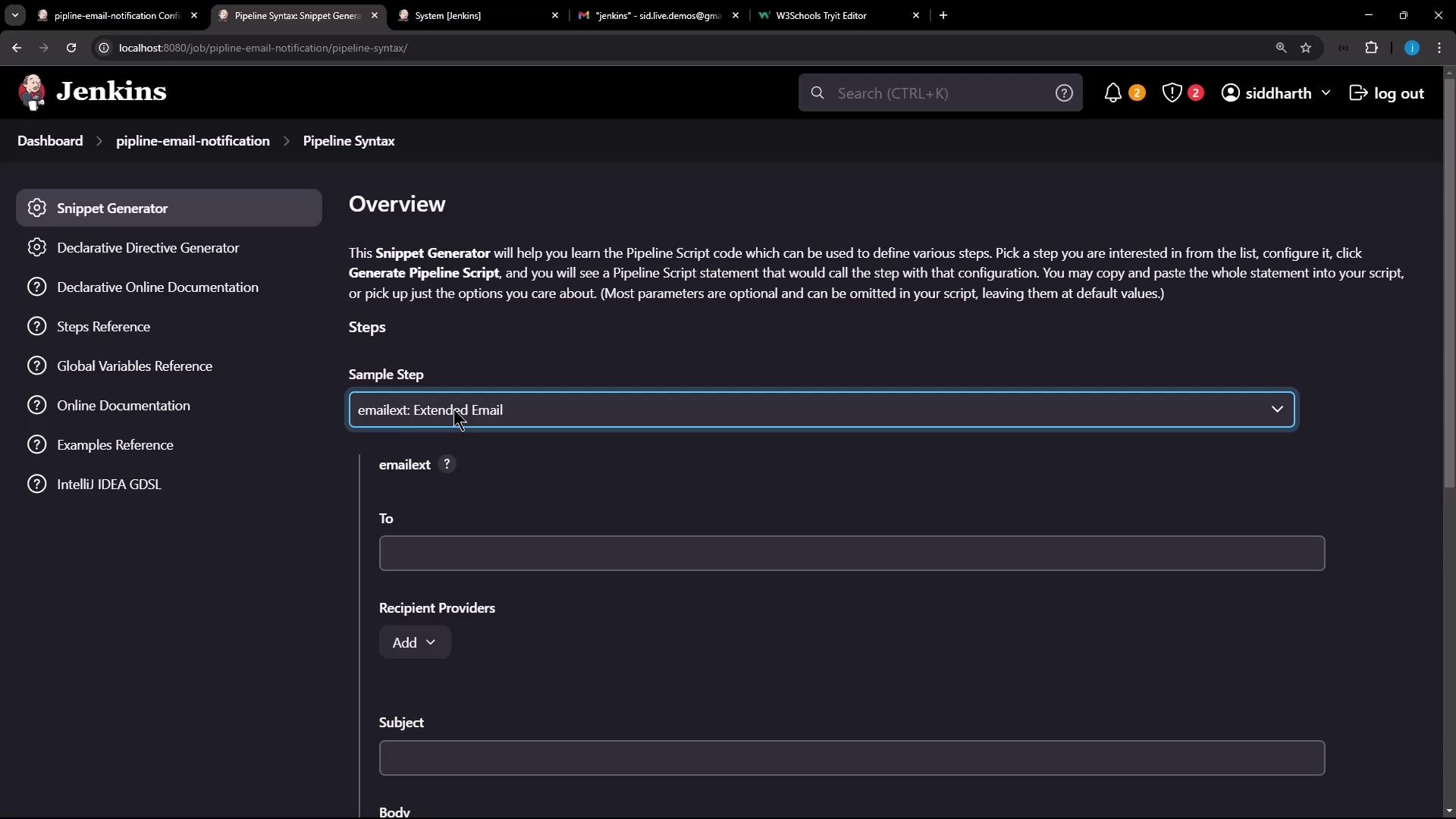
- Fill in To, Subject, Body, etc., then click Generate Pipeline Script:
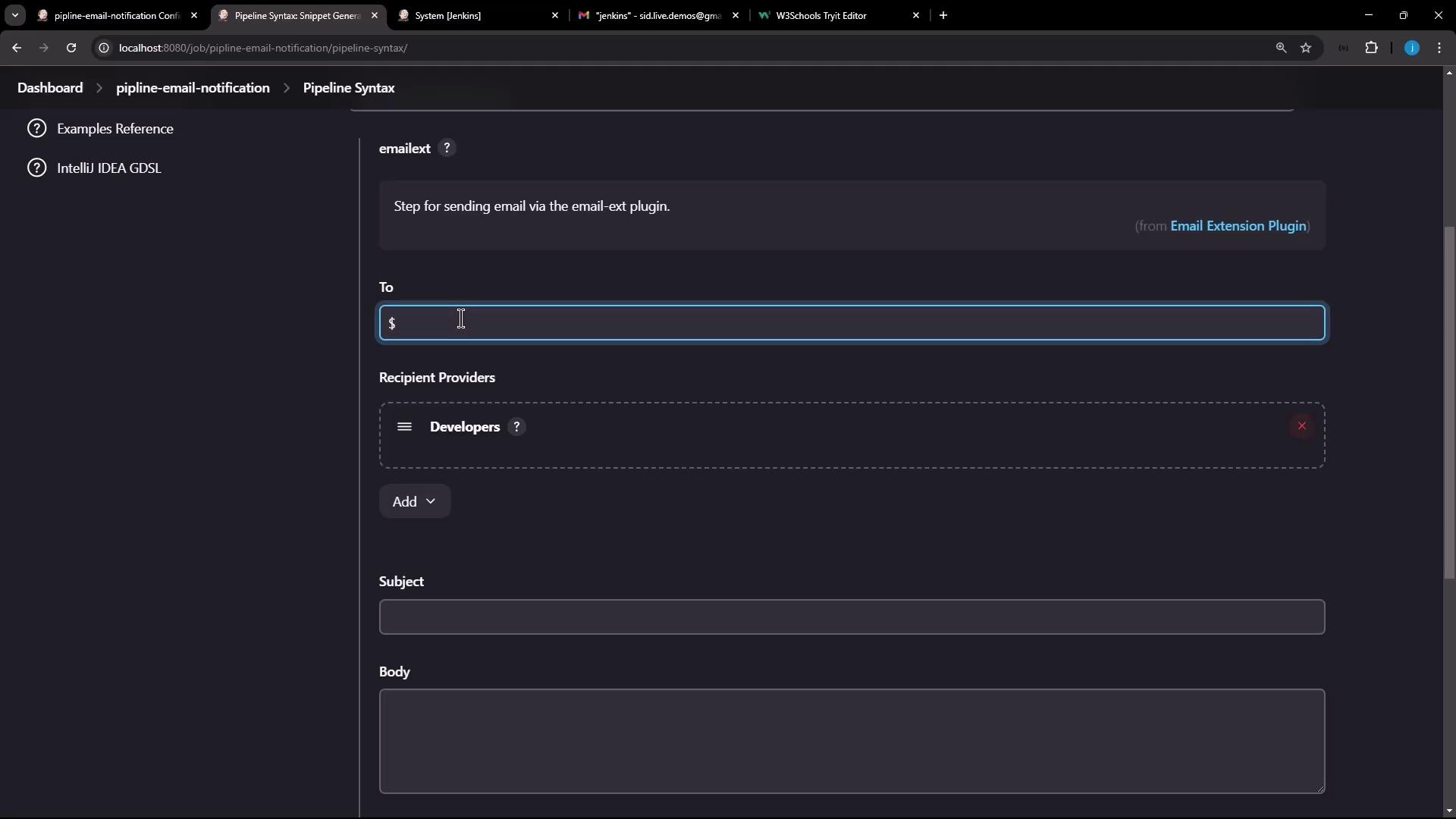
3. Configure Default Placeholders
The plugin provides built-in variables you can reference:| Placeholder | Description |
|---|---|
$DEFAULT_RECIPIENTS | Recipients defined in Manage Jenkins |
$DEFAULT_SUBJECT | Default subject line |
$DEFAULT_CONTENT | Default email body content |
4. Full Declarative Pipeline Example
This pipeline runs a Hello stage, generatestestFile.txt, and always sends an email with the build log and testFile.* attachments:
To only send emails on failures, place
emailext under post { failure { ... } } instead of always.5. Execute the Pipeline
- Save your job and click Build Now.
- Observe the Hello stage run and the post-build action trigger.
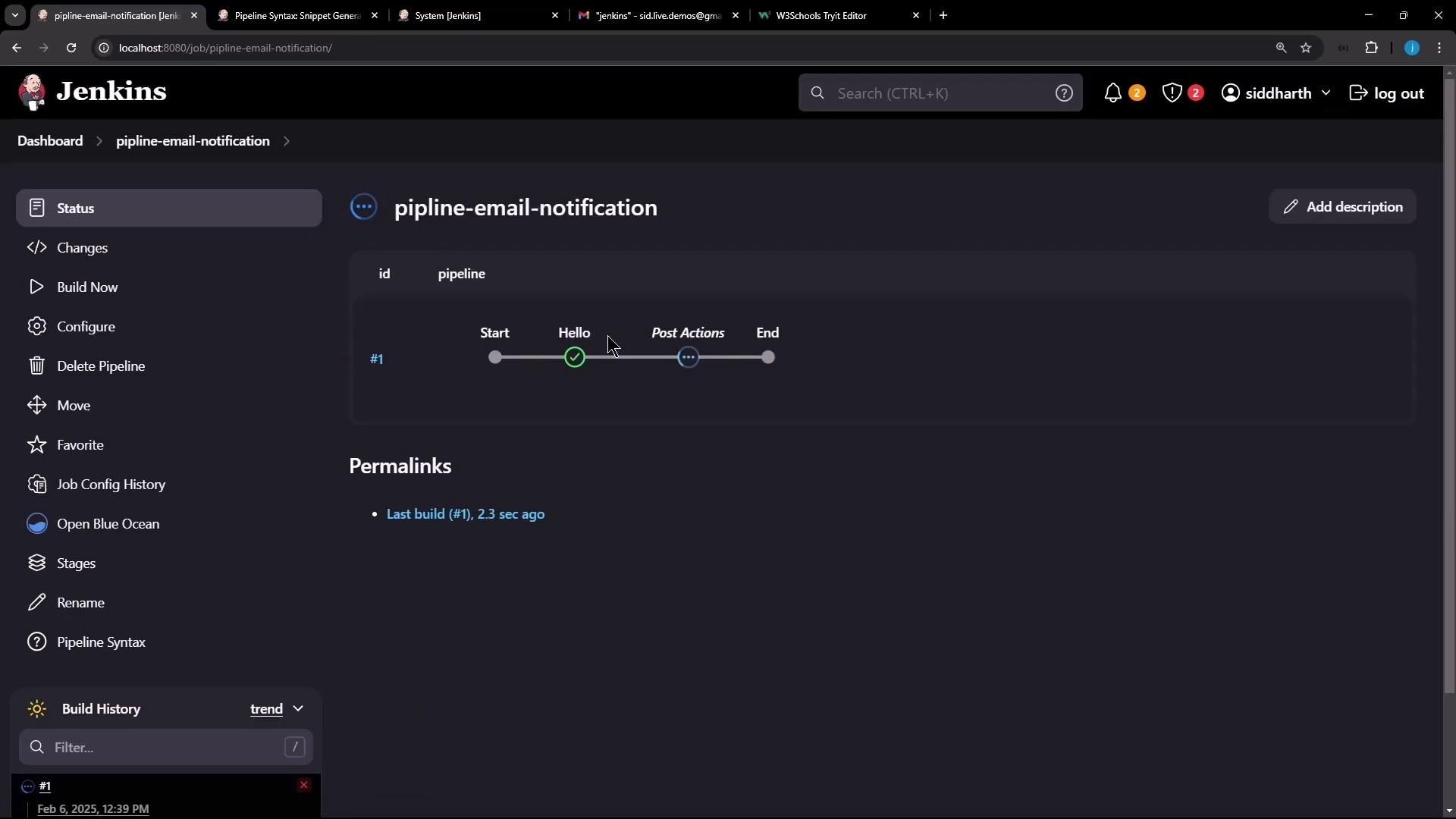
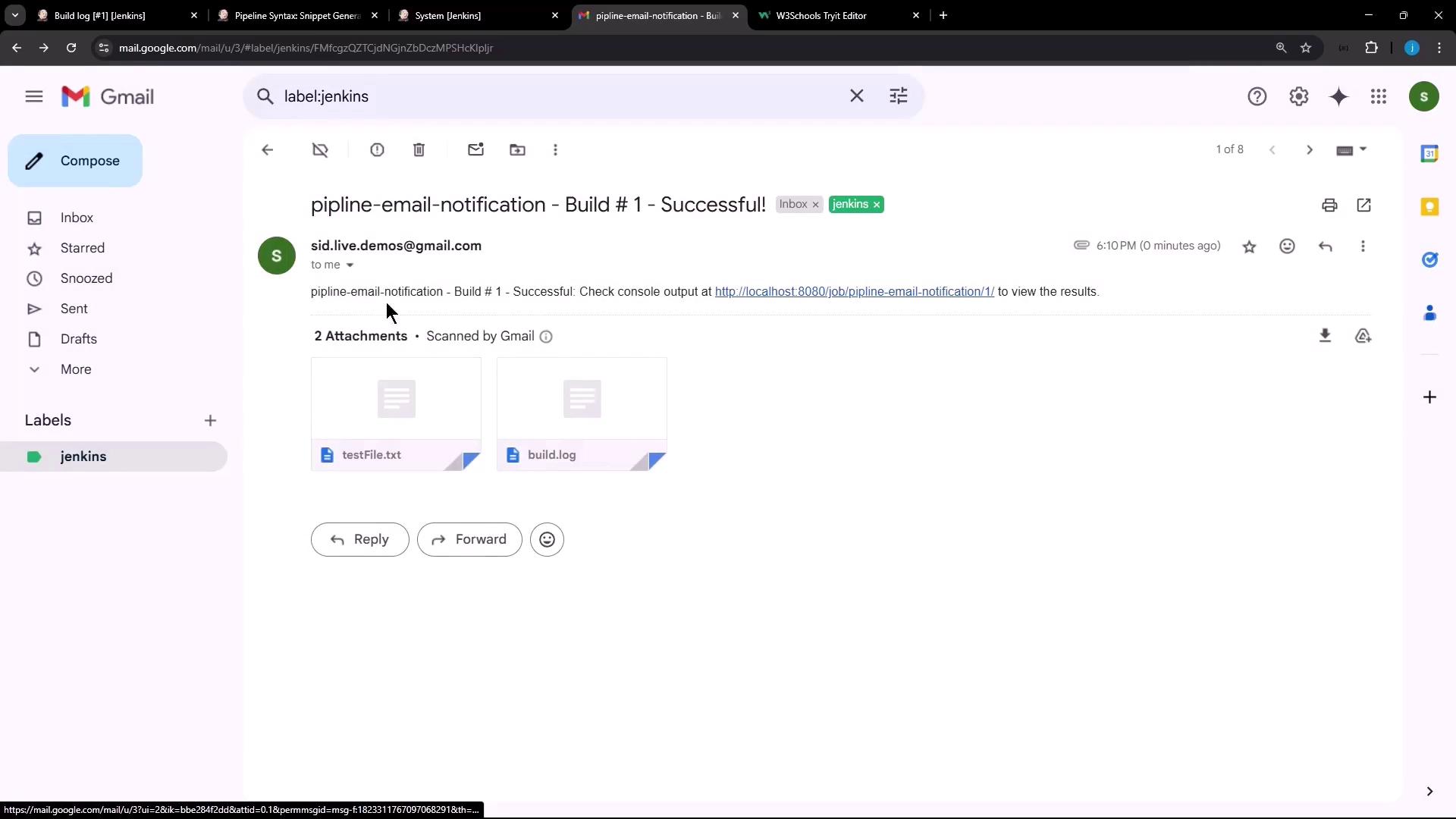
6. Verify the Email Delivery
Check your inbox for a new message. You should see:- An attached build.log
- The
testFile.txtgenerated by the Hello stage
7. Sending HTML-Formatted Emails
To use rich HTML templates, create an HTML file (e.g.,email-template.html):
- Go to Manage Jenkins > Configure System.
- Under Extended E-mail Notification, set Default Content to your HTML and Content Type to
text/html.