Demo Move files from File Server to EFS using Datasync
This guide demonstrates using AWS DataSync to transfer files from an on-premises NFS server to an S3 bucket in AWS.
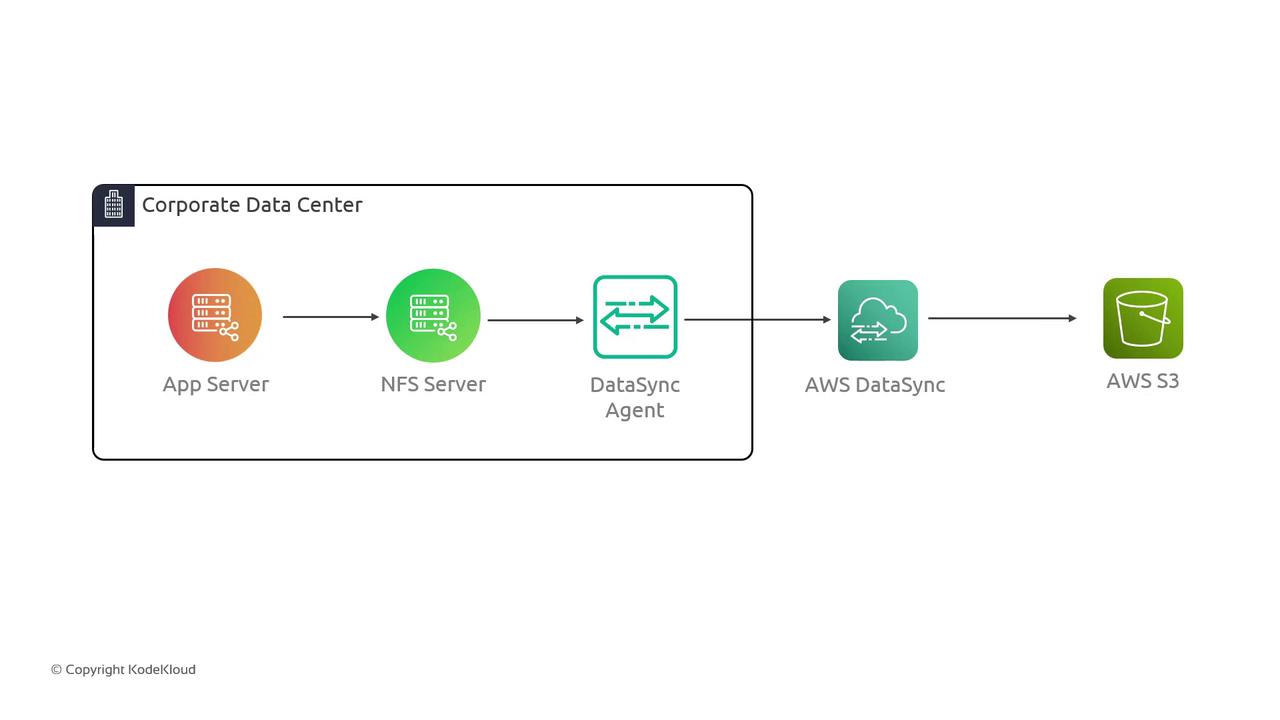
In this guide, we demonstrate how to use AWS DataSync to transfer files from an on-premises NFS server to an S3 bucket in AWS. The objective is to simulate a corporate data center environment and illustrate the seamless migration process using AWS DataSync.The lab setup emulates an on-premises scenario where an application server accesses an NFS server to read and write data. This data is then transferred to an S3 bucket via AWS DataSync. Although the simulation represents an on-premises environment, all components reside in AWS for simplicity.Below is the architecture diagram illustrating the data transfer flow from the corporate data center to AWS S3. The diagram shows an App Server, NFS Server, DataSync Agent, and the AWS DataSync service:
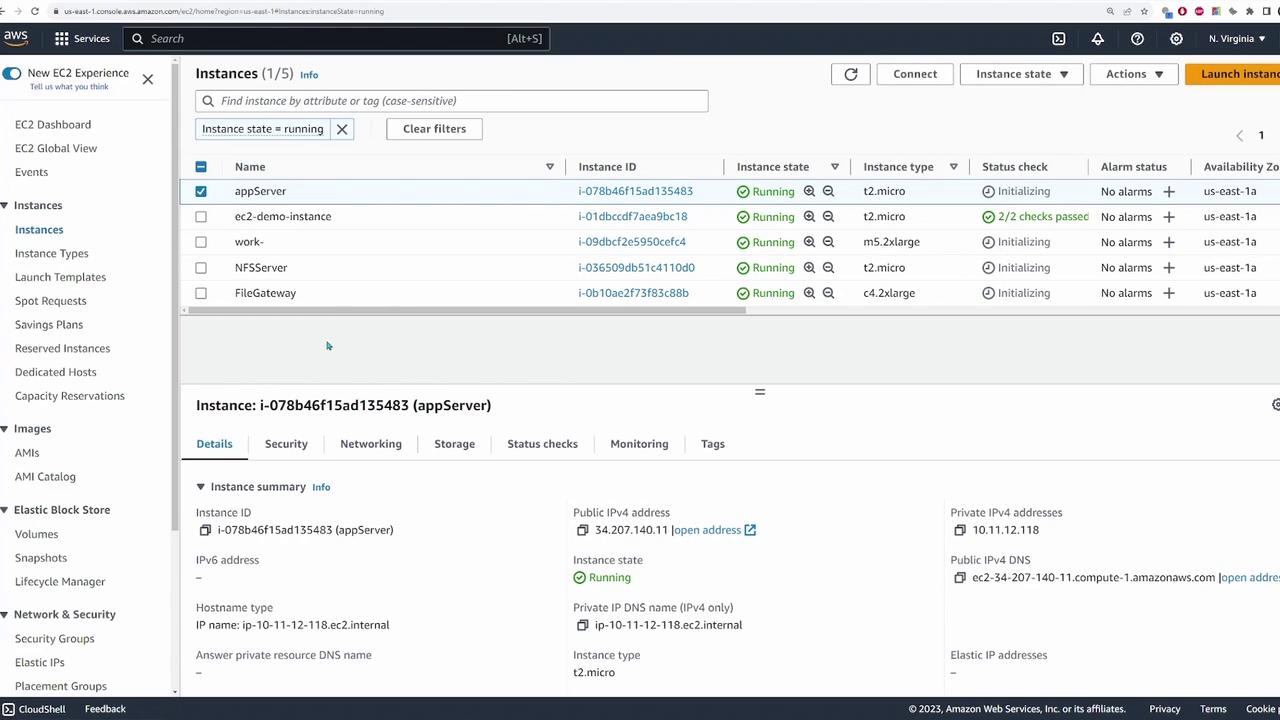
An application server in our simulated environment connects to an NFS server running within an AWS VPC. The data destined for migration is stored on the NFS server and will ultimately be copied to an S3 bucket. The following diagram shows the deployed application server and its connectivity with the NFS server:
To confirm connectivity, log in to the application server and run the command below to display mounted file systems:
Copy
Ask AI
df -h
The output indicates that the NFS server is mounted at /mnt/data with the source path 10.11.12.182:/media/data:
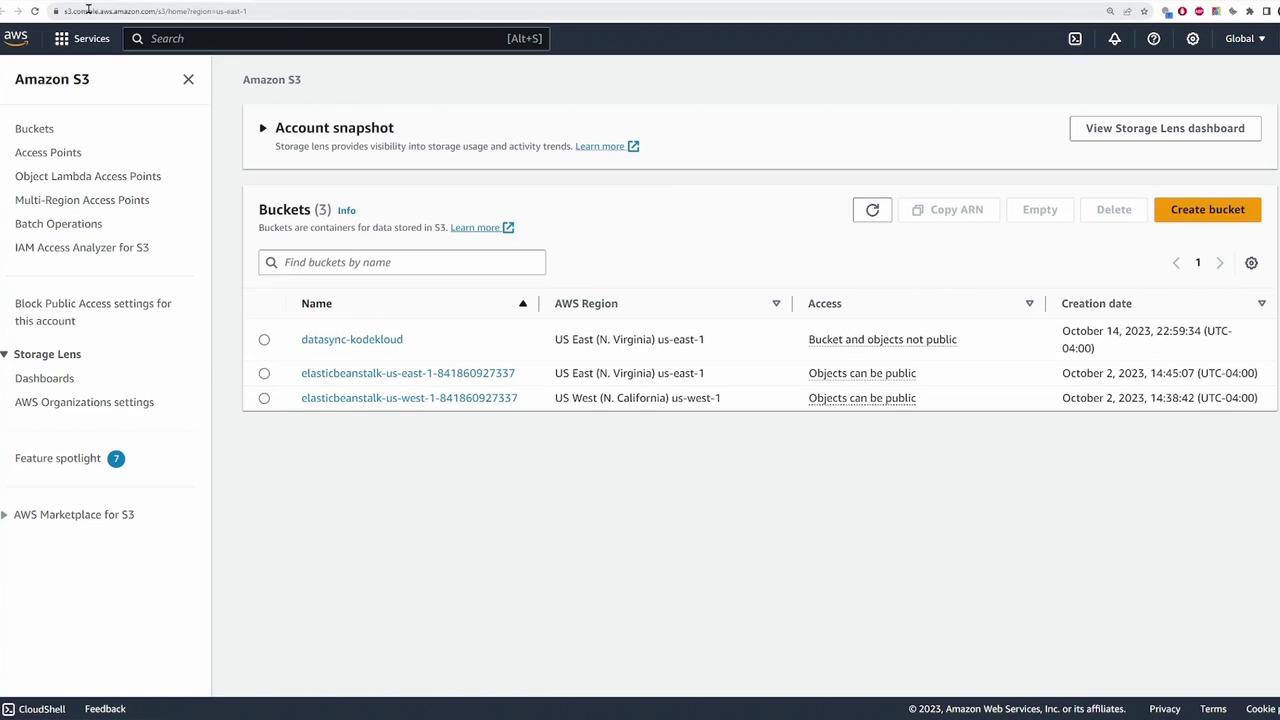
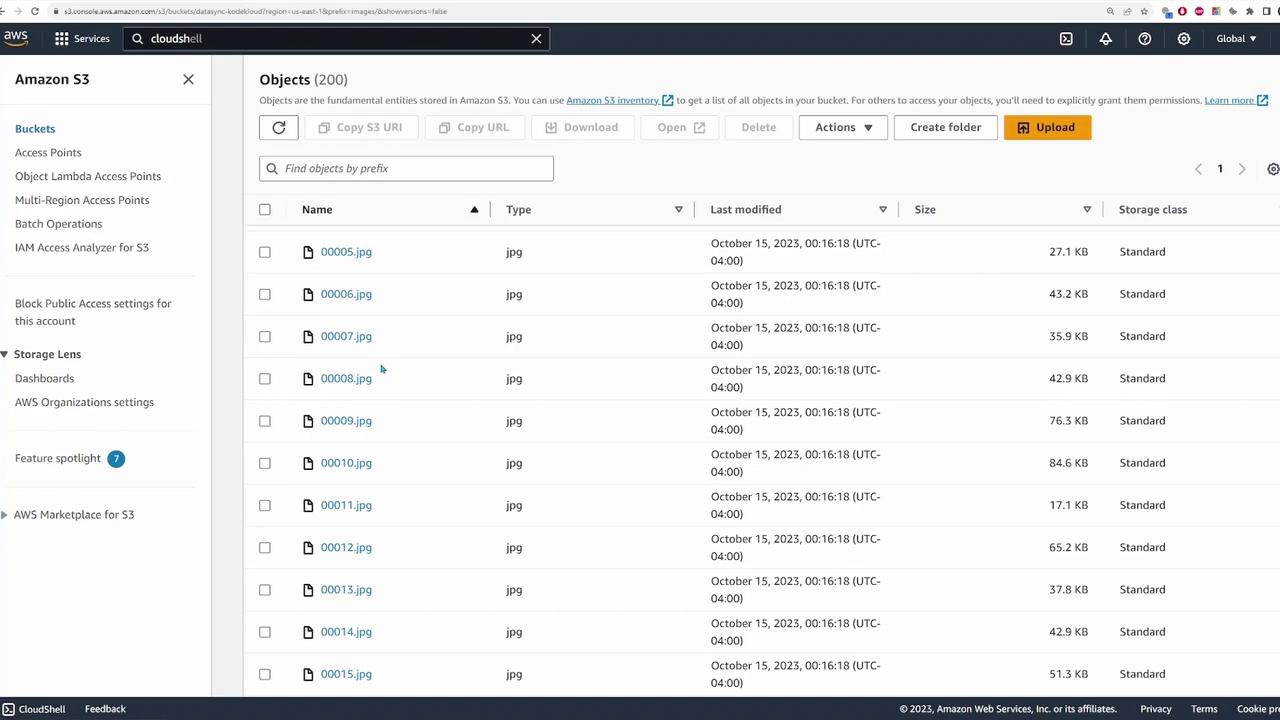
Once the files are transferred, you can verify their presence by accessing the S3 bucket (named “data sync - KodeKloud”), where the files appear under an “images” folder.
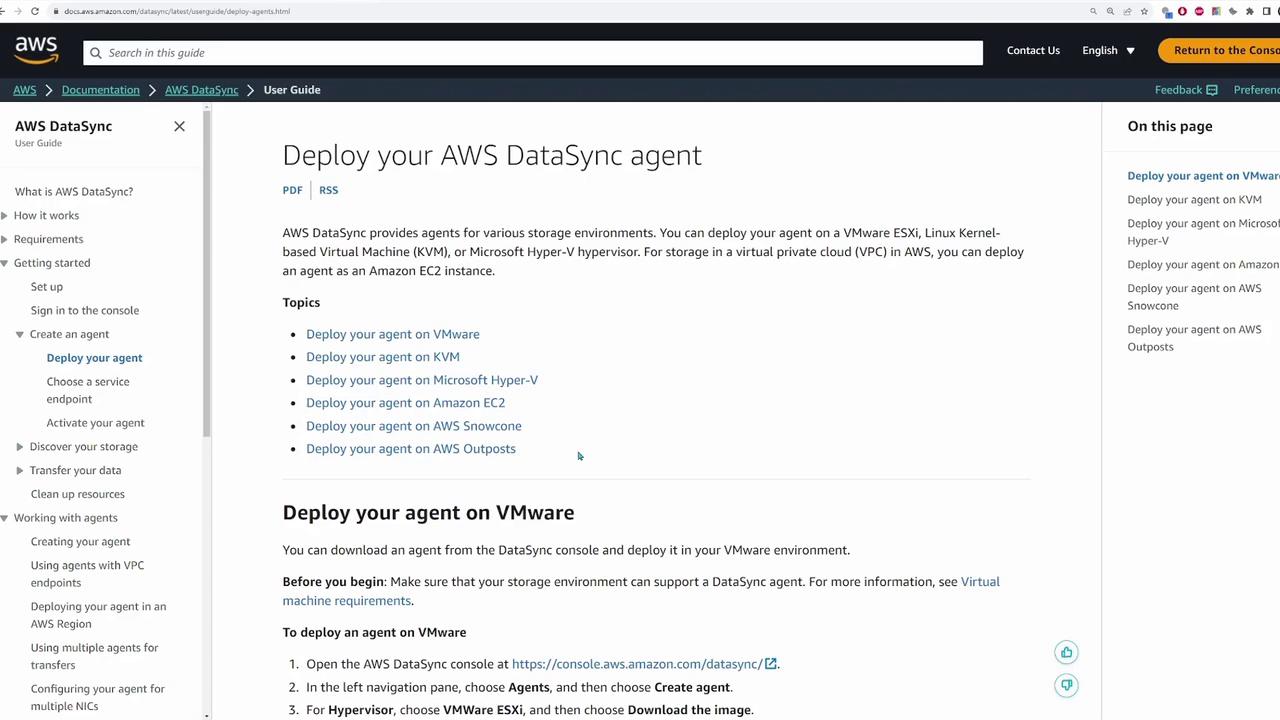
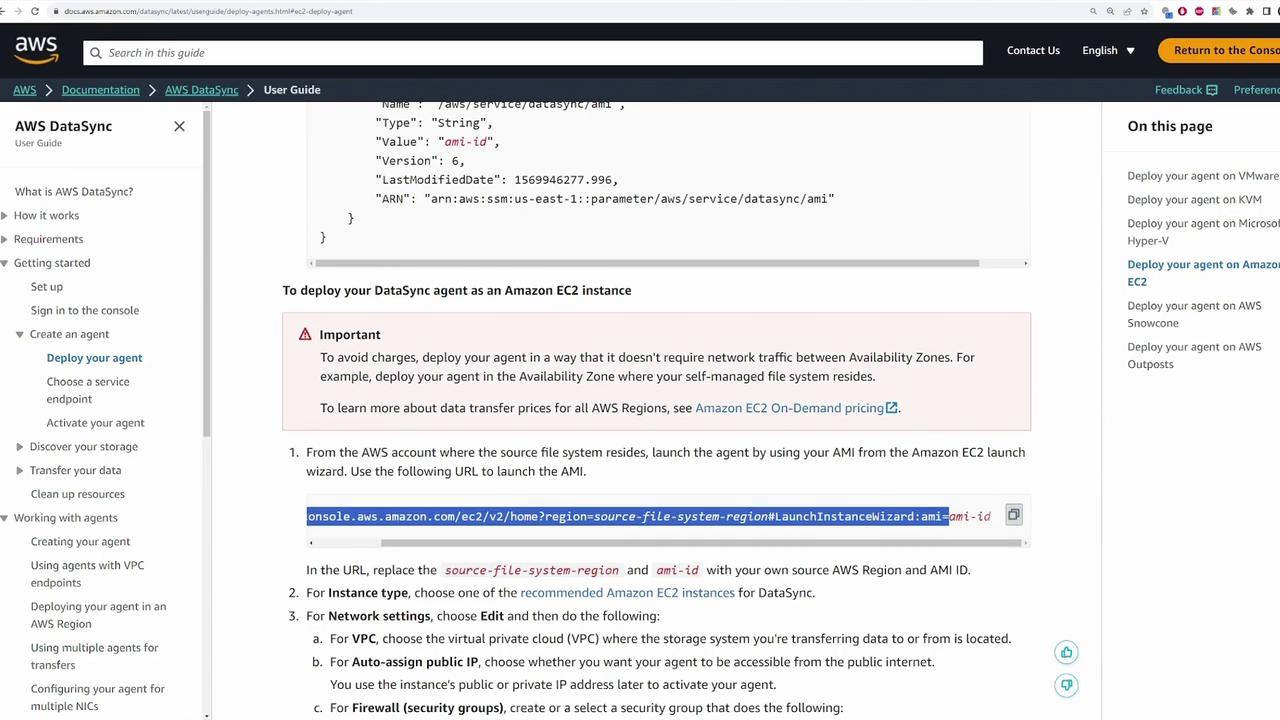
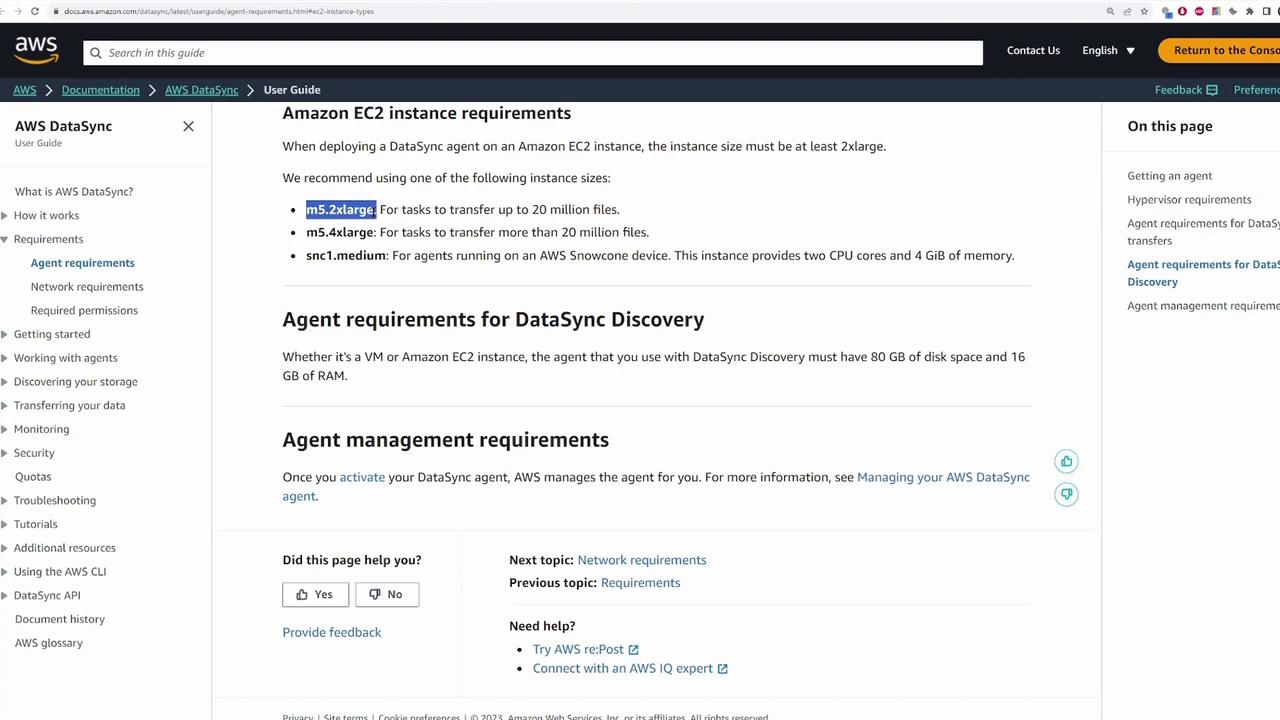
The next step is to deploy the DataSync agent. While the agent can be deployed on any supported virtualization hypervisor (e.g., VMware, KVM, or Microsoft Hyper-V), this demonstration uses an EC2 instance in AWS.
Refer to the AWS DataSync documentation for detailed information on deploying the agent in different environments, including VMware, EC2, AWS Snowcone, and AWS Outposts.
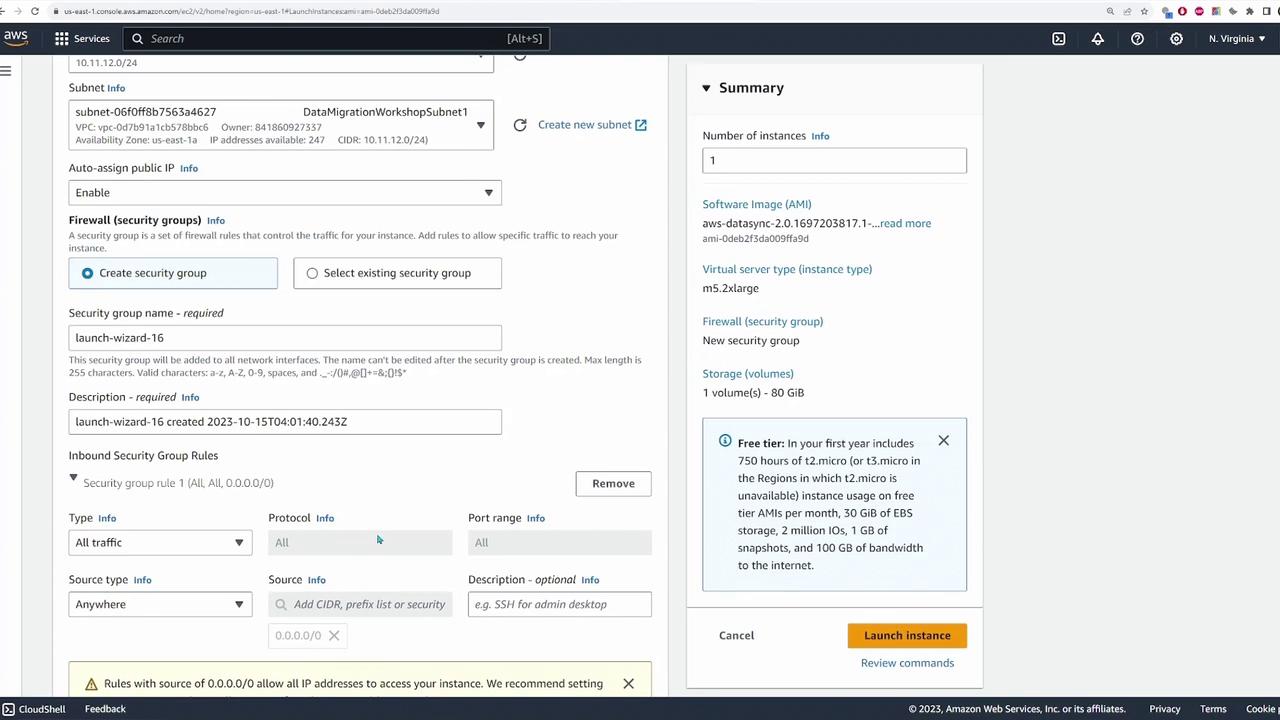
For EC2 deployment, perform the following steps:
Retrieve the latest AMI for the DataSync agent using AWS CLI:
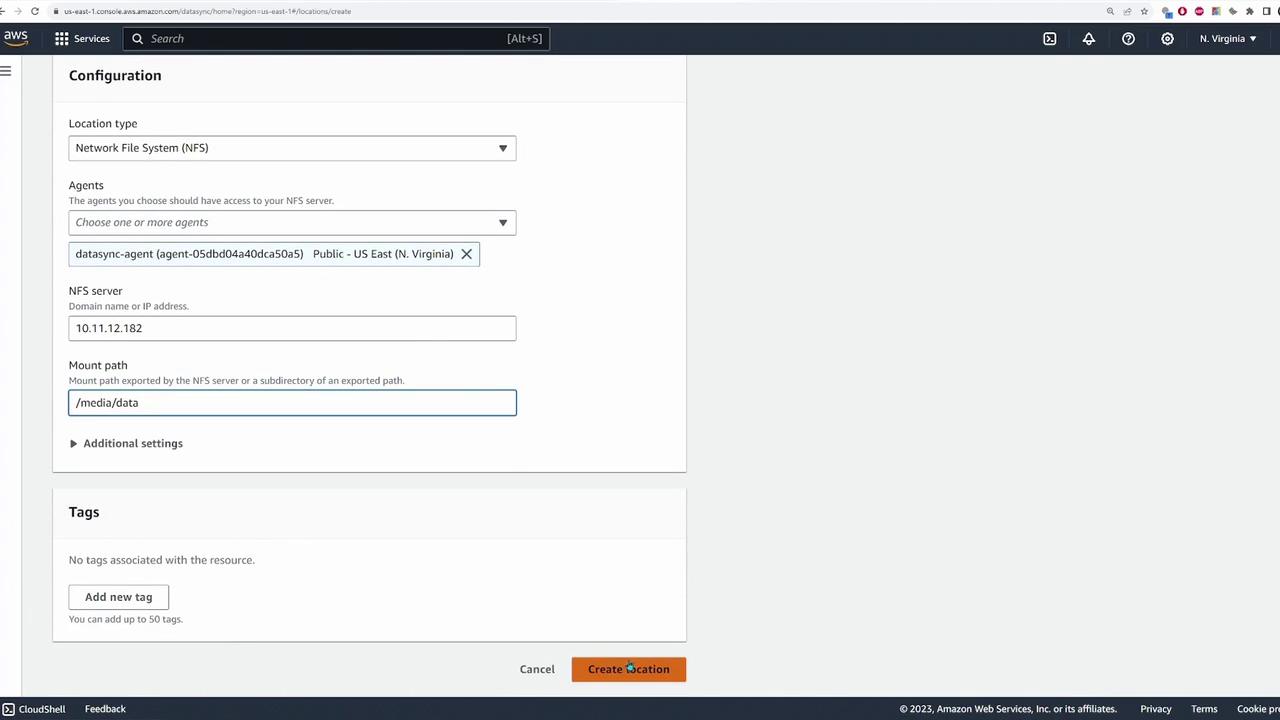
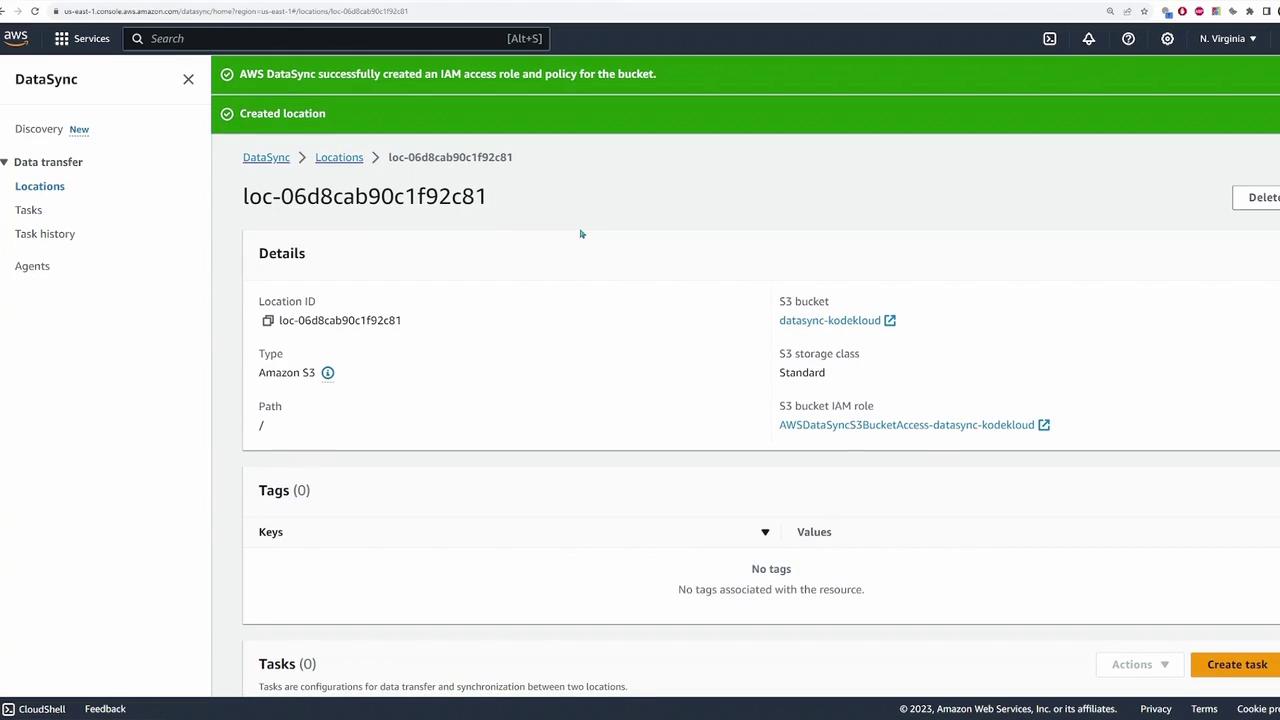
With both source and destination locations configured, you can now create a DataSync task to perform the file migration:
Click “Create Task” and select the previously configured source (NFS) and destination (S3) locations.
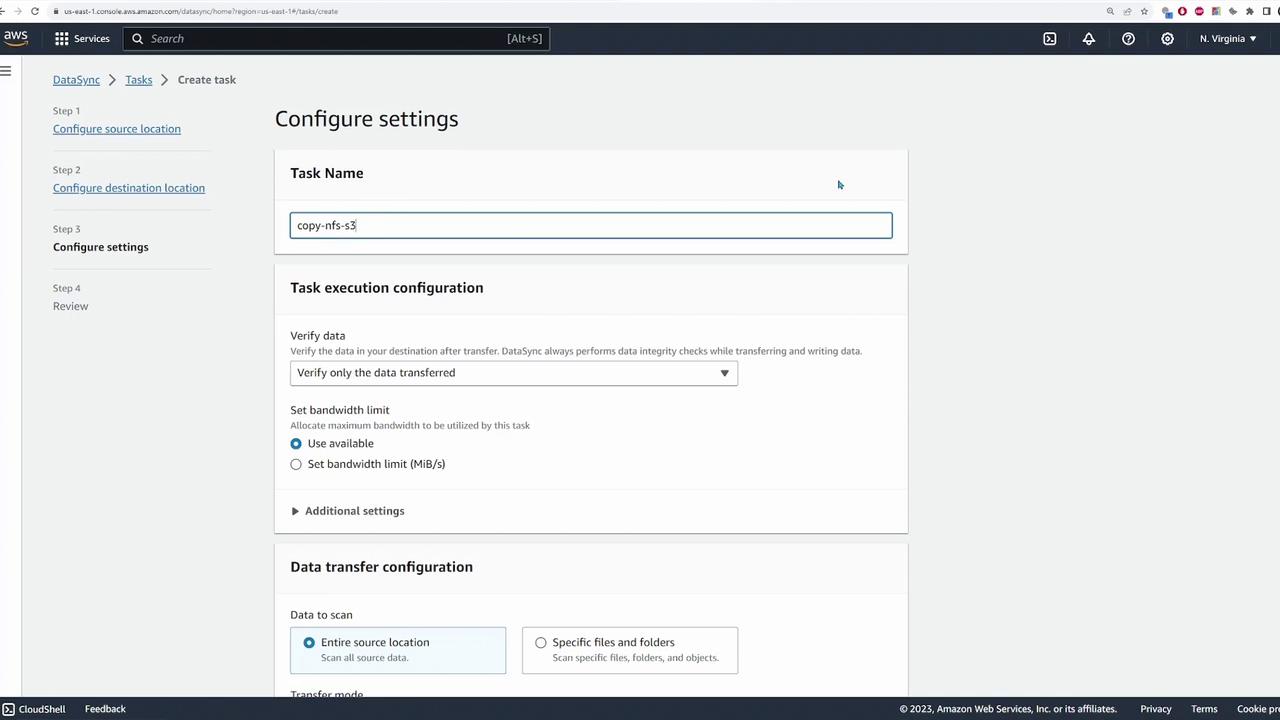
Name the task (e.g., “copy-nfs-to-s3”).
Configure the task options, including copying all files and optionally setting up logging via auto-generated CloudWatch log groups.
Review the configuration and create the task.
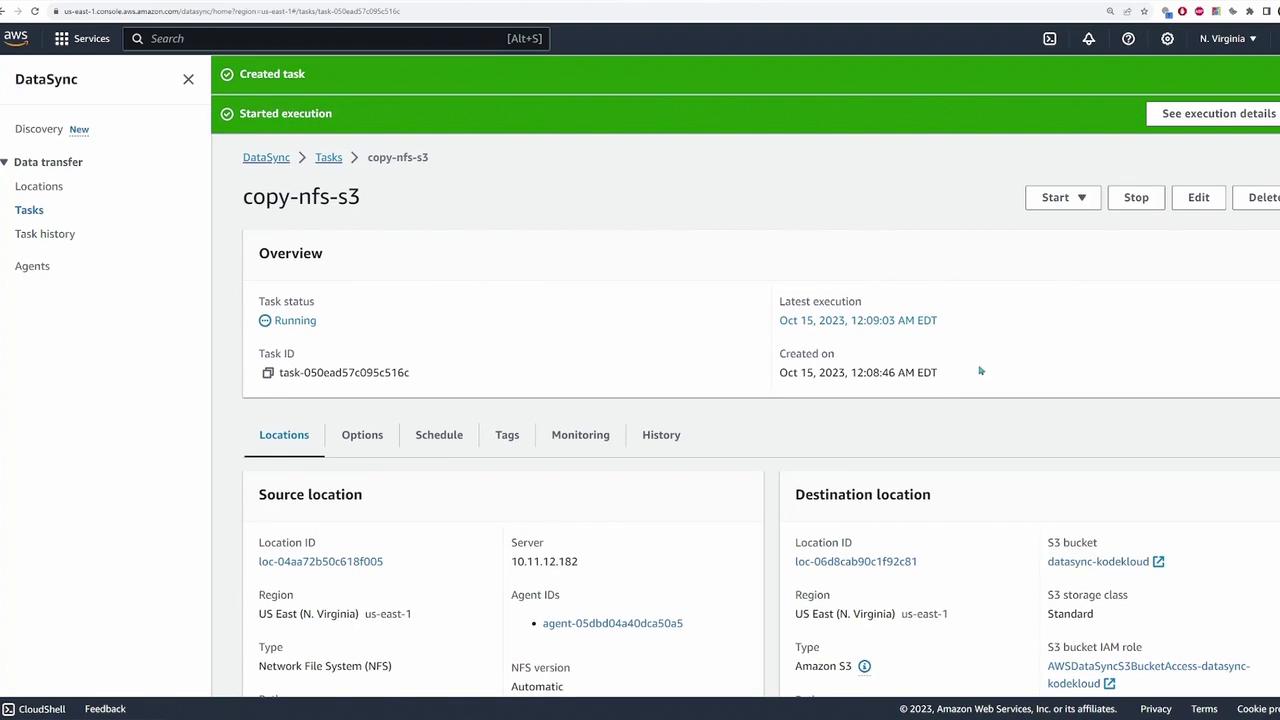
Start the task using the default settings.
Once the task starts, you can monitor its progress, observing metrics such as throughput, file count, and data transferred from the source to destination.
When the task progresses from the launching phase to transferring files (as indicated by metrics reaching 1% and beyond), it confirms successful connectivity between the NFS server and S3 bucket. After task completion, verify the migrated files by checking the S3 bucket:
This guide illustrated the deployment of a DataSync agent on an EC2 instance, configuration of source and destination locations, creation of a DataSync task, and the verification process for transferring files from an NFS server to an S3 bucket using AWS DataSync. The streamlined integration between these services simplifies data migrations from on-premises environments to AWS, making it an excellent solution for modern data management.Happy syncing!