

Creating the Orders Table
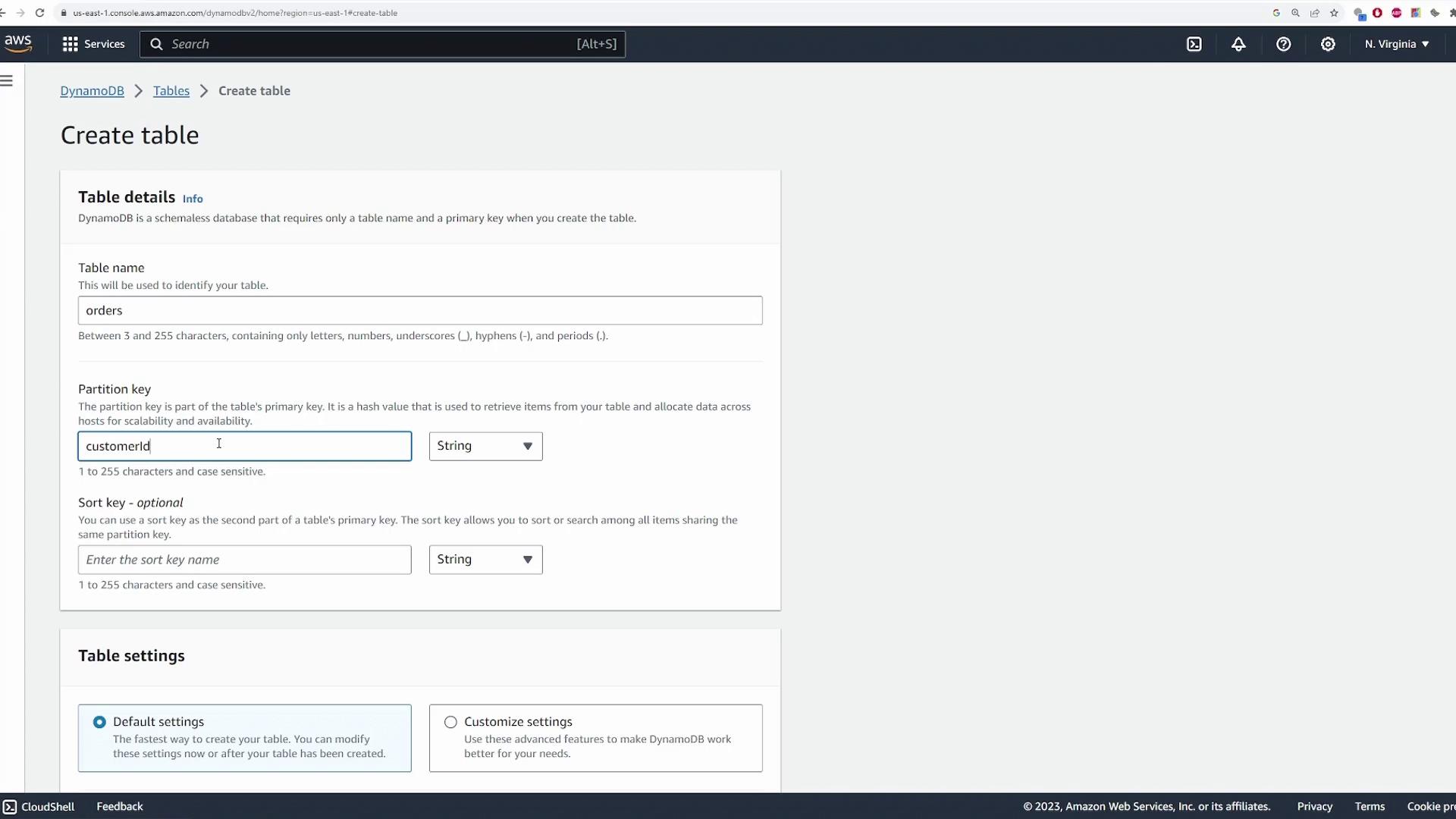
Begin by searching for the DynamoDB service within the AWS Console. Once you are in the DynamoDB interface, click Create table. For this demonstration, we will store orders placed by customers on an e-commerce site. You can name the table “orders” (or any name you prefer). When creating the table, choose a partition key (and optionally a sort key) that best suits your data model:- Partition key: customer ID (String) – enables efficient queries.
- Sort key: order ID (String) – distinguishes multiple orders for the same customer.
Configuring Table Settings
After specifying the keys, you can choose default settings or customize them:-
Table Class:
Typically, DynamoDB Standard is used for general purposes. If your data is infrequently accessed, consider using DynamoDB Standard-IA. -
Read/Write Capacity Settings:
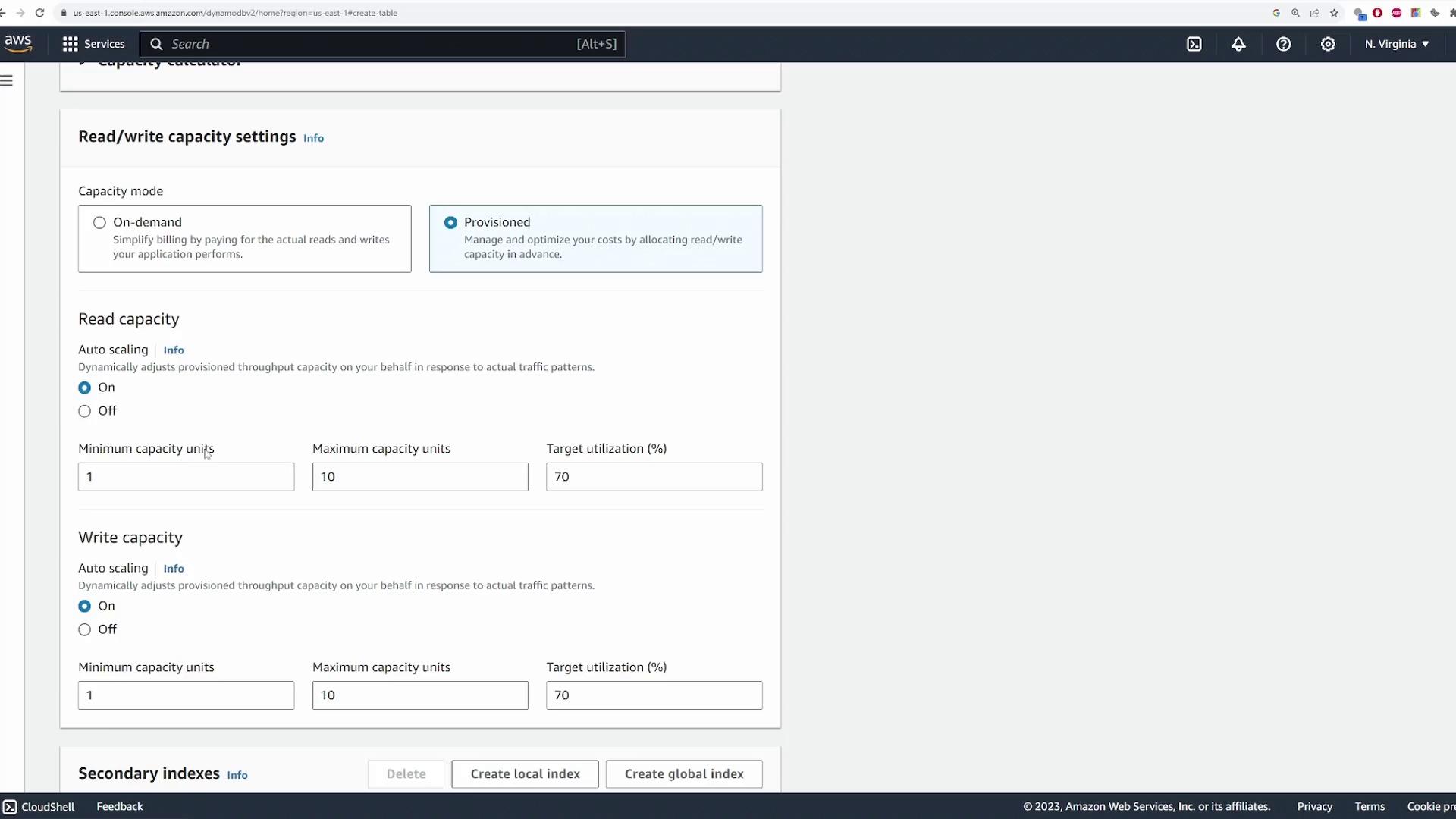
- Set fixed capacity (e.g., five read and five write capacity units) or enable auto scaling.
- With auto scaling, define minimum and maximum capacity units and a target utilization percentage to automatically adjust throughput based on demand.

Exploring the Table Overview
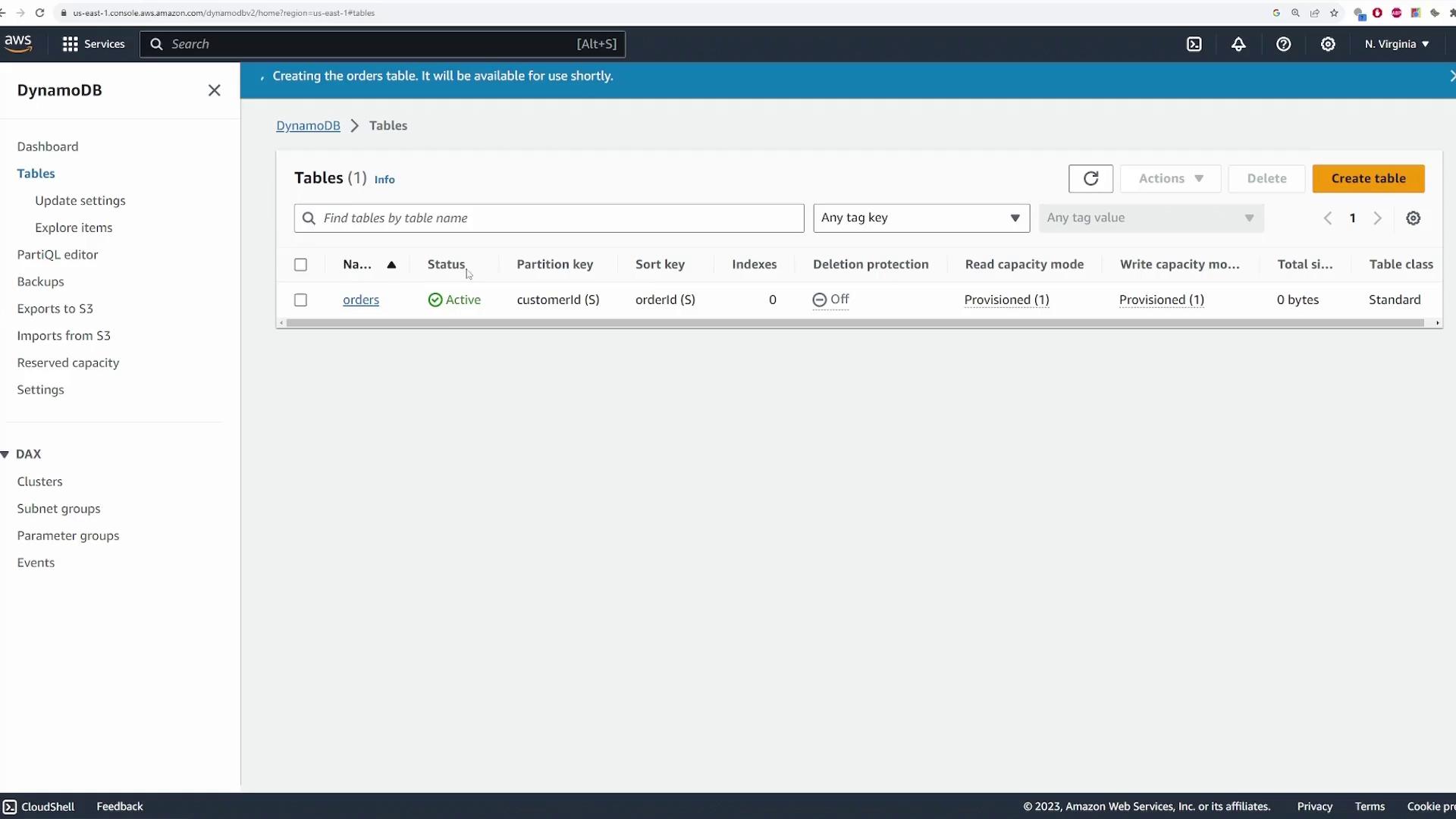
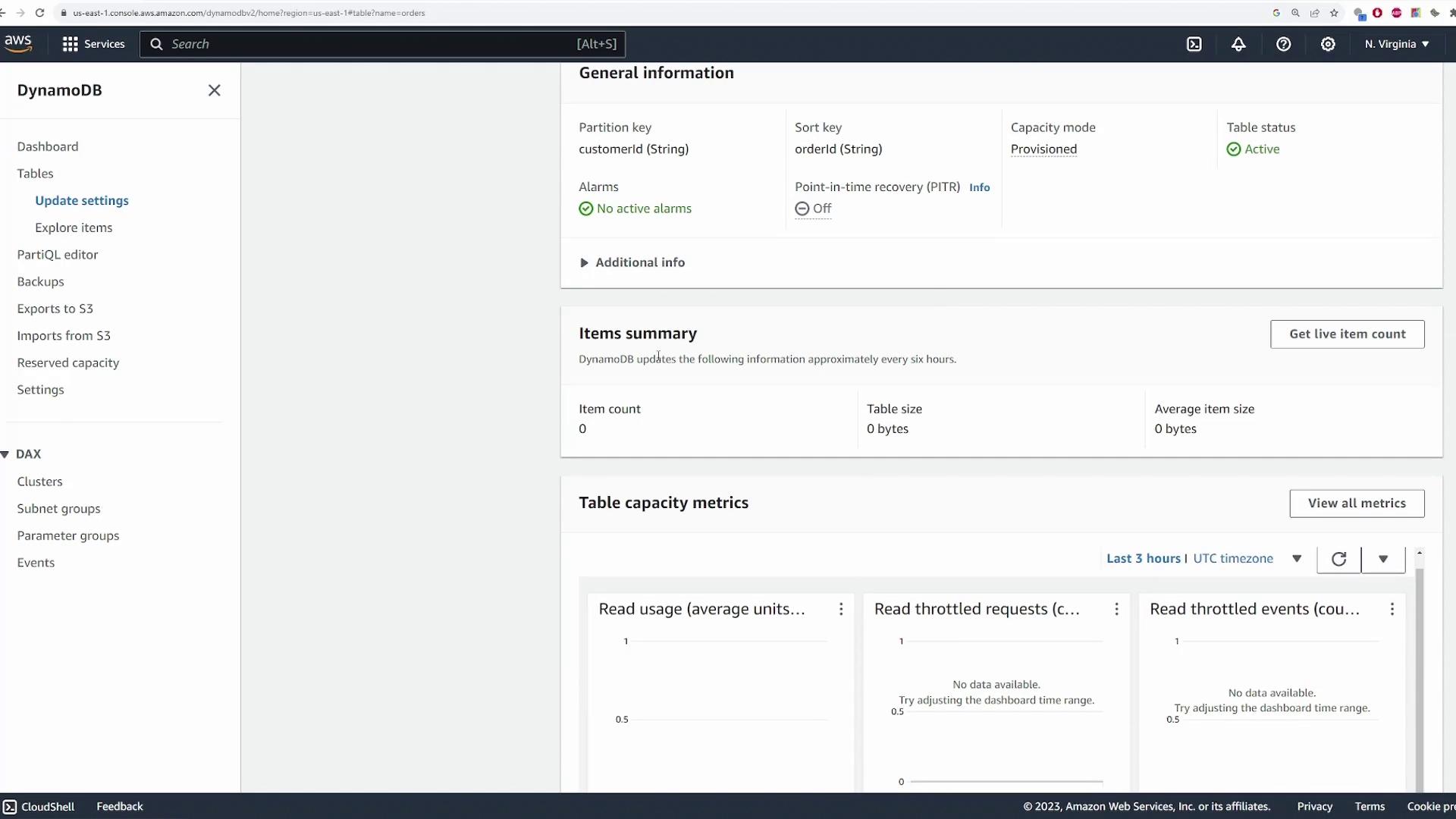
After creation, select your orders table from the console to view an overview of its configurations:- Key Information: Displays the partition key (customerId) and sort key (orderId), along with the chosen capacity mode.
- Metrics: Initially, the table contains zero items. The overview provides details like table size, average item size, and capacity metrics.
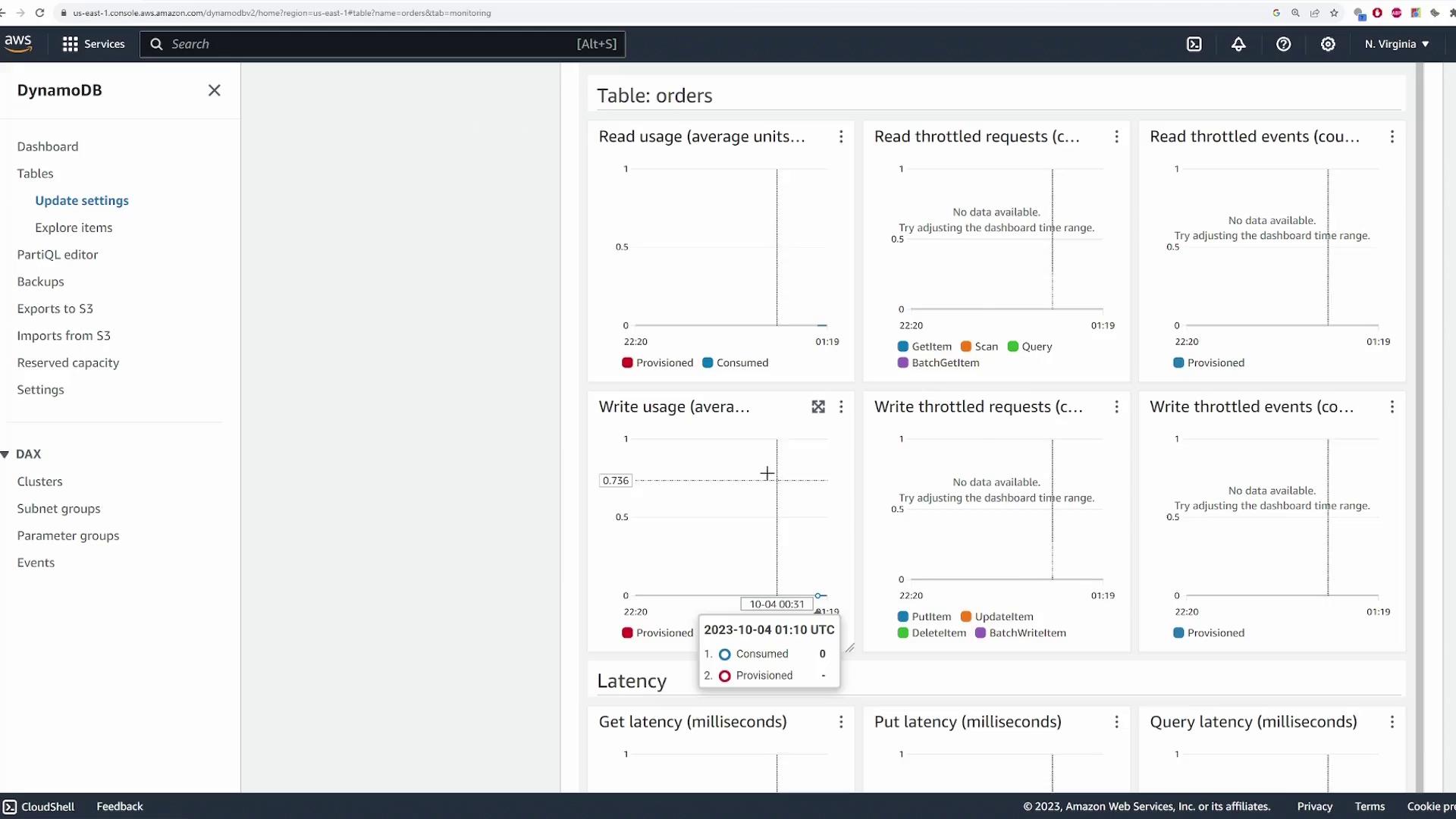
- Indexes and Monitoring: Explore secondary indexes in the “Indexes” section and review CloudWatch metrics in the “Monitor” section, including read/write usage, latency, and alarms for performance tracking.
Adding Items to the Table
To populate your table with data, navigate to Explore Table Items. Since the table is initially empty, you will see a message indicating no items and minimal read capacity usage: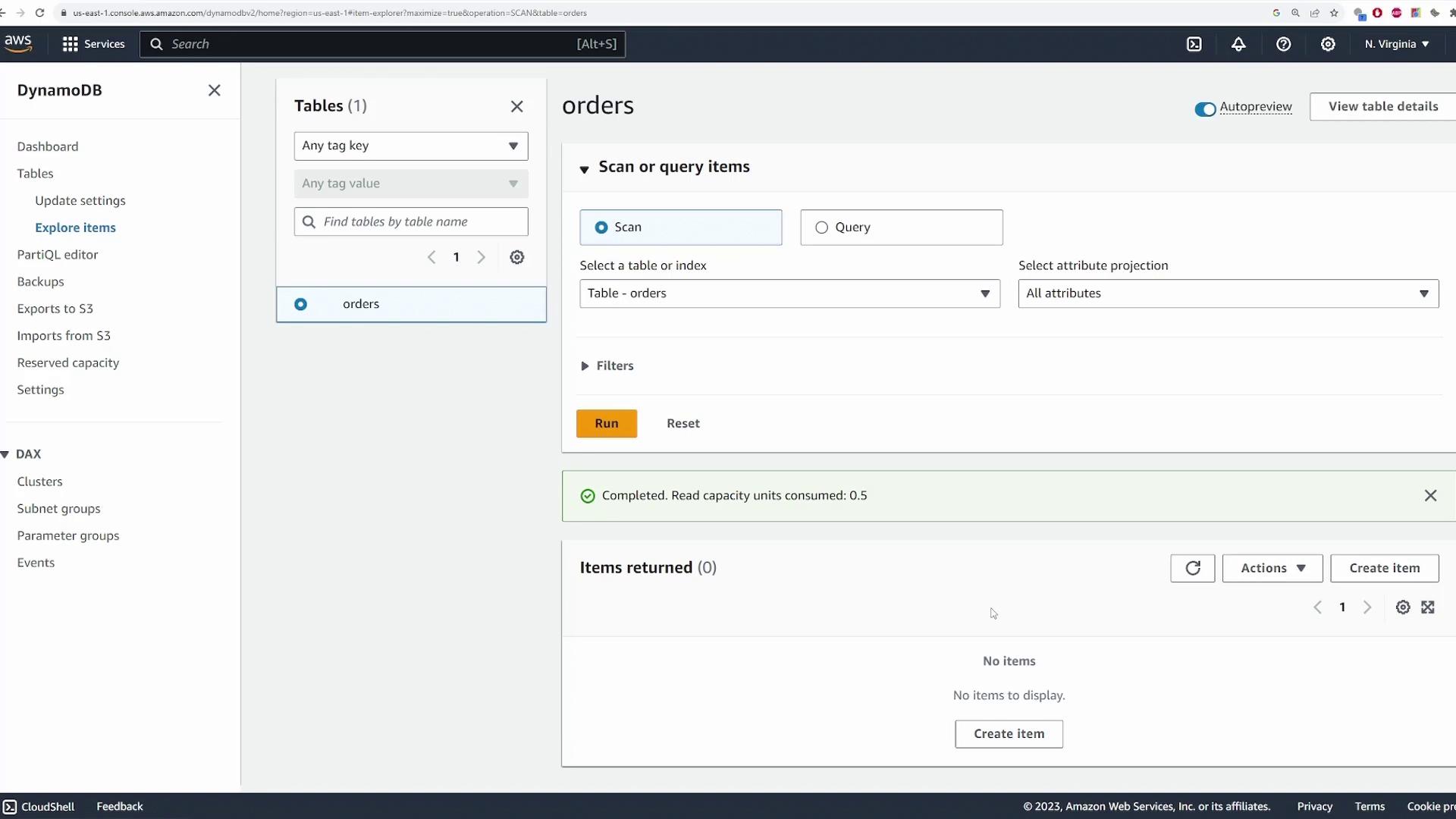
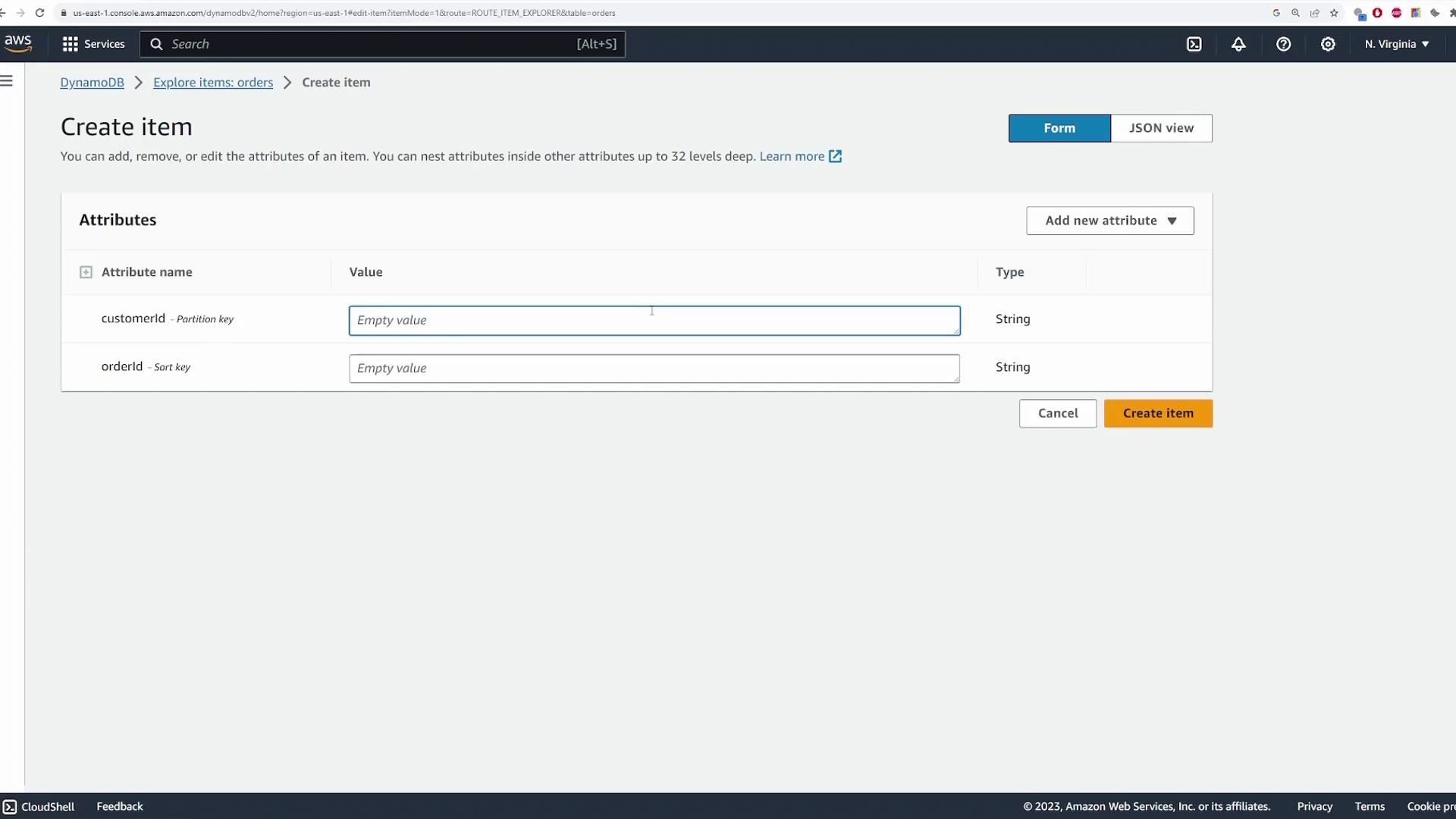
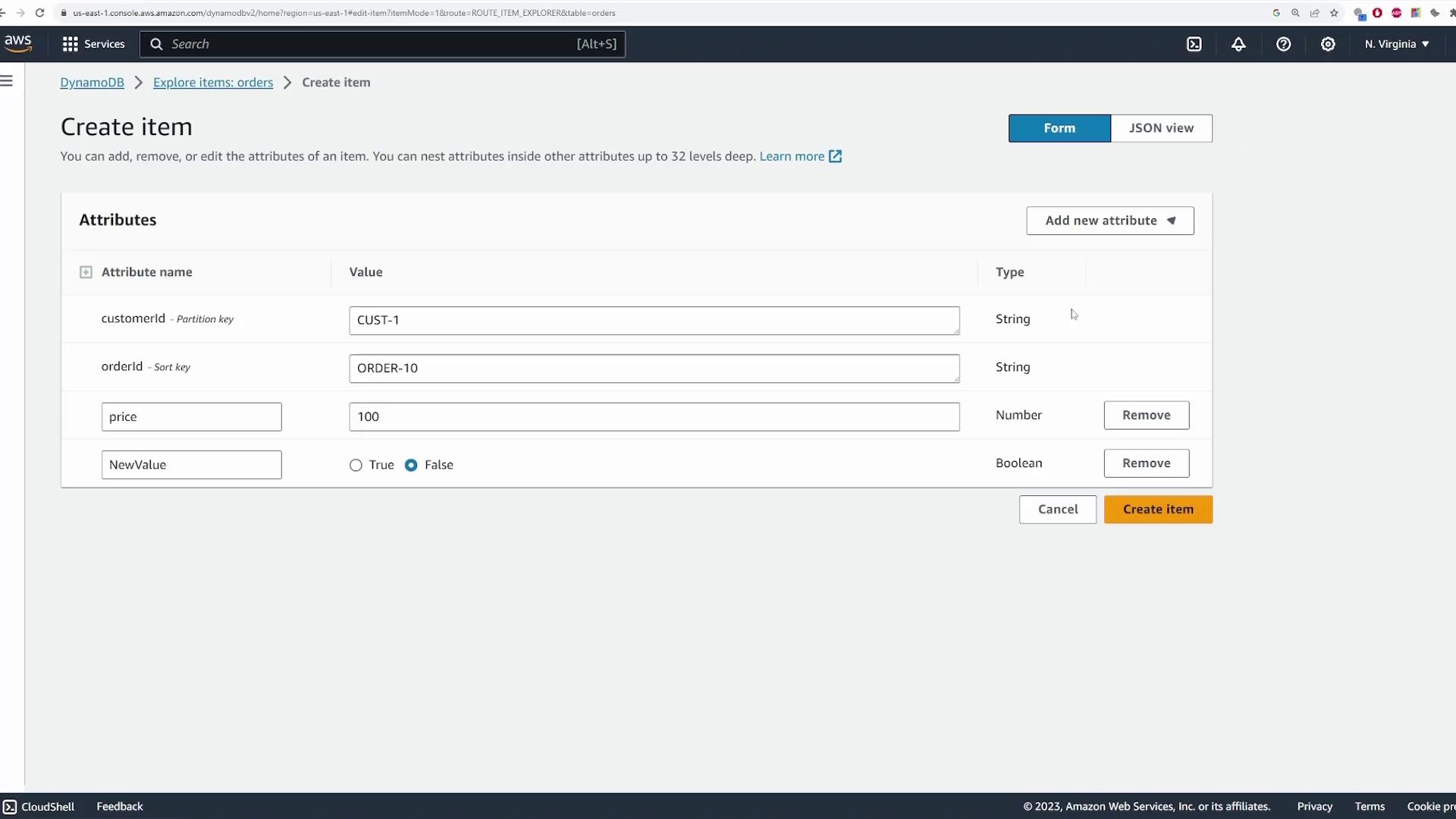
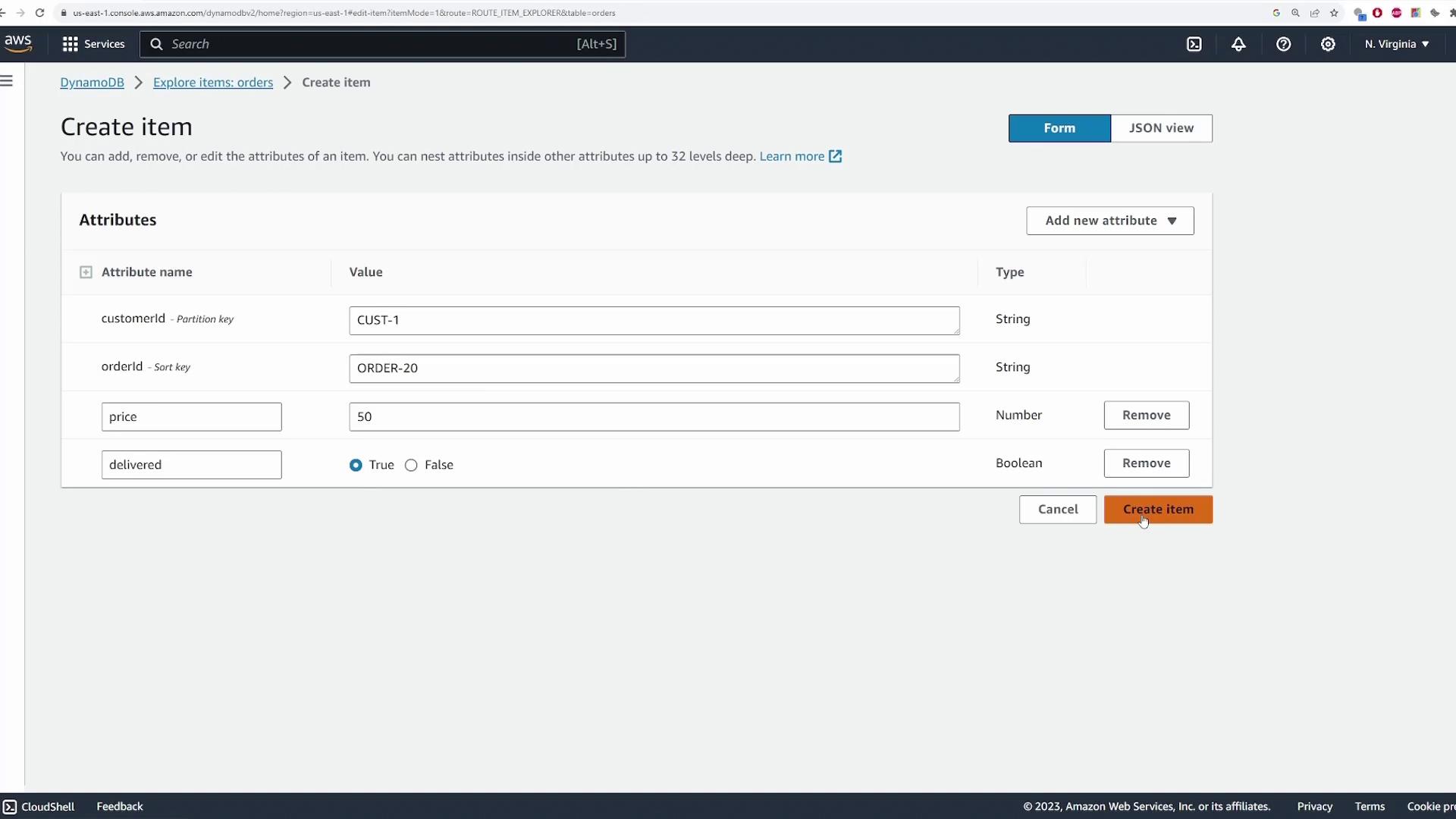
- Partition Key (customerId): For example, “cust1” for customer one.
- Sort Key (orderId): For example, “order10” as the order identifier.
- Price: Numeric (e.g., 100)
- Delivered: Boolean (true or false)
-
First Order for Customer One:
- Partition Key: cust1
- Sort Key: order10
- Price: 100
- Delivered: true
-
Second Order for Customer One:
- Partition Key: cust1
- Sort Key: order20
- Price: 50
- Delivered: true
-
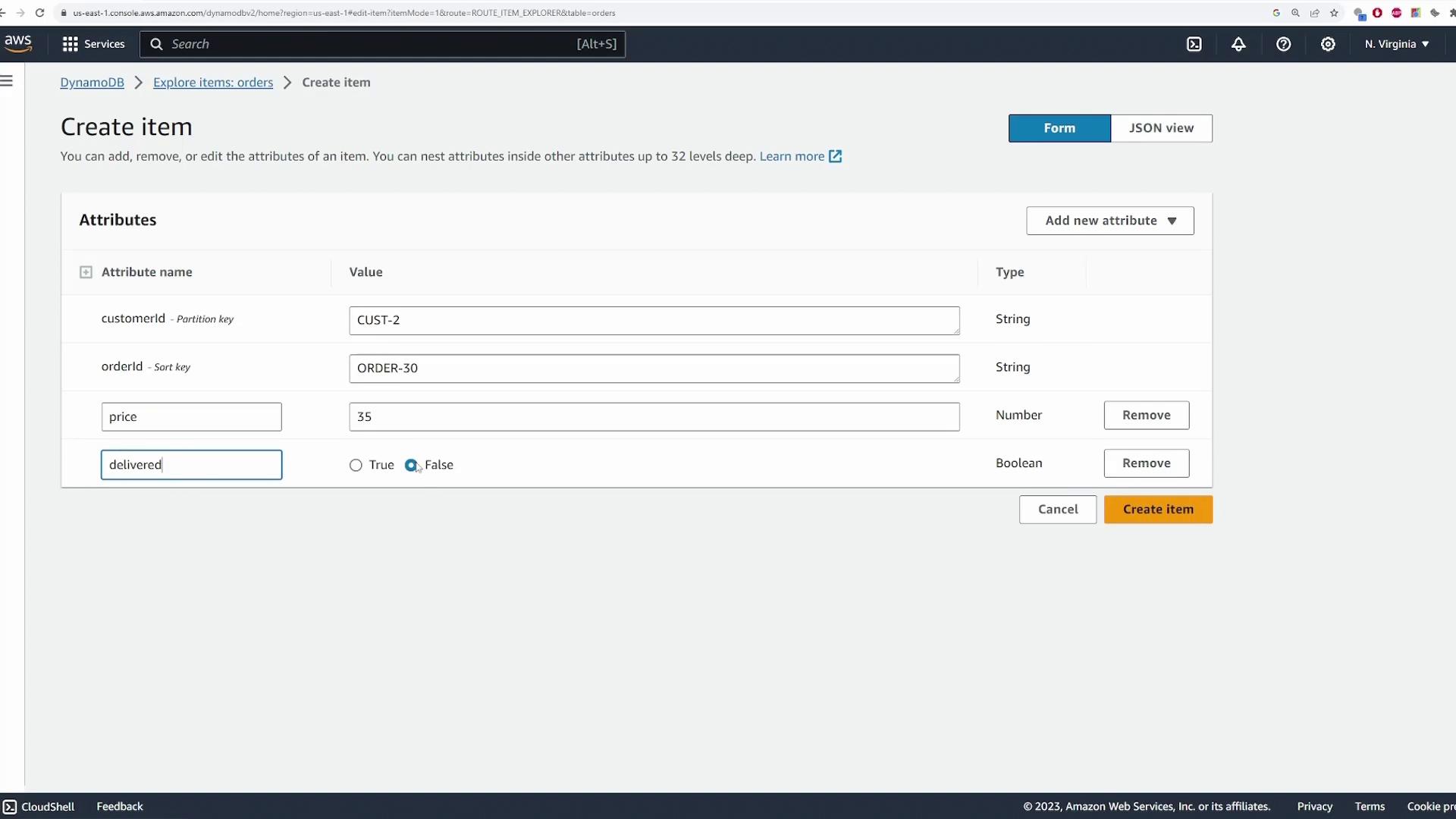
Order for Customer Two:
- Partition Key: cust2
- Sort Key: order30
- Price: 35
- Delivered: false
Querying the Table
Queries are more efficient than scans, so use them to retrieve specific data based on the partition key. For example, to retrieve orders for customer one:- Navigate to the Query Editor in the DynamoDB Console.
- Enter the partition key value (“cust1”) and run the query to return both orders associated with that customer.
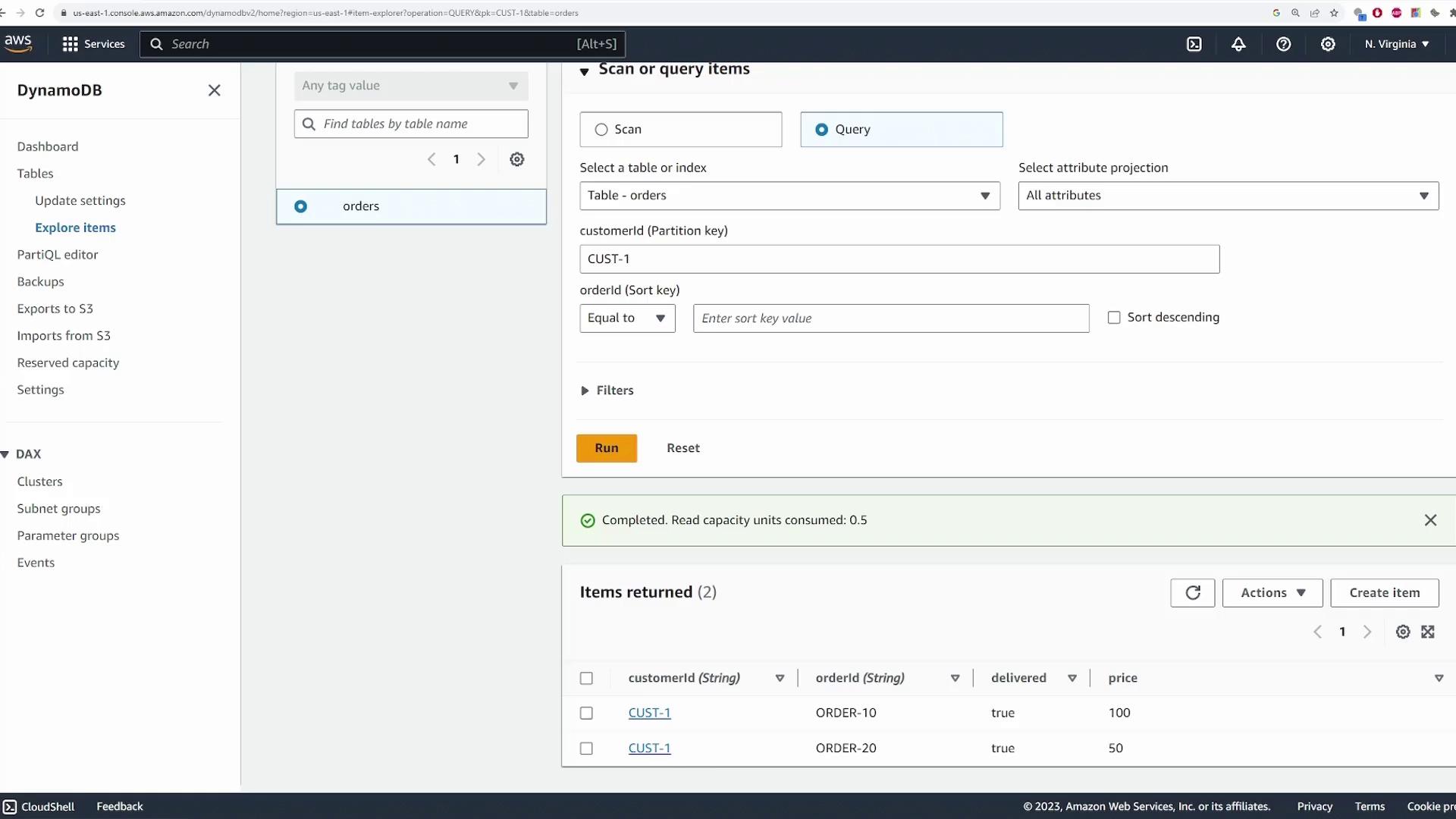
- Set cust1 as the partition key.
- Add a filter condition where price > 60.
- Run the query to obtain only those orders that match the condition.

Editing and Deleting Items
To update an existing item, select it from the table view and click Edit item. For instance, you might update the price from 100 to 120 if the order cost has changed: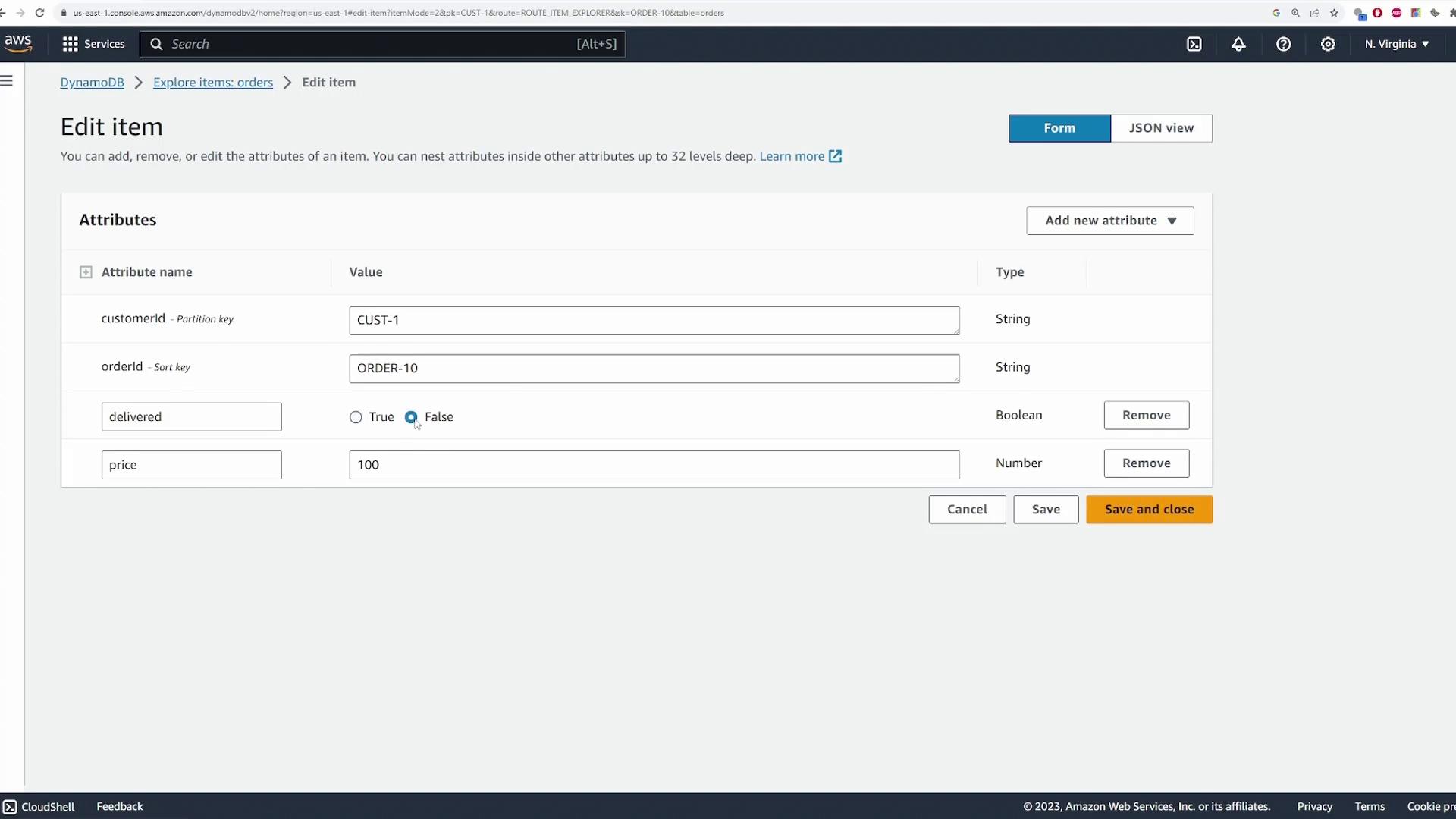
Always ensure you have a backup or have exported your data if you need to retain it before deleting any items.
Using PartiQL for Queries
DynamoDB supports PartiQL, an SQL-compatible query language that allows you to interact with your table using familiar SQL-like syntax. PartiQL translates SQL commands into DynamoDB queries, making it a useful alternative if you are more comfortable with SQL. For further details on PartiQL, check out the DynamoDB Documentation.Monitoring and Cleanup
To monitor your table’s performance, navigate to the Monitor tab in the DynamoDB Console. Here you can review CloudWatch metrics such as read/write usage, latency, and throttled requests.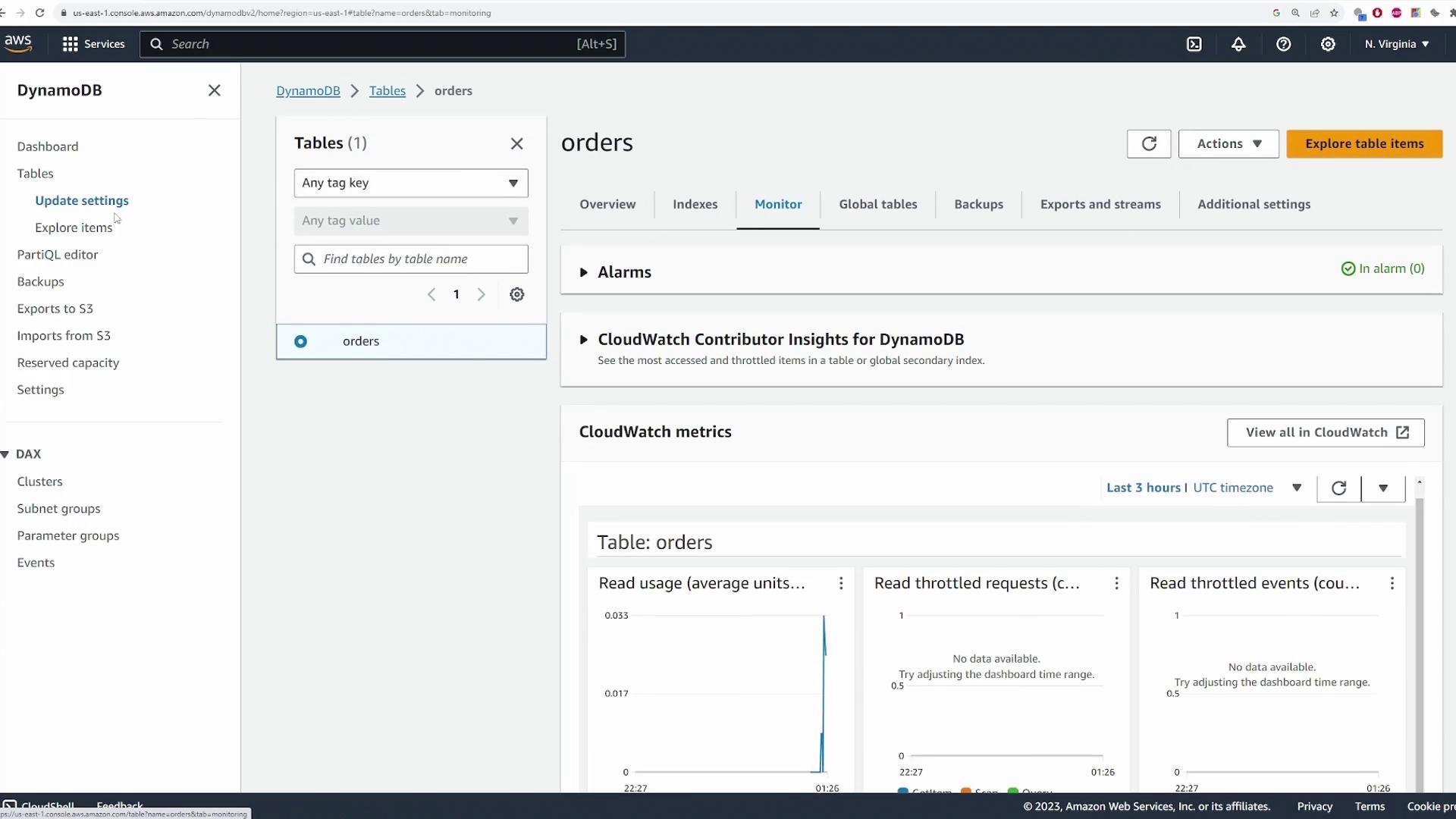
Deleting the table will permanently remove all stored data. Ensure you have backed up any necessary information before proceeding with the deletion.
This demonstration has guided you through creating and configuring a DynamoDB table, adding and querying items, updating and deleting entries, leveraging PartiQL for SQL-style operations, and monitoring performance. We hope this tutorial offers a solid foundation for using DynamoDB in your projects.