Demo of using Eventbridge to respond to changes in your environment with AWS config
This guide demonstrates how to use Amazon EventBridge to respond to AWS environment changes and generate custom events from application code.
In this guide, we’ll show you how to leverage Amazon EventBridge to respond dynamically to changes in your AWS environment. You’ll learn how to trigger events based on EC2 instance state changes and generate custom events from your application code. When an EC2 instance changes state—whether it’s stopped, started, or restarted—a corresponding event is fired to invoke a subscribed Lambda function. We also illustrate how to generate a custom event using a simple Node.js API.
Configuring an EventBridge Rule for EC2 Instance State Changes
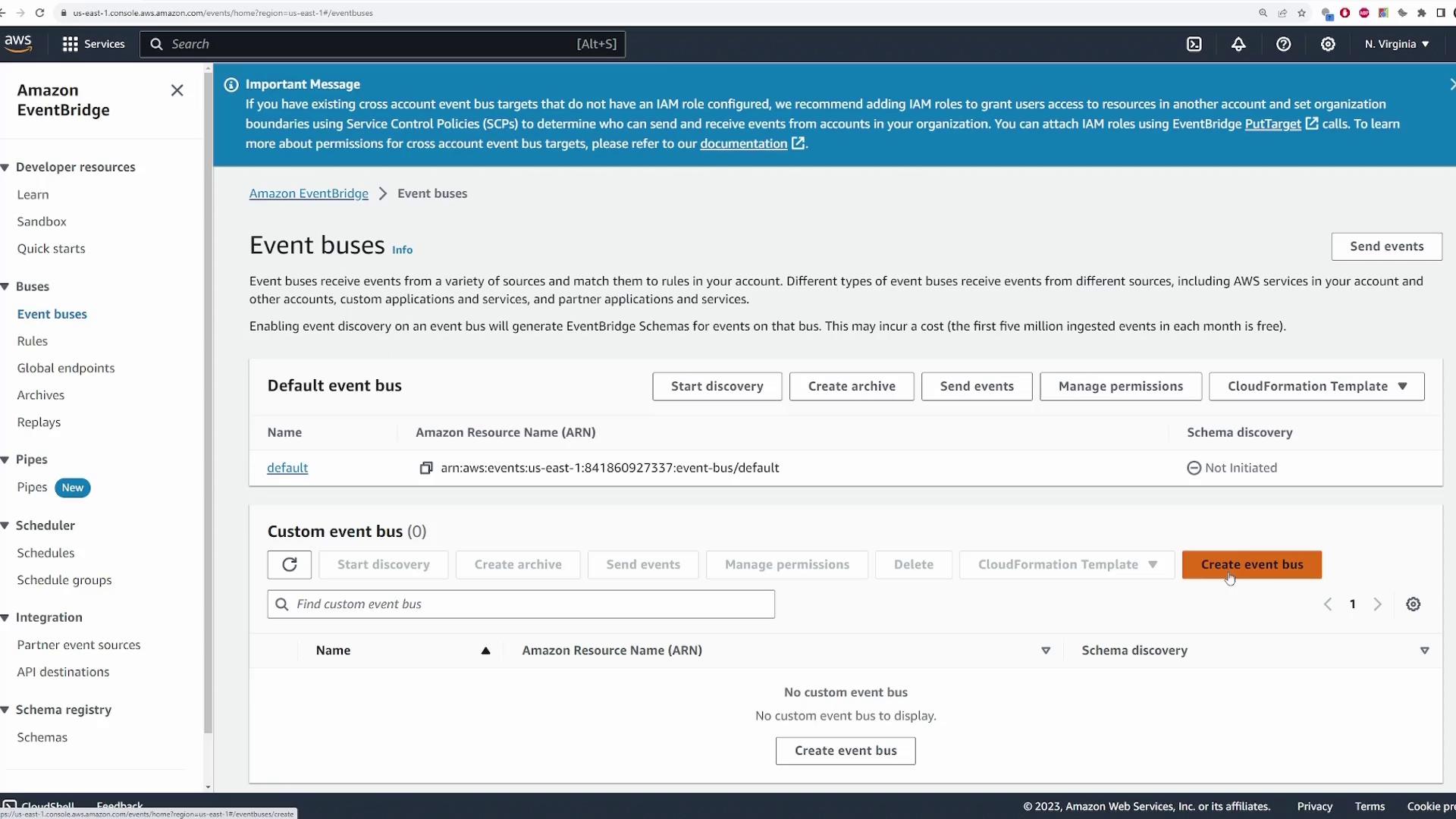
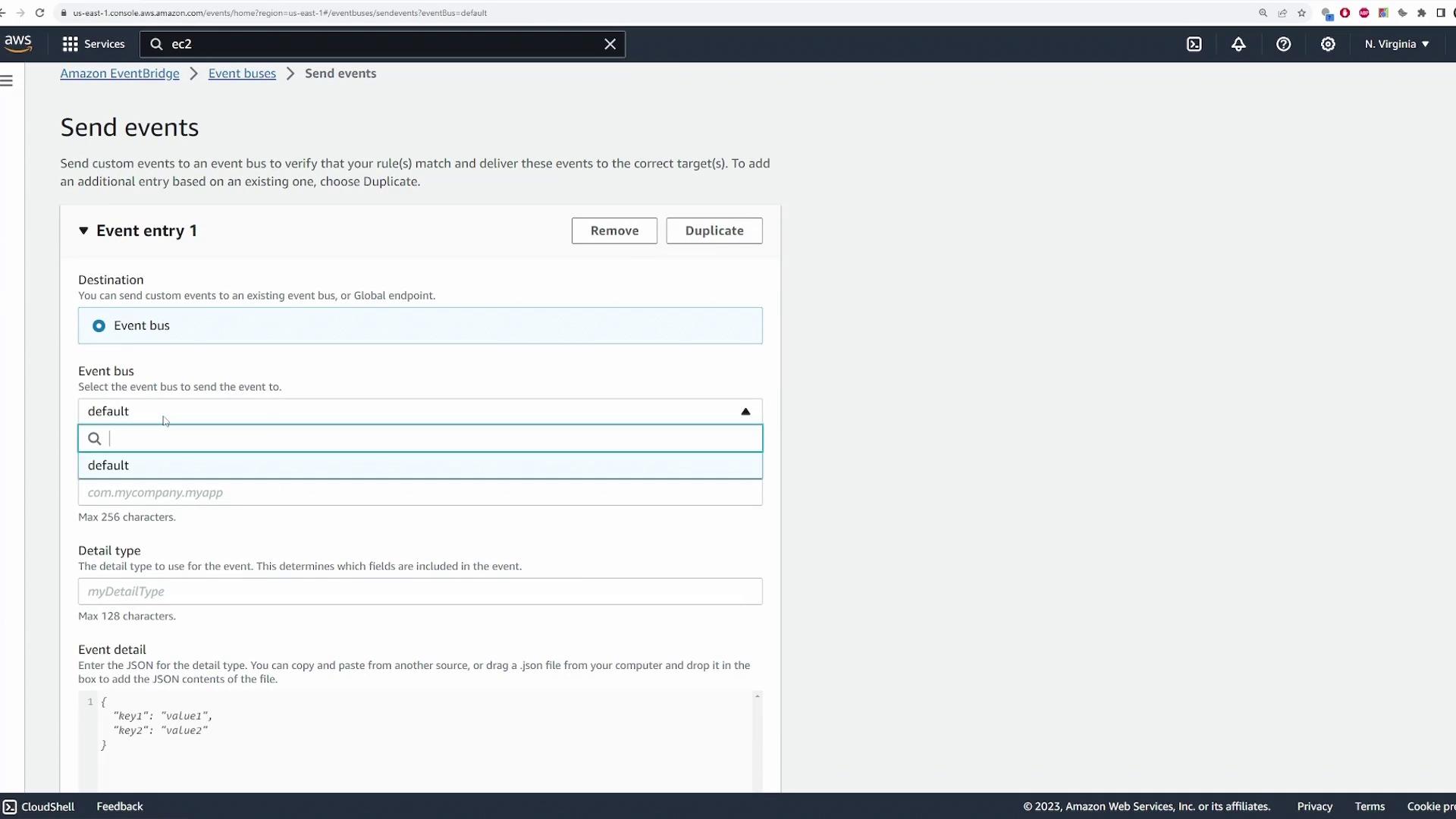
Begin by opening the Amazon EventBridge console and navigating to the Event buses section. Every AWS account has a default event bus. Although you can create custom event buses, this demo uses the default.
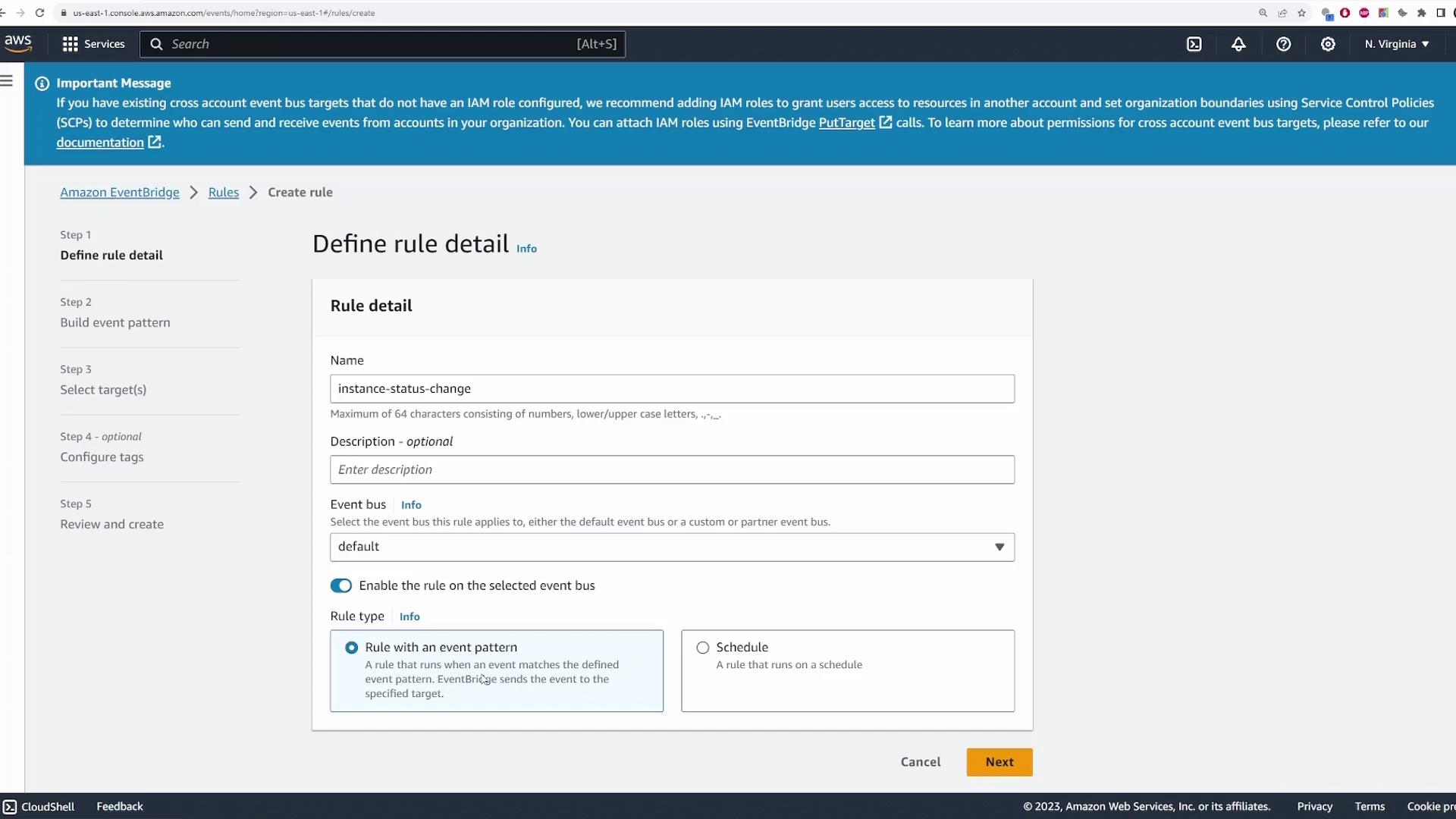
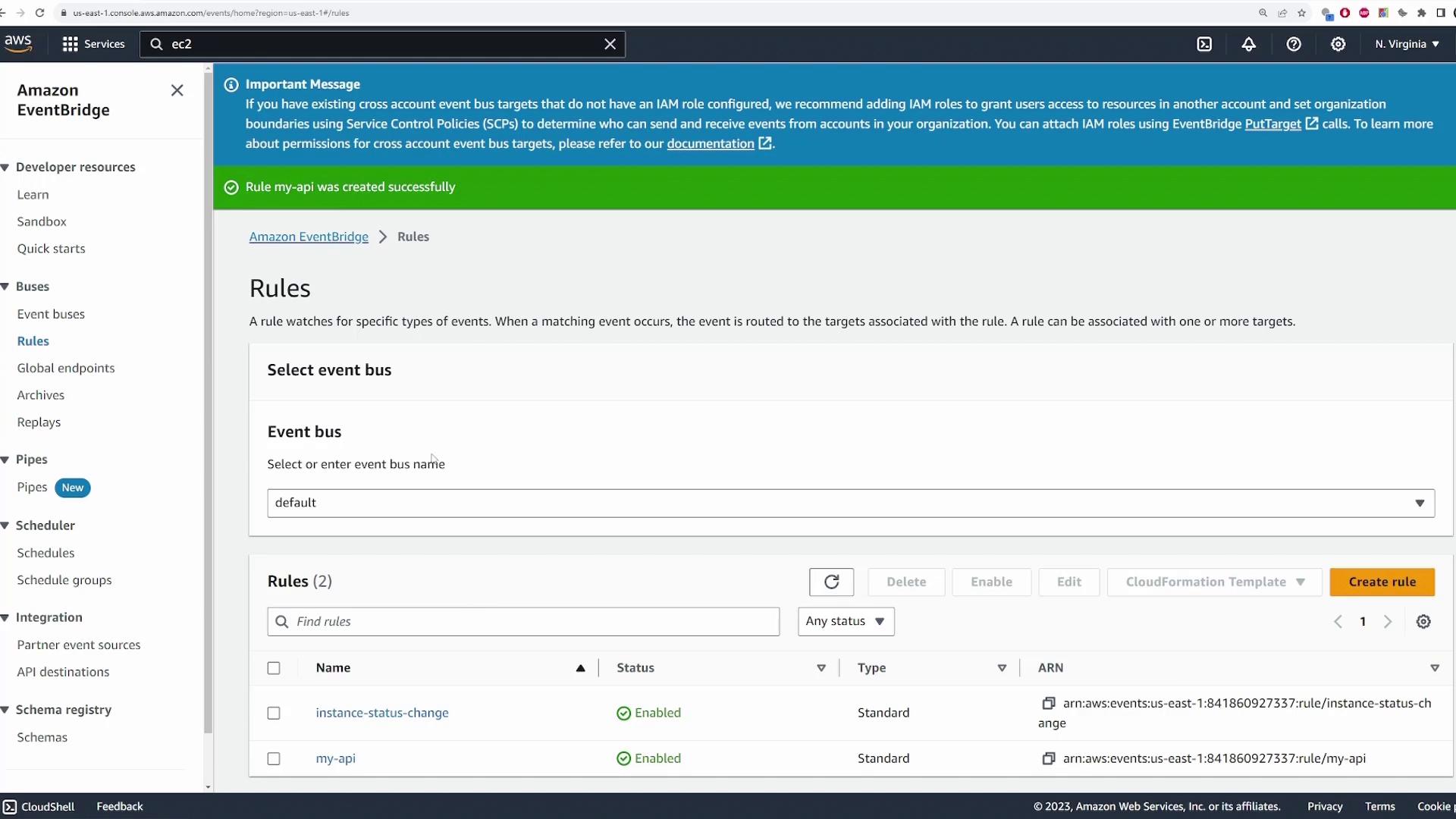
Next, go to the Rules section. Here, you define the events of interest and specify the actions to take when those events occur. Click Create rule, provide a suitable name (e.g., “InstanceStatusChange”), and optionally add a description. Ensure the rule is associated with the default event bus.There are two types of rules available:
Event Pattern: The rule triggers when an incoming event matches a defined pattern.
Schedule: The rule executes based on a cron-like schedule.
For our scenario, select Event Pattern. Then specify the event source. In this demo, we focus on AWS service events for EC2.
Select AWS services as the event source, choose EC2 as the service, and pick EC2 instance status, instance state change notification as the event type. By default, this pattern covers any state change:
In the next step, define the target for the rule. For this demo, select a Lambda function (for example, one named “test one”). Use the sample Lambda function code provided below to log event data and inspect details via CloudWatch logs:
Copy
Ask AI
export const handler = async (event) => { // Log the event data for debugging purposes console.log(event); const response = { statusCode: 200, body: JSON.stringify('Hello from Lambda!'), }; return response;};
After reviewing your configuration and optionally adding tags, click Create rule. Your EventBridge rule is now active.
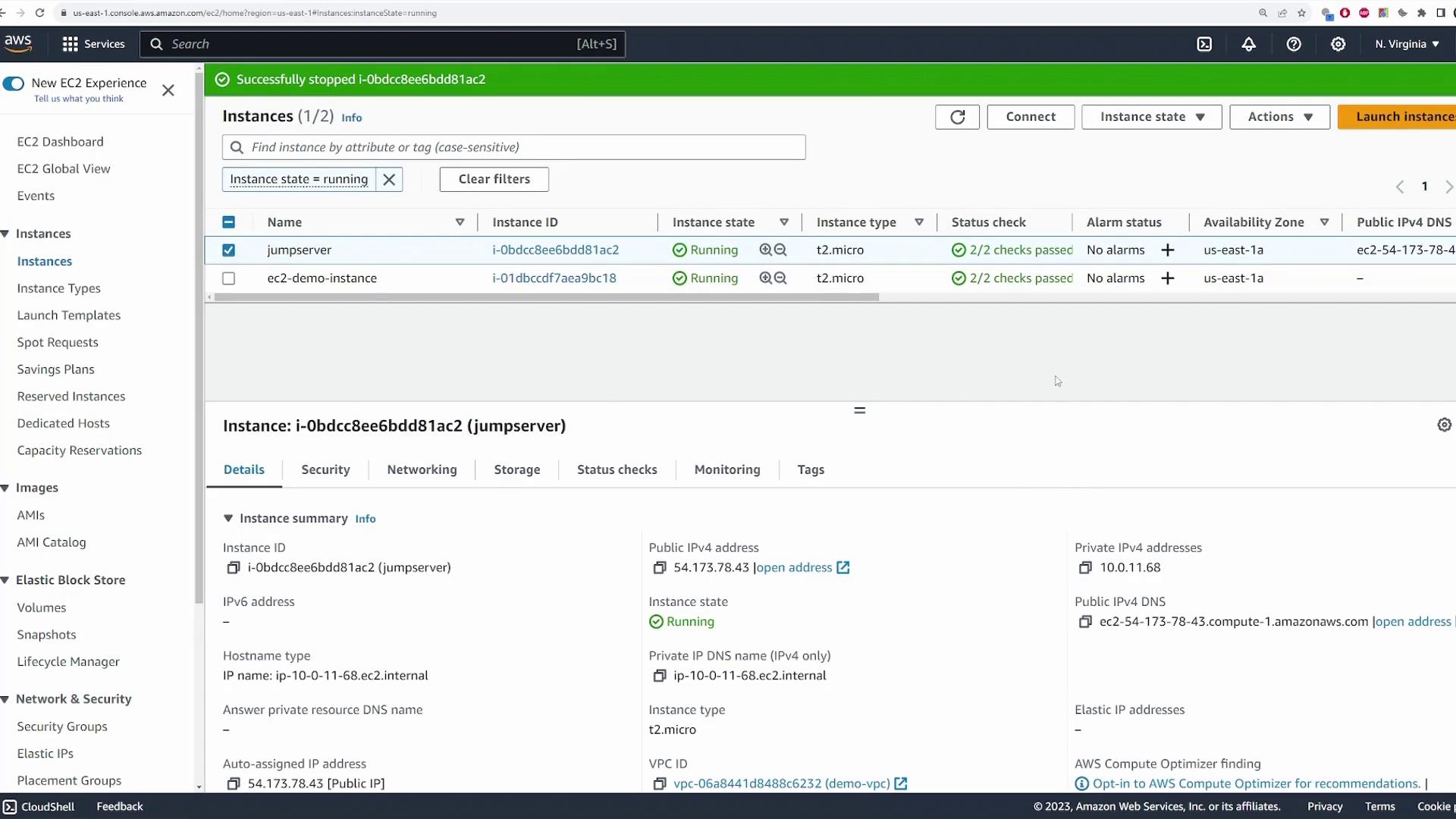
To verify your setup, open the EC2 console and change the state of a running instance. For instance, select the instance, then choose Instance state > Stop instance. Allow a few seconds for the instance state to update.
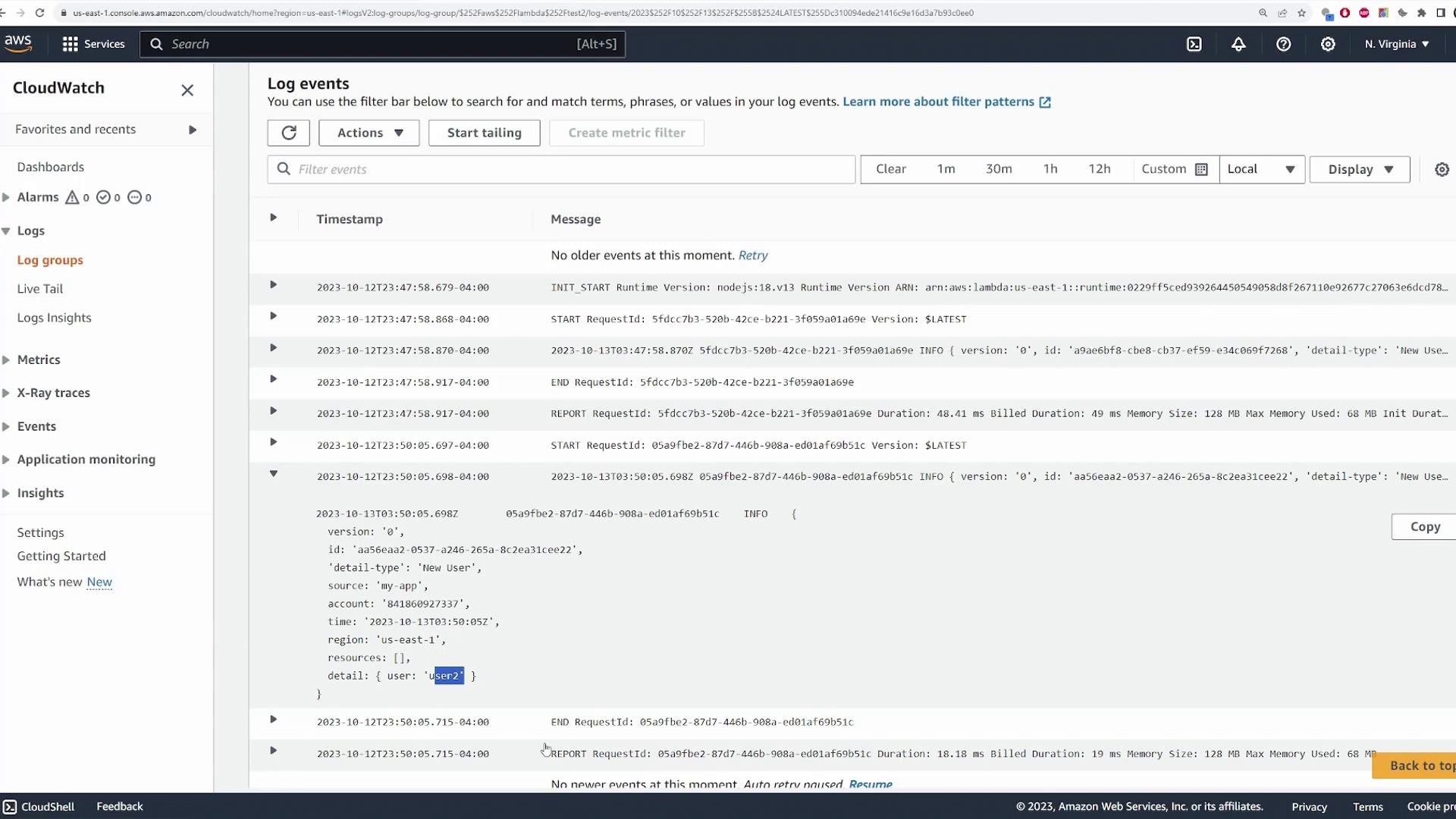
After the state change, EventBridge generates an event that triggers your Lambda function. Go to the Lambda console, navigate to the Monitor tab, and click the link to view CloudWatch logs. Look for an output similar to the following:
Now, let’s demonstrate how to generate custom events from your application. We have set up a basic Node.js API using the AWS SDK to publish events to EventBridge. In this example, a POST request to the /signup endpoint triggers an event.
When you send a POST request with a JSON body (for example, { "username": "user2", "password": "password123" }), the API sends an event to EventBridge with the source "my-app" and the detail type "New User", along with the user details.
Finally, start your Node.js API and send a POST request to the /signup endpoint containing the new user’s information. For example, using a REST client, submit the following JSON:
Copy
Ask AI
{ "username": "user2", "password": "password123"}
The API should respond with:
Copy
Ask AI
{ "status": "success"}
After a few seconds, verify the CloudWatch logs for the “test two” Lambda function to confirm that it received the event with "username": "user2".
Ensure that each step has been tested thoroughly to confirm that both AWS service events and custom application events are processed properly by your Lambda functions.
By following these steps, you’ve successfully configured Amazon EventBridge to handle both AWS service events and custom events from your application. This event-driven approach enables you to integrate various AWS services and custom workflows seamlessly. Enjoy building and expanding your event-driven architectures!Happy coding!