In this guide, you’ll learn how to install and configure a self-hosted runner at the repository level. You can also set up runners at the organization or enterprise level—see the GitHub documentation for autoscaling, requirements, and limits.

Step 1: Register a New Runner on GitHub

  1. Open your repository on GitHub.
  2. Navigate to SettingsActionsRunners.
  3. Click New self-hosted runner.
  4. Select Linux and x64, then copy the setup commands provided.

Step 2: Download and Extract the Runner

SSH into your Ubuntu VM (or another Linux host), then run:
# Create a directory and enter it
mkdir actions-runner && cd actions-runner

# Download the latest runner package
curl -L -o actions-runner-linux-x64-2.310.2.tar.gz \
  https://github.com/actions/runner/releases/download/v2.310.2/actions-runner-linux-x64-2.310.2.tar.gz

# (Optional) Validate the SHA-256 checksum
echo "bf28a83175a60e551fa6e31b9e2ece6bf280278f949f3  actions-runner-linux-x64-2.310.2.tar.gz" \
  | sha256sum -c -

# Extract the archive
tar xzf actions-runner-linux-x64-2.310.2.tar.gz

# Verify extracted files
ls -1
You should see:
bin
config.sh
env.sh
externals
run-helper.cmd.template
run.sh
safe_sleep.sh

Step 3: Configure the Runner

Run the interactive configuration script:
./config.sh --url https://github.com/<OWNER>/<REPO> --token YOUR_TOKEN_HERE
Do not run this script as root unless you intentionally bypass the check.
Running GitHub Actions jobs as root can introduce security and reliability risks.
The script enforces:
#!/bin/bash
user_id=$(id -u)

if [[ $user_id -eq 0 && -z "$RUNNER_ALLOW_RUNASROOT" ]]; then
  echo "Must not run with sudo"
  exit 1
fi

Bypass the Root Check (Optional)

If you need to run as root:
export RUNNER_ALLOW_RUNASROOT=1
./config.sh --url https://github.com/<OWNER>/<REPO> --token YOUR_TOKEN_HERE
During setup, you will:
  • Choose a runner group (default: default for repo-level).
  • Name your runner (e.g., prod-ubuntu-runner).
  • Assign labels (default: self-hosted, Linux, X64; you can add prod, main).
  • Confirm or change the working directory (default: _work).

Step 4: Verify Registration (Offline)

Once registration completes, your runner shows as Offline in the Runners list:
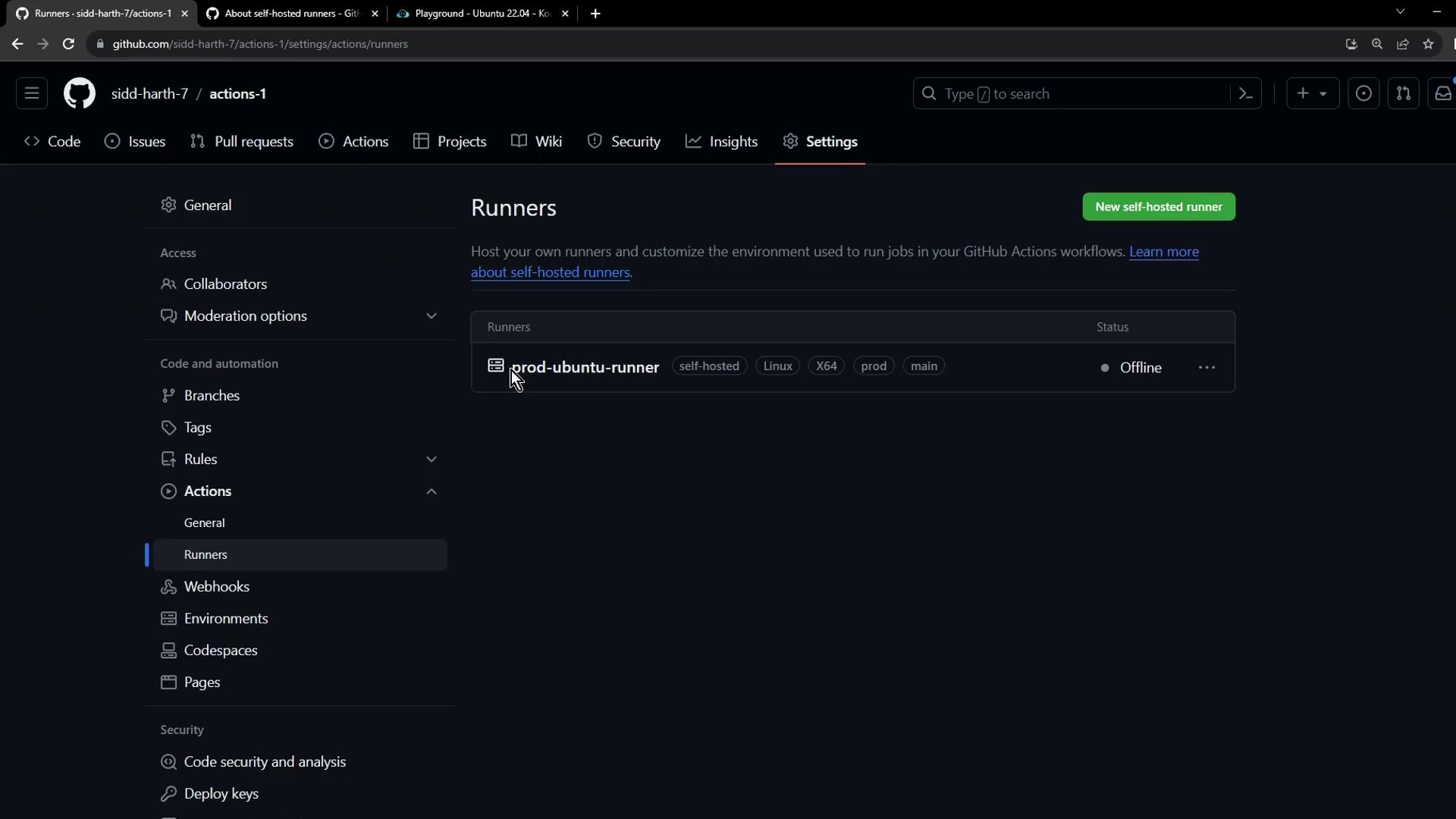
The image shows a GitHub settings page for actions, specifically the "Runners" section, displaying a self-hosted runner named "prod-ubuntu-runner" which is currently offline.

Step 5: Start the Runner

Back in your VM, launch the runner process so it connects to GitHub and listens for jobs:
./run.sh
Expected output:
√ Connected to GitHub
Current runner version: '2.310.2'
2023-10-24 14:51:44Z: Listening for Jobs

Step 6: Verify Runner Status (Online)

Refresh the Runners page. Your runner should now be Online and idle, ready to accept jobs:
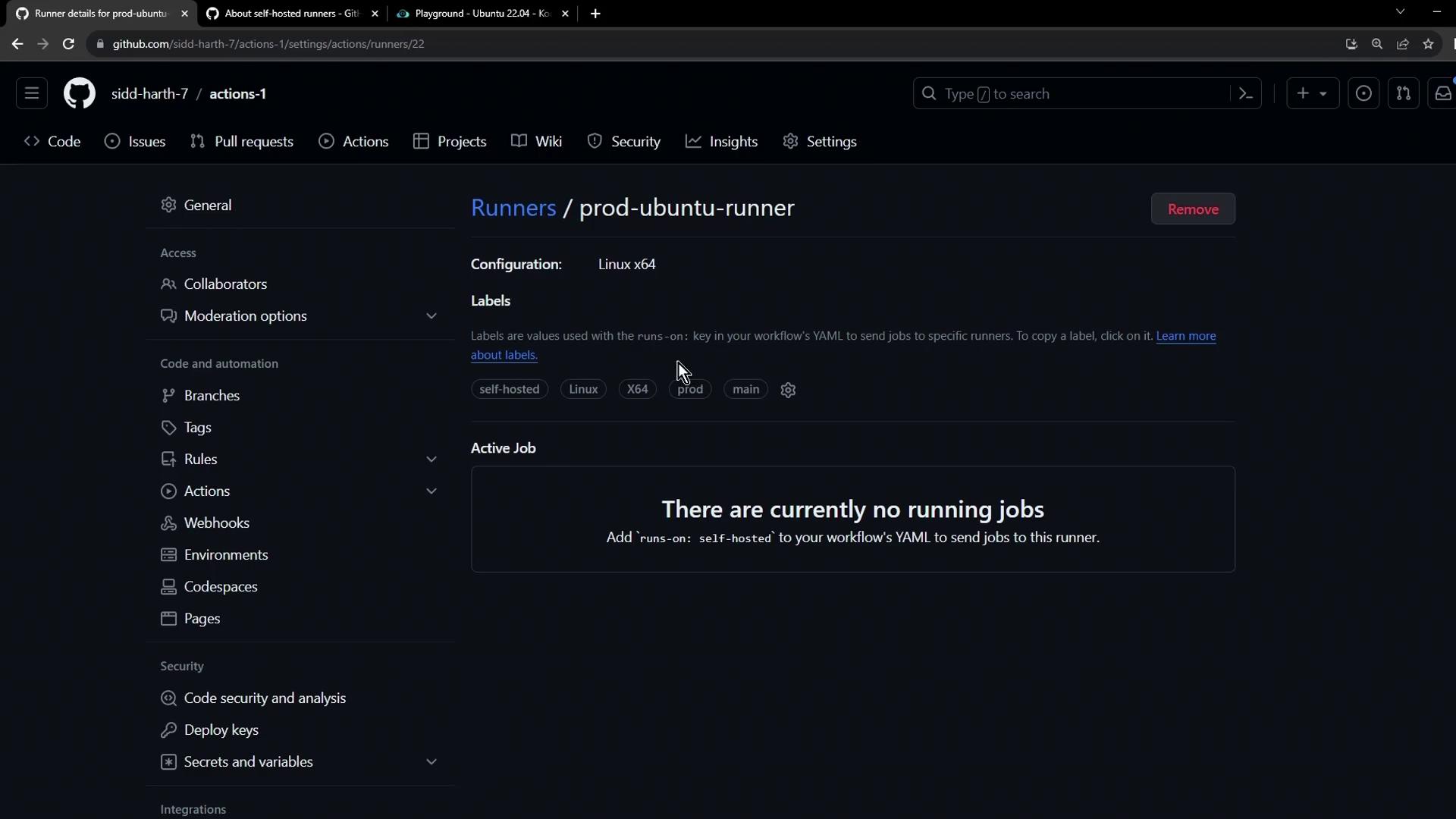
The image shows a GitHub Actions settings page for a self-hosted runner named "prod-ubuntu-runner" with no active jobs running. The configuration is set to Linux x64, and several labels are listed, including "self-hosted," "Linux," "X64," "prod," and "main."

Step 7: Use Your Self-Hosted Runner in Workflows

Add this to any workflow file (.github/workflows/*.yml) to target your runner:
jobs:
  build:
    runs-on: self-hosted
    steps:
      # …
Ensure your self-hosted runner has all required tools and permissions for your workflows.