If you haven’t set up your first self-hosted runner yet, check out Part 1: Provisioning Self-Hosted Runners.
What Are Runner Groups?
Runner groups let you organize your self-hosted runners under enterprise or organization scopes. You can apply consistent security, network, and repository access policies across each group. For comprehensive details, see the official GitHub documentation on managing access to self-hosted runners using groups.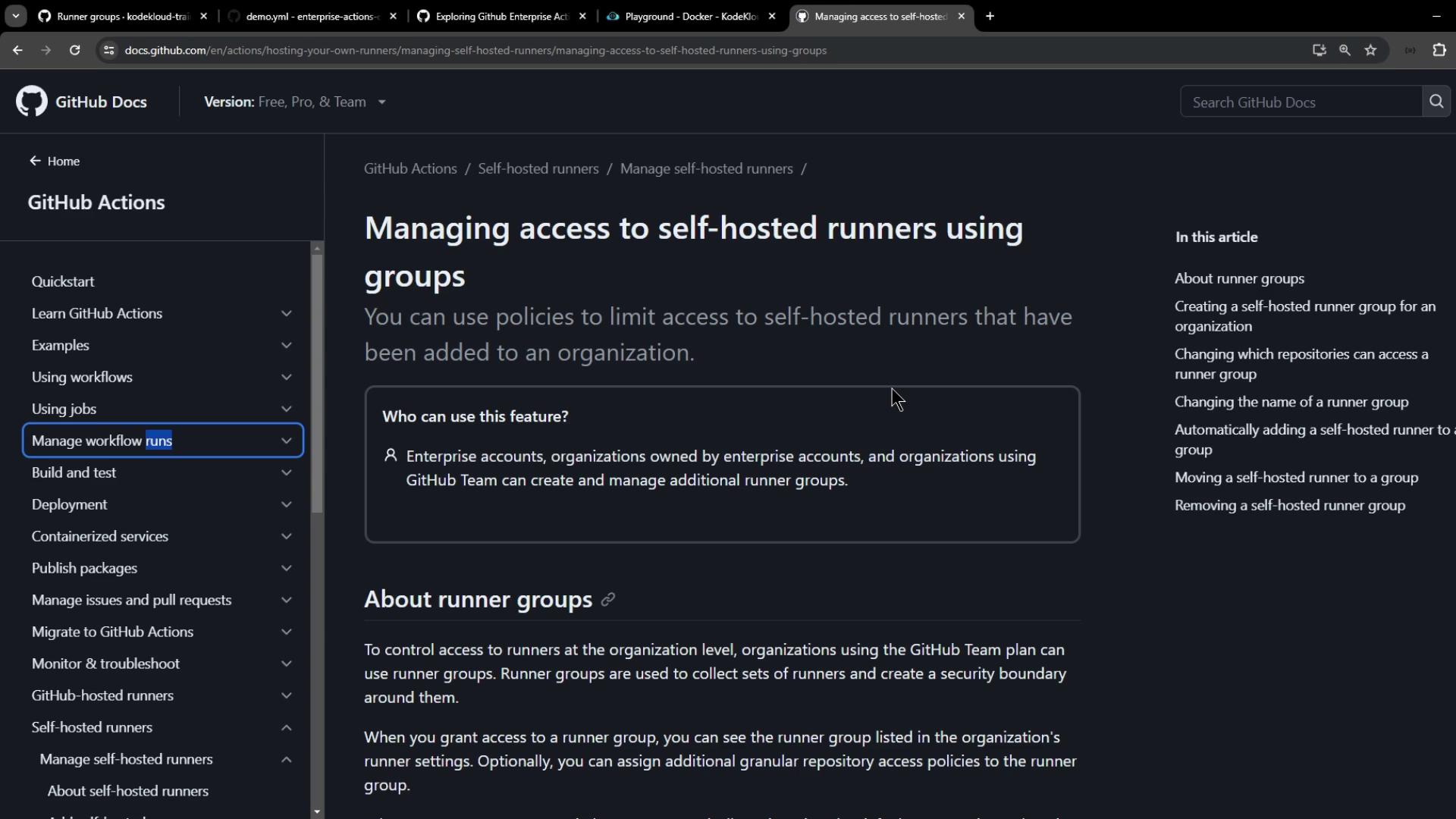
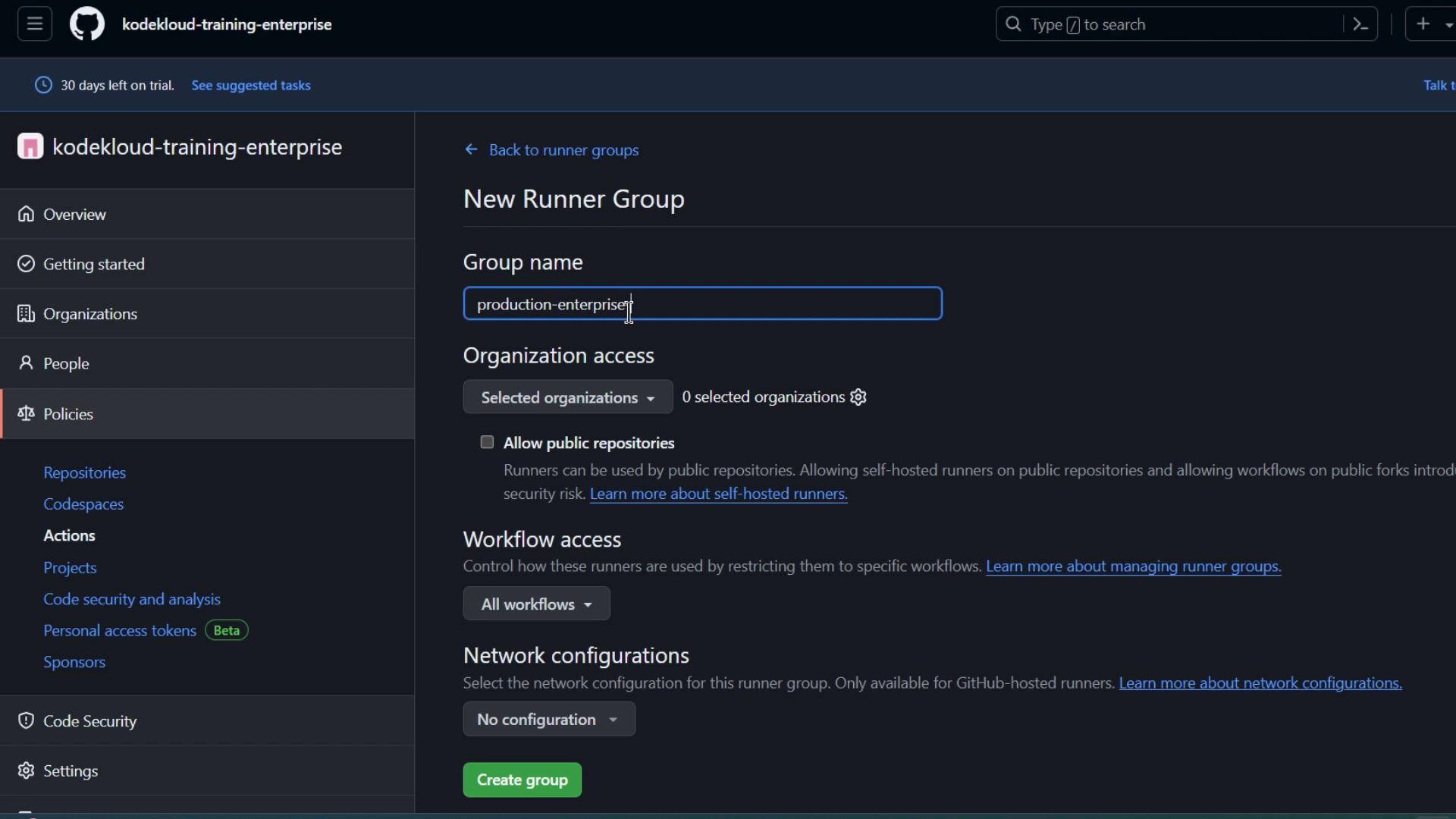
1. Creating a New Runner Group
- Go to Enterprise settings > Policies > Actions > Runner groups.
- Click New runner group.
- Fill in the details:
- Name: e.g.,
Production Enterprise Group - Organization access: select one or more orgs
- Public repositories: enable if needed
- Workflow access: leave unconfigured for now
- Name: e.g.,
- Click Create group.
2. Viewing Runner Groups at the Organization Level
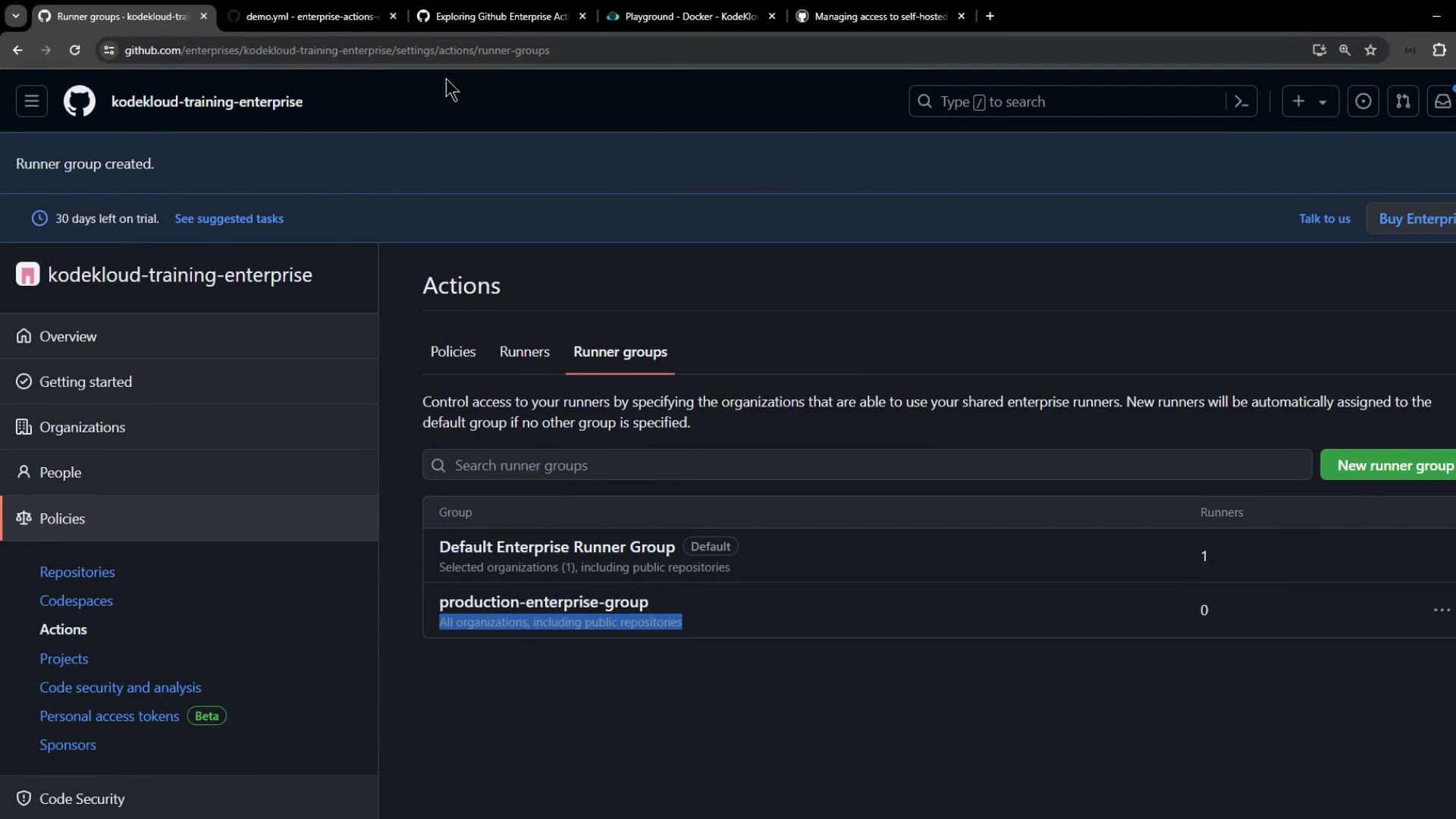
Switch to Organization settings > Actions > Runner groups. Both the Default group and yourProduction Enterprise Group (with zero runners) should be listed.
3. Moving a Runner to the New Group
- Return to Enterprise settings > Actions > Runners.
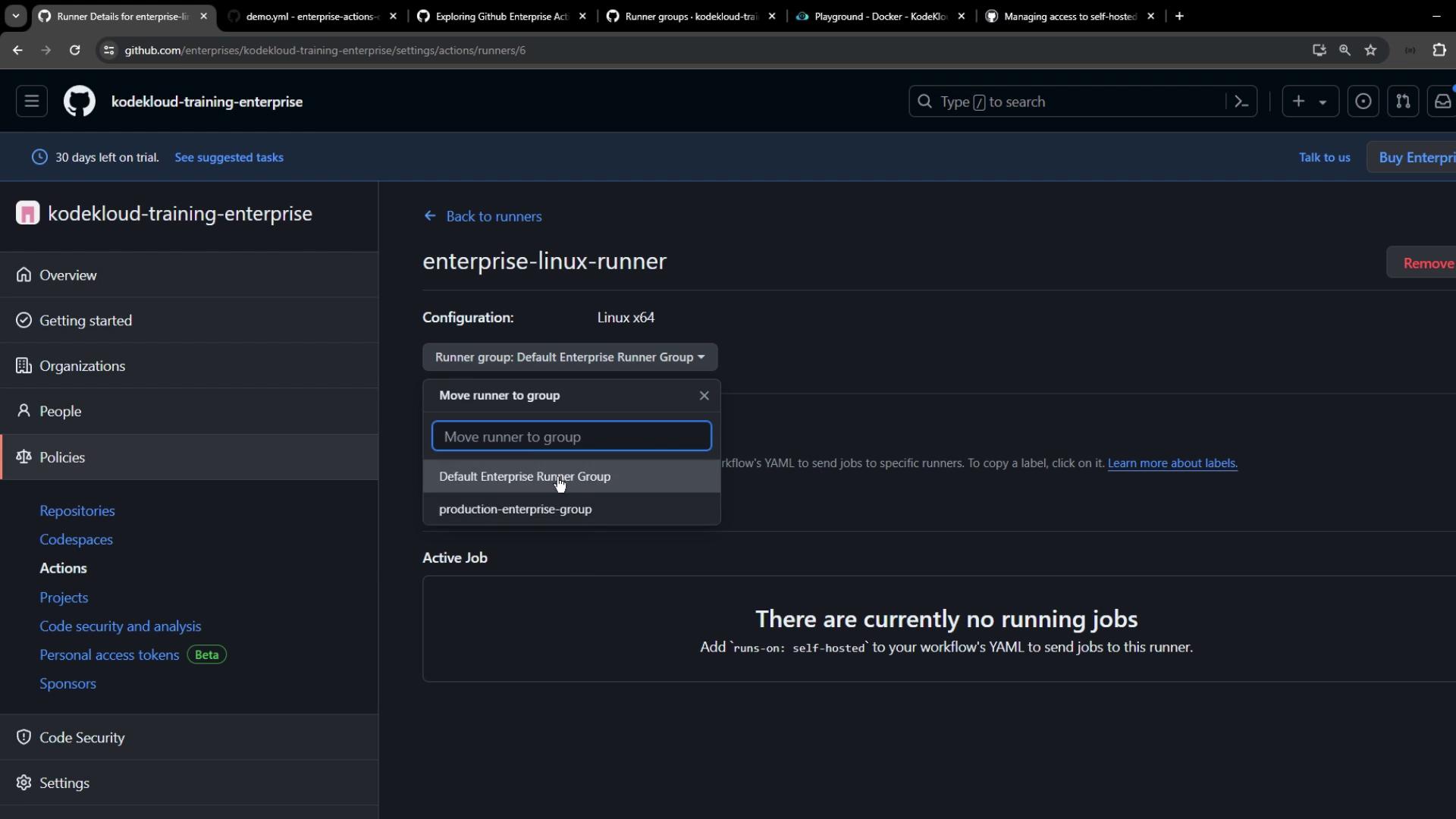
- Select your Enterprise Linux Runner (currently under the default group).
- Click Move, then choose Production Enterprise Group.
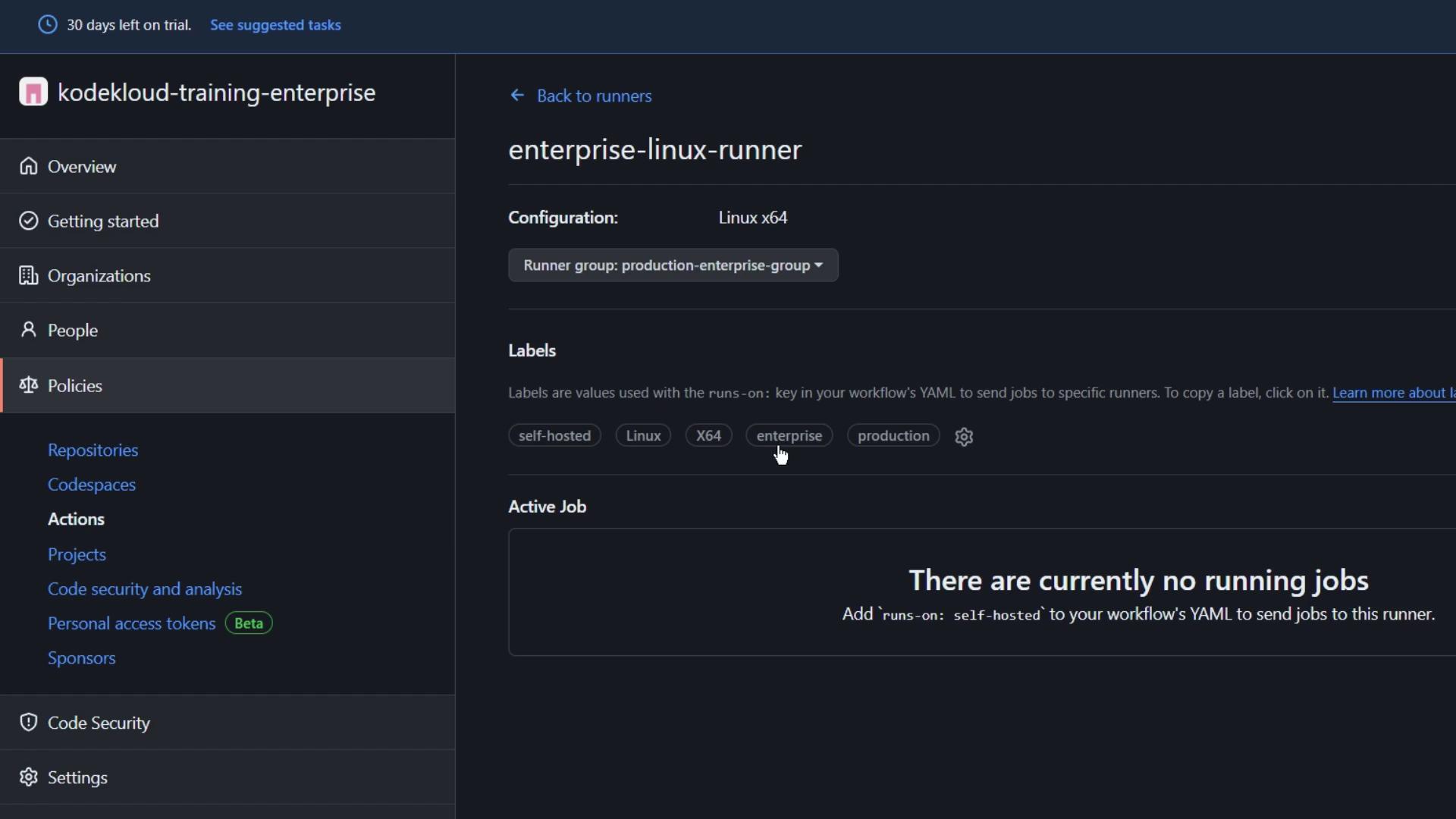
- (Optional) Update labels—e.g., replace
enterprisewithproduction. - Refresh to see the updated label.
4. Verifying the Runner at the Organization Level
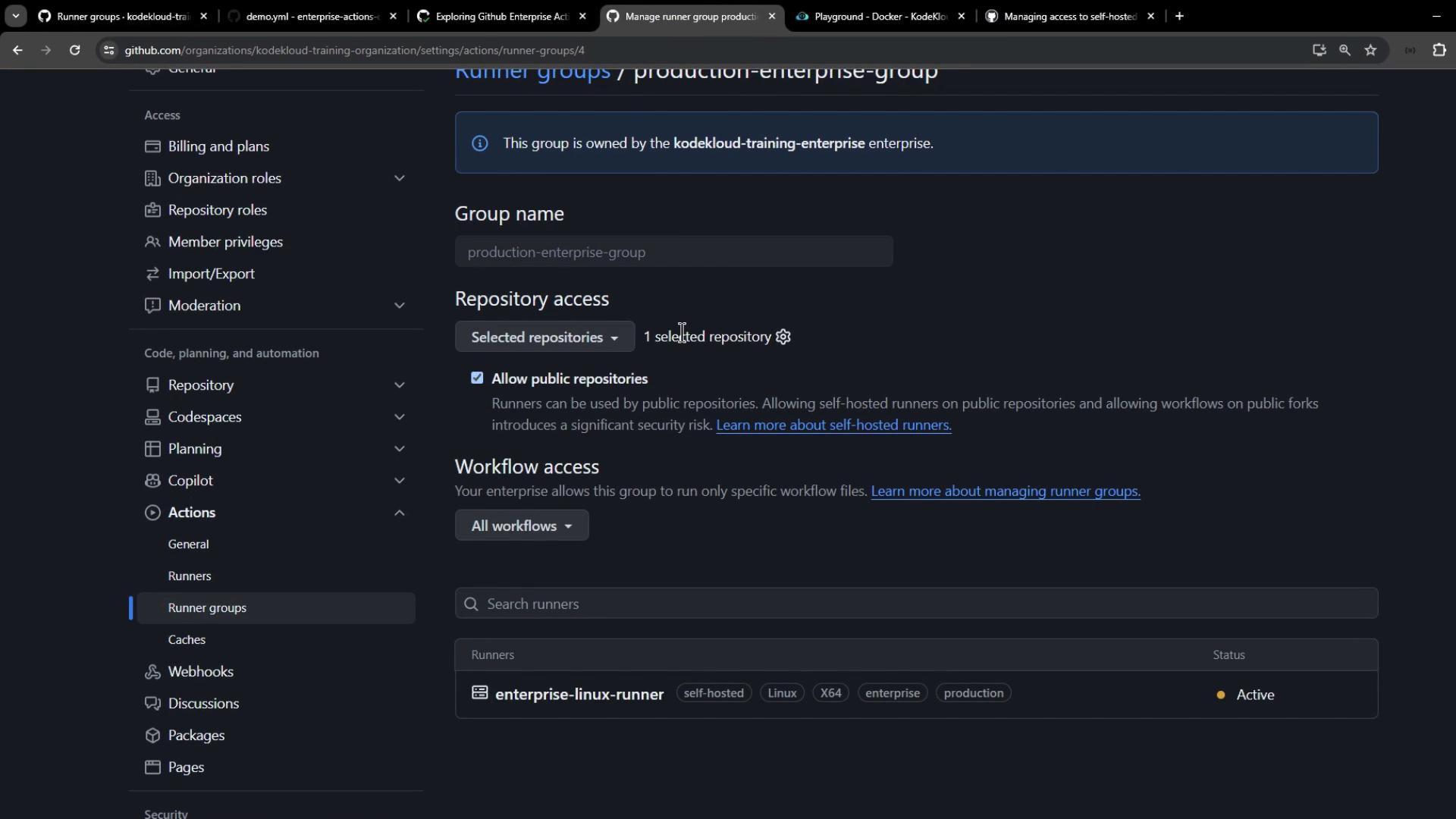
Back in Organization settings > Actions > Runner groups, openProduction Enterprise Group. You should now see your runner listed.
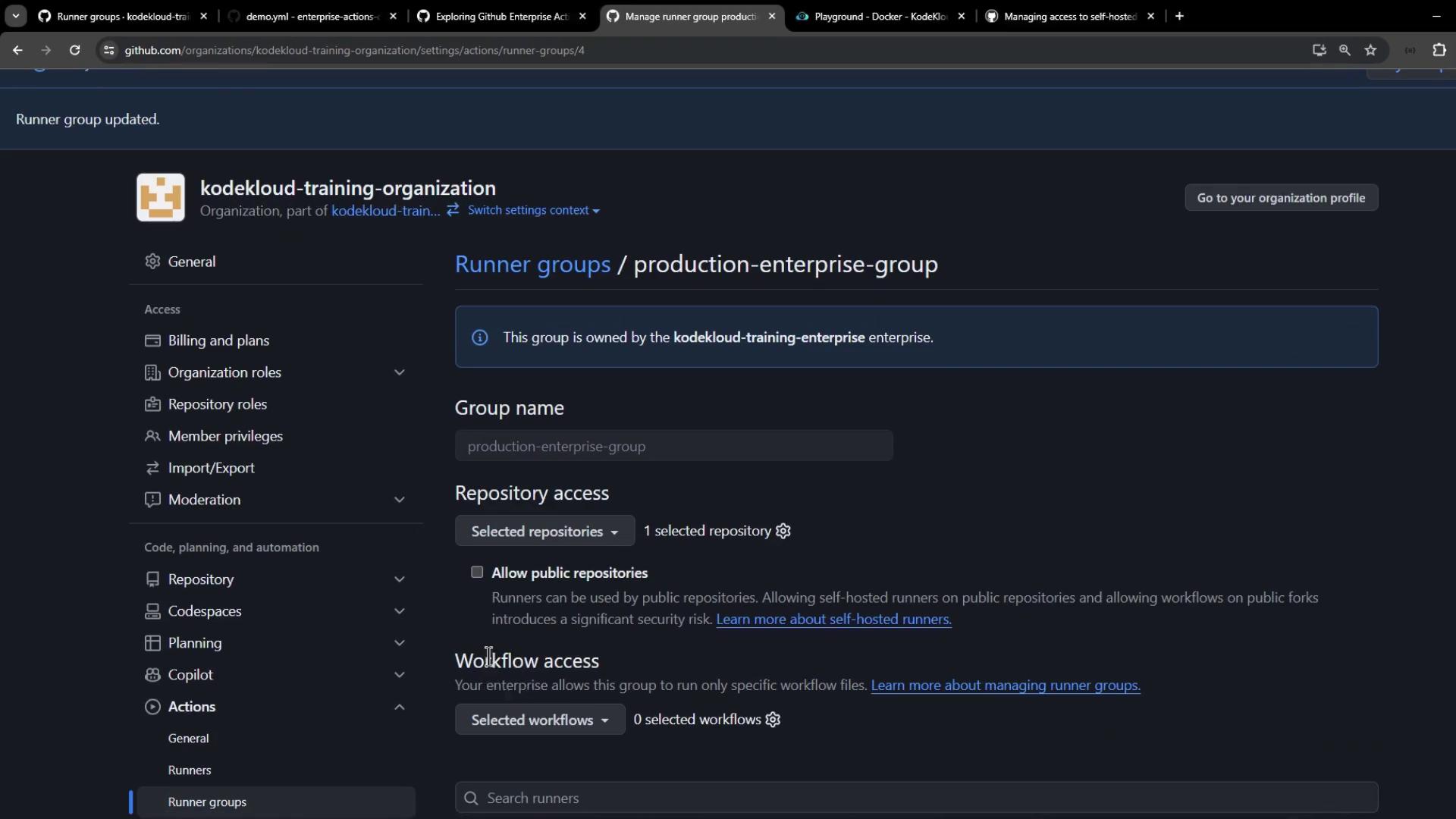
At this stage, no repositories or workflows are allowed, so the group cannot pick up jobs yet.
5. Configuring Access Controls
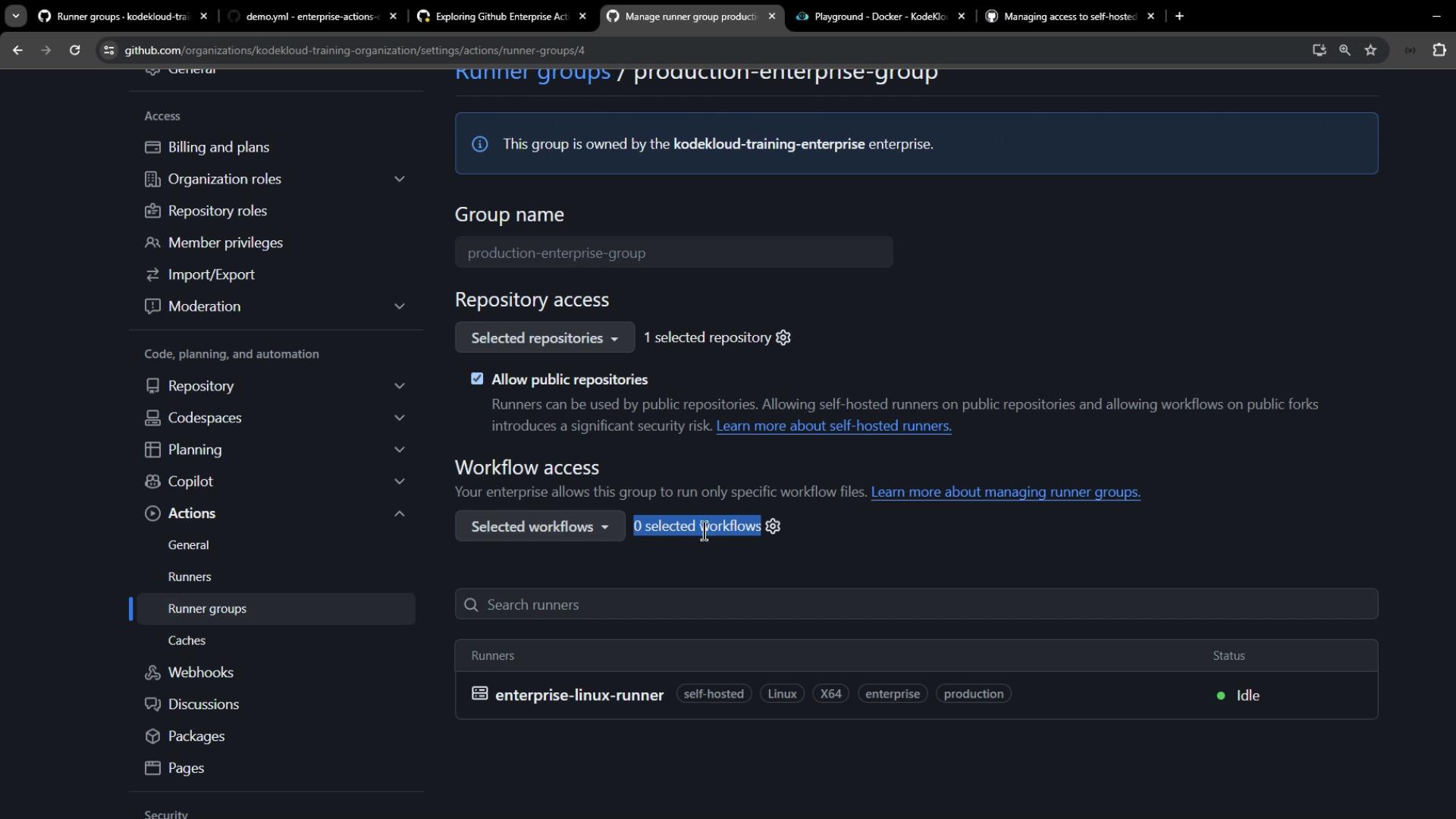
Runner groups enable you to restrict which repos and workflows can use your self-hosted runners.- Edit Production Enterprise Group.
- Under Repository access, select the repositories (e.g.,
enterprise-actions-demo). - (Optional) Allow public repositories.
- Under Workflow access, leave at 0 for now.
- Click Save.
6. Triggering and Troubleshooting a Workflow
- In the
enterprise-actions-demorepo, trigger a workflow run manually. - You’ll see the job remain pending because no workflows are yet allowed.
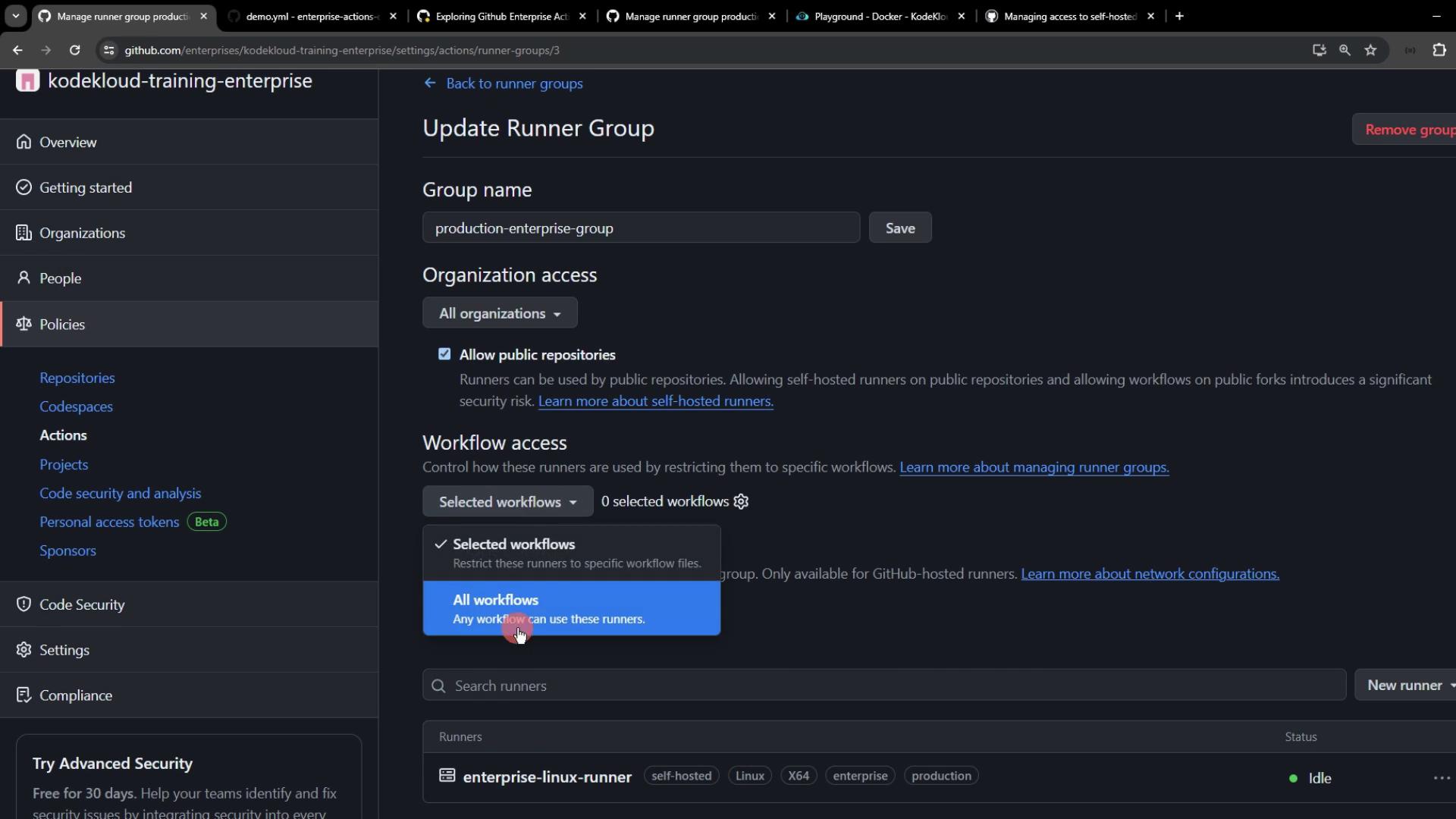
Pending jobs usually mean your runner group isn’t authorized to run any workflows. Update Workflow access to allow specific or all workflows.
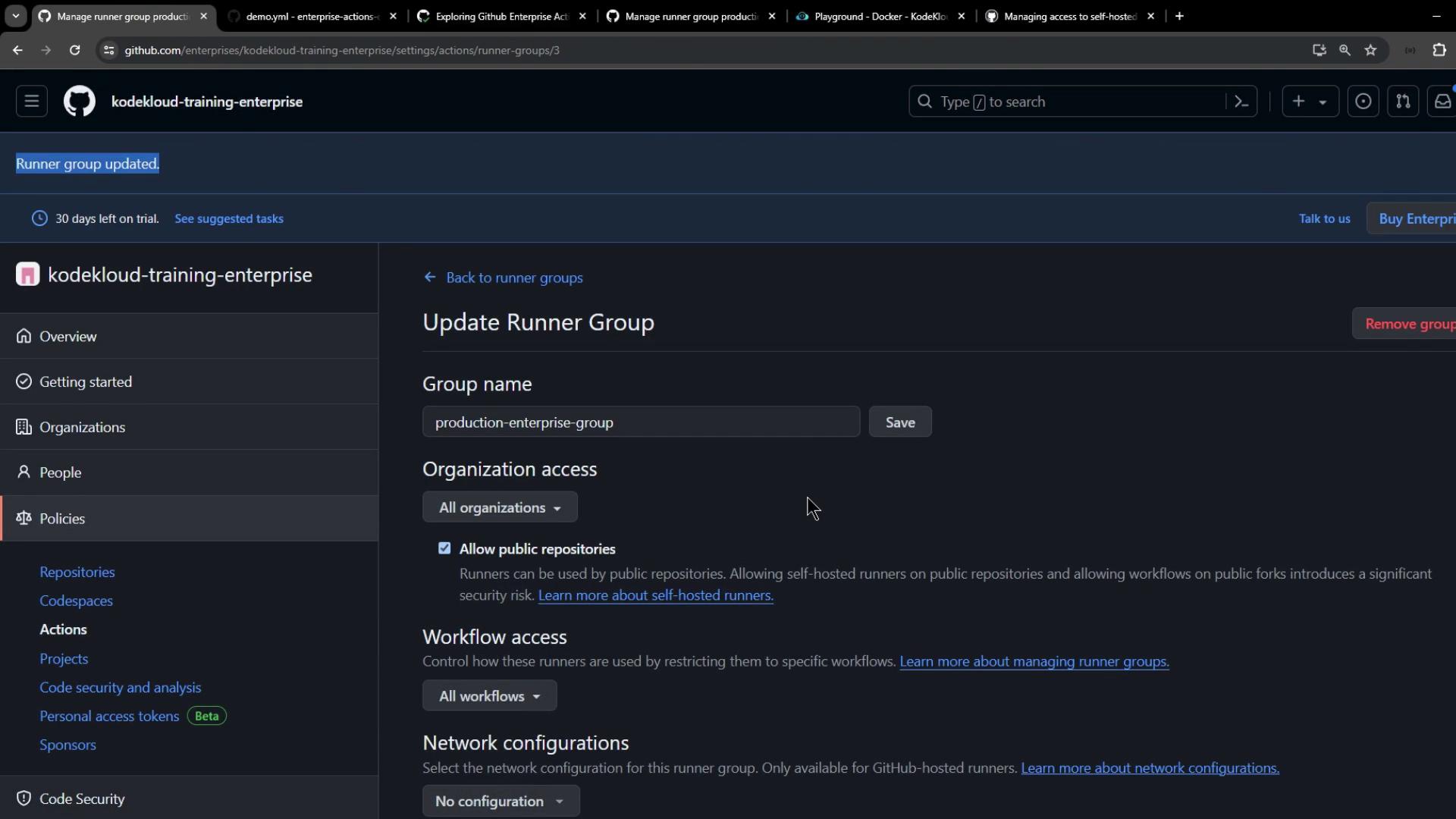
- Go back to Enterprise settings > Actions > Runner groups > Production Enterprise Group.
- Set Workflow access to All workflows and save.
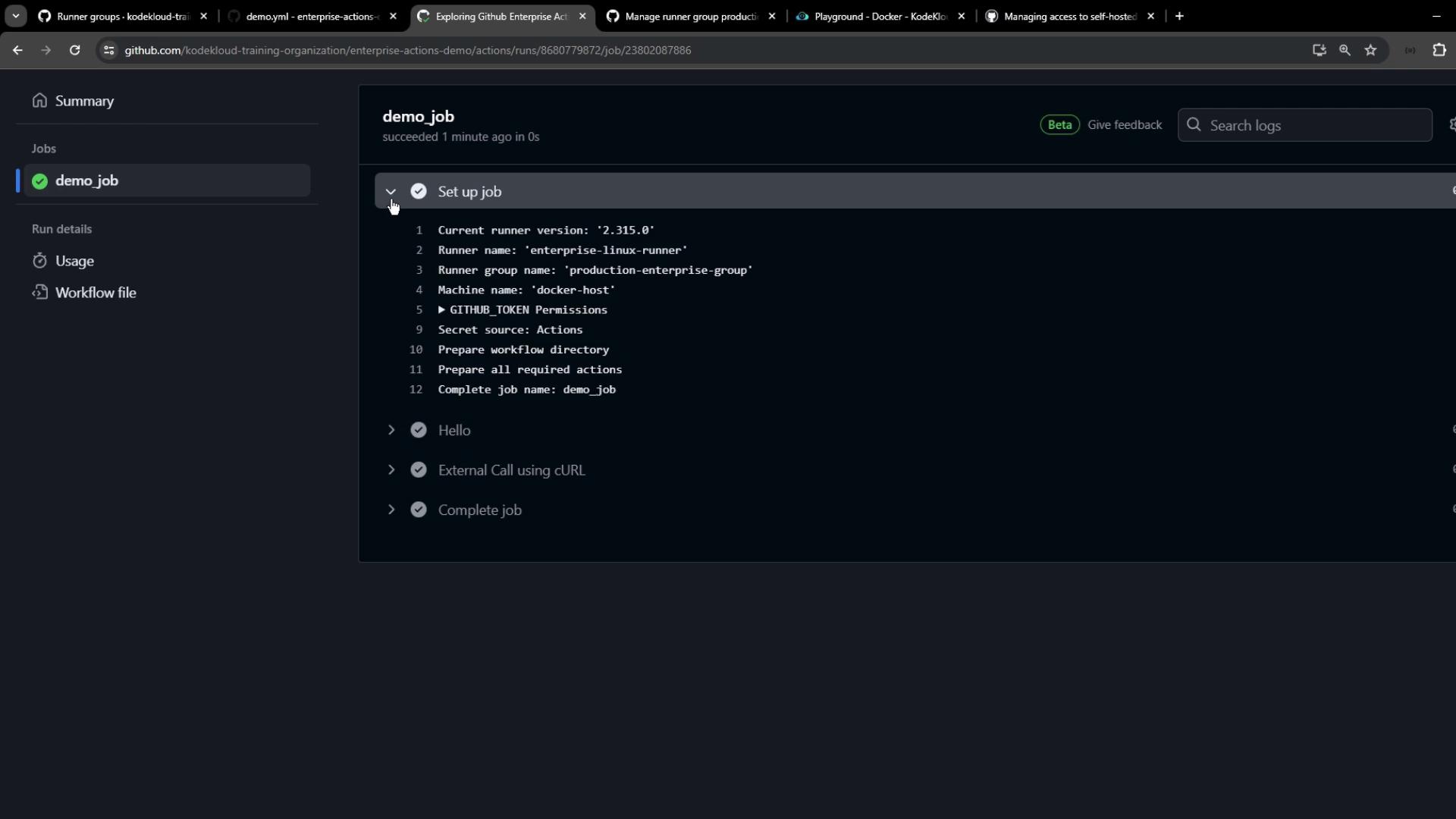
7. Inspecting the Job Output
In our example workflow, we usecurl to display the runner’s public IP:
8. Summary of Key Steps
| Step | Action |
|---|---|
| 1. Create Runner Group | Enterprise settings → Policies → Actions → Runner groups → New |
| 2. Move Runner | Select runner → Move → Choose group |
| 3. Update Labels | Edit runner labels (e.g., replace enterprise with production) |
| 4. Set Repository Access | Runner group → Edit → Select repos |
| 5. Configure Workflow Access | Runner group → Edit → Allow specific/all workflows |
| 6. Troubleshoot Pending Jobs | Confirm access settings at both enterprise and org levels |