

| Step | Description |
|---|---|
| 1 | Create a new GitHub repository |
| 2 | Open it in the GitHub.dev online editor (VS Code Web) |
| 3 | Install the GitHub Actions extension |
| 4 | Author your first workflow file |
| 5 | Commit, push, and trigger the workflow |
| 6 | View, debug, and fix issues in your workflow runs |
Step 1: Create a New Repository
- Sign in to GitHub and click New.
- Name the repository
actions-1, set it to Public, and initialize with a README. - Click Create repository to finish.
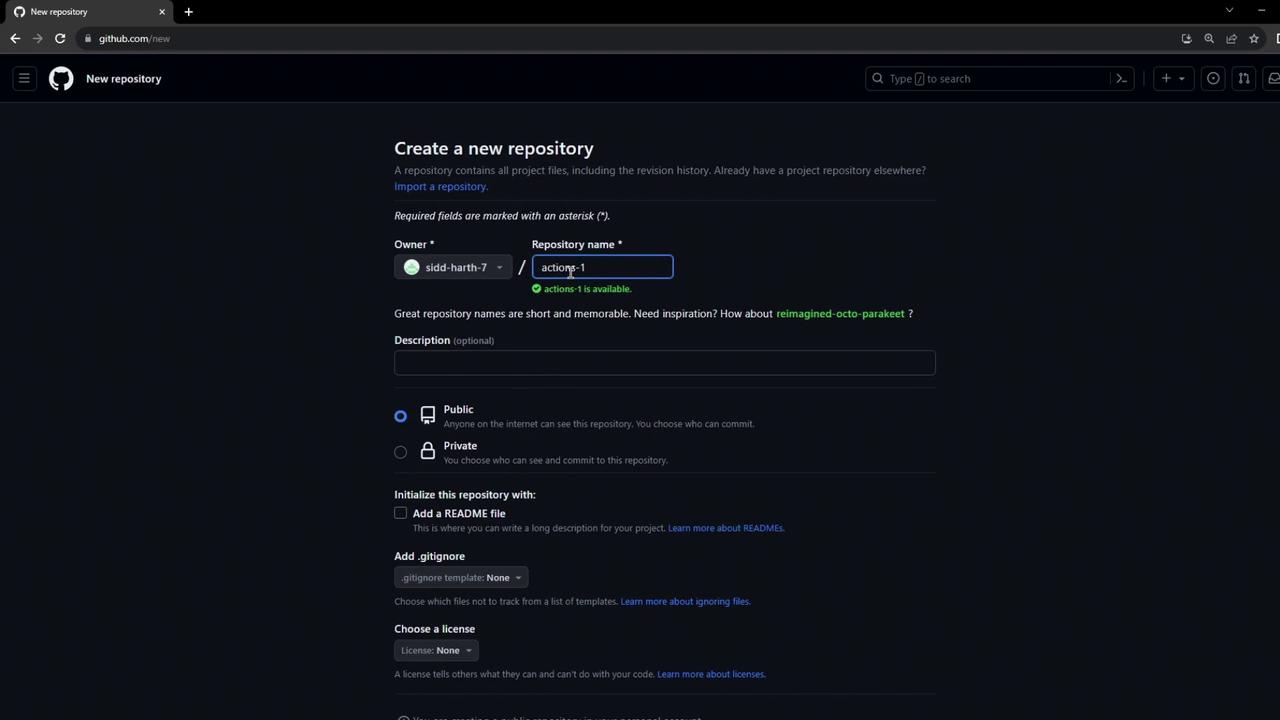
Step 2: Open in Visual Studio Code (GitHub.dev)
In your repo’s URL, replacegithub.com with github.dev to launch the VS Code–style online editor:
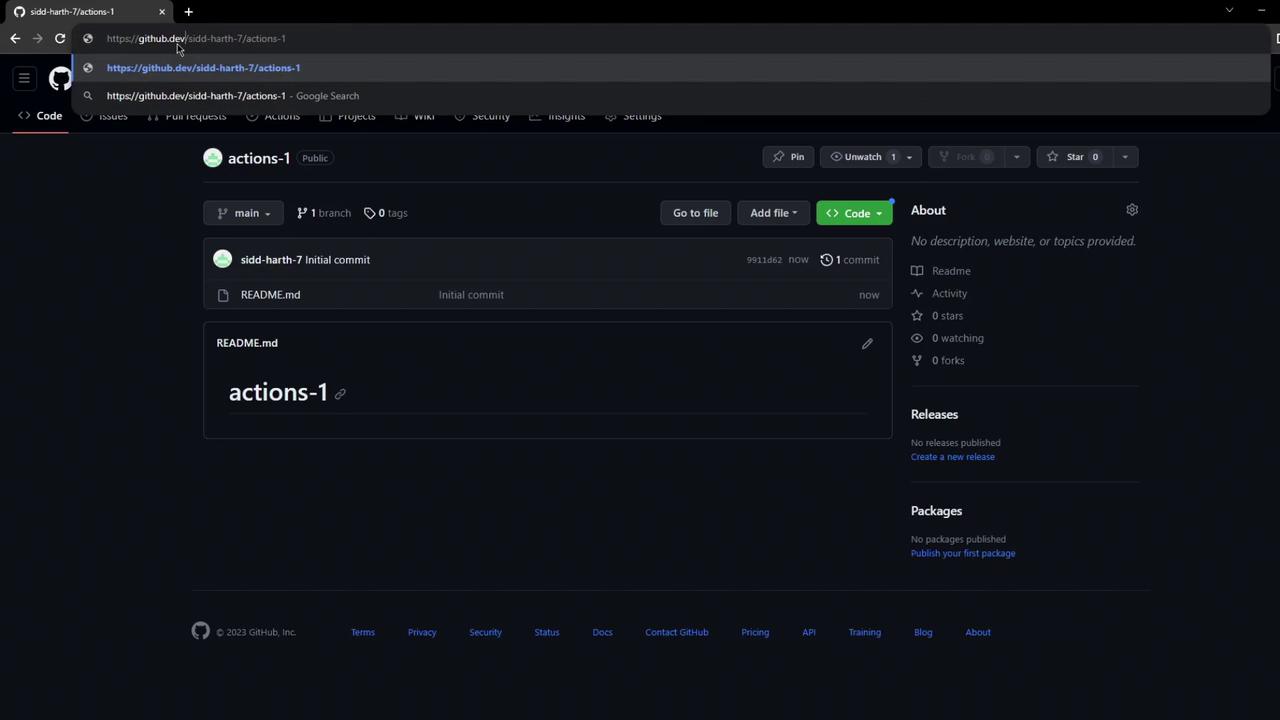
GitHub.dev provides the full VS Code keybindings and interface in your browser—no local install required.
Step 3: Install the GitHub Actions Extension
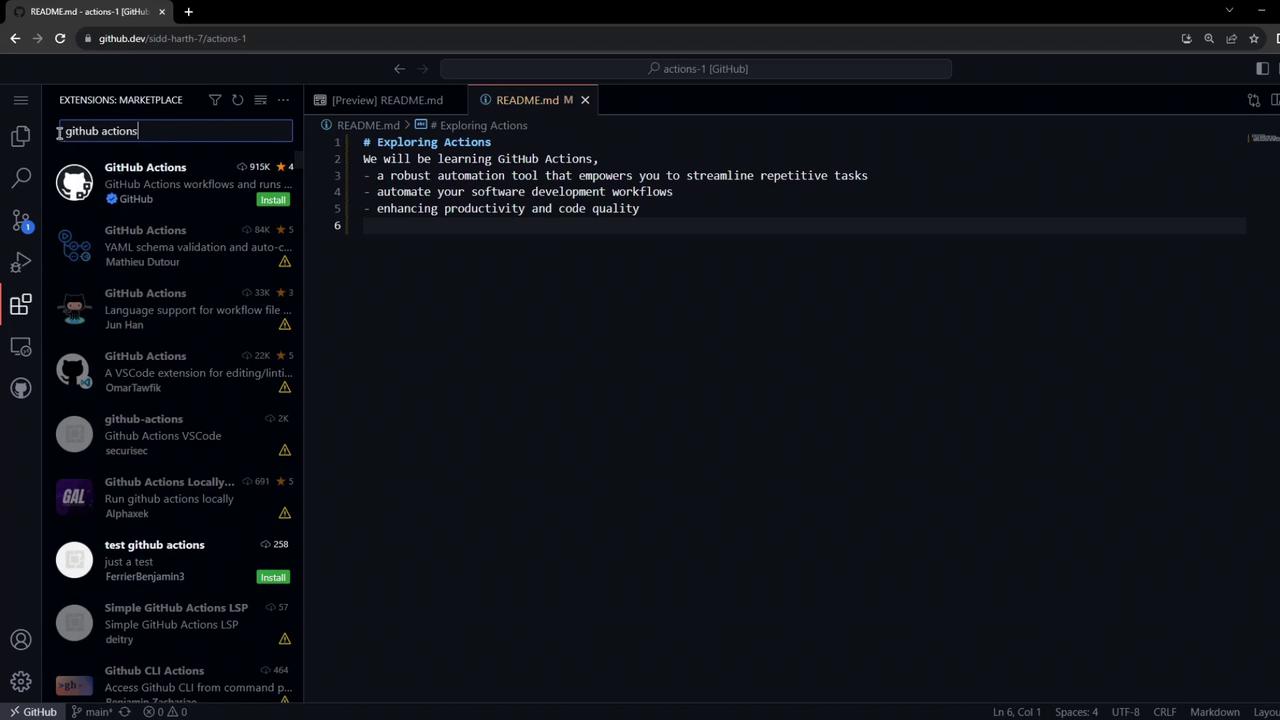
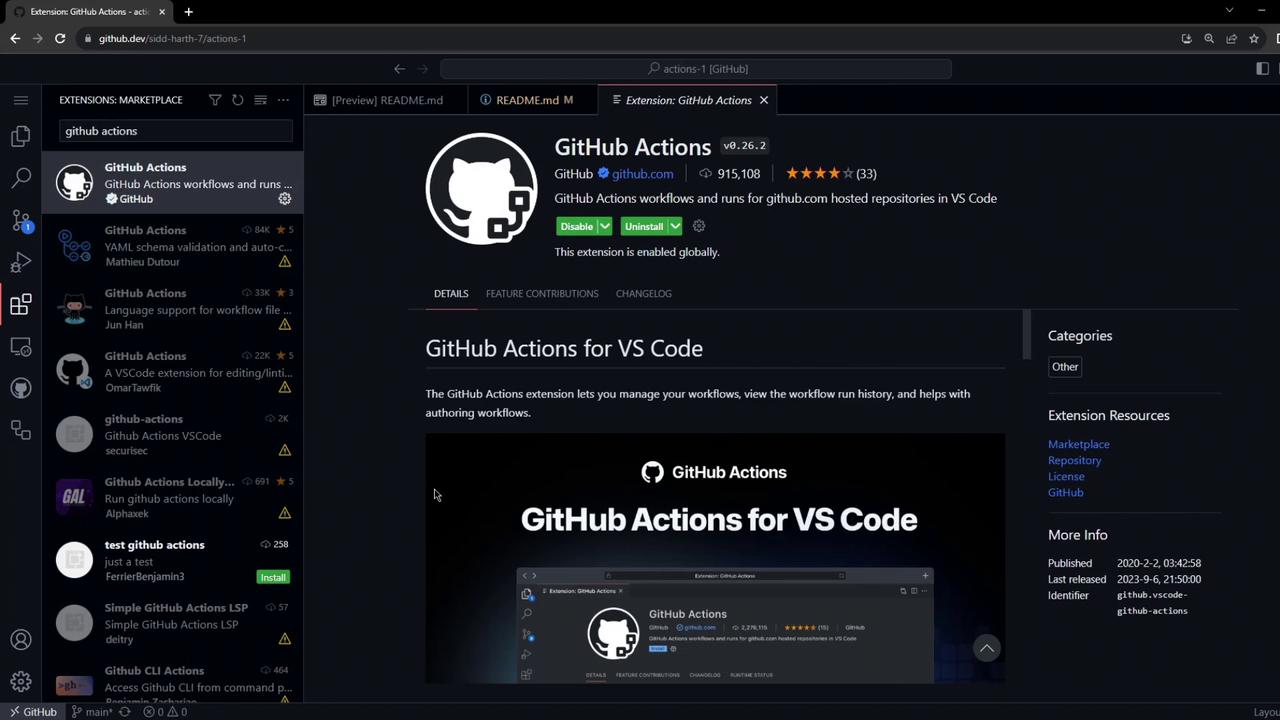
- Open the Extensions pane (⇧⌘X or Ctrl+Shift+X).
- Search for GitHub Actions and install the official extension.
- Enjoy syntax validation, autocompletion, and inline error checking for
.ymlworkflows.
Step 4: Create the Workflow File
In the Explorer, add a.github/workflows folder and create firstexample.yml:
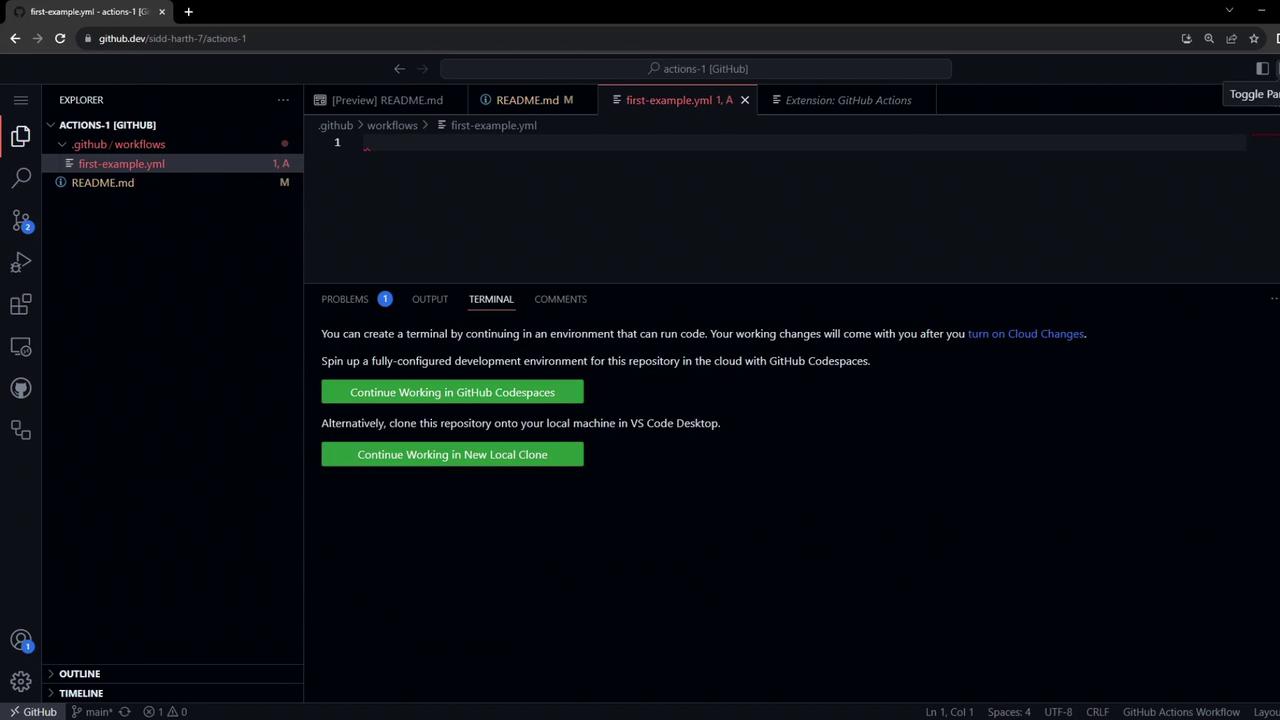
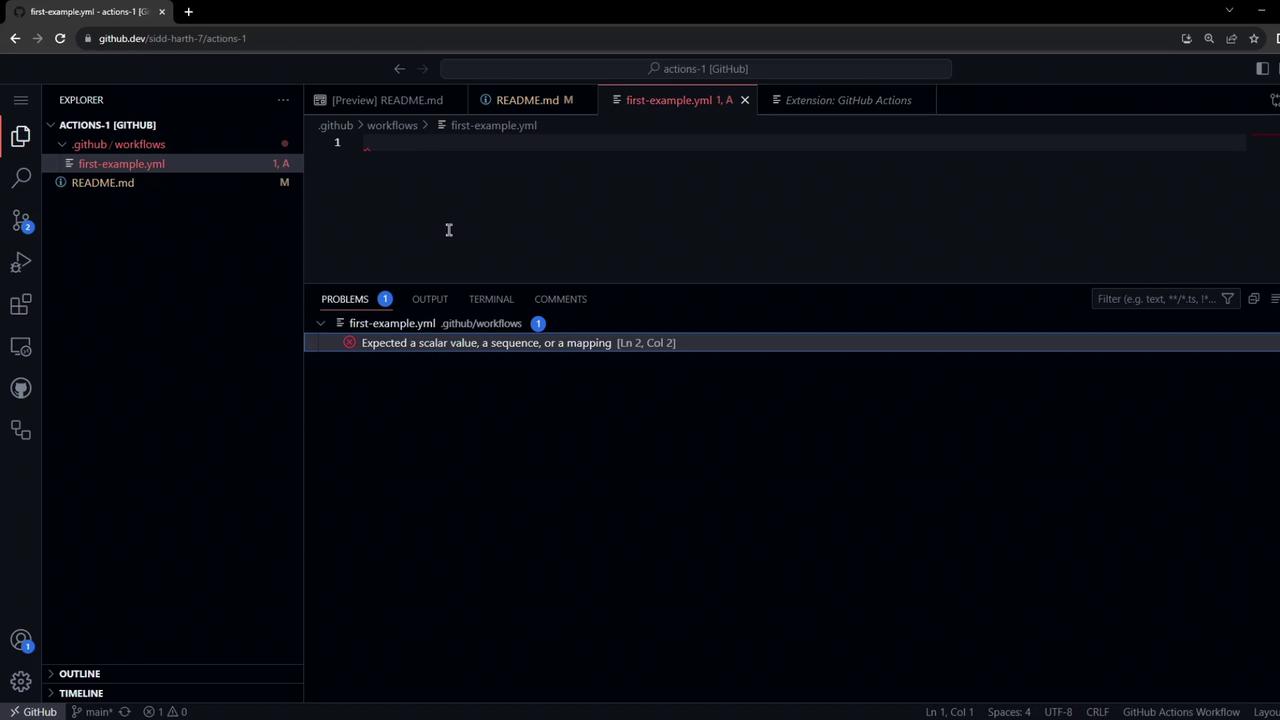
Step 5: Commit and Push the Workflow
push, GitHub will immediately enqueue a run.
Step 6: View the Workflow Run
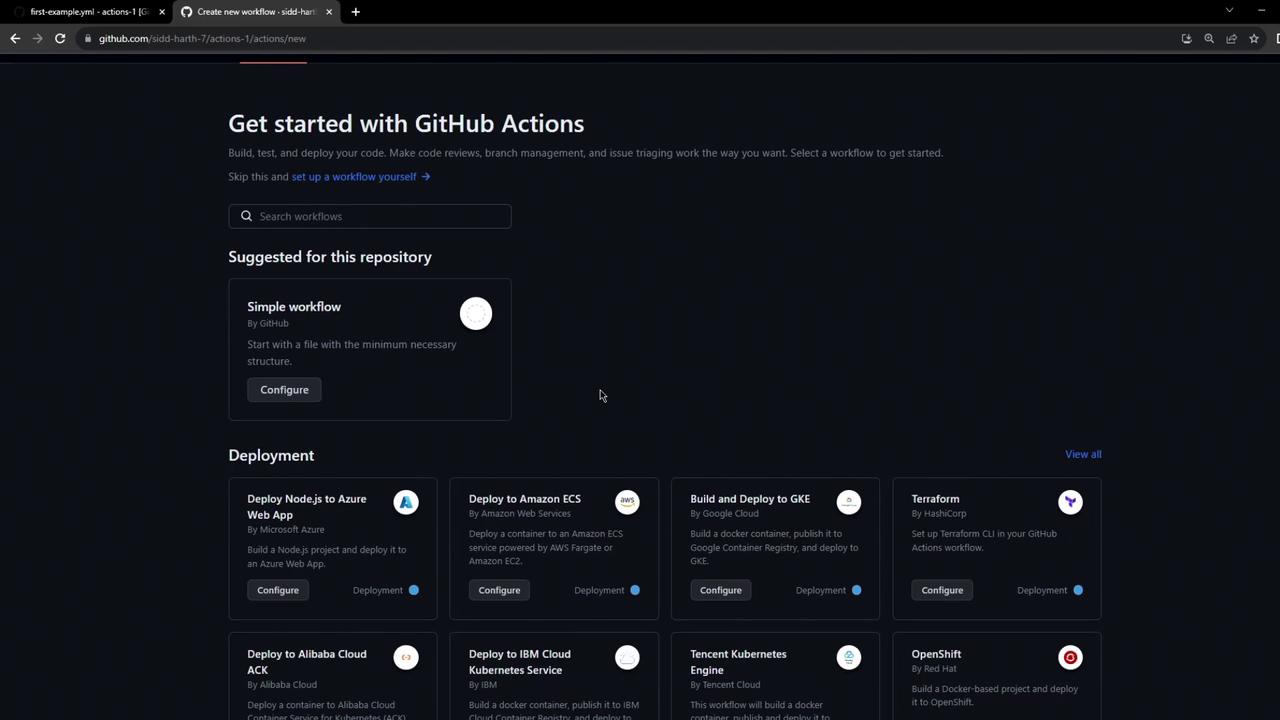
- On GitHub, select the Actions tab.
- Locate My First Workflow in the list.
- Explore starter workflows for other languages or cloud deployments.
Step 7: Inspect and Debug the Job
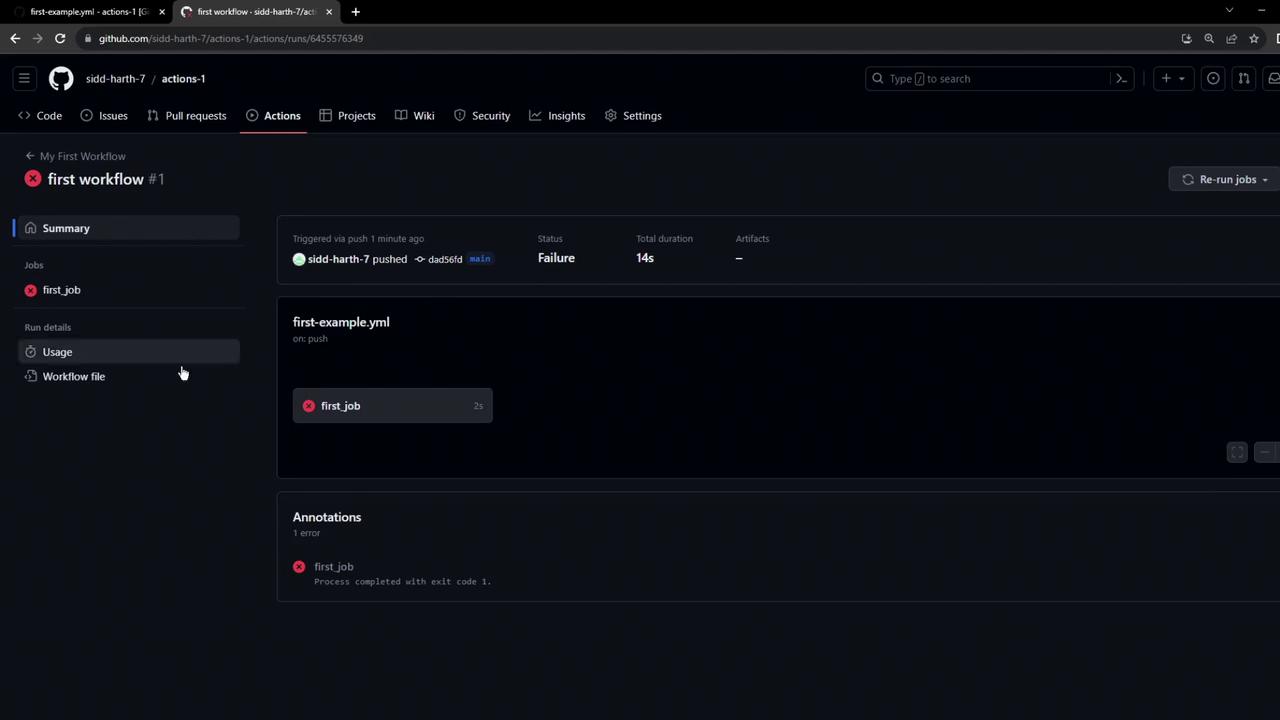
Open the job logs to review each step. You’ll see setup messages followed by your custom commands: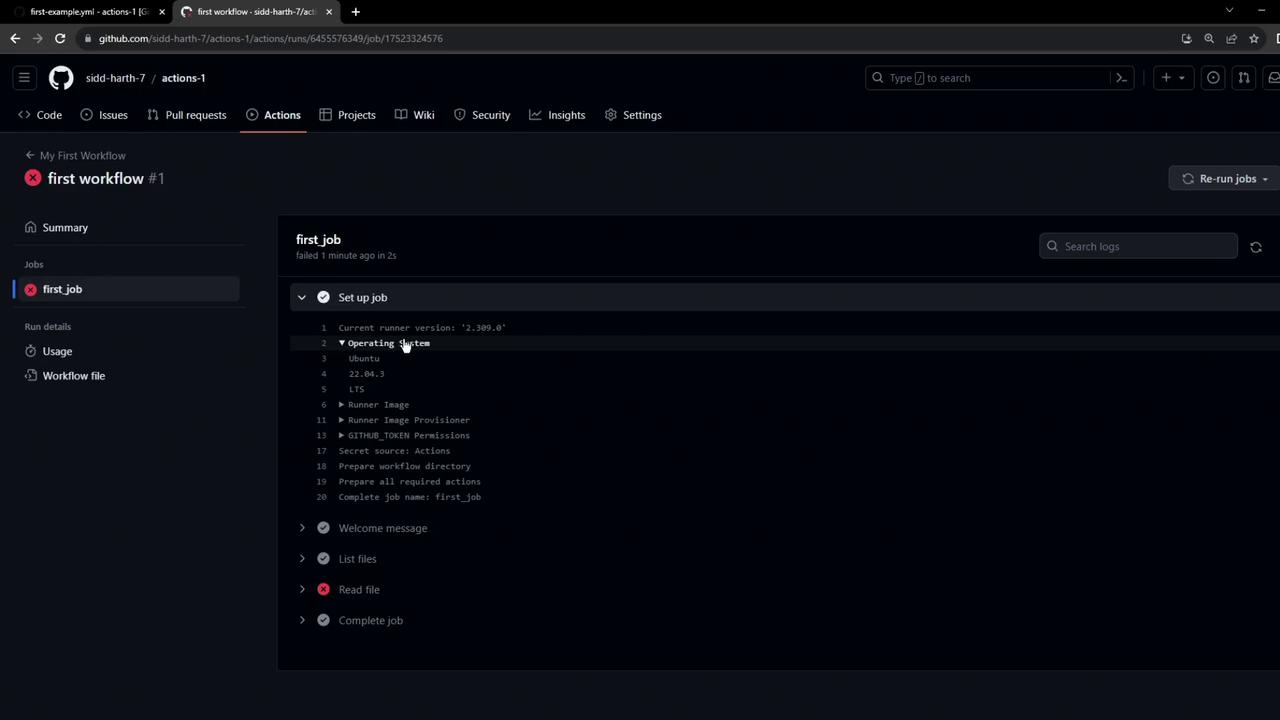
By default, the runner does not check out your repository. Without your code present, the
ls and cat commands will fail.Fixing the Checkout Step
To resolve missing files, insert the official checkout action at the top of your steps:What’s Next?
- Explore advanced GitHub Actions triggers.
- Integrate matrix builds, secrets, and environment variables.
- Deploy to cloud services using official actions for AWS, Azure, or GCP.