Azure DevOps pipelines use YAML to define build and release workflows in a human- and machine-readable format. In this guide, we’ll explore YAML essentials, step through an ASP.NET pipeline example, and demonstrate how to leverage templates for reusable CI/CD components.
YAML is both concise and clear, making it ideal for version-controlled CI/CD definitions. Learn more at the YAML Official Site . Example: ASP.NET CI/CD Pipeline Use the following ASP.NET pipeline to build, test, and package your web application. For full task details, see the Azure DevOps ASP.NET docs .
trigger : - master pool : vmImage : 'windows-latest' name : 'Default' variables : solution : '**/*.sln' buildPlatform : 'Any CPU' buildConfiguration : 'Release' steps : - task : NuGetToolInstaller@1 - task : NuGetCommand@2 inputs : restoreSolution : '$(solution)' - task : VSBuild@1 inputs : solution : '$(solution)' msbuildArgs : > - /p:DeployOnBuild=true /p:WebPublishMethod=Package /p:PackageAsSingleFile=true /p:SkipInvalidConfigurations=true /p:PackageLocation="$(build.artifactStagingDirectory)\$(Build.BuildId).zip" platform : '$(buildPlatform)' configuration : '$(buildConfiguration)' - task : VSTest@2 inputs : platform : '$(buildPlatform)' configuration : '$(buildConfiguration)'
Starter Pipeline Begin with a minimal YAML pipeline and customize it for your project:
trigger : - master pool : vmImage : 'ubuntu-latest' name : 'Default' steps : - script : echo Hello, world! displayName : 'Run a one-line script' - script : | echo Add other tasks to build, test, and deploy your project. echo See https://aka.ms/yaml displayName : 'Run a multi-line script'
Key elements:
trigger : Events that kick off the pipeline.pool : Agent selection (e.g., ubuntu-latest).steps : Tasks or scripts to execute in sequence.
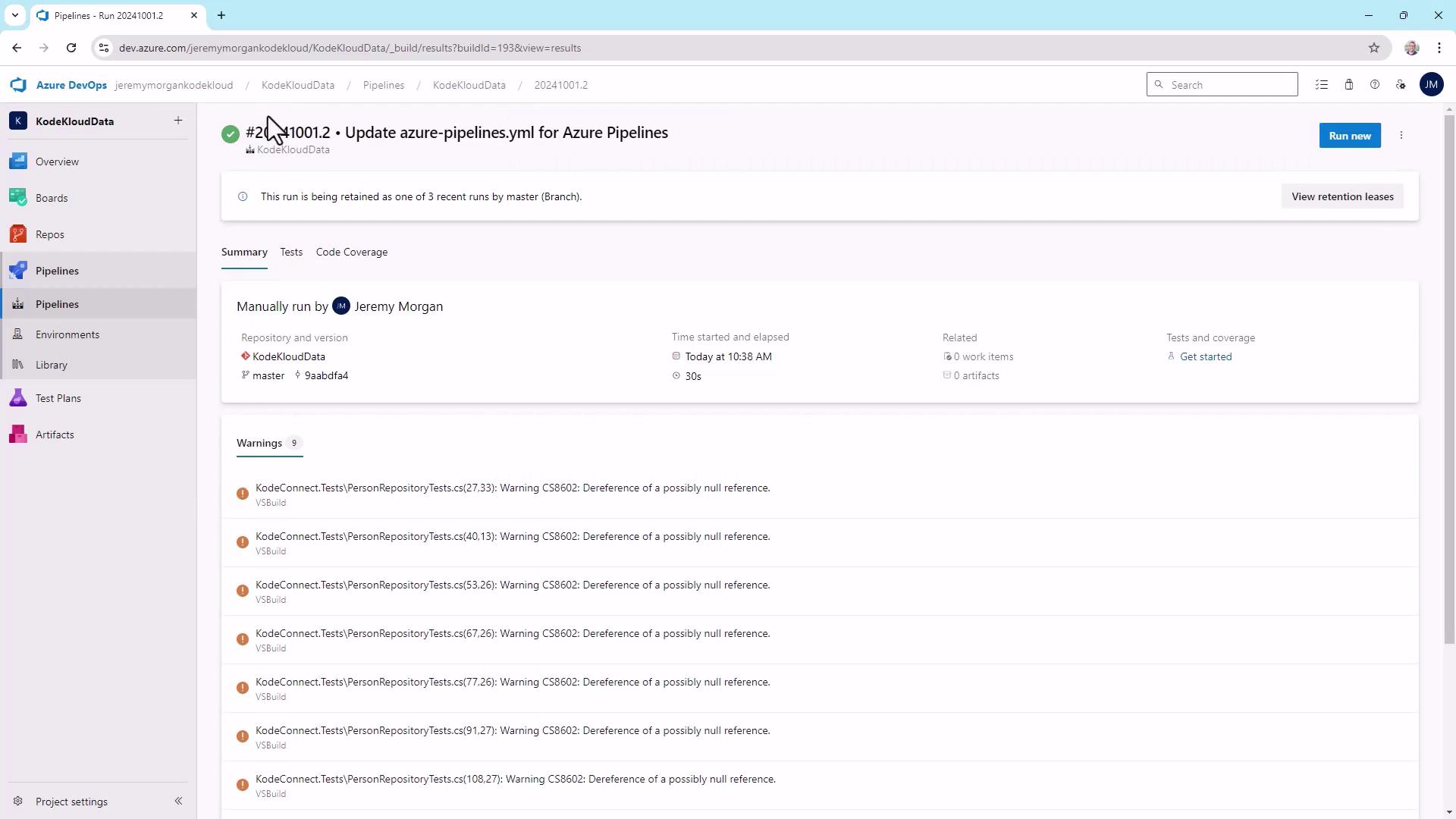
Viewing a Pipeline Run A typical Azure DevOps pipeline run reveals build warnings, repository info, branch, and elapsed time:
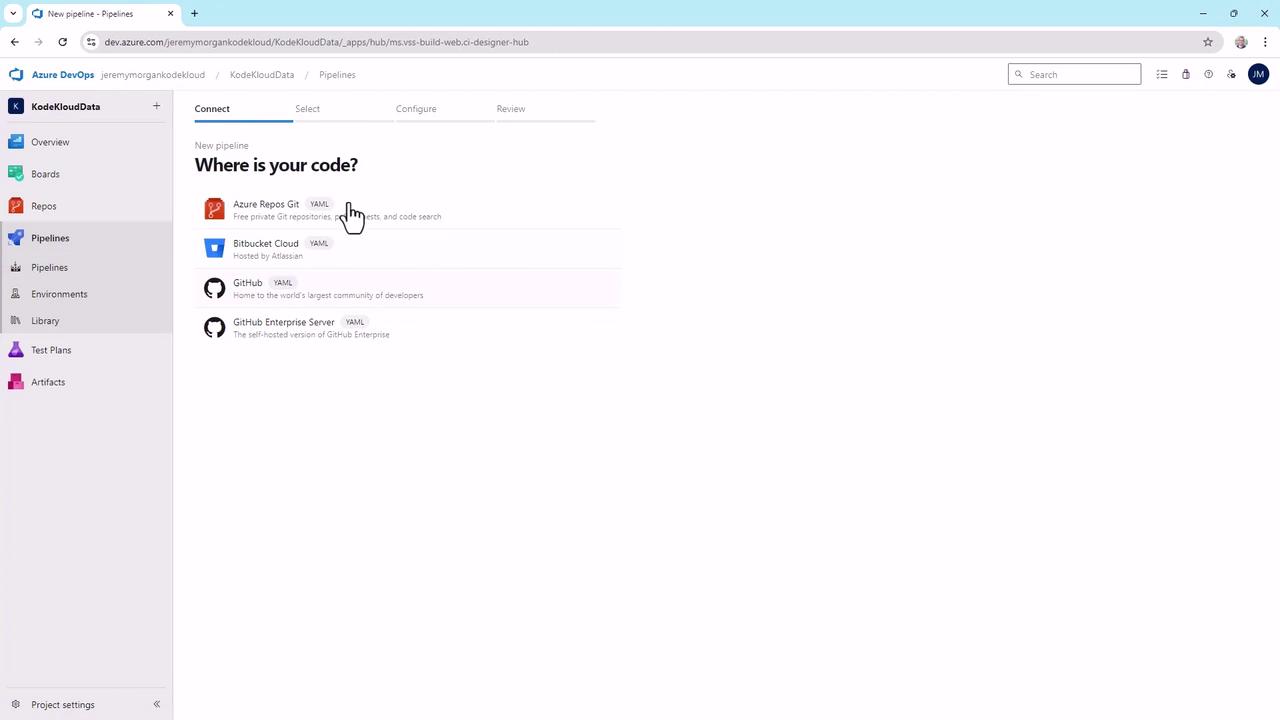
Creating a New Pipeline When you create a pipeline, select your source—Azure Repos Git, Bitbucket Cloud, GitHub, or GitHub Enterprise—and choose the Starter Pipeline for IntelliSense support:
The default YAML appears:
trigger : - master pool : vmImage : 'ubuntu-latest' name : 'Default' steps : - script : echo Hello, world! displayName : 'Run a one-line script' - script : | echo Add other tasks to build, test, and deploy your project. echo See https://aka.ms/yaml displayName : 'Run a multi-line script'
Validate and run to see output:
Starting: Run a one-line script > echo Hello, world ! Hello, world!
YAML Structure Basics YAML relies on three core constructs: key–value pairs, lists, and nested mappings. Use indentation for hierarchy and avoid tabs.
Syntax Type Description Example Key–value pair Maps a key to a single value trigger: [master]List Defines an ordered sequence fruits: [Apple, Banana, Cherry]Nested mapping Embeds mappings under a parent key pool:\n vmImage: ubuntu-latest\n name: Default
Examples:
Key–value pair:
List:
fruits : - Apple - Banana - Cherry
Nested mapping:
pool : vmImage : ubuntu-latest name : Default
Variables and Overrides Define pipeline variables at the top and allow runtime overrides:
variables : solution : '**/*.sln' buildPlatform : 'Any CPU' buildConfiguration : 'Release' pipelineRunnerName : 'DefaultUser' pipelineRunnerAge : 30 steps : - script : echo Hello, $(pipelineRunnerName)! displayName : 'Greet runner' - script : echo Runner age is $(pipelineRunnerAge) displayName : 'Show runner age'
Users can override pipelineRunnerName and pipelineRunnerAge on the Run Pipeline screen. Ensure correct defaults to avoid unexpected behavior.
Best Practices
Leverage comments to clarify intent.
Keep pipelines DRY by defining reusable variables and templates.
Organize common logic into separate files.
Applying Templates Break out common steps into parameterized or extendable templates.
Example templates:
nuget.ymlsteps : - task : NuGetToolInstaller@1 - task : NuGetCommand@2 inputs : command : 'restore' restoreSolution : '$(solution)'
build.ymlsteps : - task : VSBuild@1 inputs : solution : '$(solution)' msbuildArgs : > - /p:DeployOnBuild=true /p:WebPublishMethod=Package /p:PackageAsSingleFile=true /p:SkipInvalidConfigurations=true /p:PackageLocation="$(build.artifactStagingDirectory)" platform : '$(buildPlatform)' configuration : '$(buildConfiguration)'
test.ymlsteps : - task : VSTest@2 inputs : platform : '$(buildPlatform)' configuration : '$(buildConfiguration)'
Reference templates in your main pipeline (azure-pipelines.yml):
trigger : - master pool : vmImage : 'ubuntu-latest' name : 'Default' variables : solution : '**/*.sln' buildPlatform : 'Any CPU' buildConfiguration : 'Release' pipelineRunnerName : 'DefaultUser' pipelineRunnerAge : 30 steps : - script : echo Hello, $(pipelineRunnerName)! displayName : 'Greet runner' - template : 'nuget.yml' - template : 'build.yml' - template : 'test.yml'
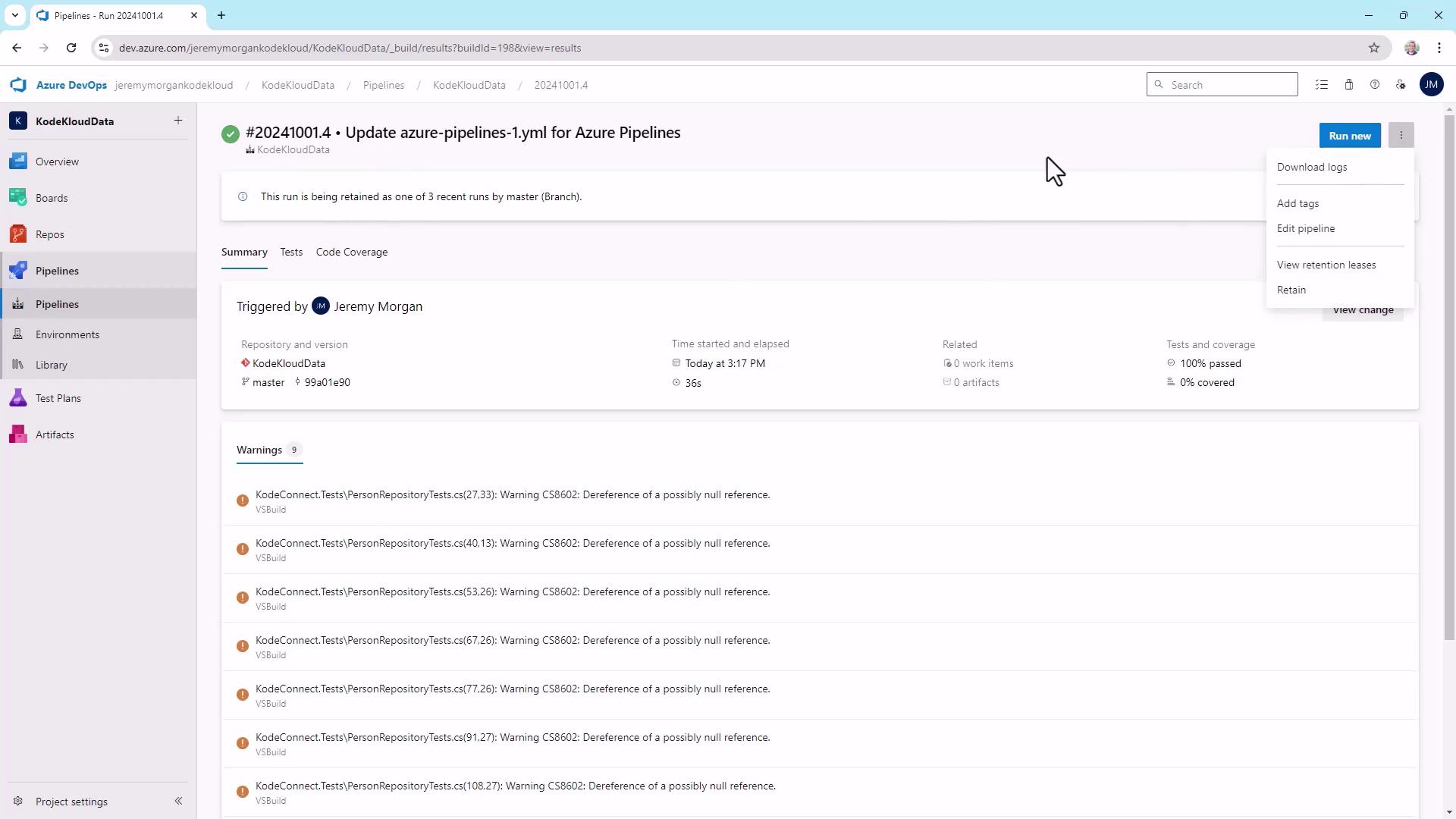
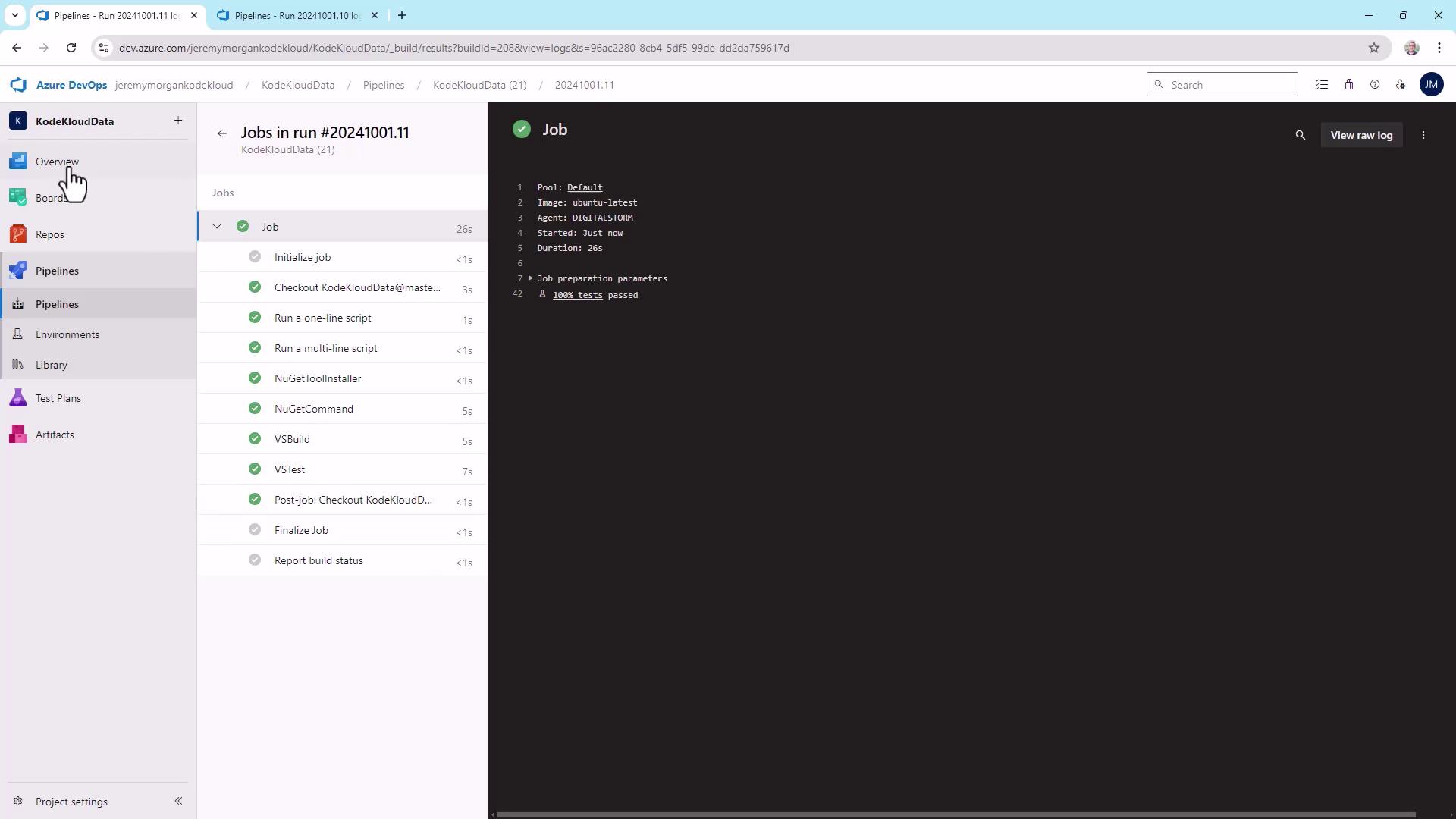
Build and Test Summaries After applying templates, review your build results in the pipeline summary:
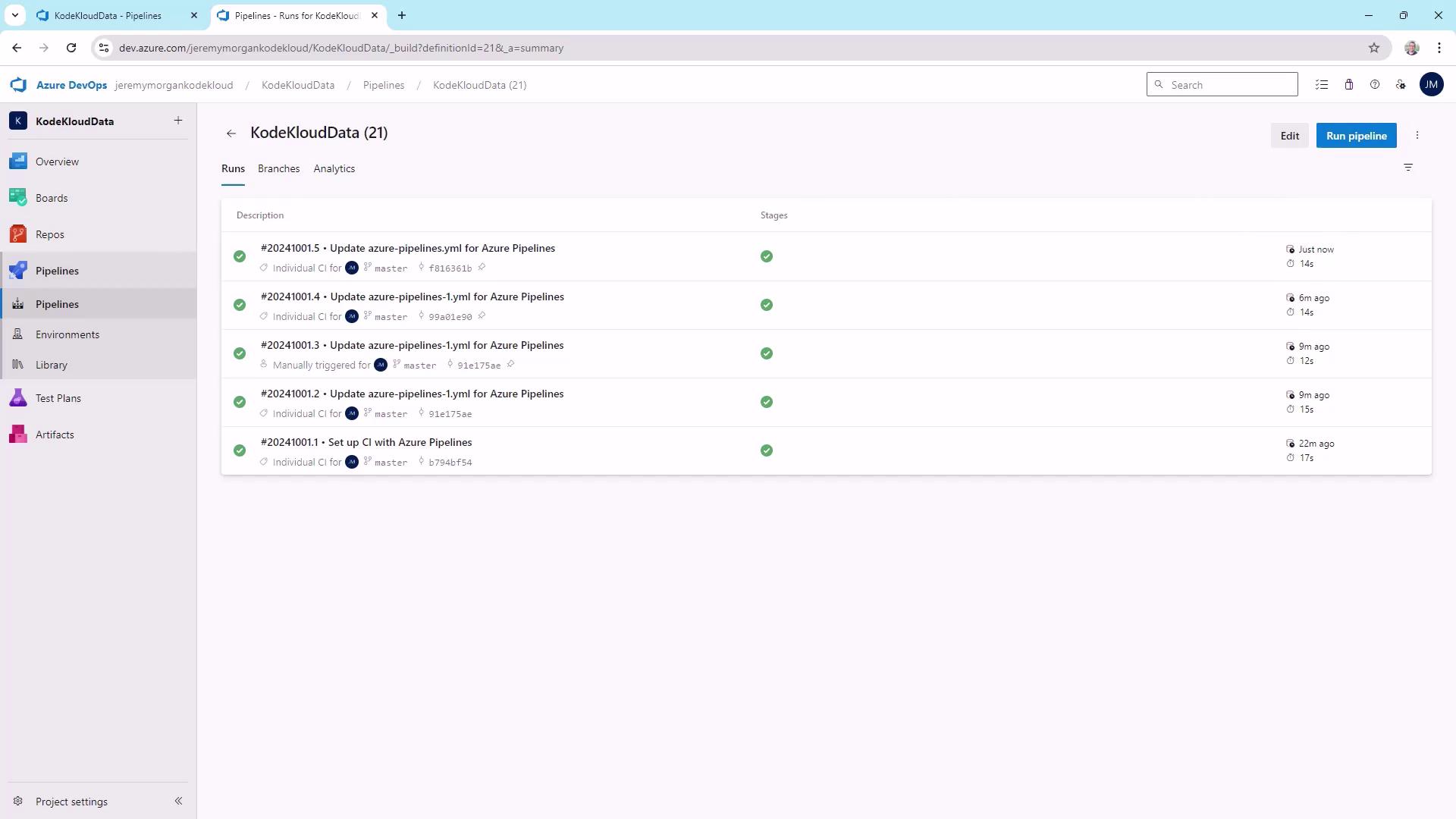
Monitor recent runs and their status:
Check detailed logs to confirm test success:
Conclusion Azure DevOps YAML templates enable modular, maintainable CI/CD pipelines. You’ve learned:
Core YAML syntax and structure
Defining variables and overrides
Extracting and reusing templates
Reviewing build and test outcomes
Experiment with these patterns to streamline your Azure DevOps workflows.
Links and References