

Prerequisites
- An existing Azure DevOps project with Azure Boards enabled
- A Git repository named Customer Portal in the same project
- Git CLI and an IDE (e.g., Visual Studio Code)
Step 1: Identify the Work Item
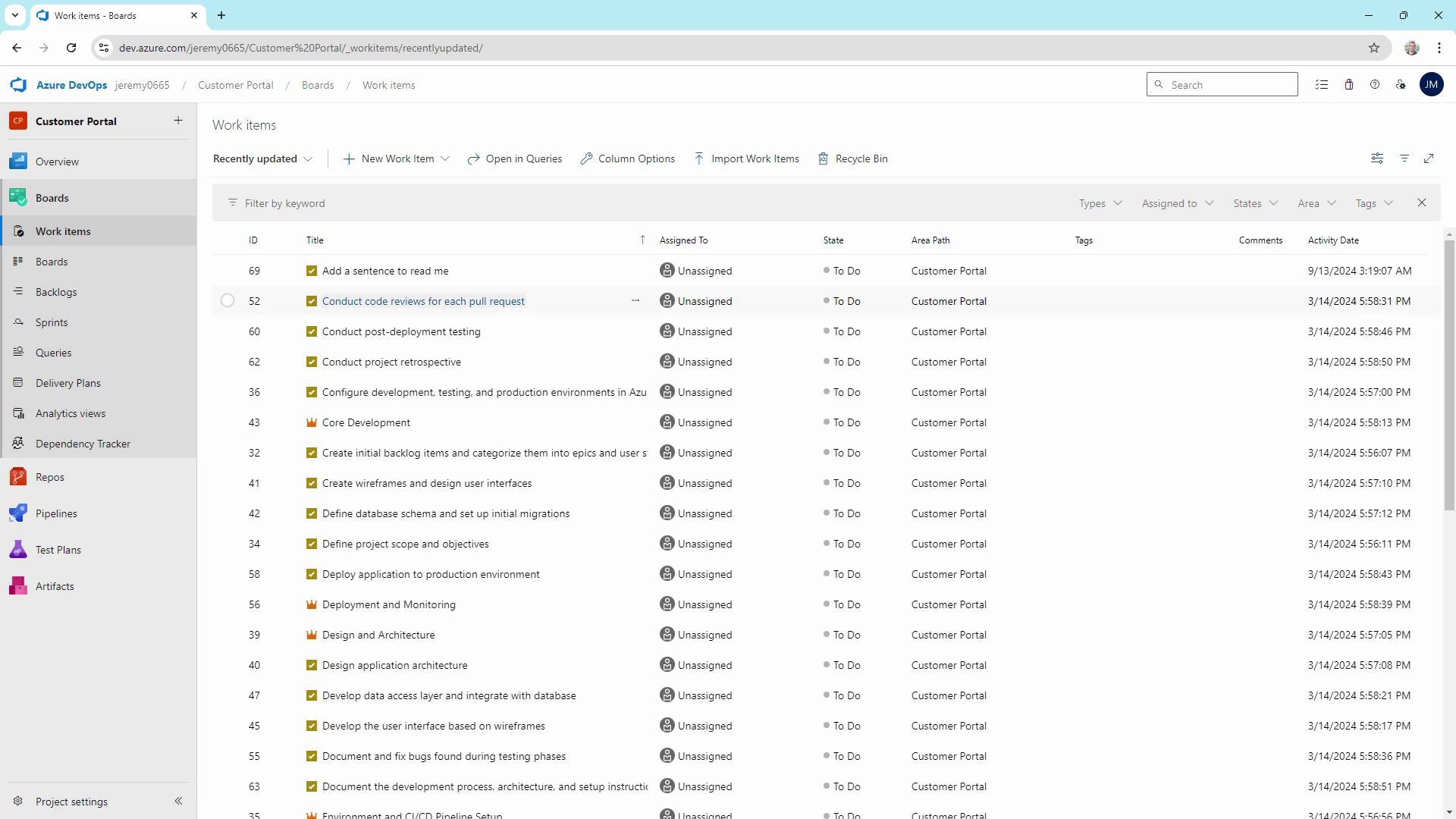
Navigate to Azure Boards and locate the work item you need to address. For this demo, our target is:- Work Item ID: 69
- Title: “Add a sentence to the README file.”
Step 2: Apply the Code Change
- Open the Customer Portal repo in your editor.
-
Edit
README.mdto add the required sentence. -
Stage your change:
Step 3: Commit with a Work Item Reference
When committing changes, include one of these keywords followed by the work item ID (#69):
- fixes
- resolves
- closes
You can also use the
Example:
AB#<ID> format in commit messages or PR descriptions to link work items.Example:
git commit -m "Update docs AB#69".Ensure your repository is connected to Azure Boards and that you have the correct permissions. Missing the
# or using an unsupported keyword will prevent the link from forming.Step 4: Verify the Link in Azure Boards
Return to the work item in Azure Boards (ID 69). In the Development section, you should see the linked commit and any associated pull requests.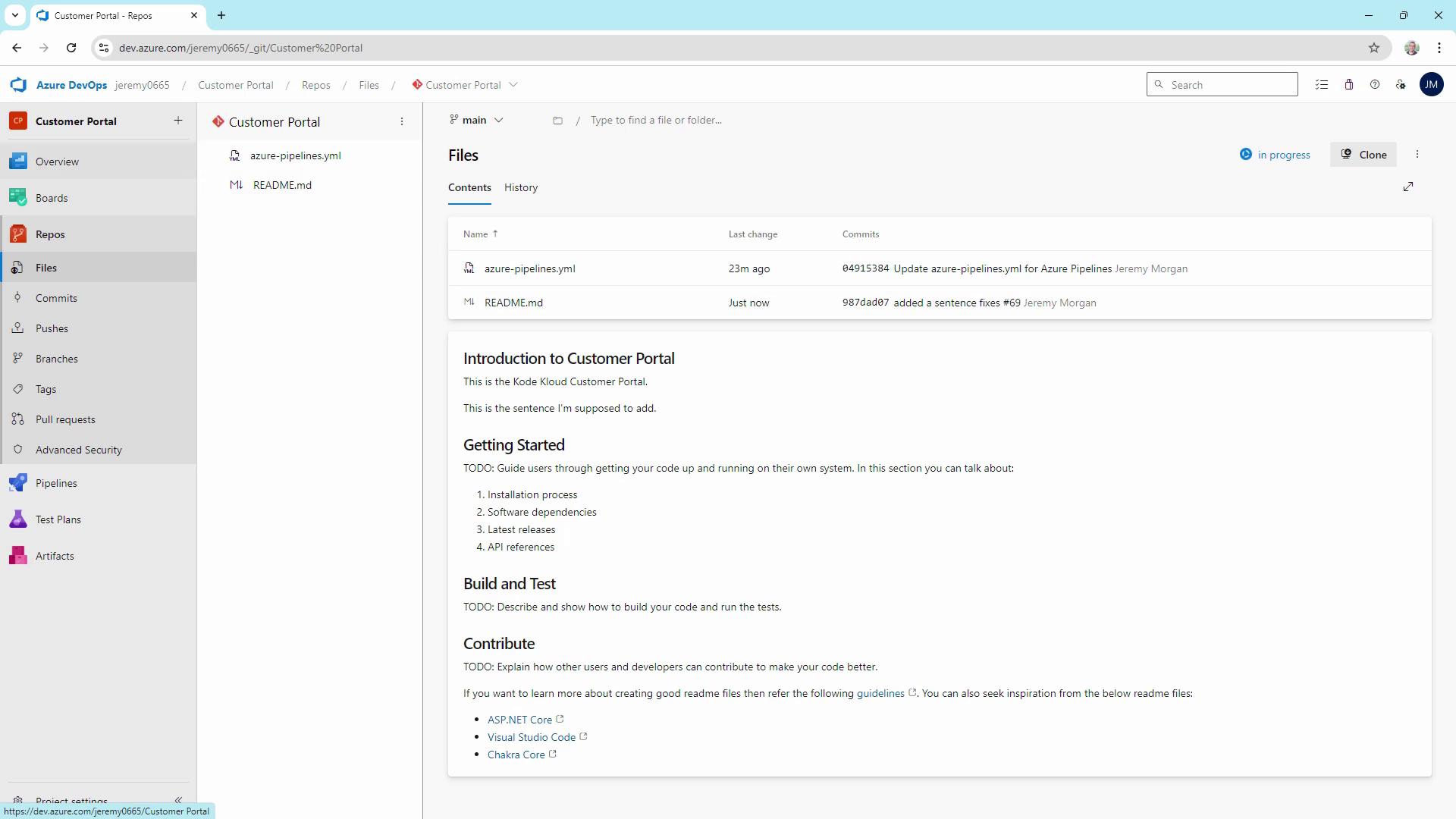
Quick Reference: Commit Keyword Table
| Keyword | Effect | Example |
|---|---|---|
| fixes | Closes work item when the commit merges | fixes #69 |
| resolves | Same as fixes | resolves #69 |
| closes | Alternative close keyword | closes #69 |
| AB# | Direct link without auto-close behavior | AB#69 |
Best Practices
- Always reference work item IDs in both commit messages and pull request descriptions for clear traceability.
- Write concise, descriptive commit messages that reflect the scope of the change.
- Regularly review the Development section in Azure Boards to confirm that links are up to date.
- Encourage your team to follow this process to maintain project transparency.