In this tutorial, you will learn how to manage rolling updates and rollbacks for Kubernetes Deployments. We’ll cover:
Creating a Deployment
Downgrading an image using kubectl edit
Updating the image with kubectl set image
Rolling back to a previous revision
Simulating and recovering from a failed rollout
1. Create the Deployment First, ensure there are no existing Pods in the default namespace:
kubectl get pods # No resources found in default namespace.
Define your Deployment in deployment.yaml:
apiVersion : apps/v1 kind : Deployment metadata : name : myapp-deployment labels : tier : frontend spec : replicas : 6 selector : matchLabels : app : myapp template : metadata : labels : app : myapp spec : containers : - name : nginx image : nginx
Create the Deployment and track its rollout:
kubectl create -f deployment.yaml --record kubectl rollout status deployment/myapp-deployment # deployment "myapp-deployment" successfully rolled out
View the rollout history:
kubectl rollout history deployment/myapp-deployment # REVISION CHANGE-CAUSE # 1 kubectl create -f deployment.yaml --record
Command Purpose kubectl create -f deployment.yaml --recordCreate Deployment and annotate the change-cause kubectl rollout status deployment/myapp-deploymentWatch the rolling update until completion kubectl rollout history deployment/myapp-deploymentList Deployment revisions and their change-cause
2. Downgrade NGINX via kubectl edit Inspect the current spec:
kubectl describe deployment myapp-deployment
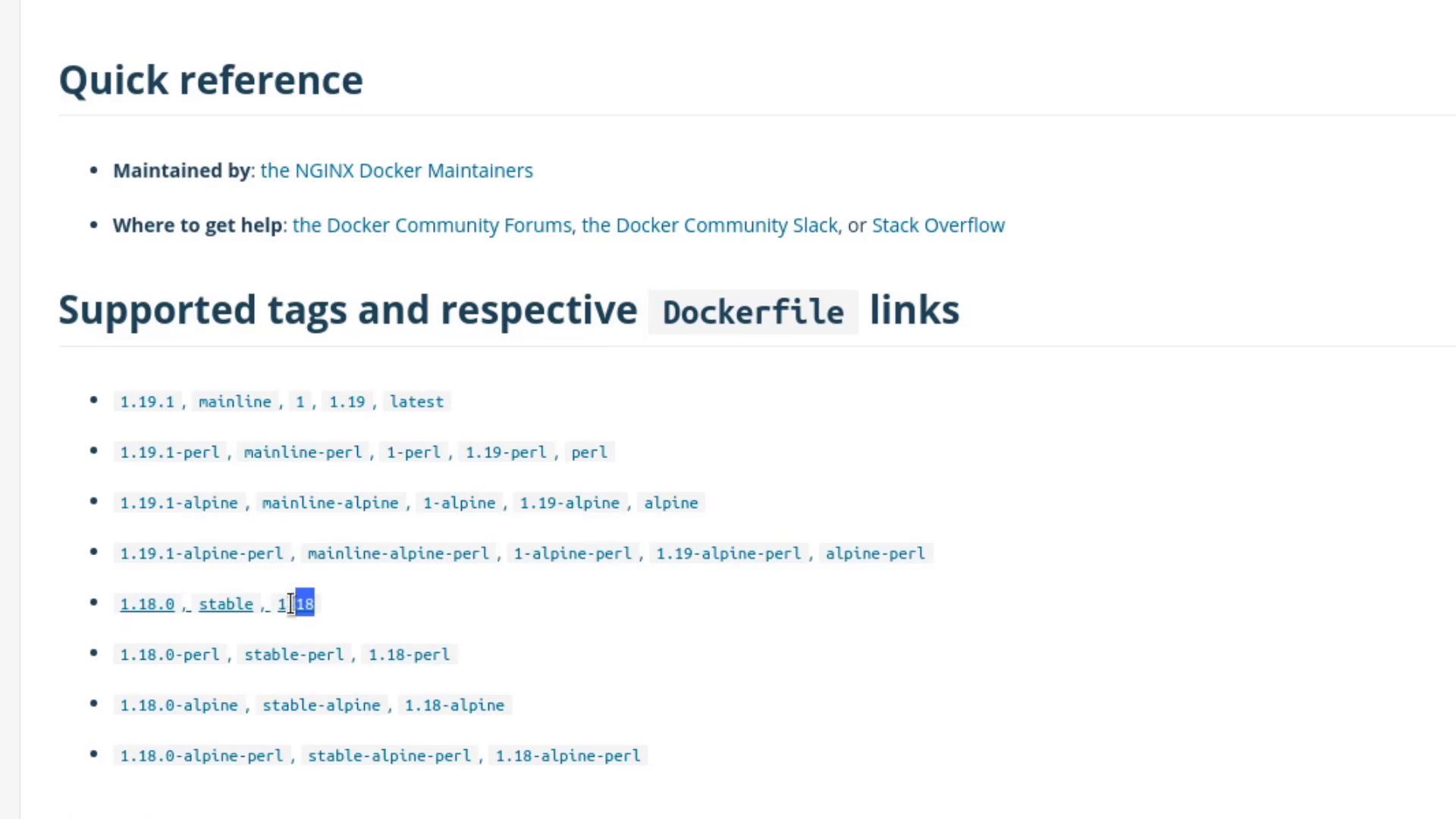
All Pods run nginx:latest by default. To downgrade to nginx:1.18:
kubectl edit deployment myapp-deployment --record
Locate the container definition and update the image tag:
containers: - name: nginx - image: nginx + image: nginx:1.18
Save and close the editor, then monitor the rollout:
kubectl rollout status deployment/myapp-deployment # deployment "myapp-deployment" successfully rolled out
Verify the annotation:
kubectl describe deployment myapp-deployment
Look under Annotations for:kubernetes.io/change-cause=kubectl edit deployment myapp-deployment --record
3. Update Using kubectl set image Alternatively, patch the image without editing YAML:
kubectl set image deployment/myapp-deployment \ nginx=nginx:1.18-perl --record kubectl rollout status deployment/myapp-deployment kubectl rollout history deployment/myapp-deployment # REVISION CHANGE-CAUSE # 1 kubectl create -f deployment.yaml --record # 2 kubectl edit deployment myapp-deployment --record # 3 kubectl set image deployment/myapp-deployment nginx=nginx:1.18-perl --record
Confirm all Pods have the updated image:
4. Roll Back to a Previous Revision If nginx:1.18-perl proves unstable, revert to revision 2 (the plain 1.18):
kubectl rollout undo deployment/myapp-deployment --to-revision=2 kubectl rollout status deployment/myapp-deployment kubectl describe deployment myapp-deployment # Container Image: nginx:1.18
5. Simulate a Failed Rollout Intentionally introduce a bad image to see rollback behavior:
kubectl edit deployment myapp-deployment --record
Change the image to an invalid tag:
containers: - name: nginx - image: nginx:1.18 + image: nginx:1.18-does-not-exist
Using a non-existent image will trigger ImagePullBackOff errors and stall the rollout.
Save and watch the rollout status:
kubectl rollout status deployment/myapp-deployment # Waiting for deployment "myapp-deployment" rollout to finish: 3 out of 6 new replicas have been updated...
Inspect Pods:
kubectl get pods # Some Pods display ImagePullBackOff while old replicas still serve traffic.
Rollback the faulty revision:
kubectl rollout undo deployment/myapp-deployment kubectl rollout status deployment/myapp-deployment kubectl get pods
All Pods should now run nginx:1.18 again.
Links and References