

Why Garbage Collection Matters
- Layers are shared across multiple images and tags.
- Deleting a tag does not free disk space immediately.
- Premature removal of shared layers can break other images.
Only image tags are removed when you delete an image in the UI. Layers stay on disk until garbage collection runs.
Configuring Garbage Collection
In the DTR UI, navigate to System → Garbage Collection. Choose one of the following schedule options:| Schedule Option | Description |
|---|---|
| Interval | Run GC at a recurring interval (e.g., daily). |
| Until done | Perform a full scan and delete all unreferenced layers. |
| Fixed duration | Run GC for a specified number of minutes. |
| Never | Disable GC; disk usage will continue to grow. |
Garbage collection is CPU- and I/O-intensive. Schedule it during off-peak hours to minimize performance impact.
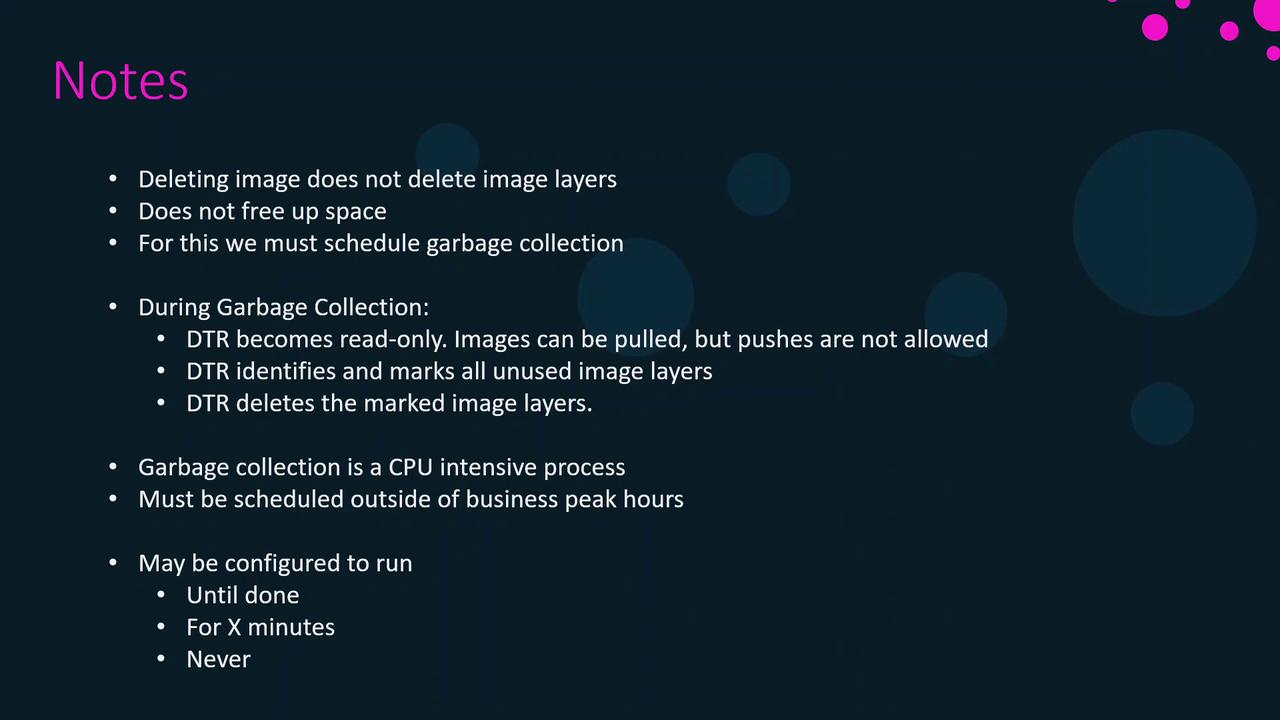
Garbage Collection Workflow
- Read-only mode
DTR blocks image pushes and modifications; pulls remain allowed. - Marking
DTR scans for unreferenced layers and marks them. - Deletion
DTR deletes the marked layers, reclaiming disk space.