In this lesson, we’ll dive into Docker Hub and walk through essential image operations using both the web interface and Docker CLI. You’ll learn how to find, pull, tag, push, inspect, save, and remove images efficiently.

1. Exploring Docker Hub

Open your browser and go to hub.docker.com.
If you don’t have a Docker Hub account yet, sign up now—you’ll need it to push images later.
Docker Hub classifies images into three categories:
Resource TypeDescriptionIdentifier Example
Official imagesMaintained by Docker; carries an official badgehttpd
Verified publisher imagesProvided by ecosystem partners; marked verifiedpuppet/puppet-agent
Community (user) imagesUploaded by users; named with username/imagenameyogeshraheja/wordpress
Search for the Apache HTTP Server image (httpd) and click httpd. You’ll see:
  • Supported Tags: Available versions (e.g., latest, alpine).
  • Dockerfile links: How the image is built.
  • Quick info on architectures, update history, and help resources.
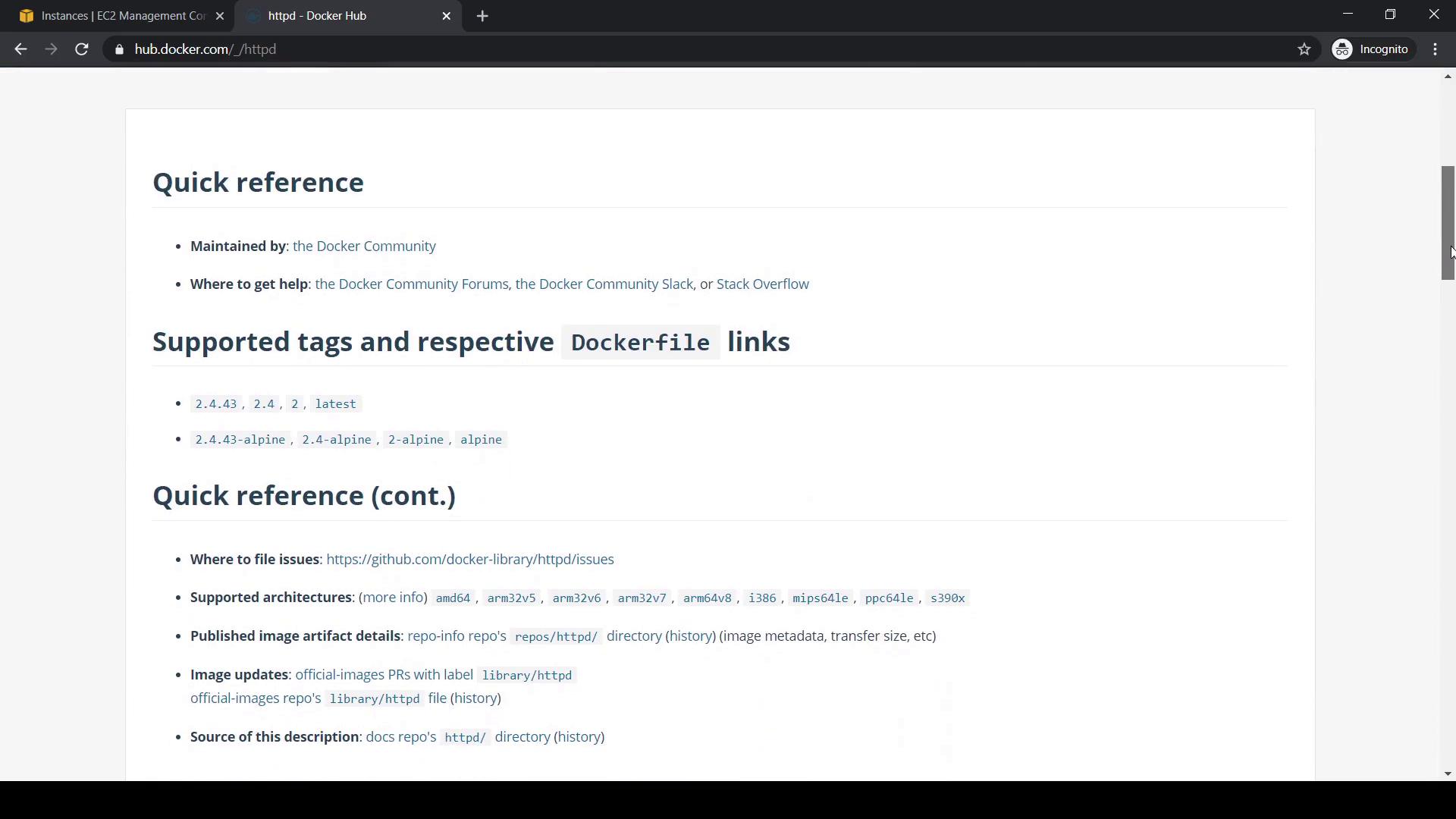
The image shows a webpage from Docker Hub, specifically the HTTPD repository, detailing quick reference information, supported tags, and Dockerfile links. It includes sections on where to get help, supported architectures, and image update details.

2. Listing and Pulling Images Locally

First, see which images are already on your host:
docker image ls
Sample output:
REPOSITORY   TAG       IMAGE ID       CREATED        SIZE
ubuntu       latest    1d622ef86b13   10 days ago    73.9MB
Pull the default HTTPD image (httpd:latest):
docker pull httpd
Verify it’s downloaded:
docker image ls

3. Searching Images via CLI

Instead of the web UI, search Docker Hub from your terminal:
docker search httpd
To refine results:
docker search --limit 2 httpd
docker search --filter stars=10 httpd
docker search --filter stars=10 --filter is-official=true httpd

4. Pulling Specific Tags and Tagging Images

Grab the Alpine-based HTTPD variant:
docker pull httpd:alpine
Verify both images:
docker image ls
Tag httpd:alpine locally:
docker image tag httpd:alpine httpd:kodekloudv1
docker image ls
Both tags share the same IMAGE ID and SIZE, since they reference the same layers.

5. Checking Disk Usage

Assess disk space consumed by images, containers, and volumes:
docker system df

6. Pushing Images to Docker Hub

  1. Log in to Docker Hub:
    docker login
    
  2. Retag your image with your Docker Hub username (replace <username>):
    docker tag httpd:kodekloudv1 <username>/httpd:kodekloudv1
    
  3. Push the image:
    docker push <username>/httpd:kodekloudv1
    
If you try docker push httpd:kodekloudv1 without your username, you’ll get an “access denied” error. Always retag with your Docker Hub namespace.
After a successful push, confirm locally:
docker image ls
You should see:
REPOSITORY                 TAG           IMAGE ID       CREATED        SIZE
<username>/httpd           kodekloudv1   eee6a6a3a3c9   9 days ago     107MB
On Docker Hub, navigate to your repositories to view it.

7. Removing Images

Locally

Remove a single tag:
docker image rm httpd:kodekloudv1
If the image ID is still referenced by other tags, remove all of them:
docker image rm httpd:alpine
docker image rm <username>/httpd:kodekloudv1
Confirm removal:
docker image ls

On Docker Hub

  1. Sign in to Docker Hub and go to your account.
  2. Select the repository to delete.
  3. Click SettingsDelete Repository.
  4. Type the repository name to confirm.

8. Inspecting and Exploring Images

  • View an image’s layer history:
    docker image history ubuntu
    
  • Inspect detailed metadata:
    docker image inspect httpd
    

9. Saving and Loading Images

Export an image to a tarball:
docker image save alpine:latest -o alpine-latest.tar
Remove the local image:
docker image rm alpine:latest
Load it back:
docker image load -i alpine-latest.tar
This is useful for air-gapped or offline transfers.

10. Exporting and Importing a Container Filesystem

  1. Run a container:
    docker container run -itd --name test alpine
    
  2. Export its filesystem:
    docker export test > test-container.tar
    
  3. Import as a new image:
    docker image import test-container.tar test-image:latest
    
  4. Verify:
    docker image ls
    

That covers image registry and operations with Docker Hub and CLI. Happy Dockering!