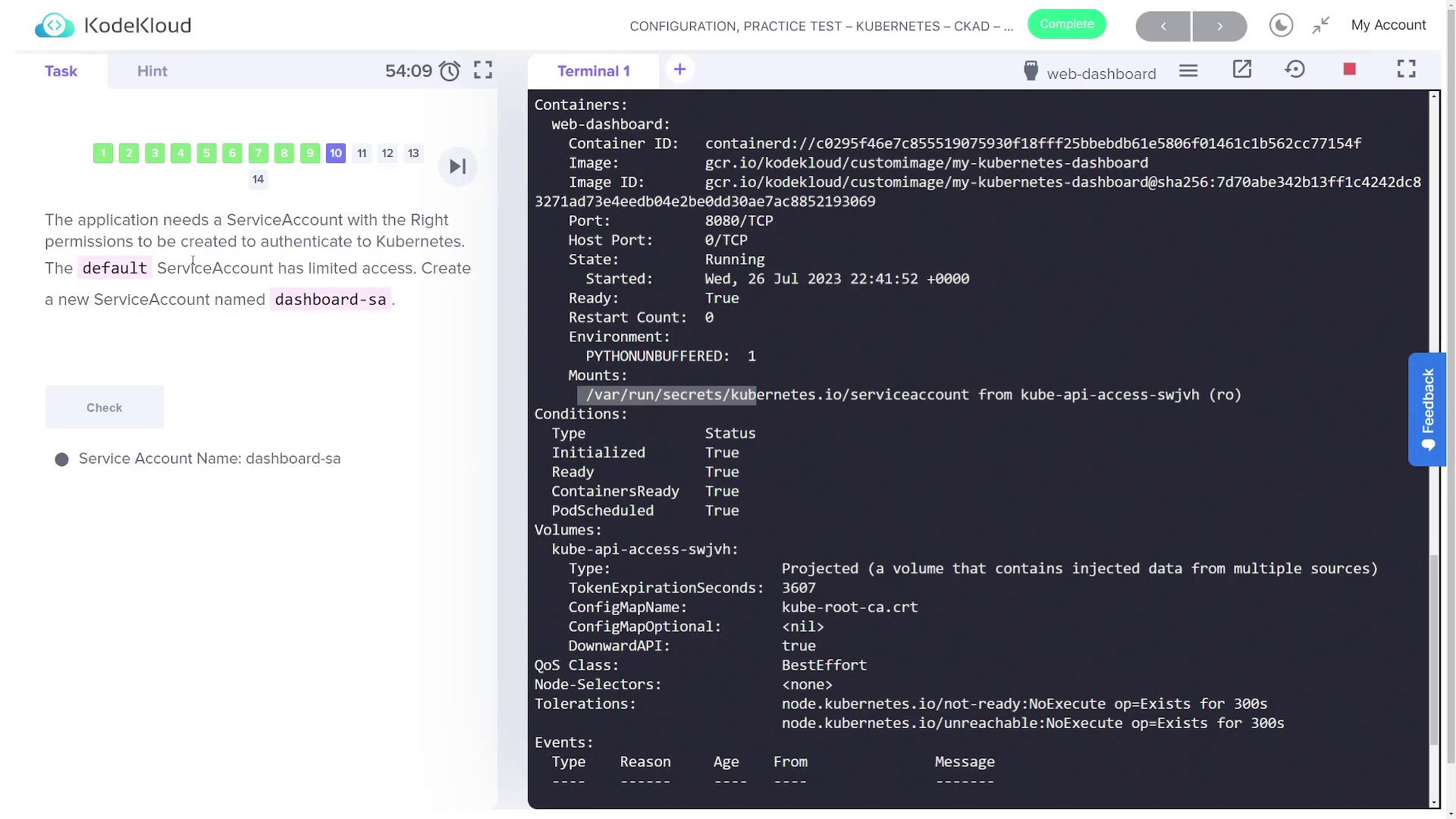
This guide explores using service accounts for a Kubernetes Dashboard application, including listing accounts, inspecting tokens, and creating a new account with RBAC permissions.
In this guide, we’ll explore the usage of service accounts for a Kubernetes Dashboard application. We will walk through listing service accounts, inspecting tokens and deployments, and finally creating a new service account with proper RBAC permissions for secure access.
Begin by checking how many service accounts exist in the default namespace. The shortened command below leverages “sa” as an abbreviation for service accounts:
Copy
Ask AI
kubectl get sa
The output will look similar to:
Copy
Ask AI
NAME SECRETS AGEdefault 0 20mdev 0 35s
This indicates that two service accounts are available in the default namespace: one called default and another called dev.
After deploying the Kubernetes Dashboard, inspect its deployment to understand the configuration:
List the current deployments with:
Copy
Ask AI
kubectl get deployments
Describe the specific web-dashboard deployment:
Copy
Ask AI
kubectl describe deployment web-dashboard
Within the output, locate the Pod Template section. Under Containers, details such as the container image are provided, and the deployment process waits for the new pod to be ready. At times, you might see an error like:
Copy
Ask AI
pods is forbidden: User "system:serviceaccount:default:default" cannot list resource "pods" in API group "" in the namespace "default"
This error confirms that the default service account does not have the necessary permissions. We will address this later.
To ensure that the dashboard pod is running correctly, first verify the deployment status:
Copy
Ask AI
kubectl get deployment
The expected output should show something similar to:
Copy
Ask AI
NAME READY UP-TO-DATE AVAILABLE AGEweb-dashboard 1/1 1 1 20s
Next, review the deployment in detail:
Copy
Ask AI
kubectl describe deployment web-dashboard
This command outputs crucial details including container image, environment variables, and events. Even if error messages (such as forbidden access to pods) appear, they are expected since the default service account is in use.
Step 5: Identifying the Service Account Used by the Dashboard
Review the logs where you encounter the error message:
Copy
Ask AI
pods is forbidden: User "system:serviceaccount:default:default" cannot list resource "pods" in API group "" in the namespace "default"
This message confirms that the Dashboard application is currently using the default service account to query the Kubernetes API. This is insufficient for the required permissions.
Step 8: Generating a Token for the New Service Account
Generate a token for dashboard-sa for automated authentication with the Kubernetes API:
Copy
Ask AI
kubectl create token dashboard-sa
This command will output a token string. Copy the token and use it to authenticate via the Dashboard application UI. With this token, the application gains the required permissions to successfully list all pods running in the cluster.
Step 9: Updating the Deployment to Use the New Service Account
Instead of manually entering a token, update the Dashboard deployment to automatically use the new dashboard-sa service account.
Export the current deployment configuration to a YAML file:
Copy
Ask AI
kubectl get deployment web-dashboard -o yaml > dashboard.yaml
Edit the dashboard.yaml file. Locate the pod specification (under the pod template, not the Deployment spec) and add or update the field as follows:
Copy
Ask AI
spec: serviceAccountName: dashboard-sa
Save the file and apply the updated configuration:
Copy
Ask AI
kubectl apply -f dashboard.yaml
After the changes, validate by listing the deployments again:
Copy
Ask AI
kubectl get deployments
Finally, refresh the Dashboard application in your browser (e.g., Ctrl+R). The new service account should automatically mount its token, eliminating the need for manual token entry.
This guide demonstrated how to inspect and modify service accounts and their associated RBAC permissions for a Kubernetes Dashboard application. By creating a new dashboard-sa service account, generating a token, and updating deployment configurations, you can secure access and ensure that your Dashboard can communicate effectively with the Kubernetes API.