

Question 1 – Create a Pod with Three Containers
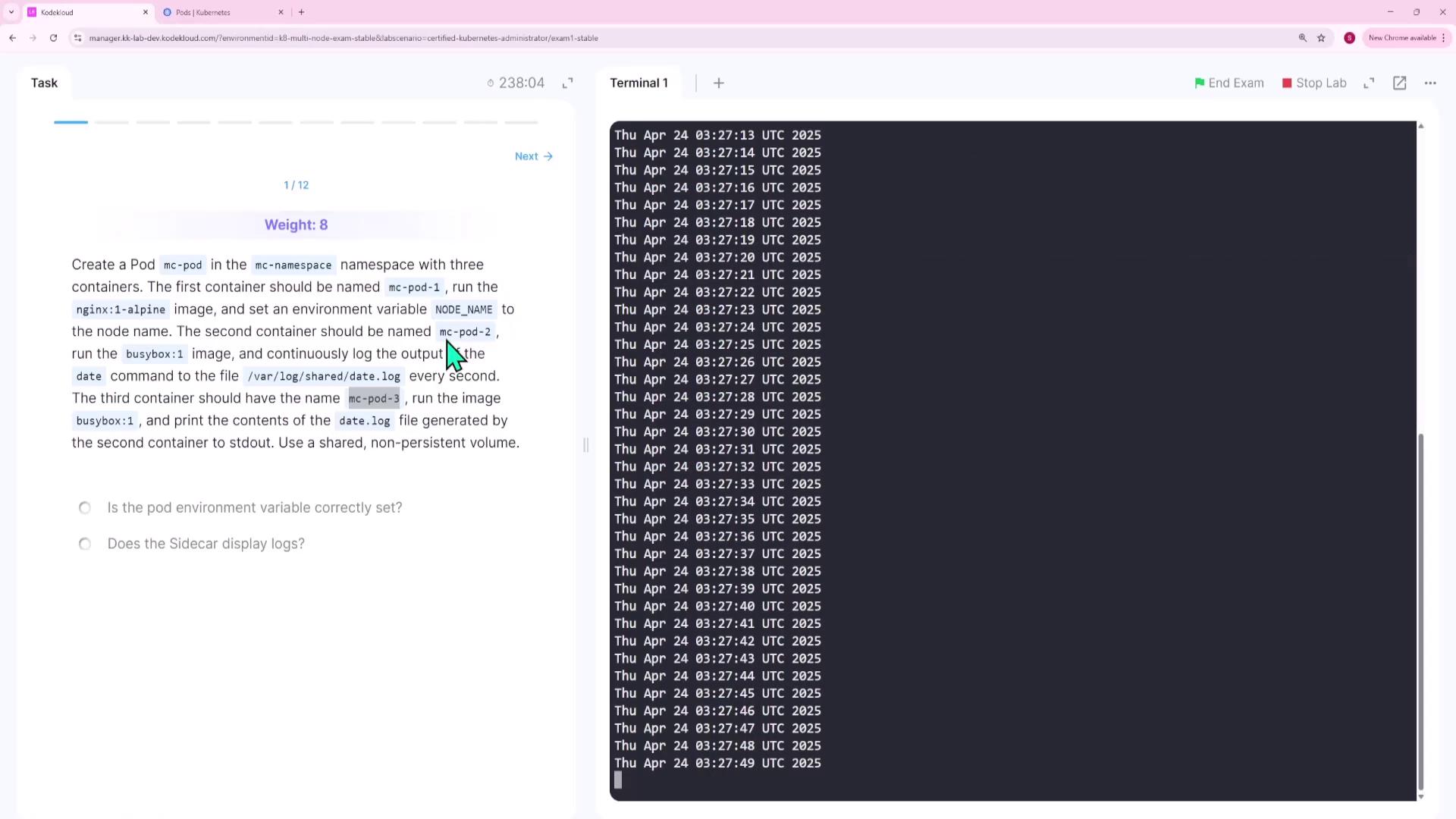
You must create a pod named mc-pod in the MC namespace that includes three containers. You can either consult the documentation for an example pod configuration or use an imperative command withkubectl run and then modify the generated YAML file.
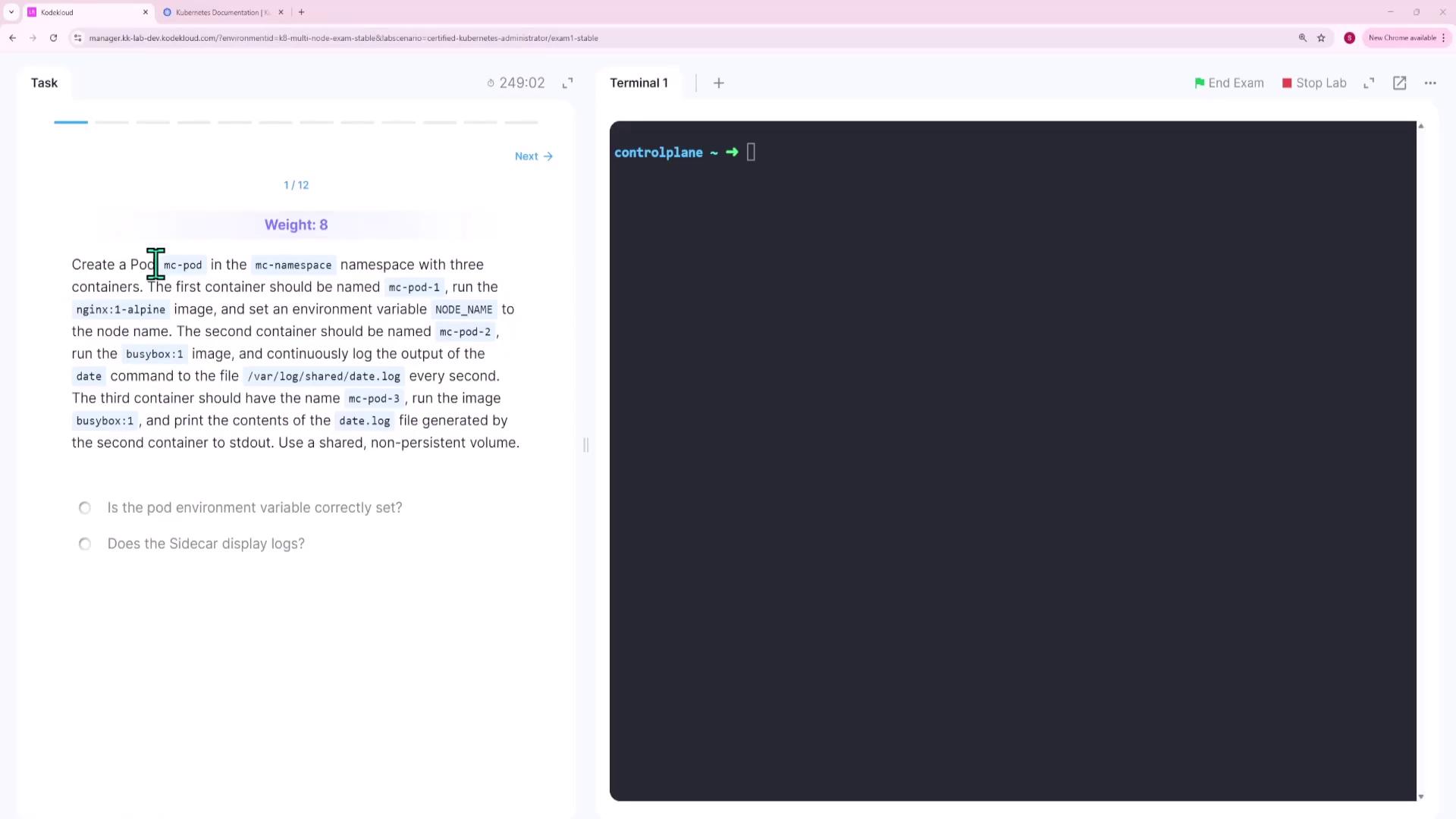
kubectl run with the --overrides flag to add container definitions. The --dry-run=client flag outputs the YAML for further editing:
- Rename the pod: Change its name to mc-pod (and remove unnecessary labels and creation timestamps).
-
Update the first container: Rename it to mc-pod-1 and inject an environment variable (
NODE_NAME) whose value is dynamically set from thespec.nodeNamefield. The YAML snippet becomes: -
Define the second container: Use the
busybox:1image with the following command: -
Define the third container: Use the
busybox:1image to tail the shared log file: -
Add a shared volume: Since containers 2 and 3 need to share the same filesystem, add a non-persistent volume using
emptyDirand mount it on/var/log/sharedfor both containers. The final YAML is:
Question 2 – Prepare Node One for Kubernetes
For this task, you will perform several actions on node one.-
SSH into node one using the provided credentials:
-
Switch to the root user (if necessary):
-
Navigate to the
/rootdirectory and locate the CRI Docker package (e.g.,cri-docker_0.3.16.3-0.debian.deb). -
Install the CRI Docker package:
-
Start the CRI Docker service:
-
Verify the service status:
-
Enable the service to start on boot:
If you encounter any issues with the service, recheck the installation and confirm your package file’s integrity.
Question 3 – Save Vertical Pod Autoscaler CRDs
On the control plane node, list all Custom Resource Definitions (CRDs) related to the Vertical Pod Autoscaler and save their names to /root/vpa-crds.txt.-
Retrieve all CRDs and filter for “vertical”:
Expected output:
-
Save the CRD names to a file named /root/vpa-crds.txt. The file should include:
Question 4 – Create a Service for the Messaging Application
Expose the messaging application by creating a service named messaging-service on port 6379 within the cluster.-
Verify that the messaging pod is running:
-
Expose the messaging pod:
-
Confirm the service creation by describing it:
Question 5 – Create a Deployment for the HR Web Application
Create a deployment named hr-web-app using the imagekodekloud/webapp-color with two replicas.
-
Run the following command:
-
Verify the deployment status:
Question 6 – Fix the Faulty Init Container in the Orange Pod
The pod named orange is failing because its init container is crashing with exit code 127 due to a typo in the command (sleeep instead of sleep).
-
Inspect the pod logs to identify the error:
Expected error output:
-
Retrieve the pod configuration and save it to a file:
-
Edit the file
question6.yamlto correct the command in the init container. Modify the snippet to: -
Force update the pod with the corrected configuration:
- Verify the pod status to ensure it transitions to a running state and the init container completes successfully.
Question 7 – Expose HR Web App via a NodePort Service
Expose the hr-web-app deployment as a service named hr-web-app-service to make it accessible on port 30082 from the nodes. Note that the web application listens internally on port 8080.-
Generate a NodePort service configuration with dry-run:
-
Edit
question7.yamlto include thenodePort: 30082under the ports section as shown below: -
Apply the updated service configuration:
-
Verify the service details:
Question 8 – Create a Persistent Volume
Create a persistent volume named pv-analytics with the following specifications:- Capacity: 100Mi
- Access Mode: ReadWriteMany
- Type: hostPath using the directory
/pv/data-analytics
-
Create a YAML file (e.g.,
question8.yaml) with the following content: -
Apply the configuration:
-
Verify that the persistent volume is available:
Question 9 – Create a Horizontal Pod Autoscaler (HPA)
Create an HPA for the deployment kkapp-deploy in the default namespace with the following configuration:- CPU Utilization: Maintain an average of 50%
- Replicas: Scale between 2 and 10 pods
- Stabilization Window: 300 seconds when scaling down
-
Prepare a YAML file (e.g.,
webapp-hpa.yaml) with this content: -
Apply the HPA configuration:
-
Check the HPA status:
Question 10 – Create a Vertical Pod Autoscaler (VPA)
Create a Vertical Pod Autoscaler that automatically adjusts CPU and memory requests for the deployment analytics-deployment in the default namespace. The VPA should run in auto mode.-
Create a YAML file (e.g.,
question10.yaml) with the following content: -
Apply the VPA configuration:
-
Verify that the VPA has been created:
Question 11 – Create a Kubernetes Gateway Resource
Create a Gateway resource for the web application.-
Create a YAML file (e.g.,
question11.yaml) with the following content: -
Apply the gateway configuration:
-
Verify that the Gateway resource is available in the
nginx-gatewaynamespace:
Question 12 – Update a Helm Chart Deployment
A coworker deployed an NGINX Helm chart called kk-dash-mock-one in the kk-dash-ns namespace. An update to the chart is available, and you need to update the Helm repository and upgrade the release to version 18.1.15.-
List the current Helm releases in the concerned namespace:
-
Check your chart repositories:
-
Update all repositories to fetch the latest chart versions:
-
Search the repository for available versions of the NGINX chart:
-
Upgrade the release with the specified chart version:
-
Verify the upgrade by listing the release again:
By following these detailed steps and verifying each component with the respective
kubectl and helm commands, you will successfully complete all the tasks for Mock Exam 1.