

k) paired with bash auto-completion, along with preinstalled utilities such as JQ, TMUX, curl, wget, and man. These settings are designed to streamline your exam experience.
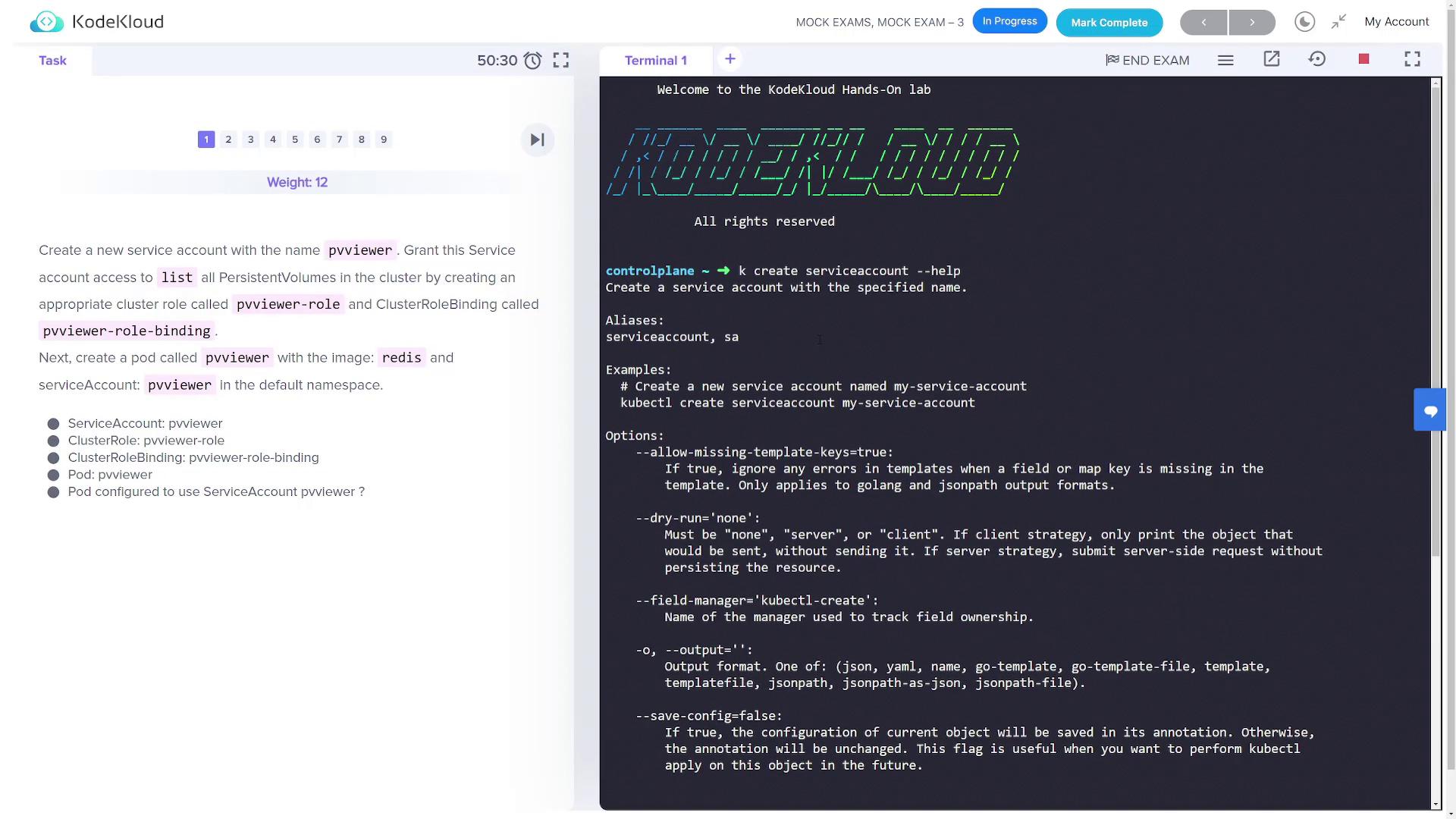
Task 1: Create a Service Account, Cluster Role, and Pod
In this task, you will create a service account, a cluster role (with permissions to list persistent volumes), a cluster role binding, and finally, deploy a pod using the Redis image with the created service account.Step 1.1: Create the Service Account
Create a service account namedpvviewer and verify its creation:
The output should list the
pvviewer service account, confirming its successful creation.Step 1.2: Create the Cluster Role
Check the available options for creating a cluster role:pvviewer-role to allow listing persistent volumes:
Step 1.3: Bind the Role to the Service Account
Bind the newly created role to thepvviewer service account in the default namespace:
Ensure the binding output confirms that the
pvviewer service account is correctly associated with the pvviewer-role.Step 1.4: Create the Pod
Since thekubectl run command might not support the service account flag in all versions, start by generating a YAML manifest, update it to specify the service account, and then deploy the pod.
Generate the YAML file:
pvviewer.yaml to include the serviceAccountName field. The file should resemble:
Task 2: List Internal IPs of All Nodes
Your objective is to list the internal IP addresses of every node and save the output to/root/CKA/node_ips in the format shown below:
Step 2.1: Verify Node Details
List nodes with extended information:Step 2.2: Extract the Internal IP Addresses
Use JSONPath to extract theInternalIP addresses and write them to the file:
Task 3: Create a Multi-Container Pod
You will deploy a pod namedmulti-pod containing two containers. The first container, “alpha”, will use the NGINX image, and the second container, “beta”, will use the busybox image to run the command sleep 4800. Both containers will have environment variables assigned.
Step 3.1: Generate and Edit the Pod Manifest
Generate the initial YAML manifest:multipod.yaml to include a second container and the required environment variables:
Ensure that both containers are correctly configured with their respective commands and environment variables.
Task 4: Create a Non-root Pod
Deploy a pod namednon-root-pod using the redis:alpine image. This pod must run as a non-root user (user ID 1000) with the file system group set to 2000.
Step 4.1: Generate and Edit the YAML Manifest
Generate the YAML manifest:Task 5: Create a Network Policy for Service Ingress
A predeployed pod (np-test-1) and a service (np-test-service) are experiencing connection issues on port 80. To resolve this, you need to create a network policy named ingress-to-nptest that permits ingress traffic on TCP port 80.
Step 5.1: Verify Existing Resources
Confirm that the pod and service exist:Step 5.2: Test Connectivity
Launch a temporary pod with curl to test connectivity:Step 5.3: Create the Network Policy
Create a file namednetwork-policy.yaml with the following content. Ensure the pod selector label matches that of np-test-1:
Task 6: Use Taints and Tolerations for Pod Scheduling
Part 6.1: Taint a Node and Create a Dev Pod
Firstly, taint the worker node (node01) with the key env_type, value production, and effect NoSchedule so that workloads without the appropriate toleration cannot be scheduled on it:
dev-redis using the Redis Alpine image without specifying any toleration:
Verify that the
dev-redis pod is not scheduled on node01 due to the applied taint.Part 6.2: Create a Production Pod with a Toleration
Now create a pod namedprod-redis that tolerates the taint and can be scheduled on node01.
Generate the manifest:
prod-redis.yaml to add the toleration:
The
prod-redis pod should now be scheduled on node01 since it tolerates the taint.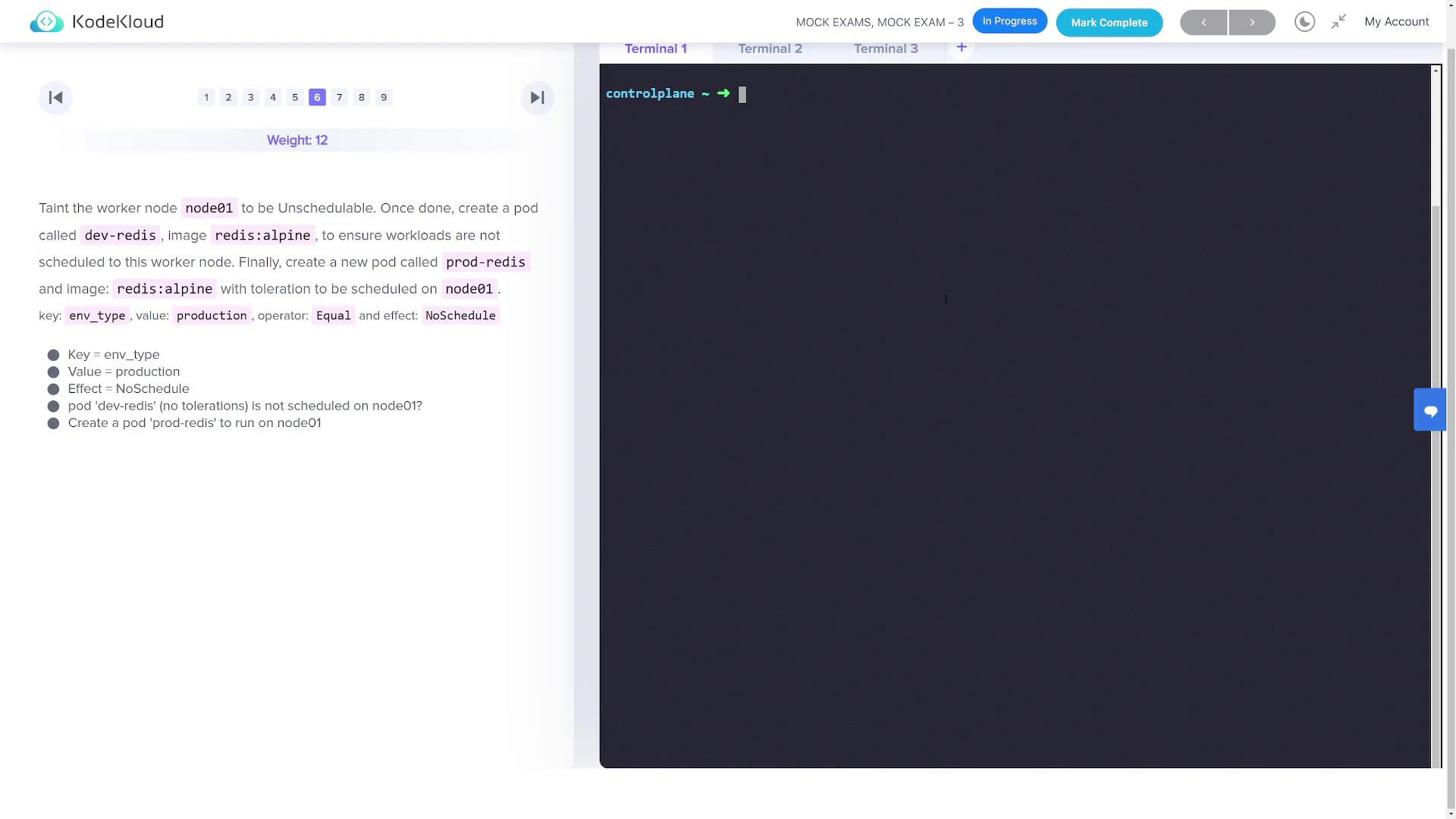
Task 7: Create a Pod in the HR Namespace with Specific Labels
Deploy a pod namedhr-pod in a new namespace hr using the Redis Alpine image. The pod should include the labels environment=production and tier=front-end.
Step 7.1: Create the Namespace
Create thehr namespace:
Step 7.2: Deploy the Pod with Labels
Deploy the pod in thehr namespace with the required labels:
Task 8: Fix the Kubeconfig File (super.kubeconfig)
A misconfigured kubeconfig file namedsuper.kubeconfig is located in /root/CKA/. When using it via the command below, you may encounter connection errors:
Step 8.1: Edit the Kubeconfig File
Open the file for editing:server: field. It may appear as:
This change should resolve the connection errors by directing
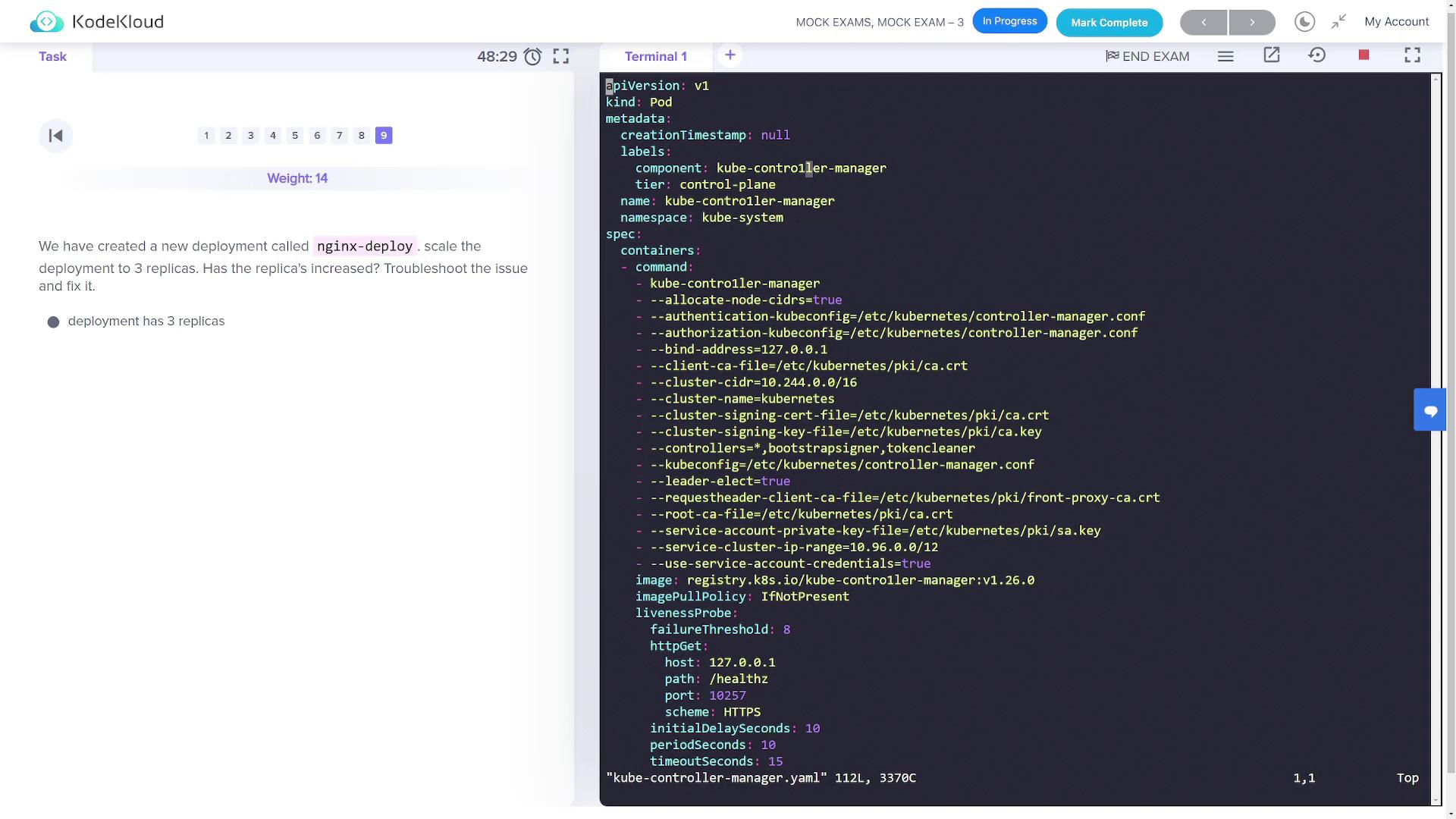
kubectl to the correct API server port.Task 9: Scale an NGINX Deployment and Fix the Kube-Controller-Manager
A deployment namednginx-deploy was created with a single replica. Your goal is to scale it to three replicas.
Step 9.1: Scale the Deployment
Scale the deployment using the following commands:ImagePullBackOff state).
Step 9.2: Troubleshoot the Controller Manager
First, inspect the status of critical components:kube-controller-manager pod is in an ImagePullBackOff state, review its static pod manifest:
This concludes the lesson on the solutions for Mock Exam Three.