

Overview of Deployment Steps
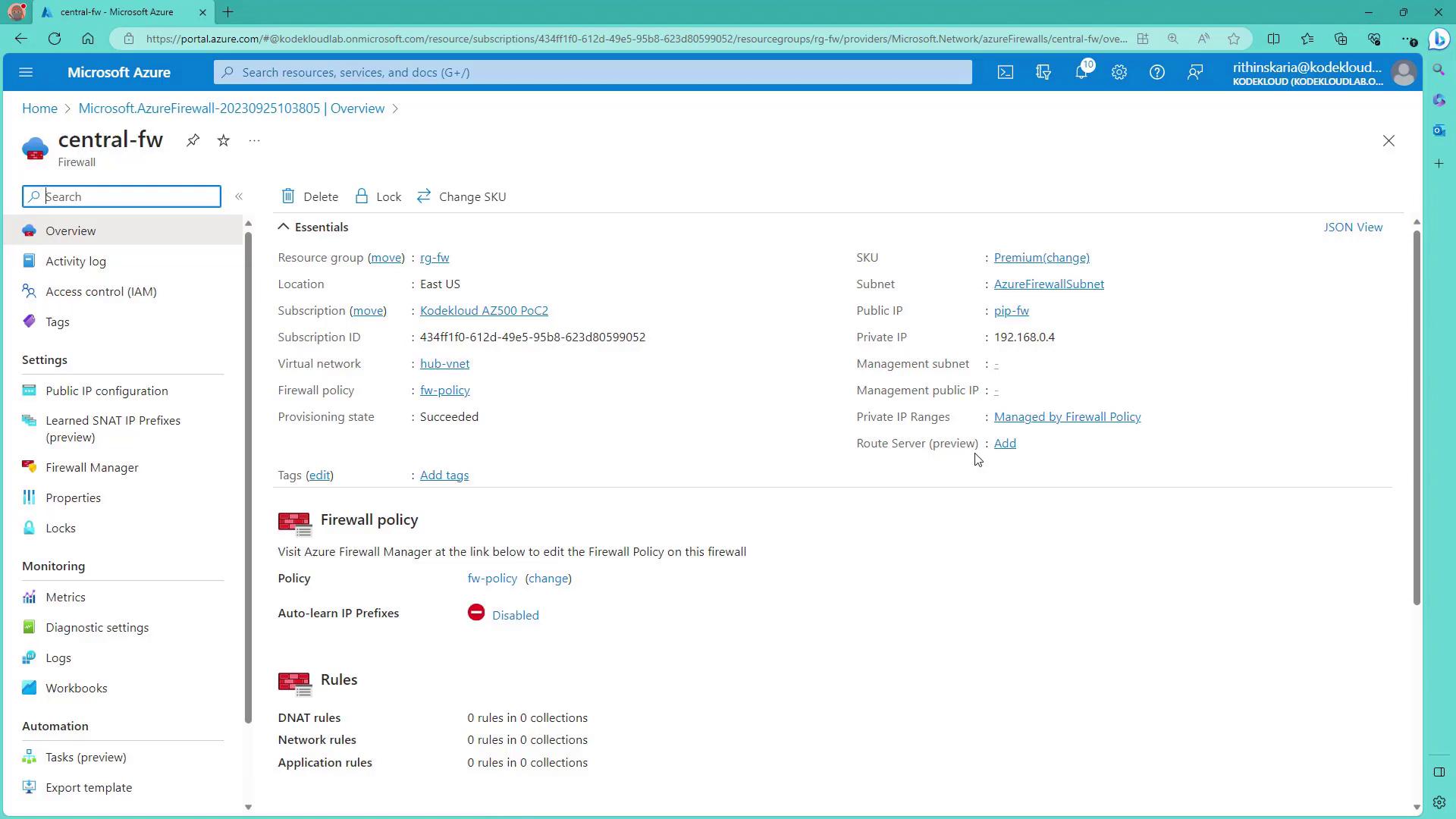
In this article, we will:- Deploy Azure Firewall in a central VNet (the hub)
- Configure a new firewall policy that includes DNAT, network, and application rules
- Create a dedicated subnet for Azure Firewall with an address space of at least /26
- Provision a public IP address for the firewall
- Deploy spoke virtual networks with Linux virtual machines using automation scripts to test connectivity
- Set up VNet peering between the hub and the spokes
Ensure that you have the necessary privileges and a valid subscription before beginning the deployment process.
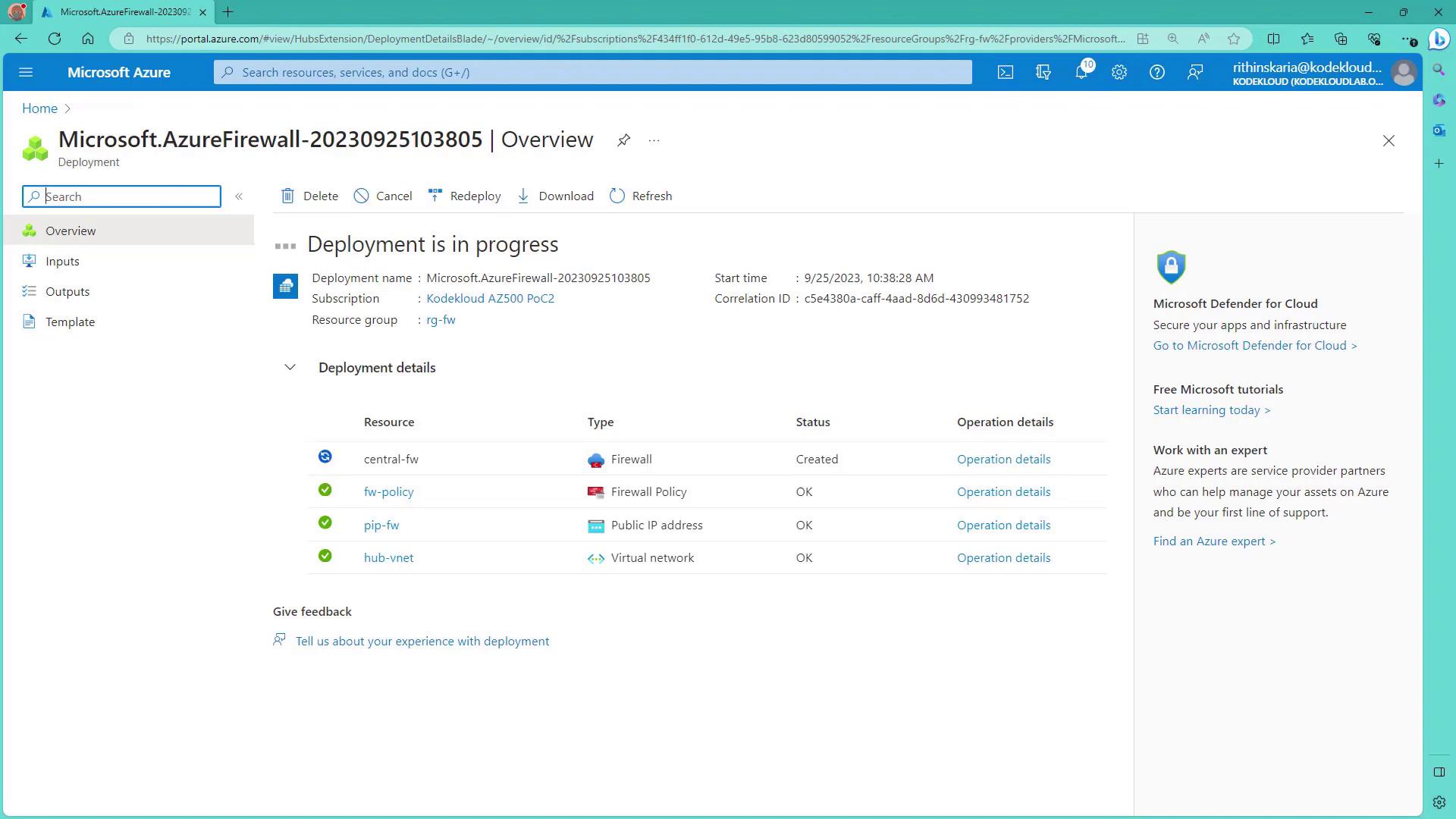
Deploying Azure Firewall in the Azure Portal
- Open the Azure Portal and search for “Firewall”. Click on Create.
- Create a new resource group (for example, RGFW).
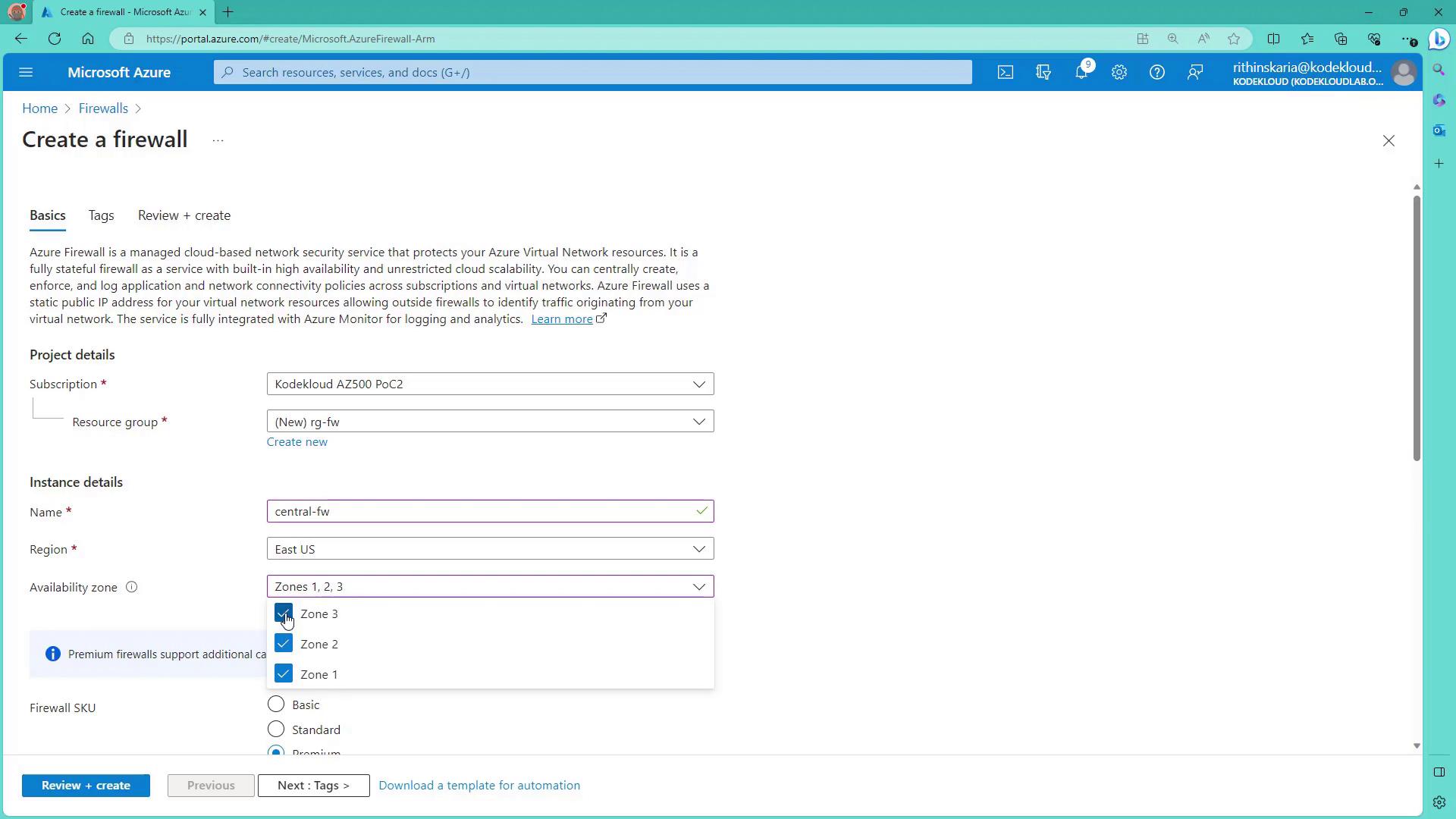
- Assign the firewall a name (e.g., Central FW) and select a region (e.g., East US). Optionally, enable availability zones if required.
- Choose the appropriate firewall SKU. Microsoft recommends using Standard or Premium for production environments. Premium includes advanced features such as SSL termination, IDPS, URL filtering, and web categories.
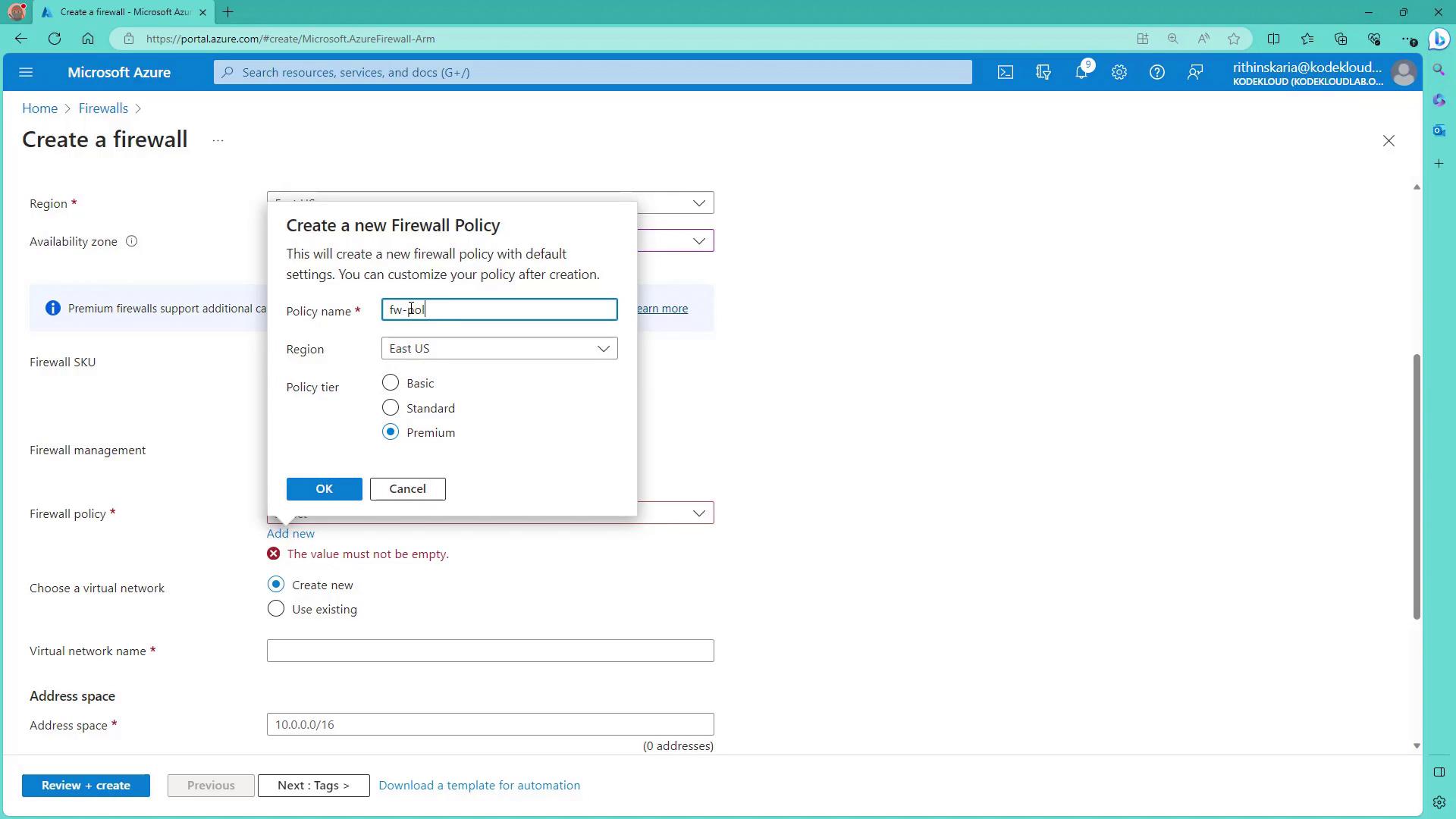
- Create a new firewall policy. This policy, a collection of rules (DNAT, network, and application), governs the flow of traffic through the firewall.
Configuring the Virtual Network
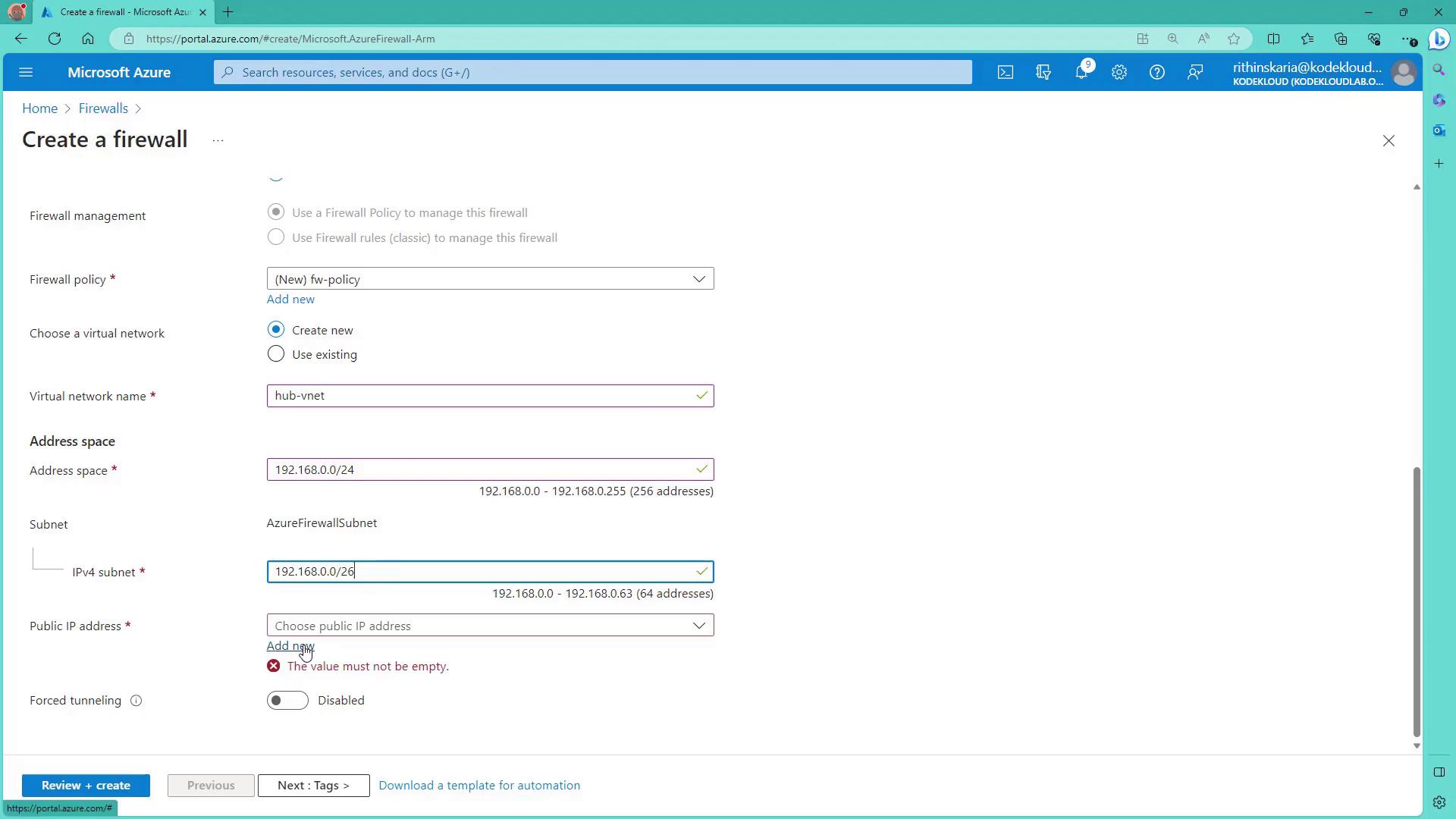
Select or create a virtual network for the firewall deployment. For example, create a new virtual network (Hub VNet) with an address space of192.168.0.0/24. Within this virtual network, add a subnet for the Azure Firewall. The recommended subnet size is 192.168.0.0/26 (a /27 can be acceptable in some cases).
Next, assign a public IP address (for example, pipfw) to the firewall. For the present configuration, force tunneling remains disabled. Once tags are applied (if desired), click on Review and Create to deploy the firewall.
The following image shows the Azure Portal screen for creating a firewall with options such as subscription, resource group, name, region, and availability zones:
- Hub VNet Address Space: 192.168.0.0/24
- Azure Firewall Subnet: 192.168.0.0/27 (or /26 as required)
Deploying Spoke Virtual Networks
Once the firewall is deployed, you can use scripts to create the spoke virtual networks. While manual creation is possible, using a script ensures consistency and saves time. The script will:- Create resource groups for the spokes
- Set up the networking components
- Configure Network Security Groups (NSGs)
- Provision two Linux virtual machines per spoke
firewall-prep-infra.ps1 to create the infrastructure.
Below is an example session output from running the script:
Establishing VNet Peering
With Azure Firewall and the spoke networks in place, the next step is to enable VNet peering between the hub and the spokes. Assuming that Spoke A and Spoke B have been deployed using the script, follow these steps:- Navigate to Spoke A in the Azure Portal and select the Peering option.
- Click Add to create a peering connection from Spoke A to the Hub VNet (where the firewall is deployed). Ensure you enable settings such as “Allow access to remote network” and “Allow forwarded traffic” as needed.
- Name the peering connection appropriately (e.g., Spoke A to Firewall).
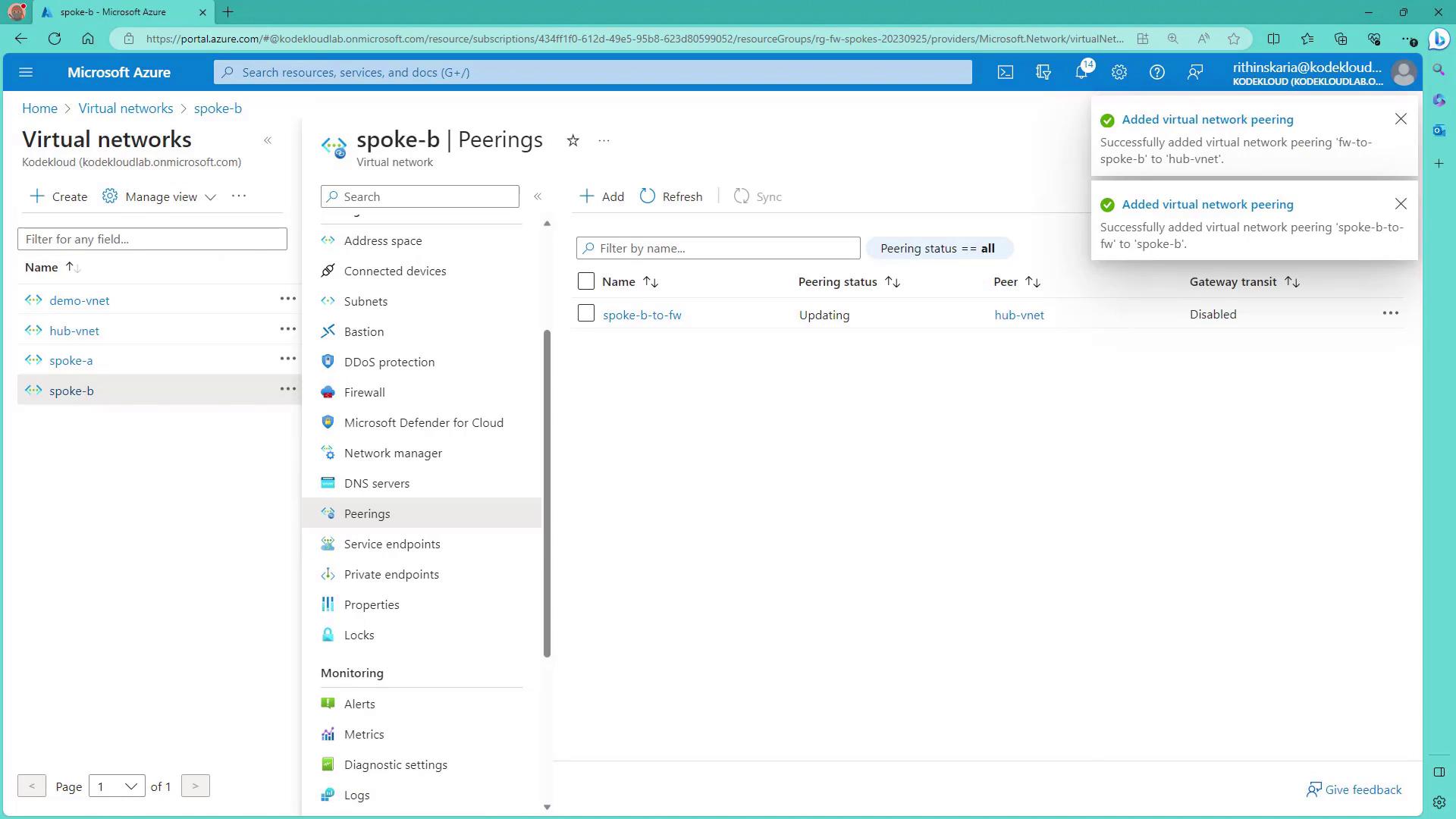
- Repeat the process for Spoke B, establishing a corresponding peering connection to the Hub VNet.
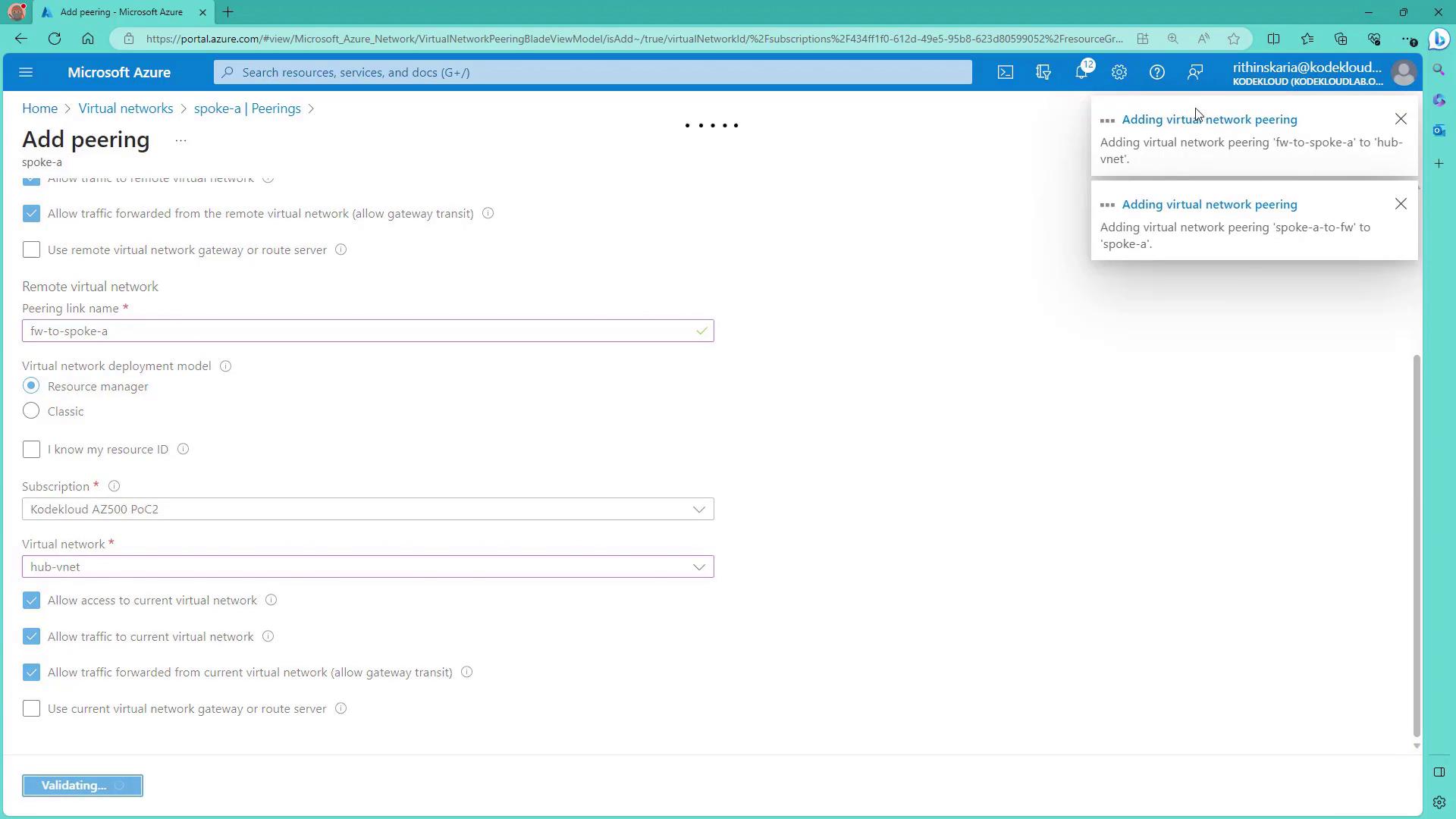
Gateway transit is typically not required unless routing traffic through a VPN gateway to on-premises networks. In this configuration, it is enabled for demonstration purposes only.
Finalizing the Deployment
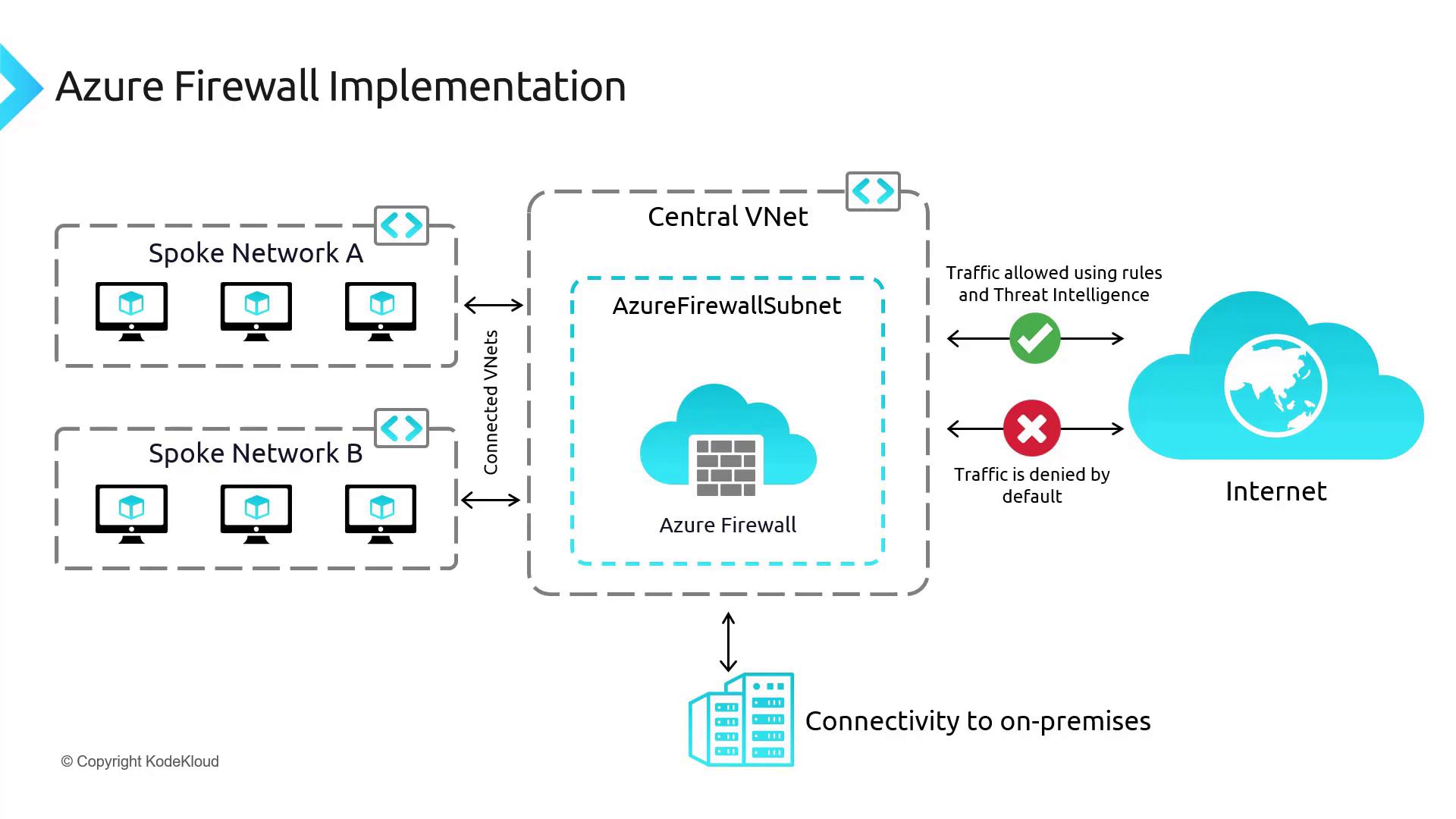
At this stage, all components of the architecture have been deployed. Note that traffic is not yet routed through the firewall. In upcoming lessons, we will configure User Defined Routes (UDRs) and refine the hub-spoke topology to direct traffic appropriately through the Azure Firewall. The following diagram illustrates the complete setup, including connectivity to on-premises systems—which will be addressed in detail later: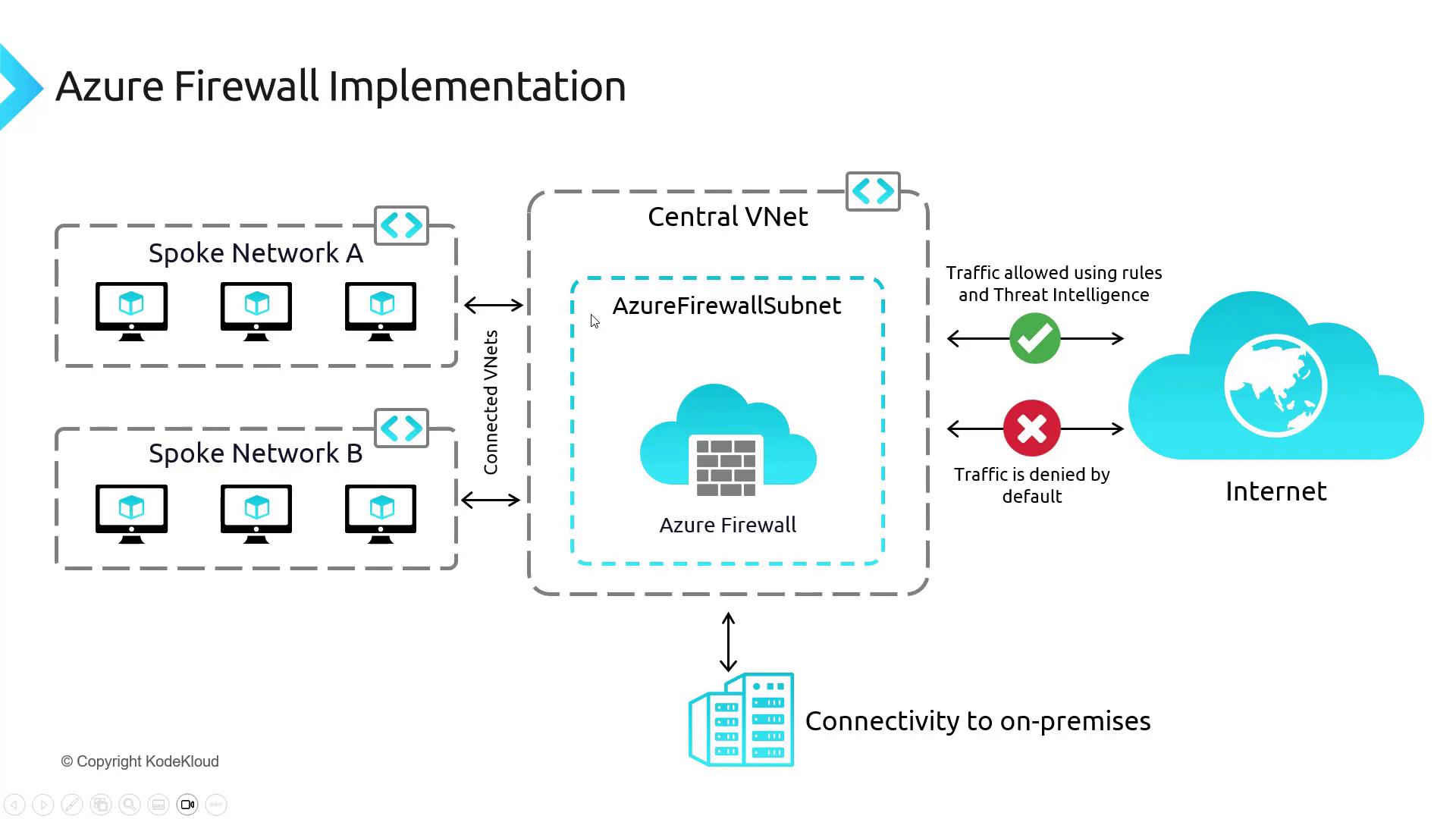
Summary
In this article, we have:- Deployed Azure Firewall in a central hub VNet.
- Configured a firewall policy with various rule collections.
- Created a dedicated subnet for the firewall and assigned a public IP address.
- Used a script to deploy spoke virtual networks containing Linux VMs.
- Established VNet peering between the hub and spoke networks.