

Why Are Access Reviews Important?
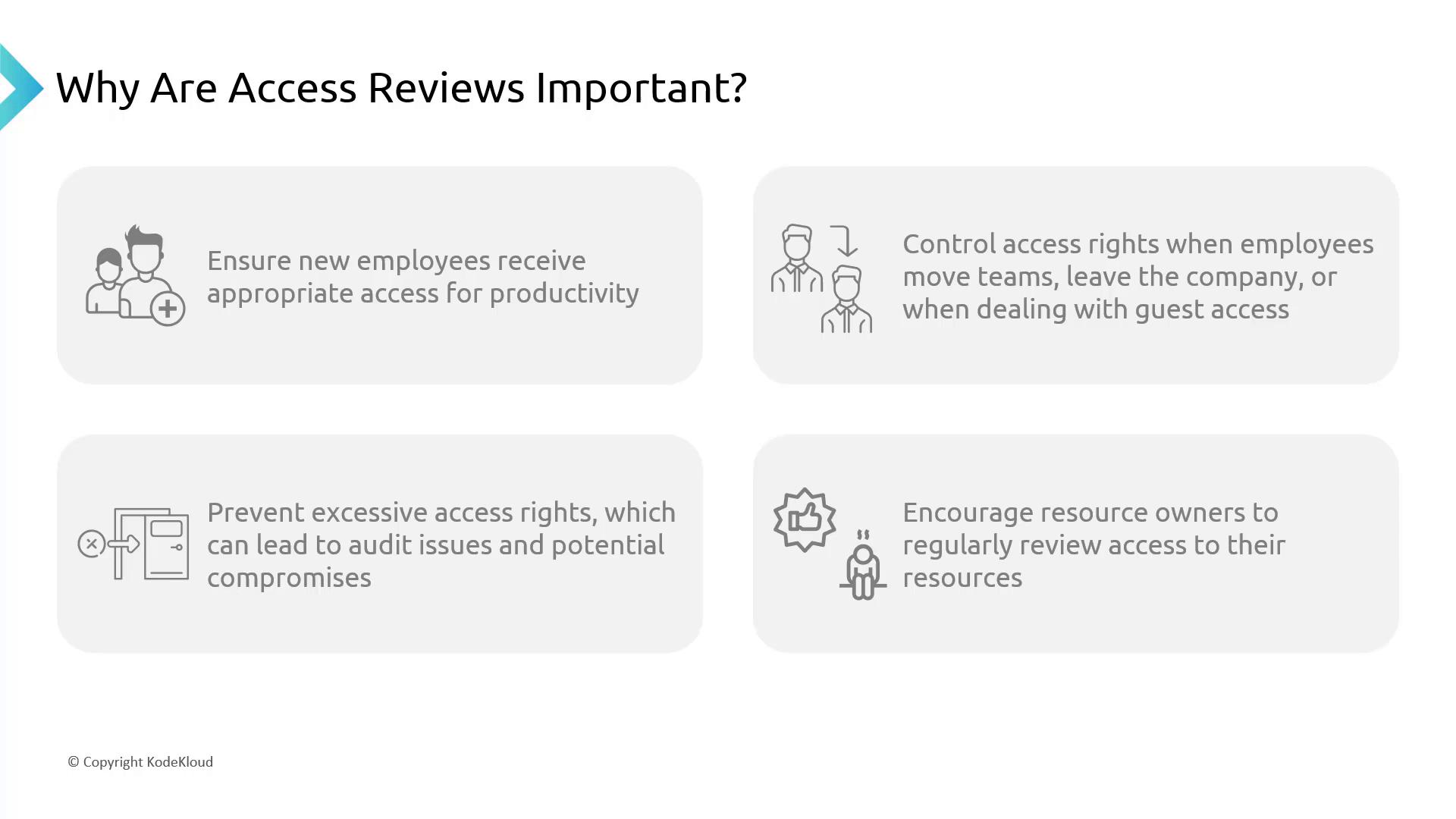
Imagine Zahra transitioning from marketing to finance. Should she retain access to sensitive marketing data? With Azure AD Access Reviews, you can periodically verify and adjust user permissions—ensuring every individual holds only the access necessary for their current role. There are four key reasons to implement Access Reviews:-
New Employees:
Ensure that new hires receive only the permissions required for their job roles from day one. -
Employee Transitions:
When employees change teams or leave the company, updates or revocations of access rights help minimize security risks. -
Audit Compliance:
Regular reviews enforce the principle of least privilege, reducing the risk of excessive permissions that can lead to audit failures. -
Ownership Responsibility:
Resource owners can routinely verify that access rights remain appropriate, ensuring only authorized individuals manage critical data.
When to Use Access Reviews
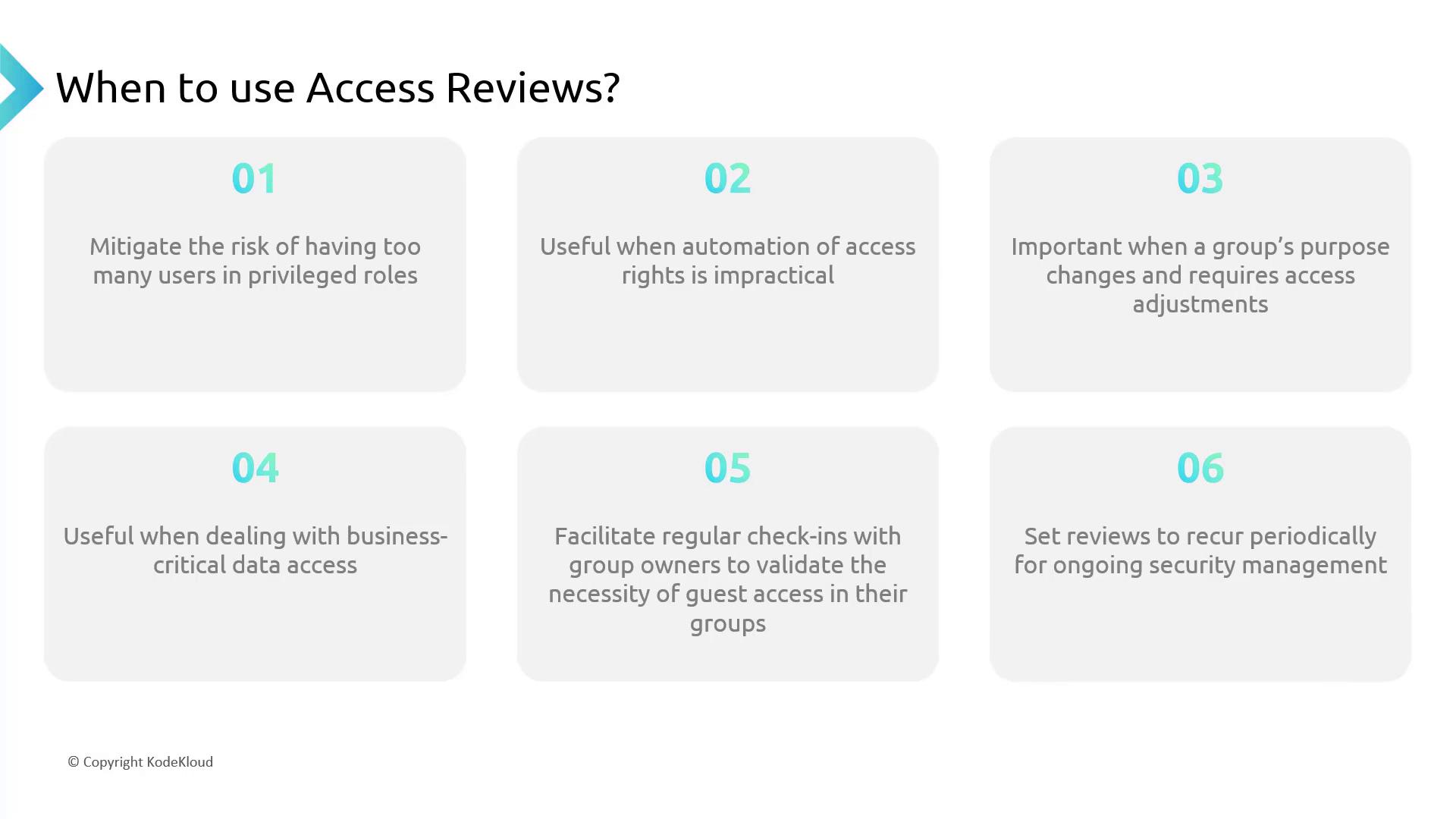
Access Reviews should be considered in scenarios such as:-
Avoiding Over-Permissioned Roles:
Regular reviews help prevent assigning excessive access, especially for sensitive roles like administrators. -
Manual Oversight Complementing Automation:
While automation streamlines processes, manual reviews add an extra layer of assurance. -
Adapting to Evolving Group Functions:
When a group’s primary responsibilities shift (for example, an event planning team taking on financial audits), adjusting their access rights is essential. -
Safeguarding Business-Critical Data:
Reviews ensure that access to highly sensitive information remains strictly controlled. -
Managing External and Guest Users:
Periodic checks verify that guest or external user access is still necessary and secured. -
Ongoing Security Management:
Continuous, scheduled reviews maintain proactive security and minimize potential vulnerabilities.
Setting Up an Access Review in Azure Portal
Follow these steps to configure an Access Review in the Azure Portal and set up email notifications:-
Access the Access Reviews Section:
In the Azure Portal, navigate to “Identity Governance” or use the search function to locate “Access Reviews”. Here, you can view all current reviews for your tenant. -
Create a New Access Review:
- Click on “New Access Review”.
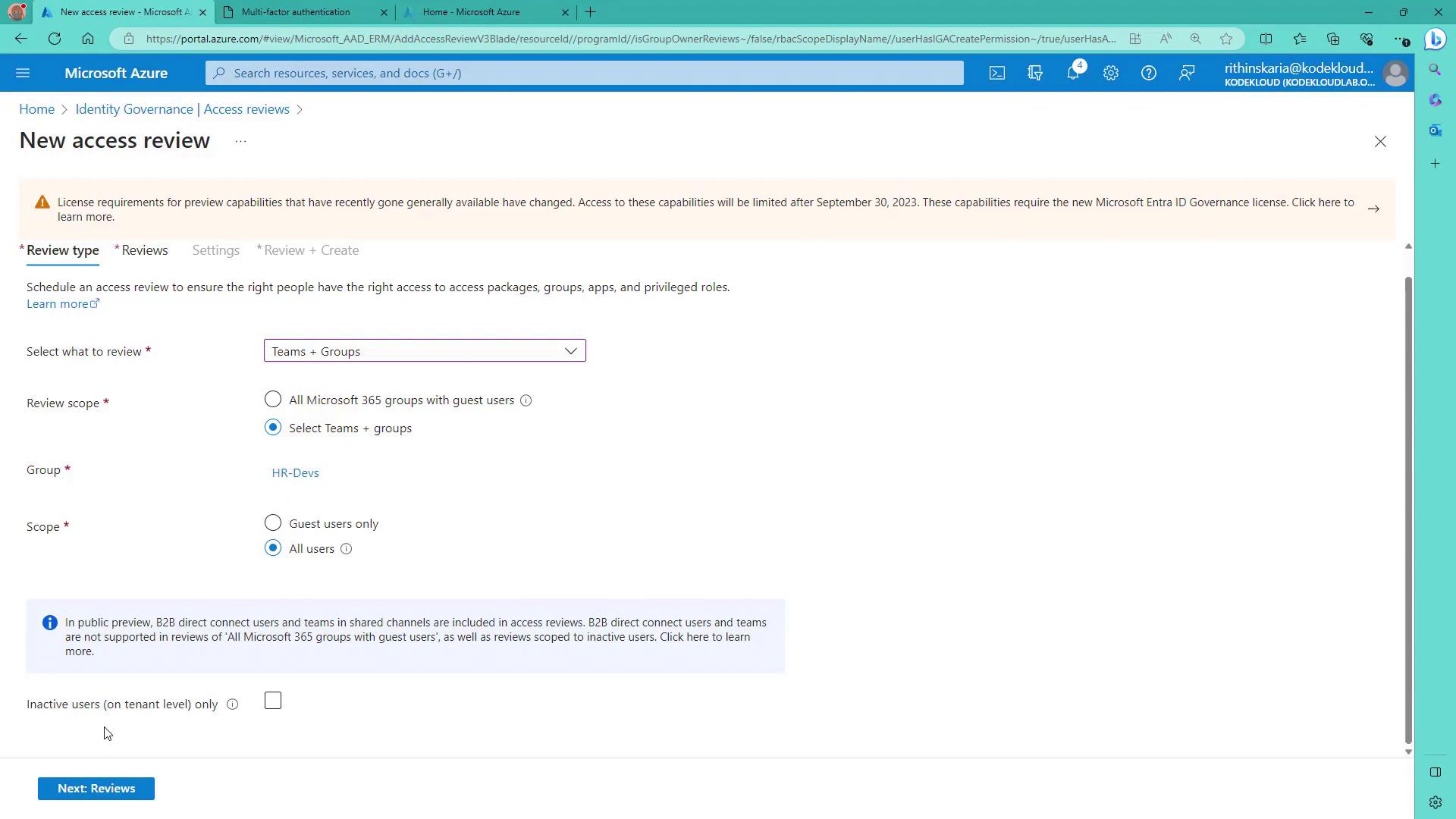
- Select the review type. For example, you can choose between applications or teams and groups. In this demonstration, teams and groups are selected, given the absence of applications in the tenant.
-
Define the Scope of the Review:
- Choose to review all Office 365 groups or specific groups.
- For specific groups (e.g., HR Debts), you can further specify whether the review should apply to all users or only guest users.
- There is an option called “Inactive Users Only”. This setting lets you include only users who haven’t signed in for a selected period. In this demo, it is unchecked to include everyone.
-
Configure the Review Process:
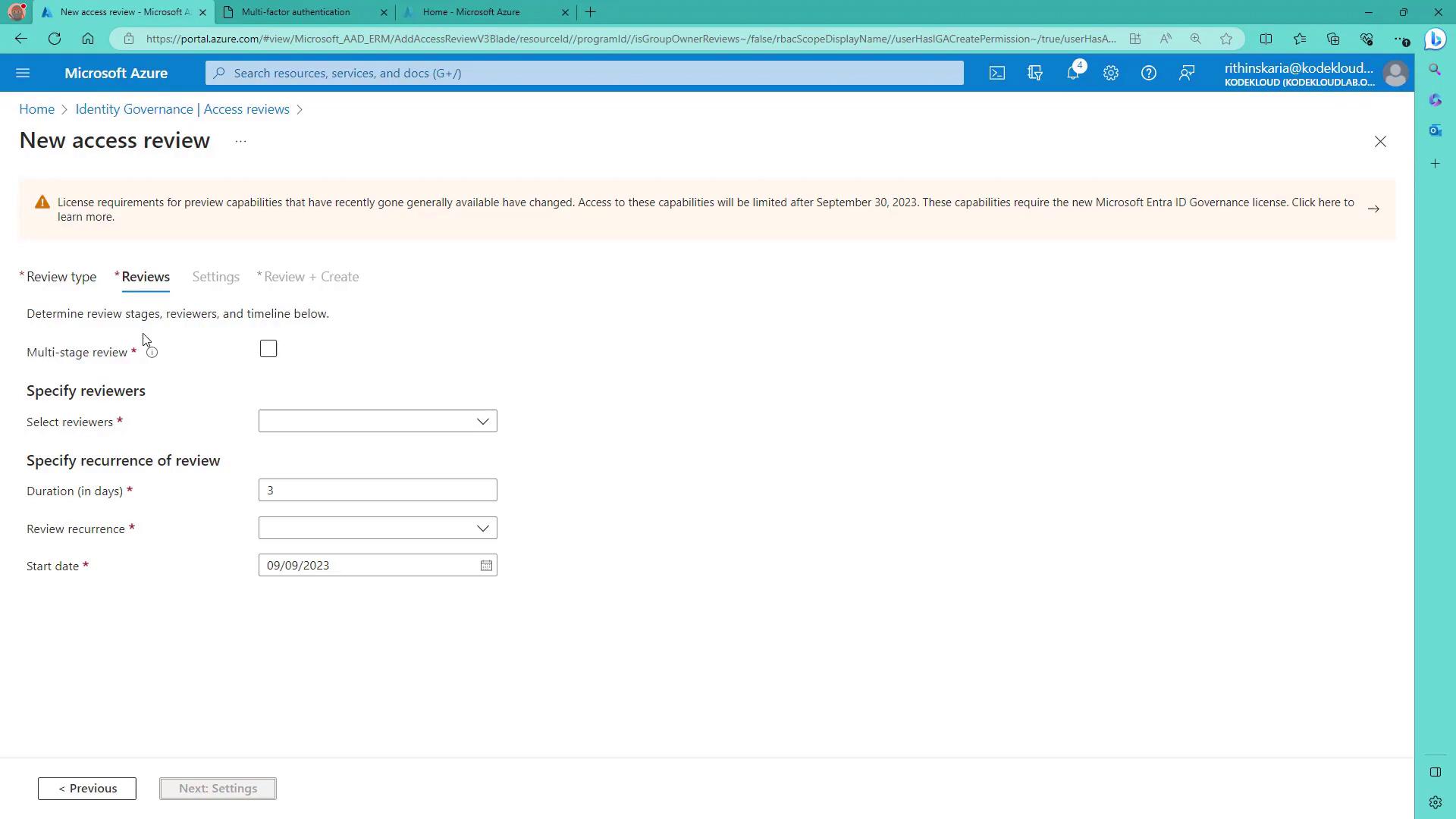
- Choose between a single-stage or multi-stage review. For simplicity, this guide uses a single-stage review.
- Specify the reviewers. Options include group owners, selected users, users reviewing their own access, or managers. In this example, group owners serve as reviewers.
- Optionally, designate fallback reviewers (such as group or global administrators) to step in if primary reviewers do not respond.
-
Set Recurrence and Duration:
- Define the review duration (for instance, six days).
- Set the recurrence policy (one-time, weekly, monthly) and select the start date.
-
Complete the Review Settings:
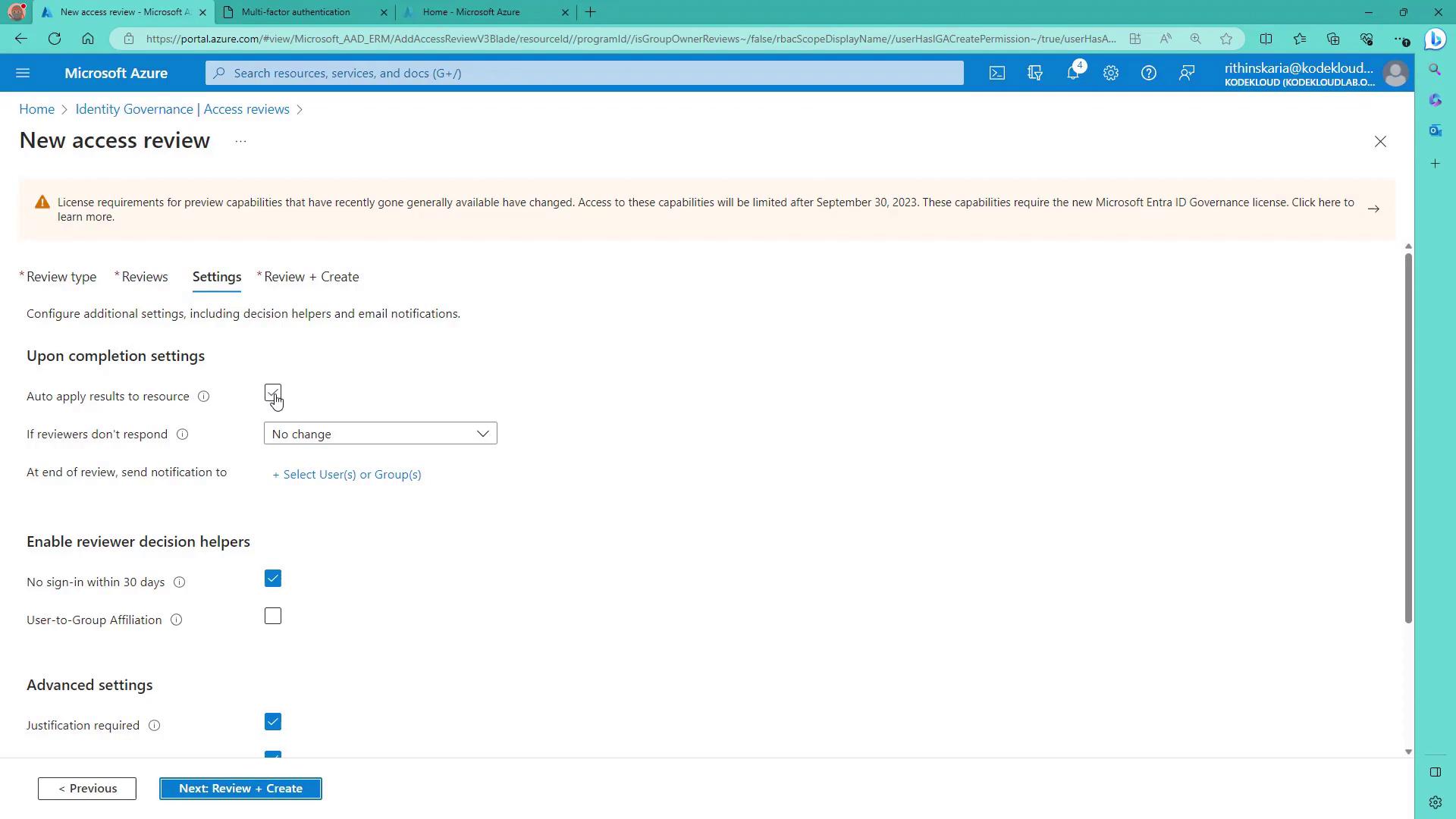
- In the “Settings” section, choose the action upon review completion. Options include auto-applying changes, removing access, approving access, or taking no action if no modifications are recommended.
- Configure email notifications for review completion and enable reviewer decision helpers. These helpers provide recommendations—such as identifying inactive users or assessing user-to-group affiliations—to support informed decision-making.
- Advanced settings also allow you to require justifications when approving or denying access and set up reminder notifications.
- Finalize the Review:
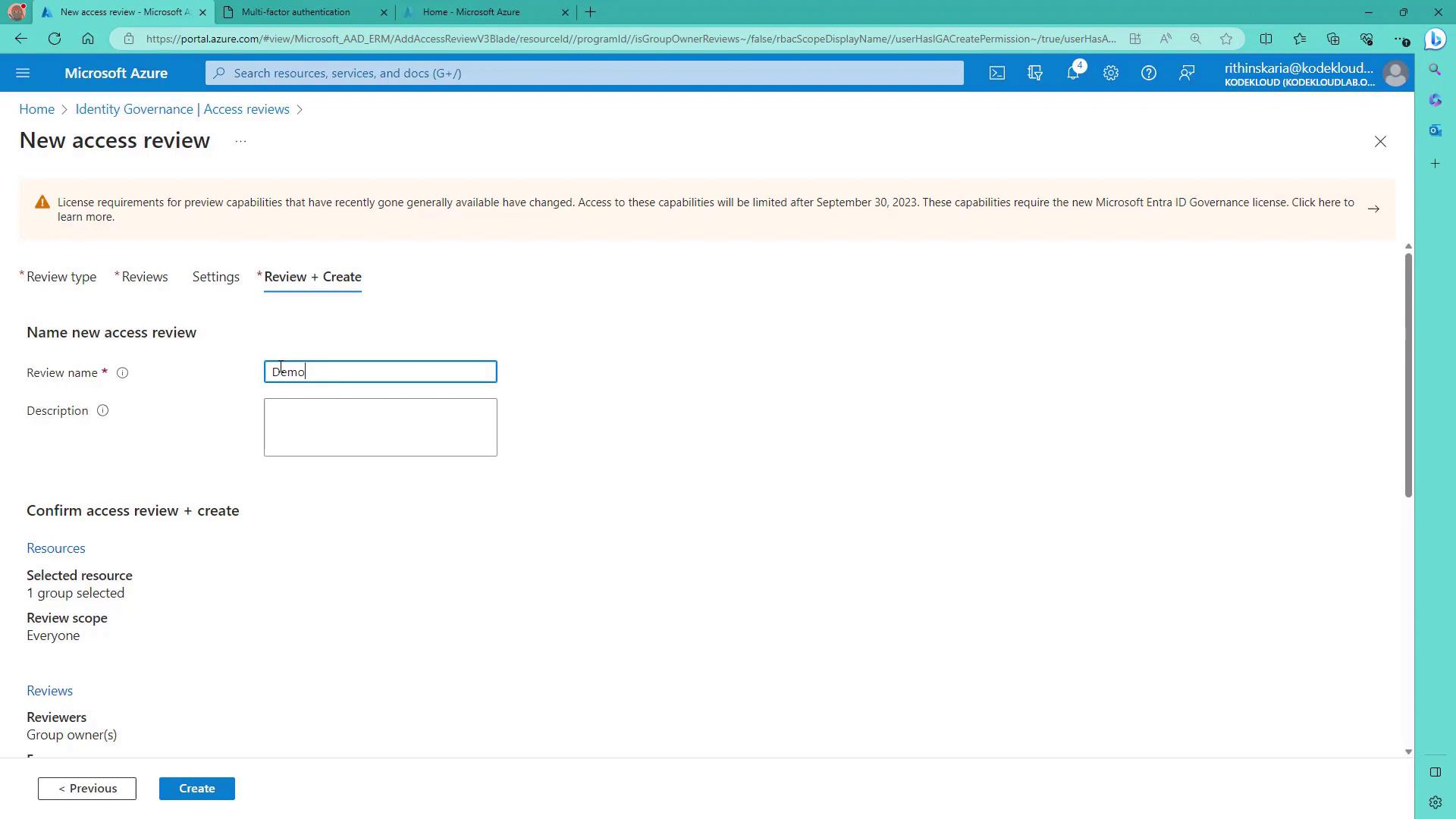
- Provide a descriptive name for the review (e.g., “Demo Review” for demonstration).
- Click “Review and Create” to launch the Access Review. The review will be scheduled based on the recurrence policy, and notifications will be sent to relevant group administrators.
Ensure that your Azure AD environment meets all licensing requirements for preview capabilities when accessing advanced Access Review settings.