Learn to configure and manage Azure Front Door, a global load balancing service with WAF capabilities, and compare it with Azure Application Gateway and Azure Firewall.
In this lesson, you will learn how to configure and manage Azure Front Door, a global load balancing service with web application firewall (WAF) capabilities. We will also compare its features with those of Azure Application Gateway and Azure Firewall to help you choose the best solution for your deployment needs.
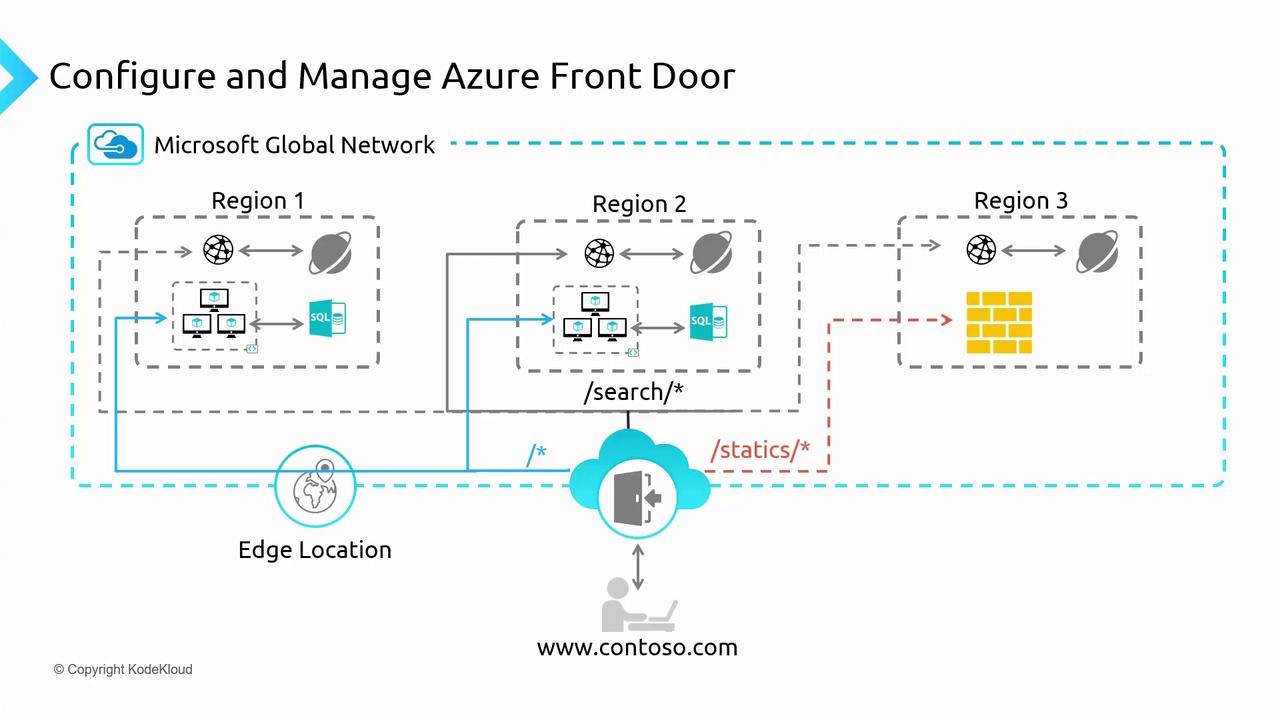
Azure Application Gateway is a regional load balancer designed primarily for handling traffic within a single region. Operating at layer 7, it can manage requests based on HTTP/HTTPS attributes such as headers and paths, making it ideal for routing traffic within a multi-tier application.In contrast, Azure Front Door is a global load balancer that operates at the edge of the Azure network. It provides robust WAF protection and ensures optimal traffic distribution across multiple endpoints—whether in different Azure regions or on-premises. Its key features include:
Global load balancing
URL-based routing
SSL termination
WAF protection across regions
Integration with Azure Content Delivery Network (CDN) to reduce latency
As illustrated in the diagram below, when path-based routing is required within a region, Application Gateway offers effective layer 7 load balancing. However, Azure Front Door is best suited for distributing traffic globally.
To deploy Azure Front Door, you can use the Azure Portal combined with a custom deployment script. This script deploys three applications across West Europe, Southeast Asia, and East US. The deployment ensures that users are directed to the endpoint closest to their location. For example, if you are closest to West Europe, your traffic is routed accordingly.Below is a sample output from the script that sets up the resources:
Ensure that .NET is installed on your computer before running the script. The script deploys three app services along with your custom application code.
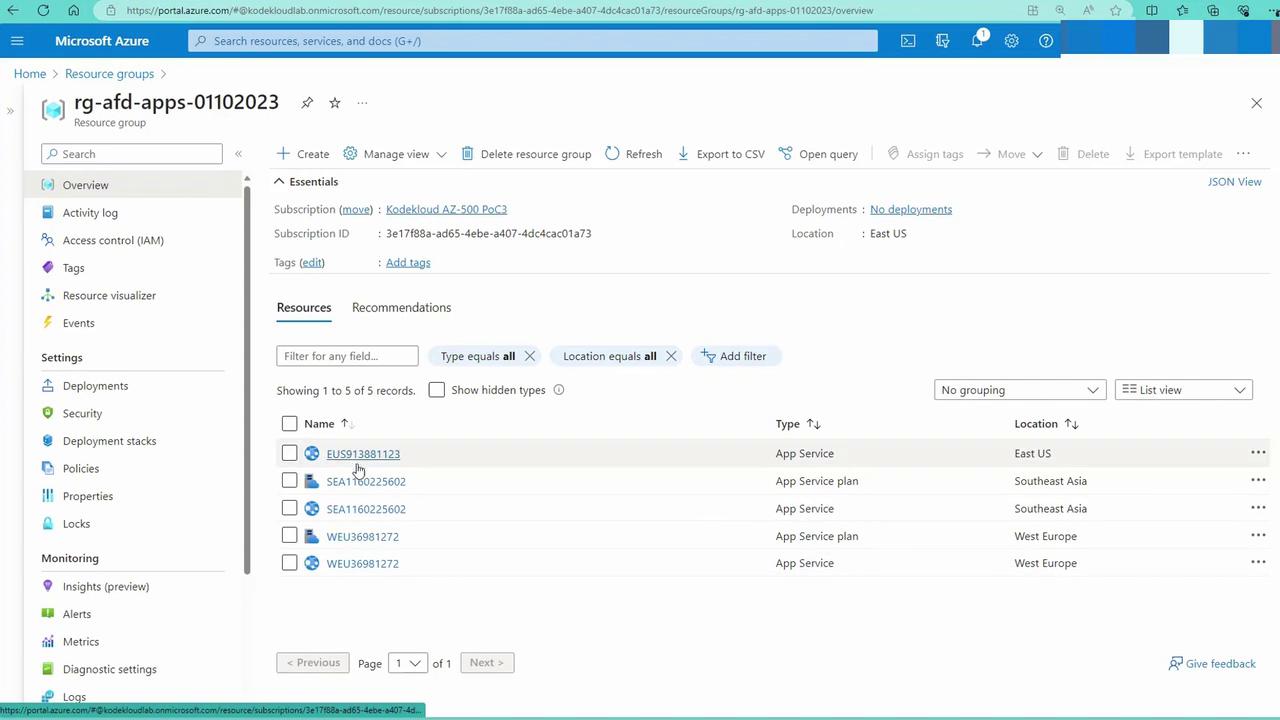
Resource Group Overview:
Open the Azure Portal and navigate to the resource group created by the script (e.g., rg-afd-apps-01102023). This group contains various app service plans and deployed app services.
App Service Inspection:
When you open an app service (for example, “KodeKloud E-U-S”), you will see similar services deployed for West Europe (W-E-U) and Southeast Asia (“KodeKloud Southeast Asia”).
Deploying Azure Front Door:
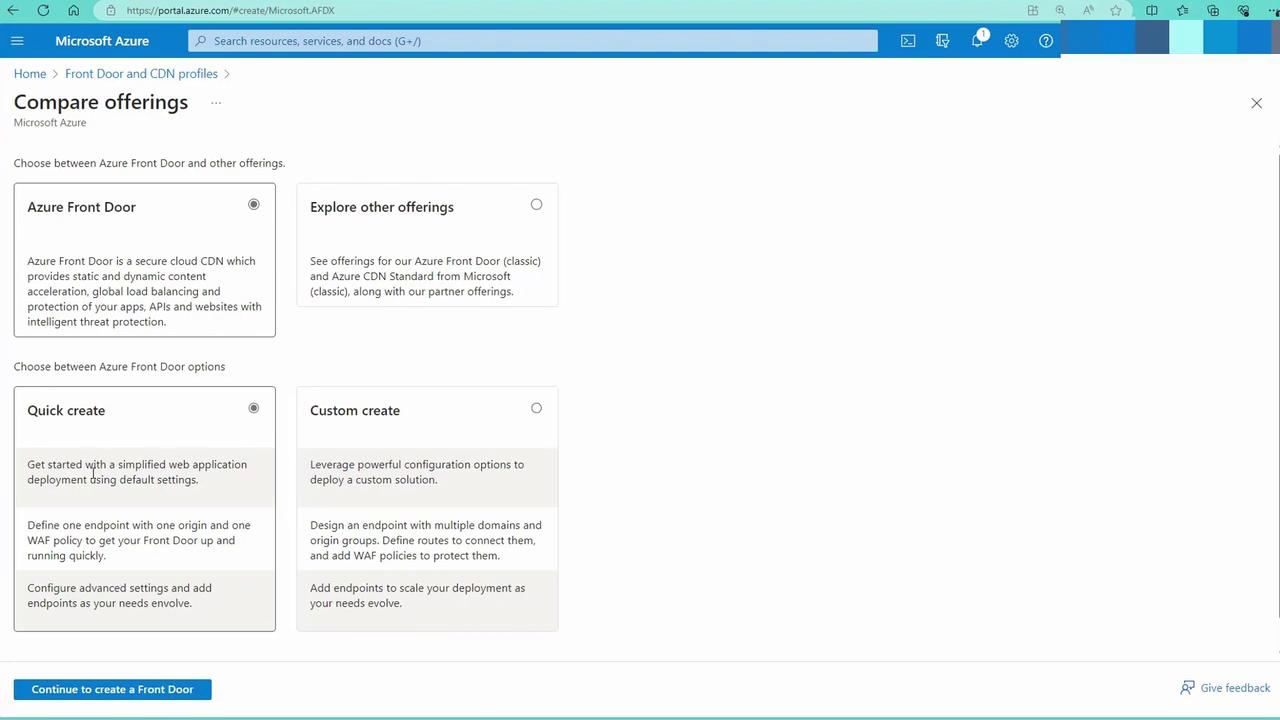
In the Azure Portal, search for “Firewall and CDN profiles” and select “Create Front Door and CDN Profile.” Although classic options are available, the modern Azure Front Door solution offers enhanced features and performance.
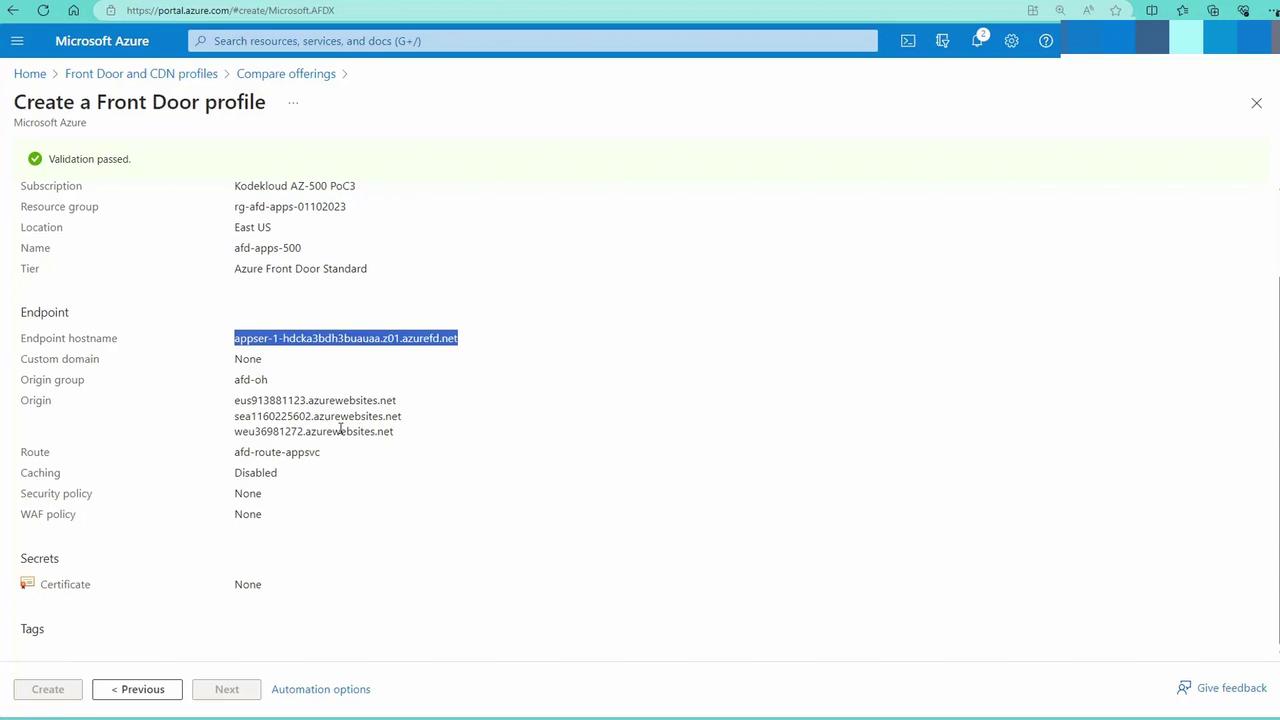
Custom Create: Choose “Custom Create.” When prompted, select your resource group and assign a name (e.g., “AD Apps 500”). Note that, although Azure Front Door is a global service, it requires a region to store its metadata—the same region as the resource group.
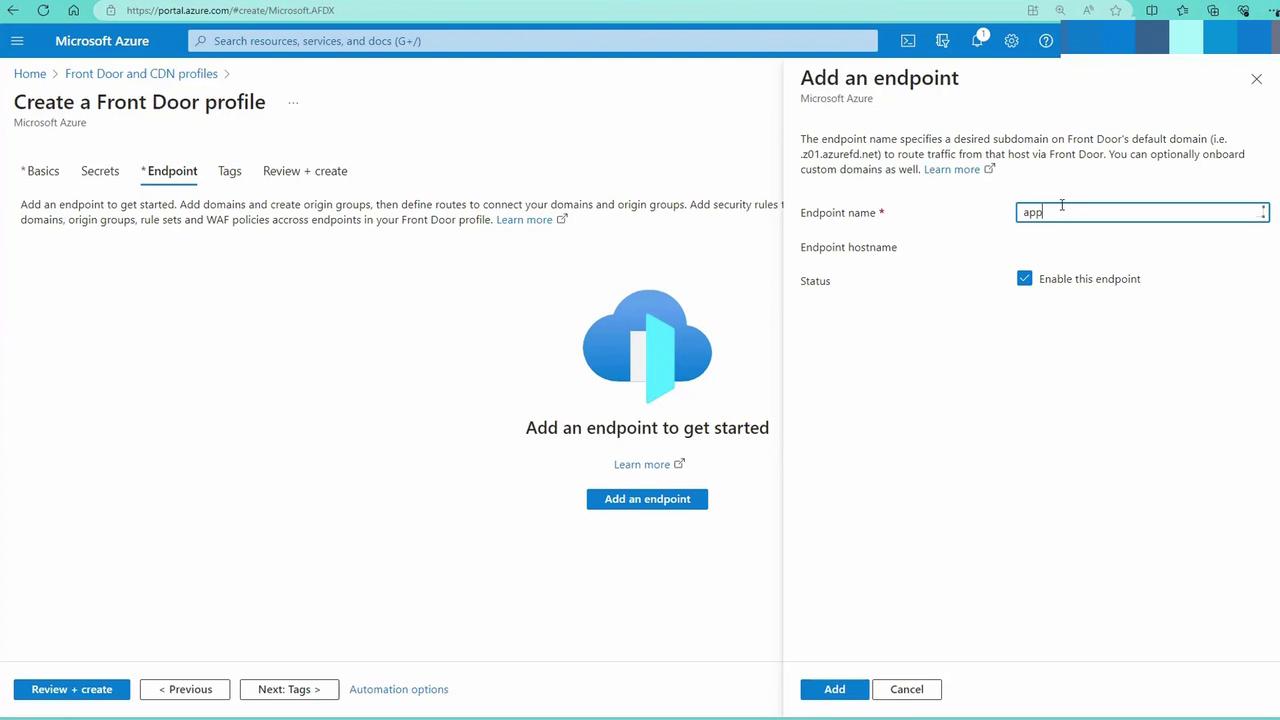
Endpoint Configuration: Add an endpoint by providing a name (e.g., “AppSR1”) and clicking on Add.
Adding a Route and Origin Group:
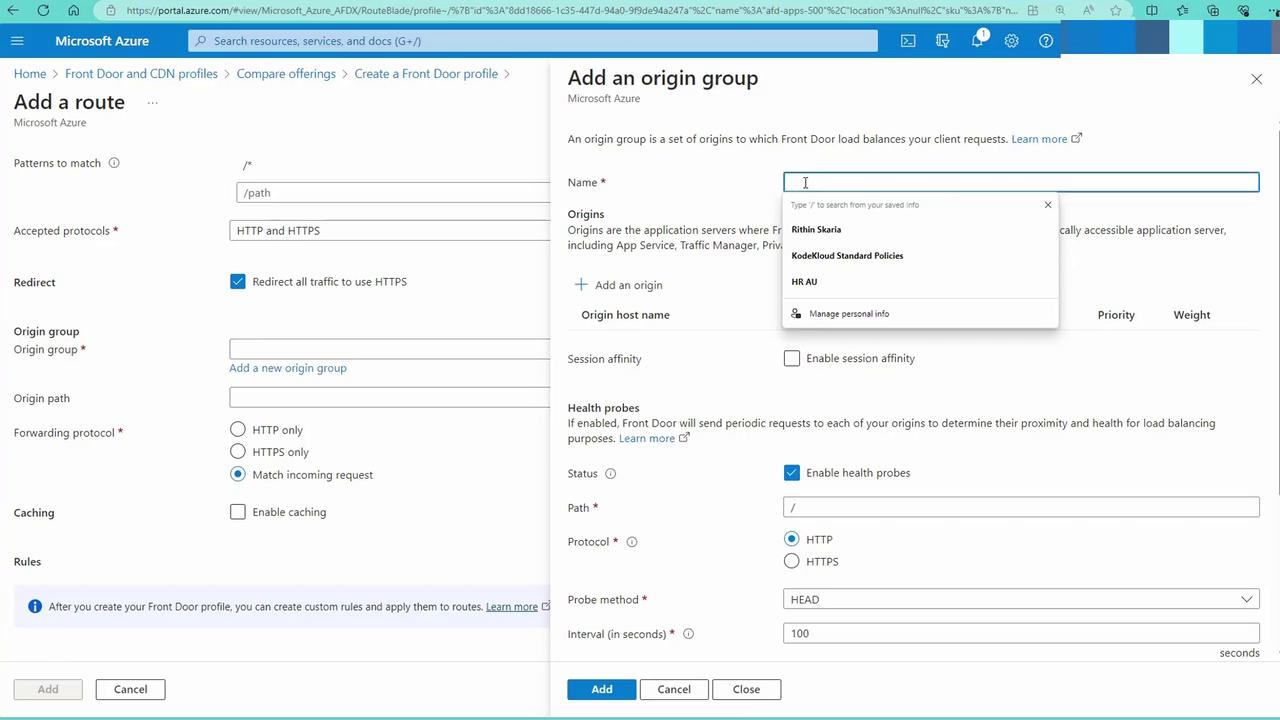
Add a route that points to an origin group—a collection of your app service endpoints. Create a new origin group (for example, “AFD origin host”) and add your regional app services. You do not need to enable validation at this point; simply include each app service as an origin.
Configuring Health Probes:
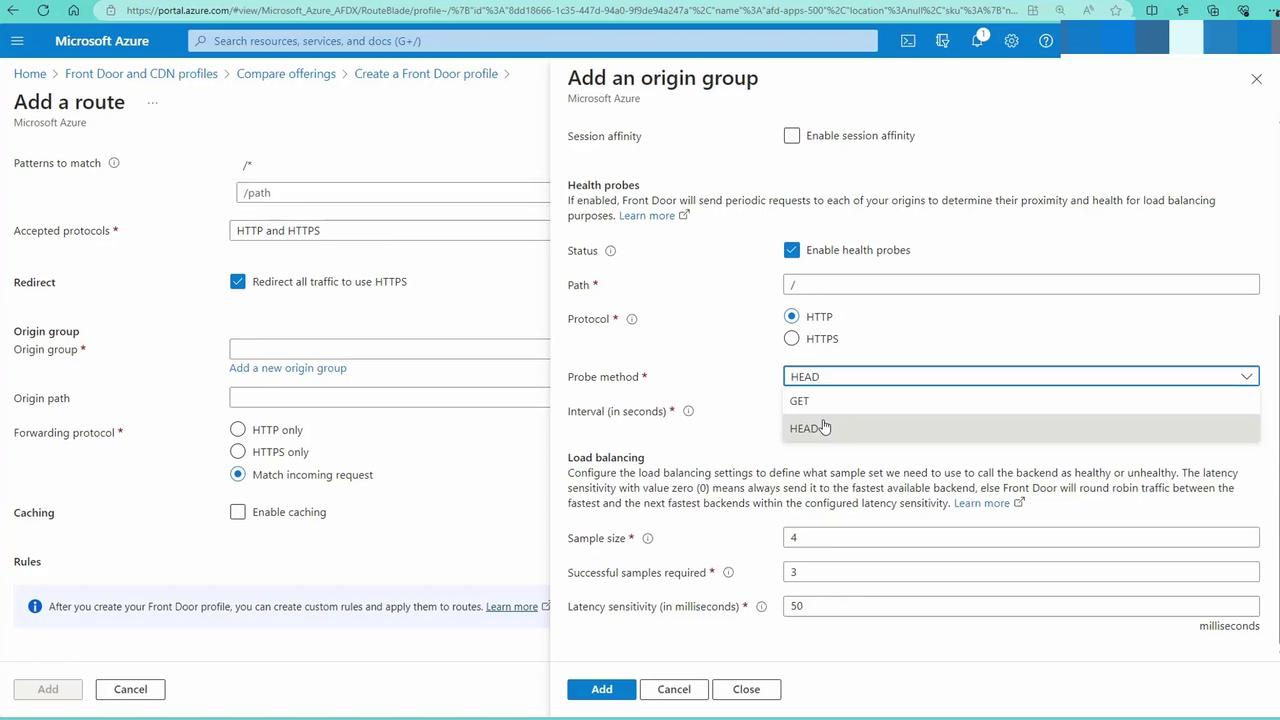
Set up health probes (e.g., a GET request every 100 seconds) to monitor the status of each endpoint. Name the route (e.g., “AFD route app svc”) and create it. This route directs traffic to the correct origin group.
Deployment and Verification:
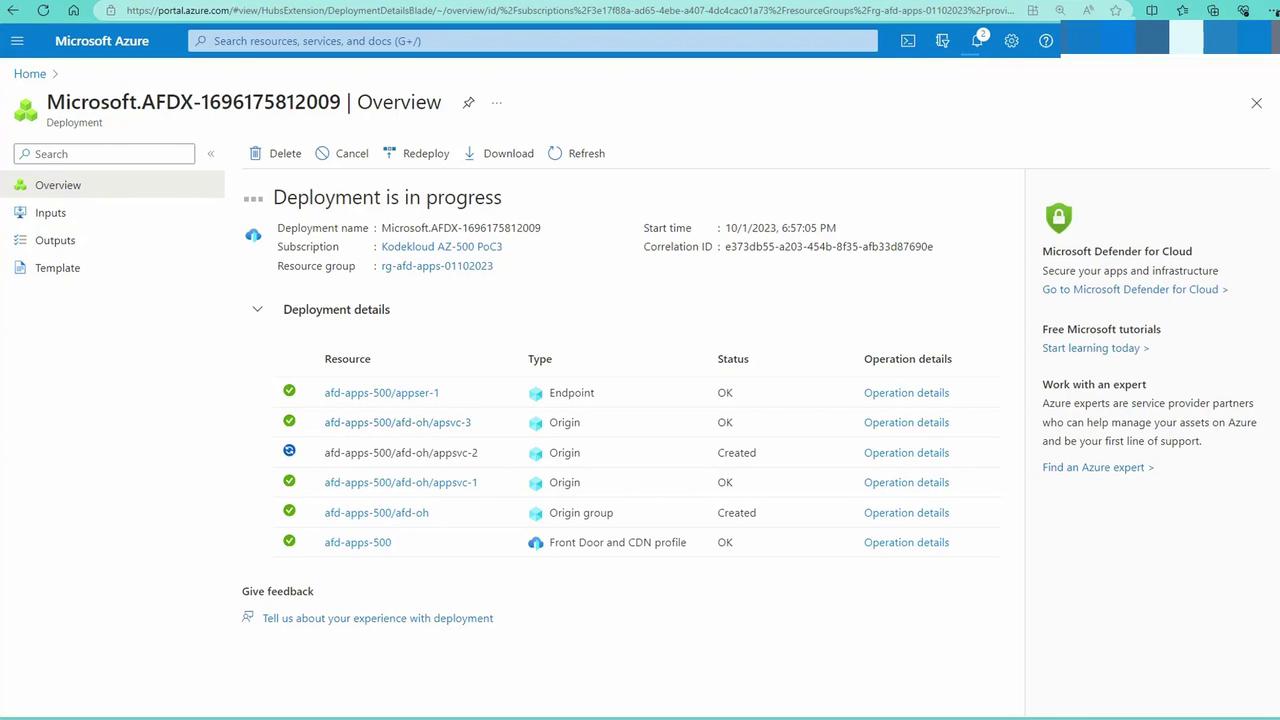
Once the configuration is complete, your Front Door instance will deploy. Traffic will now be distributed among app services based on user proximity. For instance, users in the United States may be served by the East US app service, while users in Asia Pacific may reach the Southeast Asia app service.
Wait for the deployment to complete. Then, check the Front Door endpoint details in the Azure Portal and copy the endpoint URL into your browser. Traffic will be directed to the nearest regional endpoint based on your location and network latency.
After deployment, accessing the Front Door URL should display the web page served by the nearest app service. Below is an example of a basic HTML output:
Azure Front Door ensures optimal global load balancing and efficient content delivery by dynamically routing requests to the nearest deployed app service instance. This service enhances performance and reliability, especially for applications with a worldwide user base.For further learning, explore more about Azure connectivity services such as ExpressRoute which provides dedicated, private network connections to Azure.Happy deploying!