

Harnessing the Power of Workbooks in Microsoft Sentinel
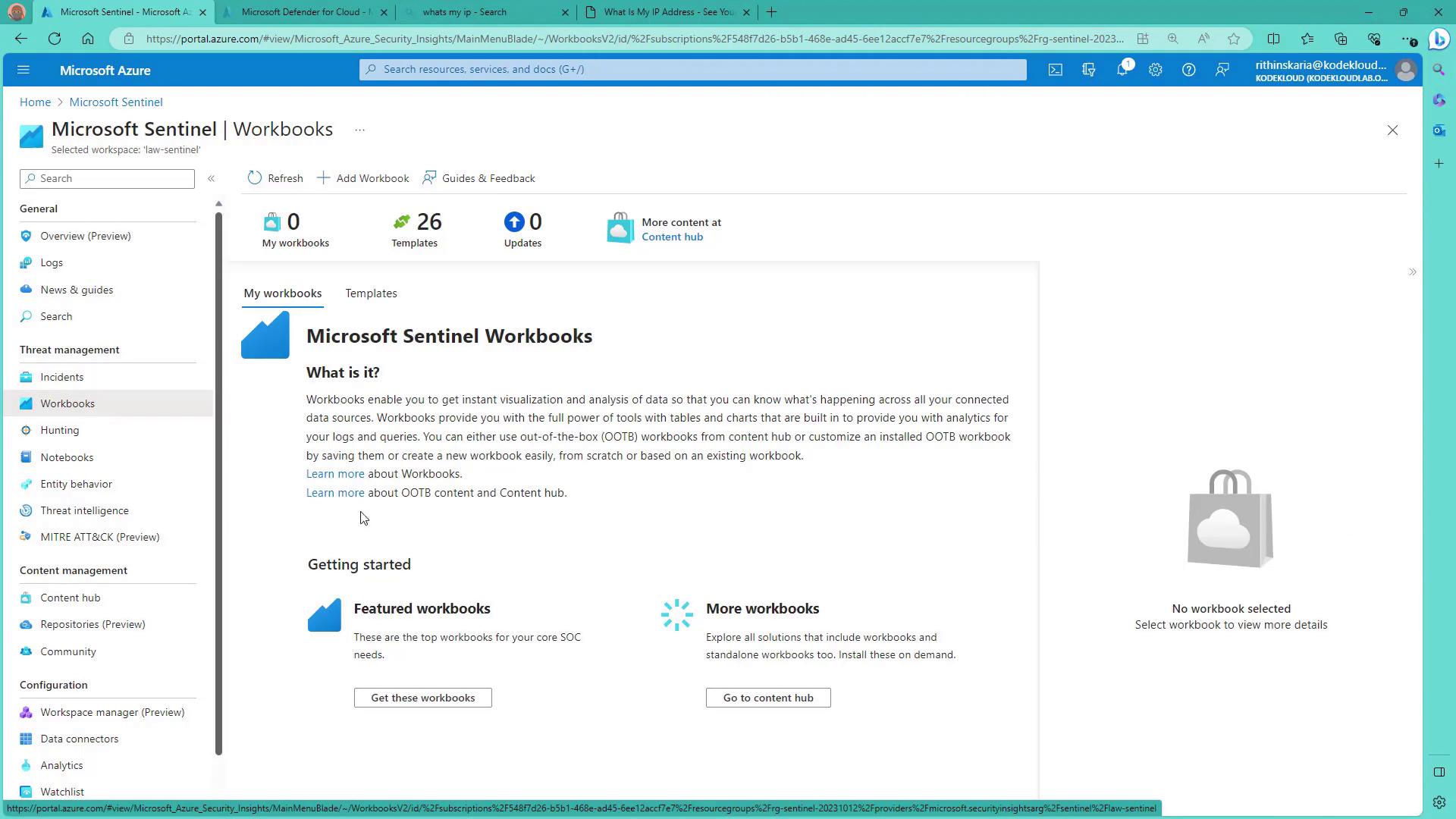
The process is simple. Start by selecting one of the many templates tailored for common scenarios based on your configured connectors. These templates serve as an effective starting point, and you can further customize them by adding visualizations, modifying queries, or integrating additional data sources. Follow these steps to view workbooks in the Azure portal:- Open the Azure portal and navigate to your Sentinel workspace.
- Go to the Workbooks section to discover a variety of available templates.
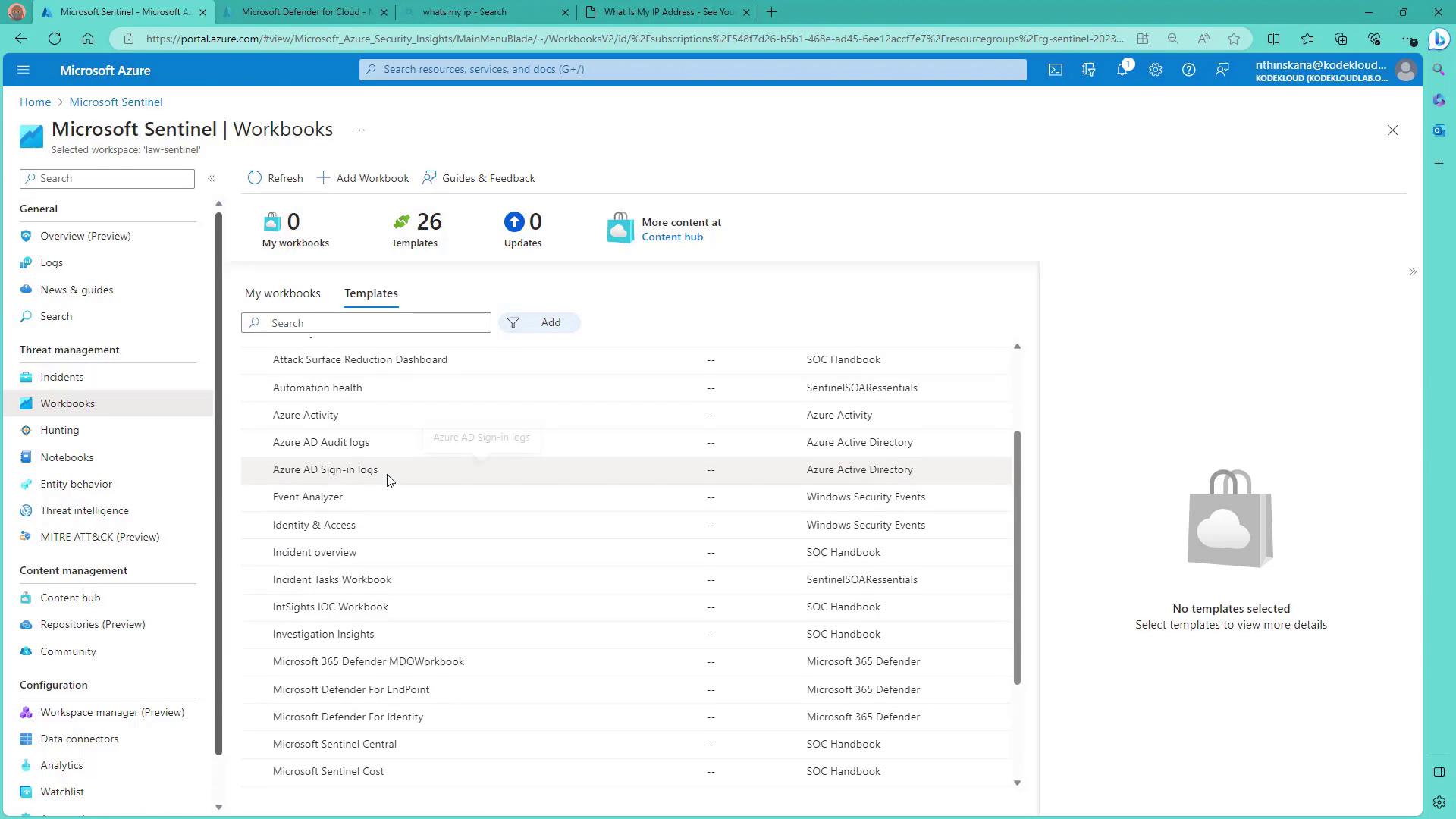
- A “4688” event indicating a new process creation.
- A privileged service being called.
- An account failing to log on.
These events may indicate unauthorized access attempts, especially if the machine is exposed to a public IP address. Investigate any unexpected behavior immediately.
Saving and Accessing Custom Workbooks
If you discover a workbook template that meets your requirements, save it for quick future access. Once saved, refresh the Workbooks section in Azure Sentinel to locate your custom workbook.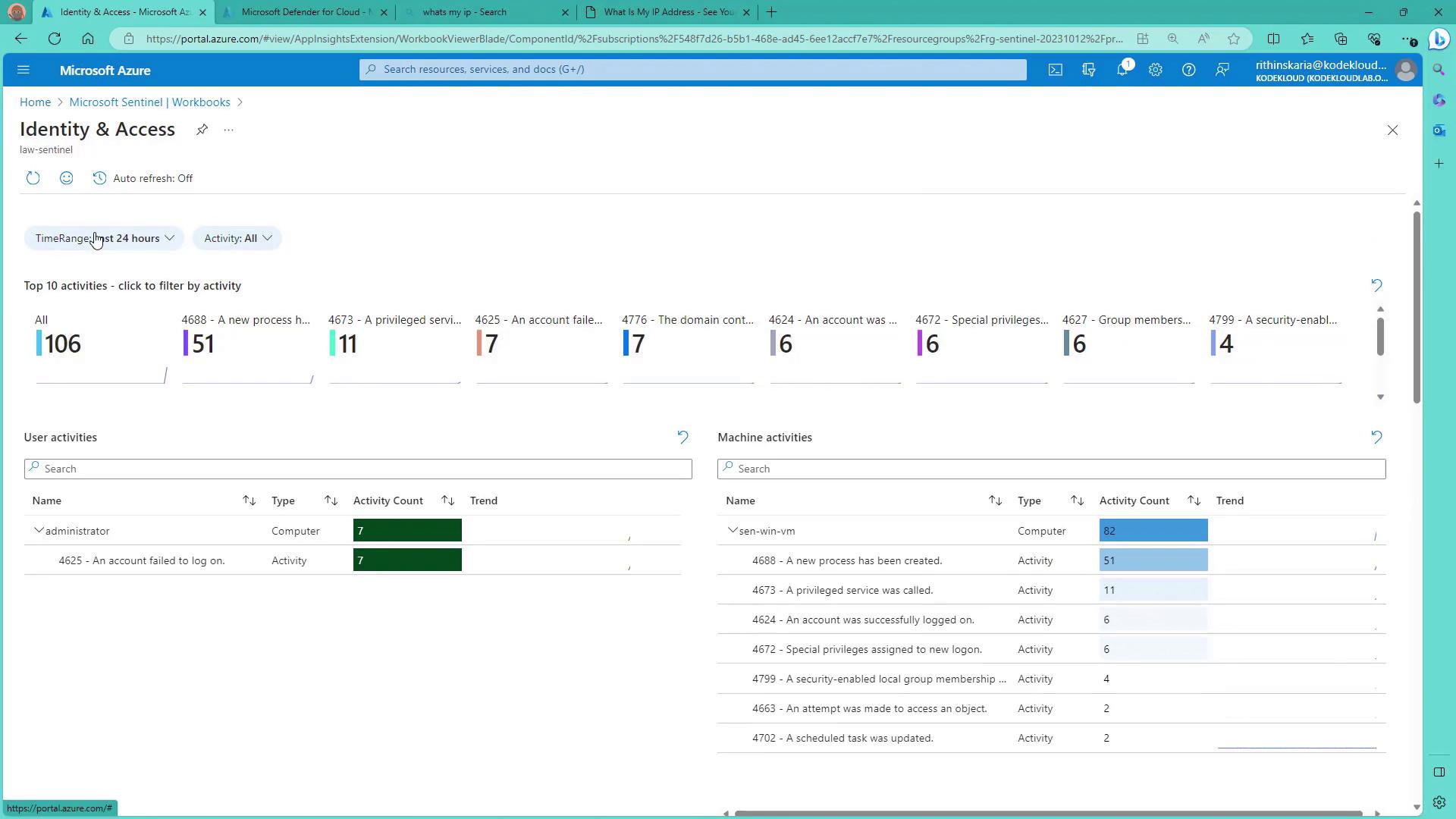
Exploring Additional Templates
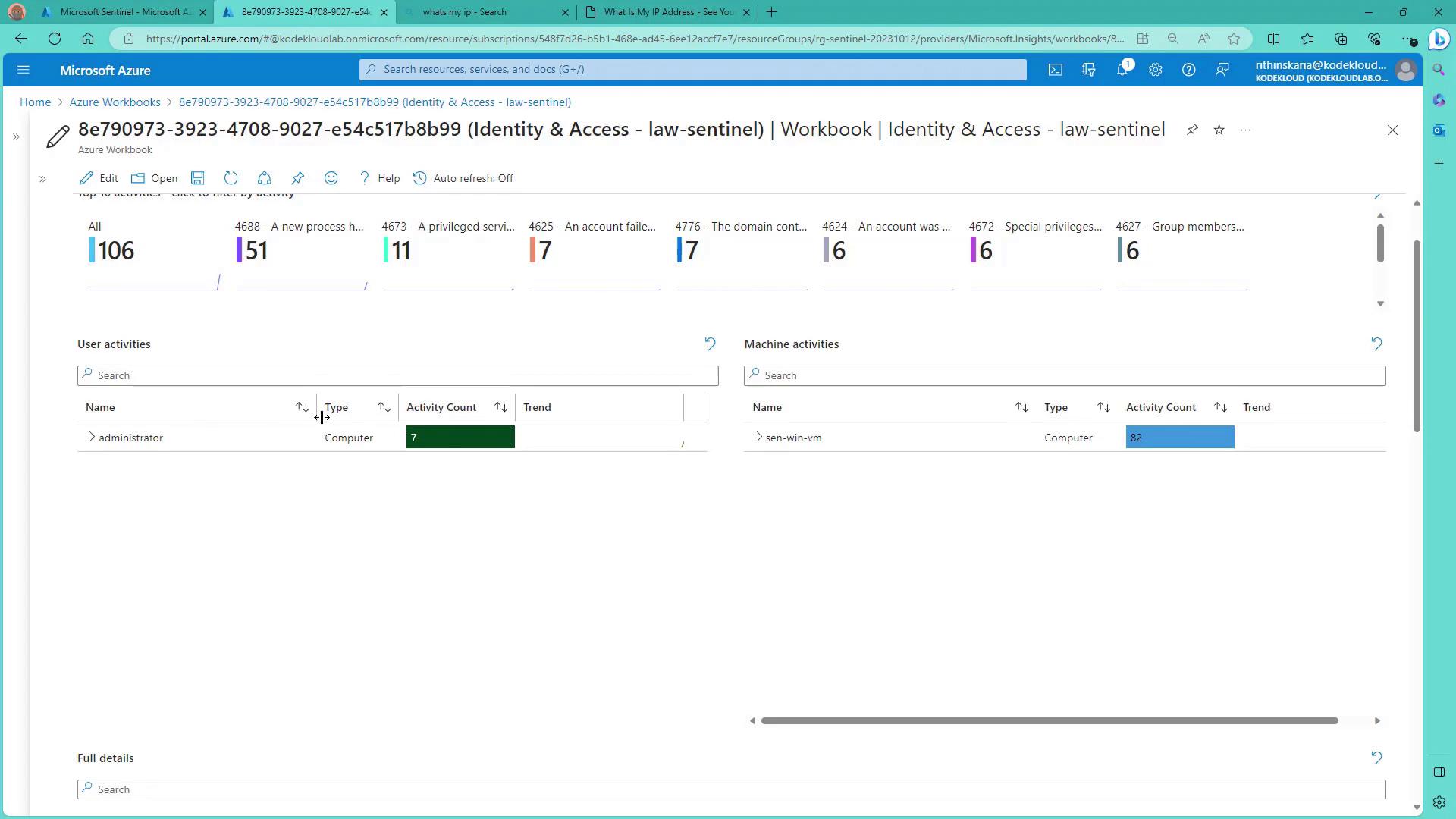
Advanced workbooks are available for other scenarios as well. These include analyzing analytics efficiency or monitoring logs from Active Directory and Azure Active Directory. Sometimes, the returned query might show no results if no activity has been logged yet; this is perfectly normal. There are also templates for monitoring services like Defender for Identity, Defender for Endpoint, and Sentinel cost analysis. If you experience issues with missing panels in a template, a browser refresh usually resolves the problem. To view Sentinel cost details:- Select the appropriate template (Sentinel cost).
- Review the ingestion price and retention details provided within the template.
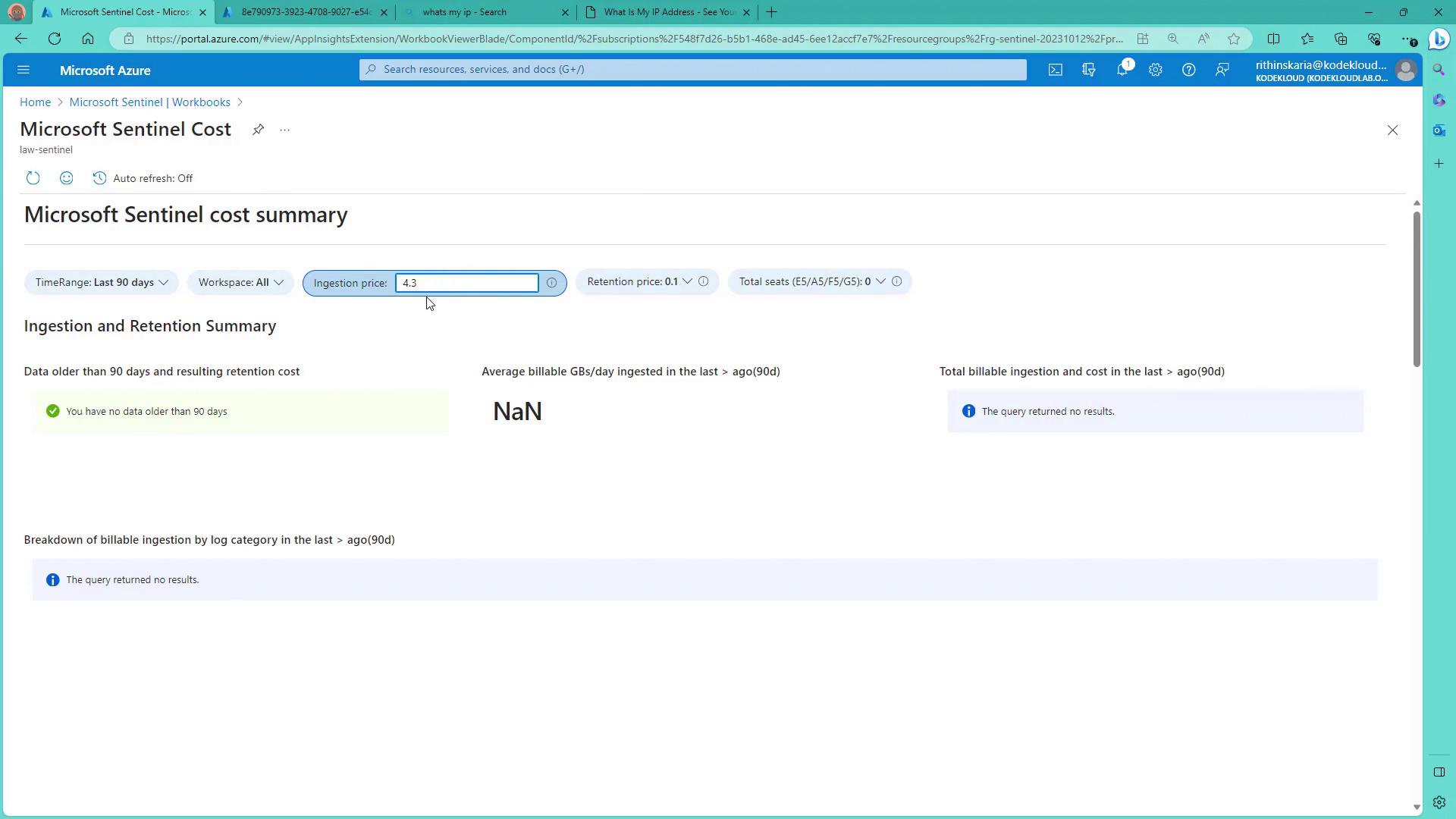
Initially, you may not see any data if the onboarding process has just begun. As more data accumulates, the workbook will accurately reflect usage patterns and associated costs.