

Overview of Traffic Flow
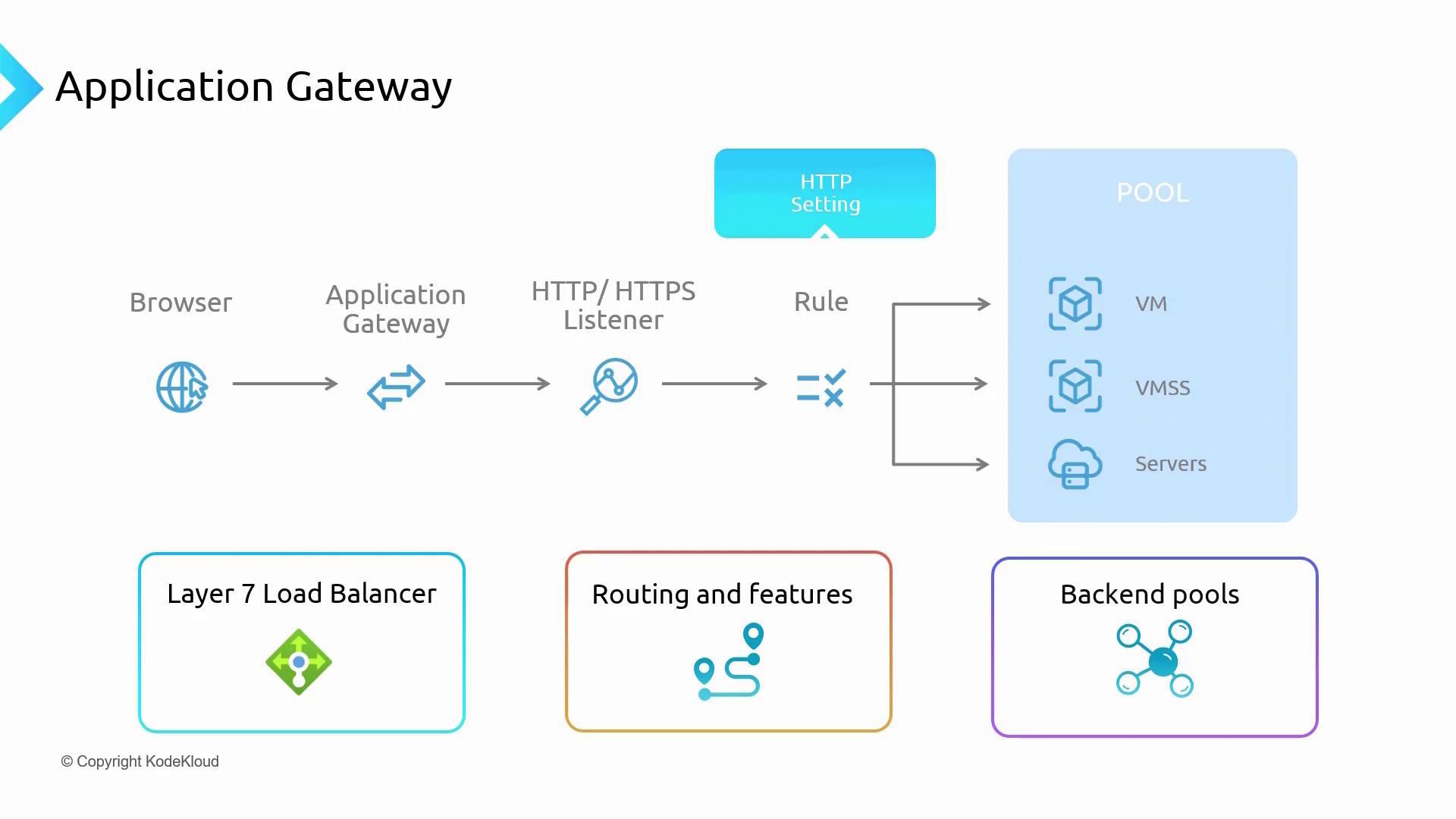
A client sends an HTTP or HTTPS request from a browser, which is then received by the Application Gateway. The gateway uses HTTP/HTTPS listeners, set up on specific IP addresses and ports, to capture incoming traffic. Each listener has associated rules that determine how requests are forwarded based on attributes such as URL paths or host headers. This architecture mirrors a traditional load balancer setup with a front-end, back-end, and intermediary rules. However, due to its layer 7 functionality, the Application Gateway can route requests to multiple back-end targets including Virtual Machines (VMs), Virtual Machine Scale Sets (VMSS), App Services, deployment slots, and even on-premises servers. HTTP settings further refine traffic behavior by specifying parameters such as cookie-based session affinity, request timeouts, and custom probes for health monitoring. Once the rules and settings are processed, the traffic is forwarded to the appropriate back-end pool. The response then follows the reverse path through the Application Gateway, ensuring that the back-end servers remain hidden to enhance security. Additional features include path-based routing, URL redirection, SSL termination, HTTP header rewriting, and custom error pages for fine-tuned control.Supported Back-end Scenarios
Azure Application Gateway supports a wide range of back-end targets that extend beyond the capabilities of the Azure Load Balancer:- Azure Virtual Machines (VMs)
- Azure Virtual Machine Scale Sets (VMSS)
- Azure App Services and App Service deployment slots
- Servers hosted on other cloud providers or on-premises
Application Gateway Components
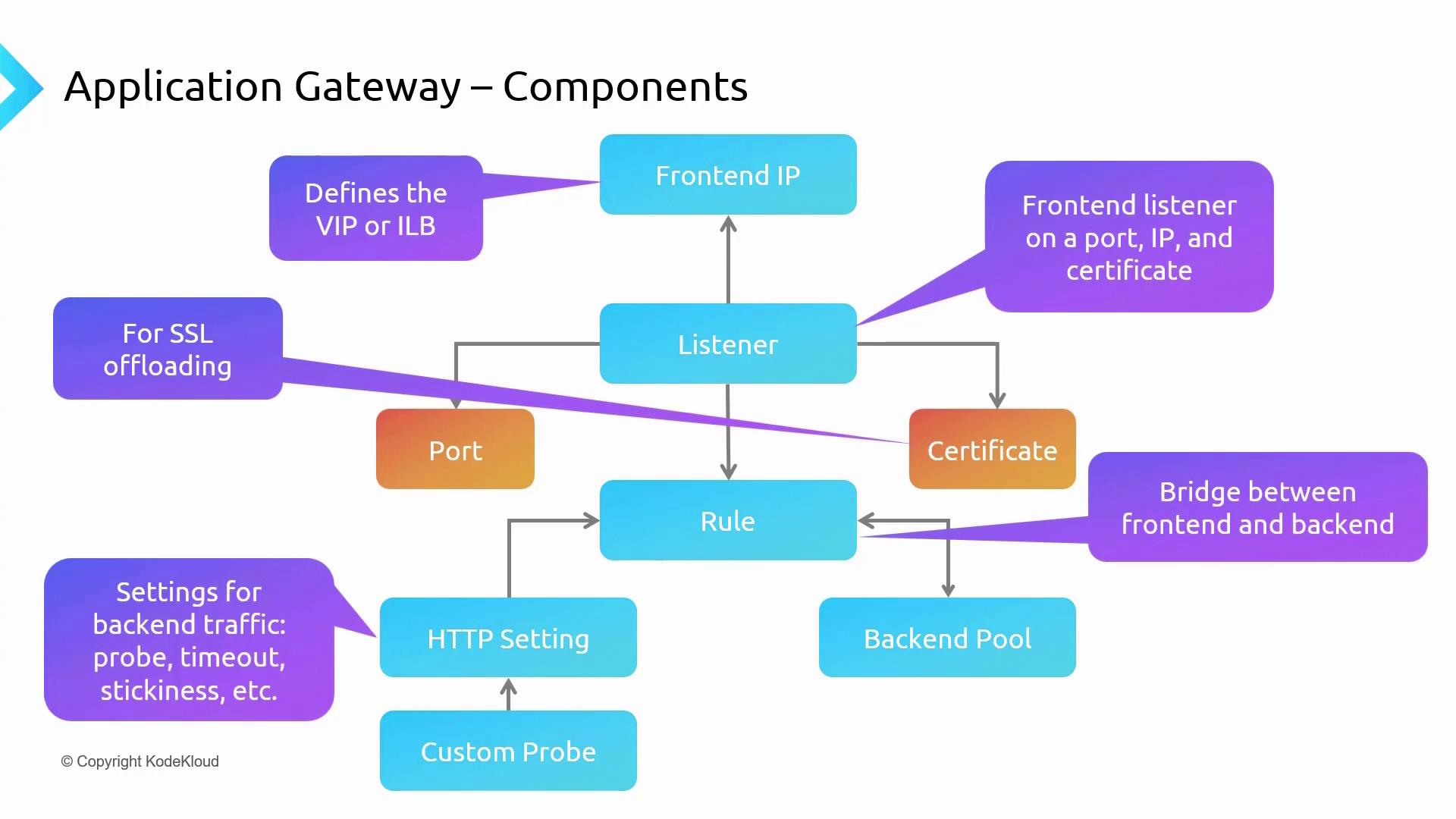
Below is a breakdown of the key components within an Application Gateway:-
Front-end IP:
The entry point for client requests. -
Listener:
Monitors incoming traffic on designated IP addresses and ports. An SSL certificate is required when using HTTPS for secure communication and SSL offloading. -
Rule:
Bridges the front-end and back-end by determining how traffic should be processed and routed. -
HTTP Settings:
Defines details like cookie-based session affinity, request timeouts, and stickiness options. -
Custom Probes (Optional):
Monitor the health of back-end resources to ensure they are ready to process requests. -
Back-end Pool:
Contains the servers hosting your applications. Traffic is routed here based on the rules and settings defined earlier.
Routing Rules and Basic Portal Requirements
Path-Based Routing
Path-based routing allows you to direct client requests to different back-end pools based on the URL path. For instance, requests ending with/images might be mapped to an image server pool, while /video can be routed to a video server pool.
Multiple Site Routing
Multiple site (or multi-site) routing enables you to host several websites on a single Application Gateway. For example, you can host bothkodekloud.com and azuretales.com on one gateway, with routing decisions based on host headers. This approach is cost-effective and simplifies management by avoiding the deployment of multiple gateways.
Summary of Routing Methods
- Path-Based Routing: Routes traffic within a single website based on URL paths.
- Multiple Site Routing: Hosts multiple websites on one gateway by differentiating traffic based on host headers.
Deployment Using Custom Scripts
In the Azure portal, you can deploy the Application Gateway along with back-end servers using custom scripts. Occasionally, issues with the custom script extension may occur (for example, package download errors). An example error might be:- Copy the GitHub URL for the script.
- SSH into the target VM (for example, the jumpbox).
- Download the script using
wget.
jumpbox.sh script uses wget to retrieve the necessary files and configure the VMs. An excerpt from the script is shown below:
jumpbox.sh script, run:
Note: Errors from the custom script extension are often intermittent. The output below confirms that the green server is responding correctly:
Verifying the Setup
From the jumpbox, you can test the responses of various servers usingcurl. For example:
Configuring the Application Gateway in the Azure Portal
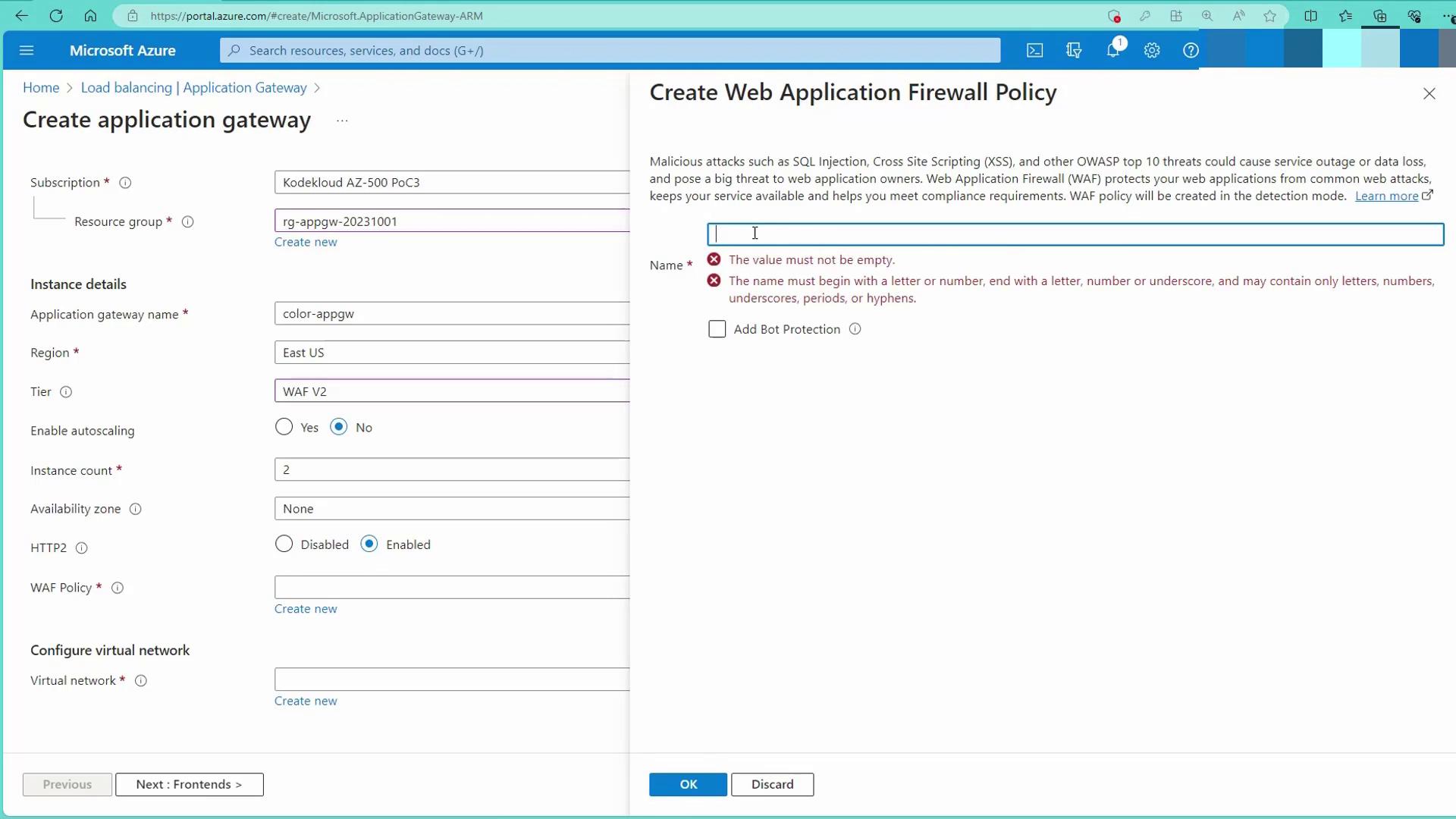
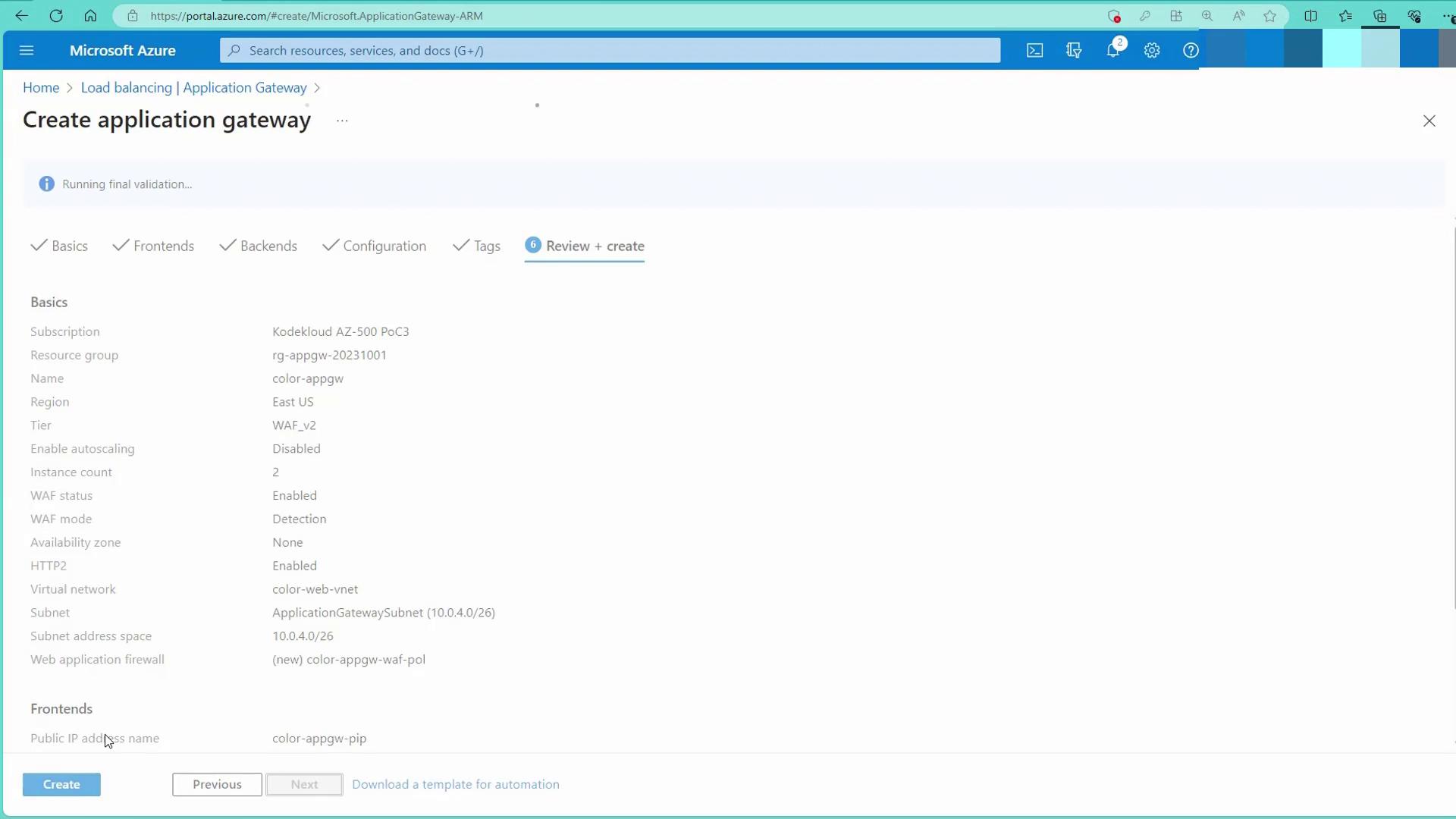
Step 1: Create the Application Gateway
- Open the Azure portal and search for “Application Gateways”.
- Choose your resource group and provide a unique name (e.g.,
appGW). - Select the WAF v2 SKU (Web Application Firewall) for enhanced security, aligning with future modules.
- Set the instance count to 2 and enable HTTP/2.
- Create a simple WAF policy (for example, name it
color).
Step 2: Configure the Virtual Network
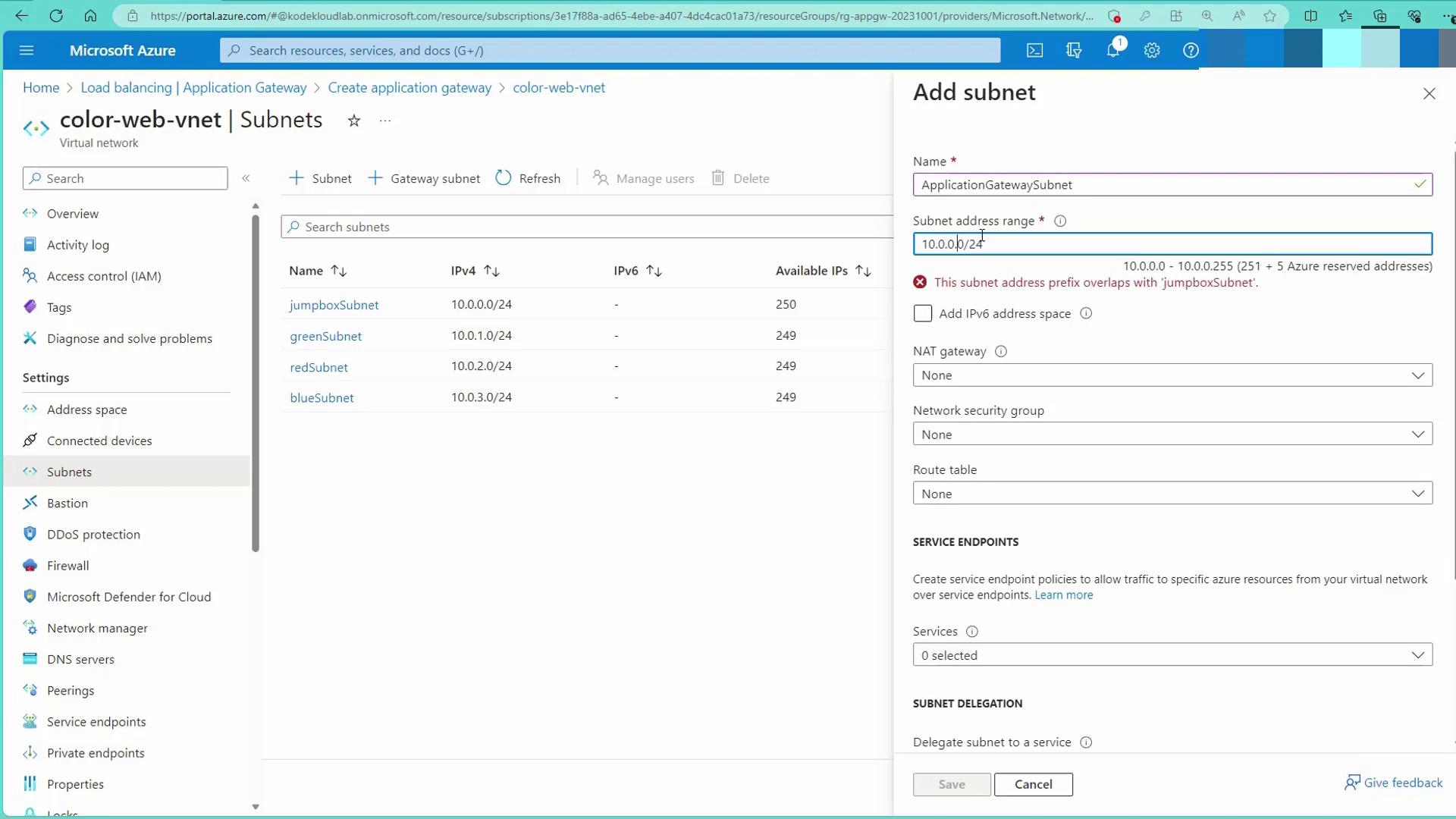
- Select your Virtual Network (e.g.,
color web VNet). - Click on “Manage subnet configuration” and add a dedicated subnet (e.g.,
ApplicationGatewaySubnetwith an address space like10.0.0.0/26).
Step 3: Create Front-end and Back-end Pools
- Front-end:
Create a public IP address for the front-end of the Application Gateway.

- Back-end Pools:
Create backend pools for the red, green, and blue servers. Initially, you may create the pools without adding servers. Later, attach the appropriate virtual machines to their corresponding pools.
Step 4: Configure Routing Rules
- Create a routing rule (e.g.,
color-appGW-rule-HTTP) with a priority (set to 1). - Create a listener (e.g.,
color-appGW-listener-HTTP) that uses the public IP at port 80 with a basic listener type. - Set the default back-end target to the green server pool.
- Add path-based routing rules:
- Requests matching
/red/*are forwarded to the red server pool. - Requests matching
/blue/*are forwarded to the blue server pool.
- Requests matching
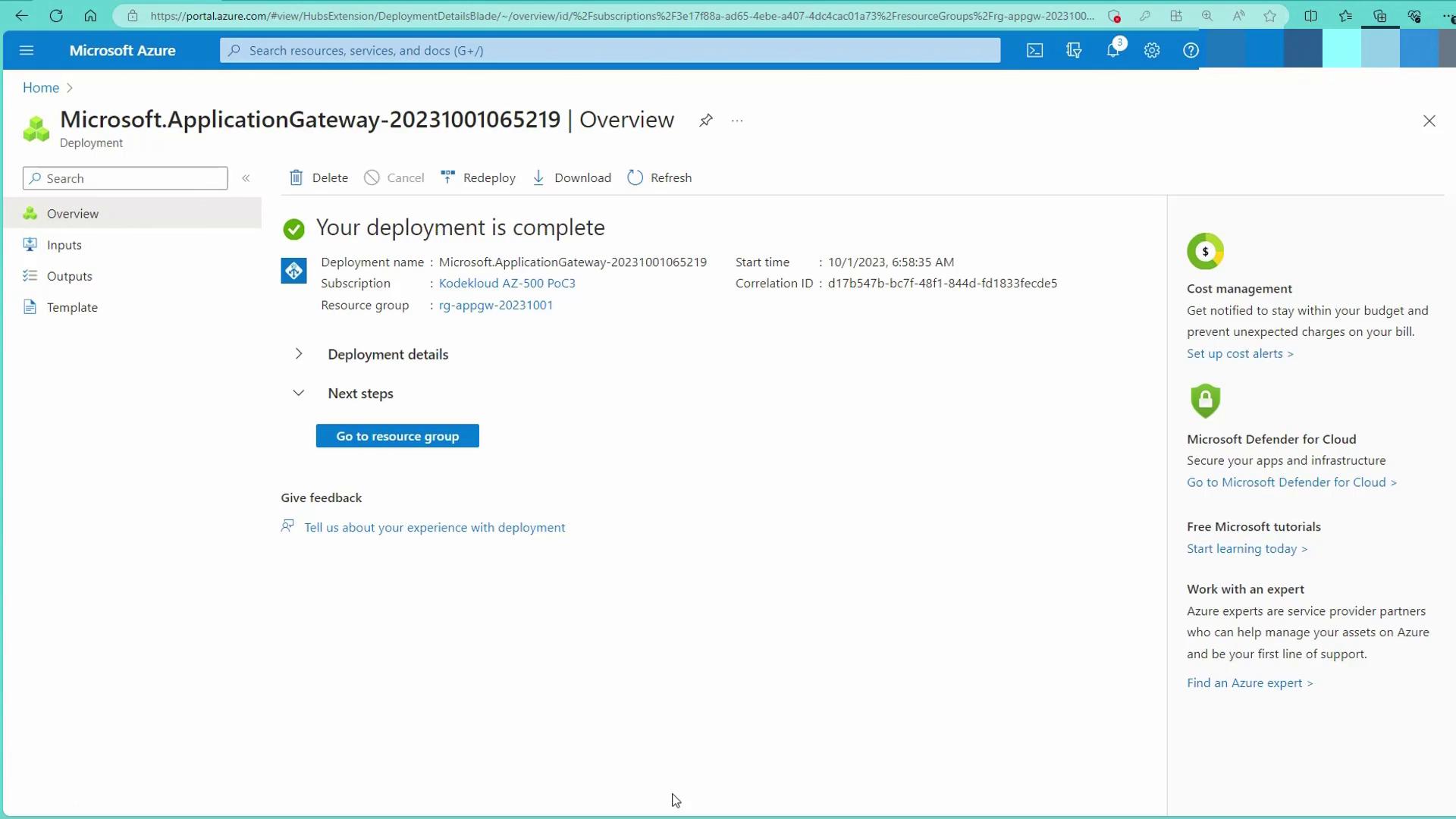
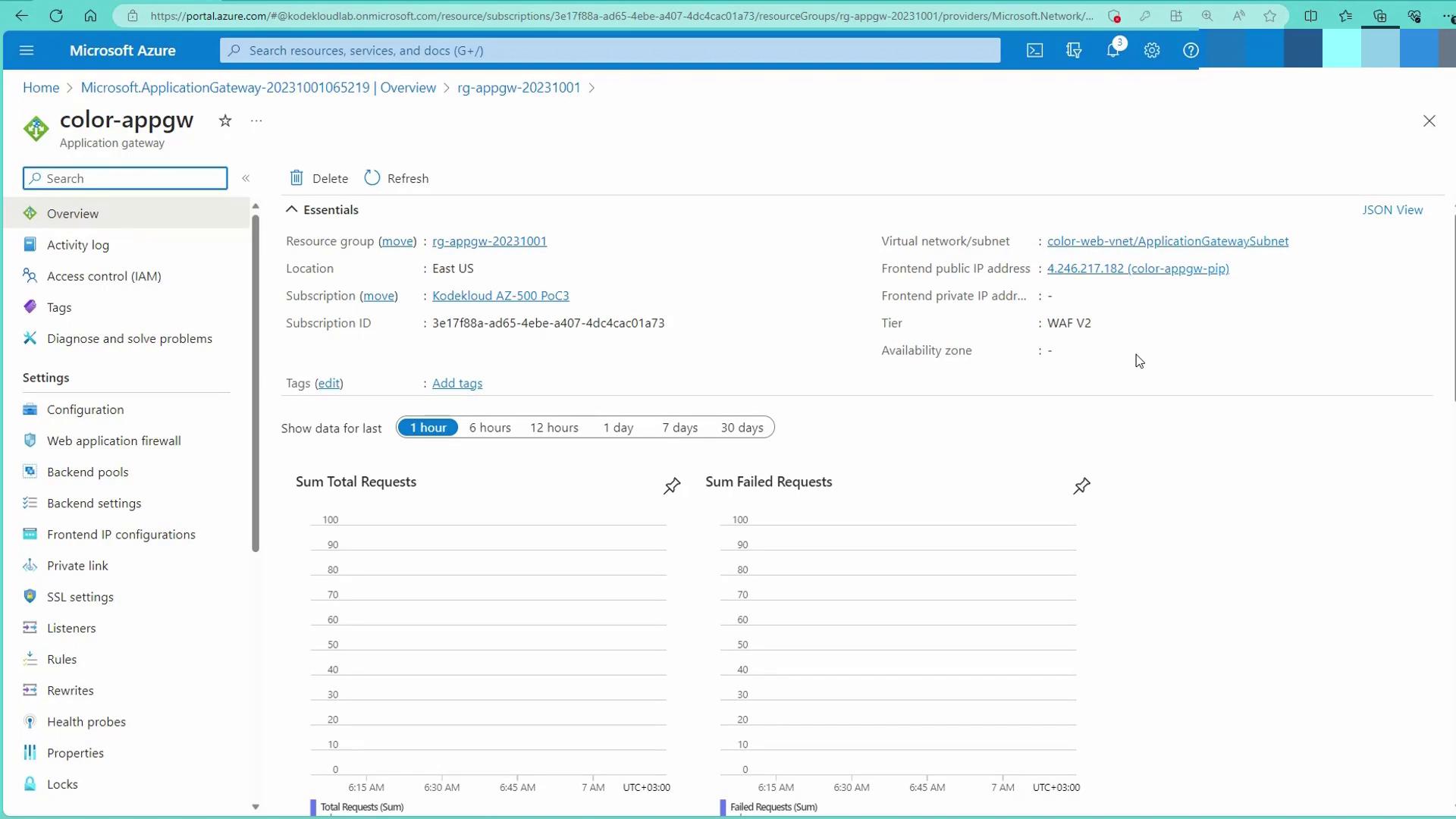
Step 5: Add Back-end Targets
Navigate to the backend pools and add your virtual machines (red, green, and blue) as targets. For example, add the appropriate red VMs under the red backend pool and do the same for the green and blue pools.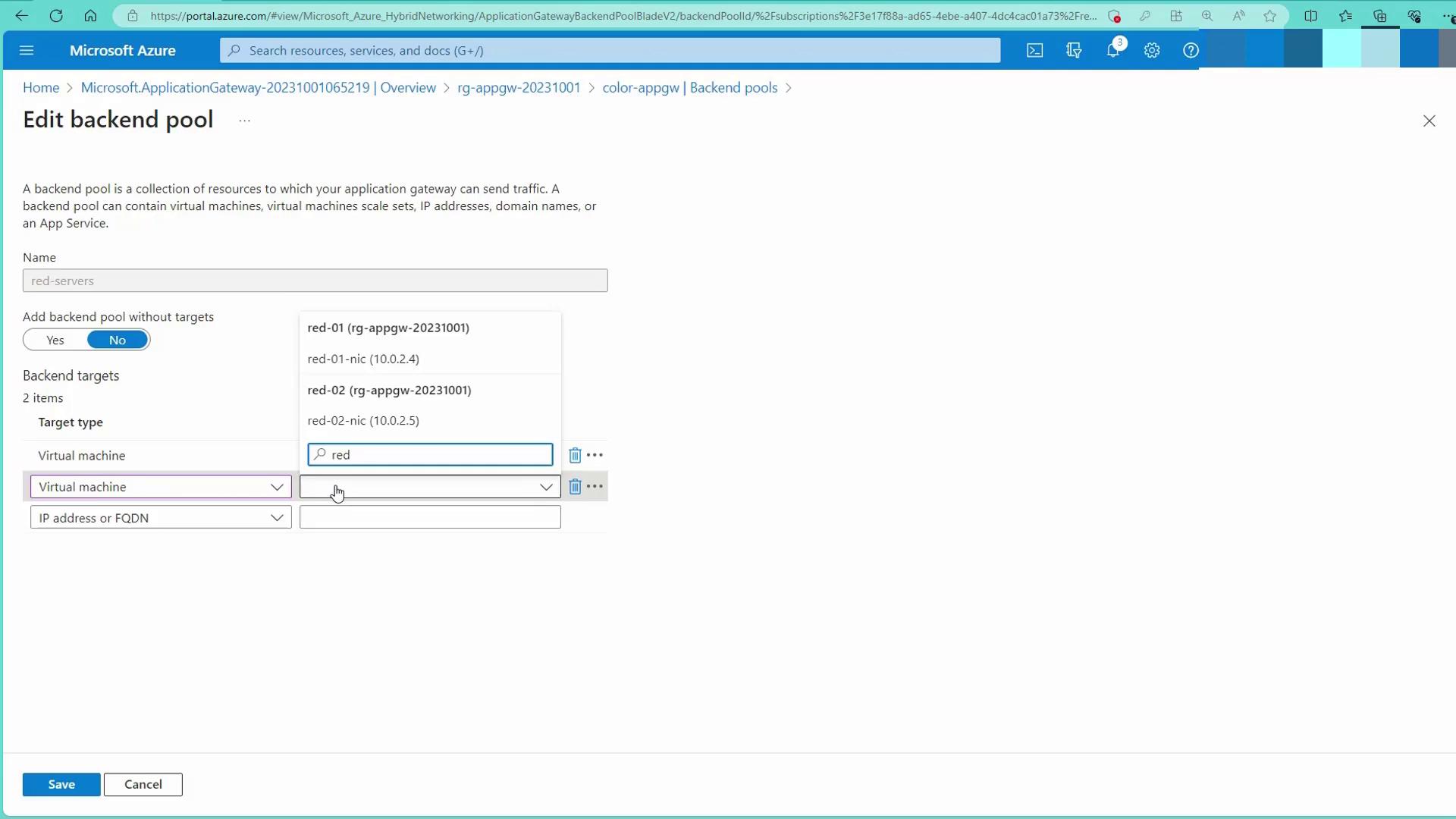
Testing and Path-Based Routing Verification
After configuring the backend pools, access the public IP of the Application Gateway:- A request to the gateway’s IP returns the green page by default.
- Appending
/red/*routes the request to the red servers. - Appending
/blue/*routes the request to the blue servers.
curl commands: