

Removing a Runner via the GitHub UI
- Navigate to your repository’s Settings > Actions > Runners.
- Click the runner you want to remove.

- On the runner details page, click Remove.
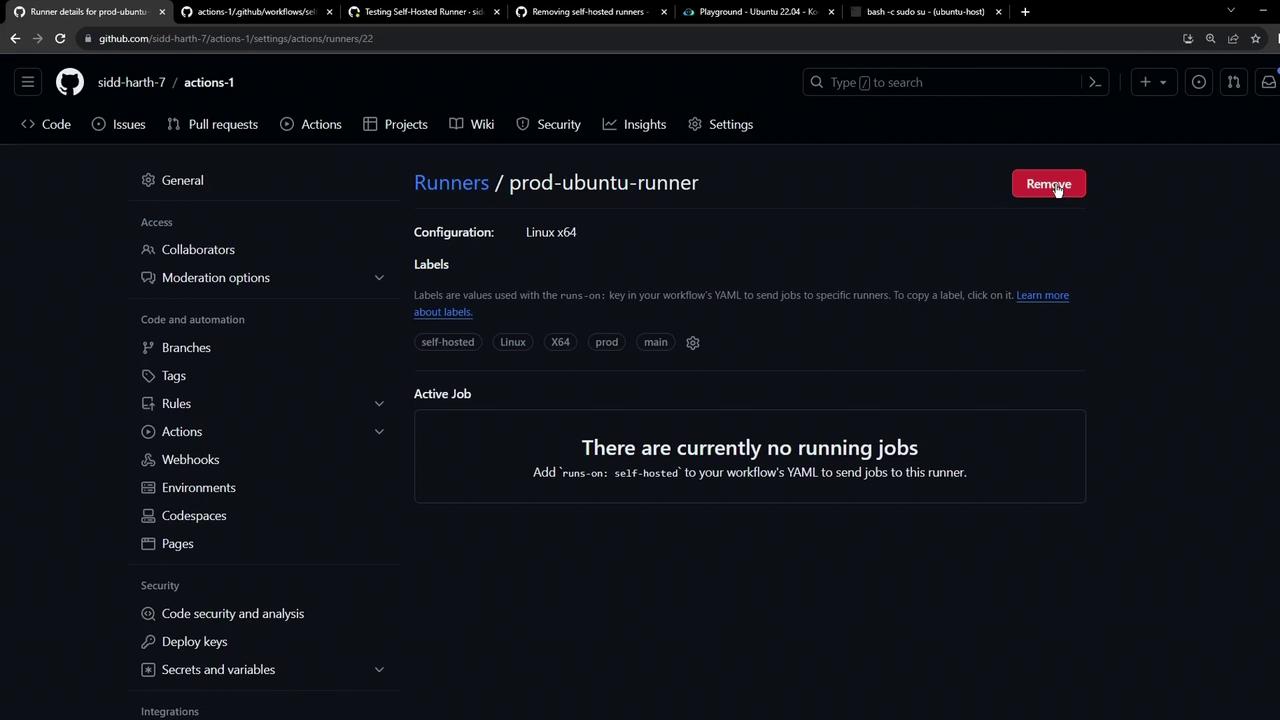
If you have MFA enabled, GitHub will prompt you for your authentication code. Once verified, the runner is permanently removed from the repository.
Cleaning Up the Runner Host
After deleting the runner in the UI, you may want to wipe its local installation, especially if you plan to repurpose the machine.Using the Configuration Script
Run theconfig.sh remove command on the host. Replace <TOKEN> with the token shown in your runner settings.
- Uninstall the runner application
- Remove configuration files
- Unregister the runner from GitHub
Ensure you copy the exact token from your repository’s runner settings. An invalid token will prevent the runner from unregistering.
Stopping the Runner Process Manually
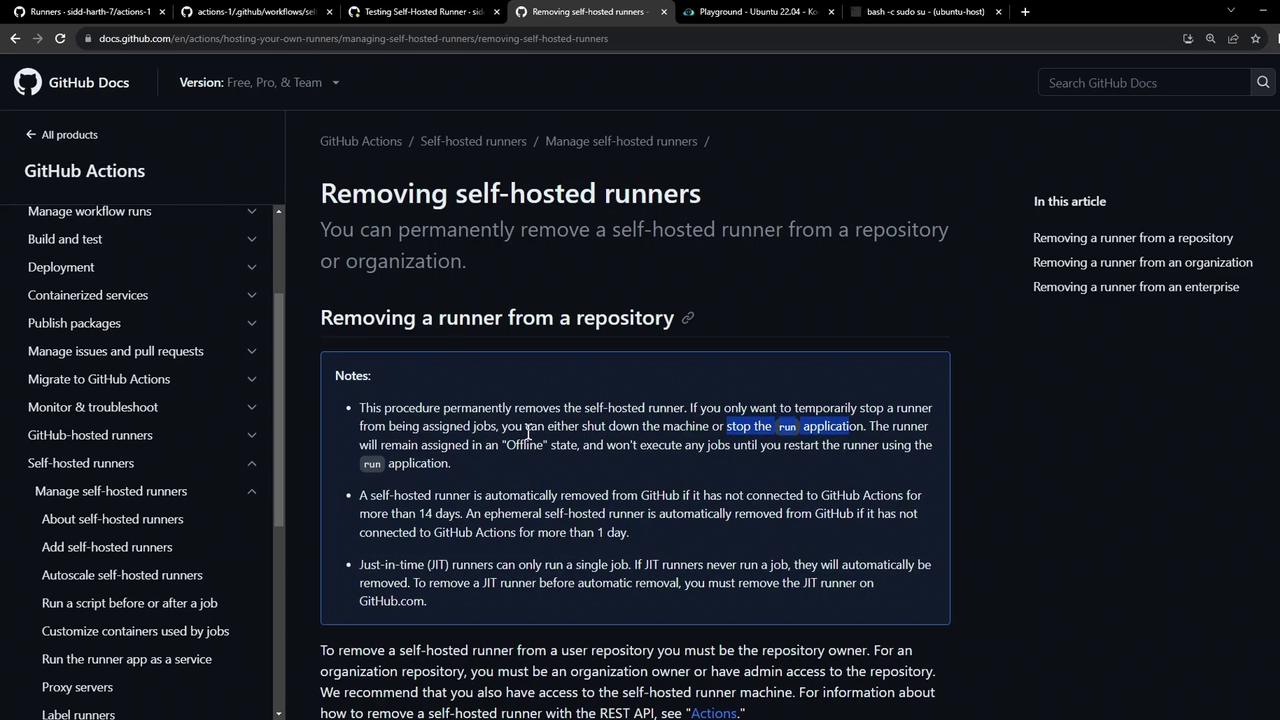
If you skip the config script, simply terminate the running service or process (e.g.,run.sh). The runner will appear as offline in GitHub and will not accept new jobs.
According to the GitHub documentation, any self-hosted runner offline for over 14 days is automatically removed.
Removing a Runner at Organization or Enterprise Level
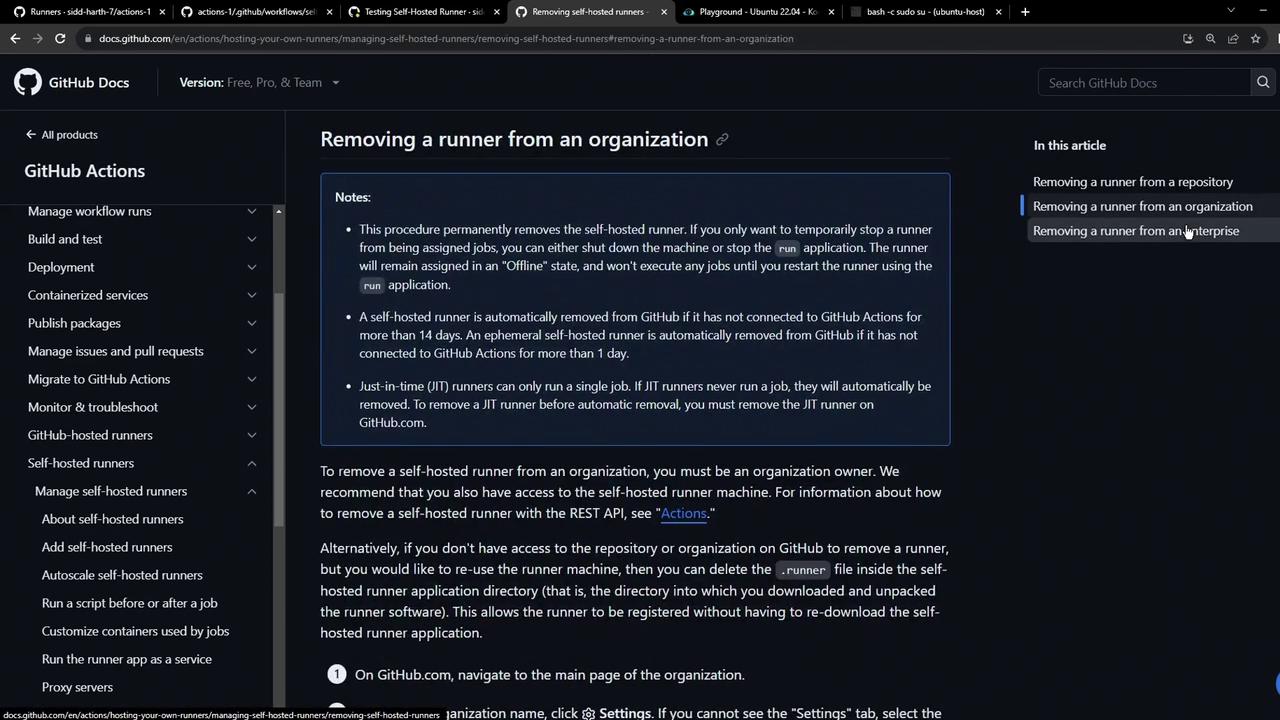
The steps are identical for organization or enterprise runners:- Go to Organization Settings or Enterprise Settings > Actions > Runners.
- Select the runner and click Remove.
- On the runner host, run the same
config.sh removecommand or stop the service.
Comparison of Removal Methods
| Method | Scope | Effect | Command |
|---|---|---|---|
| GitHub UI | Repo, Org, Enterprise | Immediate UI removal | N/A |
| config.sh remove | Runner host | Uninstalls & unregisters runner | ./config.sh remove --token <TOKEN> |
| Manual process termination | Runner host | Marks runner offline, auto-prune after 14 days | kill <PID> or stop service |