In this guide, you’ll learn how to extend your GitHub Actions pipeline to authenticate with Docker Hub (or any OCI registry) before building and pushing a Docker image. We assume you already have unit tests and code coverage set up; our focus here is adding a containerization job that logs into Docker.

1. Current Workflow and Dockerfile

1.1. GitHub Actions Workflow

The following workflow runs on pushes to main or feature/* branches, and can be triggered manually via workflow_dispatch:
name: Solar System Workflow

on:
  push:
    branches:
      - main
      - 'feature/*'
  workflow_dispatch:

env:
  MONGO_URI: 'mongodb+srv://supercluster.d83jj.mongodb.net/superData'
  MONGO_USERNAME: ${{ vars.MONGO_USERNAME }}
  MONGO_PASSWORD: ${{ secrets.MONGO_PASSWORD }}

jobs:
  unit-testing:
    # … your unit testing steps
  code-coverage:
    # … your coverage steps

1.2. Dockerfile

Keep this Dockerfile at the repository root to build your Node.js image:
FROM node:18-alpine3.17
WORKDIR /usr/app

COPY package*.json /usr/app/
RUN npm install

COPY . .
ENV MONGO_URI=uriPlaceholder
ENV MONGO_USERNAME=usernamePlaceholder
ENV MONGO_PASSWORD=passwordPlaceholder

EXPOSE 3000
CMD ["npm", "start"]

2. Add the Containerization Job

Insert a new job named containerization after your existing steps. It will:
  1. Checkout the repository
  2. Authenticate with Docker Hub (or any registry)
jobs:
  # … unit-testing and code-coverage as before

  containerization:
    name: Containerization
    runs-on: ubuntu-latest
    needs: [unit-testing, code-coverage]
    steps:
      - name: Checkout Repository
        uses: actions/checkout@v4

      - name: Docker Login
        uses: docker/login-action@v2
        with:
          username: ${{ vars.DOCKERHUB_USERNAME }}
          password: ${{ secrets.DOCKERHUB_PASSWORD }}
The docker/login-action supports Docker Hub, GitHub Container Registry, AWS ECR, Google GCR, Azure ACR, and more. It performs docker login in the workflow and handles logout post-job.

3. Configure Secrets and Variables

You’ll need:
  • Secrets for sensitive data: DOCKERHUB_PASSWORD, MONGO_PASSWORD
  • Variables for non-sensitive values: DOCKERHUB_USERNAME, MONGO_USERNAME
TypePurposeExample
SecretPassword or tokenDOCKERHUB_PASSWORD
VariableNon-sensitive stringDOCKERHUB_USERNAME
  1. In your repo, go to Settings → Secrets and variables.
  2. Under Actions secrets, add DOCKERHUB_PASSWORD.
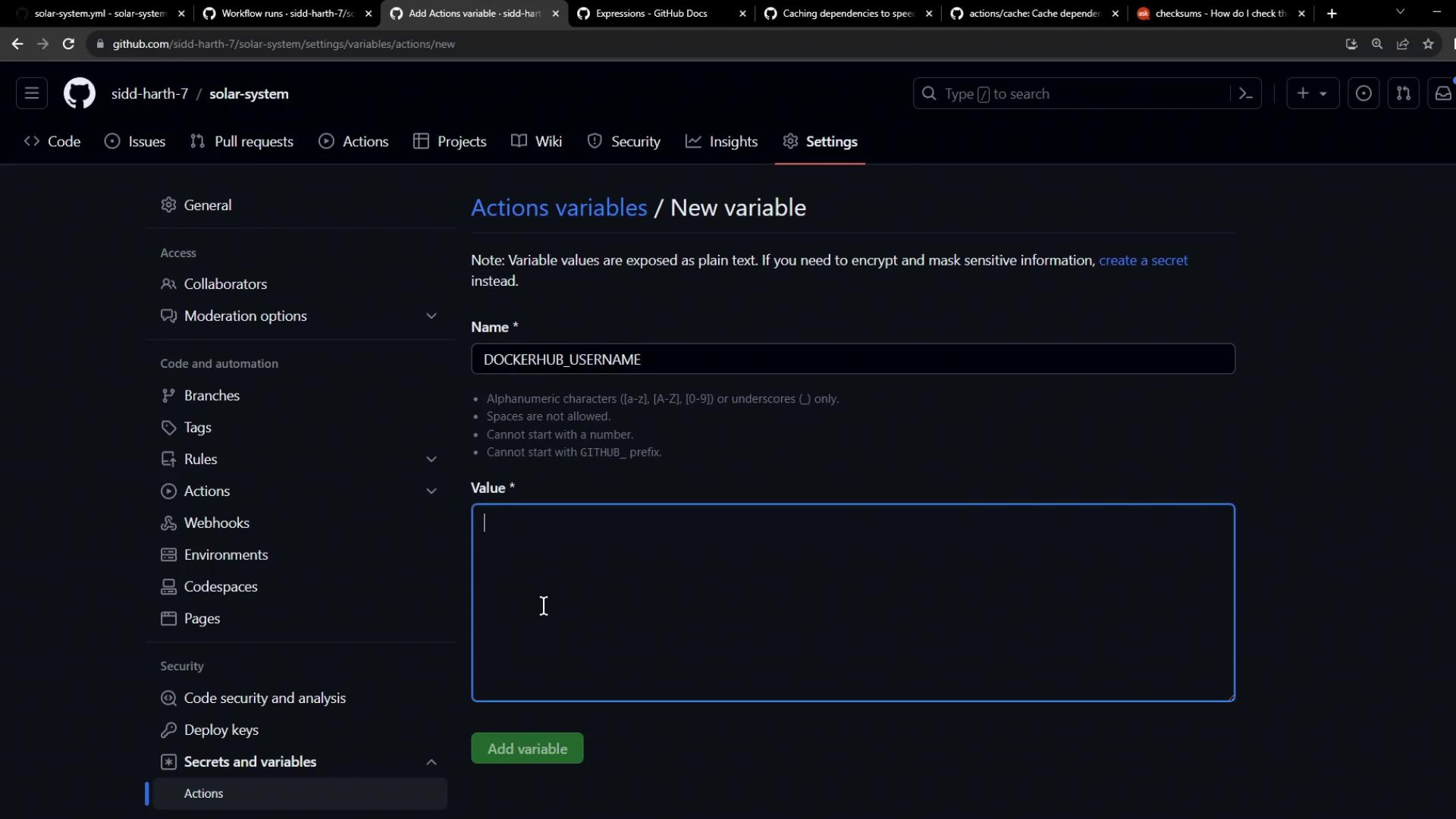
  3. Under Actions variables, add DOCKERHUB_USERNAME.
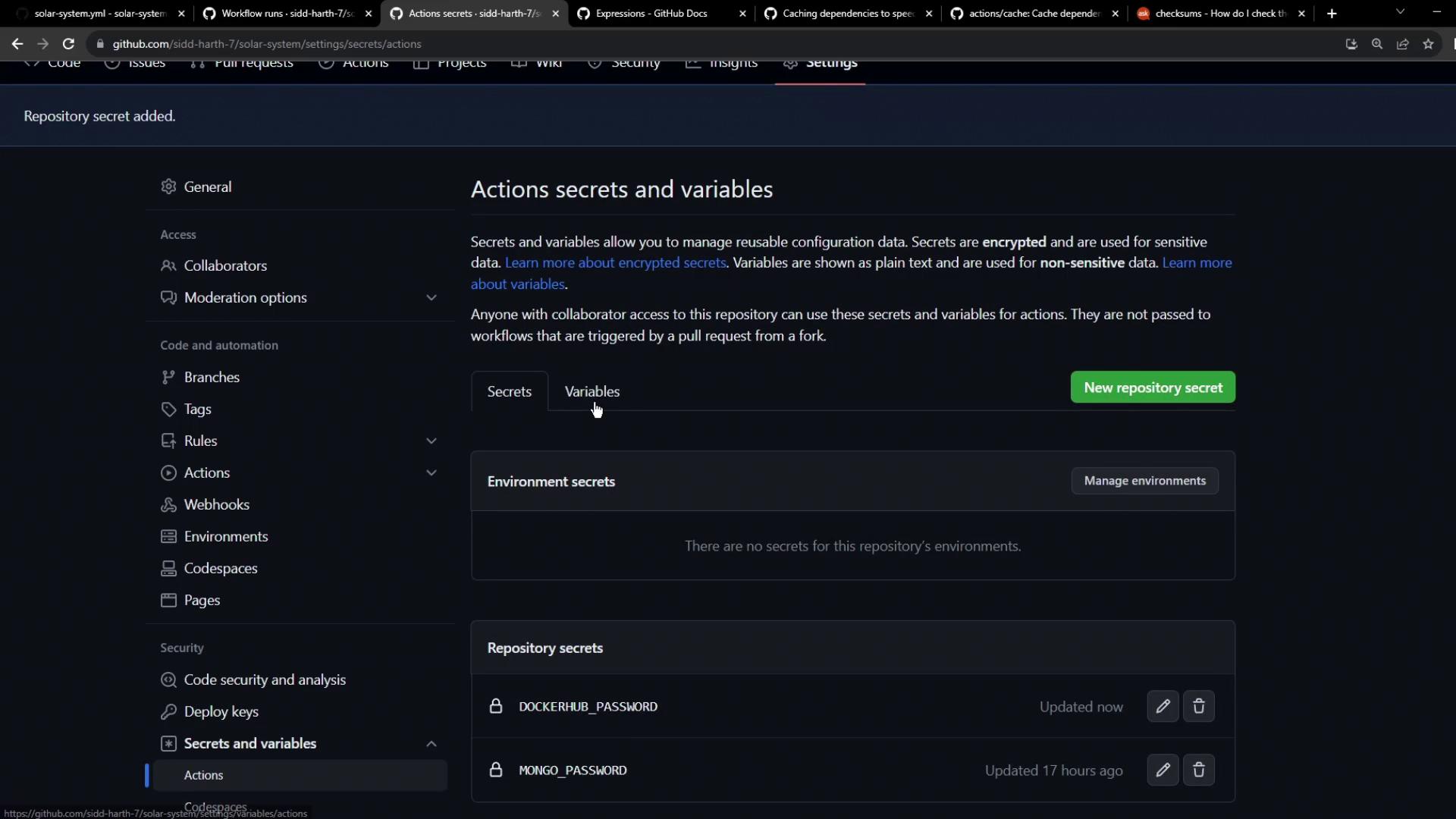
The image shows a GitHub repository settings page for managing "Actions secrets and variables," with options to add new repository secrets and manage existing ones. It lists two repository secrets: "DOCKERHUB_PASSWORD" and "MONGO_PASSWORD."
The image shows a GitHub settings page where a new action variable named "DOCKERHUB_USERNAME" is being added. The interface includes fields for the variable name and value, with guidelines for naming conventions.

4. Observe Your Workflow Run

After committing and pushing these changes:
  1. Open the Actions tab in GitHub.
  2. Select your workflow; you’ll see builds triggered by your push.
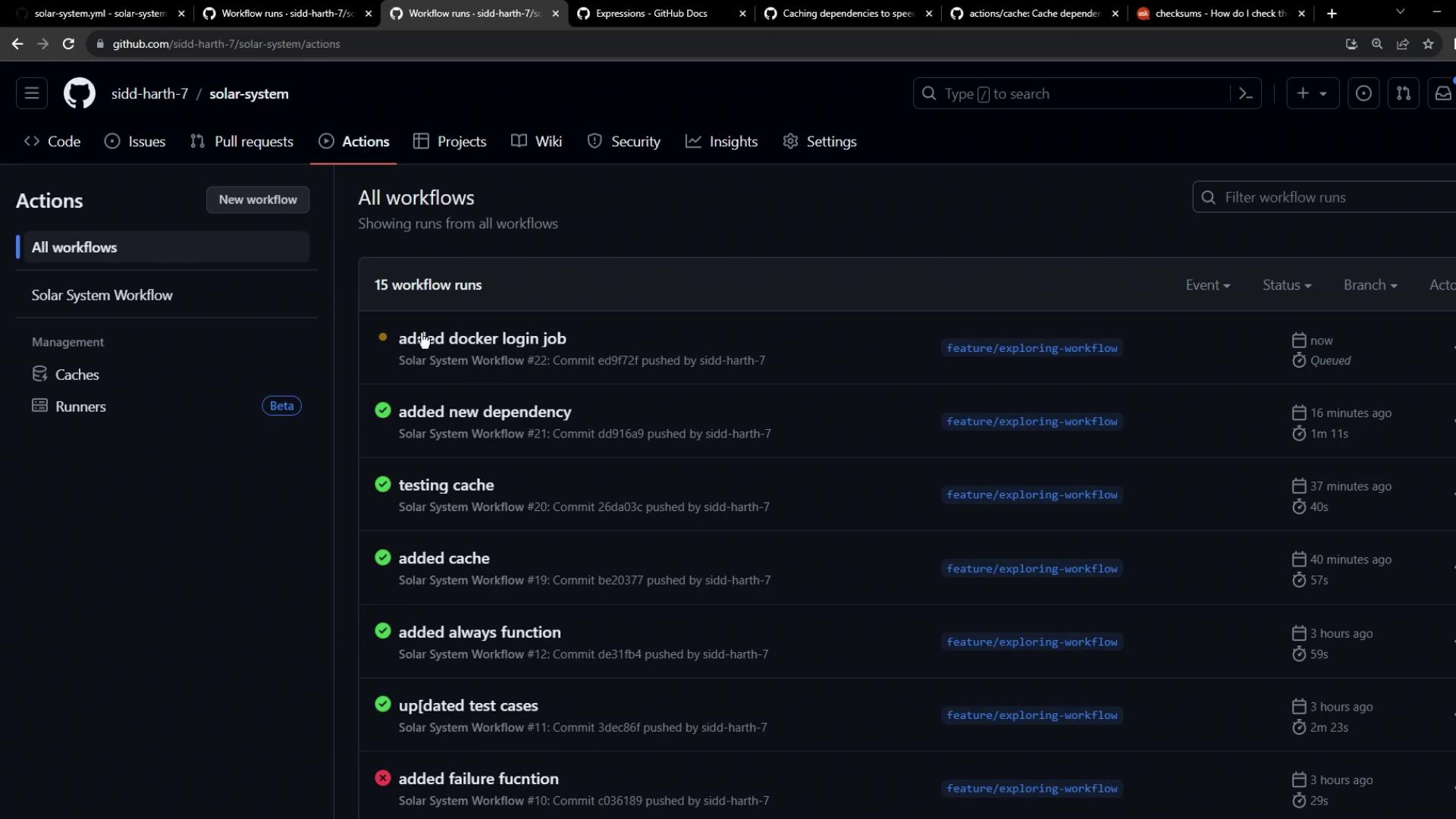
The image shows a GitHub Actions page displaying a list of workflow runs for a project named "solar-system," with various statuses and timestamps.
  1. Click on a run to view job dependencies. Notice Containerization waits for unit-testing and code-coverage:
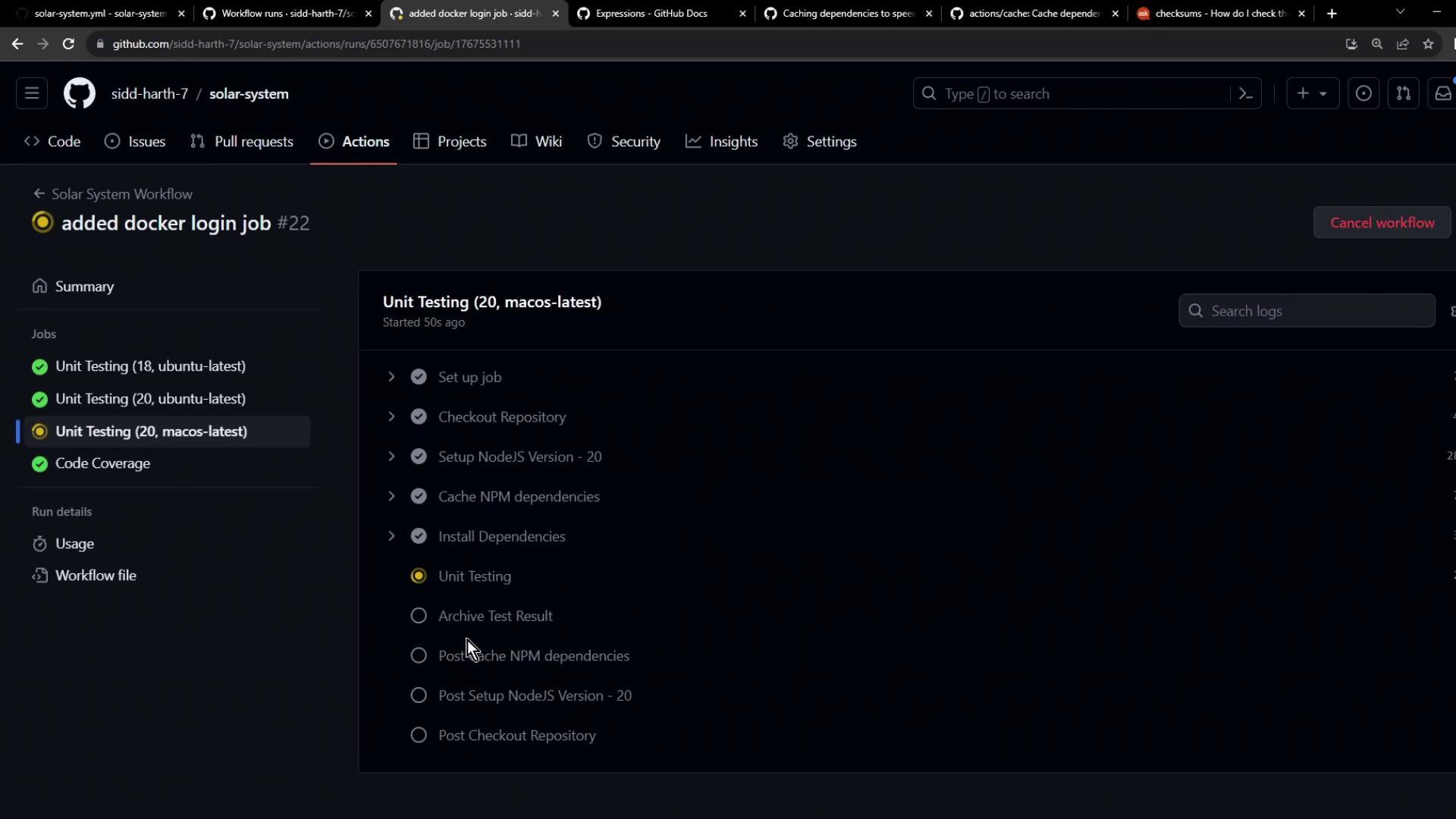
The image shows a GitHub Actions workflow interface with a list of jobs, including unit testing and code coverage, for a project named "solar-system." The current job highlighted is "Unit Testing (20, macos-latest)."
  1. Once earlier jobs pass, the Docker login step executes:
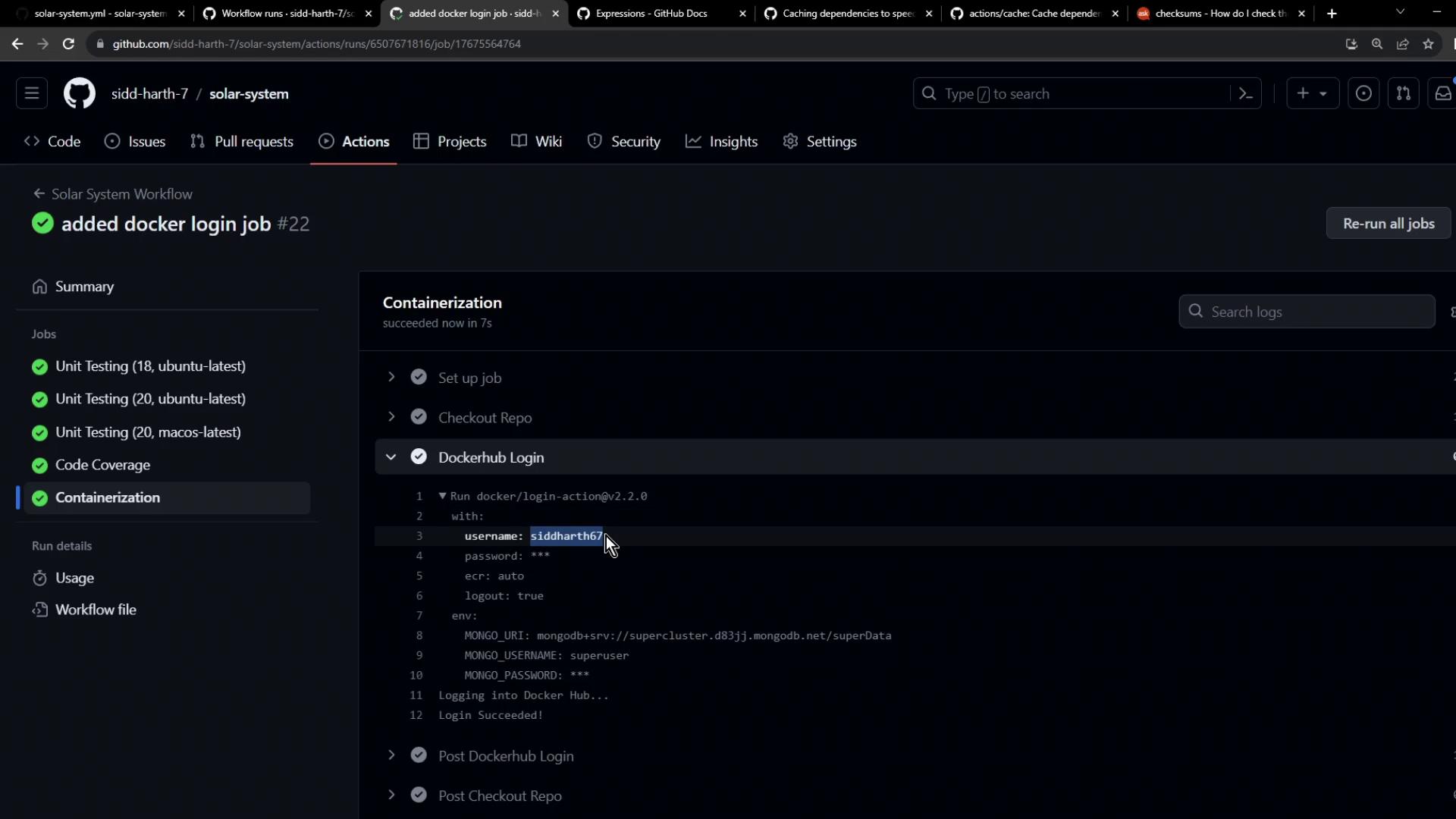
The image shows a GitHub Actions workflow interface with a successful containerization job, including unit testing and Dockerhub login steps.
Your workflow is now authenticated to Docker Hub. In the next lesson, we’ll build, tag, and push the Docker image.