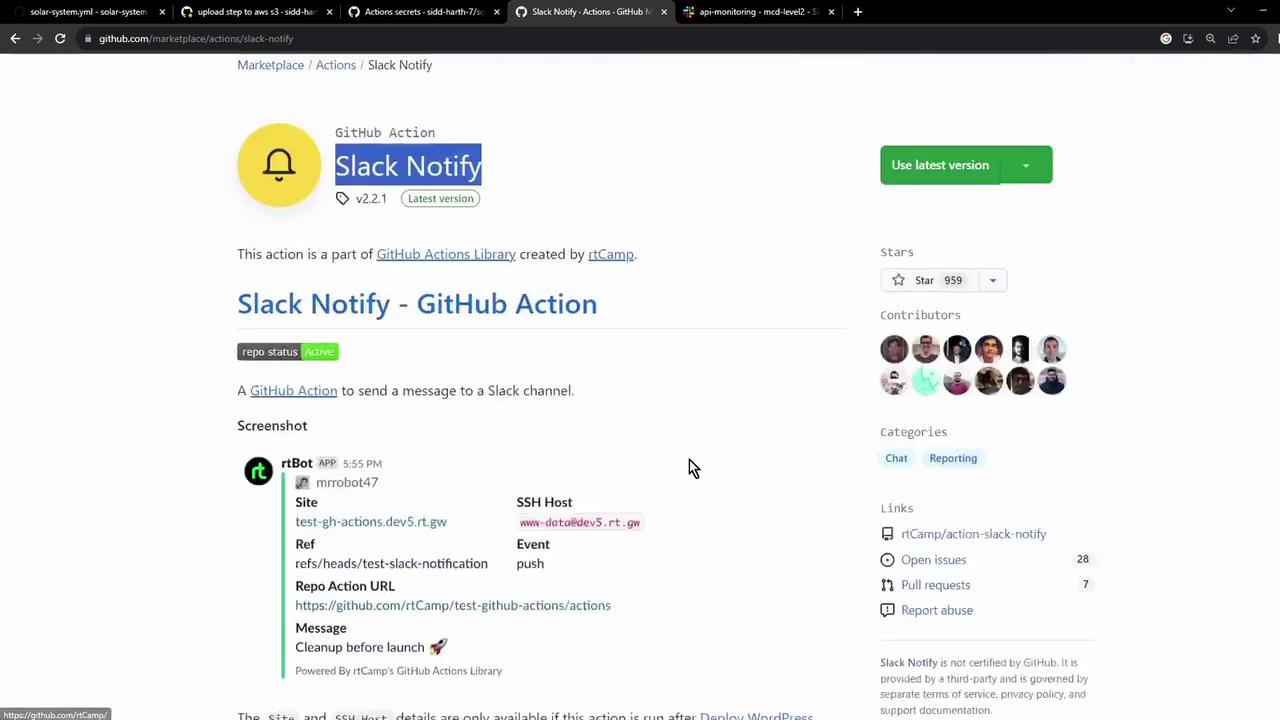
Table of Contents
- Action Inputs Reference
- Creating a Slack Channel & Webhook
- Testing Your Webhook
- Storing the Webhook as a GitHub Secret
- Adding the Slack Notification Job
- Verifying Notifications in Slack
- Using
if: always()on Cancellation - Links and References
Action Inputs Reference
Use the following environment variables to configure your Slack messages. At minimum, setSLACK_CHANNEL and SLACK_WEBHOOK.
| Variable | Description | Example |
|---|---|---|
| SLACK_CHANNEL | Target Slack channel (name or ID) | general |
| SLACK_WEBHOOK | Incoming Webhook URL (store securely as a secret) | ${{ secrets.SLACK_WEBHOOK }} |
| SLACK_COLOR | Message color: good, warning, danger, hex code, or job status | ${{ job.status }} |
| SLACK_ICON | URL to an icon or emoji | https://github.com/rtCamp.png?size=48 |
| SLACK_TITLE | Title of the notification | Build Notification |
| SLACK_MESSAGE | Main message text, supports emojis | Build Status :rocket: |
| SLACK_USERNAME | Username to display | rtCamp |
Example Usage
Customize
SLACK_COLOR, SLACK_ICON, and other fields to match your team’s branding or workflow context.Creating a Slack Channel & Webhook
- In your Slack workspace, create a new channel (e.g.,
github-actions-channel). - Navigate to https://api.slack.com/apps and click Create New App → From scratch.
- Name the app GitHub Actions application, select your workspace, then Create App.
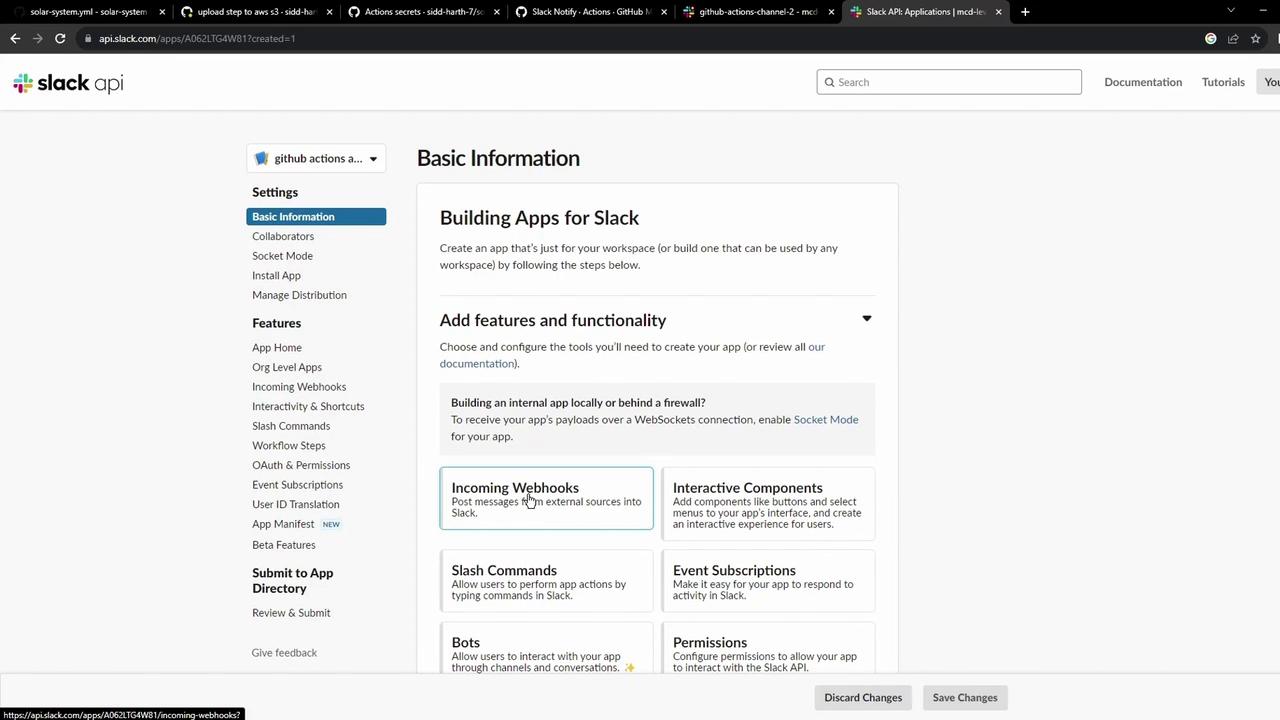
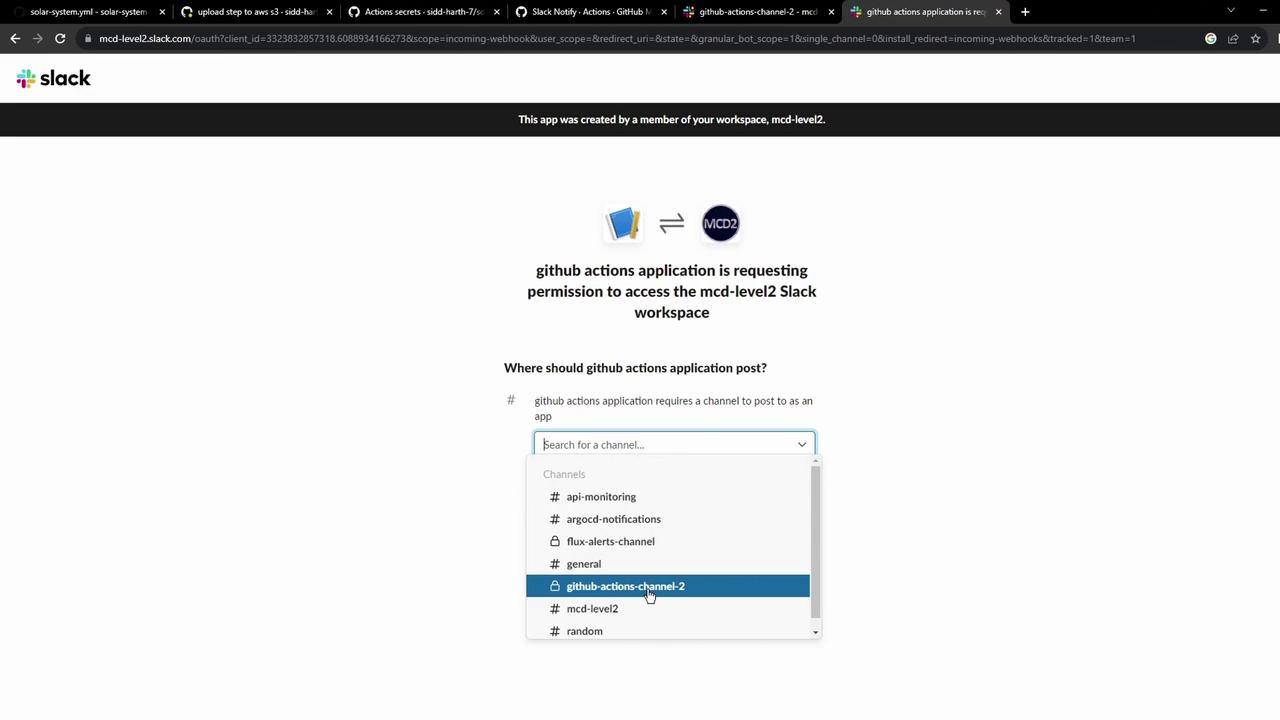
- Under Features, enable Incoming Webhooks and click Add to Workspace.
- Choose your channel and click Allow. Copy the generated webhook URL.
Testing Your Webhook
Before integrating into GitHub Actions, verify the webhook:Storing the Webhook as a GitHub Secret
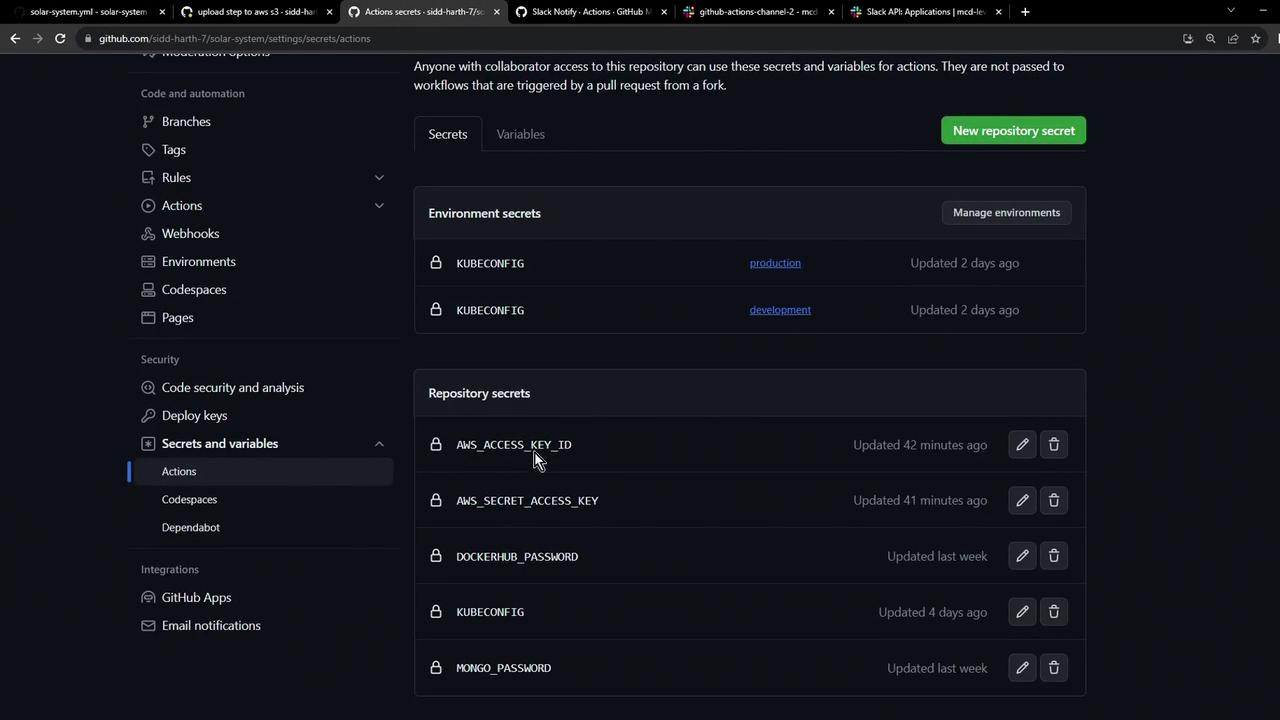
- In your GitHub repository, go to Settings > Secrets and variables > Actions.
- Click New repository secret, name it
SLACK_WEBHOOK, and paste your webhook URL.
Never hard-code your Slack webhook URL in public workflows. Always use GitHub Secrets to protect sensitive information.
Adding the Slack Notification Job
Incorporate the Slack notification at the end of your workflow to report statuses on success, failure, or cancellation. Below is a sample workflow: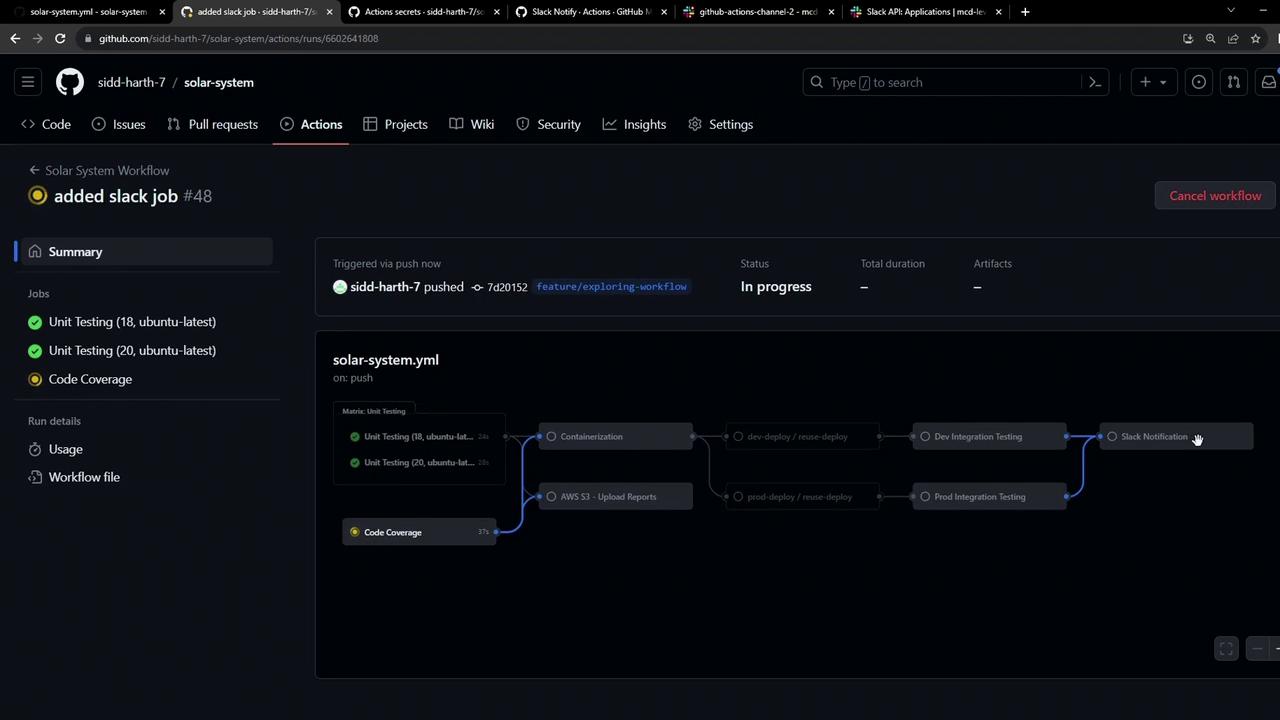
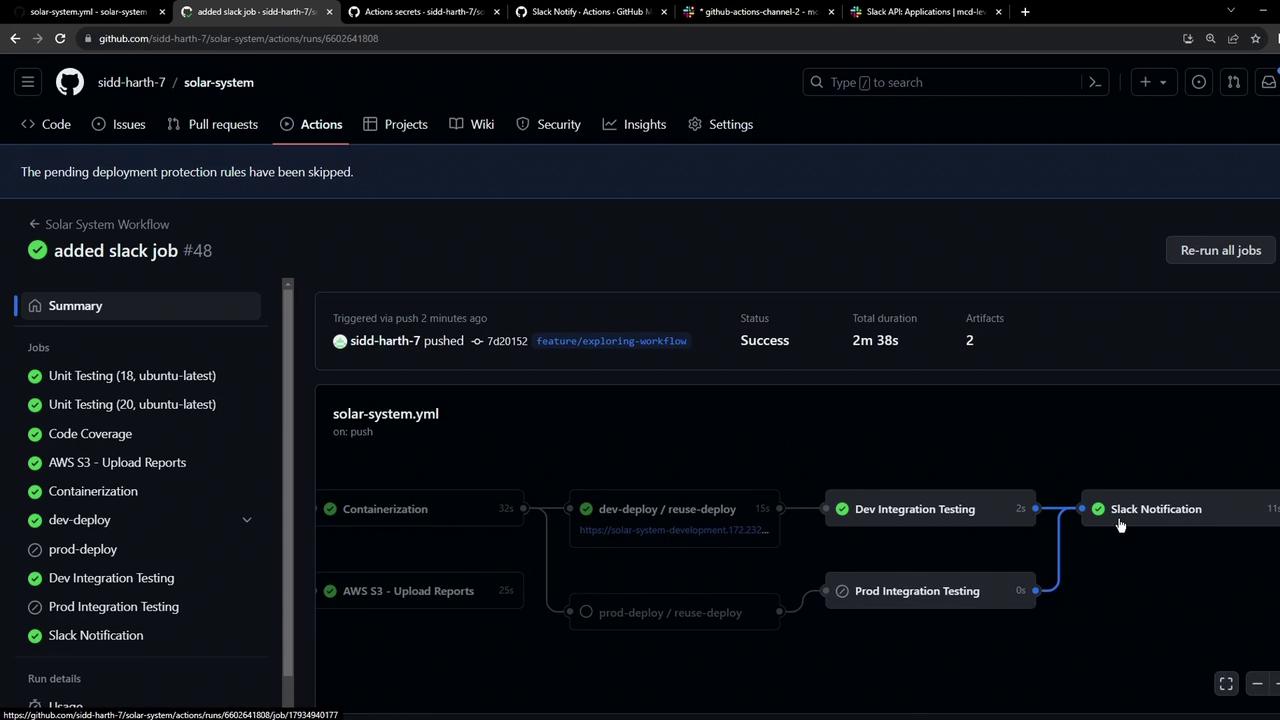
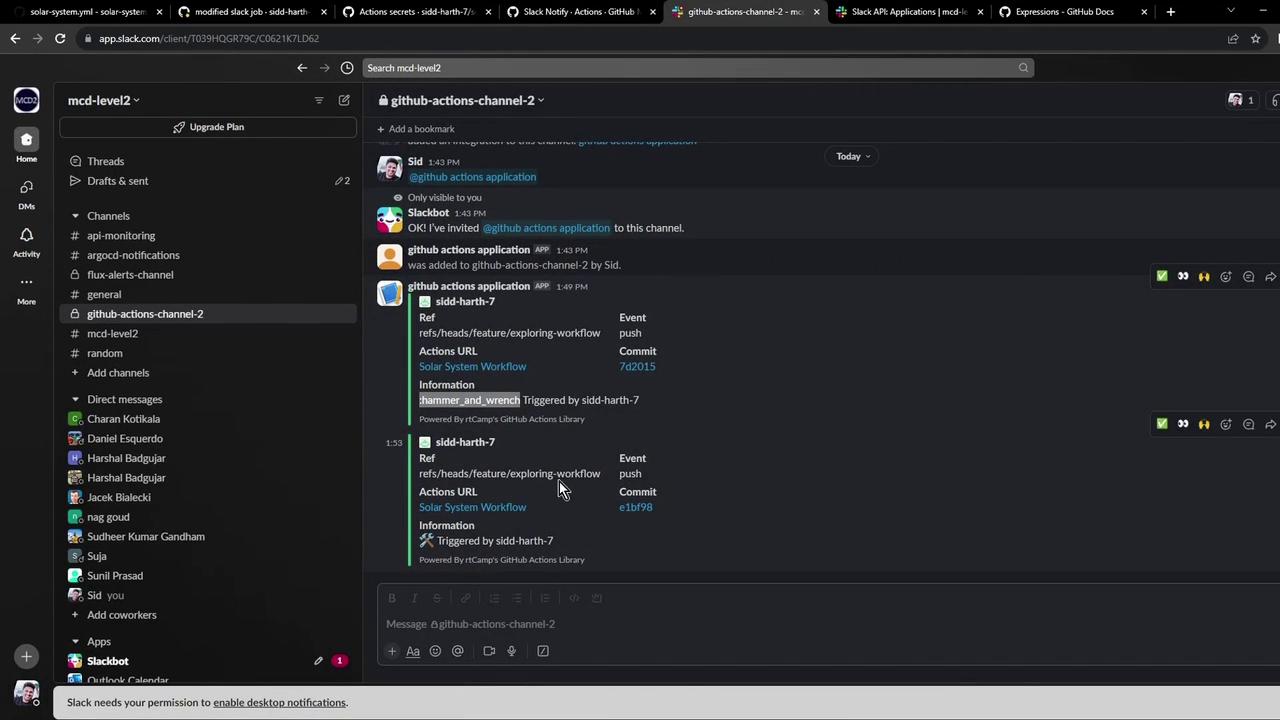
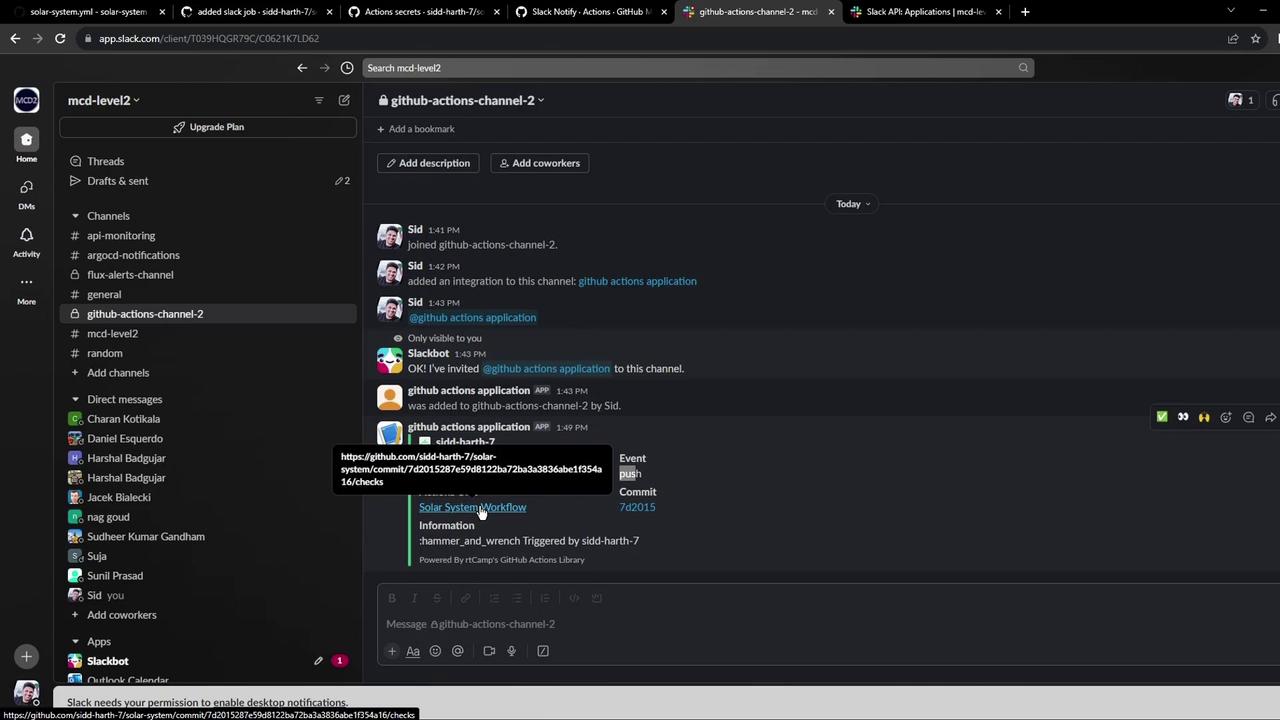
Verifying Notifications in Slack
Open your Slack channel (github-actions-channel) and confirm receipt of the notification:
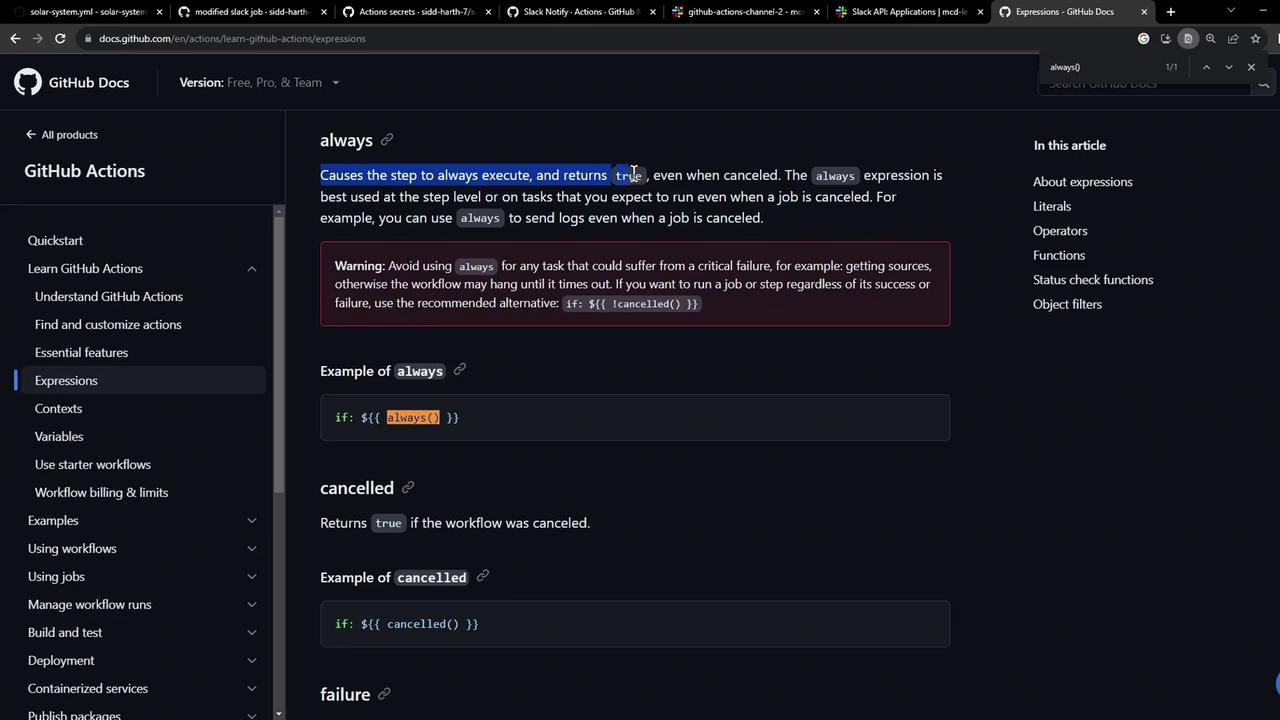
Using if: always() on Cancellation
By using if: always(), your Slack notification step will run even if the workflow is manually canceled or fails. See GitHub Actions expressions for more details.