Learn to configure Git for projects, enabling change tracking and establishing a remote repository for code storage to simplify deployment and enhance collaboration.
In this lesson, you’ll learn how to configure Git for your projects—enabling change tracking and establishing a remote repository for code storage. This process not only simplifies deployment but also enhances collaboration within your team.Below is an example FastAPI application used in our project. Although this code snippet isn’t directly related to Git setup, it provides context for what will be version controlled.
Copy
Ask AI
from fastapi import FastAPIfrom fastapi.middleware.cors import CORSMiddlewareapp = FastAPI()origins = ["*"]app.add_middleware( CORSMiddleware, allow_origins=origins, allow_credentials=True, allow_methods=["*"], allow_headers=["*"],)# Including routers for posts, users, authentication, and votesapp.include_router(post.router)app.include_router(user.router)app.include_router(auth.router)app.include_router(vote.router)@app.get("/")def root(): return {"message": "Hello World"}
Before setting up Git, consider these preliminary steps: by default, Git tracks all files in your project. However, you might not want to include files such as sensitive environment variables, cache directories (e.g., __pycache__), or your virtual environment folder (commonly named venv). To avoid tracking these files, create a .gitignore file in your project’s root folder (be sure to include the leading dot).Within the .gitignore file, add entries similar to the following:
.env (for your environment variables)
__pycache__/
Your virtual environment folder (e.g., venv)
Next, capture the current state of your project’s dependencies by running:
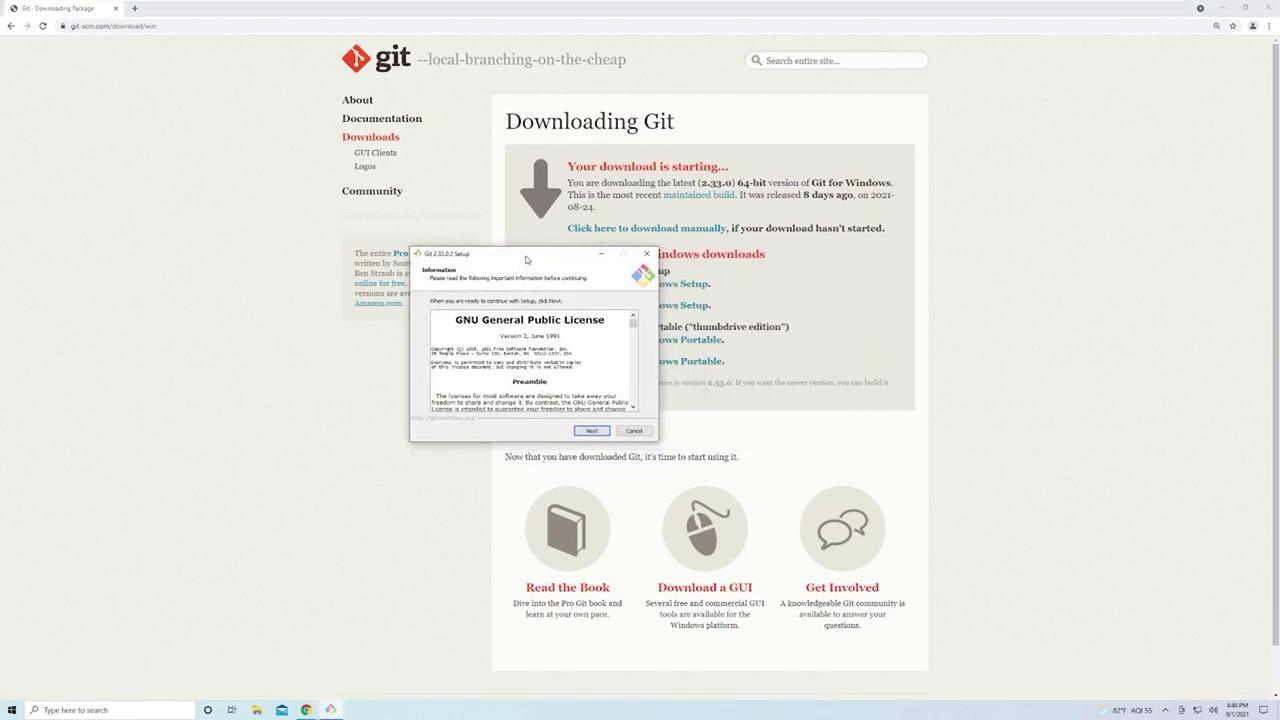
If Git is not installed on your machine, download and install it by visiting the official Git downloads page or by searching for “Git” online. During installation on Windows, follow the wizard instructions, and ensure you override the default branch name from “master” to “main” to align with current GitHub conventions.During the installation process, you may see a prompt requiring acknowledgement of the license agreement. Accept the license to proceed.
Once installed, open a terminal or command prompt and verify the installation with:
Copy
Ask AI
git --version
A version output confirms that Git is correctly installed.
Initialize your project folder as a Git repository. Open your terminal in the project’s root directory and execute:
Copy
Ask AI
git init
This command creates a hidden .git folder where Git stores all repository data. Next, add all project files (respecting the rules defined in your .gitignore) with:
Copy
Ask AI
git add --all
Before committing, you might have a sample Python model file (e.g., a SQLAlchemy model) that demonstrates what is being tracked:
You may be prompted to authenticate via your browser or with a personal access token. Once authenticated, your code will be pushed to the remote repository. A typical output may resemble:
Copy
Ask AI
Enumerating objects: 34, done.Counting objects: 100% (34/34), done.Delta compression using up to 2 threadsCompressing objects: 100% (30/30), done.Writing objects: 100% (34/34), done.Total 34 (delta 0), reused 0 (delta 0), pack-reused 0To https://github.com/Sanjeev-Thiyagarajan/example-fastapi.git * [new branch] main -> mainBranch 'main' set up to track remote branch 'main' from 'origin'.
At this point, your repository is successfully configured both locally and on GitHub. Your .gitignore is safeguarding unnecessary files, and the requirements.txt captures all dependencies, ensuring smooth transitions during deployment and collaboration.
With Git now set up, you are ready to move on to deploying your application.