

Selecting a Base Image
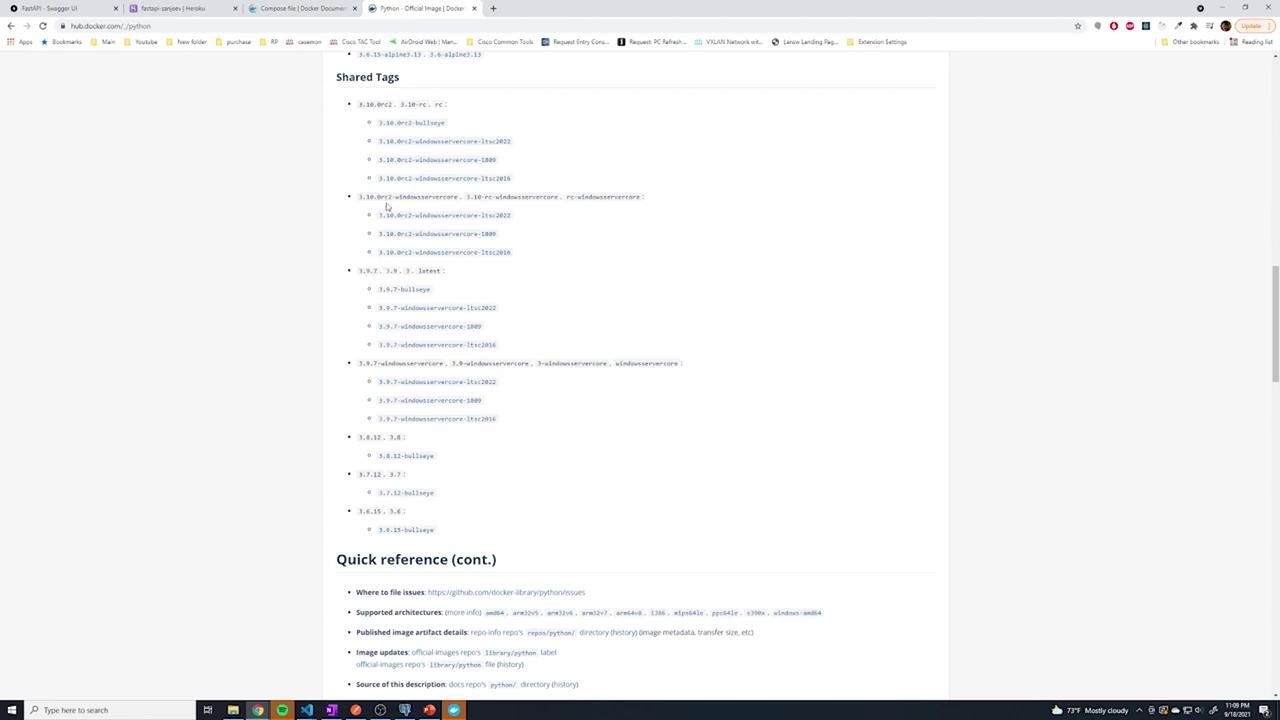
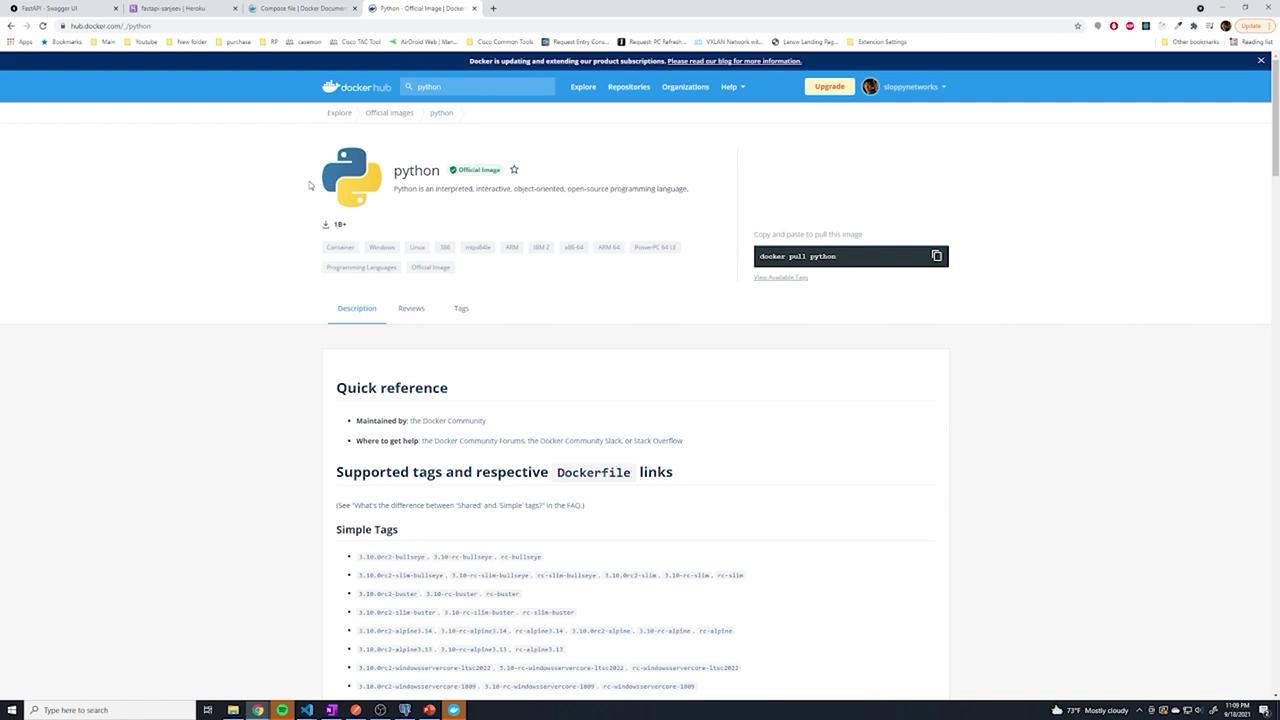
We begin by visiting Docker Hub to select our base image. For this FastAPI container, we will use the official Python image. While multiple versions and variants (such as slim and Alpine) are available, we are using Python version 3.9.7.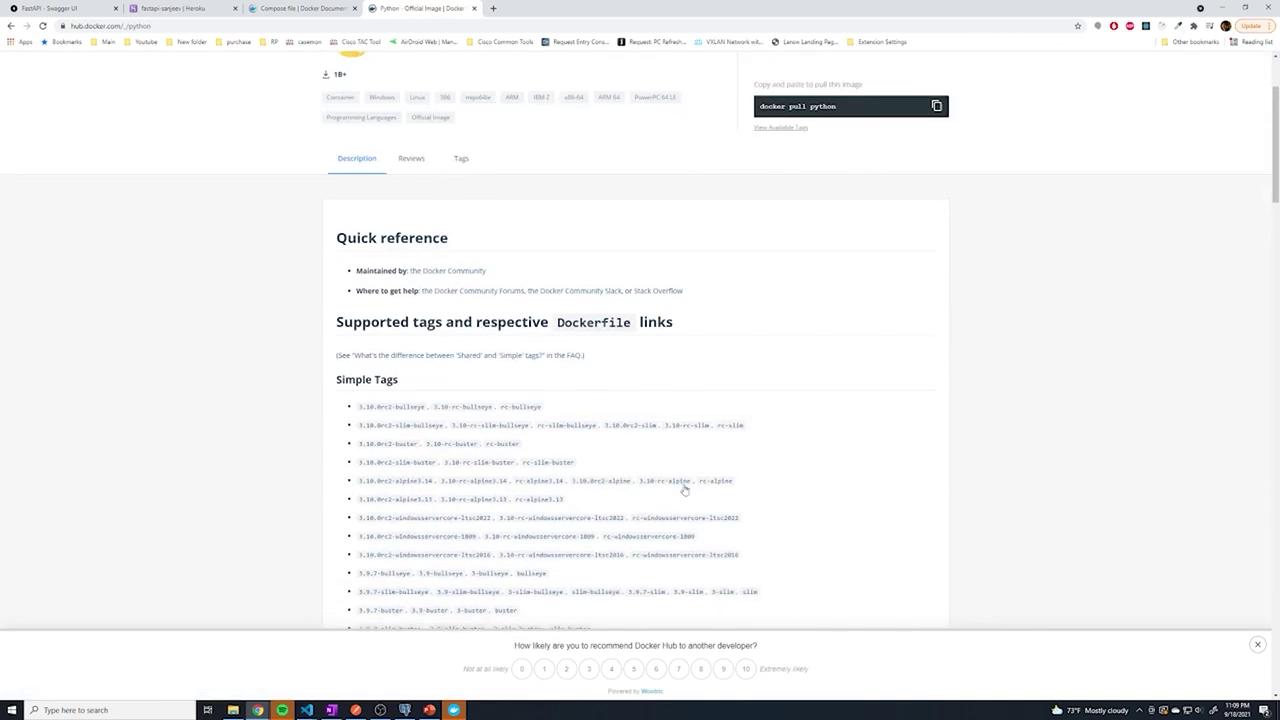
Creating a Custom Docker Image
To create a custom Docker image, start by adding a Dockerfile in your project directory. The Dockerfile specifies the base image and lists the steps necessary for setting up your environment:-
Specify the Base Image:
Begin with the Python 3.9.7 image. -
Set the Working Directory:
Establish a working directory within the container to simplify subsequent commands (e.g., copying files). -
Copy and Install Dependencies:
First, copy only therequirements.txtfile. This leverages Docker’s layer caching so that a change in application code does not cause the dependencies to be reinstalled unnecessarily. -
Copy the Application Code:
Next, copy the remaining application code into the working directory. -
Define the Startup Command:
Finally, specify the command to run Uvicorn, which launches the FastAPI application. Each part of the command is defined as an element in the list.
Building and Running the Docker Image
After creating the Dockerfile, build the image with a custom tag and run the container using these commands:Optimizing Docker Builds with Layer Caching
Docker caches each step of the Dockerfile. By copyingrequirements.txt before the rest of the files, changes only to the application code do not force a reinstall of the dependencies.
Example Dockerfile snippet:
COPY requirements.txt step, saving significant time during rebuilds.
Avoid copying all files before installing dependencies. Any change in source code may trigger a complete reinstallation of dependencies.
Using Docker Compose for Multi-Container Environments
As your application scales, managing multiple Docker commands can become cumbersome. Docker Compose lets you define multi-container setups in a simple YAML file. Below is an exampledocker-compose.yml file for your FastAPI service:
"localhost_port:container_port" exposes container port 8000 on the host machine.
To run the Docker Compose setup, use:
If you modify the Dockerfile and need to rebuild the image, run:
Setting Up a PostgreSQL Container
To integrate a PostgreSQL database, define an additional service in yourdocker-compose.yml file with the required environment variables for the official PostgreSQL image:
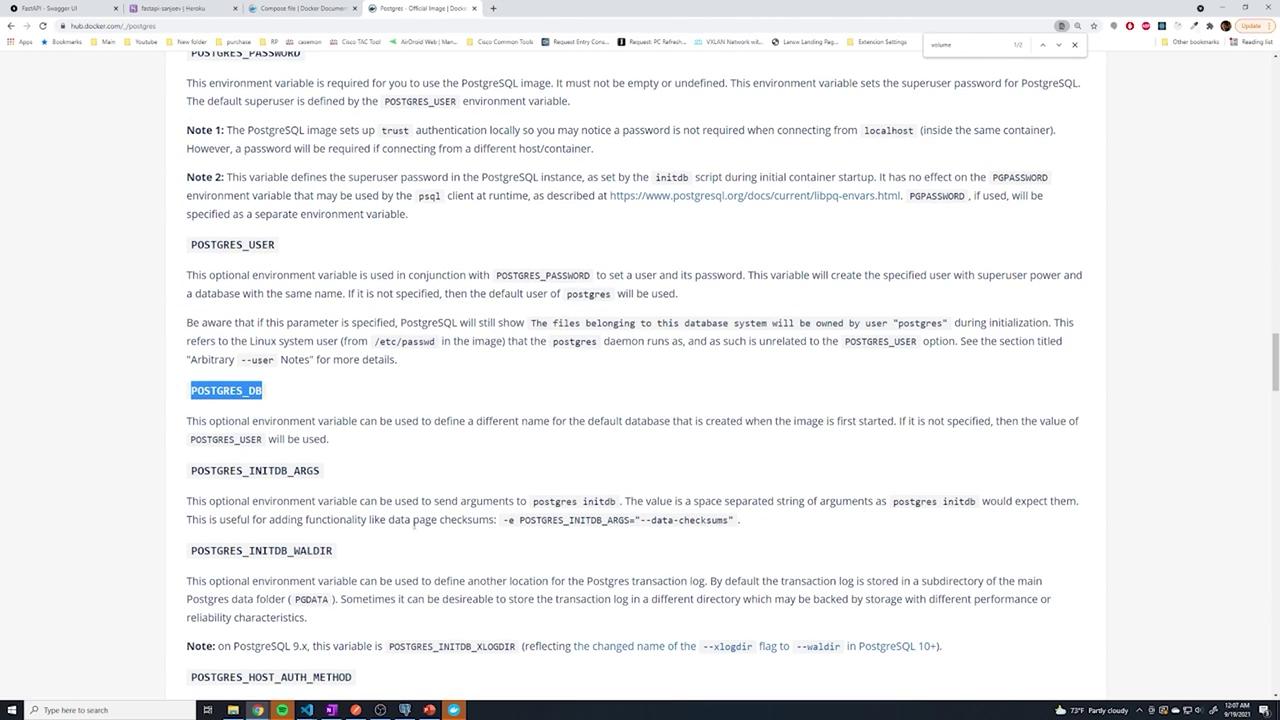
DATABASE_HOSTNAME: postgres in the API configuration ensures that the FastAPI container connects seamlessly with the PostgreSQL container.
Configuring Environment Variables and Service Dependencies
Passing environment variables is critical to ensure the FastAPI settings object is correctly populated. Missing fields can lead to validation errors from Pydantic. To ensure the API container waits for PostgreSQL to start, add a dependency in your Docker Compose file:depends_on option instructs Docker Compose to start PostgreSQL before the API container. (Note that this does not guarantee PostgreSQL is fully initialized; additional checks may be required in your application logic.)
Using Bind Mounts for Development
For development purposes, you may want to bind mount your local source code into the container so that changes are reflected immediately. To achieve this, add a volume definition to your API service:./:/usr/src/app:ro), the container uses your local files, and the --reload flag makes sure the application automatically reloads when changes are detected. In a production environment, you would remove the bind mount and the reload flag.
To inspect the container’s filesystem and verify the bind mount status, run:
cat app/main.py to ensure the latest version of your files is available.
Pushing Your Image to Docker Hub
Once your image is prepared, you may want to push it to Docker Hub for easier distribution. Follow these steps:-
Log in to Docker Hub:
-
Tag your locally built image with your Docker Hub username and repository name. For instance, if your image is named
fastapi_apiand your Docker Hub username issloppynetworks, tag it as follows: -
Verify the tag with:
-
Finally, push the image to Docker Hub:
username/repository.
Separating Development and Production Environments
In development, you might use bind mounts and the--reload flag for rapid iteration. However, the production environment should be optimized for stability, using dynamically injected environment variables and without code mounts. To manage this, it is common to maintain separate Docker Compose files:
-
docker-compose-dev.yml
Contains bind mounts and the reload flag for faster development cycles. -
docker-compose-prod.yml
Uses a pre-built image from Docker Hub, without bind mounts, exposes a different host port (e.g., port 80), and references environment variables from the host:
Conclusion
This lesson provided a comprehensive walkthrough on Dockerizing a FastAPI application. We covered:- Selecting and customizing a Docker base image.
- Optimizing builds with layer caching.
- Configuring Docker Compose for multi-container environments.
- Setting up PostgreSQL as a dependent service.
- Implementing bind mounts and live-reload features for development.
- Best practices for pushing images to Docker Hub.
- Separating configuration for development and production environments.