This guide explains how to configure a simple CI/CD pipeline using GitHub Actions for automating tasks in software development.
In this guide, we will configure a simple CI/CD pipeline using GitHub Actions. Before you begin, make sure you have these resources open for reference:
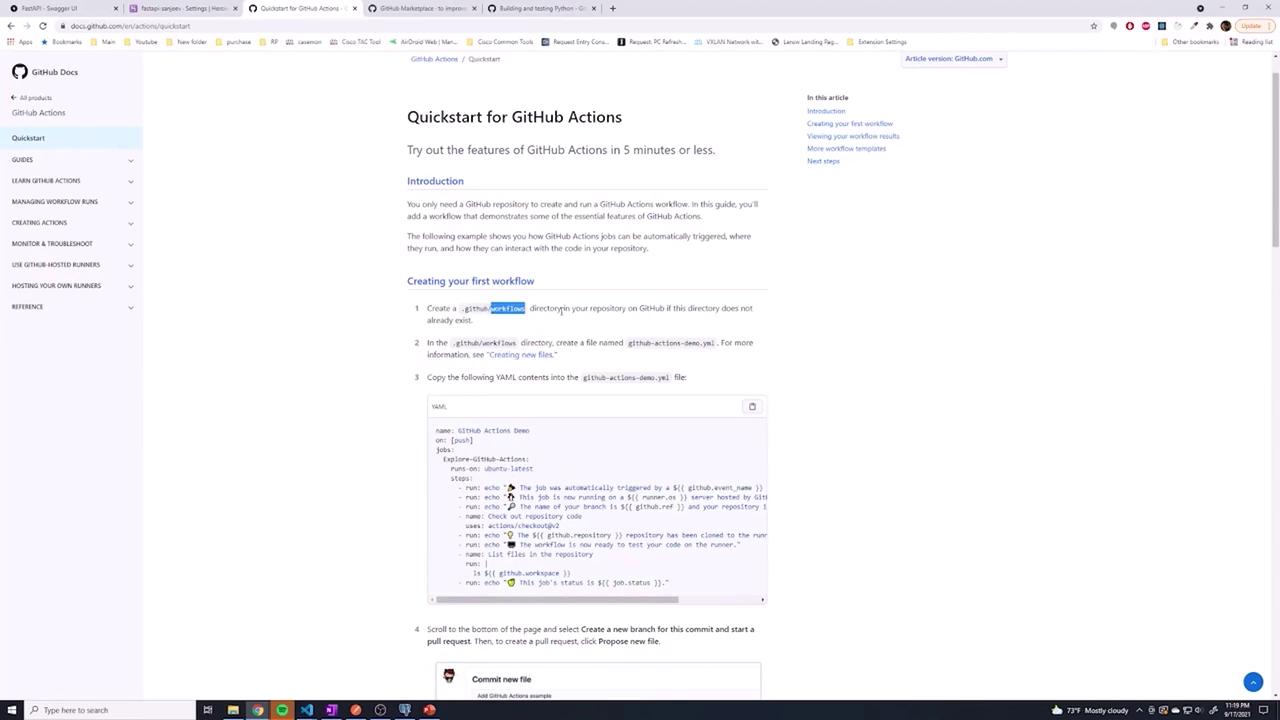
As detailed in the GitHub Actions documentation, you need to create a specific folder structure in your project. This structure includes a .github folder that contains a workflows subfolder, where all your YAML workflow files reside.
Within your project directory, follow these steps:
Create a folder named .github.
Inside .github, create another folder called workflows.
This directory will house your workflow definitions. Although you can set up multiple pipelines, this guide will use a single workflow for simplicity.
name: GitHub Actions Demoon: [push]jobs: build: runs-on: ubuntu-latest steps: - name: Checkout code uses: actions/checkout@v2 - name: Run a one-line script run: echo "Hello, World!" - name: Run a multi-line script run: | echo "Add other scripts here" echo "The job status is ${{ job.status }}"
To activate your workflow, create a new file named build-deploy.yaml inside your .github/workflows folder and paste your configuration there. While the file name is arbitrary, remember to specify the workflow’s name within the YAML file using the name key.
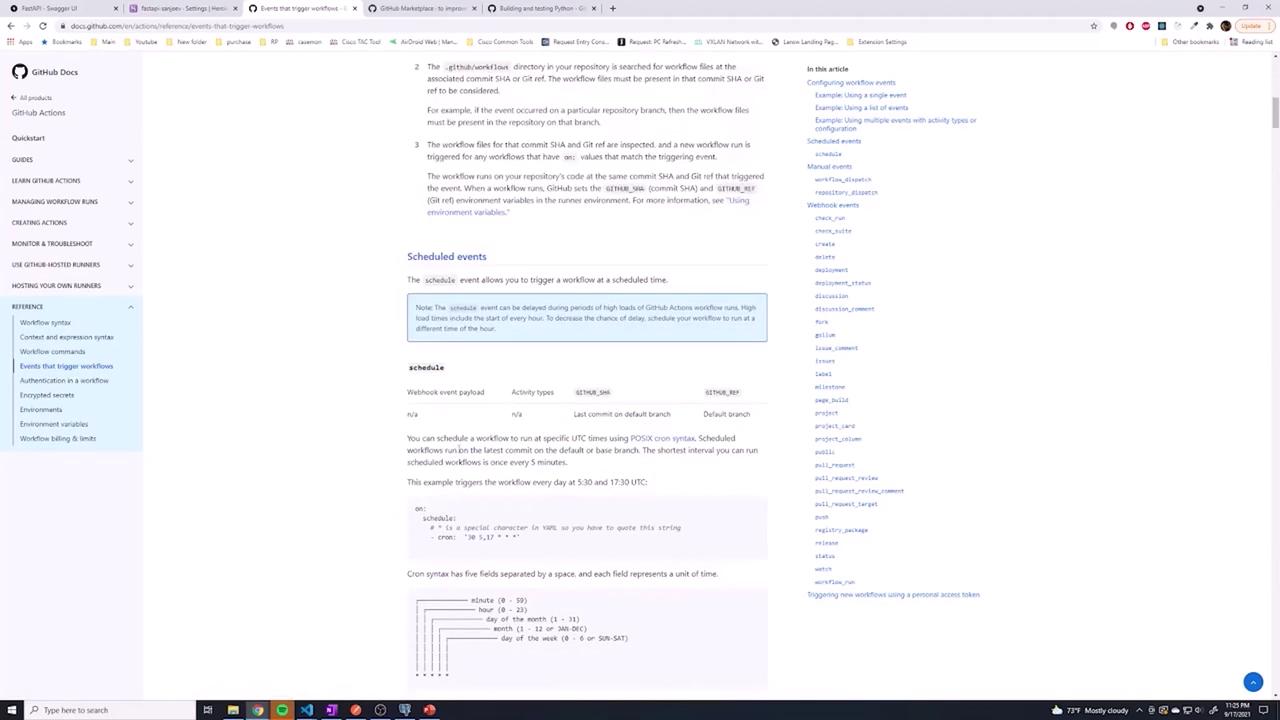
This configuration ensures that the workflow runs only for pushes and pull requests on the specified branches. For additional details, refer to the GitHub Actions events documentation.
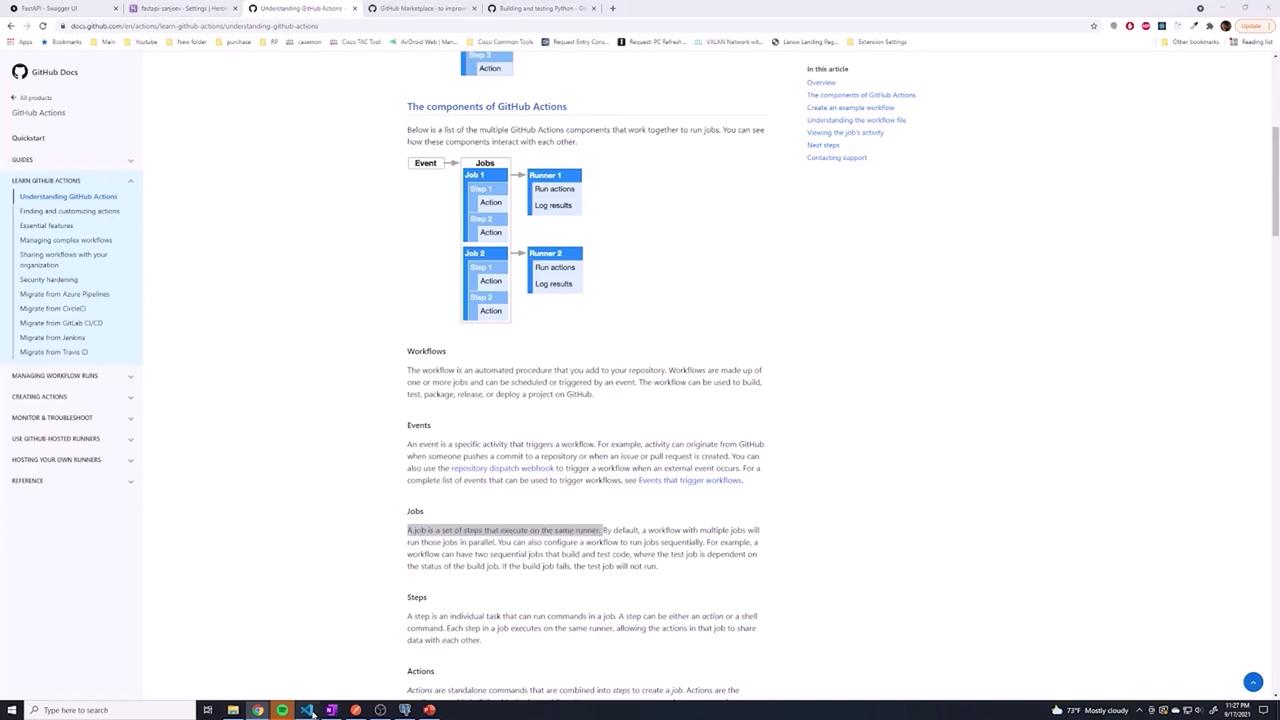
In GitHub Actions, a job represents a series of steps executed on a runner (a virtual machine). The workflow below breaks down a simple job configuration:
Specify the operating system for the runner with the runs-on field (e.g., ubuntu-latest).
Define the steps to execute, each with a descriptive name.
Refer to the GitHub Actions documentation for more details on available runners, such as Windows and macOS. In this guide, we use Ubuntu since our production environment runs on Linux.
Below is an example of a job with two straightforward steps:
Copy
Ask AI
name: Build and Deploy Codeon: [push, pull_request]jobs: job1: runs-on: ubuntu-latest steps: - name: Pulling Git repository uses: actions/checkout@v2 - name: Say hi to Sanjeev run: echo "Hello, Sanjeev"
In this example:
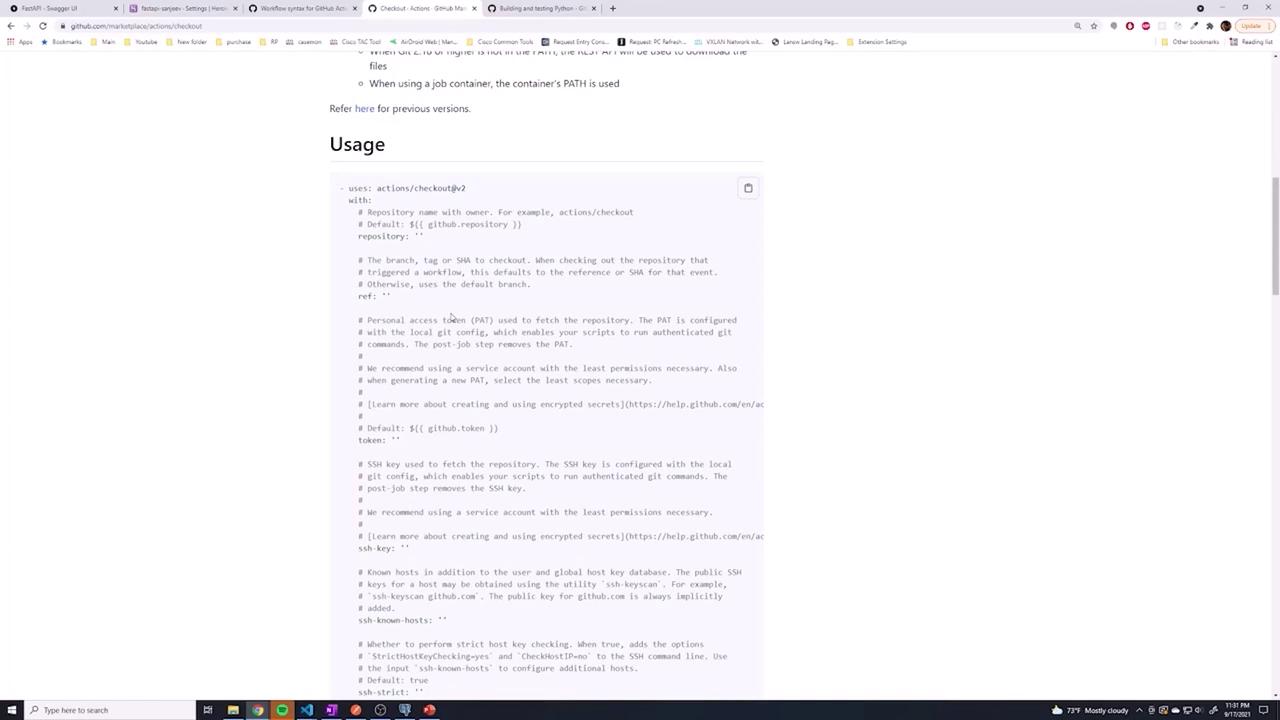
The first step checks out the repository using a pre-built action available on the GitHub Marketplace.
The second step executes an echo command on the Linux runner.
For more advanced checkout options (e.g., specifying a branch or using SSH), refer to the actions/checkout documentation.
After saving your workflow file (for example, build-deploy.yaml) in the .github/workflows directory, commit your changes to your Git repository using these commands:
Copy
Ask AI
git add .git commit -m "Adding first GitHub Action"git push origin main
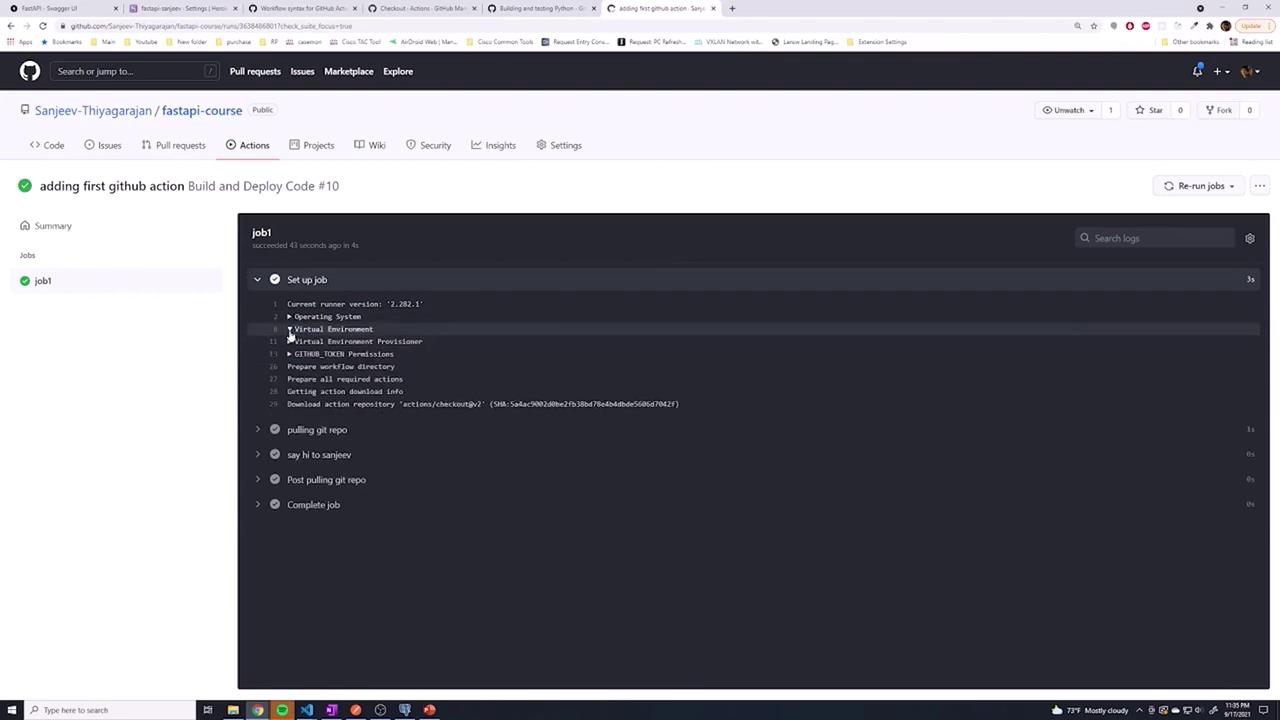
Once pushed, navigate to the “Actions” tab in your GitHub repository. You will see an entry corresponding to your commit (e.g., “adding first GitHub action”). Click the entry to view the detailed job log, which displays each executed step.
Key highlights from the job log include:
Launching a runner (a virtual machine) with the specified operating system.
Checking out the repository using the configured action.
Executing a custom echo command to validate the step.
This simple CI/CD pipeline demonstrates how GitHub Actions can automate tasks such as checking out code, running tests, and executing custom commands on a Linux runner. While GitHub Actions offers free build minutes on their hosted solution, you might consider self-hosted runners if your usage needs increase.
By now, you should have a clear understanding of how to configure your first GitHub Actions workflow and trigger it using pushes or pull requests. Feel free to customize and extend this setup to match your project requirements.