This article provides a guide on managing Kubernetes deployments, including rolling updates, rollbacks, and deployment strategies.
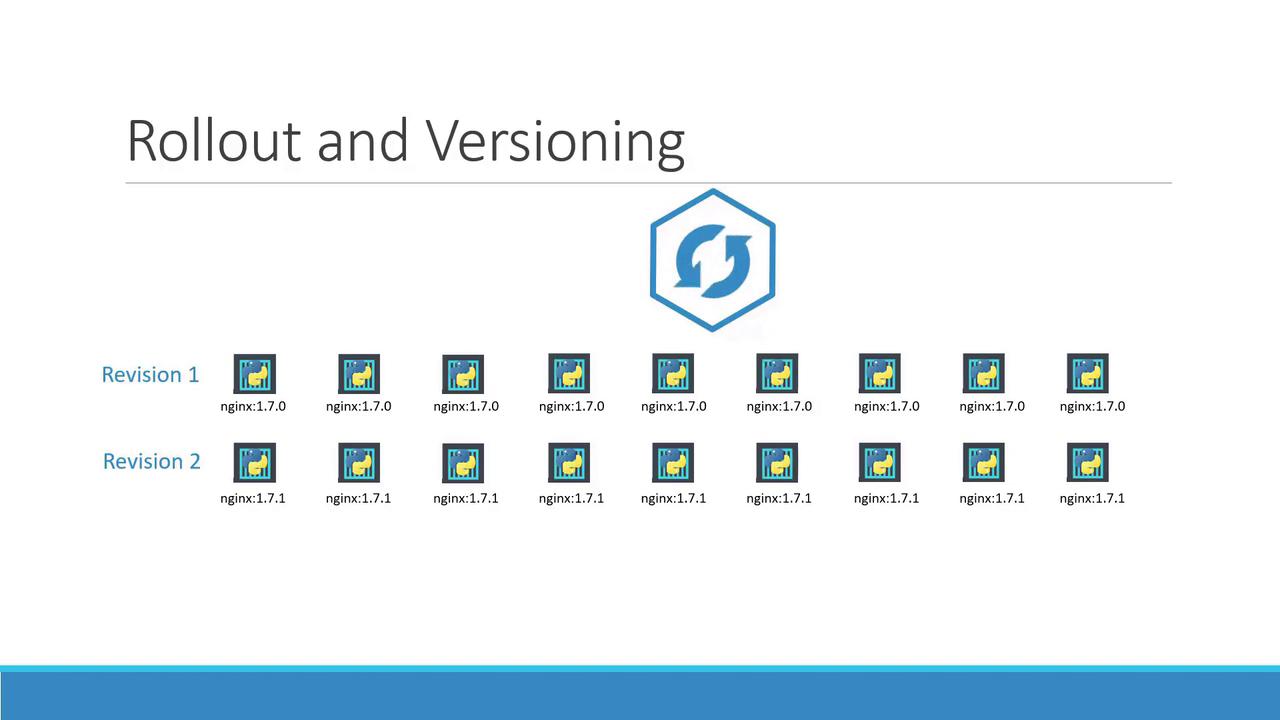
Welcome to this comprehensive guide on managing deployments in Kubernetes. In this article, you’ll learn how to perform rolling updates, roll back changes, and effectively manage deployment revisions.When you create a deployment, Kubernetes automatically triggers a rollout, establishing your initial deployment revision (revision one). Later, when you upgrade your application (for example, by updating the container image version), a new rollout is triggered and a new deployment revision (revision two) is created.
This revision history lets you track changes and enables you to roll back to a previous version if necessary.You can monitor the status of a rollout by running:
Copy
Ask AI
kubectl rollout status deployment/myapp-deployment
The output might be similar to:
Copy
Ask AI
Waiting for rollout to finish: 0 of 10 updated replicas are available...Waiting for rollout to finish: 1 of 10 updated replicas are available......Waiting for rollout to finish: 9 of 10 updated replicas are available...deployment "myapp-deployment" successfully rolled out
To view the deployment’s revision history, use:
Copy
Ask AI
kubectl rollout history deployment/myapp-deployment
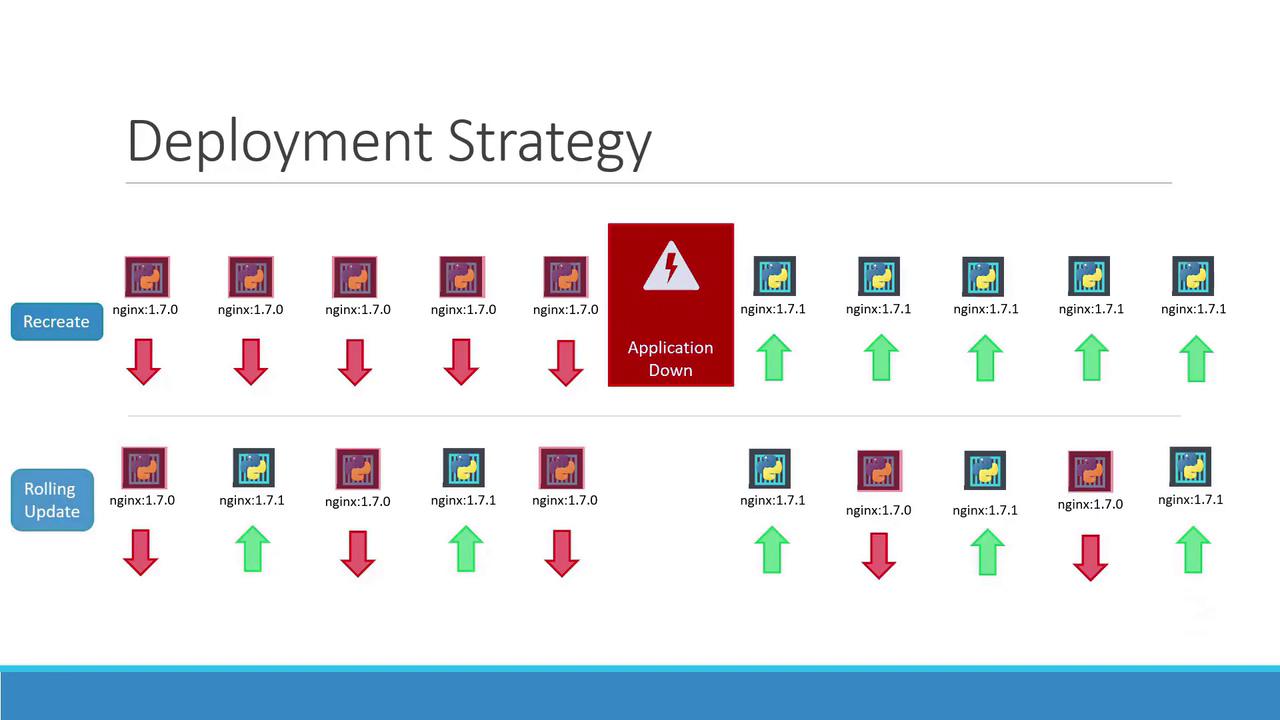
There are two primary deployment strategies to consider when updating your application:
Recreate Strategy:
In this approach, all existing replicas are terminated before new ones are created. Although this creates a completely fresh environment, it results in downtime due to the gap between terminating the old pods and starting the new ones.
Rolling Update Strategy:
This strategy updates instances incrementally. Kubernetes gradually terminates old pods while simultaneously starting new ones, ensuring continuous application availability. Rolling updates are applied by default unless a different strategy is specified during deployment creation.
Kubernetes defaults to the rolling update strategy to minimize downtime during deployments.
There are several ways to update a deployment, such as changing your container image, modifying labels, or adjusting the replica count. If you maintain a deployment configuration file, you can modify it directly. For example:
This command initiates a new rollout and creates a new deployment revision.Alternatively, update the container image directly with:
Copy
Ask AI
kubectl set image deployment/myapp-deployment nginx-container=nginx:1.9.1
The kubectl set image command edits the live deployment configuration. This modification may not be reflected in your deployment definition file, so use it with care if you plan to maintain consistency through file-based updates.
To inspect detailed information about a deployment—including its strategy—run:
Copy
Ask AI
kubectl describe deployment myapp-deployment
When using the recreate strategy, you will see that the old replica set is scaled down to zero before the new replica set is scaled up. For example:
Copy
Ask AI
Namespace: defaultCreationTimestamp: Sat, 03 Mar 2018 17:01:55 +0800Labels: app=myapp type=front-endAnnotations: deployment.kubernetes.io/revision: 2 kubernetes.io/change-cause: kubectl apply --filename=deployment-definition.ymlReplicas: 5 updated | 5 total | 5 available | 0 unavailableStrategyType: RecreateMinReadySeconds: 0Containers: nginx-container: Image: nginx:1.7.1 Port: <none>Conditions: Type Status Reason Available True MinimumReplicasAvailable Progressing True NewReplicaSetAvailableOldReplicaSets: <none>NewReplicaSet: myapp-deployment-5c47d6ccc (5/5 replicas created)Events: Type Reason Age From Message Normal ScalingReplicaSet 11m deployment-controller Scaled up replica set myapp-deployment-6795844b58 to 5 Normal ScalingReplicaSet 1m deployment-controller Scaled down replica set myapp-deployment-5c47d6ccc to 0
For rolling updates, the output shows a gradual transition:
Copy
Ask AI
Namespace: defaultCreationTimestamp: Sat, 03 Mar 2018 17:16:53 +0800Labels: app=myapp type=front-endAnnotations: deployment.kubernetes.io/revision: 2 kubernetes.io/change-cause: kubectl apply --filename=deployment-definition.ymlReplicas: 5 desired | 1 updated | 4 available | 2 unavailableStrategyType: RollingUpdatePod Template: Labels: app=myapp type=front-endContainers: nginx-container: Image: nginx:1.7.1 Port: <none>Conditions: Type Status Reason Available True MinimumReplicasAvailable Progressing True ReplicaSetUpdatedOldReplicaSets: myapp-deployment-676749c58c (1/1 replicas created)NewReplicaSet: myapp-deployment-7d57dbbd8d (5/5 replicas created)Events: Type Reason Age From Message Normal ScalingReplicaSet 11m deployment-controller Scaled up replica set myapp-deployment-676749c58c to 5 Normal ScalingReplicaSet 15s deployment-controller Scaled down replica set myapp-deployment-7d57dbbd8d to 2 Normal ScalingReplicaSet 56s deployment-controller Scaled down replica set myapp-deployment-676749c58c to 5
These examples clearly illustrate the differences between the recreate and rolling update strategies.
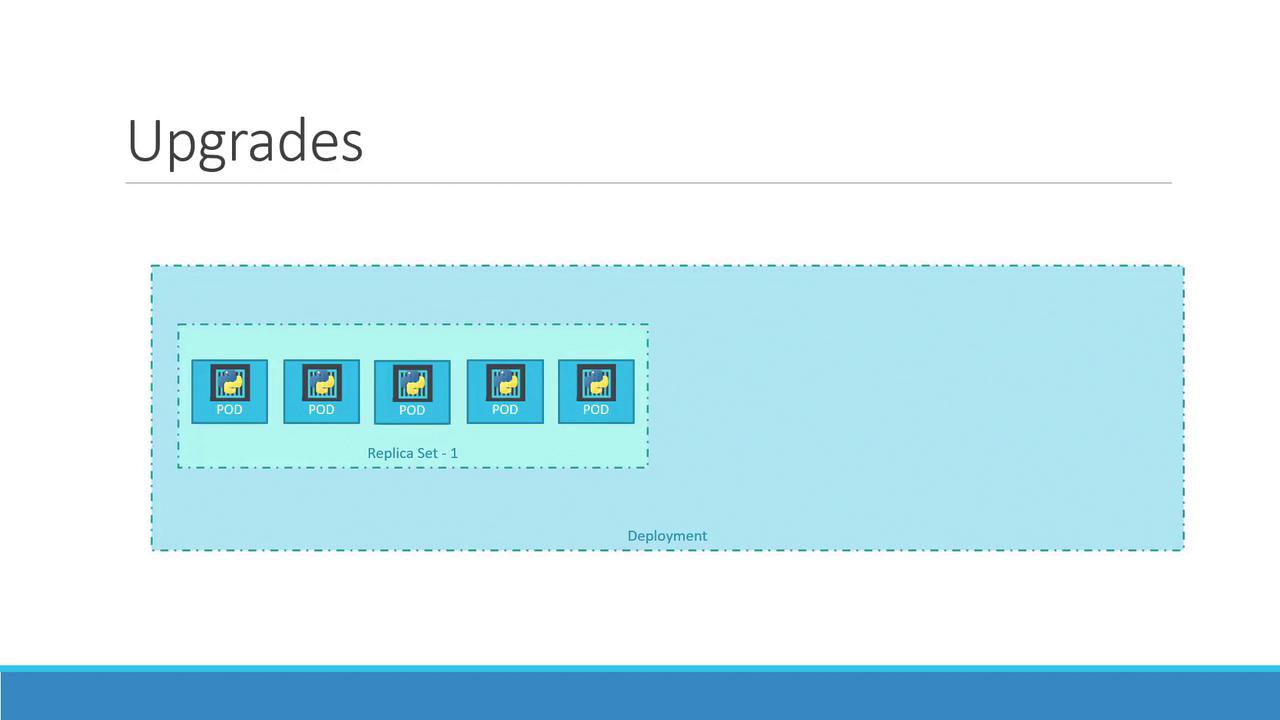
When a deployment is initially created (for example, deploying five replicas), Kubernetes automatically creates a replica set that spawns the required pods. During an upgrade, a new replica set is generated for the updated containers while the pods from the previous replica set are gradually terminated according to the rolling update strategy.
You can verify the changes by listing the replica sets:
Copy
Ask AI
kubectl get replica sets
Before the upgrade, the old replica set displays the active pods, and after updating, you will see the new replica set with updated pod counts.
If you encounter issues with a new release, Kubernetes allows you to roll back to a previous deployment revision. To perform a rollback, simply execute:
Copy
Ask AI
kubectl rollout undo deployment/myapp-deployment
The output will confirm the rollback:
Copy
Ask AI
deployment "myapp-deployment" rolled back
Before executing the rollback, the new replica set might show all pods (for instance, five replicas) while the old replica set shows none. After the rollback, these counts are reversed.
Below is a summary table of commands that are crucial for managing your deployments:
Command
Description
kubectl create -f deployment-definition.yml
Create a new deployment using the configuration file
kubectl get deployments
List all deployments in your cluster
kubectl apply -f deployment-definition.yml
Update an existing deployment with changes from the configuration file
kubectl set image deployment/myapp-deployment nginx-container=nginx:1.9.1
Update the container image in a running deployment
kubectl rollout status deployment/myapp-deployment
Monitor the status of the deployment rollout
kubectl rollout undo deployment/myapp-deployment
Roll back to the previous deployment revision
These commands empower you to create, update, monitor, and roll back deployments efficiently, ensuring minimal downtime and a smooth upgrade process.For further insights, consider reviewing the Kubernetes Documentation.