Learn to update and roll back deployments in Kubernetes using YAML files and various kubectl commands.
In this lesson, you’ll learn how to update and roll back deployments in Kubernetes. We’ll start with a deployment definition file located in the “deployment” directory. The deployment, named “myapp-deployment”, runs six replicas using the NGINX image.Below is the deployment YAML definition:
admin@ubuntu-server deployments # vi deployment.yamladmin@ubuntu-server deployments # kubectl
Once confirmed, create the deployment using:
Copy
Ask AI
kubectl create -f deployment.yaml
After creating the deployment, check its rollout status:
Copy
Ask AI
kubectl rollout status deployment.apps/myapp-deployment
You should see an output like:
Copy
Ask AI
deployment "myapp-deployment" successfully rolled out
Keep in mind that if you check the rollout status immediately after creation, you might witness an intermediate state as Kubernetes updates each pod sequentially.
Demonstrating Rollout Status with Immediate Deletion
To better illustrate how the rollout process works, follow these steps:
Delete the current deployment:
Copy
Ask AI
kubectl delete deployment myapp-deployment
Re-create the deployment:
Copy
Ask AI
kubectl create -f deployment.yaml
Immediately check the rollout status:
Copy
Ask AI
kubectl rollout status deployment.apps/myapp-deployment
You may encounter messages such as “0 of 6 updated replicas”, “1 of 6 updated replicas”, etc. Kubernetes waits until all six pods are running before marking the rollout as successful.
To update the deployment, start by viewing its details:
Copy
Ask AI
kubectl describe deployment myapp-deployment
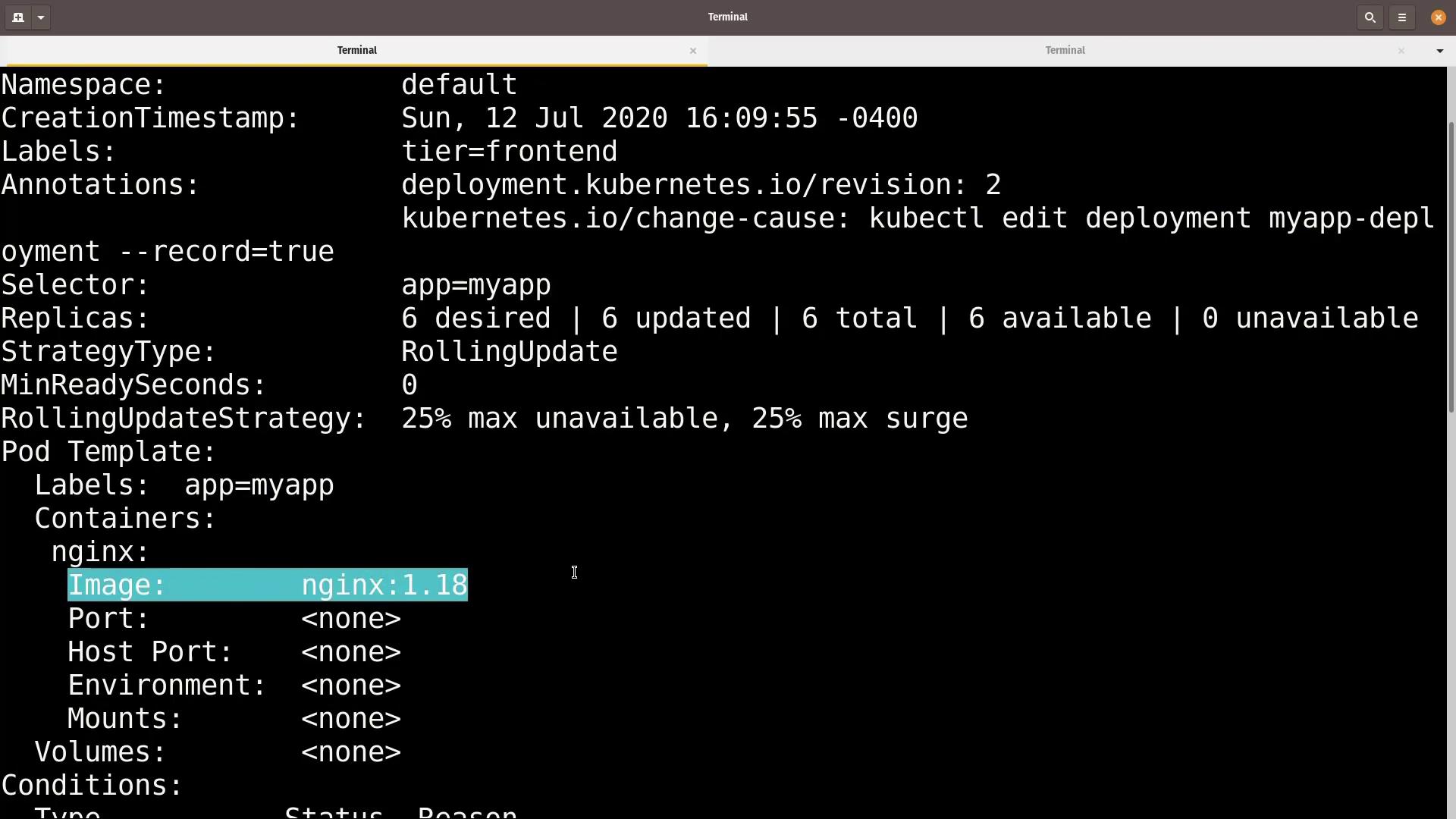
Notice in the annotations section that the create command is recorded and the deployment is running six replicas of the NGINX image.Now, update the container image interactively and record the change:
Copy
Ask AI
kubectl edit deployment myapp-deployment --record
In the editor, change the container’s image from nginx to nginx:1.18 (a lower version). An example edit might look like this:
Save and exit the editor. Kubernetes will begin rolling out the update by gradually replacing the old pods with new ones that have the updated image. Monitor the progress with:
Copy
Ask AI
kubectl rollout status deployment.apps/myapp-deployment
Finally, check the rollout history to confirm the change:
Copy
Ask AI
kubectl rollout history deployment.apps/myapp-deployment
You should now see a new entry corresponding to the kubectl edit action.
Using kubectl set image for a Different Update Method
Another approach to update the container image is by using the kubectl set image command. For instance, to update the container image to nginx:1.18-perl, execute:
Copy
Ask AI
kubectl set image deployment myapp-deployment nginx=nginx:1.18-perl --record
Then, verify the rollout status:
Copy
Ask AI
kubectl rollout status deployment/myapp-deployment
The status messages will indicate that the old replicas for version 1.18 are being replaced by new replicas running version 1.18-perl. Confirm the updated revision history with:
Copy
Ask AI
kubectl rollout history deployment/myapp-deployment
If the new image (version 1.18-perl) causes issues, you can easily roll back to a previous version. To revert from revision 3 to revision 2 (running NGINX 1.18), execute:
Copy
Ask AI
kubectl rollout undo deployment/myapp-deployment
Monitor the rollback process:
Copy
Ask AI
kubectl rollout status deployment/myapp-deployment
Once complete, confirm the current deployment configuration:
Copy
Ask AI
kubectl describe deployment myapp-deployment
Note that while the rollout history might show an updated revision number, the state will match the previous, stable revision.
Save and exit the editor. At this point, check the rollout status:
Copy
Ask AI
kubectl rollout status deployment/myapp-deployment
In a separate terminal, you can inspect the deployment and pod statuses:
Copy
Ask AI
kubectl get deployments myapp-deploymentkubectl get pods
You will observe that while five pods continue running with the previous configuration, the new pods trying to run the invalid image show an “ErrImagePull” error.Even with some pods failing, the application remains accessible via the running pods.
The rollout history now includes a new revision (for example, revision 5) that reflects the failed update. To restore stability (rolling back to revision 4), run:
Copy
Ask AI
kubectl rollout undo deployment/myapp-deployment
Then, monitor the rollback progress:
Copy
Ask AI
kubectl rollout status deployment/myapp-deployment
Finally, verify that all pods are running the correct image version (NGINX 1.18) by checking the pods:
Monitor rollout progress using kubectl rollout status.
Record change causes with the --record flag.
Update the deployment interactively using kubectl edit and via the kubectl set image command.
Simulate a failed rollout scenario with an invalid image.
Roll back to a previous revision using kubectl rollout undo.
This approach ensures that your updates are applied smoothly and, if issues arise, can be quickly reverted to maintain application availability.For further reading, consider exploring the Kubernetes Documentation and additional Kubernetes Basics.