In this lesson, you’ll learn how to register a service in Consul, watch it appear in the UI, test it without a health check, and finally deregister it. Our environment consists of two Consul servers and one web client node (web-server-01).

Verify Cluster Membership

On one of the Consul servers (consul-node-a), confirm that all nodes have joined the cluster:
[ec2-user@consul-node-a ~]$ consul members
Node            Address            Status  Type    Build      Protocol  DC        Segment
consul-node-a   10.0.101.110:8301  alive   server  1.9.3+ent  2         us-east-1 <all>
consul-node-b   10.0.101.248:8301  alive   server  1.9.3+ent  2         us-east-1 <all>
web-server-01   10.0.101.177:8301  alive   client  1.9.3+ent  2         us-east-1 <default>
Switch to the web client node (web-server-01) to define and register your service. You can watch these changes propagate instantly in the Consul UI:
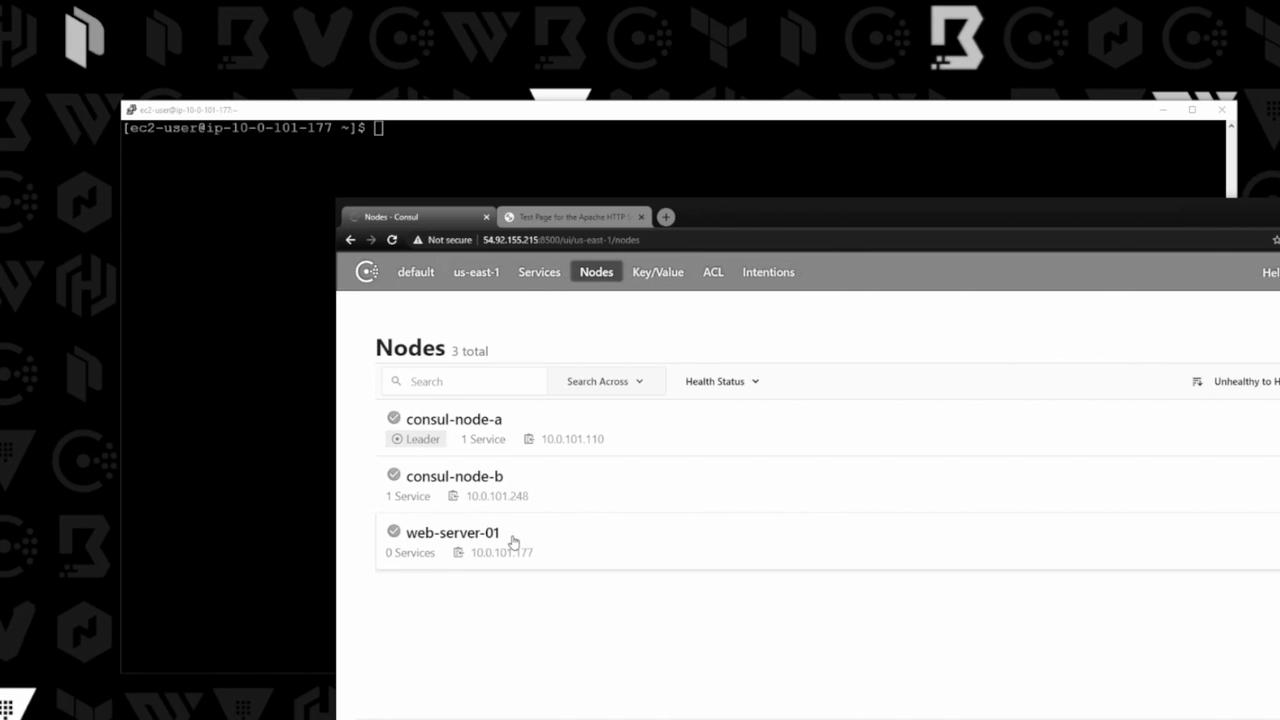
The image shows a terminal window and a web browser displaying a Consul interface with a list of nodes, including "consul-node-a," "consul-node-b," and "web-server-01."

Service Definition File

On web-server-01, create a JSON file to describe your service:
[ec2-user@ip-10-0-101-177 ~]$ vi service.json
Add the following content:
{
  "ID": "web-server-01",
  "Name": "front-end-eCommerce",
  "Tags": ["v7.05", "production"],
  "Address": "10.0.101.177",
  "Port": 80
}
The service.json file follows Consul’s service definition schema. You can extend it later with health checks under the "Check" block.

Service Definition Fields

FieldDescriptionExample
IDUnique identifier for the serviceweb-server-01
NameLogical name of the servicefront-end-eCommerce
TagsMetadata labelsv7.05, production
AddressService IP address10.0.101.177
PortListening port80

Register the Service

Register your service definition with Consul:
[ec2-user@ip-10-0-101-177 ~]$ consul services register service.json
Registered service: front-end-eCommerce
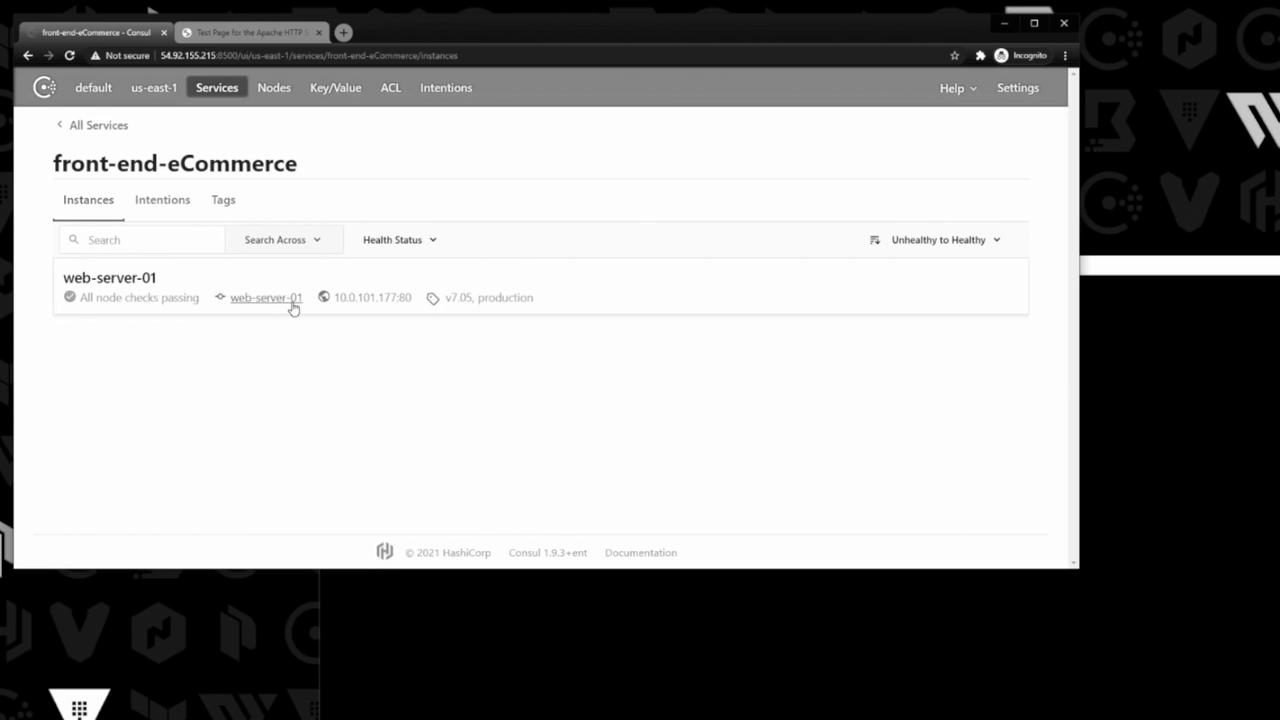
In the Consul UI, the new service appears under Services with a healthy status:
The image shows a web interface for managing services, specifically displaying details for a service named "front-end-eCommerce" with a healthy status for "web-server-01." It includes options for searching and filtering by health status.
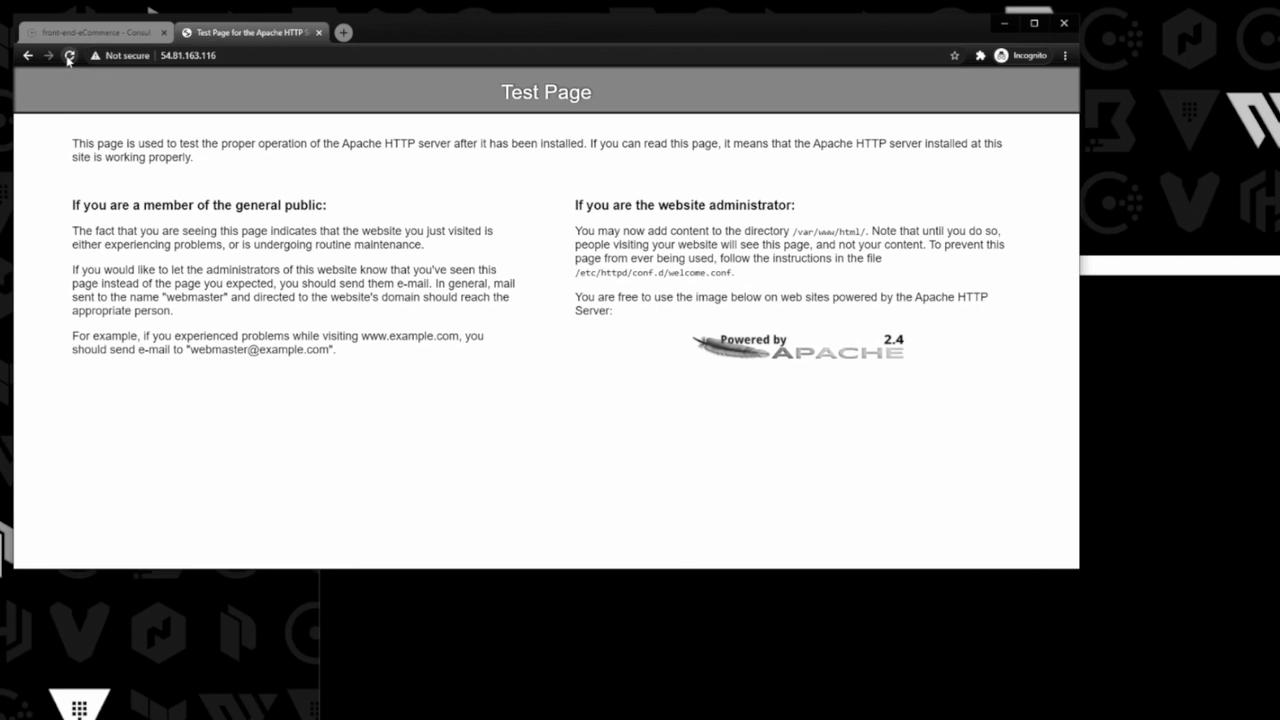
Meanwhile, Apache is serving its default test page:
The image shows a default Apache HTTP server test page, indicating the server is installed but not yet configured with content.

Testing Without a Health Check

Stop the Apache HTTP server:
[ec2-user@ip-10-0-101-177 ~]$ sudo systemctl stop httpd
Reloading the test page in your browser times out, but in Consul, the front-end-eCommerce service still shows as passing because no application-level health check is defined.
Without a defined health check, Consul cannot detect application failures. Always configure checks to get accurate health status!
Restore the default page by restarting Apache:
[ec2-user@ip-10-0-101-177 ~]$ sudo systemctl start httpd

Deregister the Service

To remove the service from Consul:
[ec2-user@ip-10-0-101-177 ~]$ consul services deregister service.json
Deregistered service: web-server-01
You can also deregister services via the Consul UI or the HTTP API by specifying the service ID.
The front-end-eCommerce entry disappears from the Consul UI.