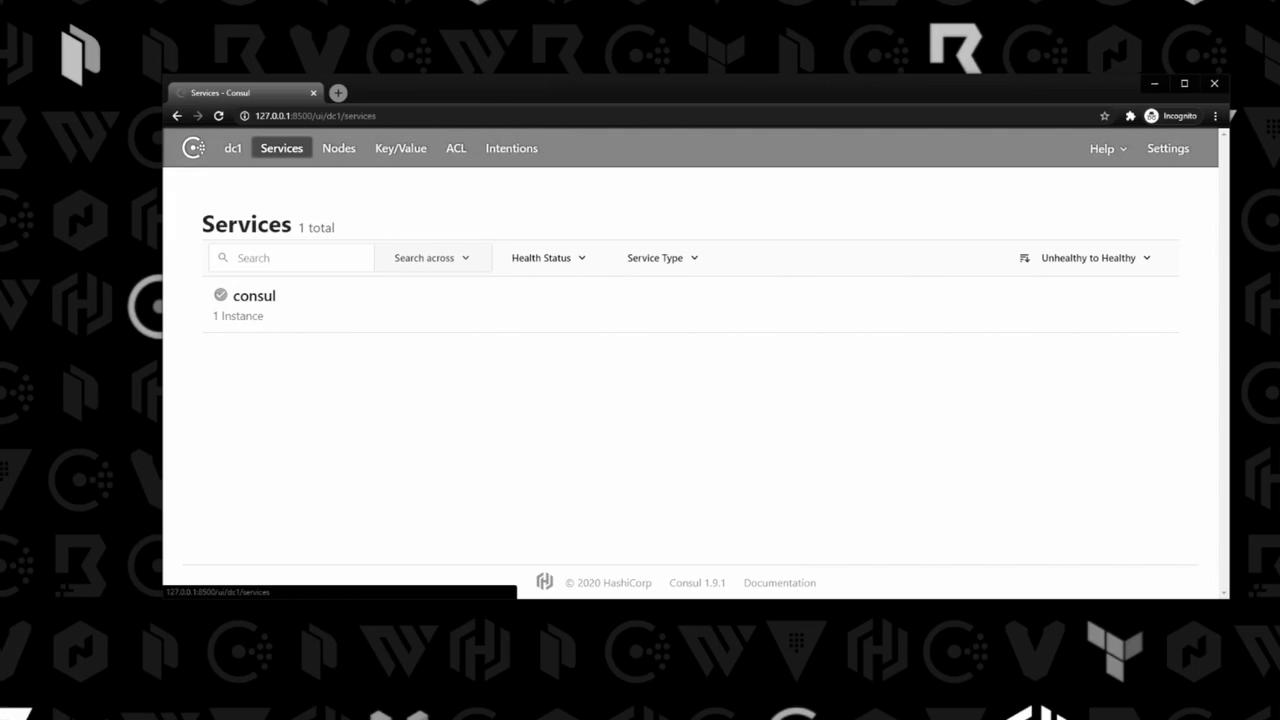
Open PowerShell (or your preferred shell) and launch the Consul agent:
Copy
Ask AI
consul agent -dev
You should see output similar to:
Copy
Ask AI
2021-02-10T16:03:43.762-0500 [INFO] agent.leader: started routine: routine="federation state anti-entropy"2021-02-10T16:03:43.763-0500 [DEBUG] agent.server: successfully established leadership: duration=19.001ms2021-02-10T16:03:43.817-0500 [INFO] agent: Synced node info2021-02-10T16:03:45.177-0500 [DEBUG] agent: Node info in sync
Open /etc/systemd/system/consul.service to inspect how Consul is managed:
Copy
Ask AI
[Unit]Description="HashiCorp Consul - A service mesh solution"Documentation=https://www.consul.io/Requires=network-online.targetAfter=network-online.targetConditionFileNotEmpty=/etc/consul.d/config.hcl[Service]Type=notifyUser=consulGroup=consulExecStart=/usr/local/bin/consul agent -config-file=/etc/consul.d/config.hclExecReload=/usr/local/bin/consul reloadKillMode=processRestart=on-failureLimitNOFILE=65536[Install]WantedBy=multi-user.target
This unit ensures Consul starts after networking is available and points to our main configuration file.
Node Address Status Type Build Protocol DC Segmentconsul-node-a 10.0.101.110:8301 alive server 1.9.3+ent 2 us-east-1 <all>consul-node-b 10.0.101.248:8301 alive server 1.9.3+ent 2 us-east-1 <all>
Node
Address
Status
Type
consul-node-a
10.0.101.110:8301
alive
server
consul-node-b
10.0.101.248:8301
alive
server
Because of the retry_join settings, both servers automatically discover each other and form a cluster.That concludes this lab. You’ve learned how to:
Run Consul in dev mode locally
Prepare EC2 instances and verify Consul installation