

title: “Using Consul Template to Monitor Changes in Consul K/V” description: “Step-by-step guide to pull dynamic configuration from Consul K/V store using Consul Template.”
In this tutorial, you’ll learn how to leverage Consul Template to dynamically fetch configuration values from a Consul K/V store and generate application configuration files automatically. This approach ensures your application configs stay in sync with the latest Consul K/V entries.1. Populate Consul K/V Store
First, add the required key-value pairs for our eCommerce application. You can verify these entries in Consul UI or via CLI.| Key | Value | Description |
|---|---|---|
| apps/eCommerce/version | 4.5 | Current application version |
| apps/eCommerce/environment | production | Deployment environment |
| apps/eCommerce/database_host | customer_db | Hostname of the customer database |
| apps/eCommerce/database | billing | Database name for billing service |
2. Download and Install Consul Template
Head over to the Consul Template releases page and copy the link for your platform.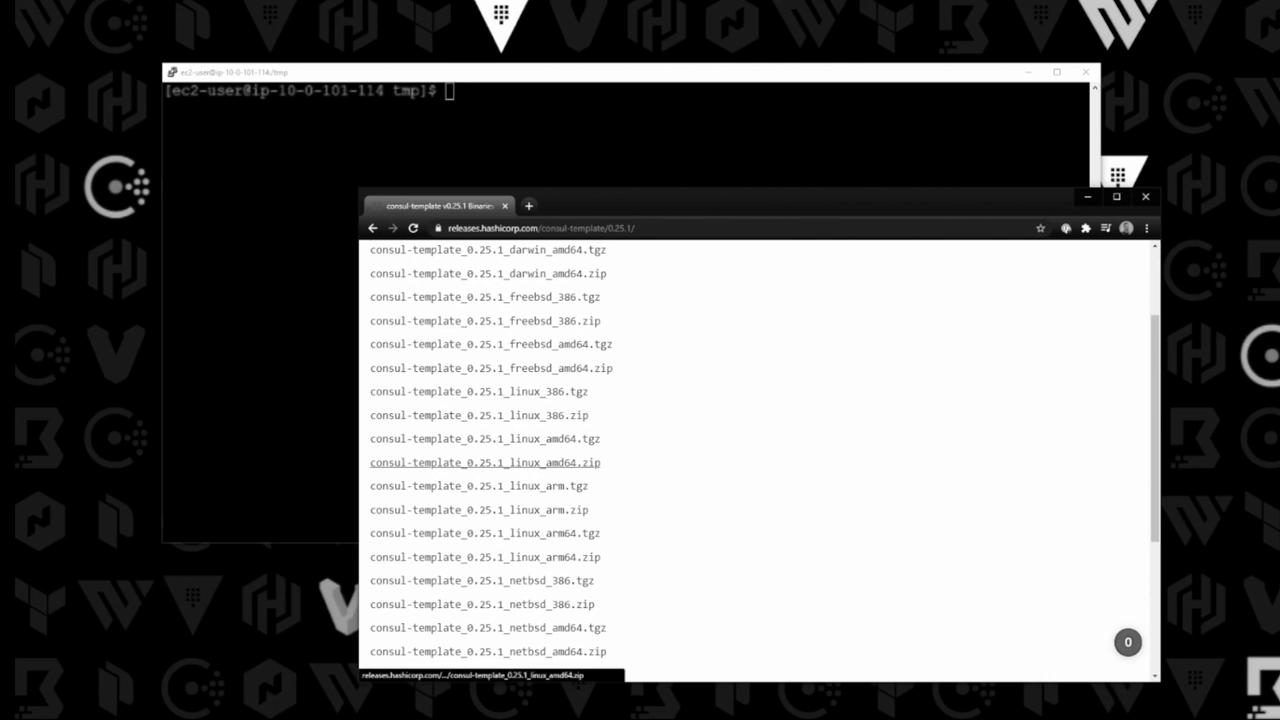
Make sure to choose the correct architecture (e.g., linux_amd64) from the release page.
3. Create a Template File
Define your template with placeholders that map to the Consul K/V keys:{{ key "..." }} snippet instructs Consul Template to fetch the corresponding value at render time.
4. Render the Template
Use the-once flag for a single render, or run without it to watch for changes:
Using
-once renders the file a single time and then exits. Remove -once to keep watching for updates.