

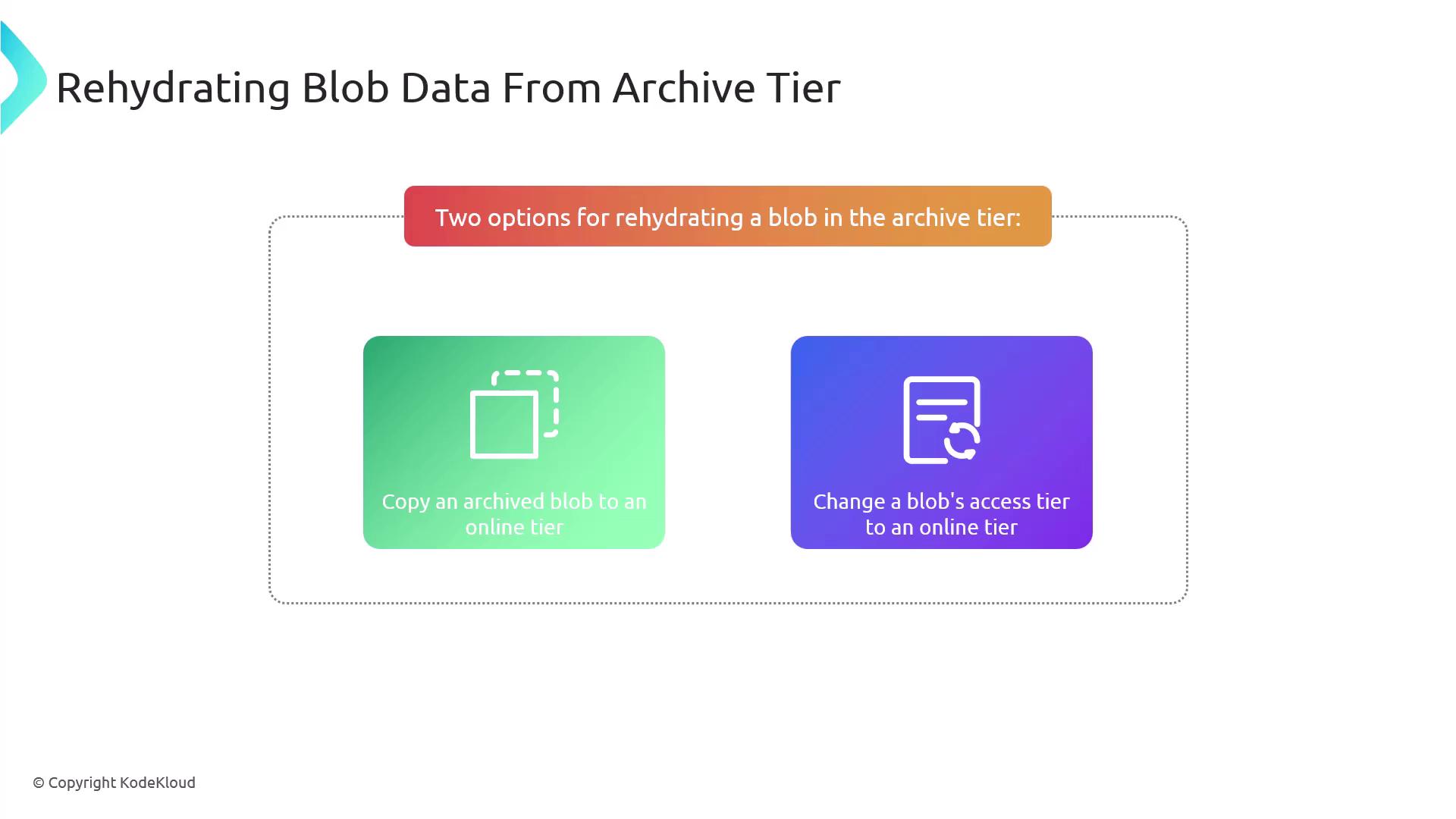
Option 1: Copying the Archived Blob to an Online Tier
In this method, the archived blob is copied into an online tier (either hot or cool) while the original archived blob remains unchanged. This approach is ideal when you require quick access to a duplicate of the data while preserving the original for future use. Microsoft recommends using this copy operation for most rehydration scenarios.Option 2: Changing the Blob’s Access Tier
Alternatively, you can change the blob’s access tier directly to move it into an online tier, such as hot or cool, by using thesetBlobTier API. With this method, the blob is entirely moved out of the archive tier. Keep in mind that rehydration through this approach may take additional time depending on the selected priority.
Rehydration Priority Options
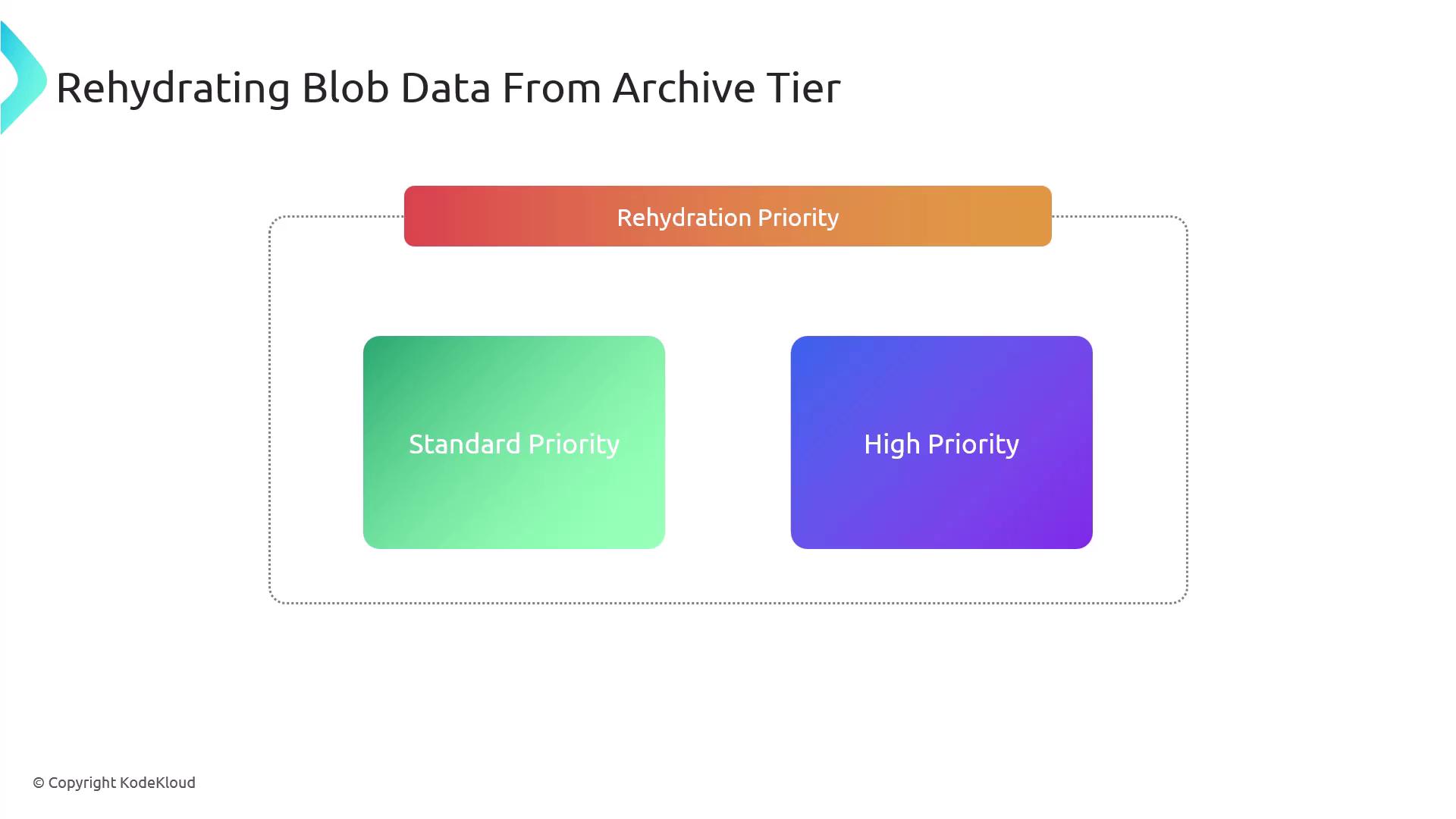
When rehydrating data, you can choose between different priority settings that affect the duration of the operation:-
Standard Priority:
This default setting typically completes the rehydration process in several hours—usually between six and 15 hours. It is best suited when there is no immediate urgency to access the data. -
High Priority:
For scenarios requiring rapid access, setting a high priority can accelerate the process, usually completing within one to five hours depending on the blob’s size. Note that opting for high priority may incur additional costs.
To specify the desired rehydration priority in your API calls, include the header
X-MS-Rehydrate-Priority with either a value of standard or high. This informs the system about your urgency, ensuring the data movement is prioritized accordingly.