This guide explains how to deploy applications to Azure App Service using manual and automated methods.
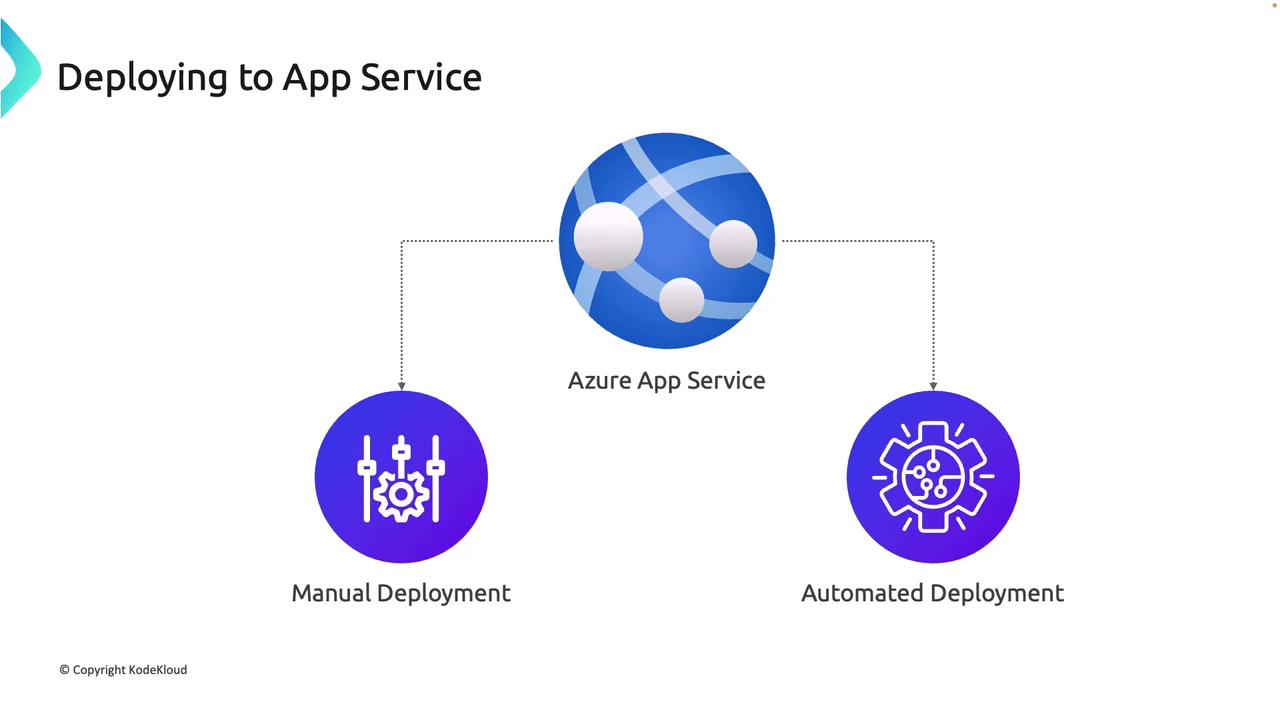
In this guide, you’ll learn how to deploy your application to Azure App Service. We cover the fundamentals, usage tiers, and the creation process via the Azure portal. Azure App Service supports two primary deployment methods—manual and automated—so you can choose the one that best fits your development workflow and desired level of control.
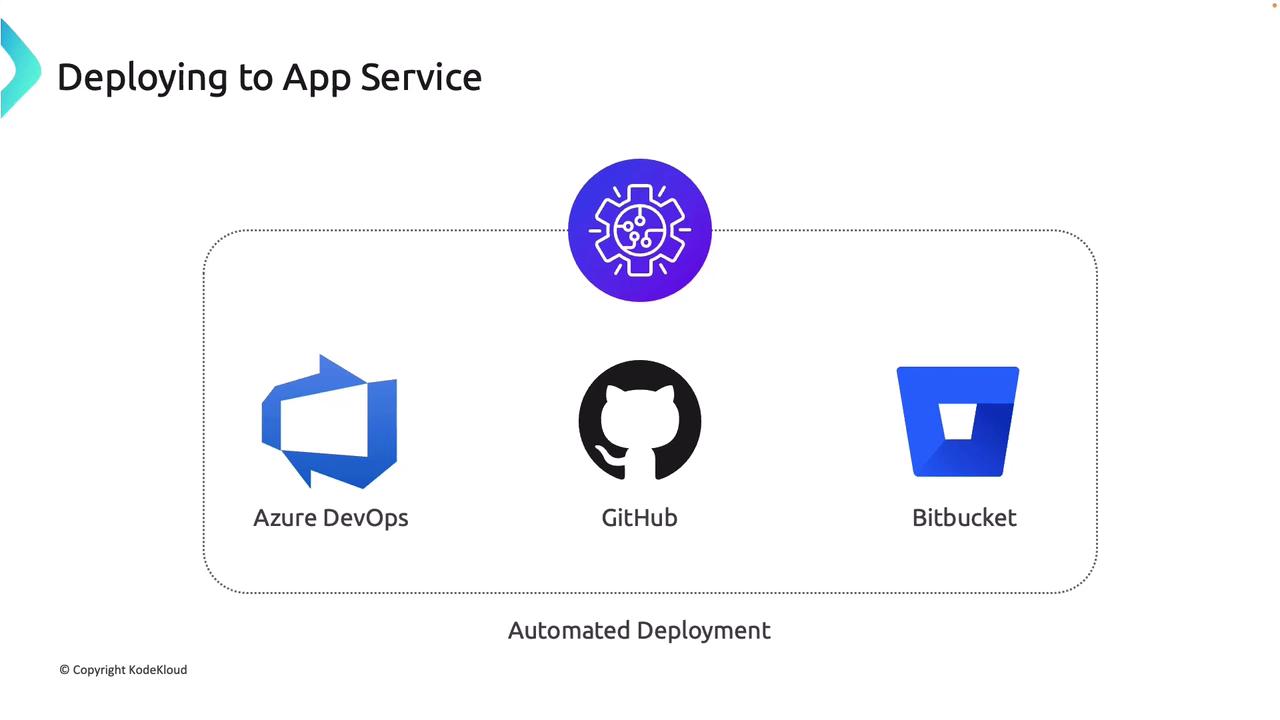
Automated deployment leverages tools such as Azure DevOps, GitHub, or Bitbucket to manage and deploy your code changes. This continuous integration and continuous deployment (CI/CD) approach streamlines the update process, minimizes manual errors, and ensures that every commit results in a consistent deployment.
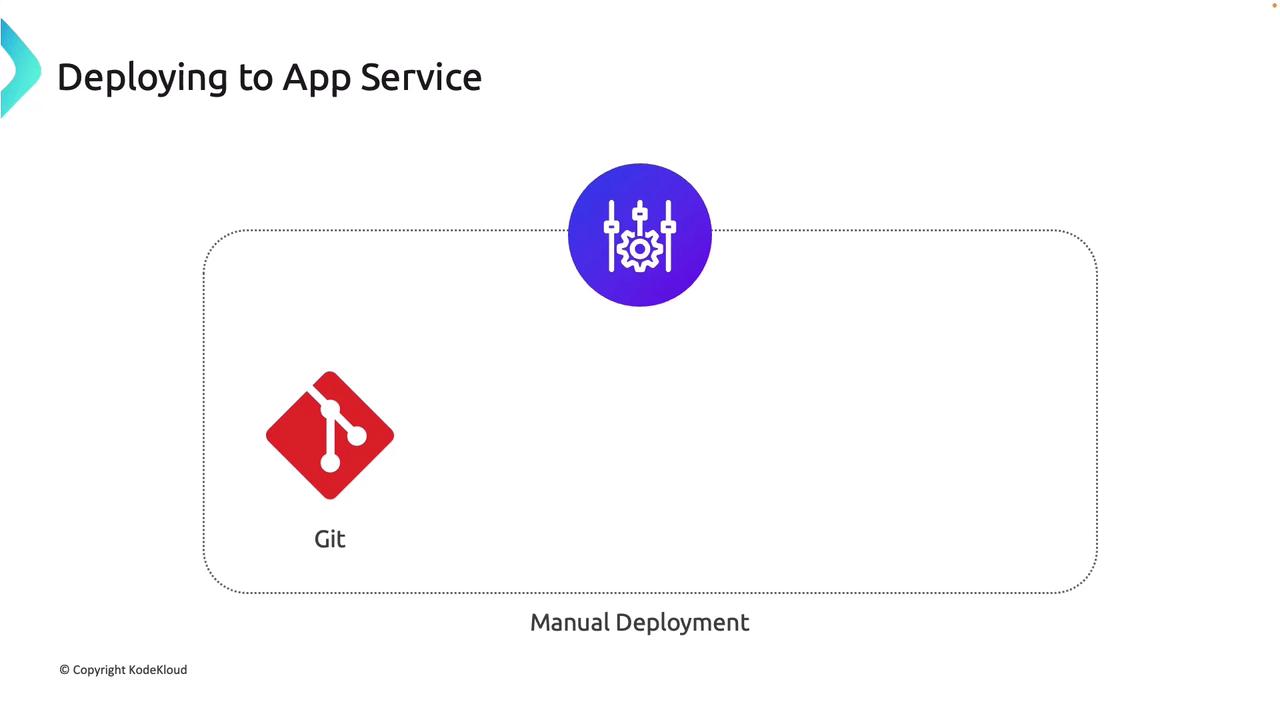
Manual deployment is ideal for initial setups or when you require granular control over the deployment process. Azure App Service provides several manual methods:
Git Deployment: Push code directly to the Azure App Service Git repository.
CLI Deployment: Deploy applications from the command line using the Azure CLI.
Zip Deploy: Package your application into a zip file and upload it.
FTP/FTPS Deployment: Directly upload your application files via FTP/FTPS.
Additional tools such as Visual Studio and Visual Studio Code (with the App Service extension) also support direct deployment to Azure.
You can download this free template online, develop your own HTML/CSS code, or use other free Bootstrap templates.Below is another version of the template with minor differences:
Deploying via VS Code with Azure App Service Extension
Before deploying via Visual Studio Code, install the Azure App Service extension, which uses Zip Deploy to package your directory into a zip file and push it to Azure.
Open your project directory in VS Code.
Launch the command palette by pressing Command+Shift+P (Mac) or Control+Shift+P (Windows).
Search for and select “Deploy to Web App.”
Choose the folder that contains your project files (HTML, CSS, JavaScript, images, etc.).
Select your Azure App Service instance.
Click “Deploy” to start the process.
During deployment, your application files are packaged and pushed to the App Service. Once deployment is complete, refresh your browser to see your updated web page.
Before deploying, ensure your project folder is free of unnecessary files to optimize the deployment package.
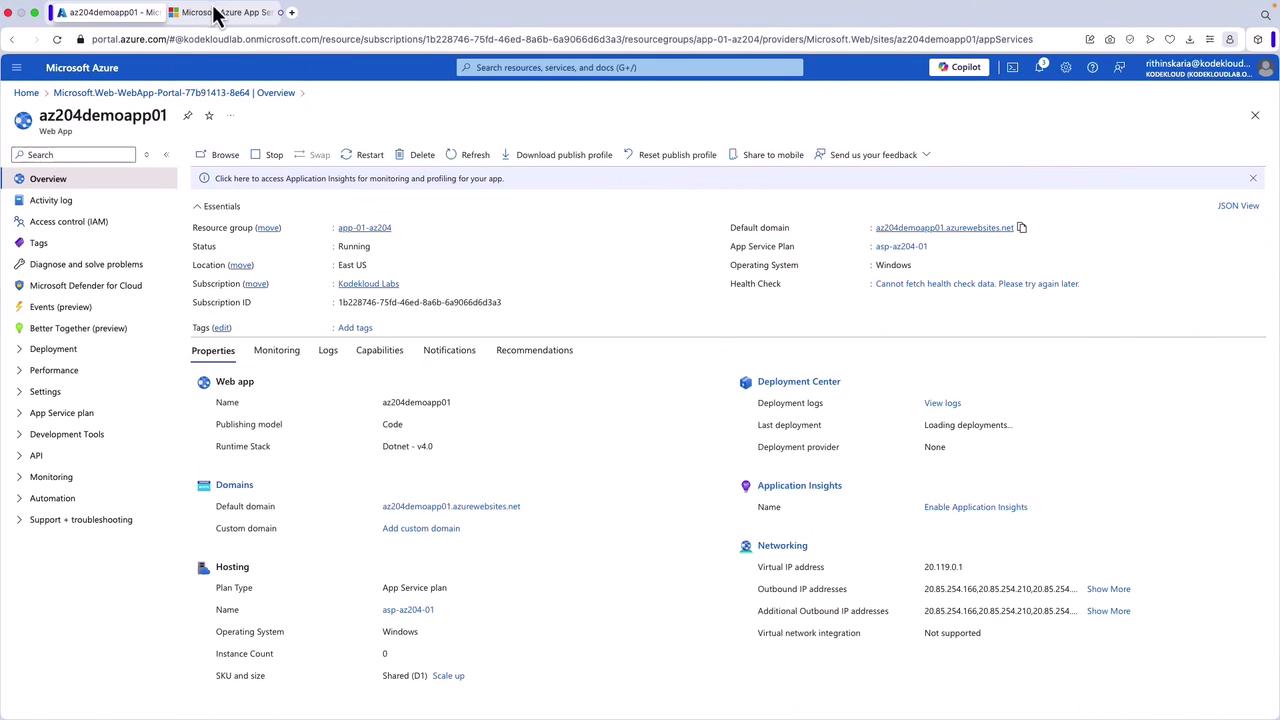
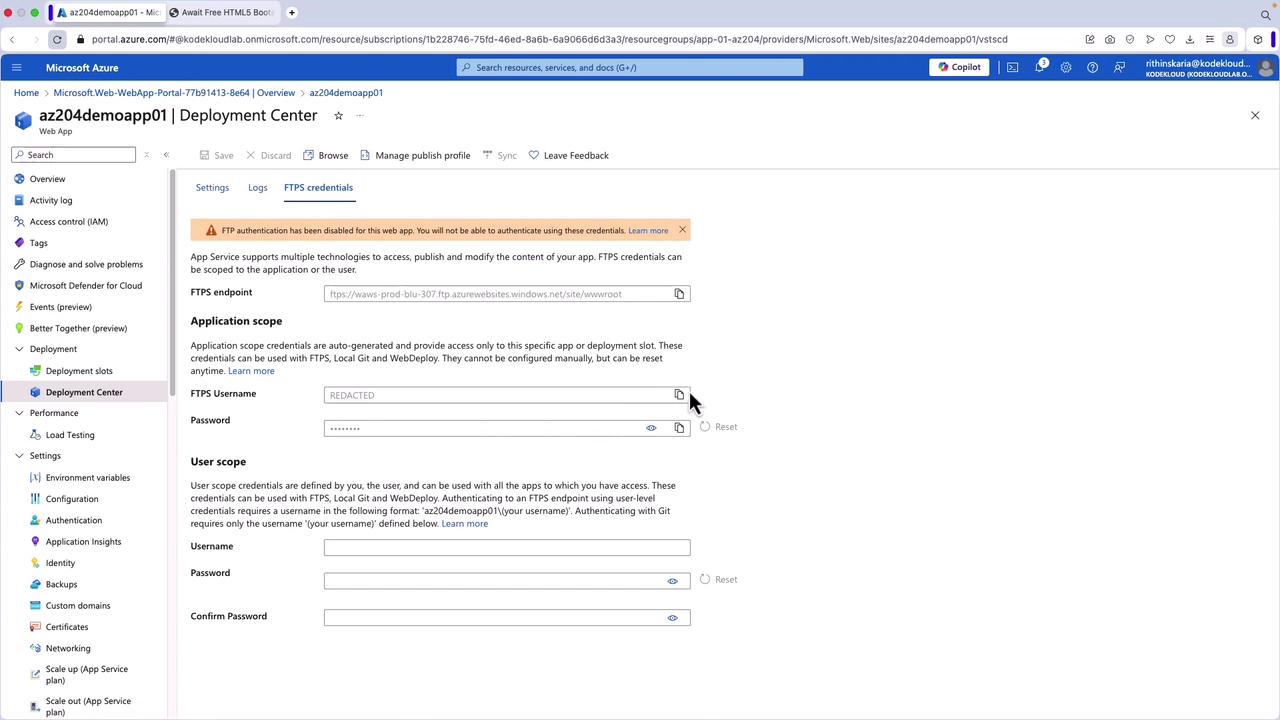
To deploy via FTP/FTPS, navigate to the Deployment Center in the Azure portal to retrieve your FTPS credentials. Use these credentials to securely upload your files. Remember to enable FTP authentication in the configuration settings.
Converting Manual Deployment to Automated Deployment with Azure DevOps
Automated deployments ensure that every change pushed to your source control is immediately deployed to Azure App Service. Follow these steps to configure automated deployment with Azure DevOps:
Initialize Your Repository in VS Code
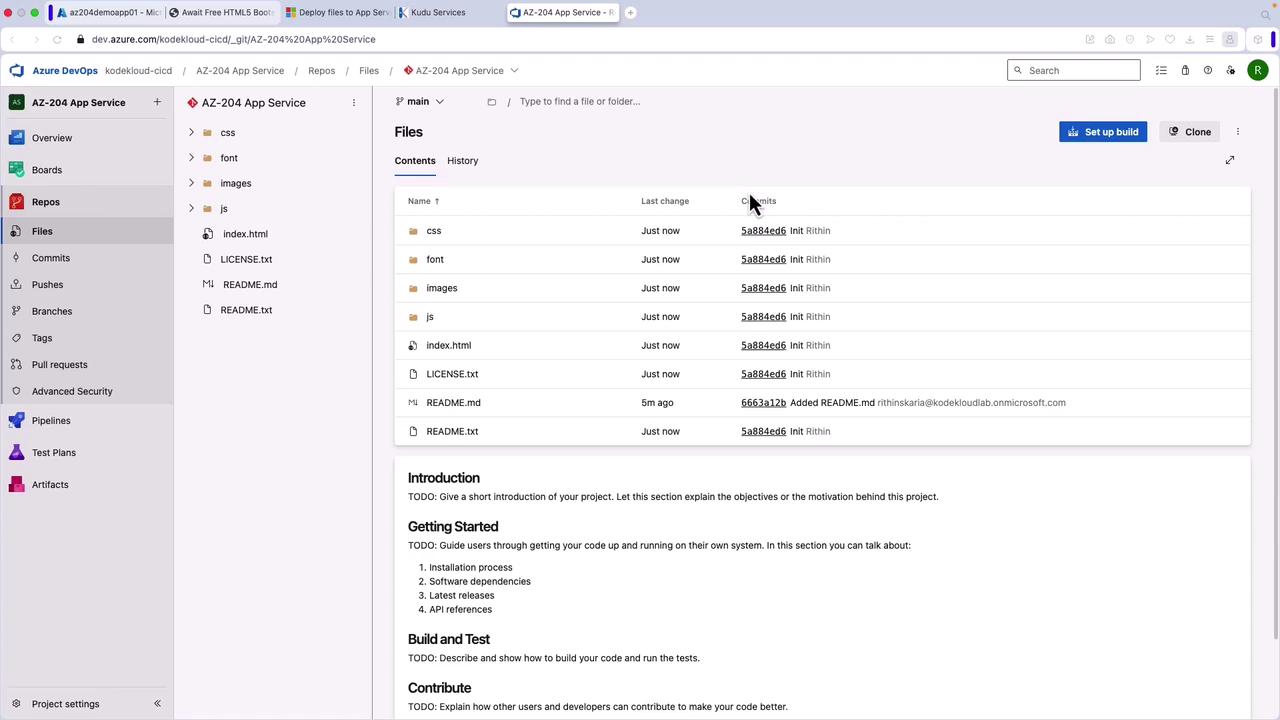
Clone your Azure DevOps repository.
Copy your local files into the repository and perform an initial commit (e.g., labeled “init”).
Below is an excerpt from your HTML file in the repository:
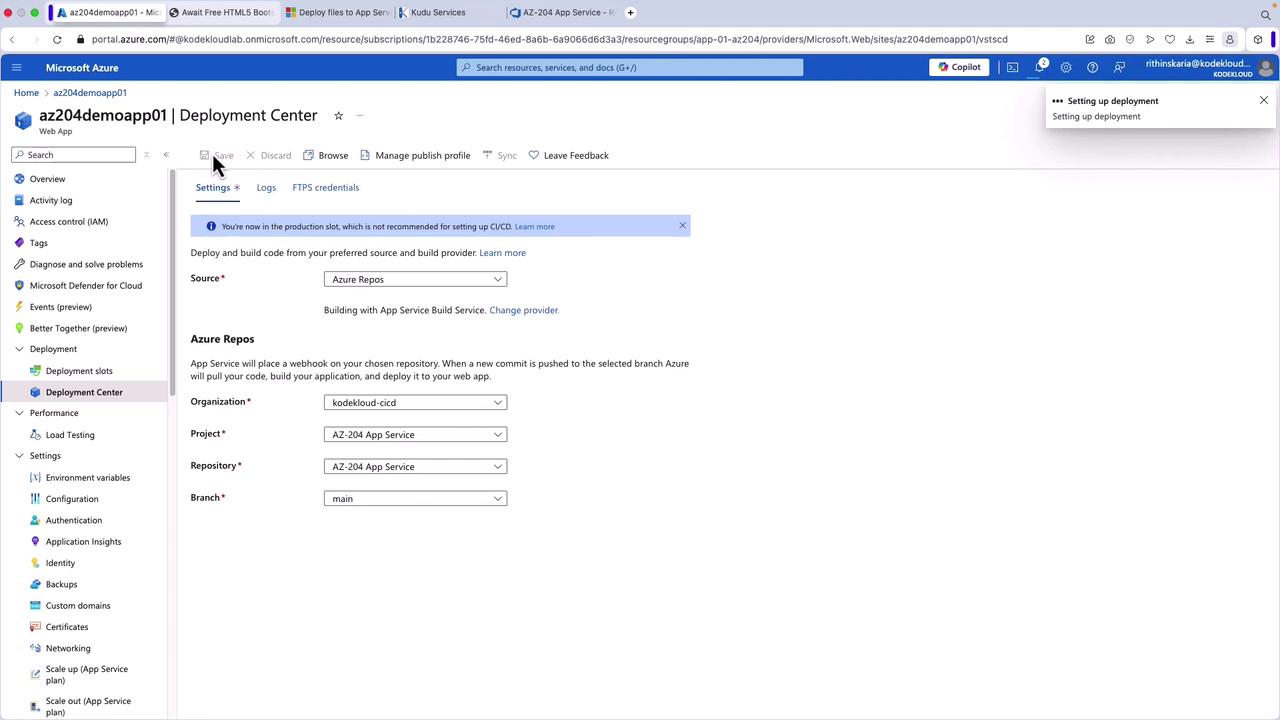
In the Azure portal, navigate to your App Service’s Deployment Center.
Select Azure Repos as your source control.
Choose the organization, project, repository, and branch (typically the main branch).
Enable the necessary settings (such as SCM basic authentication) and save. Note that this may restart your application.
Trigger Automated Deployment
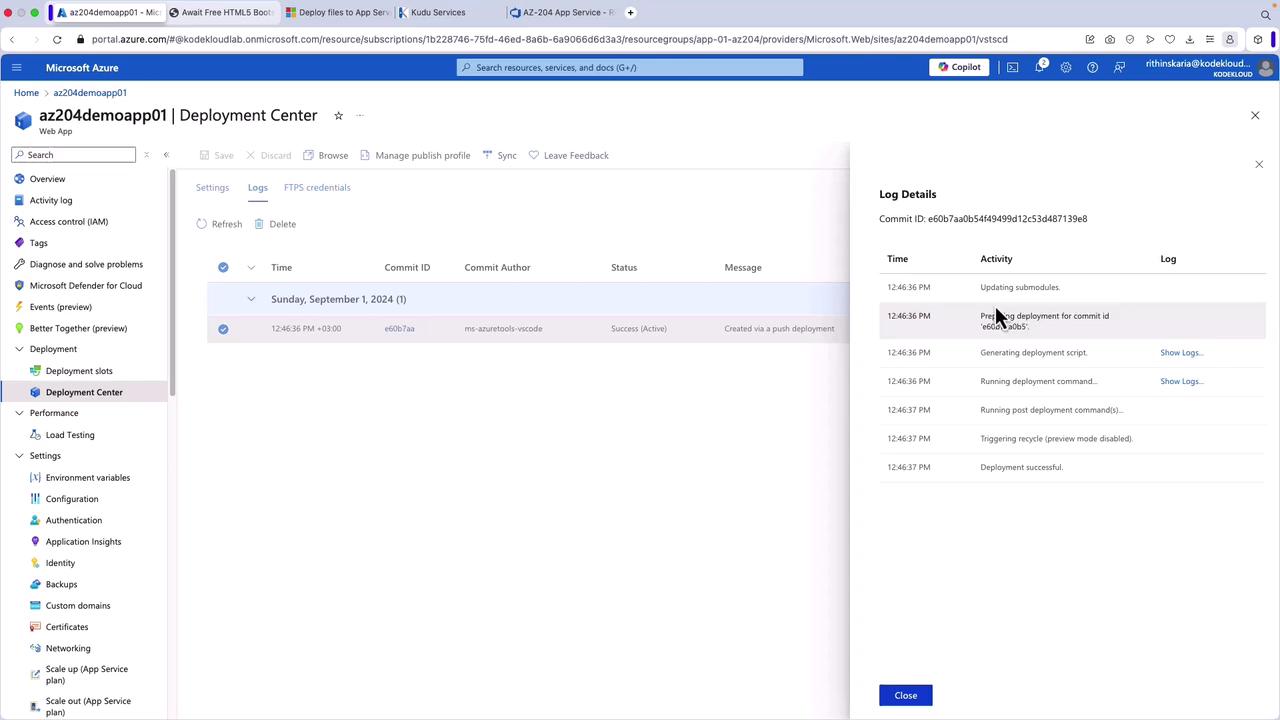
Once configured, every new commit will trigger an automated deployment. Monitor the deployment logs in the Deployment Center.
After a successful deployment, refresh the App Service overview to verify that your changes are live.
Automated deployments not only streamline the release process but also enable rapid rollback and improve quality assurance by integrating with continuous testing.
Now that you understand both manual and automated deployment methods for Azure App Service, explore the next steps to secure your applications by implementing authentication and authorization.Happy deploying!